

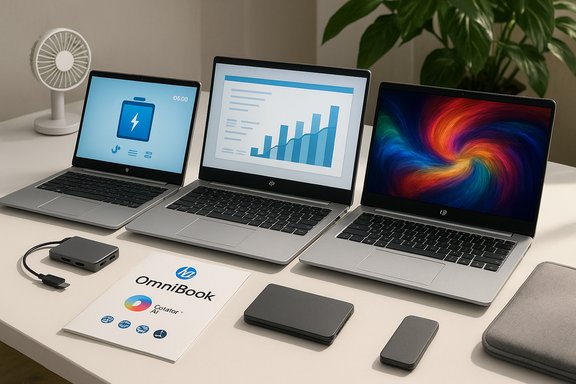
HP’s new OmniBook family is a straight‑forward reorganizing of the company’s consumer laptops into three clear tiers, and the Quick Start Guide supplied to regional audiences is a pragmatic road map for setup, migration, and everyday optimization—especially useful for users upgrading from Pavilion, Envy, or Spectre models who want to get an OmniBook running quickly and securely.
Background / Overview
HP consolidated Pavilion, Envy, and Spectre into a single consumer laptop family named OmniBook to reduce buyer confusion and to thread AI, battery endurance, and sustainability through a single product architecture. This repositioning is documented in HP’s own Tech Takes and supported by press coverage that notes HP’s decision to fold legacy consumer labels into the Omni umbrella. The refreshed lineup is organized into three headline tiers:- OmniBook 5 — value and long battery life for everyday users and students.
- OmniBook X — a balance of creative features and portability for professionals and creators.
- OmniBook Ultra — premium performance for heavy editing, local AI acceleration, and power users.
What the Quick Start Guide Says (concise summary)
The HP OmniBook Quick Start Guide provided to users bundles three practical things:- A model‑by‑use‑case selector that maps OmniBook 5, X, and Ultra to students, creators, and power users respectively.
- Step‑by‑step setup advice (region, language, Microsoft account, Windows Update, HP Support Assistant) and migration options (OneDrive, HP QuickDrop, external drives).
- Optimization and maintenance tips tailored to hot, humid climates: battery management, thermal hygiene, ventilation, and cleaning routines.
Product Tiers and Who They’re For
OmniBook 5 — Everyday value and endurance
The guide positions the OmniBook 5 as the default pick for students and home users who value battery life and portability. HP highlights ARM/Snapdragon and efficient Intel/AMD configurations in this tier, along with long lab playback numbers on certain SKUs—figures that are useful for marketing but should be treated as lab conditions, not guaranteed mixed‑use results.Practical strengths:
- Lightweight chassis and long nominal battery life.
- Affordable price points that target students and casual users.
- Good for browsing, Office, streaming, and light media editing.
OmniBook X — Creators and mobile professionals
The OmniBook X is pitched as the midrange creative machine with better displays, audio, and webcam features, plus configurable NPU/CPU combos to support Copilot+ functionality and light content creation workflows. It’s the balance choice for remote workers who need color accuracy and decent on‑device AI.Best for:
- Photo/light video editing, presentations, and frequent video calls.
- Creatives who want a superior screen without carrying a full workstation.
OmniBook Ultra — Power users and AI‑aware creatives
OmniBook Ultra SKUs are HP’s premium offering: higher core counts, larger NPUs (HP advertises NPUs with significant TOPS ceilings on some Ultra models), more RAM and SSD headroom, and convertible Ultra Flip variants for stylus-driven workflows. Use cases include heavy editing, 3D modelling, and local inference/acceleration tasks where on‑device AI matters.Important technical caveat: TOPS (trillions of operations per second) is a theoretical throughput metric. A high TOPS claim signals more hardware headroom—but software must explicitly take advantage of the NPU to see benefits.
Verifying Key Specs and Claims — what’s confirmed, and what needs caution
The Quick Start Guide includes a number of specific hardware claims (example OmniBook Ultra spec list and OmniBook 7 Aero claims). These are broadly consistent with HP’s published product pages and support documents, though exact configurations vary by SKU and region.- The OmniBook 7 Aero family (13.3" variants) is listed by HP with weights as light as ~1.0 kg (<2.2 lb) depending on the configuration and with options up to 1 TB NVMe SSD and up to LPDDR5x memory. HP’s product page and support specs confirm sub‑1 kg designs for Aero models and their battery / fast‑charge figures.
- The OmniBook Ultra specifications in the guide—examples like Intel® Core™ Ultra 5 processors, 14‑inch 3K OLED touch display, Intel® Arc™ graphics, 16 GB LPDDR5x‑8533, and 1 TB SSD—match descriptions HP has published for some Ultra SKUs, but exact clocks, GPU variants, and memory speeds are configuration‑dependent; HP’s official product builder and support pages should be used to confirm the precise SKU you intend to buy.
- On‑device AI / NPU claims: HP’s marketing materials cite on‑device NPUs and headline TOPS ceilings (HP references “up to” TOPS for premium SKUs). The guide correctly warns readers that TOPS are lab metrics and dependent on software support; independent hands‑on reviews and spec pages should be consulted to validate how much practical on‑device AI acceleration a given SKU will deliver.
- Windows 11 and the Windows 10 end‑of‑support calendar: The guide’s push to upgrade aligns with Microsoft’s support lifecycle: Windows 10 reached end of support on October 14, 2025, which makes Windows 11–ready PCs like many OmniBook SKUs the safer long‑term choice for security updates. Confirmed by Microsoft’s lifecycle announcements.
Initial Setup — practical checklist (15–30 minutes)
The Quick Start Guide’s OOBE checklist is concise and sensible. Follow these steps to get from unboxing to a secure, updated OmniBook:- Unbox and connect the charger to a surge‑protected Malaysian outlet (or your local equivalent). Power on and follow Windows OOBE.
- Choose language, region, and time zone (e.g., GMT+8 for Malaysia), connect to Wi‑Fi, and sign in with (or create) your Microsoft account.
- Run Windows Update until no updates remain, then run HP Support Assistant to fetch OEM firmware and drivers. HP’s support pages confirm Support Assistant as the primary post‑setup tool for HP drivers and diagnostics.
- Configure privacy and security: enable Windows Hello (biometric where available), confirm Windows Security is active, and consider enabling BitLocker/device encryption for sensitive data.
- Install necessary applications (Office/Microsoft 365, Teams, Zoom) and set up OneDrive folder sync for continuous backup.
Optimization Tips: battery, display, and thermal management
The Quick Start Guide emphasizes pragmatic, low‑effort ways to extend battery and protect the machine in warm climates.- Battery: use Battery Saver for long unplugged sessions, avoid leaving the device at 100% plugged in continuously, and use HP Fast Charge sparingly when you need quick top‑ups. HP documents confirm fast‑charge figures (e.g., ~50% in 30 minutes on many SKUs) but also note these are measured in controlled scenarios.
- Thermal hygiene: keep vents clear, don’t use the laptop on soft surfaces for prolonged intervals, and prefer air‑conditioned rooms for heavy workloads. For long sessions outdoors in hot climates, ARM/Snapdragon devices often run cooler under light loads; consider that when choosing between x86 and ARM SKUs.
- Display & audio: calibrate color when doing precise creative work (use a colorimeter for critical editing). Use Night Light in the evening to reduce blue light and eye strain.
On‑device AI, Copilot+, and the NPU reality check
HP boosts Copilot+ readiness and on‑device NPUs in OmniBook marketing. The Quick Start Guide and HP marketing materials highlight local AI acceleration for tasks such as transcription, camera enhancements, and low‑latency Copilot responses.Important technical clarifications the guide correctly flags:
- TOPS is a theoretical throughput metric. More TOPS may mean higher theoretical capacity, but real application gains require software that calls the NPU. The guide’s caveat here is accurate—benchmarks and hands‑on reviews are the right way to validate NPU utility for a given workflow.
- Battery and thermal tradeoffs: sustained local AI workloads can drive thermals and reduce battery life; if you plan to run heavy local inference, expect shorter runtimes versus light office work.
Security and privacy: what the OmniBook guide recommends
HP layers its own security suite (HP Wolf Security on select SKUs) on top of Windows Security; the Quick Start Guide recommends:- Enable Windows Hello for biometric unlock.
- Keep Windows Update and Windows Defender current.
- Use BitLocker or device encryption for sensitive data.
- Prefer secure Wi‑Fi and use VPNs on public networks.
Software, apps, and accessories: recommended setup
The guide recommends installing common productivity tools and HP utilities to maximize convenience:- Microsoft 365 / Office, Microsoft Teams, Zoom.
- HP Support Assistant, HP QuickDrop (for file transfers), and HP Smart (for printing).
- Cloud backups: OneDrive recommended in Windows for easy restore across devices.
- USB‑C/Thunderbolt hub for external monitors and ports.
- External NVMe SSD for large media libraries or backups.
- Surge protector or UPS in regions with unstable power.
- A quality laptop sleeve or padded bag for daily commuting.
Connectivity and peripherals
OmniBook laptops support modern connectivity options on many SKUs: Wi‑Fi 6/6E (and Wi‑Fi 7 on premium models), Bluetooth 5.x, USB‑C with DisplayPort alt mode, Thunderbolt™ 4 on some configurations, and HDMI outputs where specified. HP’s product pages and build configurators confirm these port and wireless options—verify the specs for your SKU before purchase. Practical tip: if you plan multi‑monitor setups for creative or productivity work, check whether your chosen SKU’s USB‑C/Thunderbolt port(s) support DisplayPort 1.4 or higher and the maximum external resolution/refresh rates supported.Maintenance and care for warm, humid climates
HP’s Quick Start Guide includes region‑specific maintenance recommendations that matter in tropical climates:- Avoid direct sunlight and high heat; use air‑conditioned spaces for heavy workloads.
- Keep vents and ports free of dust and use compressed air periodically.
- Use microfibre cloths and avoid liquid ingress when cleaning.
- Store in cool, dry places; consider silica gel for long‑term storage in humid regions.
Troubleshooting: common problems and fixes
The guide lists practical fixes for common issues:- Battery not charging: check charger, outlet, dust in port, and update battery drivers.
- Wi‑Fi drops: restart router, forget/rejoin network, update Wi‑Fi drivers via HP Support Assistant.
- Slow performance: close background apps, run Disk Cleanup, and ensure Windows and drivers are updated.
Buying guidance and local considerations
The guide’s practical buyer checklist: match the OmniBook tier to real needs, confirm local SKU specs (battery Wh, display panel type, memory speed, NPU claims), and check local warranty/service coverage. Stock and configuration options vary by country, so confirm the exact model code before purchase.A few buying priorities for different users:
- Students: OmniBook 7 Aero (sub‑1 kg designs) for portability and long nominal battery life. Confirm memory and storage options at purchase.
- Creatives: OmniBook X for better displays (OLED options) and audio. Validate color gamut and panel variant if color accuracy matters.
- Power users: OmniBook Ultra for higher NPU and CPU headroom, but confirm real‑world NPU benefits via reviews.
Strengths, trade‑offs, and risks — critical analysis
Strengths- Simplified product taxonomy: The OmniBook naming reduces confusion between Pavilion, Envy, and Spectre lines and maps user needs to tiers more predictably.
- Focus on battery and on‑device AI: HP is targeting the current buyer demand for long runtimes and local AI acceleration, which improves privacy and responsiveness for supported features.
- Comprehensive setup guidance: The Quick Start Guide provides a clear migration path, security steps, and region‑specific maintenance tips tailored to tropical climates.
- Lab vs real‑world claims: “Up to” battery hours and TOPS figures are useful headliners but require independent validation under your workload; expect mixed‑use runtimes to be materially lower.
- ARM compatibility caveat: Some OmniBook 5/7 SKUs are Snapdragon/ARM based; while Windows on ARM has matured, niche or legacy applications may not run identically—choose x86 (Intel/AMD) SKUs if app compatibility is critical.
- NPU practicality: High TOPS numbers don’t automatically translate to faster productivity unless software is optimized to use the NPU; check hands‑on reviews and software vendor support for Copilot+ features.
- Whenever an OEM advertises a specific NPU TOPS figure (for example, “upper tens of TOPS” on some Ultra SKUs), treat that as a hardware ceiling rather than a guaranteed application speedup. The Quick Start Guide itself flags TOPS as a theoretical metric; independent benchmarks and software vendor statements are needed to translate TOPS into user benefits.
Final recommendations and next steps
- Verify the exact model code and configuration before purchase: battery Wh, display panel, NPU size, RAM speed, and storage are SKU‑specific.
- Run OOBE, update Windows fully, and then run HP Support Assistant to install the latest firmware and drivers.
- If you rely on specific professional apps, test them on the target SKU (or choose an x86 SKU) to avoid surprises with ARM compatibility or NPU requirements.
- Follow the Quick Start Guide’s maintenance tips for humid climates—clean vents, avoid direct heat, and use surge protectors where appropriate.
- Treat NPU/TOPS claims as marketing ceilings until supported by independent, real‑world software tests and reviews.
HP’s OmniBook Quick Start Guide is a user‑friendly, regionally aware manual that translates HP’s marketing into practical setup, security, and maintenance steps. It correctly emphasizes that the buyer’s job is to match the OmniBook tier to real workloads, verify the precise SKU, and apply sensible care in warm, humid climates. Where the guide is cautious—on TOPS, lab battery claims, and ARM compatibility—that caution should be heeded by prospective buyers: check HP’s spec pages and independent reviews for the specific configuration you plan to buy, and use HP Support Assistant after the initial setup to keep firmware and drivers current.
The OmniBook family’s simplified naming, combined with HP’s emphasis on Copilot+ readiness and local AI, makes the line easy to understand at a glance. The Quick Start Guide delivers a practical, stepwise path to get an OmniBook ready for work or study—provided buyers validate SKU specifics and account for the real‑world tradeoffs of battery life, thermal constraints, and software compatibility.
Conclusion: HP’s OmniBook lineup and its Quick Start Guide put sensible defaults and clear user guidance at the center of the purchase and onboarding experience, but the usual buyer diligence—confirm exact specs, test app compatibility, and validate independent tests—remains essential to ensure your OmniBook delivers the real‑world performance you expect.
Source: HP HP OmniBook Quick Start Guide: Setup & Tips
