

If you need iTunes on a Windows 11 PC, the installation is straightforward — whether you prefer the Microsoft Store’s seamless delivery, Apple’s standalone installer, or a single-command install with Winget — and this guide walks you through each method, what to expect afterward, and how to fix the common hiccups that still trip up many users.
iTunes remains the default Windows bridge to Apple’s media ecosystem: it manages local music libraries, provides access to purchases from the iTunes Store, and is the primary tool for device syncing, backups, and restores for many Windows-based iPhone and iPad users. Microsoft Store installs give automatic updates and simplified installation, while Apple’s own installer and the Windows Package Manager (winget) serve users who prefer manual control or automation. The choice you make affects updates, driver installation, and troubleshooting approaches, so it’s worth understanding all three paths before you begin.
Whether you want a one‑click Store install or a scripted Winget deployment, these steps and tactics will get iTunes working on Windows 11 and keep your Apple devices communicating smoothly with your PC.
Source: MSPoweruser How To Install ITunes On Windows 11: A Step-by-Step Guide
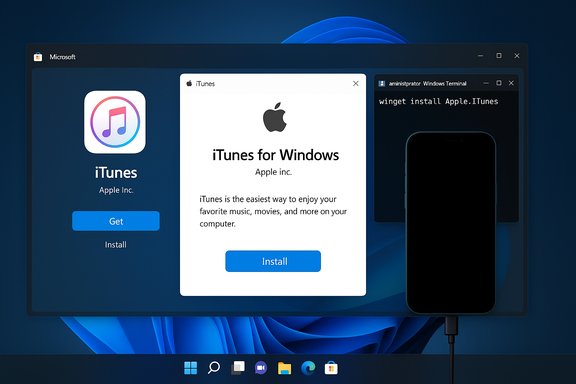 Overview
iTunes remains the default Windows bridge to Apple’s media ecosystem: it manages local music libraries, provides access to purchases from the iTunes Store, and is the primary tool for device syncing, backups, and restores for many Windows-based iPhone and iPad users. Microsoft Store installs give automatic updates and simplified installation, while Apple’s own installer and the Windows Package Manager (winget) serve users who prefer manual control or automation. The choice you make affects updates, driver installation, and troubleshooting approaches, so it’s worth understanding all three paths before you begin.Background: Why iTunes still matters on Windows 11
Although Apple has split iTunes functionality into separate apps on macOS, Windows users still rely on iTunes for several tasks that aren’t fully replicated elsewhere:- Syncing and restoring iPhones, iPads, and iPods.
- Accessing purchased movies, TV shows, and older iTunes Store content.
- Managing local media libraries with deep import/organizing features.
- Installing Apple device drivers that enable Windows to recognize iOS hardware.
Before you start: pre-install checklist
Take these quick steps to reduce friction during installation:- Update Windows 11 to the latest cumulative/security updates via Settings → Windows Update. Many installation issues stem from missing platform updates.
- Close other apps and temporarily disable heavy antivirus if you suspect it’s blocking installers.
- Use an administrator account for installation or plan to right‑click → Run as administrator if you encounter permissions errors.
- Decide your source: Microsoft Store (recommended for auto‑updates), Apple’s website (manual control), or Winget (automation / scripting). Each path has tradeoffs; read the short comparison below before choosing.
Which install method should you choose?
- Microsoft Store — Best for most users. Automatic updates, sandboxed delivery, and fewer manual steps. Recommended if you want the simplest path.
- Apple (download .exe) — Best for manual control or offline install. Useful if you prefer a traditional installer or must manage versions manually.
- Winget (Windows Package Manager) — Best for power users and sysadmins. One command installs the app and is scriptable for mass deployments.
Step‑by‑step: Installing iTunes from the Microsoft Store (recommended)
- Open the Microsoft Store (press Windows, type Microsoft Store).
- Search for iTunes in the Store search box.
- Click the iTunes entry and then Get or Install. The Store handles download and installation automatically.
- When installation finishes, click Open or launch iTunes from the Start menu.
- Sign in with your Apple ID to access purchases, or skip sign‑in to use local library features.
Step‑by‑step: Installing iTunes from Apple’s website (manual installer)
- Open your browser and go to Apple’s iTunes download page (search “Download iTunes for Windows” if needed).
- Download the appropriate installer — 64‑bit is standard for modern Windows 11 PCs. The file will typically be named similarly to iTunesSetup.exe or iTunes64Setup.exe. Note: exact filename and size change with releases.
- Locate the downloaded installer (usually in your Downloads folder). Right‑click and choose Run as administrator if you want to prevent permission issues.
- Follow the on‑screen prompts, accept the license agreement, choose installation options (default is fine for most users), and click Install.
- After installation completes, click Finish and launch iTunes from the Start menu.
Step‑by‑step: Installing iTunes with Winget (command‑line)
Winget is built into recent Windows 11 builds and is ideal for automation:- Open Windows Terminal or PowerShell as administrator (Windows + X → Windows Terminal (Admin).
- Confirm winget is available:
winget --version - Search winget for iTunes:
winget search iTunes
Look for a package like Apple.iTunes in the list. - Install with one command:
winget install Apple.iTunes - When installation completes, run iTunes from the Start menu.
First run: simple post‑install setup
After installing, complete these routine tasks:- Launch iTunes. If prompted, accept the license agreement.
- Sign in with your Apple ID to access purchase history and your Apple Music subscription. Two‑factor authentication may trigger a verification request on another Apple device.
- Authorize this computer if you want to play purchases: Account → Authorizations → Authorize This Computer — Apple allows up to five authorized computers per Apple ID.
- Import any local music: File → Add Folder to Library (or File → Add File to Library) to populate iTunes with your existing files.
Troubleshooting: common issues and fixes
Even with a smooth install, Windows + Apple interoperability can produce hiccups. Here are proven steps for common problems.iTunes won’t install or errors during install
- Run the installer as administrator. Right‑click the installer → Run as administrator. This often resolves permission or file‑write errors.
- Make sure Windows 11 is up to date. Some installation failures are caused by missing platform updates.
- If the Microsoft Store installation fails, try the Apple website installer, or vice versa. One channel may succeed where the other fails.
iTunes opens but doesn’t detect your iPhone/iPad
- Confirm Apple Mobile Device Support (AMDS) is installed (it’s included with iTunes). If missing or corrupted, uninstall iTunes and all Apple components, reboot, then reinstall from Apple’s site or the Store.
- Try a different USB cable and port; use a direct USB port (avoid hubs) and unlock the device and tap Trust This Computer on the iPhone/iPad screen.
- In Device Manager, look for the device under Portable Devices or Universal Serial Bus controllers and update the driver or uninstall/reinstall the device entry. Restart the PC afterward.
iTunes crashes or AMPDevicesAgent.exe errors after a Windows update
- Some Windows feature updates have caused Apple device agent crashes (AMPDevicesAgent.exe) because of changes in Windows security/memory handling. A full uninstall of Apple Mobile Device Support + iTunes and a fresh reinstall has resolved the issue for many users; if the problem persists, rolling back the Windows update briefly to complete a restore on Apple support guidance may be necessary. Use these steps cautiously and only where warranted.
Winget command not found
- Winget may not be available on older builds. Update Windows 11 or install the App Installer package from the Microsoft Store to restore winget functionality. Also ensure PowerShell/Terminal is run as administrator when performing system installs.
Advanced: clean uninstall and reinstall (if iTunes is damaged)
When iTunes misbehaves, a clean uninstall of all Apple components is often the only reliable fix:- Uninstall iTunes from Settings → Apps → Apps & features.
- Uninstall the following (order can matter):
- iTunes
- Apple Software Update
- Apple Mobile Device Support
- Bonjour
- Apple Application Support (32‑bit and 64‑bit)
- Reboot the PC.
- Reinstall iTunes from your chosen source (Store, Apple website, or winget).
iTunes vs the Apple Music app on Windows: which to pick?
- iTunes (legacy Windows app)
- Full iTunes Store access for purchases.
- Robust media management and device syncing (still necessary for many restore/backup tasks).
- Heavier in resource use for large libraries.
- Apple Music (Windows app / PWAs and streaming clients)
- Focused on streaming via Apple Music subscription.
- Lighter, optimized for streaming and library management tied to Apple ID.
- Limited device syncing and less comprehensive iTunes Store access.
Security and privacy considerations
- Sandboxed Store installs are preferable from a security posture because they reduce the chance of installer‑time tampering and integrate with Microsoft’s Store update pipeline.
- Apple components install drivers and background services (Apple Mobile Device Support, Bonjour). These are legitimate and required, but users should be cautious about allowing unsigned or third‑party modified Apple installers. When in doubt, use official Apple or Microsoft Store channels.
- If you use iTunes extensively with sensitive devices, ensure Windows is fully updated and maintain good antivirus hygiene; Apple‑Windows interoperability issues are often amplified on out‑of‑date systems.
Practical tips and tradeoffs
- For the simplest maintenance, use the Microsoft Store version so updates happen automatically.
- If you manage multiple machines and want exact versions, use the Apple installer and retain the executable for redeployment.
- For scripted installs or enterprise imaging, winget is the cleanest option — but confirm package IDs and winget repository state before deployment.
- If you encounter a device restore problem after a Windows feature update, check for known bugs involving Apple’s device agent (AMPDevicesAgent.exe) and consider a clean reinstall of Apple drivers — community reports highlight these as repeatable issues after major Windows updates.
When to escalate: support and final notes
If none of the above resolves your issue:- Contact Apple Support for device restore and iTunes device driver issues.
- Use Windows support for driver-level USB or OS update rollback assistance.
- For enterprise environments, coordinate with your vendor management and test iTunes upgrades in a pilot ring before mass deployment to avoid unexpected compatibility hits.
Conclusion
Installing iTunes on Windows 11 is a routine task for most users: the Microsoft Store gives the simplest, most maintenance‑free path; Apple’s website gives manual control; and winget provides a powerful, scriptable option for power users and administrators. The recurring pain points are rarely about the basic install steps and more often about Apple device drivers and interactions after Windows platform updates. Keep Windows updated, prefer Store installs unless you need a specific installer, and use the clean‑uninstall → reinstall cycle to repair corrupted Apple components. When problems persist, targeted troubleshooting of Apple Mobile Device Support and AMPDevicesAgent.exe is the most effective route.Whether you want a one‑click Store install or a scripted Winget deployment, these steps and tactics will get iTunes working on Windows 11 and keep your Apple devices communicating smoothly with your PC.
Source: MSPoweruser How To Install ITunes On Windows 11: A Step-by-Step Guide
