

If you want to install Windows 11 on older hardware without first buying a new PC, the quickest, most reliable community method today is to build a Rufus USB installer that relaxes Windows 11’s setup checks — it automates the same unattended and registry tricks enthusiasts have used for years and wraps them in a friendly UI so you can bypass TPM 2.0, Secure Boot, and Microsoft account enforcement when necessary.
Windows 11 introduced stricter hardware requirements than Windows 10 — most notably TPM 2.0, Secure Boot, and newer CPU instruction requirements (SSE4.2 / POPCNT for recent feature updates). Microsoft’s official position is unchanged: devices that don’t meet the minimum requirements are not guaranteed to receive updates and aren’t considered supported. That warning is visible when attempting unsupported installs and is reiterated in Microsoft community guidance and mainstream reporting. Rufus, the long‑standing open‑source utility for creating bootable USB drives, added a set of features (starting with the v4.6 release) that make these bypasses simple and repeatable. The tool can:
Mechanically Rufus accomplishes this by:
In short: Rufus gives you the technical ability to bring Windows 11 to many unsupported machines easily, but you must accept the operational and security responsibilities that come with an unsupported installation. Plan backups, test recovery, and make the choice that matches the role the device plays in your life or organization.
Source: How-To Geek This Is The Easiest Way to Install Windows 11 On Any Unsupported PC
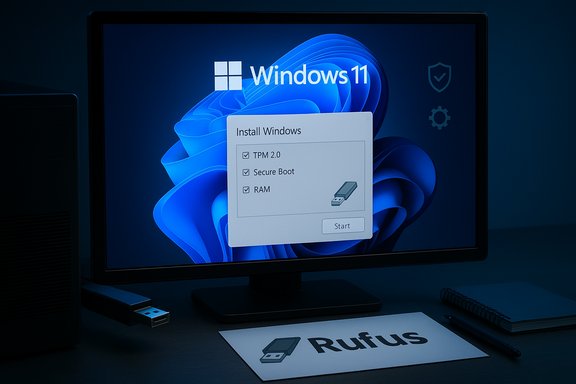 Overview
Windows 11 introduced stricter hardware requirements than Windows 10 — most notably TPM 2.0, Secure Boot, and newer CPU instruction requirements (SSE4.2 / POPCNT for recent feature updates). Microsoft’s official position is unchanged: devices that don’t meet the minimum requirements are not guaranteed to receive updates and aren’t considered supported. That warning is visible when attempting unsupported installs and is reiterated in Microsoft community guidance and mainstream reporting. Rufus, the long‑standing open‑source utility for creating bootable USB drives, added a set of features (starting with the v4.6 release) that make these bypasses simple and repeatable. The tool can:- Download or use an official Windows 11 ISO.
- Create a bootable USB from that ISO.
- Present checkboxes to remove the TPM 2.0, Secure Boot, and minimum RAM checks.
- Optionally remove forced Microsoft account setup and tweak OOBE/telemetry behavior.
- Inject a small setup wrapper and/or an unattended answer file (autounattend.xml) so the installer proceeds on hardware that would otherwise stop the upgrade.
Background: why Microsoft tightened Windows 11 requirements
Microsoft tightened the Windows 11 hardware baseline to achieve a higher, more consistent platform security posture and better UX across modern devices. The key additions that trip older computers are:- TPM 2.0 — provides hardware‑rooted cryptographic services (key storage, device attestation) essential for features like BitLocker and some Windows Hello flows.
- Secure Boot — ensures the boot chain loads only signed, trusted code, protecting against certain boot‑level malware.
- Processor instruction support (SSE4.2 / POPCNT and other checks) — newer Windows releases require certain CPU features for performance and compatibility.
What Rufus actually does (technical summary)
Rufus does not ship or alter Windows itself. Instead, it automates safe, reversible edits to the installation flow so the official Windows 11 installer will continue when it would usually abort.Mechanically Rufus accomplishes this by:
- Creating a standard bootable USB from an official Microsoft ISO (or downloading the ISO for you).
- Offering a Windows User Experience dialog (WUE) during image build time with checkboxes for bypassing checks like TPM, Secure Boot, and the 4 GB RAM requirement.
- Embedding an unattended answer file or a small setup wrapper (added in Rufus v4.6) that neutralizes the early “appraiser” checks the installer performs before proceeding. This leverages the same Windows unattended setup mechanisms Microsoft documents (autounattend.xml / Unattend files are an official way to automate Windows Setup).
What you need before you start
- A working Windows PC to build the USB installer (can be your Windows 10 machine).
- A USB flash drive (8–16 GB recommended; Rufus will reformat it).
- The latest Rufus executable (portable copy is fine) — use the official source/GitHub release page.
- An official Windows 11 ISO (Rufus can also download it directly for you).
- A full backup of any machine you plan to upgrade (image + file backup).
- Time and patience to troubleshoot drivers or roll back if needed.
Step‑by‑step: using Rufus to install Windows 11 on an unsupported PC
Below is a concise, reliable sequence based on community‑tested steps (dialog labels may vary with Rufus releases; follow prompts).- Download Rufus (official release) and the Windows 11 ISO, or let Rufus download the ISO for you.
- Insert the USB drive and launch Rufus as Administrator. Select the USB under Device.
- Click Select and choose the Windows 11 ISO (or use the small arrow to run Rufus’ ISO downloader if you prefer Rufus to fetch it).
- Keep Image option at “Standard Windows installation.” Click Start. When the Windows User Experience (WUE) dialog appears, tick the boxes you need:
- Remove TPM 2.0 requirement
- Remove Secure Boot requirement
- Remove minimum RAM requirement
- (Optional) Remove requirement for online Microsoft account / tweak OOBE and data collection
- Let Rufus build the USB. It will format the drive and copy files; wait for completion.
- To perform an in‑place upgrade (keep apps, files, settings): insert the USB into the running Windows 10 PC, open the USB in File Explorer, and run Setup.exe. If doing a clean install: boot the target PC from the USB (use BIOS/UEFI boot menu) and follow setup.
- During in‑place upgrades, if Setup shows a “Change how setup downloads updates” prompt and stalls, select “Not right now” as community reports indicate this often unblocks the installer.
Why this is “not a hack” — and why it still carries risk
Rufus uses legitimate Windows mechanisms (the unattended setup framework and installer wrappers). The same autounattend/unattend techniques are used by IT professionals for automated deployment and are documented by Microsoft. That’s why Rufus’ approach is transparent and auditable: Rufus is open‑source, and the code + changelog show the wrapper and options it added. However, two important caveats:- Supported updates are not guaranteed. Microsoft clearly states devices that do not meet Windows 11 minimum system requirements are not guaranteed to receive updates — including important security updates — and installing Windows 11 on unsupported hardware is done at your own risk. In practice, Microsoft has both allowed such installs and in other cases removed certain bypass routes; update delivery behavior can change. Treat update entitlement as uncertain.
- Security and feature limitations: Without TPM 2.0 and Secure Boot you lose hardware‑rooted protections (e.g., BitLocker hardware key protection, some Windows Hello improvements) and may see problems with apps or games that check for those features. Over time, more software will rely on modern hardware primitives; running without them will increasingly limit capability and security.
Practical risks and mitigations
- Risk: No future feature or security updates (risk of vulnerability).
Mitigation: Use Extended Security Updates (ESU) if eligible (Windows 10 ESU details vary by region), isolate the machine on a restricted network, or plan to migrate hardware for production devices. - Risk: Missing security features (BitLocker key protection, Windows Hello hardware attestation).
Mitigation: Use software encryption where appropriate, strengthen endpoint protections, and avoid storing sensitive data on unsupported machines. - Risk: Driver or stability issues (older vendors may not provide Windows 11 drivers).
Mitigation: Check OEM driver pages before upgrading, update BIOS/UEFI where possible, and create a full system image before the operation. - Risk: Microsoft patches the bypass and breaks the method.
Mitigation: Keep offline copies of the working ISO and Rufus version you used. Consider maintaining an image that can be redeployed. Flag speculative claims as such: it is impossible to guarantee any community bypass will remain functional after future Windows updates.
Alternatives to the Rufus method
- Registry in‑place workaround (AllowUpgradesWithUnsupportedTPMOrCPU and other LabConfig keys): a manual in‑Windows registry edit that permits setup.exe to continue for some cases. Less convenient than Rufus and fragile across builds.
- Server‑variant “setupprep.exe /product server” trick and community GUI tools (Flyby11 / Flyoobe): these methods use server install paths to avoid some client checks. They can work well but are more brittle and rely on lower‑level installer behavior that Microsoft sometimes patches. Use only if you understand rollback and recovery.
- Stay on Windows 10 with Extended Security Updates (ESU): Microsoft is offering consumer ESU options in some regions as a time‑limited bridge. This is the safer path for production systems that cannot immediately migrate.
- Switch to a lightweight Linux distribution or ChromeOS Flex for older machines — practical if you mainly need web, email, and basic productivity and want continued security updates without Windows. This is often the best long‑term value for very old hardware.
When this method is appropriate — and when it is not
Appropriate:- Secondary machines, lab/test rigs, or refurbish/refurb projects.
- Enthusiasts who want the Windows 11 UI/feature set on older hardware and are prepared to maintain the machine themselves.
- Cases where hardware meets CPU instruction requirements (SSE4.2 / POPCNT) but lacks TPM 2.0 or UEFI/Secure Boot.
- Business endpoints, systems with regulated or sensitive data, or any machine that must remain fully supported by Microsoft or an OEM.
- Computers that lack required CPU instructions — Rufus/other bypasses cannot add missing CPU features, and installs may fail or produce unbootable systems.
Checklist — before you click Install
- Create a full disk image and verify your backups (image + file backup to an external drive or cloud).
- Download the official Windows 11 ISO and verify it if you can (checksums where available).
- Download Rufus from the official GitHub or rufus.ie page and verify the release notes mention the bypass features (the setup.exe wrapper was added in v4.6).
- Update BIOS/UEFI firmware to the latest vendor version — sometimes a firmware update enables TPM or Secure Boot on devices where those features exist but were disabled.
- Check CPU feature compatibility (SSE4.2/POPCNT) — if your CPU lacks these, Windows 11 24H2 and later may not boot even with bypasses.
- Prepare a recovery drive or keep Windows 10 installation media handy for rollback.
What to expect after an unsupported install
- Your system will usually work for normal desktop tasks, but some hardware‑dependent features may be absent or limited.
- Some games and apps that require TPM/Secure Boot may refuse to run.
- Microsoft may display a warning that the device is unsupported and could withhold updates. Continue to monitor Windows Update behavior and manually test that cumulative/security updates are actually being delivered.
- If an update breaks the system later (possible), you’ll need your recovery image or the USB installer to restore.
Final assessment — sensible, but not risk‑free
The Rufus approach is the easiest, most repeatable community method to install Windows 11 on unsupported PCs. It harnesses official Windows unattended mechanisms and packages them in a polished GUI; the v4.6+ Rufus releases explicitly added a setup wrapper to address Windows 11 24H2 upgrade restrictions, and the project is open source so you can audit the code yourself. That said, the trade‑offs are real: losing hardware‑rooted security primitives, the uncertainty of long‑term update entitlement, and the potential for driver or stability problems. For hobbyists, refurbishers, and test lab projects, Rufus is an excellent tool that substantially lowers the barrier to running Windows 11 on older hardware. For production or sensitive systems, use supported upgrade paths (official Windows Update, Installation Assistant, or hardware replacement) or consider ESU/alternative OS strategies.In short: Rufus gives you the technical ability to bring Windows 11 to many unsupported machines easily, but you must accept the operational and security responsibilities that come with an unsupported installation. Plan backups, test recovery, and make the choice that matches the role the device plays in your life or organization.
Quick references (what the article drew from)
- Community‑tested Rufus workflow and in‑place upgrade notes drawn from active community guides and forum posts.
- Official Rufus release notes (v4.6 introduced setup.exe wrapper).
- Microsoft documentation on unattended (autounattend.xml / Unattend) setup and official guidance that unsupported Windows 11 installs are not guaranteed to receive updates.
Source: How-To Geek This Is The Easiest Way to Install Windows 11 On Any Unsupported PC
