

The Logitech G35 remains one of the most frequently asked-about legacy headsets in Windows communities — users keep coming back because its USB digital audio, removable pads, and built-in voice morphing made it an unusual and still-useful piece of kit. That popularity has created persistent demand for a clear, reliable guide to downloading and installing G35 drivers on modern Windows systems (Windows 7, 8, 10), and for honest appraisal of risks when using third‑party driver updaters such as Driver Easy. This feature explains what’s available from Logitech, which community and archive packages people still use, exact installation steps for Windows 7/8/10, the most common problems and how to fix them, and a risk-aware recommendation for moving forward.
The G35’s distinctive sound and design still earn it loyal users, but that loyalty comes with an operational cost when running on modern Windows systems. For enthusiasts who want to revive a well‑loved set and are comfortable with the steps above, the combination of careful downloads, compatibility-mode installs, and rigorous backups will usually restore full functionality. For everyone else — particularly users who need consistent, secure audio on modern Windows — a modern headset with current vendor support is the safer, less time-consuming path.
Source: Born2Invest https://born2invest.com/?b=style-317494812/
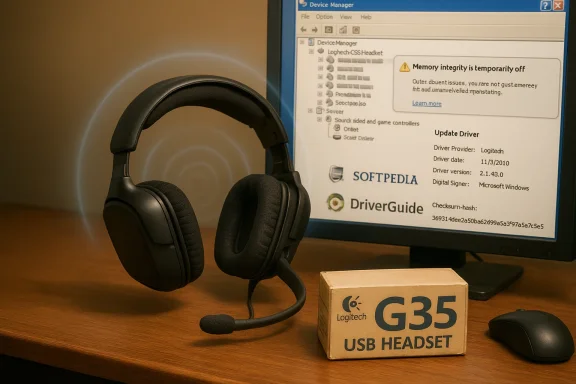 Background
Why the G35 still matters
The Logitech G35 is a USB 7.1 surround headset introduced in the late 2000s. It uses a USB digital audio interface (not analog 3.5 mm only) and shipped with Logitech’s surround software that enabled virtual 7.1 channels, software EQ, and extra "voice morphing" features. The hardware — 40 mm neodymium drivers, a unidirectional boom mic, and in-line/on-ear controls — is still solid for many users who prefer its sound signature and microphone clarity over cheaper modern alternatives. Retail and spec pages still list the original hardware details and confirm it’s a USB headset designed around Windows-era drivers.Official support status
Logitech’s own product pages make one position clear: the G35’s original software is long out of active development. Logitech’s downloads page for the G35 records a software package with a last-update timestamp from the Windows XP/Vista era and notes the firmware/tooling is no longer actively maintained. In practice, Logitech’s support presence for G35 is effectively “legacy,” and while some downloads historically existed on company pages, the vendor recommends modern Logitech software families for current devices — not the G35’s original driver set. This is a critical starting point for any installation plan.What drivers exist today (official and unofficial)
Official Logitech package (legacy)
- The last official G35 software package is an old build (circa 2010) and was authored for Windows XP/Vista. That package historically provided the G35’s virtual 7.1 support and in‑software controls, but it was not designed for modern Windows 10/11 driver models and is labeled by Logitech as legacy. Use of that installer on modern Windows requires compatibility workarounds.
Community and archival packages
- Several driver-archive sites (Softpedia, DriverScape, DriverGuide and similar archives) host more recent or repackaged driver bundles that users have relied on to get the G35 functional on Windows 7/8/10. These packages often include a versioned driver file set that claims compatibility with Windows 7/8/10, and community installers in some cases date from the early 2010s. They can be a pragmatic path when Logitech’s official resources don’t meet need, but they carry provenance and trust concerns. Use caution and validate checksums where available.
Driver-updater tools (Driver Easy et al.
- Driver Easy and similar updater services offer automated scans and can fetch and install a driver for a device like the G35. These tools are convenient and can save time, but they also introduce a dependency on a third party to fetch the “right” package. Driver Easy explicitly documents both an automated and manual approach for the G35, recommending either direct downloads from Logitech or the automated updater. The official caution here: prefer vendor drivers where possible; use updaters only when you understand the trade-offs.
Should you use an archive or a third‑party updater?
Use the following guidance to choose the safest route.- Prefer Logitech official drivers if you can find the correct package that matches your OS. That minimizes malicious packaging risk and driver-signature issues.
- If Logitech’s site no longer provides a modern installer for your OS, fall back to reputable archives (Softpedia, DriverGuide, DriverScape) that provide file version details and hashes where available.
- Use automated driver updaters (Driver Easy, DriverGuide utilities) only if you:
- Have a current system backup or a System Restore point, and
- Are comfortable rolling back drivers using Device Manager or Windows Safe Mode should something go wrong. Driver Easy documents the same two-path approach — automatic or manual — and emphasizes caution.
- Unsigned or improperly packaged kernel components can be blocked by Windows security features (Memory Integrity / Core isolation) on newer OS builds.
- Archives and updater tools can host repackaged installers; verify integrity (checksums) and scan downloads with up-to-date AV.
- Installing the wrong driver can cause audio problems, disable surround features, or in rare cases create system instability.
Step-by-step: Installing Logitech G35 drivers on Windows 7 / 8 / 10
The following sequential procedure covers both manual vendor installation and a safe automated path. Create a restore point before you begin and have USB access to the headset.- Create a System Restore point (Control Panel → Recovery → Create a restore point).
- If the headset is currently connected, unplug it.
- Download the driver:
- Preferred: official Logitech package if present for your device (Logitech’s product page shows legacy software and may still host older installers).
- Alternate: reputable archive or Driver Easy’s verified package if Logitech’s page lacks a modern file. Verify file sizes and, if provided, checksums.
- Disable Memory Integrity temporarily (if driver refuses to install and Windows blocks it):
- Windows Security → Device security → Core isolation details → toggle Memory integrity off, then reboot.
- Caution: disabling Memory Integrity reduces kernel protections temporarily; re-enable after successful driver install and verify signed driver status. Community troubleshooting notes this as a last-resort trade-off rather than a recommended long-term change.
- Run the installer as Administrator (right-click → Run as administrator).
- If the installer is older and Windows blocks it, use Compatibility Mode:
- Right‑click installer → Properties → Compatibility → Run program in compatibility mode for: Windows 7 (or Vista), then Run as Administrator.
- After installation, plug in the G35. Open Device Manager:
- Expand “Sound, video and game controllers” and “Audio inputs and outputs.”
- If you see an unknown device, choose Update driver → Browse my computer for drivers → Let Windows search the program folder where the installer placed files.
- If Windows installs a generic Microsoft driver but you need the Logitech control app, run the vendor setup again or install the software package (the vendor package often contains both driver and application).
- Reboot and test audio and the microphone. Open Windows Sound settings to set G35 as the default playback and recording device.
- If surround channels are not present, open the Logitech software and check virtual surround/7.1 settings. If the app fails to recognize the G35, try older versions of the Logitech support software — community reports indicate different versions had better recognition with legacy headsets.
Common problems — diagnosis and practical fixes
Problem: Windows doesn’t recognize the G35 or installs a generic driver
- Fix: Unplug, uninstall any existing G35 device entry in Device Manager (right‑click → Uninstall device, and tick “Delete the driver software for this device” if present), reboot, then reinstall the vendor package as Administrator. If Windows still chooses the Microsoft generic driver, manually point to the folder that holds vendor INF files during update. Community guides document this flow extensively.
Problem: Surround/7.1 works intermittently or not at all
- Explanation: Virtual 7.1 is provided by Logitech’s application layer. If the app doesn’t load or detect the device, surround features won’t be available even though stereo audio will work.
- Fix: Try different installer versions. Users often report success with slightly older 8.x versions versus the newest legacy build; trial and error with archived installer versions can restore full functionality. If that fails, use stereo mode or a modern headset with current vendor support.
Problem: Driver install fails due to Windows security settings (HVCI/Memory Integrity)
- Fix/Warning: Toggle Memory Integrity off temporarily to install unsigned or legacy drivers, then reboot and re-enable it. This is a security trade-off: only recommended on non-sensitive systems and used as a last resort. The broader Windows community has documented this approach for older audio stacks but warns of the security cost.
Problem: Cracking, muting, or device switching in conferencing apps
- Fix: Windows sometimes switches endpoints (HDMI, virtual devices). Explicitly set the G35 as default in Windows Sound settings and check the app-level audio device (Teams, Discord, Zoom). Device Manager and reinstallation flow apply if the headset disappears entirely. Community diagnostics advise always testing endpoints in the app and verifying exclusive mode and enhancements settings.
Practical tips, safety and maintenance
- Back up installers: Keep local copies of any working G35 installer you find. Logitech’s pages may change and archives can vanish; having a verified file locally is prudent.
- Use System Restore/Driver Rollback: After installing a driver, keep the Device Manager → Driver → Roll Back Driver option in mind. If a new driver breaks audio, roll back before making other changes.
- Avoid mystery “driver packs”: Some sites distribute “automatic driver packs” that install dozens of unrelated drivers. These can introduce instability. Prefer focused installers and official vendor packages.
- AV scan and checksums: Scan downloaded installers with up-to-date antivirus software. Where possible, compare MD5/SHA hashes with archive metadata. Reputable archives often publish such details; treat downloads without provenance as higher risk.
- Consider a modern replacement: For a lot of users, the cost and friction of keeping legacy software functional exceeds the value. A modern USB headset with active vendor support (Logitech G-series with G HUB or other current products) solves future compatibility headaches.
Driver Easy and the convenience-vs-risk tradeoff
Driver Easy documents an easy two‑option path: automatic scanning/installation or manual download instructions pointing back to Logitech. It markets convenience — and it does reduce manual work — but it also creates reliance on the updater’s package catalog. If you choose Driver Easy:- Use the free scan to identify the driver version first.
- Create a System Restore point before applying any driver.
- Prefer Driver Easy only after verifying the specific driver file matches an official or reputable archive copy.
When you should stop chasing compatibility
- If installing the G35 driver requires repeated kernel-protection toggles, unsigned driver hacks, or repeated compatibility-mode gymnastics, the time cost and security risk start to outweigh the benefit.
- If the headset must be used on a corporate or security‑sensitive machine, do not toggle off Memory Integrity; instead, use a supported device with actively signed drivers and vendor support.
- For users who value the G35’s sound but need a reliable modern experience, the pragmatic recommendation is to migrate to a current headset line with guaranteed Windows 10/11 support and software (Logitech G HUB / Logi Options+ compatible models).
Quick-reference checklist (at a glance)
- Before you begin:
- Create a System Restore point.
- Back up any current audio driver package(s).
- Download phase:
- Prefer Logitech’s official page first; if absent, use recognized archives (Softpedia, DriverGuide, Driverscape) or reputable updater tools with caution.
- Installation:
- Disconnect the G35.
- Run the installer as Administrator.
- If blocked, try Compatibility Mode.
- If kernel checks block the driver, consider temporarily disabling Memory Integrity for the install (security trade-off).
- Plug in the headset and confirm in Device Manager → Sound controllers.
- Post-install checks:
- Set G35 as default playback/recording device in Sound Settings.
- Open Logitech software to enable 7.1/virtual surround features where present.
- Run a test call in your conferencing app to confirm mic and playback.
Verdict and recommendations
- The Logitech G35 is legacy hardware; official vendor support is limited and the last official packages are from the Windows XP / Vista era. Expect friction on Windows 7/8/10 and especially on modern Windows builds with strengthened driver integrity checks.
- Archives and third-party driver hosts provide practical lifelines and often host installers that users have used successfully. However, always verify file provenance, create restore points, and be prepared to revert. Use reputable archives like Softpedia or DriverGuide rather than unknown mirror farms.
- Driver Easy and equivalent updaters can automate the process and help less technical users install working drivers, but they are not free of risk. If used, combine with system backups and manual verification of the driver file when possible.
- For mission‑critical or corporate machines, the right choice is to replace the headset with a supported, actively maintained model rather than weaken system security to accept unsigned legacy drivers.
The G35’s distinctive sound and design still earn it loyal users, but that loyalty comes with an operational cost when running on modern Windows systems. For enthusiasts who want to revive a well‑loved set and are comfortable with the steps above, the combination of careful downloads, compatibility-mode installs, and rigorous backups will usually restore full functionality. For everyone else — particularly users who need consistent, secure audio on modern Windows — a modern headset with current vendor support is the safer, less time-consuming path.
Source: Born2Invest https://born2invest.com/?b=style-317494812/
