

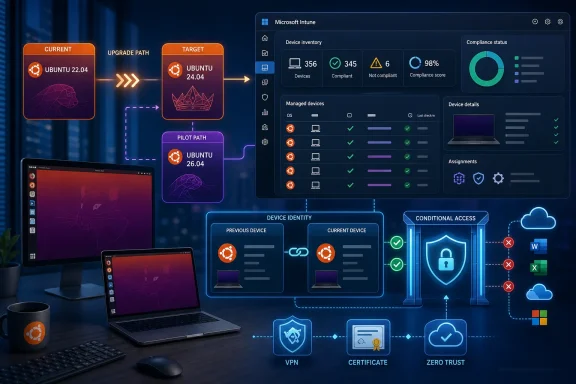
Microsoft Intune will end Ubuntu 22.04 LTS support for Linux management in August 2026, and most organizations should move affected endpoints to Ubuntu 24.04 LTS as the lower-risk default. Ubuntu 26.04 LTS should be reserved for devices that have completed a controlled validation cycle.
Use this short eligibility gate for Ubuntu 26.04: move a device only when its hardware, business applications, security and VPN tooling, and post-broker enrollment and Conditional Access behavior have all been validated. If any one of those tests is incomplete, plan for Ubuntu 24.04 instead.
Microsoft announced the cutoff on April 27, 2026. Ubuntu 22.04 devices already enrolled during the deprecation period remain enrolled, but Microsoft is directing administrators to notify users and move them to a supported release. For Intune Linux management, the supported Ubuntu Desktop targets are Ubuntu 24.04 LTS and Ubuntu 26.04 LTS on x86/64 systems using GNOME.
This is not simply a distribution upgrade. It is an endpoint inventory, application-readiness, identity, compliance, and Conditional Access project. WindowsForum members discussing RHEL 8’s July 2026 Intune support end reached a similar practical conclusion: move the broad population to the established supported release, while holding the newest release for hardware and workloads that have already been certified. That same approach fits Ubuntu 24.04 versus 26.04.
Ubuntu 24.04 LTS is the sensible destination for most Intune-managed Ubuntu 22.04 desktops. It meets Microsoft’s current support requirements without requiring the migration project to absorb the additional uncertainty of a newer platform release.
Ubuntu 26.04 is not inherently the wrong choice. It is a targeted choice for fleets where application owners, desktop engineering, and security teams have already tested the full endpoint experience. That includes drivers and peripherals, line-of-business applications, smart-card or certificate workflows, VPN access, endpoint security software, and the Microsoft Intune app for Linux enrollment path.
The distinction matters because supported by Intune is not the same as ready for your organization. Microsoft’s support matrix can establish whether a release is in scope. It cannot establish whether a particular engineering tool, device-specific driver, security agent, or access policy will behave as expected after the operating system and enrollment identity change.
WindowsForum’s coverage of organizations moving away from Windows 10 has repeatedly shown that endpoint transitions fail when planning stops at the OS image. A successful migration also preserves user data, required applications, managed access, and a supportable device record. Linux teams should apply the same discipline here.
For each affected device, record:
Separate the inventory into three operational groups:
Microsoft’s Linux enrollment guidance describes an end-user flow using the Microsoft Intune app for Linux and Microsoft Edge. It applies to physical computers, Azure virtual machines, and Hyper-V virtual machines. Ubuntu running under WSL2 is not supported for Linux device enrollment and should not be treated as a replacement destination for managed desktop workloads.
The practical consequence is that a device can appear functional to its user while its management-plane identity has changed. Teams should not assume that a policy, filter, assignment, exception, inventory integration, or group process will continue solely because it worked before the upgrade. Instead, validate those dependencies locally against the new device record.
Use a pilot to test the organization’s actual assignment model. For example, verify whether the intended compliance and configuration policies apply, whether required access decisions recognize the newly enrolled device, and whether internal inventory or automation records need to be updated. This is a local validation requirement, not an assumption about how every tenant’s groups, filters, or assignments behave.
The safe operational interpretation is straightforward: Ubuntu 22.04 will be outside the documented Intune support boundary. Waiting increases the chance that a future enrollment, policy, broker, or support issue must be handled from an unsupported starting point.
Communicate early with affected users. Explain the maintenance window, backup expectations, expected downtime, and the need to revalidate applications and organizational access after enrollment. Keep Ubuntu 26.04 candidates in a clearly defined pilot track rather than presenting them as routine upgrades.
The target is not merely eliminating Ubuntu 22.04 from a report. It is a verified Ubuntu 24.04 baseline with reconciled device identities, working compliance, and tested Conditional Access, while Ubuntu 26.04 remains an intentional rollout for endpoints that have earned that higher-risk choice.
Use this short eligibility gate for Ubuntu 26.04: move a device only when its hardware, business applications, security and VPN tooling, and post-broker enrollment and Conditional Access behavior have all been validated. If any one of those tests is incomplete, plan for Ubuntu 24.04 instead.
Microsoft announced the cutoff on April 27, 2026. Ubuntu 22.04 devices already enrolled during the deprecation period remain enrolled, but Microsoft is directing administrators to notify users and move them to a supported release. For Intune Linux management, the supported Ubuntu Desktop targets are Ubuntu 24.04 LTS and Ubuntu 26.04 LTS on x86/64 systems using GNOME.
This is not simply a distribution upgrade. It is an endpoint inventory, application-readiness, identity, compliance, and Conditional Access project. WindowsForum members discussing RHEL 8’s July 2026 Intune support end reached a similar practical conclusion: move the broad population to the established supported release, while holding the newest release for hardware and workloads that have already been certified. That same approach fits Ubuntu 24.04 versus 26.04.
 Ubuntu 24.04 Is the Operational Default
Ubuntu 24.04 LTS is the sensible destination for most Intune-managed Ubuntu 22.04 desktops. It meets Microsoft’s current support requirements without requiring the migration project to absorb the additional uncertainty of a newer platform release.Ubuntu 26.04 is not inherently the wrong choice. It is a targeted choice for fleets where application owners, desktop engineering, and security teams have already tested the full endpoint experience. That includes drivers and peripherals, line-of-business applications, smart-card or certificate workflows, VPN access, endpoint security software, and the Microsoft Intune app for Linux enrollment path.
The distinction matters because supported by Intune is not the same as ready for your organization. Microsoft’s support matrix can establish whether a release is in scope. It cannot establish whether a particular engineering tool, device-specific driver, security agent, or access policy will behave as expected after the operating system and enrollment identity change.
WindowsForum’s coverage of organizations moving away from Windows 10 has repeatedly shown that endpoint transitions fail when planning stops at the OS image. A successful migration also preserves user data, required applications, managed access, and a supportable device record. Linux teams should apply the same discipline here.
Build the Migration Register Before Scheduling Devices
Start with the Intune device inventory and identify Ubuntu 22.04 endpoints using the reporting and export methods available in your tenant. Do not rely on a one-time device count. Create a working migration register that can be updated from pilot through retirement of the old record.For each affected device, record:
- Device name and serial or other local asset identifier
- Primary user and business owner
- Current Ubuntu release and last known sync status
- Device role, such as general productivity, engineering, shared workstation, or privileged administration
- Current Intune managed-device ID and Microsoft Entra device ID
- Intended destination: Ubuntu 24.04, Ubuntu 26.04 pilot, replacement, or retirement
- Application, VPN, certificate, driver, and security-tool dependencies
- Pilot outcome, migration date, and post-migration validation result
Separate the inventory into three operational groups:
- Recently active devices: Schedule these into migration waves.
- Inactive or stale devices: Investigate whether they are retired, offline, reassigned, or abandoned before including them in rollout counts.
- Specialized devices: Keep these in a pilot or exception queue until their business dependencies are validated.
Preflight Checklist
Complete this checklist before changing the operating system:- Confirm the device is an x86/64 Ubuntu Desktop system using GNOME.
- Capture the existing Intune managed-device ID and Microsoft Entra device ID.
- Confirm the user, asset owner, and support contact.
- Back up user data and verify that restoration has been tested or is covered by the organization’s backup process.
- Check available disk capacity, power requirements, and the organization’s maintenance-window process.
- Identify required applications, browser-based services, VPN connections, certificates, smart cards, printers, peripherals, drivers, and endpoint security tools.
- Record the compliance policies, configuration policies, and Conditional Access paths the user normally relies on.
- Identify any local automation, inventory integration, exception process, filter, assignment, or group workflow that might depend on the existing device object.
- Define a rollback or replacement plan if the device cannot complete the upgrade or enrollment validation.
- For Ubuntu 26.04 candidates, confirm that the device has passed the eligibility gate stated at the beginning of this article.
Use an Approved Ubuntu 22.04-to-24.04 Procedure
The decision to perform an in-place upgrade or a clean rebuild is organization-specific. It should follow the organization’s approved desktop-engineering, backup, encryption, application-packaging, and change-control standards. The execution steps below provide a concrete baseline for an in-place Ubuntu 22.04-to-24.04 upgrade; use a tested corporate image instead if your standard is rebuild-based.- Log in locally with an account authorized to perform system maintenance. Connect the device to reliable power and network access.
- Back up user data and confirm that required recovery material, certificates, or application settings are available after the upgrade.
- Update the existing Ubuntu 22.04 installation, then restart if the update process requires it:
Code:sudo apt update sudo apt full-upgrade sudo reboot - After restart, open a terminal and start Ubuntu’s release-upgrade process:
sudo do-release-upgrade - Follow the interactive prompts. Review any notice about third-party repositories, locally installed packages, or configuration-file changes. If a dependency is business-critical and its upgrade impact is unknown, stop and move the device into the exception or rebuild path rather than guessing during production migration.
- Allow the release upgrade to complete and restart the device when prompted.
- After restart, confirm that the system is running Ubuntu 24.04:
cat /etc/os-release - Validate local operation before enrollment work: user login, network connection, disk access, required applications, VPN, certificates, peripherals, and security tooling.
- Install or update the Microsoft Intune app for Linux according to the organization’s approved software-delivery process, then begin the enrollment flow with the user’s organizational account.
- Complete post-enrollment testing before declaring the migration successful.
Microsoft’s Linux enrollment guidance describes an end-user flow using the Microsoft Intune app for Linux and Microsoft Edge. It applies to physical computers, Azure virtual machines, and Hyper-V virtual machines. Ubuntu running under WSL2 is not supported for Linux device enrollment and should not be treated as a replacement destination for managed desktop workloads.
Treat Enrollment Identity as a First-Class Test
Microsoft states that Microsoft Identity Broker version 2.0.2 and later, included with the Intune app for Linux, can re-register and re-enroll devices. That process can result in new Intune device IDs and new Microsoft Entra device IDs.The practical consequence is that a device can appear functional to its user while its management-plane identity has changed. Teams should not assume that a policy, filter, assignment, exception, inventory integration, or group process will continue solely because it worked before the upgrade. Instead, validate those dependencies locally against the new device record.
Use a pilot to test the organization’s actual assignment model. For example, verify whether the intended compliance and configuration policies apply, whether required access decisions recognize the newly enrolled device, and whether internal inventory or automation records need to be updated. This is a local validation requirement, not an assumption about how every tenant’s groups, filters, or assignments behave.
Post-Enrollment Identity Reconciliation Checklist
After the device has enrolled, complete all of the following:- Confirm that the device appears in Intune and that the new record is associated with the expected user.
- Capture the new Intune managed-device ID and Microsoft Entra device ID in the migration register.
- Compare the old and new identifiers and retain the relationship between them for audit and troubleshooting.
- Confirm receipt of the intended compliance and configuration policies.
- Check the reported compliance outcome after policy processing.
- Test the user’s normal protected-resource path in Edge.
- Test VPN, certificate, smart-card, and security-agent workflows required for the device role.
- Review locally maintained device-specific assignments, exception records, filters, automation, and inventory integrations for references to the old identity.
- Confirm that the new device object satisfies the Conditional Access conditions used for the user’s required services.
- Retire or otherwise disposition the old management record only after the replacement device has passed validation.
Support End Is a Deadline, Not a Migration Strategy
Microsoft has said Ubuntu 22.04 support ends in August 2026, but the announcement does not provide a precise August cutoff date or describe a specific post-support enforcement action. Organizations should not assume that old devices will be immediately blocked, automatically removed, or continue receiving identical behavior after the support boundary.The safe operational interpretation is straightforward: Ubuntu 22.04 will be outside the documented Intune support boundary. Waiting increases the chance that a future enrollment, policy, broker, or support issue must be handled from an unsupported starting point.
Communicate early with affected users. Explain the maintenance window, backup expectations, expected downtime, and the need to revalidate applications and organizational access after enrollment. Keep Ubuntu 26.04 candidates in a clearly defined pilot track rather than presenting them as routine upgrades.
Frequently Asked Questions
Is Ubuntu 22.04 removed from Intune immediately?
No. Microsoft says already-enrolled Ubuntu 22.04 devices remain enrolled during the deprecation period. Support ends in August 2026, and Microsoft advises administrators to move users to a supported release.Should every Ubuntu 22.04 device go to Ubuntu 26.04?
No. Ubuntu 24.04 is the default for most devices. Use Ubuntu 26.04 only after validating hardware, business applications, security and VPN tooling, and post-enrollment Conditional Access behavior.Can an Ubuntu device in WSL2 enroll in Intune?
No. Microsoft does not support Ubuntu on WSL2 for Linux device enrollment. Physical devices, Azure VMs, and Hyper-V virtual machines are supported enrollment scenarios.Why do old and new device IDs matter?
Microsoft Identity Broker 2.0.2 and later can re-register and re-enroll devices, producing new Intune and Microsoft Entra device IDs. Record both identities and validate any local process that may rely on the old device object.The target is not merely eliminating Ubuntu 22.04 from a report. It is a verified Ubuntu 24.04 baseline with reconciled device identities, working compliance, and tested Conditional Access, while Ubuntu 26.04 remains an intentional rollout for endpoints that have earned that higher-risk choice.
References
- Primary source: learn.microsoft.com
Linux device enrollment guide for Microsoft Intune - Microsoft Intune | Microsoft Learn
Enroll Linux devices in Intune using the Intune app. Set an overview of the administrator and end user tasks to enroll devices.learn.microsoft.com - Primary source: WindowsForum
RHEL 8 Intune Support Ends July 2026: Move Most Devices to RHEL 9 | Windows Forum
Linux endpoint teams should move most Intune-managed RHEL 8 desktops to RHEL 9, reserve RHEL 10 for hardware and workloads already certified for it, and...windowsforum.com