

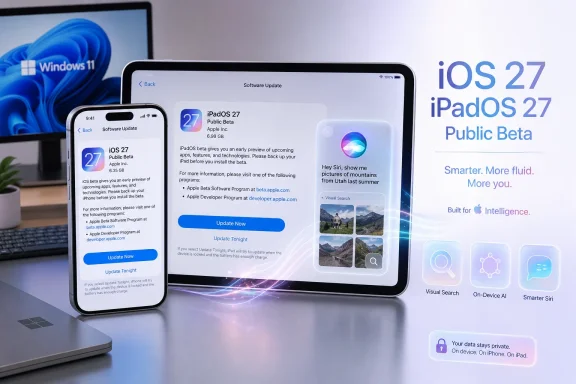
Apple’s second public beta of iOS 27 and iPadOS 27 is now rolling out to members of the Apple Beta Software Program, bringing the company’s next-generation Siri experience, broader Apple Intelligence integration, and further refinement to the Liquid Glass interface closer to a wider release. The update arrives only a little over a week after the first public beta, marking a brisk move through Apple’s annual summer testing cycle—but it remains unfinished software, and that distinction matters.
For Apple users who have been waiting to test the reworked Siri AI without enrolling in the developer beta channel, the new public beta represents a more accessible entry point. It does not, however, turn iOS 27 or iPadOS 27 into a safe choice for every primary iPhone or iPad. Public betas are intended to uncover bugs at scale, and the potential impact ranges from minor visual glitches to battery drain, accessory failures, app crashes, and complications with work-critical services.
The release is especially notable because iOS 27 is not simply a maintenance update. Apple is using the software cycle to deepen the role of artificial intelligence across the iPhone and iPad experience, while continuing to evolve the Liquid Glass design language introduced in the previous generation. For users in mixed Windows and Apple households, the public beta also raises practical questions around device backups, iCloud synchronization, app compatibility, and how much disruption is acceptable on hardware that may still be central to daily work.
There has been some early confusion around the numbering of the latest iOS 27 and iPadOS 27 public beta releases. Reports published around the rollout have inconsistently described the build as either a first or second public beta, while also referring to different developer beta versions.
The broader timeline makes the situation clearer. Apple released the first public beta in mid-July after several developer-only builds. The July 22 release is the second public beta, following the fourth developer beta of iOS 27 and iPadOS 27. In practical terms, public beta users are now receiving the next testing build rather than merely gaining first-time access to the operating systems.
That distinction is more than semantic. A second public beta usually indicates that Apple is moving beyond its earliest feature-validation stage and into a period of bug fixing, tuning, compatibility testing, and interface polish. It does not mean the software is stable enough for everyone, but it does give testers a more current picture of Apple’s intended direction for the final release.
The public beta remains part of a broader coordinated rollout that includes Apple’s other upcoming platform updates. That alignment matters because iPhone, iPad, Mac, Apple Watch, Apple TV, HomePod, and Vision Pro features increasingly depend on shared services, synced content, and cross-device intelligence.
For users who rely on Apple hardware alongside a Windows PC, it is worth remembering that operating-system betas can affect more than the phone or tablet itself. iCloud syncing, photo transfers, device management, authentication prompts, Bluetooth accessories, and third-party cross-platform services can all behave differently during a beta cycle.
Apple’s pitch centers on three areas:
In theory, that could enable more natural requests. A user may be able to ask Siri to find the details of a plan shared in a message, retrieve an item from an email, locate a photo connected to a specific event, or continue work based on prior conversations.
This is a meaningful evolution from Siri’s older, more transactional design. Traditional digital assistants have often been good at setting a timer, creating a reminder, or making a call, but far less useful when a request required several pieces of context spread across apps.
The potential productivity gains are obvious. So are the privacy implications.
Any assistant capable of considering data from communications, images, documents, and on-device activity needs strong permission controls and clear explanations of how requests are processed. Apple has long positioned privacy as a core product differentiator, but the practical test will be whether users can understand exactly what Siri AI can access, when it uses that access, and how those controls behave across apps and devices.
That could be particularly useful when dealing with a web page, a message thread, a photo, a product listing, or an event invitation. A request such as “add this to my calendar,” “tell me more about this,” or “find the address” becomes more useful if the assistant can identify what “this” refers to.
Apple’s Visual Intelligence tools are also being repositioned around this model. Visual search functionality is moving more directly into the Camera experience through a new Siri mode, creating a tighter connection between what users see and the help they can request.
For iPhone users, this could be one of the most tangible Apple Intelligence improvements in iOS 27. Cameras are already used to scan documents, translate text, identify objects, and capture reference material. Expanding that into a more capable conversational visual assistant is a logical next step.
The challenge will be reliability. Onscreen awareness sounds compelling in a keynote demonstration, but it must correctly identify content, distinguish important details from irrelevant ones, and avoid acting on the wrong item. In a beta release, users should expect inconsistent results and treat AI-generated answers as suggestions rather than unquestionable facts.
A dedicated app gives Siri a more persistent identity within iOS and iPadOS. Users can revisit prior conversations, continue multi-step tasks, and interact with the assistant in a format closer to a chat interface.
That may sound like a small interface change, but it reflects a broader industry shift. Modern AI tools are increasingly built around ongoing conversations, searchable history, and iterative refinement rather than one-off commands.
For example, a user working on a travel plan may be able to ask follow-up questions without re-explaining the destination, dates, preferences, or budget every time. A student may be able to revise an explanation, request a shorter version, or ask for a different format in the same conversation.
However, persistent history also increases the importance of account security and privacy controls. AI chat histories can contain sensitive information, whether that is personal correspondence, business context, financial planning, health-related questions, or confidential project details.
Users testing iOS 27 should review Siri and Apple Intelligence settings carefully before assuming the assistant’s behavior matches their privacy expectations. A feature that is useful because it remembers context is also a feature that must be managed responsibly.
For casual users, the feature may be useful for creating messages, notes, social posts, and quick replies. For professionals, it may help accelerate first drafts, tone adjustments, meeting summaries, or routine correspondence.
Yet there is an important limitation to keep in mind: AI-generated writing is not automatically accurate, appropriate, or ready to send. A well-written response can still contain incorrect facts, poor assumptions, or language that does not fit the intended audience.
The best use case is as an editing and ideation tool rather than an autopilot. Users should review outputs closely, especially when the message concerns work, money, legal matters, health, personal relationships, or security.
The ability to locate an image based on people, places, objects, events, or described actions can save time. More sophisticated visual search could also help users identify what they are looking at through the camera without switching between multiple apps or manually entering a search query.
These features are valuable because they reduce friction. But they also depend on the assistant accurately recognizing images and interpreting natural-language requests. During the beta period, users should expect occasional search failures, incomplete results, and incorrect interpretations.
The interface has been one of Apple’s most polarizing recent design decisions. Its aesthetic can make the operating system feel modern and fluid, but increased transparency and visual complexity can also create readability challenges.
Apple appears to be responding to that tension by making Liquid Glass more adjustable. Newer iOS 27 builds include more control over the intensity of the translucent effect, allowing users to choose a clearer, more opaque, or intermediate presentation.
A transparency adjustment can help users who prefer the layered, glass-like look while giving others an option that improves contrast and reduces distraction. It is also useful for accessibility, even if it is not positioned as an accessibility feature first.
For Windows users, the comparison is familiar. Microsoft has spent years balancing Fluent Design effects such as transparency and Mica with performance, readability, and user preference. Apple’s decision to provide more control over Liquid Glass reflects the same reality: visual effects are most successful when they support the task rather than dominate it.
iPadOS is especially important here. The iPad’s larger display, multitasking environment, keyboard use, and app density create different visual demands from an iPhone. An effect that feels polished in a compact interface can feel excessive when repeated across larger panes, floating windows, sidebars, and toolbars.
The public beta is exactly where this kind of feedback matters. Apple can measure crashes and performance problems through diagnostics, but it also needs real users to identify where design choices make a device harder to use.
The iPad has long occupied an awkward middle ground between a tablet and a traditional computer. Its hardware is increasingly capable, but user expectations rise with every generation of faster chips, larger displays, improved keyboards, and expanded accessory support.
iPadOS 27’s shared Siri AI improvements could be more consequential on the iPad than on the iPhone. A larger display creates more room for multitasking, contextual assistance, documents, visual search, and persistent AI conversations.
If Siri AI can reliably understand the visible task and safely act across supported apps, it could help the iPad feel less like a large iPhone and more like a flexible productivity device.
But that outcome is not guaranteed. Apple needs to ensure that AI assistance complements existing keyboard shortcuts, multitasking tools, drag-and-drop behavior, and touch interaction. An assistant that interrupts workflow or demands too much confirmation can become another layer of friction rather than a solution.
The most common beta concerns include:
Anyone whose iPhone serves as a primary authentication device, work handset, emergency contact tool, payment device, navigation system, or sole camera should think carefully before installing. The same applies to iPads used for school, creative work, retail systems, field service, or client presentations.
A beta can be acceptable on a secondary device, a spare tablet, or an iPhone that is not mission-critical. It is much harder to justify on the only device that holds two-factor authentication codes, work profiles, financial apps, airline passes, health records, and essential communications.
Apple is betting heavily on a more capable Siri, deeper AI integration, visual intelligence, improved system responsiveness, and a more adaptable Liquid Glass interface. The company is also attempting to make AI feel native to the operating system rather than a separate destination users must deliberately open.
That strategy has real strengths. Apple controls the hardware, operating system, core apps, and many of the privacy frameworks that shape the user experience. If Siri AI works as intended, it could become more useful precisely because it can operate close to the data and actions that matter in everyday tasks.
The risks are equally clear. The more personal and contextual an assistant becomes, the higher the standard for accuracy, transparency, privacy, and reliability. A polished interface cannot compensate for an assistant that misunderstands intent, exposes sensitive context, or produces confidently wrong information.
For now, iOS 27 and iPadOS 27 public beta 2 should be viewed as an early but important checkpoint. It offers enthusiasts a more current look at Apple’s evolving AI platform and gives testers a chance to help improve it before the wider release. For everyone else, the sensible option remains patience: wait for additional beta rounds, clearer compatibility results, and the final public software update before placing a daily driver at the center of Apple’s most ambitious software transition in years.
For Apple users who have been waiting to test the reworked Siri AI without enrolling in the developer beta channel, the new public beta represents a more accessible entry point. It does not, however, turn iOS 27 or iPadOS 27 into a safe choice for every primary iPhone or iPad. Public betas are intended to uncover bugs at scale, and the potential impact ranges from minor visual glitches to battery drain, accessory failures, app crashes, and complications with work-critical services.
The release is especially notable because iOS 27 is not simply a maintenance update. Apple is using the software cycle to deepen the role of artificial intelligence across the iPhone and iPad experience, while continuing to evolve the Liquid Glass design language introduced in the previous generation. For users in mixed Windows and Apple households, the public beta also raises practical questions around device backups, iCloud synchronization, app compatibility, and how much disruption is acceptable on hardware that may still be central to daily work.
 A Second Public Beta, Not a First Look
There has been some early confusion around the numbering of the latest iOS 27 and iPadOS 27 public beta releases. Reports published around the rollout have inconsistently described the build as either a first or second public beta, while also referring to different developer beta versions.The broader timeline makes the situation clearer. Apple released the first public beta in mid-July after several developer-only builds. The July 22 release is the second public beta, following the fourth developer beta of iOS 27 and iPadOS 27. In practical terms, public beta users are now receiving the next testing build rather than merely gaining first-time access to the operating systems.
That distinction is more than semantic. A second public beta usually indicates that Apple is moving beyond its earliest feature-validation stage and into a period of bug fixing, tuning, compatibility testing, and interface polish. It does not mean the software is stable enough for everyone, but it does give testers a more current picture of Apple’s intended direction for the final release.
The public beta remains part of a broader coordinated rollout that includes Apple’s other upcoming platform updates. That alignment matters because iPhone, iPad, Mac, Apple Watch, Apple TV, HomePod, and Vision Pro features increasingly depend on shared services, synced content, and cross-device intelligence.
For users who rely on Apple hardware alongside a Windows PC, it is worth remembering that operating-system betas can affect more than the phone or tablet itself. iCloud syncing, photo transfers, device management, authentication prompts, Bluetooth accessories, and third-party cross-platform services can all behave differently during a beta cycle.
Siri AI Is the Headline Feature
The defining change in iOS 27 is Apple’s much more ambitious version of Siri, branded in current materials as Siri AI. The goal is not just to make Siri answer more questions, but to transform it into a more conversational and context-aware assistant capable of understanding what users are doing across their devices.Apple’s pitch centers on three areas:
- Personal context
- Broader world knowledge
- Onscreen awareness
Personal context changes the expectations
Personal context is potentially the most useful—and the most sensitive—part of Apple’s new Siri strategy. The assistant is intended to draw on information from areas such as Messages, Mail, Photos, and other supported apps when answering a request or helping complete an action.In theory, that could enable more natural requests. A user may be able to ask Siri to find the details of a plan shared in a message, retrieve an item from an email, locate a photo connected to a specific event, or continue work based on prior conversations.
This is a meaningful evolution from Siri’s older, more transactional design. Traditional digital assistants have often been good at setting a timer, creating a reminder, or making a call, but far less useful when a request required several pieces of context spread across apps.
The potential productivity gains are obvious. So are the privacy implications.
Any assistant capable of considering data from communications, images, documents, and on-device activity needs strong permission controls and clear explanations of how requests are processed. Apple has long positioned privacy as a core product differentiator, but the practical test will be whether users can understand exactly what Siri AI can access, when it uses that access, and how those controls behave across apps and devices.
Onscreen awareness could make Siri more practical
Onscreen awareness is another major component of the new Siri experience. Rather than forcing users to describe everything manually, Siri AI can potentially understand what is currently displayed and act on it.That could be particularly useful when dealing with a web page, a message thread, a photo, a product listing, or an event invitation. A request such as “add this to my calendar,” “tell me more about this,” or “find the address” becomes more useful if the assistant can identify what “this” refers to.
Apple’s Visual Intelligence tools are also being repositioned around this model. Visual search functionality is moving more directly into the Camera experience through a new Siri mode, creating a tighter connection between what users see and the help they can request.
For iPhone users, this could be one of the most tangible Apple Intelligence improvements in iOS 27. Cameras are already used to scan documents, translate text, identify objects, and capture reference material. Expanding that into a more capable conversational visual assistant is a logical next step.
The challenge will be reliability. Onscreen awareness sounds compelling in a keynote demonstration, but it must correctly identify content, distinguish important details from irrelevant ones, and avoid acting on the wrong item. In a beta release, users should expect inconsistent results and treat AI-generated answers as suggestions rather than unquestionable facts.
The Standalone Siri App Signals a Bigger Shift
Apple is also introducing a dedicated Siri app designed to house conversations with Siri AI. This is a notable departure from the old Siri model, where interaction was largely temporary and tied to a voice prompt, button press, or quick overlay.A dedicated app gives Siri a more persistent identity within iOS and iPadOS. Users can revisit prior conversations, continue multi-step tasks, and interact with the assistant in a format closer to a chat interface.
That may sound like a small interface change, but it reflects a broader industry shift. Modern AI tools are increasingly built around ongoing conversations, searchable history, and iterative refinement rather than one-off commands.
Conversation history has advantages and trade-offs
The ability to revisit prior Siri interactions could be useful for drafting text, researching a topic, planning a task, or refining an idea over time. It could also make Siri less frustrating by preserving context that would otherwise be lost between separate requests.For example, a user working on a travel plan may be able to ask follow-up questions without re-explaining the destination, dates, preferences, or budget every time. A student may be able to revise an explanation, request a shorter version, or ask for a different format in the same conversation.
However, persistent history also increases the importance of account security and privacy controls. AI chat histories can contain sensitive information, whether that is personal correspondence, business context, financial planning, health-related questions, or confidential project details.
Users testing iOS 27 should review Siri and Apple Intelligence settings carefully before assuming the assistant’s behavior matches their privacy expectations. A feature that is useful because it remembers context is also a feature that must be managed responsibly.
Apple Intelligence Expands Beyond Siri
The new Siri experience is the most visible aspect of iOS 27, but Apple is also extending Apple Intelligence throughout its built-in apps. The public beta includes AI-related additions and refinements in areas such as:- Photos
- Passwords
- Safari
- Shortcuts
- Wallet
- Camera
- System writing tools
Write with Siri goes systemwide
One of the more broadly useful additions is Write with Siri, a systemwide writing feature intended to generate text or provide feedback on writing. That positions Siri AI as a helper for drafting, rewriting, summarizing, and improving text across compatible apps.For casual users, the feature may be useful for creating messages, notes, social posts, and quick replies. For professionals, it may help accelerate first drafts, tone adjustments, meeting summaries, or routine correspondence.
Yet there is an important limitation to keep in mind: AI-generated writing is not automatically accurate, appropriate, or ready to send. A well-written response can still contain incorrect facts, poor assumptions, or language that does not fit the intended audience.
The best use case is as an editing and ideation tool rather than an autopilot. Users should review outputs closely, especially when the message concerns work, money, legal matters, health, personal relationships, or security.
Photos and visual search remain high-value areas
Photos is another natural destination for Apple Intelligence. People often have thousands of images stored locally and in iCloud, making manual organization and discovery increasingly impractical.The ability to locate an image based on people, places, objects, events, or described actions can save time. More sophisticated visual search could also help users identify what they are looking at through the camera without switching between multiple apps or manually entering a search query.
These features are valuable because they reduce friction. But they also depend on the assistant accurately recognizing images and interpreting natural-language requests. During the beta period, users should expect occasional search failures, incomplete results, and incorrect interpretations.
Liquid Glass Continues to Mature
iOS 27 and iPadOS 27 also continue Apple’s work on Liquid Glass, the visual design system characterized by translucent layers, animated surfaces, depth effects, and more dynamic controls.The interface has been one of Apple’s most polarizing recent design decisions. Its aesthetic can make the operating system feel modern and fluid, but increased transparency and visual complexity can also create readability challenges.
Apple appears to be responding to that tension by making Liquid Glass more adjustable. Newer iOS 27 builds include more control over the intensity of the translucent effect, allowing users to choose a clearer, more opaque, or intermediate presentation.
Customization is a practical improvement
This is a welcome direction. Visual design should not force every user into the same balance of style and readability, particularly on small screens where notifications, widgets, text, controls, and background imagery compete for attention.A transparency adjustment can help users who prefer the layered, glass-like look while giving others an option that improves contrast and reduces distraction. It is also useful for accessibility, even if it is not positioned as an accessibility feature first.
For Windows users, the comparison is familiar. Microsoft has spent years balancing Fluent Design effects such as transparency and Mica with performance, readability, and user preference. Apple’s decision to provide more control over Liquid Glass reflects the same reality: visual effects are most successful when they support the task rather than dominate it.
Interface changes need long-term testing
The important question is not whether Liquid Glass looks impressive in isolated screenshots. It is whether the interface remains clear after weeks of use across different wallpapers, lighting conditions, app layouts, and display sizes.iPadOS is especially important here. The iPad’s larger display, multitasking environment, keyboard use, and app density create different visual demands from an iPhone. An effect that feels polished in a compact interface can feel excessive when repeated across larger panes, floating windows, sidebars, and toolbars.
The public beta is exactly where this kind of feedback matters. Apple can measure crashes and performance problems through diagnostics, but it also needs real users to identify where design choices make a device harder to use.
iPadOS 27 Has a Productivity Opportunity
While iOS 27 and iPadOS 27 share many core improvements, iPadOS has a distinct opportunity to prove its value through productivity features and multitasking refinements.The iPad has long occupied an awkward middle ground between a tablet and a traditional computer. Its hardware is increasingly capable, but user expectations rise with every generation of faster chips, larger displays, improved keyboards, and expanded accessory support.
iPadOS 27’s shared Siri AI improvements could be more consequential on the iPad than on the iPhone. A larger display creates more room for multitasking, contextual assistance, documents, visual search, and persistent AI conversations.
A better assistant could reduce iPad friction
An iPad user is more likely to be editing a document, comparing multiple web pages, reviewing mail, working through a spreadsheet, annotating a PDF, or keeping a video call open beside another app. These are exactly the kinds of scenarios where onscreen awareness and personal context could become genuinely useful.If Siri AI can reliably understand the visible task and safely act across supported apps, it could help the iPad feel less like a large iPhone and more like a flexible productivity device.
But that outcome is not guaranteed. Apple needs to ensure that AI assistance complements existing keyboard shortcuts, multitasking tools, drag-and-drop behavior, and touch interaction. An assistant that interrupts workflow or demands too much confirmation can become another layer of friction rather than a solution.
The Risks of Installing the Public Beta
The second public beta is likely more refined than the first, but it is still pre-release software. That means ordinary consumer expectations should be adjusted accordingly.The most common beta concerns include:
- Reduced battery life
- Increased heat during indexing or background processing
- App crashes or login failures
- Bluetooth and accessory instability
- CarPlay problems
- Wi-Fi or cellular handoff issues
- Slowdowns after installation
- Incomplete translations or broken interface elements
- Problems with banking, workplace, education, or identity-verification apps
- Unreliable AI responses and feature availability differences
Do not treat a public beta as a routine update
The phrase public beta can be misleading. Public availability does not mean production readiness. It means Apple wants a larger group of voluntary testers.Anyone whose iPhone serves as a primary authentication device, work handset, emergency contact tool, payment device, navigation system, or sole camera should think carefully before installing. The same applies to iPads used for school, creative work, retail systems, field service, or client presentations.
A beta can be acceptable on a secondary device, a spare tablet, or an iPhone that is not mission-critical. It is much harder to justify on the only device that holds two-factor authentication codes, work profiles, financial apps, airline passes, health records, and essential communications.
A Safer Installation Approach
Users who choose to install iOS 27 or iPadOS 27 public beta should take a disciplined approach rather than treating the update as a one-tap experiment.Before installation
- Create a current backup. Use iCloud or a local encrypted backup. Windows users can use Apple’s device-management tools to create and retain a local backup before proceeding.
- Confirm account access. Make sure Apple Account credentials, recovery methods, and two-factor authentication options are available outside the device being updated.
- Check essential apps. Review whether banking, workplace, medical, smart-home, education, travel, and password-management apps are known to function on the beta.
- Update the Windows side of the workflow. If the iPhone or iPad is synced, backed up, or managed through a Windows PC, ensure the relevant Apple software and iCloud components are current.
- Plan for rollback limitations. Downgrading from a beta can require erasing the device, and a backup created on a newer operating system may not restore cleanly to an older one.
Installing through the public beta channel
For eligible devices enrolled in the Apple Beta Software Program, the normal path is:- Open Settings.
- Select General.
- Open Software Update.
- Choose Beta Updates.
- Select iOS 27 Public Beta or iPadOS 27 Public Beta.
- Return to Software Update and download the available beta.
What This Release Means for the Final Version
The second public beta does not reveal every feature Apple will deliver in the final iOS 27 and iPadOS 27 release, but it does show where the company’s priorities lie.Apple is betting heavily on a more capable Siri, deeper AI integration, visual intelligence, improved system responsiveness, and a more adaptable Liquid Glass interface. The company is also attempting to make AI feel native to the operating system rather than a separate destination users must deliberately open.
That strategy has real strengths. Apple controls the hardware, operating system, core apps, and many of the privacy frameworks that shape the user experience. If Siri AI works as intended, it could become more useful precisely because it can operate close to the data and actions that matter in everyday tasks.
The risks are equally clear. The more personal and contextual an assistant becomes, the higher the standard for accuracy, transparency, privacy, and reliability. A polished interface cannot compensate for an assistant that misunderstands intent, exposes sensitive context, or produces confidently wrong information.
For now, iOS 27 and iPadOS 27 public beta 2 should be viewed as an early but important checkpoint. It offers enthusiasts a more current look at Apple’s evolving AI platform and gives testers a chance to help improve it before the wider release. For everyone else, the sensible option remains patience: wait for additional beta rounds, clearer compatibility results, and the final public software update before placing a daily driver at the center of Apple’s most ambitious software transition in years.
References
- Primary source: MacTrast
Published: 2026-07-22T22:25:45+00:00
Loading…
www.mactrast.com - Independent coverage: The Apple Post
Published: 2026-07-23T00:13:36+00:00
Loading…
www.theapplepost.com - Official source: developer.apple.com
Loading…
developer.apple.com - Related coverage: 9to5mac.com
Loading…
9to5mac.com - Related coverage: macworld.com
iOS 27 beta 3 is out now for developers as Apple approaches the first public release | Macworld
Apple is getting its big new fall update in shape, but it's not ready for public beta testing just yet.www.macworld.com - Related coverage: appleinsider.com
Loading…
appleinsider.com