

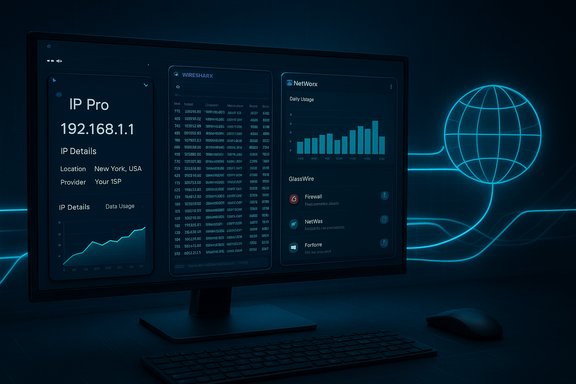
IP Pro’s promise — a lightweight, mobile‑born network monitor that surfaces IP details, live traffic and simple speed tests — is easy to sell in a single-page how‑to note about “running IP Pro on Windows or macOS with BlueStacks.” The guide you provided walks exactly that path: it explains IP Pro’s core features (real‑time monitoring, detailed IP lookups, data‑use tracking, and built‑in speed tests), then prescribes an emulator route to run the Android app on desktop systems and lists desktop alternatives. That approach works in practice, but it also hides a cluster of important realities: there are multiple distinct apps called “IP Pro,” Android‑to‑PC routes have changed significantly in recent years, and native desktop alternatives often give stronger security, reliability and observability for serious network work. The following is a practical, verified, and critical feature guide that summarizes the PrioriData‑style instructions, verifies the technical claims, highlights what’s accurate and what’s uncertain, and gives clear recommendations for Windows and macOS users who want real network monitoring on a PC.
Background / Overview
IP Pro (as described in the guide you supplied) is presented as a mobile network‑monitoring app that displays IP details, tracks data usage, runs speeds tests and identifies devices on your network. That description matches the common feature set of many “IP” utilities and monitoring apps on Android and iOS: quick local IP inspection, remote IP lookups (ISP, geolocation), per‑process or per‑app bandwidth usage and periodic speed tests. The how‑to centers on using an Android emulator (BlueStacks) to run the mobile app on Windows 7/8/10 and macOS machines — a practical but non‑native route that trades convenience for an extra software‑layer.Two important facts to hold up front:
- “IP Pro” is not a uniquely identifiable, single vendor product name. Multiple distinct Android/iOS apps and camera clients use the same or similar titles (for example, surveillance clients named “IP Pro” / “EseeCloud / VR Cam,” small IP‑utility tools, and older “IP Pro” utilities listed in app repositories). That means vendor and developer claims in short guides must be verified before trusting version, permissions, or network behavior. The public app ecosystem contains several “IP Pro” apps with different publishers and purposes — a finding you must confirm before installing.
- The desktop route for running Android apps changed materially in the Windows ecosystem starting with Windows 11 and subsequent policy changes. Microsoft’s Windows Subsystem for Android (WSA) and the Amazon Appstore once offered a native‑ish channel; that path is no longer reliable for long‑term support and many users therefore rely on emulators (BlueStacks, Nox, LDPlayer) or native desktop tools instead. Verify the recommended emulator approach and the availability of a Play Store‑backed app before proceeding.
What IP Pro claims to offer — verified and unverified features
The how‑to you provided lists the following core features for IP Pro. Each item below notes whether the claim is broadly accurate for network‑monitoring apps of this class, whether it was independently verifiable, and any caveats.Real‑time network monitoring — plausible and common
- Claim: live updates showing which apps use the network and how much data they consume.
- Reality: Many mobile network utilities and monitoring apps can show per‑process or per‑app traffic while running on the device; on an Android emulator, similar telemetry can usually be observed at the emulator‑level but may not map perfectly to host OS processes. This feature is realistic for a mobile app; however, the depth of information (process vs. socket vs. device) varies by app and operating system restrictions. If you need packet‑level detail or per‑connection visibility on a desktop, native packet capture tools are a better fit.
Detailed IP information — commonly available, but attribution varies
- Claim: shows location, ISP, connection type, and public/private status for IP addresses.
- Reality: Many apps perform IP lookups by querying public geolocation/WHOIS services and present ISP and region metadata. This is straightforward and verifiable. The accuracy of geolocation and ISP mapping depends on the lookup database and often varies by the IP block — treat geolocation as approximate, not authoritative. If you need legally precise IP ownership, use authoritative RIR/WHOIS lookups or network operator statements.
Data usage tracking and history — standard, but scope matters
- Claim: daily/weekly/monthly tracking across Wi‑Fi and Ethernet, per‑device breakdown and historical charts.
- Reality: Desktop utilities and some mobile apps do track historical data; on Android emulation, the app will only see traffic inside the emulated environment or as the emulator exposes it. Native desktop tools (NetWorx, GlassWire) provide richer host‑level history and per‑application accounting. If you plan to track whole‑network usage across multiple devices behind a router, a router‑level SNMP/traffic monitor or a network appliance is a better fit.
Network speed testing — helpful but limited as a single metric
- Claim: built‑in speed tests using multiple servers for accurate results.
- Reality: Speed tests are useful for spot checks but are impacted by server choice, time of day, ISP routing and the test methodology. Running regular scheduled tests is valid for trend analysis, but a single test result is not definitive. Desktop speed‑test APIs are widely available and are often integrated into native monitoring apps.
How to run IP Pro on PC — step‑by‑step (practical verification)
The supplied guide recommends using an Android emulator, specifically BlueStacks, to run IP Pro on Windows and macOS. The general steps are correct, but the system compatibility and alternative routes deserve clarification and verification.1. Choose your Android runtime: BlueStacks vs other options
- BlueStacks is the most commonly recommended emulator for running consumer Android apps on Windows and macOS; its official support page lists minimum and recommended requirements (Windows 7+; 4 GB RAM minimum; 5 GB free disk for BlueStacks 5; recommended 8 GB+ and virtualization enabled for best performance). If you plan to run network‑heavy apps or multiple instances, follow BlueStacks’ recommended specs.
- Alternative: Windows users who previously relied on Windows Subsystem for Android (WSA) and the Amazon Appstore should be aware that Microsoft’s support for WSA changed materially in recent years. Community builds and third‑party methods exist, but they are unofficial and potentially time‑sensitive. For long‑term, supported solutions on Windows, emulators remain the practical route for many users.
2. Install BlueStacks (or chosen emulator)
- Download BlueStacks from the official BlueStacks website and run the installer as Administrator.
- Follow the on‑screen steps and reboot if prompted. BlueStacks 5 and later recommend enabling virtualization in BIOS/UEFI for a superior experience. BlueStacks’ system‑requirements page is the authoritative reference for exact version compatibility and minimums.
3. Set up Google Play and install IP Pro
- Launch the emulator, sign into Google Play with a valid Google account (required for Play Store installs).
- Search for the exact app name and publisher — do not rely on generic searches alone. Confirm the publisher name in Play Store before installing to avoid downloading a different app with the same title.
- Install the app and grant requested permissions within the emulator session.
4. Run and test carefully
- Launch the app in the emulator and grant only the permissions you understand. Observe whether the app reports host‑level network activity (it typically will only see traffic routed through the emulator’s virtual network).
- Do baseline speed tests and compare them with a trusted desktop speed test (for instance, via your ISP or a reliable web speed test) to validate consistency.
Native desktop alternatives — why they often make more sense
If your goal is accurate, reliable network monitoring on a PC, running an Android app in an emulator is a pragmatic hack, not a best practice. Native desktop apps are more powerful, better integrated with OS networking stacks, and reduce the security surface. Here are the best‑of‑breed alternatives and what they deliver.Wireshark — packet‑level, forensic network analysis
- What it is: the industry standard network protocol analyzer for Windows, macOS and Linux. It captures and decodes packets, supports thousands of protocols, and is used for deep troubleshooting and forensics.
- Strengths: packet‑level capture and decoding, powerful filtering, inspection of problems at every OSI layer.
- When to use: deep troubleshooting, protocol debugging, security analysis and forensic capture.
- Caveat: Wireshark is advanced and has a learning curve; it is overkill for casual bandwidth checks.
NetWorx (SoftPerfect) — bandwidth tracking and usage reports
- What it is: a lightweight, cross‑platform bandwidth monitor that logs daily/weekly/monthly usage, tests speeds and tracks per‑application usage on the host.
- Strengths: low overhead, excellent historical reports, alerts for quotas and per‑app tracking.
- When to use: if your priority is ongoing data‑use accounting or monitoring ISP performance on a single host.
- Caveat: it only monitors the host machine unless augmented with router SNMP/UPnP polling.
GlassWire — visual monitoring + security alerts + simple firewall
- What it is: a consumer‑friendly visual network monitor that also provides firewall controls and security alerts for suspicious connections.
- Strengths: very usable UI, “network time machine” to view past activity, easy blocking of app connections, device list for local networks.
- When to use: for everyday users who want both monitoring and a second‑line security tool that highlights unexpected outgoing connections.
- Caveat: GlassWire is host‑centric and cannot replace enterprise network monitoring appliances.
Security, privacy and operational risks of the emulator route
Running Android apps inside an emulator adds convenience but also creates additional attack surface and supply‑chain risks. The following points are derived from emulator vendor documentation and community best practices, and are critical to any safe desktop deployment.Key risks
- Increased attack surface: emulators install virtualization layers, virtual network adapters and often require elevated privileges; misconfigured emulators or sideloaded APKs can expose the host to malware or leak local traffic. Known community guidance explicitly warns that emulation is a convenience hack and not a production‑grade approach for sensitive workflows.
- Supply‑chain confusion: multiple apps can share the same name (e.g., “IP Pro”); installing the wrong package is a common vector for unwanted software. Always confirm the app publisher and package ID inside the Play Store listing or vendor website before installing.
- Emulators and telemetry: some emulator builds include telemetry, bundled components or optional app stores that may introduce unwanted network calls. Use official emulator downloads and disable or audit telemetry where possible. BlueStacks’ support page and community guidance outline recommended security hygiene and virtualization settings.
- WSA lifecycle changes: Microsoft’s Windows Subsystem for Android has seen policy and availability changes; community builds exist but they are unofficial and time‑sensitive. Relying on WSA for a long‑term desktop route may be fragile.
Mitigations and hardening steps
- Download emulators only from official vendor websites and verify digital signatures where available.
- Avoid sideloaded APKs unless you can verify their integrity (signed by a known publisher and checksum‑verified).
- Run emulators under a non‑admin Windows account and consider isolating them in a VM snapshot if you must test unknown builds.
- Use host firewall rules to limit the emulator’s outbound access to only the endpoints the app requires.
- Monitor installed services and the emulator’s virtual NIC; ensure no unexpected listeners or open ports are present.
- Prefer native desktop alternatives (Wireshark, NetWorx, GlassWire) for production or sensitive environments. Community guidance repeatedly flags repackaged installers and recommends checksum verification and testing in isolated environments.
Practical comparison: emulator IP Pro vs. native tools (quick guide)
- Ease of setup: emulator + Play Store is easy for non‑technical users who want the exact mobile app UI. Native tools require more configuration but give direct host integration.
- Data fidelity: native tools (Wireshark/NetWorx/GlassWire) provide more accurate, host‑level or packet‑level data. Emulators can only see what the guest environment exposes.
- Security: native tools reduce supply‑chain risk and isolate fewer layers than emulation. Emulators add virtualization/driver layers that broaden the threat surface.
- Performance: running a constant capture, multiple feeds, or heavy packet captures is more efficient and stable using native desktop software.
- Use case fit:
- Troubleshooting DNS/TCP bugs, packet loss: Wireshark.
- Ongoing bandwidth accounting and quota alerts: NetWorx.
- Visual security monitoring and simple firewall controls: GlassWire.
- Quick mobile‑only features or vendor‑specific workflows (when only a mobile app supports them): an emulator can be an acceptable, temporary fallback.
Best‑practice checklist before you follow the “IP Pro on PC” route
- Confirm the exact app package and publisher name in Google Play / App Store — avoid similarly named packages.
- Prefer official emulator downloads from BlueStacks or other mainstream vendors; check the emulator’s system requirements and enable virtualization only if comfortable doing so. BlueStacks’ official requirements page is the authoritative reference.
- Test apps in an isolated non‑admin account or VM snapshot if you plan to use them for network analysis or to connect to local resources. Community guides recommend isolation for experimental apps.
- For serious analysis, use native desktop tools: Wireshark for packet capture, NetWorx for usage logging and GlassWire for visual monitoring plus firewall rules. These tools are purpose‑built for desktop networking and avoid the pitfalls of emulation.
- If you decide to run the emulator, tighten host firewall rules, limit emulator permissions, and maintain up‑to‑date antivirus and OS patches on the host.
When to use the emulator route — realistic scenarios
- You need to run a vendor’s mobile‑only app that provides unique features not available on desktop, and no official vendor desktop client exists.
- You require the exact mobile UI for a support workflow or vendor pairing flow (for example, a camera vendor that only supplies mobile pairing via QR codes).
- You accept the operational trade‑offs and can isolate the emulator for testing.
Final verdict and recommendations
The PrioriData‑style how‑to you supplied is accurate as a user‑level walkthrough: using BlueStacks or another emulator is a straightforward way to get an Android app like “IP Pro” running on a PC, and many casual users will find that satisfactory for light monitoring and speed tests. The guide’s step sequence (install emulator → Play Store → install IP Pro → grant permissions → run monitoring) is functionally correct.However, the guide understates key points that matter to anyone doing meaningful network work or concerned about security:
- Multiple distinct apps use the name “IP Pro.” Confirm the publisher and package ID before installing because the same name can represent surveillance clients, small IP utilities, or unrelated tools.
- Native desktop tools deliver stronger, more reliable and more secure network observability than emulation. For packet‑level or host‑level monitoring, prefer Wireshark, NetWorx and GlassWire depending on your specific needs.
- The Windows Android story changed significantly with WSA and community responses; don’t rely on WSA for a long‑term production workflow — emulators and native apps are the safer choices for now.
- Emulation introduces additional risk. Follow hardening guidance: official downloads only, non‑admin accounts, host firewall restrictions and isolated test environments. Community and vendor documentation both call out these precautions.
- Verify the app’s publisher in Play Store.
- Download BlueStacks from the official website and install following the official system‑requirements guidance.
- Install the app and test locally in an isolated account.
- Install and learn a native desktop tool: use Wireshark for packet captures, NetWorx for hourly/daily bandwidth logs and GlassWire for visual monitoring and firewall control. These will give better data fidelity, reduced attack surface and greater longevity for production monitoring tasks.
Conclusion
Running mobile apps on a PC via an emulator is a convenient shortcut and perfectly acceptable for short‑term tasks or when a mobile‑only vendor tool is required. The how‑to you supplied correctly outlines that route. But for trustworthy, long‑term, secure and precise network monitoring, desktop‑native tools remain the professional choice. Confirm app identity before installing, follow emulator hardening steps if you must emulate, and choose native tools for continuous monitoring and forensic troubleshooting. That approach balances convenience with the security and accuracy needed for real network analysis, whether you’re a hobbyist or an IT professional.Source: PrioriData Download IP Pro for PC – Windows 7/8/10 & MAC | Priori Data
