

KeepSafe’s mobile-first photo vault is now straightforward to run on a desktop — but the path to a safe, usable PC experience matters more than the marketing copy. This feature explains what KeepSafe is, verifies its core security and privacy claims, walks through the practical ways to run KeepSafe on Windows and macOS (including exact emulator steps), and offers a frank risk/benefit analysis plus better native alternatives for desktop users.
KeepSafe began life as a mobile app to hide and encrypt private photos and videos, and the company says it was founded in 2012. The vendor’s own company pages and business profiles list 2012 as the founding year and show a San Francisco base and a lean engineering team focused on consumer privacy. KeepSafe’s public product materials and support documentation present a consistent set of capabilities: device‑side AES‑256 encryption for files added to the vault, optional cloud backup and cross‑device sync, a decoy or fake‑PIN vault, and break‑in/“intruder alert” features that capture photos on failed PIN attempts. These features are positioned as the core of the product’s value proposition, and they are the claims most users care about when they ask “Can I trust KeepSafe for private files on my PC?” This article verifies those claims against independent sources, explains how to run KeepSafe on Windows and macOS, and gives a realistic security and usability assessment so you can decide whether emulation or a native desktop tool is the right approach.
However, emulation brings additional supply‑chain and host‑level risks. Where native desktop integration, enterprise compliance, or tighter key control matters, prefer a native Windows encryption solution (VeraCrypt, AxCrypt, 7‑Zip with AES‑256) instead of the emulator workaround. If you do use an emulator, follow the hardening checklist above, avoid sideloaded APKs, and treat your master password and cloud backup settings with extra caution.
KeepSafe’s core security claims are real and usable for most consumers — just match the deployment path to the sensitivity of the content you plan to protect and the level of operational control you need.
Source: PrioriData Download KeepSafe for PC (Windows & Mac) | Priori Data
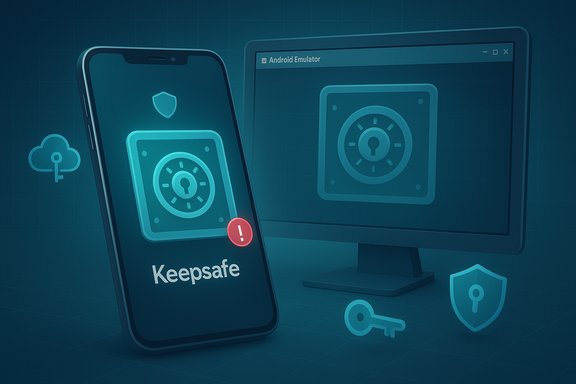 Background / Overview
KeepSafe began life as a mobile app to hide and encrypt private photos and videos, and the company says it was founded in 2012. The vendor’s own company pages and business profiles list 2012 as the founding year and show a San Francisco base and a lean engineering team focused on consumer privacy. KeepSafe’s public product materials and support documentation present a consistent set of capabilities: device‑side AES‑256 encryption for files added to the vault, optional cloud backup and cross‑device sync, a decoy or fake‑PIN vault, and break‑in/“intruder alert” features that capture photos on failed PIN attempts. These features are positioned as the core of the product’s value proposition, and they are the claims most users care about when they ask “Can I trust KeepSafe for private files on my PC?” This article verifies those claims against independent sources, explains how to run KeepSafe on Windows and macOS, and gives a realistic security and usability assessment so you can decide whether emulation or a native desktop tool is the right approach.What KeepSafe actually promises (verified claims)
Military-grade / AES-256 encryption — what that means
- KeepSafe states that files added to the Photo Vault are encrypted using AES‑256 while at rest on device and that backups are encrypted too. This is confirmed in KeepSafe’s support and product pages.
- Independent app listings and APK metadata summaries also reference AES‑256 for vault encryption. That provides two points of corroboration: vendor documentation and third‑party package descriptions.
Decoy / Fake PIN and break‑in alerts
- KeepSafe’s Decoy Vault (fake PIN) is a documented Premium feature that opens a benign vault when a secondary PIN is entered. This is described on KeepSafe support pages and repeated in independent app review writeups.
- Intruder / Break‑in Alerts: KeepSafe explicitly documents a feature that takes a secret photo when an incorrect PIN is entered and records timestamp and PIN attempt data. This is a Premium feature per KeepSafe’s support pages.
Cloud backup and sync
- KeepSafe provides a free limited backup tier (200 items) and larger capacities on paid plans (10,000+ items for Premium, higher for lifetime plans). Official support documents explain the limits and that backups are encrypted.
Data handling and privacy commitments
- KeepSafe’s public privacy materials and product pages state the company does not inspect or sell user vault content and that backups are encrypted and not accessible to employees. The privacy policy states the types of account and device metadata they collect for service delivery. This is consistent across the company’s product site and privacy pages. That said, published privacy policies are not equivalent to independent audits. If you store very high‑value material, request or review an independent security assessment or attestations.
How to get KeepSafe running on a PC (Windows & macOS)
KeepSafe does not ship a native, first‑class Windows or macOS application. The practical approach is to run the Android app inside a reputable Android emulator. This section provides verified, step‑by‑step instructions and hardening tips.Emulation options — the mainstream choices
- BlueStacks (most widely used, Play Store integration, mature tooling).
- NoxPlayer (lighter footprint on older hardware; similar Play Store integration).
- LDPlayer (focused on performance; good for certain Windows systems).
Verified step‑by‑step: BlueStacks (recommended for most users)
- Download BlueStacks from the official BlueStacks website and install it. Use the official site — do not rely on third‑party mirrors. BlueStacks documents Windows 7+ and macOS system requirements and publishes a BlueStacks 5 build with minimum RAM/CPU guidance.
- Launch BlueStacks, complete the initial setup and sign into a Google account inside BlueStacks so you can access the Play Store. This mirrors an Android device setup flow.
- Open the Google Play Store inside BlueStacks and search for “KeepSafe” (or “KeepSafe Photo Vault”). Install the official app (confirm the publisher name and download counts). If the Play Store entry is not available, prefer official vendor guidance rather than sideloading an APK.
- Launch the KeepSafe app inside BlueStacks, create or sign into your KeepSafe account, set a strong master PIN/password, and enable Premium options only after you’ve verified your environment. Enable the Decoy Vault or Intruder Alerts as needed.
NoxPlayer and LDPlayer: same basic flow
- Install the emulator from its official site, sign in to Google Play, search for KeepSafe, install, then configure KeepSafe as you would on a phone. The UI and settings paths within the KeepSafe app are the same. Use emulator settings to allocate enough RAM and CPU cores (4 GB RAM minimum recommended; 8 GB is better for a responsive desktop experience).
Hardening and operational safety (critical)
Running KeepSafe inside an emulator is a pragmatic solution, but it increases the attack surface. The emulator, host OS, and the app all matter. The following steps reduce risk and are consistent with expert guidance for running mobile clients in desktop sandboxes.- Download emulators from official vendor sites only, and keep them up to date. Avoid mirrored EXEs from unknown domains.
- Use a dedicated Google account inside the emulator if you prefer to limit cross‑linking with personal accounts. This limits telemetry tie‑ins and reduces blast radius.
- Limit the emulator’s file sharing: emulators often offer a shared folder between the host and guest. Do not expose your entire user profile — map a small, dedicated folder if you need to transfer images into the vault.
- Scan installers (emulator EXE) with your endpoint protection before running, and for extra assurance upload to a multi‑engine scanner if you’re concerned. Verify digital signatures where present.
- Consider running the emulator in a disposable VM snapshot or separate test user account if you handle very sensitive content. Roll back snapshots if you suspect compromise.
- Keep the host OS patched and the antivirus/endpoint agent enabled. The emulator runs atop your system — host security matters.
Practical UX differences and limitations you should expect
- KeepSafe inside an emulator provides the same in‑app features (vaulting, fake PIN, intruder photos, cloud backup), but it does not behave like a native Windows app: no system tray integration, no Explorer context menu, and file transfer is performed via emulator‑provided sharing or mapped folders. Treat the emulator app as a contained mobile client.
- Performance: emulators consume CPU and RAM. For a smooth experience, run on a machine with an SSD and 8+ GB RAM; allocate at least 4 GB to the emulator if possible. BlueStacks and LDPlayer documentation provide exact minimums and recommended settings.
- Cloud sync works normally: if you enable KeepSafe cloud backup, files stored in the KeepSafe vault inside the emulator will sync to your KeepSafe account and be accessible from mobile devices where you use the same account. This is a convenience but also means the secret content is stored by the vendor in encrypted backup form — verify your comfort level with that storage model.
Alternatives that run natively on Windows (recommended for many PC users)
If your priority is a native Windows experience with fewer supply‑chain caveats, consider these alternatives that deliver strong file encryption and a more integrated desktop workflow.- VeraCrypt (encrypted containers) — creates mounted, password‑protected containers that act like encrypted drives. Excellent for large collections and recovered with your passphrase. More control and no reliance on cloud backups unless you add them.
- AxCrypt (file-level encryption) — integrates with Windows Explorer; encrypt individual files with strong AES‑based encryption for quick sharing and storage.
- 7‑Zip with AES‑256 archives — create passworded archives for ad‑hoc portability; not a vault but useful for encrypting exports.
- Folder Lock / native locker utilities — several Windows apps offer folder lockers and secure deletion; choose reputable vendors and verify code signing.
Cost, subscriptions and recovery realities (what to expect)
- KeepSafe offers a free tier (limited backups) and premium tiers that increase cloud backup capacity, add Decoy Vault, Intruder Alerts, Trash Recovery and other conveniences. Premium is a subscription; app stores often auto‑renew these subscriptions. Read the billing terms and manage subscriptions via Google Play or the App Store.
- Password and recovery: KeepSafe’s security model is intentionally strict — if you lose your PIN / master password, the company’s ability to recover vault contents is limited by design. That trade‑off protects privacy but makes recoverability dependent on you maintaining a safe master passcode or secure recovery mechanism. Document your recovery strategy (secure offline copy of credentials or use a password manager).
Critical analysis: strengths, risks, and final judgment
Strengths
- KeepSafe implements industry‑standard encryption (AES‑256) and provides sensible privacy features like Decoy Vault and Intruder Alerts that are simple and effective for typical consumer use cases. Vendor docs and independent app descriptions line up on these features.
- The cloud backup/sync option reduces the risk of losing access if a device is lost or damaged — a practical benefit for users who want both local device protection and cross‑device continuity.
- The UX is familiar for mobile users, making it a low‑friction tool for people already using KeepSafe on phones.
Risks & caveats
- Emulation is a workaround. Running KeepSafe on a PC requires an Android emulator; that adds a software layer and an expanded attack surface (host OS + emulator + app). KeepSafe itself may be secure, but a misconfigured or repackaged emulator environment can expose you to supply‑chain or local compromise risks. Follow the hardening steps earlier.
- Marketing language such as “military‑grade” can obscure important implementation details. AES‑256 is strong, but the security of an encrypted vault depends on key‑derivation functions, how keys are backed up, and whether backups are encrypted end‑to‑end with a user‑controlled secret. Public vendor docs confirm device encryption and encrypted backups but do not publish every KDF or key‑management detail. If that level of assurance matters, request an independent audit or technical whitepaper from the vendor.
- Account recovery is intentionally strict. Losing your KeepSafe password may mean irreversible loss of vault contents. That’s a security design trade‑off but one that many desktop users don’t expect — plan backups accordingly.
When to pick which approach
- If you already use KeepSafe on mobile and want the same vault available on a desktop for convenience and parity, running the Android app inside BlueStacks (or an equivalent emulator) is a valid, practical option. Harden the emulator and trust only official downloads.
- If you want native desktop integration, minimal supply‑chain risk, and more control over backups and keys, choose a native encryption solution (VeraCrypt, AxCrypt, or an encrypted archive workflow). These are safer for enterprise or high‑value data because they reduce the number of third‑party runtime layers.
Quick practical checklist (install & secure KeepSafe on PC)
- Download BlueStacks (or Nox/LDPlayer) from the official website. Verify signature if available.
- Install in a separate Windows user account or VM if possible. Allocate 4–8 GB RAM to the emulator.
- Sign into Google Play inside the emulator with a dedicated account. Avoid sideloading APKs unless you can verify checksums and publisher identity.
- Install KeepSafe from the Play Store and configure: set a long master password, enable PIN/fingerprint, enable Decoy Vault & Intruder Alerts if desired, and turn on encrypted cloud backup only if you understand the cloud storage model.
- Limit the emulator’s shared folders; use a single, secure transfer folder for items you wish to import to the vault.
- Keep the host OS and emulator updated; scan emulator installers before execution; consider a VM snapshot for rollback.
Conclusion
KeepSafe provides a well‑designed mobile vault with AES‑256 encryption, decoy PINs, break‑in alerts, and encrypted cloud backups — claims that are corroborated by vendor documentation and independent app listings. For desktop users, the most practical route is to run KeepSafe’s Android client inside a reputable emulator such as BlueStacks, NoxPlayer, or LDPlayer. That gives you feature parity, including the Decoy Vault and Intruder Alerts, and keeps your mobile and desktop vaults in sync.However, emulation brings additional supply‑chain and host‑level risks. Where native desktop integration, enterprise compliance, or tighter key control matters, prefer a native Windows encryption solution (VeraCrypt, AxCrypt, 7‑Zip with AES‑256) instead of the emulator workaround. If you do use an emulator, follow the hardening checklist above, avoid sideloaded APKs, and treat your master password and cloud backup settings with extra caution.
KeepSafe’s core security claims are real and usable for most consumers — just match the deployment path to the sensitivity of the content you plan to protect and the level of operational control you need.
Source: PrioriData Download KeepSafe for PC (Windows & Mac) | Priori Data
