

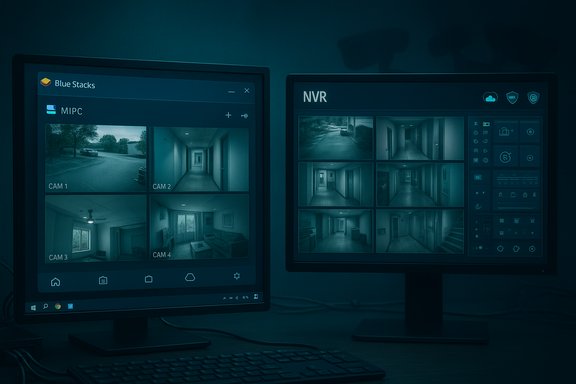
MIPC can be run on a Windows or macOS desktop, but the practical route for most users is not a native PC installer — it’s running the Android MIPC mobile client inside a vetted Android emulator (or using a vendor‑supplied native client when available), and that choice changes everything you need to know about reliability, performance, and security.
MIPC (often marketed as “Mobile IP Camera” or simply MIPC/MIPC View) is a widely bundled mobile app that many low‑cost IP camera vendors use to provide remote viewing, motion alerts, cloud backup and two‑way audio. The app’s convenience and ubiquity make it an attractive option for homeowners and small businesses that want remote monitoring without a dedicated NVR or VMS. Many how‑tos and download guides recommend running MIPC on a PC using an Android emulator such as BlueStacks or NoxPlayer, or by choosing a native Windows client if one exists for the camera brand. User‑supplied guides and product pages list the app’s core features — live streaming, multi‑camera layouts, motion detection alerts, cloud backup, night‑vision support and two‑way audio — but the app ecosystem around “MIPC” is fragmented (multiple vendors use the same app name) so capability and limits often depend on the camera firmware and vendor service. This landscape and the emulator route are explained in community and vendor documentation.
BlueStacks (official guidance):
For anything beyond a handful of cameras or where uptime, forensic retention and secure remote access matter, choose a native VMS/NVR or a vendor desktop client that’s purpose‑built for Windows or macOS. These approaches provide better performance, easier maintenance, and a smaller security footprint. Community and vendor documentation reinforce this recommendation, and emulator guidance should be treated as a fallback path.
MIPC can be a convenient way to get quick remote viewing on a PC, but it’s essential to treat the emulator route as a compatibility shortcut — not a production‑grade surveillance architecture. Confirm your camera’s capabilities and limitations, choose the right tooling for your deployment scale, and apply basic network and password hygiene before you rely on any cloud or mobile‑based camera system for security.
Source: PrioriData Download MIPC for PC – Windows 7/8/10 & MAC | Priori Data
 Overview
MIPC (often marketed as “Mobile IP Camera” or simply MIPC/MIPC View) is a widely bundled mobile app that many low‑cost IP camera vendors use to provide remote viewing, motion alerts, cloud backup and two‑way audio. The app’s convenience and ubiquity make it an attractive option for homeowners and small businesses that want remote monitoring without a dedicated NVR or VMS. Many how‑tos and download guides recommend running MIPC on a PC using an Android emulator such as BlueStacks or NoxPlayer, or by choosing a native Windows client if one exists for the camera brand. User‑supplied guides and product pages list the app’s core features — live streaming, multi‑camera layouts, motion detection alerts, cloud backup, night‑vision support and two‑way audio — but the app ecosystem around “MIPC” is fragmented (multiple vendors use the same app name) so capability and limits often depend on the camera firmware and vendor service. This landscape and the emulator route are explained in community and vendor documentation. Background: why people run MIPC on PC
Mobile apps are convenient, but many users want the stability, larger display, and storage/performance of a PC for monitoring multiple cameras continuously. Two common paths appear across vendor guides and community threads:- Use a native desktop client (if the camera vendor supplies one).
- Run the Android MIPC app inside an emulator such as BlueStacks or NoxPlayer when a native PC client is absent or lacks features.
What MIPC claims to offer (feature summary)
Multiple camera product pages and the common MIPC app descriptions converge on the following feature list:- Real‑time video streaming with automatic quality adjustment to network conditions.
- Multi‑camera support, with vendor pages advertising layouts of several cameras viewable at once.
- Motion detection and push/email alerts, including configurable sensitivity and detection zones in many app builds.
- Cloud storage integration for recorded clips (vendor service plans vary).
- Two‑way audio, letting you listen and speak through compatible cameras.
- Night vision support through compatible camera hardware; the app simply exposes the camera’s IR/low‑light modes.
Verified system requirements for the emulator route
If you choose to run the Android MIPC client on PC, the most common emulators are BlueStacks and NoxPlayer. These products publish minimum and recommended system requirements — follow them closely for smooth streaming.BlueStacks (official guidance):
- Minimum: Windows 7 or later, 4 GB RAM, 5 GB free disk, administrator account and up‑to‑date graphics drivers.
- Recommended: Windows 10+, 8 GB RAM, multi‑core CPU, SSD, virtualization enabled for better performance.
- Nox supports a range of Windows versions and lists a dual‑core CPU minimum and guidance to allocate more RAM for demanding apps; it also requires a GPU with OpenGL support. Community threads note configuration options to allocate CPU cores and RAM to the emulator instance. Because Nox has historically bundled optional partner components in some distributions, always download from the official site and use care during installation.
- Emulators are memory and CPU hungry when decoding multiple streams. For more than a few simultaneous HD cameras, 8 GB+ RAM and a modern CPU are recommended.
- Enable virtualization (Intel VT‑x / AMD‑V) in BIOS/UEFI and update GPU drivers for best results.
Step‑by‑step: install MIPC on Windows or macOS via BlueStacks (verified flow)
- Download BlueStacks 5 from the official BlueStacks site and run the installer as Administrator. BlueStacks lists Windows 7+ and 4 GB RAM minimum; use Windows 10+ and 8 GB for a smoother experience.
- Launch BlueStacks and sign in to Google Play with a Google account inside the emulator. This is required to access the Play Store.
- Open the Google Play Store inside BlueStacks, search for “MIPC” and install the official MIPC client (confirm the publisher name in Play Store to avoid repackaged or malicious APKs). If the app you want isn’t on Play Store, proceed with extreme caution — prefer vendor‑provided APKs and scan them first.
- Launch MIPC inside BlueStacks, then add your camera(s) using the app’s wizard (QR code, Device ID, or local network discovery depending on your camera model). Verify live view, audio, alerts and recording behavior inside the emulator.
Alternate emulator: NoxPlayer (verified flow and caveats)
NoxPlayer follows the same general process: download from the official site, run the installer, open the Play Store inside the emulator, sign in and install MIPC. Nox exposes instance settings allowing custom allocation of CPU cores and RAM; that’s useful when you run multiple camera instances or use multi‑window layouts. However, historic community reports have flagged bundled installer components and isolated malware flags in some older releases — download from the official vendor page, review installer options carefully and run a multi‑engine AV scan if concerned.Performance, reliability and realistic expectations
- Emulation adds overhead: camera decoding, network I/O and UI rendering happen inside the virtual Android environment, so a PC running MIPC under BlueStacks/Nox will generally use more CPU and RAM than a native Windows app showing the same feed. Allocate extra resources accordingly.
- For multi‑camera continuous monitoring, consider a native VMS/NVR (Blue Iris, iSpy/Agent DVR, Milestone) where possible; these are built to run on Windows and handle hardware decoding, scheduled recording, retention and advanced analytics more reliably. Community guides and vendor pages recommend the native approach for larger deployments.
- Network bandwidth matters: count on roughly 3–5 Mbps for SD streams, 8–15 Mbps per HD feed, and 25+ Mbps for 4K; wired Ethernet is preferable for the viewer PC to reduce buffering. These are practical targets, not app guarantees.
Security and privacy: the major risks and how to mitigate them
Running MIPC in an emulator or relying on vendor cloud services comes with concrete security tradeoffs:- Emulators add a software layer that increases attack surface. Only install BlueStacks/Nox from their official sites and keep them up to date. BlueStacks documentation and community threads advise enabling virtualization and allocating resources appropriately to reduce instability.
- Avoid sideloaded APKs from untrusted mirrors. If you must use an APK, scan it with a multi‑engine malware scanner and verify vendor signatures where available. Community security guidance and forum posts emphasize this point.
- Vendor cloud services vary in encryption, authentication and storage retention policies. Read the camera vendor’s cloud policy and privacy statements before enabling cloud backup. Product pages often promise encrypted cloud storage, but the exact guarantees and costs differ by vendor.
- Default credentials and exposed management ports remain a common route for compromise in camera deployments. Change default passwords, disable unnecessary remote management, and avoid port‑forwarding camera admin interfaces to the Internet. If remote access is required, prefer a VPN or vendor‑managed relay service that uses strong authentication. Security advisories and community analyses of camera vulnerabilities frequently highlight credential exposure and open ports as the top operational risks.
- Install emulator software from official site; scan installer before running.
- Use a dedicated Google account inside the emulator (not your primary).
- Do not enable shared host folders unless you understand the risk.
- Change camera default passwords and enable two‑factor authentication on vendor accounts if available.
- Keep camera firmware and emulators updated.
- Prefer vendor native Windows apps or a local VMS if long‑term, always‑on monitoring is required.
Feature claims that need verification (flagged items)
Some widely repeated claims about MIPC are not consistently verifiable across vendors and app builds. These should be treated with caution:- “Free MIPC supports up to 4 cameras; premium unlocks unlimited cameras.” This appears in a number of how‑tos but is not universally confirmed in vendor documentation. Camera vendors and Play Store listings vary; check the actual Play Store description for your app build or the vendor’s pricing page to confirm camera limits. This claim is therefore unverified and should be checked before relying on it for a multi‑camera rollout.
- “MIPC supports RTSP/ONVIF for use by third‑party VMSes.” Some cameras that use MIPC expose RTSP/ONVIF; many low‑cost P2P/cloud cameras do not expose RTSP by default. Always verify your camera’s firmware settings and vendor support pages if RTSP/ONVIF is required for integration with Blue Iris, iSpy or ZoneMinder.
- The Play Store description of the MIPC package (check publisher and changelog).
- The camera vendor’s support/download/manual pages for your specific model.
If those two checks disagree, contact vendor support for an authoritative answer.
Alternatives (if the emulator approach isn’t right for you)
If you’re setting up a more serious monitoring system, consider one of the native Windows or cross‑platform VMS/NVR alternatives instead of emulation. These are better suited to long‑term, multi‑camera deployments:- Blue Iris — powerful Windows NVR with object detection add‑ons and advanced recording/alert rules. Requires a paid license but is widely used by prosumers.
- iSpy / Agent DVR — open‑source / freemium, runs on Windows and supports many camera types.
- ZoneMinder — an open surveillance suite (Linux‑centric) for self‑hosted enterprise‑style deployments.
- Yawcam, ManyCam — lighter‑weight Windows tools that offer motion detection and recording for smaller setups.
Practical troubleshooting tips (emulator + MIPC)
- If video stutters: allocate more CPU/RAM to the emulator, enable virtualization in BIOS/UEFI and prefer a wired connection for the viewing PC.
- If the emulator cannot reach the camera on your local network: check Windows Firewall and antivirus rules, and ensure the emulator’s virtual network adapter is bridging correctly to the host network. Community guides show discovery can fail when multicast is blocked or networks are segmented.
- If Play Store shows multiple “MIPC” apps: verify the publisher and read recent reviews to avoid repackaged or malicious variants. Prefer the vendor‑supplied link or install inside the emulator directly from the Play Store interface.
FAQs — short, factual answers
- Is MIPC free? Many vendor builds are free to download for mobile devices; cloud or premium features (extended storage, professional analytics) may be paid. Always check the Play Store description and the vendor’s pricing pages.
- Can I use MIPC without Internet? Local LAN viewing often works for initial setup and local playback; remote push notifications and cloud backup require Internet. If you need purely local recording, prefer a native VMS or local NVR.
- Does MIPC work with Hikvision/Dahua/Foscam? Compatibility depends on camera firmware and vendor support. Many mainstream brands support ONVIF/RTSP for third‑party tools; cheaper P2P cameras often only work via their vendor’s app. Verify per model.
Verdict: when to use MIPC on PC and when not to
MIPC on PC is a pragmatic, low‑cost option for consumers who:- Already own cameras that explicitly use the MIPC app,
- Want a quick way to view streams on a larger screen,
- Don’t require professional recording retention, complex event rules or enterprise security controls.
For anything beyond a handful of cameras or where uptime, forensic retention and secure remote access matter, choose a native VMS/NVR or a vendor desktop client that’s purpose‑built for Windows or macOS. These approaches provide better performance, easier maintenance, and a smaller security footprint. Community and vendor documentation reinforce this recommendation, and emulator guidance should be treated as a fallback path.
Final practical checklist before you proceed
- Confirm whether your camera vendor offers a native Windows/macOS client. If yes, prefer it.
- If you must emulate, install BlueStacks 5 (official site) or NoxPlayer from their official pages and ensure your PC meets the emulator’s minimums (4 GB RAM minimum; 8 GB recommended for multi‑feed viewing).
- Verify the exact MIPC app package in Play Store matches the vendor/publisher and check reviews and recent changelog entries for known issues.
- Harden your deployment: change default passwords, avoid exposing management ports to the internet, prefer VPN for remote access, and keep firmware and software updated.
- If you see claims about camera limits, RTSP/ONVIF support, or “unlimited cameras” in app marketing, verify those claims against both the Play Store description and the camera vendor’s manual — many such claims are vendor/build specific and not universally true.
MIPC can be a convenient way to get quick remote viewing on a PC, but it’s essential to treat the emulator route as a compatibility shortcut — not a production‑grade surveillance architecture. Confirm your camera’s capabilities and limitations, choose the right tooling for your deployment scale, and apply basic network and password hygiene before you rely on any cloud or mobile‑based camera system for security.
Source: PrioriData Download MIPC for PC – Windows 7/8/10 & MAC | Priori Data
