

IrfanView is one of the fastest, lightest and most practical image tools available for Windows, and its mix of simple editing, powerful batch operations and an extendable plugin pack make it an ideal first step for anyone who wants to edit photos without the overhead of Photoshop.
IrfanView started as a compact image viewer and has grown into a versatile utility that emphasizes speed and efficiency. It remains distributed as a single EXE with optional plugins that add formats and extra features, intentionally avoiding heavy installers or background services. The program is actively maintained by its author and is widely used for quick edits, format conversion, batch processing and screening large photo folders. The concise beginner-oriented workflow — install, open, crop, resize, add text, apply simple effects, save — is precisely the use case Windows users expect for occasional photo work. This practical guide expands that workflow into step‑by‑step instructions, useful tips, and critical analysis so readers can use IrfanView confidently and safely for both single-image edits and large batch tasks. It also verifies several claims commonly repeated about IrfanView and flags areas where policies, plugin behavior or pricing may change.
Conclusion
For Windows users who want to crop, resize, add text, apply basic filters, process RAW previews and, importantly, process hundreds of files at once, IrfanView is a practical and efficient choice. Its small footprint, plugin extensibility and proven batch tooling make it an essential utility in any Windows imaging toolkit. Confirm commercial licensing terms before organizational use and keep the plugin pack up to date for the best RAW and format compatibility. With those precautions in place, IrfanView remains one of the fastest routes from a camera card full of photos to a polished, web‑ready library.
Source: Windows Report Beginner’s Guide to Using IrfanView for Photo Editing
 Background
IrfanView started as a compact image viewer and has grown into a versatile utility that emphasizes speed and efficiency. It remains distributed as a single EXE with optional plugins that add formats and extra features, intentionally avoiding heavy installers or background services. The program is actively maintained by its author and is widely used for quick edits, format conversion, batch processing and screening large photo folders. The concise beginner-oriented workflow — install, open, crop, resize, add text, apply simple effects, save — is precisely the use case Windows users expect for occasional photo work. This practical guide expands that workflow into step‑by‑step instructions, useful tips, and critical analysis so readers can use IrfanView confidently and safely for both single-image edits and large batch tasks. It also verifies several claims commonly repeated about IrfanView and flags areas where policies, plugin behavior or pricing may change.Why choose IrfanView? Quick overview
- Tiny footprint and fast startup — IrfanView’s installer is a few megabytes and launches instantly, making it useful on low‑spec machines and USB toolkits.
- Extensible plugin architecture — a single optional plugins pack adds RAW support, additional effects, multimedia features and shell extensions.
- Batch processing power — built‑in Batch Conversion/Rename supports format conversion, resizing, filter application and complex file‑naming placeholders.
- Simple single‑image edits — cropping, rotation, text insertion and basic effects are all one or two menu clicks away.
Getting started: Install and prepare
1. Download and install IrfanView
- Choose the right binary for your machine (32‑bit, 64‑bit or ARM64) from the official IrfanView site and run the installer.
- Download and run the IrfanView Plugins package to add extended format support (CR2/NEF/PEF and other RAW types, additional filters, multimedia features). Install plugins into the same bit‑width folder as IrfanView (32 vs 64 bit).
2. Make it your default viewer (optional)
- Open IrfanView and go to Options > Set file associations to associate common image formats. This creates a fast double‑click workflow for everyday viewing and single‑click editing tasks. The Windows UI may require setting defaults per file extension on newer Windows versions.
Basic editing tasks (single image)
Open a photo
- Launch IrfanView, then File > Open or drag and drop an image into the window. IrfanView shows images instantly and includes keyboard navigation for browsing directories of photos.
Crop an image
- Click and drag to create a selection rectangle over the area you want to keep.
- Choose Edit > Crop Selection (Cut Out) or press Ctrl+Y. The image is cropped immediately.
- If you need a specific aspect ratio for social platforms, enable the selection toolbar or use the Image > Resize/Resample dialog after cropping. Cropping with precise pixel values is simple by using the Selection > Selection position/size dialog.
Resize and rotate
- Image > Resize/Resample lets you enter absolute pixel dimensions or scale by percentage. It supports interpolation choices for quality. For rotation use Image > Rotate Left/Right or the L and R hotkeys. Resampling options help keep photos sharper when enlarging or reducing.
Apply filters and effects
- The Image > Effects menu exposes common adjustments: Sharpen, Blur, Sepia, color balance and contrast tools. There are also one‑click filters and a basic color correction dialog. Use the Undo stack (Ctrl+Z) to step back if results aren’t as expected.
Add text and watermarks
- Edit > Insert text (F12) opens a dialog to type captions or watermarks, with font, color and position controls. For consistent branding, add the same watermark across a batch using the Batch Conversion/Advanced Options Text tab. This is very helpful for watermarking many images at once.
Save as and export
- When finished, use File > Save As to choose a format (JPG, PNG, TIFF, etc. and control compression/quality settings. To avoid overwriting originals, use Save As or save in a new folder. IrfanView also includes options to strip or preserve EXIF and IPTC metadata on save.
Batch processing: save hours on repetitive work
One of IrfanView’s standout features is the Batch Conversion/Rename dialog. It’s designed for converting formats, resizing whole directories, applying text/image watermarks to hundreds of photos, and renaming files with date or metadata placeholders. This is a major productivity advantage for photographers, web managers and anyone preparing large sets of images. Key batch capabilities:- Convert file formats (e.g., PNG → JPG) while resizing and applying effects.
- Rename with sequential numbering and metadata placeholders (date‑taken, original name).
- Use Advanced Options to add watermarks, change DPI, adjust color and strip metadata.
- Save results into custom output directories or use placeholders to recreate original folder structures.
- File > Batch Conversion/Rename.
- Add files (or select a folder and Add all).
- Choose “Work as: Batch conversion” and pick output format.
- Click Options → Advanced and enable resize, text or watermark as needed.
- Set output directory and click Start.
RAW files and the plugin pack
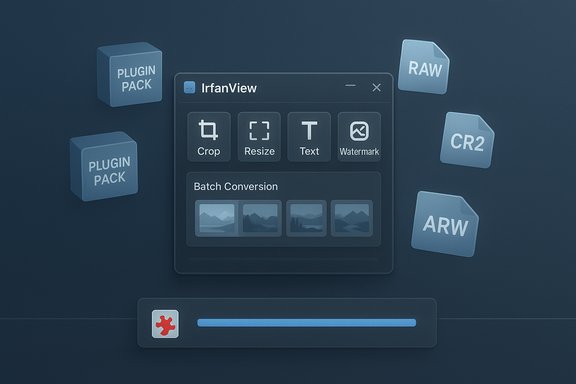
IrfanView does not include every camera RAW loader out of the box; instead, RAW support arrives via the Plugins pack. Installing the official plugin installer adds support for many proprietary RAW formats and integrates with Windows Imaging Codecs where available. Users who shoot RAW must install the plugin pack to open NEF, CR2, ARW and other files in IrfanView. Caveats and troubleshooting:- The plugin pack must match IrfanView’s bitness (32 vs 64 bit).
- Some very new or obscure camera models may need separate codec packs or updated plugins.
- For full RAW development (non‑destructive color controls, advanced noise reduction, camera profiles), a dedicated RAW developer (Lightroom, Capture One, RawTherapee) is still recommended. IrfanView is excellent for previewing and light adjustments, not for deep RAW editing.
Licensing: free for personal, license for commerce
IrfanView is offered as freeware for personal, educational and charitable use. Commercial and business users are expected to register and purchase licenses (the EULA explicitly defines permitted use). The developer has historically kept licensing inexpensive and perpetual for purchased seats, but organizations should check the EULA or contact the author for current commercial terms. This licensing model helps fund continued maintenance. Caution: pricing, terms and the commercial license mechanism can change — verify the current EULA and registration details on the official site before deploying IrfanView across multiple workstations.Limitations and realistic expectations
IrfanView is deliberately not a Photoshop alternative. Important limitations to keep in mind:- No layer support — IrfanView edits are single‑layer and destructive; you cannot preserve editable layers like in Photoshop or GIMP. For layered, non‑destructive workflows use a dedicated editor.
- Basic retouching only — cloning, healing or advanced masking tools are minimal or absent. IrfanView is best for trimming, quick adjustments and simple retouching.
- Plugin dependency for advanced formats — things like RAW, some video formats and specialized metadata require the plugin pack or external codecs. Plugin mismatches can be a source of confusion for beginners.
- Single‑file undo stack — while IrfanView offers Undo, it’s not designed for complex, multi‑step non‑destructive edits.
Practical tips, best practices and troubleshooting
- Always work on copies. Because IrfanView is mainly destructive editing, store originals separately before batch jobs or saves.
- Use the Advanced Options in batch mode to preview a single file before processing hundreds. This prevents accidental overwrites or unwanted compression artifacts.
- Match plugin bitness to IrfanView bitness (32 vs 64 bit) to avoid missing plugin errors. If a RAW file won’t open, check Plugins install and folder placement.
- For watermarking, add text or image watermarks in Advanced Options during batch conversion for consistent branding across many images.
- If you need lossless JPG rotations (no recompression), use IrfanView’s JPG lossless operations where appropriate (available in the Save dialog and shell extension). Verify settings in the FAQ.
- Black or error image when opening a file: ensure plugins are installed and current.
- Windows doesn’t show thumbnails: install the plugins and enable the shell extension or use a codec pack like K‑Lite if necessary.
Privacy and metadata handling
IrfanView provides controls to keep or strip EXIF and IPTC metadata when saving files. This is useful if you share photos publicly and want to remove GPS coordinates or camera serial information. Batch removal is possible via scripts or third‑party tools (ExifTool), but IrfanView’s save options cover common needs. For mass metadata sanitization professionals often pair IrfanView with ExifTool for more advanced scripts. Caution: When using web services for editing or watermarking, avoid uploading sensitive images if privacy is a concern — IrfanView is local‑first and keeps files on your machine, which is a privacy advantage.When to choose an alternative
Choose a more advanced tool when:- You need non‑destructive layers, masks, or complex composites.
- You require professional print‑ready color management (dedicated ICC workflows, CMYK).
- You need advanced RAW development with camera profiles and batch tethered workflows.
- GIMP or Paint.NET — free, more advanced pixel editors with layers.
- Affinity Photo or Photoshop — advanced retouching and color management.
- RawTherapee or Darktable — in‑depth RAW processing.
- FastStone Photo Resizer or dedicated DAM software — when batch watermarking and bulk renames are core tasks.
Security and update practices
IrfanView is a trusted, long‑running utility, but best practices still apply:- Download the EXE and plugin pack only from the official site or vetted mirrors to avoid trojanized builds.
- Keep IrfanView and plugin versions in sync; plugin updates sometimes correct format bugs and add support for new RAW models.
- On managed machines, verify licensing obligations before widespread deployment in business environments because the EULA restricts commercial deployment without registration.
Verified claims and flagged items
- Verified: IrfanView is freeware for private, educational and charitable use and requires registration/licensing for commercial use. This is explicitly stated in the EULA and the official product pages.
- Verified: RAW support is provided via the official plugins pack; install the plugins matching the application bitness.
- Verified: Batch Conversion/Rename supports advanced operations including format change, resizing, metadata placeholders and watermarking. Several tutorials and the official FAQ document these workflows.
- Flagged (caution): Version numbers, exact pricing for commercial licenses and the set of camera models supported by the plugin pack can change. Users should verify the current version and EULA text on the official IrfanView pages before recording facts in guides or deploying enterprise‑wide.
Quick reference — common tasks (at a glance)
- Install: Download IrfanView + Plugins (match 32/64 bit).
- Open: File > Open or drag and drop.
- Crop: Select area → Edit > Crop Selection (Ctrl+Y).
- Resize: Image > Resize/Resample.
- Add text: Edit > Insert text (F12).
- Batch convert: File > Batch Conversion/Rename → Advanced Options → Start.
- strip metadata: Save As > uncheck “Keep original EXIF data” or use ExifTool for bulk tasks.
Final analysis: who should use IrfanView?
IrfanView is ideal for:- Hobbyists and beginners who want quick edits without a steep learning curve.
- Photographers who need fast previewing, quick JPG fixes and robust batch conversion.
- Office users preparing images for web or documents where speed matters and editing complexity is low.
- Advanced retouchers and designers who require layer compositing, advanced color management or professional printing workflows.
Conclusion
For Windows users who want to crop, resize, add text, apply basic filters, process RAW previews and, importantly, process hundreds of files at once, IrfanView is a practical and efficient choice. Its small footprint, plugin extensibility and proven batch tooling make it an essential utility in any Windows imaging toolkit. Confirm commercial licensing terms before organizational use and keep the plugin pack up to date for the best RAW and format compatibility. With those precautions in place, IrfanView remains one of the fastest routes from a camera card full of photos to a polished, web‑ready library.
Source: Windows Report Beginner’s Guide to Using IrfanView for Photo Editing
