

IrfanView still feels like one of those tiny, indestructible tools from the Windows XP era that quietly does exactly what you need—fast, reliable, and stubbornly practical on modern Windows 11 machines.
IrfanView began life as a compact image viewer and has grown into a lightweight, extensible media utility that continues to be maintained by its original author. Over the decades it has developed a reputation for speed, format breadth, and a plugin architecture that lets the core remain tiny while optional features expand capability as needed. These characteristics are repeatedly cited by long-form guides and user-focused reviews that recommend IrfanView for fast previews, batch conversions, and legacy-format support.
At its heart, IrfanView is intentionally simple: a single executable, optional plugin pack, and a UI that favors function over form. That design choice is the reason it still sits in so many power users’ toolkits on Windows 11—because it starts instantly, doesn't hog resources, and solves everyday image tasks without a steep learning curve.
If you rely on IrfanView for critical production tasks, keep a verified, tested installer and plugin pack in your internal repository and maintain a simple test plan to validate new versions before deploying them broadly. This pragmatic approach prevents surprise regressions and preserves the reliability that makes the app attractive in the first place.
If you want a simple, deterministic tool that gets the job done with minimal fuss—especially for large batches, uncommon formats, and offline privacy-conscious work—keep IrfanView in your Windows 11 toolbox. If your needs include cataloging, layer-based retouching, or cloud synchronization, pair IrfanView with a modern RAW developer or photo manager instead of treating it as a full replacement.
IrfanView’s persistence in the Windows ecosystem is a reminder that utility, reliability, and a small footprint are still valuable design goals—qualities that remain relevant even as operating systems evolve.
Source: MakeUseOf I'm still using this Windows XP tool on Windows 11, and it's perfect
 Background
IrfanView began life as a compact image viewer and has grown into a lightweight, extensible media utility that continues to be maintained by its original author. Over the decades it has developed a reputation for speed, format breadth, and a plugin architecture that lets the core remain tiny while optional features expand capability as needed. These characteristics are repeatedly cited by long-form guides and user-focused reviews that recommend IrfanView for fast previews, batch conversions, and legacy-format support.At its heart, IrfanView is intentionally simple: a single executable, optional plugin pack, and a UI that favors function over form. That design choice is the reason it still sits in so many power users’ toolkits on Windows 11—because it starts instantly, doesn't hog resources, and solves everyday image tasks without a steep learning curve.
Overview: What IrfanView Still Does Best on Windows 11
Speed and light footprint
One of IrfanView’s enduring strengths is instant responsiveness. On modern hardware the app opens images virtually immediately, and that advantage is often more noticeable when browsing thousands of photos or previewing large camera RAW files. For users who frequently cull or preview photo sets, this speed translates directly into time saved.Extremely wide format support (base + plugins)
IrfanView’s format support is broad out of the box and expands dramatically with its plugin pack. Common formats—JPEG, PNG, TIFF—are handled natively, while the plugin ecosystem adds reading (and sometimes writing) support for camera RAW variants, HEIC, AVIF, PSD previews, DjVu, and several older or obscure container formats. That mix of native and plugin-enabled support is a major reason users reach for IrfanView when the default Photos app fails to open a file.Batch processing and file conversions
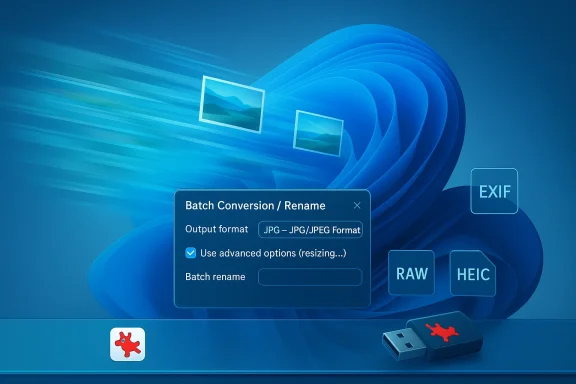
IrfanView’s Batch Conversion/Rename dialog is a workhorse for repetitive tasks: resize hundreds of images, convert TIFF folders to JPG, apply simple filters, and rename according to a pattern in one run. The batch workflow is tried-and-true—fast and deterministic—making it ideal for web prep, archives, and automation-friendly workflows.Practical extras you’ll actually use
Beyond viewing and conversion, IrfanView includes several pragmatic tools that keep it useful on modern systems:- Built-in screen capture and simple screen grab workflow.
- TWAIN scanner support for direct scanning into the app.
- EXIF metadata viewing and basic editing; options to strip metadata on save.
- Slideshow creation with the ability to export as standalone EXE files or screensavers—small but occasionally indispensable features.
Under the Hood: Plugins, Extensibility, and What They Add
Plugin ecosystem and practical impact
The IrfanView plugin pack is the technical multiplier that turns the small core viewer into an imaging Swiss army knife. The plugin set adds:- Additional file format handlers (RAW, additional codecs).
- OCR capabilities (read text from images) where required.
- Advanced filters and support for Adobe-compatible 8BF effect plugins.
Practical plugin advice
- Always install the matching plugin pack for your IrfanView binary (32-bit vs 64-bit). Mismatched plugin/host combos create odd crashes or features that silently fail.
- Use the portable version on USB sticks when you want a no-install toolkit for troubleshooting or carry-along use. The portable single-exe plus a plugin folder is a convenient pattern for technicians.
Hands-on: Key Workflows and How to Do Them in IrfanView
1. Fast preview and culling
- Open a folder (File > Open or drag-and-drop).
- Use arrow keys to move between images—no unnecessary full-window redraws.
- Use the spacebar or “Next” to quickly mark candidate photos for deletion or export.
2. Batch convert & resize (practical steps)
- File > Batch Conversion/Rename.
- Add files or an entire folder.
- Choose output format and configure Advanced Options for resizing or filters.
- Start the job; confirm output naming using placeholders. This sequence is both fast and scriptable through command-line options if you need automation.
3. Strip EXIF metadata quickly
- Use File > Save As and uncheck “Keep original EXIF data” before saving a copy, or use ExifTool for large-scale, scriptable metadata removal if you have hundreds or thousands of images. The latter approach is recommended for reliable, repeatable results.
Compatibility, Licensing, and Enterprise Considerations
Windows 11 compatibility and default-app behavior
IrfanView continues to run on modern Windows versions, including Windows 11. It remains a single-executable program (with optional plugins) and does not rely on background services or cloud features, which simplifies deployment on locked-down machines. However, switching default app associations in Windows 11 is per-extension and more granular than older Windows releases—this makes large-scale deployment of a small tool somewhat more administrative. Test associations and document your deployment steps for enterprise rollouts.Licensing: free for personal use; commercial terms require attention
IrfanView has historically been free for personal use, with the developer accepting donations and offering clear terms for commercial use. For corporate or organizational deployment you should verify the current EULA and licensing terms on official distribution channels before mass installation—don’t assume perpetual, unrestricted free use for business purposes. Several user guides and pro tips explicitly recommend confirming commercial licensing prior to enterprise deployment.Update cadence, security posture, and signed installers
Lightweight third-party utilities sometimes have less predictable update cadences than platform-provided apps. For organizations that require tight change control, prefer signed installers, maintain a vetted distribution package, and verify compatibility with security policies and endpoint management tooling. Where possible, sandbox or test upgrades on a small fleet before broad rollout.Strengths: Why IrfanView Still Wins for Many Users
- Speed: Instant image previews and snappy batch jobs save time.
- Small footprint: Tiny installer, optional plugins, portable use-case.
- Unmatched legacy and obscure format coverage via plugins: Formats that Photos or other modern viewers won’t open are often accessible through IrfanView+plugins.
- Powerful batch utility: Deterministic and scriptable conversions and renames.
- Low friction: No cloud account, no telemetry-driven features to grapple with for offline workflows.
Risks and Limitations: When IrfanView Might Not Be the Right Tool
Dated UI and limited non-destructive editing
IrfanView’s UI hasn’t chased modern visual trends—this is a conscious tradeoff for speed. But for users who require non-destructive layer workflows, color-managed RAW development, or integrated cloud albums and AI-driven edits, IrfanView is not a substitute for a full RAW developer or modern photo manager. Consider it a first-step tool rather than a replacement for pro apps.Enterprise support and update guarantees
Organizations that demand consistent update cadences, signed long-term support, or enterprise SLAs should treat IrfanView like any community-maintained tool: vet the installer, maintain a tested build, and document a rollback plan. The application is lightweight but not designed as an enterprise-grade managed package out of the box.Licensing vigilance
The promise “free for personal use” is real, but commercial licensing terms change. For any business-wide deployment, confirm permissions and, if needed, procure the appropriate licenses to avoid later friction. Guides on deploying IrfanView in production contexts repeatedly recommend verifying EULA details before broad use.How IrfanView Compares to Modern Alternatives
When evaluating viewer/editor alternatives on Windows 11, consider the tradeoffs:- IrfanView: ultra-fast, tiny, plugin-rich, excellent batch tools—dated UI, destructive editing only.
- ImageGlass: lightweight, modern-feeling UI with good format support—less plugin depth than IrfanView.
- FastStone Image Viewer: good batch and organizer features with a somewhat modern interface—more features but larger footprint than IrfanView.
- digiKam: full photo management suite with tagging, face recognition and deep cataloging—far heavier and more complex than IrfanView; aimed at power catalog users.
Practical Migration and Setup Tips for Windows 11 Users
- Choose the right binary: install the 64-bit build if you are on a 64-bit Windows 11 machine, and match plugin architecture to the host binary.
- Install the full plugin pack only if you need the formats or filters—this keeps the default install minimal.
- Configure “Set file associations” carefully in Windows 11’s per-extension defaults to avoid breaking workflows in other apps. Test folder browsing and file open dialogs after switching defaults.
- For privacy workflows, use IrfanView’s Save As options to strip metadata, or use ExifTool for large-scale scrubbing. Keep backups of originals before metadata stripping.
What to Watch For: Verifiable Claims and Cautionary Notes
A number of popular write-ups repeat legacy or promotional claims—downloads, historical milestones, and plugin counts. Many community sources cite IrfanView’s long history and large install base, but you should treat single-site download count claims (for example, “200+ million downloads”) as reported figures rather than absolute truths unless confirmed by the official distribution channels. Always cross-check any numerical claim against the official IrfanView distribution notes or authoritative archival sources when accuracy matters.If you rely on IrfanView for critical production tasks, keep a verified, tested installer and plugin pack in your internal repository and maintain a simple test plan to validate new versions before deploying them broadly. This pragmatic approach prevents surprise regressions and preserves the reliability that makes the app attractive in the first place.
Final Verdict: Why IrfanView Survives—and When to Keep It
IrfanView is proof that efficient, focused software design can outlast flashy redesigns. On Windows 11 it remains:- A go-to tool for lightning-fast previews and batch processing.
- A format lifeline when the default Photos app or other viewers stumble on obscure or legacy files.
- A portable, no-fuss utility that fits into a technician’s toolkit or a photographer’s basic workflow.
If you want a simple, deterministic tool that gets the job done with minimal fuss—especially for large batches, uncommon formats, and offline privacy-conscious work—keep IrfanView in your Windows 11 toolbox. If your needs include cataloging, layer-based retouching, or cloud synchronization, pair IrfanView with a modern RAW developer or photo manager instead of treating it as a full replacement.
IrfanView’s persistence in the Windows ecosystem is a reminder that utility, reliability, and a small footprint are still valuable design goals—qualities that remain relevant even as operating systems evolve.
Source: MakeUseOf I'm still using this Windows XP tool on Windows 11, and it's perfect
