

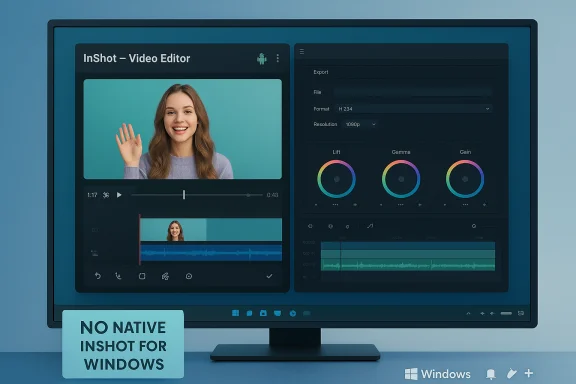
If you want InShot on a Windows 11 PC, the short, accurate answer is blunt but useful: there is no official native InShot app for Windows 11 — you can run the mobile InShot through an Android emulator or the Windows Subsystem for Android (community methods), but for most creators a native Windows editor (including free, pro‑level tools) will be faster, safer, and more powerful.
InShot rose to prominence as a mobile-first video and photo editor built around the needs of social creators: fast trimming, speed controls, music, filters, text overlays, and social‑friendly aspect presets. Its popularity on Android and iOS is unquestionable — the company promotes features like Auto Captions, AI Cut, and a growing set of effects on its official site — but the developer has not published a native Windows build. That reality shapes every practical option for running InShot on a Windows 11 PC. Windows itself has been evolving its creator toolset: Microsoft bundles Clipchamp and the Photos/Video Editor experience in Windows 11, and the platform also supports third‑party professional tools such as DaVinci Resolve — free and highly capable — plus open‑source editors like OpenShot and Shotcut that are native to Windows. These native apps often outpace mobile editors in performance and export control because they can use the full CPU, GPU, and higher memory budgets of a PC.
High‑level steps (community approach):
In sum: InShot remains a mobile champion, but Windows 11 users do not have a native, official InShot installer to download — they have practical workarounds and strong native alternatives. Choose the path that best balances familiarity, performance, and security for your projects, and always verify downloads and backups before making emulator or system‑level changes.
Source: Priori Data InShot for Windows 11 Free Download | Priori Data
 Background / Overview
InShot rose to prominence as a mobile-first video and photo editor built around the needs of social creators: fast trimming, speed controls, music, filters, text overlays, and social‑friendly aspect presets. Its popularity on Android and iOS is unquestionable — the company promotes features like Auto Captions, AI Cut, and a growing set of effects on its official site — but the developer has not published a native Windows build. That reality shapes every practical option for running InShot on a Windows 11 PC. Windows itself has been evolving its creator toolset: Microsoft bundles Clipchamp and the Photos/Video Editor experience in Windows 11, and the platform also supports third‑party professional tools such as DaVinci Resolve — free and highly capable — plus open‑source editors like OpenShot and Shotcut that are native to Windows. These native apps often outpace mobile editors in performance and export control because they can use the full CPU, GPU, and higher memory budgets of a PC. Why there’s no official “InShot for Windows 11 free download”
- InShot is developed primarily for Android and iOS; its product pages and official app stores list mobile downloads and mobile‑centric features, not a Windows MSI or Microsoft Store product.
- The absence of a Microsoft Store listing means there is no supported, signed, native Windows package to download and run directly under Windows 11’s user model. Any “InShot for Windows” downloads found outside the Play/App Store and official site should be treated as unofficial or repackaged.
How to run InShot on Windows 11: realistic options and step‑by‑step
There are two practical paths to run the mobile InShot experience on Windows 11: Android emulators and Windows Subsystem for Android (community builds that add Google Play). Each has pros, cons, and specific setup steps.Option A — Android emulator (BlueStacks, NoxPlayer, LDPlayer, MEmu)
Android emulators are the most common and user‑friendly approach for non‑technical users. BlueStacks, for example, maintains an installation path, guides you through Play Store sign‑in, and shows InShot in its app library so you can install it exactly the same way you would on a phone. BlueStacks explicitly documents system minimums (Windows 7+, 4 GB RAM recommended; better performance with 8 GB), and provides optimization settings for allocating CPU and memory to the emulator.- Download BlueStacks (or NoxPlayer/LDPlayer/MEmu) from the official site and run the installer as Administrator.
- Enable virtualization in your PC firmware/UEFI if prompted (VT‑x/AMD‑V). This often improves emulator speed.
- Launch the emulator and sign in to Google Play with a Google account.
- Open Google Play inside the emulator, search for “InShot – Video Editor”, and install it as you would on Android.
- Grant permissions inside the emulator and transfer your media into the emulator (drag‑and‑drop or shared folder features). Start editing.
- Easiest route for non‑technical users.
- Familiar touch UI mapped to mouse and keyboard, and often supports keyboard shortcuts.
- No need to alter Windows system files or WSA installs.
- Performance: emulators require significant resources and can be sluggish on low‑end machines. Expect higher CPU/RAM/GPU use versus native editors.
- File management friction: moving large video files between Windows and the emulator can be inconvenient.
- Increased attack surface: installing emulators and signing into Play Store inside a virtualized environment introduces more software layers to maintain/patch.
Option B — Windows Subsystem for Android (WSA) with Play Store (community methods)
Windows Subsystem for Android is Microsoft’s native virtualization layer for running Android apps on Windows 11. The standard WSA distributed by Microsoft does not include Google Play Services or the Play Store. Some community projects publish modified WSA builds that bundle Play Store (or GMS), which let you sign in and install InShot directly. These are technical, unofficial, and carry non‑trivial security and stability tradeoffs that must be carefully considered.High‑level steps (community approach):
- Enable virtualization and install Windows Subsystem for Android feature or uninstall stock WSA as directed by the community guide.
- Download a reputable community WSA build that bundles Play Store (use only well‑known GitHub projects and their official releases).
- Run the included installer scripts (PowerShell with admin rights) and follow instructions to install the modified WSA instance.
- Open the Play Store inside WSA, sign in, and install InShot.
- Potentially cleaner integration than emulators because WSA is a Windows integral feature.
- Lower overhead in some cases and better interaction with Windows UI.
- These builds are unofficial. They modify a platform component and may introduce privacy risks, stability issues, or future incompatibilities. Only advanced users who understand system rollback and image backups should attempt this.
- Community packages are not vetted by Microsoft or Google; they may break with Windows updates. Back up your system image before proceeding.
Practical step checklist: emulator install (BlueStacks example)
- Confirm hardware: 8 GB RAM recommended, multi‑core CPU, up‑to‑date GPU drivers.
- Download BlueStacks from the official BlueStacks site and run the installer.
- Open BlueStacks, sign into Google Play.
- Search for “InShot” and click Install.
- Transfer local video files into the emulator (drag, shared folders, or emulator import).
- Edit and export; then move final file back to Windows via drag/drop or shared folder.
Why many Windows users change course and pick native desktop editors
Even if you successfully run InShot on Windows 11, the environment and long‑term experience will differ from mobile. Native Windows editors offer advantages that matter as projects and demands grow:- Performance and hardware acceleration — desktop apps can leverage dedicated GPUs and high memory for multi‑track timelines and 4K exports. DaVinci Resolve, for instance, is a professional desktop editor with a robust free tier that supports Ultra HD workflows and advanced color grading.
- File format and export control — desktop editors support a wider range of codecs and bitrates; professional tools let you set container, codec, and image sequence options with precision.
- Multi‑track timelines and advanced audio — applications like DaVinci Resolve and Shotcut provide multi‑track mixing and advanced audio tooling not found in the mobile‑centric InShot.
- Stability for heavy projects — large video files and long timelines are handled more reliably by native apps designed for desktop memory and storage models.
- DaVinci Resolve (free): Industry‑grade editing, color, VFX and Fairlight audio integration — free version is generous and widely used by pros.
- OpenShot: Simpler, open‑source editor closer to InShot’s ease of use but with native Windows performance.
- Shotcut: Free, cross‑platform, with broad format support and classical non‑linear editing features.
- Windows built‑in (Clipchamp/Video Editor): Immediately available, easy for quick social edits and basic trimming, with a freemium model for premium exports.
- Wondershare Filmora: Paid but approachable; includes social media templates and a mobile‑like UX scaled for desktop.
Security, privacy, and legal considerations
- Unofficial Windows ports or repackaged “InShot for Windows” downloads are risky. They may bundle adware, malware, or altered binaries. The safest route is the official Play Store copy inside a well‑known emulator or, better yet, a native Windows editor.
- Community WSA builds can expose your machine to additional risk because they modify system components. Always use trusted repositories, verify checksums, and maintain a full system backup before installing such packages.
- Be mindful of content privacy: emulated environments store media in a virtualized filesystem; moving sensitive files through cloud services or public folders can expose PII or sensitive intellectual property. Use local, encrypted storage where required.
Comparative analysis: emulator InShot vs native Windows editors
Speed of learning and mobile familiarity
- InShot (via emulator): Low barrier if you already know the InShot mobile UI; great for quick shorts and social clips.
- Native editors: Steeper learning curve for advanced editors (DaVinci Resolve), but faster throughput for longer projects once learned.
Output quality and formats
- Emulated InShot: Good for social resolution exports (1080p, often mobile‑focused presets). Some features and export options are mobile‑limited.
- Native editors: Support up to 4K/8K (depending on software and hardware), finer control over bitrate and codecs, better color subsampling control.
Performance and stability
- Emulators: Resource‑heavy, can stutter on large projects.
- Native apps: Optimized for desktop resources, can use hardware encoding and offload work to GPU more effectively.
Long‑term viability
- Emulators and WSA community builds are stopgap solutions; native apps are a sustainable, supported path.
Recommended workflows depending on use case
- If you only need quick vertical social clips and prefer InShot’s exact UI: use BlueStacks or a similar reputable emulator, ensure your PC meets recommended specs (8 GB RAM recommended), and keep installation to official emulator downloads.
- If you’re scaling to longer edits, multiple clips, or higher resolutions: adopt a native Windows editor (DaVinci Resolve free for pro workflows; OpenShot or Shotcut for simpler, free desktop experiences). You’ll gain export fidelity, performance, and long‑term stability.
- If your organization restricts third‑party virtualization: use built‑in Windows tools (Clipchamp/Video Editor) for quick tasks or request approved desktop editing software through IT.
Troubleshooting common emulator pain points
- Sluggish performance: enable virtualization in BIOS/UEFI, allocate more RAM/CPU cores in the emulator settings, update GPU drivers.
- Files not visible between Windows and emulator: use emulator’s shared folders feature or drag‑and‑drop import; for large exports consider exporting to a shared folder to avoid slow virtual‑device transfers.
- App crashes or saving failures inside InShot: mobile apps can crash when emulated or when mobile versions have a bug; ensure the InShot mobile version is updated and test with smaller projects to isolate causes. User reports suggest long projects sometimes fail to export on mobile — that risk persists in emulation. Exercise caution and keep local backups.
Final verdict and practical recommendation
- There is no official InShot for Windows 11 free download. Running InShot on PC is possible, but it requires an emulator or unofficial WSA builds; both are workarounds rather than a native solution.
- For hobbyists who want the exact InShot interface for a few quick clips, an emulator like BlueStacks provides a low‑friction, supported path to run the Play Store version on Windows. BlueStacks documents the process and minimum system requirements.
- For creators who care about speed, export quality, and long‑term reliability, switching to a native Windows editor (DaVinci Resolve, OpenShot, Shotcut, Clipchamp) is the better investment. These desktop tools will produce higher quality exports and scale to more complex projects.
Quick reference — CLI‑style cheat sheet
- Want InShot UI and minimal setup? Install BlueStacks → Play Store → InShot.
- Want better performance, 4K exports, and pro features? Download DaVinci Resolve (free) and learn the Cut/Edit/Color pages.
- Concerned about unofficial packages and system integrity? Avoid third‑party “InShot for Windows” downloads; use official emulator builds or native desktop apps instead.
In sum: InShot remains a mobile champion, but Windows 11 users do not have a native, official InShot installer to download — they have practical workarounds and strong native alternatives. Choose the path that best balances familiarity, performance, and security for your projects, and always verify downloads and backups before making emulator or system‑level changes.
Source: Priori Data InShot for Windows 11 Free Download | Priori Data
