

Microsoft’s messaging over the past 18 months has been blunt and consistent: Microsoft 365 is a broad productivity ecosystem — and Outlook is the mail, calendar and personal information management gateway Microsoft wants everyone to use on Windows.
Microsoft 365 (formerly Office 365) is a subscription-based suite of productivity apps and cloud services that includes Word, Excel, PowerPoint, OneDrive, Teams and more. Outlook is the company’s long-standing email, calendar and contacts application — historically available in multiple forms: the classic desktop Outlook client bundled with Microsoft 365 and Office, the Outlook.com webmail service, and the lightweight Mail, Calendar and People apps that were shipped with Windows. The company has been consolidating those experiences into a single modern app branded as the New Outlook for Windows (now rolling out simply as “Outlook”) and making it the default on Windows devices. The crucial distinction to remember: Microsoft 365 is the service and suite; Outlook is one of the applications inside that suite — but Microsoft’s recent product moves have elevated Outlook to the primary front door for mail, calendar and contacts on Windows. That strategic consolidation is the root of the confusion behind questions like “Is Microsoft 365 Outlook?” — the short answer is no, but the long-term user experience is increasingly Outlook-centric.
Microsoft’s road map points to an Outlook-centric Windows experience in the long term. That does not make Microsoft 365 synonymous with Outlook, but it does mean that for most Windows users today, Microsoft 365 and Outlook are tightly coupled in daily practice — and the future of mail and calendar on Windows will continue to be defined by how Microsoft evolves Outlook and its associated AI features.
Conclusion: Microsoft 365 remains a comprehensive productivity platform; Outlook is the primary mail and calendar application within that platform on Windows. The practical reality for Windows users in November 2025 is that Outlook is the main gateway to Microsoft 365 communications, and the transition to a single, cloud-first Outlook experience is well underway — with both meaningful benefits and measurable risks that require planning and attention.
Source: DesignTAXI Community Is Microsoft 365 / Outlook? [November 5, 2025]
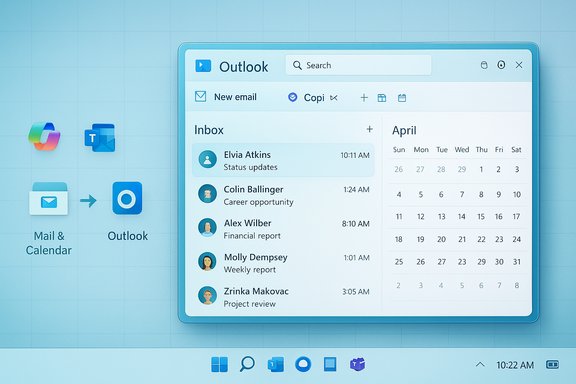 Background / Overview
Microsoft 365 (formerly Office 365) is a subscription-based suite of productivity apps and cloud services that includes Word, Excel, PowerPoint, OneDrive, Teams and more. Outlook is the company’s long-standing email, calendar and contacts application — historically available in multiple forms: the classic desktop Outlook client bundled with Microsoft 365 and Office, the Outlook.com webmail service, and the lightweight Mail, Calendar and People apps that were shipped with Windows. The company has been consolidating those experiences into a single modern app branded as the New Outlook for Windows (now rolling out simply as “Outlook”) and making it the default on Windows devices. The crucial distinction to remember: Microsoft 365 is the service and suite; Outlook is one of the applications inside that suite — but Microsoft’s recent product moves have elevated Outlook to the primary front door for mail, calendar and contacts on Windows. That strategic consolidation is the root of the confusion behind questions like “Is Microsoft 365 Outlook?” — the short answer is no, but the long-term user experience is increasingly Outlook-centric.Why the change? Microsoft’s strategy explained
Microsoft’s rationale is straightforward: unify experiences, reduce fragmentation, and accelerate feature delivery by centering mail/calendar/people around a single, cloud-integrated app. The company explicitly framed the New Outlook as “the future of Mail, Calendar and People on Windows,” and announced plans to retire the separate Mail & Calendar apps that shipped with Windows. The Mail & Calendar apps were placed into a view-only mode and then ceased to allow sending/receiving after December 31, 2024. Microsoft recommends moving to the New Outlook or Outlook.com for full functionality. Key business drivers behind the consolidation:- A cloud-first architecture that simplifies cross-device sync and enables faster rollout of features such as AI assistants (Copilot) and collaborative integrations.
- Simplified support and maintenance by reducing multiple legacy clients.
- A unified product that aligns consumer web/mobile experiences with corporate Microsoft 365 deployments.
Timeline and current status (as of November 5, 2025)
- December 31, 2024 — Support for Windows Mail, Calendar and People ended; those apps entered a read-only mode and could no longer send or receive mail after that date. Microsoft directed users to export any local data and migrate to New Outlook.
- August 2024 through March 2025 — The New Outlook reached general availability and Microsoft began renaming/normalizing the installed app name to “Outlook” in mid-to-late March 2025 as part of the rollout. That change made it the default app in the Start menu for many Windows installations.
- 2025–2026 (staggered) — Microsoft has communicated a staged plan to migrate organizations, with certain Microsoft 365 Business customers and enterprise tenants being targeted for automatic transitions in phases; one published timeline indicated an automatic transition window for enterprise users beginning in April 2026 while allowing an opt-out window during the migration phase. Organizations were given administrative controls and notification periods to prepare.
- Ongoing 2024–2025 — Microsoft has been actively adding features (AI summarization, integration with Copilot, newsletter and analytics tools, folder pinning and UI improvements) while also addressing early-adopter stability and feature-parity complaints. Community threads and reporting document both active improvements and user frustration over missing legacy features or regressions.
What “Outlook” actually is today — variants and functionality
There are three practical Outlook experiences that matter to users and IT teams:- Outlook (classic desktop) — the traditional, feature-rich desktop client that ships with Microsoft 365 and perpetual Office licenses. It’s the most capable client for power users and complex Exchange/Outlook rule scenarios; Microsoft extended support for the classic client through at least 2029.
- Outlook (new / web-backed “Outlook for Windows”) — a modern packaged app that uses web technologies and deep integration with Microsoft 365 cloud services. This is the app Microsoft is positioning as the unified experience for mail, calendar and people on Windows. It includes AI features tied to Copilot, tighter Teams integration and new organization tools.
- Outlook.com and mobile Outlook apps — browser-based or mobile clients that continue to be separate entry points but share core service infrastructure with the New Outlook.
Differences in practice: classic Outlook vs new Outlook vs Microsoft 365
Understanding the difference requires looking at features and constraints:- Offline behavior and local data: Classic Outlook has strong offline capabilities and local PST/OST handling; the New Outlook initially leaned more web-first and required improved offline support. Microsoft committed to expanding offline capabilities but the New Outlook’s early adopters reported limitations.
- Feature parity: Classic Outlook retains many advanced features for power users (complex rules, add-ins, advanced search behaviors). The New Outlook prioritizes modern UX, AI and integration, and Microsoft has been iteratively adding missing capabilities. Community and reporting show a mixed reception during that parity ramp.
- Administration and enterprise controls: Microsoft has supplied admin configuration options and phased rollout controls; however, some defaults — such as the replacement of Mail & Calendar and the renaming of the New Outlook in the Start menu — have been applied automatically for many customers, prompting IT teams to proactively plan for the change.
- AI, Copilot and premium features: Microsoft is embedding Copilot capabilities across Microsoft 365 and Outlook, with functionality like message summarization, suggested replies, and content generation. Microsoft 365 Premium and Copilot Pro bundles further bundle AI features and increased usage limits under new subscription tiers. This represents a meaningful functional differentiation between free Outlook.com experiences and subscription-level Microsoft 365 offerings.
What this means for different user groups
For individual / consumer users
- Most consumer mailboxes (Outlook.com, Gmail, Yahoo, iCloud via IMAP) are supported in the New Outlook; Microsoft promoted migration routes and automatic export/import tools to move local data from Mail & Calendar to Outlook. The New Outlook’s modern UI and AI helpers are attractive to many users, but those who depend on offline-only workflows may need to evaluate functionality before committing.
For power users
- Power users who rely on advanced desktop-only features or niche Outlook add-ins may prefer to continue with classic Outlook where possible. Microsoft has signaled support for the classic desktop client through at least 2029, giving organizations runway to plan migrations and compatibility tests. Still, the company’s long-term roadmap favors the New Outlook’s architecture.
For IT administrators and enterprises
- The staged migration model and automatic renaming/installation actions mean admins must plan and communicate clearly. Microsoft has provided policies to disable the New Outlook for tenants and admin controls during migration windows, but the shift to make the New Outlook the Start menu default has required many IT teams to update onboarding documentation, user training and helpdesk scripts. Enterprises should test key add-ins, mail flow scenarios, and offline requirements before mass deployment.
Step-by-step migration checklist (recommended)
- Inventory current clients, add-ins, and mailboxes, noting any Exchange on-premises or AD FS dependencies.
- Test the New Outlook with a pilot group to confirm feature parity for core workflows.
- Export local Mail & Calendar data from Windows Mail/People if still present and verify import into Outlook.
- Update user communications and training documentation with screenshots and known workarounds.
- Configure administrative controls and opt-out policies where required during the staged migration.
- Monitor helpdesk tickets during and after rollout and collect user feedback to prioritize fixes or training.
- Maintain a plan for power users requiring the classic Outlook client until at least 2029, as necessary.
Major strengths: what Microsoft gets right with the consolidation
- Single-pane integration: Users benefit from unified inbox, calendar and contact management that syncs tightly with Microsoft 365 services and Teams. That integration simplifies collaboration and reduces cross-app friction.
- Faster feature delivery: A single modern app enables Microsoft to ship AI, theme, and productivity enhancements more rapidly than maintaining multiple legacy codebases. Features such as Copilot-driven summaries and newsletter analytics are examples of innovations enabled by the new architecture.
- Consolidated support model: One maintained Outlook client reduces fragmentation and long-term support complexity for Microsoft — a practical advantage for enterprise scale management.
Notable risks and criticisms
- Forced or auto-installed components: Microsoft’s decision to automate installation and make New Outlook the default has provoked pushback. Some users and outlets argued that auto-installation and inability to permanently block the app on certain Windows builds reduced user choice. Organizations must pay attention to tenant settings and group policy to retain control where necessary.
- Feature parity and power-user gaps: The New Outlook initially lacked some advanced capabilities long present in the classic client, drawing criticism from power users and IT pros. Microsoft’s iterative updates aim to close these gaps but the timing and completeness of parity remains a key consideration for serious users.
- Outages and fragility at cloud boundaries: Community reports and support bulletins documented several incidents where classic Outlook clients encountered startup or authentication failures tied to server-side Exchange Online conditions. In some reported cases Microsoft recommended interim use of OWA or the New Outlook. These incidents underline the operational risk of tightly coupling client behavior to cloud services.
- Privacy and Copilot/AI concerns: As Microsoft embeds Copilot across Microsoft 365 and Outlook, organizations must consider data governance and compliance implications. The increased AI telemetry and processing often raises questions about enterprise data residency, telemetry, and regulatory compliance — matters admins must address through policy and configuration.
- User friction and learning curve: The very changes that enable new features also create training burdens. Pop-up notifications and repeated prompts during migration have fueled user frustration, particularly among those who value the simplicity of the legacy Mail & Calendar apps.
Cross-checked facts (verified claims)
- Support for the Mail, Calendar and People apps ended on December 31, 2024; Microsoft moved users toward the New Outlook and provided export/import guidance. This is documented directly in Microsoft’s support guidance and widely reported in the technology press.
- The New Outlook for Windows has been renamed and rolled out as the default “Outlook” in 2025, with the company publishing migration stages and administrative guidance intended to allow organizations to opt out during transition windows. Microsoft’s rollout documentation and the Microsoft Community Hub confirm this staging.
- Microsoft continues to support classic Outlook desktop installations for the time being (support commitments extend for years for existing classic installations), while steering new installs and Windows defaults toward the New Outlook. Reporting and support notes reference classic client support timelines and the phased transition approach.
Practical recommendations and mitigations
- Back up local mail and export contacts/calendar items before migration windows. Do not assume local data will be automatically re-hydrated without verification.
- Pilot the New Outlook with representative users (one group for typical consumers, one for power users) and track feature gaps and add-in compatibility before broad rollout.
- For enterprises with strict offline, audit trail or add-in dependencies, maintain a documented support path for classic Outlook (supported through at least 2029) while evaluating long-term migration or third-party alternatives.
- Use administrative controls to manage when and how New Outlook is deployed; Microsoft provides tenant-level guidance for blocking or disabling the app for groups of users for a period during migration. Review those controls early.
- Treat Copilot and AI-enabled features like any other organizational service: document use-cases, review data flows, confirm compliance with internal policies, and ensure staff training on how AI features are used and when not to use them for confidential content.
The answer to “Is Microsoft 365 Outlook?”
- Strictly speaking: No. Microsoft 365 is not “Outlook.” Microsoft 365 is a broad subscription that includes many applications and cloud services. Outlook is one of those applications and Microsoft’s preferred mail/calendar UI on Windows going forward.
- Practically speaking for Windows users in late 2025: Outlook is the default and dominant mail/calendar entry point for Microsoft 365 users on Windows. The New Outlook is the experience Microsoft is promoting and preinstalling; users who are part of Microsoft 365 environments will find most mail and calendar flows routed through the Outlook experience unless they deliberately opt for alternative clients.
Final assessment — strengths, caveats, and likely trajectory
The consolidation into a single Outlook experience makes clear sense for Microsoft: it simplifies the product matrix, enables rapid AI and integration-driven innovation, and creates a single interface that can be improved incrementally. For many users, the promise of a unified, smarter mailbox with built-in Copilot features and better Teams collaboration is compelling. However, the migration has not been without cost: forced installations, early feature gaps, occasional reliability concerns at cloud boundaries, and legitimate privacy/compliance questions around pervasive AI features are real issues that organizations must treat seriously. The safe path for IT teams is clear: plan, pilot, back up and communicate. For individuals, evaluate the New Outlook in a short pilot or test account before committing business-critical workflows to it.Microsoft’s road map points to an Outlook-centric Windows experience in the long term. That does not make Microsoft 365 synonymous with Outlook, but it does mean that for most Windows users today, Microsoft 365 and Outlook are tightly coupled in daily practice — and the future of mail and calendar on Windows will continue to be defined by how Microsoft evolves Outlook and its associated AI features.
Conclusion: Microsoft 365 remains a comprehensive productivity platform; Outlook is the primary mail and calendar application within that platform on Windows. The practical reality for Windows users in November 2025 is that Outlook is the main gateway to Microsoft 365 communications, and the transition to a single, cloud-first Outlook experience is well underway — with both meaningful benefits and measurable risks that require planning and attention.
Source: DesignTAXI Community Is Microsoft 365 / Outlook? [November 5, 2025]
