

Windows 11 Pro’s value isn’t a marketing talking point so much as a practical question: do the three features most commonly cited — Group Policy Editor, Hyper‑V/Windows Sandbox, and advanced Remote Desktop hosting — actually change how you use and control your PC enough to justify the upgrade? Short answer: for many everyday users, Windows 11 Home is perfectly fine; for power users, IT pros, developers, and anyone who needs granular control or built‑in virtualization and host‑side remote access, Pro can be transformative. This article unpacks each feature, verifies what Pro truly enables, explains the real hardware and policy requirements, and highlights the strengths, limitations, and security trade‑offs you need to evaluate before paying for that license.
Windows ships in multiple editions because Microsoft separates consumer simplicity from enterprise control. Windows 11 Home targets general consumers with a streamlined Settings experience; Windows 11 Pro includes additional management, security, and virtualization tools intended for professional or business use. That edition split is not cosmetic — it affects shipped components like gpedit.msc, Hyper‑V, Windows Sandbox, and the ability to act as an RDP host. Those are the features MakeUseOf singled out, and they’re exactly where Pro changes the experience from “tweakable” to “manageable.”
Microsoft’s documentation and repeated community guidance make the edition boundaries clear: Group Policy, Hyper‑V, and Sandbox are included in Pro, Education, and Enterprise; the Home edition omits them by design (workarounds exist but are unofficial and risky). Remote Desktop’s client remains available on Home so you can connect outwards, but the incoming host functionality — the one that lets you leave your PC on and connect back to it remotely — is a Pro‑gated capability.
Key technical requirements (verify on your machine before expecting it to work):
A practical rule of thumb: if the upgrade cost is under $50 and you value the features we’ve covered, it’s low friction to upgrade; if you must pay full MSRP, weigh whether you actually need the Pro features on a daily basis. For many hobbyists, third‑party virtualization and remote access cover the same ground cheaper — but not always as cleanly integrated.
Windows licensing and feature sets evolve, and Microsoft’s servicing cadence occasionally shifts component behavior — so before you upgrade, check the exact hardware requirements and the latest Microsoft documentation for any recent changes to virtualization, Sandbox behavior, or Remote Desktop features. If you want help verifying whether your PC meets the Hyper‑V and Sandbox prerequisites, or a step‑by‑step walkthrough tailored to your system, include the model, CPU, and the output of msinfo32 and I’ll walk through the checks and the minimal steps to enable these Pro features safely.
Source: MakeUseOf I've used Windows 11 Pro for years, but it's only worth it for these 3 features
 Background
Windows ships in multiple editions because Microsoft separates consumer simplicity from enterprise control. Windows 11 Home targets general consumers with a streamlined Settings experience; Windows 11 Pro includes additional management, security, and virtualization tools intended for professional or business use. That edition split is not cosmetic — it affects shipped components like gpedit.msc, Hyper‑V, Windows Sandbox, and the ability to act as an RDP host. Those are the features MakeUseOf singled out, and they’re exactly where Pro changes the experience from “tweakable” to “manageable.” Microsoft’s documentation and repeated community guidance make the edition boundaries clear: Group Policy, Hyper‑V, and Sandbox are included in Pro, Education, and Enterprise; the Home edition omits them by design (workarounds exist but are unofficial and risky). Remote Desktop’s client remains available on Home so you can connect outwards, but the incoming host functionality — the one that lets you leave your PC on and connect back to it remotely — is a Pro‑gated capability.
Group Policy Editor: fine‑grained control without registry guesswork
What gpedit.msc actually gives you
Group Policy Editor (gpedit.msc) is an MMC snap‑in that exposes the ADMX policy catalog in a browsable GUI. It writes policy settings (which map to specific registry locations) in a way that’s consistent, reversible, and centrally documented. For solo machines, Local Group Policy Editor is effectively a safer, clearer interface to the same controls people previously reached for via registry hacks. That’s why many long‑time Windows users upgrade: it replaces fragile registry fiddles with named policies and intended behavior.Real examples that matter
- Manage Windows Update behavior: Pro gives you access to Windows Update client policies — you can defer feature updates, pause quality updates, change restart deadlines, or remove user access to Windows Update controls. That level of control helps avoid surprise reboots and staged rollouts on critical machines. But a caveat: it’s not a “turn off everything forever” magic switch. Some update behavior is tied to servicing models and Microsoft’s update infrastructure; Group Policy provides authoritative controls, but policies must be used correctly.
- Lock down device features: you can hide Control Panel items, block Microsoft Store apps, prevent driver and app installations, disable USB use in certain contexts, and lock down the Start menu and taskbar layout.
- Enforce security and enterprise settings: require BitLocker encryption, configure Credential Guard and Windows Defender options, and set authentication requirements centrally.
Turn‑by‑turn: open Group Policy on Pro
- Press Win+R, type gpedit.msc, and press Enter.
- Browse Computer Configuration or User Configuration to locate the policy you want.
- Set to Enabled, Disabled, or Not Configured; close and let the policy apply (gpupdate /force for immediate effect).
Strengths and risks
- Strengths: clarity, reversibility, and centralized control. Policies are named and documented; administrators can roll back or audit changes. Policies scale to multi‑machine environments via GPO or MDM.
- Risks: A misapplied policy can brick functionality (or make features inaccessible). Policies that disable update channels or telemetry might interfere with support or security patches if used improperly. Always test policy changes in a nonproduction environment first.
Virtualization: Hyper‑V and Windows Sandbox — two different tools, same objective
Hyper‑V: a full hypervisor baked into Windows
Hyper‑V is Microsoft’s type‑1 hypervisor that runs as a Windows feature on supported editions (Pro, Education, Enterprise). It enables you to create full virtual machines, attach virtual networks and storage, take checkpoints, and run guest OSes (Windows, Linux, etc.) with hardware acceleration. Because it’s integrated, Hyper‑V often performs better and requires less third‑party tooling than some alternatives — but there are trade‑offs, especially around driver compatibility and interactions with other virtualization stacks.Key technical requirements (verify on your machine before expecting it to work):
- 64‑bit processor with Second Level Address Translation (SLAT).
- CPU virtualization support (Intel VT‑x or AMD‑V) and VM Monitor Mode extensions.
- Virtualization enabled in firmware/UEFI.
- At least 4 GB RAM (8 GB recommended for practical use).
These prerequisites are not optional; if they aren’t present or are disabled in firmware, Hyper‑V cannot be enabled through normal channels.
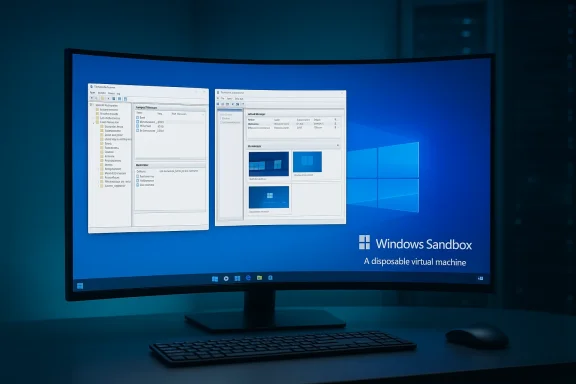
Windows Sandbox: disposable testing in seconds
Windows Sandbox is a lightweight, disposable Windows instance that launches quickly and wipes clean when closed. It’s intended for quickly opening unknown executables or testing settings without creating a persistent VM. Unlike a full Hyper‑V VM, Sandbox is optimized for near‑instant starts and lower overhead because it’s implemented as a process based on Hyper‑V foundations. It’s included in Pro (and above) and requires similar virtualization support plus modest RAM and disk space (Microsoft recommends 4 GB RAM and at least 1 GB free disk).When to use Sandbox vs Hyper‑V
- Use Windows Sandbox when you want a disposable environment for a few minutes of testing — quick, low overhead, and safe for files you don’t care to persist.
- Use Hyper‑V when you need full VM control: persistent disks, networking, multiple VMs, snapshots, or server‑style testing.
Alternatives and compatibility
Third‑party virtualization (VMware Workstation, Oracle VirtualBox) remains viable and, in some scenarios, preferable — particularly if you rely on nested virtualization on unsupported hardware or need broader guest compatibility. WSL2 (Windows Subsystem for Linux 2) covers a lot of developer workflows without a full VM. But for clean Windows‑inside‑Windows isolation, Hyper‑V/Sandbox keep everything within Microsoft’s supported stack.Known issues and cautionary notes
Virtualization components are low‑level and occasionally sensitive to Windows updates. Recently, users reported Sandbox launch failures and related errors on certain Windows builds — a reminder that even Microsoft’s inbox isolation tools can be impacted by cumulative updates and driver changes. If you rely on Sandbox for critical workflows, keep a test channel and monitor official issue trackers. If Sandbox stops launching, the usual remediation path includes ensuring firmware virtualization is enabled, updating related drivers, and checking for known Windows updates that affect the component.Remote Desktop hosting: take your desktop with you — carefully
What Pro adds (and what Home lacks)
Windows 11 Home includes the Remote Desktop client — you can connect out to other machines. What it lacks is the Remote Desktop host/server that allows other devices to connect into your PC. That inbound hosting capability is reserved for Pro, Enterprise, and Education editions. If you need to access your primary machine remotely (from a laptop, from mobile, or from a cloud PC), Pro provides integrated Remote Desktop that uses Microsoft’s RDP stack with Network Level Authentication (NLA) and enterprise features.How to enable it on Pro
- Settings > System > Remote Desktop: flip “Remote Desktop” to On.
- Add authorized users under “Select users that can remotely access this PC.”
- Ensure Network Level Authentication (NLA) is enforced for best security.
- Confirm Windows Firewall or perimeter firewalls permit the RDP traffic you need. In most consumer scenarios, avoid direct internet exposure — use a VPN or Remote Desktop Gateway.
Security and operational considerations
- RDP exposure is a frequent target for brute‑force attacks and exploitation; never open port 3389 to the open internet without layered protections.
- Use NLA, strong passwords (or better, key/certificate‑based solutions), multi‑factor authentication where available, and a VPN or RD Gateway for remote access.
- For business use, Remote Desktop Services and Remote Desktop Gateway provide audited, controlled access with session restrictions; for home use, consider commercial remote access tools if you don’t want to manage ports and VPNs.
Alternatives
If you’re on Home and you don’t want to upgrade, third‑party tools like AnyDesk, TeamViewer, and Chrome Remote Desktop provide robust remote access without RDP host support. They trade the “built‑in” convenience for an external dependency and, typically, a subscription for commercial use.Pricing, licensing, and real‑world deals
Microsoft’s MSRP for Windows 11 Pro has historically been $199 (for a standalone retail license), but regional Microsoft Store listings sometimes show different pricing and bundles. At the time of writing Microsoft’s store listing shows a price point that can vary by region and currency, and third‑party promotions occasionally drop Pro licenses to single‑digit prices as part of sold‑through software packs. That means the list price is less meaningful than what retailers and promotion sites actually charge — you’ll commonly find heavily discounted genuine Pro keys during promotions. That said, beware of shady sellers: only purchase from reputable retailers or Microsoft‑verified partners to avoid counterfeit or nontransferable licenses.A practical rule of thumb: if the upgrade cost is under $50 and you value the features we’ve covered, it’s low friction to upgrade; if you must pay full MSRP, weigh whether you actually need the Pro features on a daily basis. For many hobbyists, third‑party virtualization and remote access cover the same ground cheaper — but not always as cleanly integrated.
Who benefits most from upgrading?
- Power users and IT pros who manage several machines and want consistent, reversible control via Group Policy.
- Developers, security researchers, and QA engineers who need fast performance VMs, snapshots, nested virtualization, or a disposable Sandbox.
- Users who need to host their own machine for remote access (working from a travel laptop into a home desktop) and prefer integrated Windows RDP with no monthly subscription.
- Small business owners who want BitLocker management and more granular update controls without buying enterprise MDM.
Practical upgrade checklist and enabling steps
- Check edition and requirements: Win+R → winver to confirm edition; msinfo32 to confirm virtualization support and hypervisor readiness.
- If you plan to use Hyper‑V or Sandbox: ensure virtualization is enabled in BIOS/UEFI, CPU supports SLAT and virtualization extensions, and you have at least 8 GB of RAM for decent VM performance.
- Upgrade path:
- Settings > System > Activation > Upgrade your edition of Windows (use a purchased Pro key or go through Microsoft Store).
- Reboot and confirm gpedit.msc, Hyper‑V, or Sandbox appear in Turn Windows Features on or off.
- Enable Hyper‑V: Turn Windows features on/off → check Hyper‑V (or use PowerShell: Enable‑WindowsOptionalFeature -Online -FeatureName Microsoft‑Hyper‑V -All). Reboot.
- Enable Windows Sandbox: Turn Windows features on/off → Windows Sandbox (or use the PowerShell command Enable‑WindowsOptionalFeature -FeatureName "Containers-DisposableClientVM" -All -Online). Reboot.
- Enable Remote Desktop: Settings > System > Remote Desktop → toggled On; add Remote Desktop users; confirm firewall rules and NLA enabled. Don’t expose 3389 to the internet without a VPN/Gateway.
Critical analysis: strengths, caveats, and real‑world tradeoffs
Notable strengths
- Integration and reliability: Hyper‑V and Sandbox being inbox features reduces friction when you need virtualization quickly and with hardware acceleration. Policies applied via gpedit.msc are consistent and auditable.
- Enterprise readiness for small teams: For small businesses without a full MDM, Pro provides meaningful control: deferrals, update scheduling, BitLocker enforcement, and remote hosting can be done without complex infrastructure.
- Security posture: When used correctly (NLA, VPN, BitLocker), Pro features can strengthen your security posture versus widely opening services or relying on unvetted registry hacks.
Potential risks and downsides
- Complexity and fragility: More control means more ways to break configuration. Misapplied Group Policy can render features inaccessible or create update delays that reduce security if not monitored. Always trial policies first.
- Update sensitivity: Virtualization and sandboxing components occasionally break due to Windows cumulative updates or driver/firmware interactions. If you rely on Sandbox for critical workflows, keep a fall‑back plan.
- Cost vs. need: Pro’s MSRP can be steep for casual users. While deals exist, you must balance the ongoing value of features versus the one‑time purchase. Third‑party virtualization and remote access tools can sometimes substitute for Pro for cheaper or free options, but they may not provide the same integration or security assurances.
- Home edition workarounds: Community scripts and hacks to add gpedit.msc or Hyper‑V to Home exist, but they’re unsupported and may violate EULAs or complicate future upgrades and support. Avoid them unless you fully understand the implications.
Final verdict
MakeUseOf’s core thesis — that Windows 11 Pro is “worth it” only for a handful of features — is fundamentally accurate if you interpret “worth it” through the lens of practical utility rather than marketing. For the majority of users who surf, stream, edit documents, and game, Windows 11 Home covers everything you actually need. But for power users who need:- the safety and clarity of Group Policy instead of registry guessing,
- built‑in virtualization (Hyper‑V) and a disposable test environment (Windows Sandbox), and
- the ability to host a Remote Desktop session into their machine,
Windows licensing and feature sets evolve, and Microsoft’s servicing cadence occasionally shifts component behavior — so before you upgrade, check the exact hardware requirements and the latest Microsoft documentation for any recent changes to virtualization, Sandbox behavior, or Remote Desktop features. If you want help verifying whether your PC meets the Hyper‑V and Sandbox prerequisites, or a step‑by‑step walkthrough tailored to your system, include the model, CPU, and the output of msinfo32 and I’ll walk through the checks and the minimal steps to enable these Pro features safely.
Source: MakeUseOf I've used Windows 11 Pro for years, but it's only worth it for these 3 features
