Intelligent Standby List Cleaner (ISLC) has quietly become a go‑to troubleshooting tool for gamers and power users who face unexplained stutters, freezes, or crashes caused by Windows’ memory caching behavior, and its pedigree—created by the same developer behind the widely used Display Driver Uninstaller (DDU)—lends it immediate credibility in enthusiast circles.
Windows keeps recently used pages in a structure called the standby list (part of the OS caching strategy) so that frequently accessed data can be served from RAM instead of slower storage. That behavior improves responsiveness in normal desktop workloads, but in certain memory‑heavy scenarios—notably poorly optimized games and applications with memory leaks—the standby list can grow large and not be released quickly enough when an active process suddenly needs physical pages. The result is visible hitching, frame drops, or, in the worst cases, process crashes when the application exhausts usable working set space.
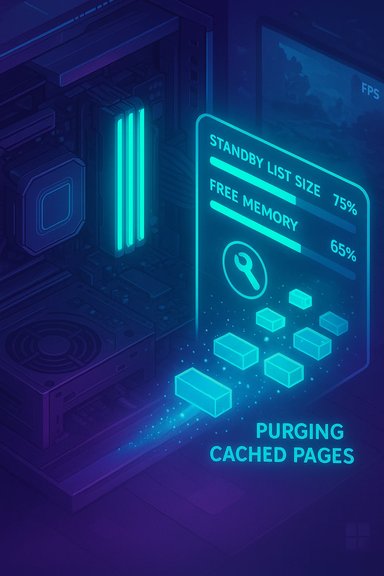
ISLC (Intelligent Standby List Cleaner) monitors the standby list and free memory and clears (purges) standby pages automatically when configurable thresholds are met. The goal is to convert cached-but-not-immediately-usable memory into genuinely free RAM before a game or app demands it, turning a reactive swap/eviction pause into a preemptive housekeeping step. The official author page describes ISLC as a lightweight monitor and cleaner that runs in the background and is designed specifically to address “lag, stutters and crashes” caused by standby list pressure. This is not a change to Windows’ memory manager or any persistent kernel tweak; ISLC performs periodic purges of cached pages—the same pages Windows would drop eventually—so its effects are immediate but reversible and ephemeral.
Key characteristics of ISLC:
Common community-recommended baselines (good starting points, tuned empirically by many players and guides):
Source: MakeUseOf The same guy who made DDU also built this surprisingly effective tiny RAM tool
 Background / Overview
Windows keeps recently used pages in a structure called the standby list (part of the OS caching strategy) so that frequently accessed data can be served from RAM instead of slower storage. That behavior improves responsiveness in normal desktop workloads, but in certain memory‑heavy scenarios—notably poorly optimized games and applications with memory leaks—the standby list can grow large and not be released quickly enough when an active process suddenly needs physical pages. The result is visible hitching, frame drops, or, in the worst cases, process crashes when the application exhausts usable working set space.ISLC (Intelligent Standby List Cleaner) monitors the standby list and free memory and clears (purges) standby pages automatically when configurable thresholds are met. The goal is to convert cached-but-not-immediately-usable memory into genuinely free RAM before a game or app demands it, turning a reactive swap/eviction pause into a preemptive housekeeping step. The official author page describes ISLC as a lightweight monitor and cleaner that runs in the background and is designed specifically to address “lag, stutters and crashes” caused by standby list pressure. This is not a change to Windows’ memory manager or any persistent kernel tweak; ISLC performs periodic purges of cached pages—the same pages Windows would drop eventually—so its effects are immediate but reversible and ephemeral.
How ISLC works — the mechanics in plain English
ISLC watches two metrics in real time:- Standby list size — the cumulative amount of cached pages sitting in the standby list.
- Free memory — the actual free RAM available to allocate without reclaiming standby pages.
Key characteristics of ISLC:
- It is portable (no installer required).
- It runs with minimal overhead in the background.
- It offers a small set of tunable parameters (two principal thresholds, an optional delay, polling interval, and an optional custom timer resolution).
- It does not change system files or persistent kernel settings; closing ISLC restores the system’s standard behavior. This makes it a non‑destructive troubleshooting tool.
Recommended configuration — practical starting points
The community and the developer provide sensible starting thresholds that scale with total RAM. These recommendations are pragmatic: if you have more physical memory, you can tolerate larger standby lists before a purge is necessary.Common community-recommended baselines (good starting points, tuned empirically by many players and guides):
- 8–16 GB systems:
- List size is at least: 1024 MB
- Free memory is lower than: 2048 MB
- 32 GB systems:
- List size is at least: 2048 MB
- Free memory is lower than: 4096 MB
- 64 GB systems:
- List size is at least: 4096 MB
- Free memory is lower than: 8192 MB
- Enable “Start ISLC minimized and auto‑start monitoring” and “Launch ISLC on user logon” if you want persistent protection while gaming.
- Leave the polling interval at a modest setting (default is generally fine); overly aggressive polling can cause unnecessary activity.
- The “Wanted timer resolution” option (commonly set to 0.5 ms) is optional and aimed at slightly tighter frame timing; use it only if you understand the trade‑offs and have tested it.
- Create a restore point and keep the ISLC folder handy; if something feels off, simply close the app—there’s no persistent change left behind.
Real‑world effectiveness: when ISLC helps — and when it doesn't
ISLC is most useful for a clearly defined set of problems:- Games or apps that gradually consume memory (or leak) until usable working set collapses.
- Situations where Task Manager shows high available memory but in‑game hitching occurs because standby pages can't be converted fast enough.
- Systems with limited RAM (8–16 GB) or older games/ports with long‑running memory pressure.
- If you already have ample RAM (32+ GB) and no measurable stutter, Windows’ built‑in memory manager usually suffices.
- If stutters are caused by DPC latency, driver interrupts, GPU scheduling, or CPU throttling—ISLC won’t address those. Tools like LatencyMon, GPU driver diagnostics, and standard driver rollback/update procedures are the appropriate routes for DPC-related hiccups.
- If the game is limited by GPU, CPU, or I/O bandwidth rather than memory pressure, clearing standby pages will not increase frame rates.
Verification of the claims and provenance
The developer behind ISLC is the same author known in the community as Wagnard, who maintains Display Driver Uninstaller (DDU) and other utility tools. DDU’s history and the developer’s presence on GitHub and the official WagnardSoft site provide verifiable provenance for ISLC’s origin and ongoing maintenance. DDU's project and links to the WagnardSoft site confirm the author identity and establish a trustworthy download source for ISLC and related utilities. The official ISLC download and changelog pages describe the tool’s intended function and give usage notes and recommended precautions (backups, exclusions from antivirus for the folder, etc., which aligns with community deployment guidance. These pages are the definitive reference for the tool’s version history and checksums. Independent community guides, hardware/PC performance walkthroughs, and frequent user posts across forums corroborate the tool’s effects: they document successful mitigation of game freezes and frame micro‑stutters in specific titles when ISLC was configured appropriately. Those accounts are experiential and should be regarded as real‑world observations rather than controlled benchmarks, but the cross‑section of reports—from Reddit threads to specialized performance blogs—forms convergent evidence that ISLC can be effective in the scenarios described.Measured trade‑offs and potential downsides
ISLC is low‑risk in most cases, but there are trade‑offs and small costs to be aware of:- Slightly longer program launch times. Clearing standby memory removes cached pages that Windows would have used to speed future app launches; the immediate trade is less cache and a marginally longer load for the next launch of the purged program.
- If thresholds are set too low (causing ISLC to purge constantly), you can make the system worse by forcing repeated cache churn; aggressive cleaning will prevent useful caching and introduce CPU and I/O churn.
- Timer resolution tweaks (0.5 ms) may affect power usage and are unnecessary for most users; enable only if you’ve tested and measured benefits.
- Antivirus heuristics sometimes flag small single‑author utilities as suspicious; always download ISLC from the official developer page and verify checksums when provided. The developer encourages excluding the ISLC folder from real‑time scanning to prevent interference.
Practical, step‑by‑step deployment checklist
- Download ISLC from the official WagnardSoft page (verify checksums if offered).
- Extract and run the executable (no installer required). Run as administrator if suggested by the app for full functionality.
- Note your total RAM and choose an initial configuration:
- 16 GB example: List size ≥ 1024 MB, Free memory < 2048 MB.
- 32 GB example: List size ≥ 2048 MB, Free memory < 4096 MB.
- Enable “Start ISLC minimized and auto‑start monitoring” and “Launch ISLC on user logon” if you want continuous protection.
- Optionally test “Enable custom timer resolution” at 0.5 ms—only enable if you observe input or frame timing improvements after testing.
- Run a reproducible gaming session (30–60 minutes) and monitor whether the frequency of stutters or crashes changes. Let the game run long enough to see whether previously observed crashes reappear.
- If you see improvement, leave ISLC running and consider small adjustments to thresholds to minimize unnecessary purges. If you see no change, stop ISLC and continue deeper diagnostics (drivers, DPC latency, game patches).
- If something behaves oddly after enabling ISLC, close the app and restore defaults by deleting the ISLC config file from its folder (the app includes an option for this path in the UI).
Diagnostics you should run if ISLC doesn’t help
If ISLC does not resolve stuttering, run the following in sequence:- Check for memory leaks: use Resource Monitor and Process Explorer to identify processes whose working set steadily grows without bound.
- Test for DPC latency: run LatencyMon to detect drivers causing interrupt-driven micro‑stalls.
- Verify driver health: perform a clean GPU driver reinstall (DDU is the standard utility for full driver purges before a fresh install) and test with the vendor’s recommended driver version. DDU’s provenance and recommended Safe Mode workflow are well documented and frequently cited by support guides.
- Monitor storage and pagefile activity: excessive pagefile churn can cause stalls that look like memory problems; fix pagefile sizing or move the pagefile to a dedicated volume if appropriate.
- Run a full memory test (MemTest86) if unexplained, irreproducible memory corruption or blue screens appear.
Critical analysis — strengths, limitations, and the honest verdict
Strengths- Simplicity and safety: ISLC is easy to try and reversible; it does not modify persistent system settings. That low‑risk profile makes it ideal as an early diagnostic tool.
- Proven real‑world successes: community reports spanning multiple games and titles repeatedly show cases where ISLC removed crashes or reduced stutter during extended sessions. Those reports are consistent enough to treat ISLC as a credible troubleshooting step for memory‑pressure problems.
- Small resource footprint: the app uses minimal RAM and CPU, so it introduces almost no overhead while running.
- Not a root cause fix: ISLC treats the symptom (standby‑list pressure) rather than curing the underlying bug (memory leak, driver problem). If the game has a memory leak, ISLC delays or reduces the symptom but does not fix the leak. Ongoing fixes still require patching the app or updating drivers.
- Potential for misconfiguration: overly aggressive settings can cause continuous purging and hurt performance by denying Windows useful cache. The onus is on the user to tune thresholds carefully.
- Dependence on user discipline: because ISLC is a single‑author tool, users should download only from the official site, verify checksums when provided, and keep backups in case of interaction with security software or edge cases.
Final recommendations and best practices
- Treat ISLC as a diagnostic lever, not a permanent cure. Use it to confirm whether standby‑list pressure is contributing to your stutters.
- If ISLC removes the problem, use that insight to press for a permanent fix: update or patch the offending game, report the issue to developers with logs, and consider a RAM upgrade if the workload consistently consumes available memory.
- Keep your system drivers and Windows itself updated, but when troubleshooting performance regressions, pair updates with controlled tests—driver rollbacks and DDU‑based clean reinstalls remain best practice for stubborn driver-related regressions.
- If you’re on modern hardware with abundant RAM (32 GB or more) and no measurable stutter, you probably do not need ISLC.
Source: MakeUseOf The same guy who made DDU also built this surprisingly effective tiny RAM tool