

If you spend any meaningful time at the Windows command line, installing itmux will change how you work — not because it reinvents the terminal, but because it brings real tmux-style session persistence, SSH convenience, and Unix-style ergonomics to Windows in a single, lightweight bundle.
Background / Overview
For decades Windows has offered a capable graphical shell for most tasks, and the Windows Terminal modernized the console experience with tabs, profiles, GPU-accelerated rendering, and split panes. Still, the Linux world has long benefited from terminal multiplexers such as tmux, which let you create persistent, detachable sessions and tile panes inside a single terminal environment. That capability is more than a neat trick — it reshapes workflows: run long-lived processes, keep monitoring panels alive across reconnects, and share sessions with colleagues for pair troubleshooting.Itmux packages the necessary pieces — tmux, mintty, OpenSSH client, and a Cygwin runtime — into a single downloadable ZIP that runs on Windows. The idea is straightforward: deliver a ready-to-use, SSH-enabled, tmux-powered terminal environment that feels native on Windows while retaining the advantages of Unix tooling. Official distribution guidance shows the bundle is distributed as a ZIP archive; the basic usage is to unzip, launch a startup script (tmux.cmd) that runs mintty, and then start tmux inside that shell.
This article explains what itmux does, how it compares with Windows Terminal, concrete install and usage steps, productivity workflows that benefit most, and the security, compatibility, and maintenance considerations you should weigh before committing it as part of your daily toolchain.
What itmux actually is (and what it is not)
The components and what each contributes
- tmux — a mature terminal multiplexer that provides:
- Session management with the ability to detach and later reattach without losing state.
- Multiple windows and panes for tiling terminals inside one logical session.
- Scripting-friendly configuration via .tmux.conf and a rich plugin ecosystem.
- mintty — a modern terminal emulator originally built for Cygwin and MSYS that provides a fast, feature-rich frontend (UTF-8 support, 256/TrueColor, better copy/paste, mouse modes, theming).
- OpenSSH client — the standard SSH client for secure remote connections; bundling it makes remote access from within the environment convenient out of the box.
- Cygwin runtime — provides the POSIX-like environment and the underlying compatibility layer needed to run these Unix tools on Windows without requiring WSL or a Linux VM.
Verified claims and caveats
The itmux bundle is described by its distributor as packaging tmux, mintty, OpenSSH client, and Cygwin into a standalone, SSH-enabled multiplexer for Windows. The basic startup instructions — unzip, run tmux.cmd from the bundle root to start mintty, then start tmux — are consistent with publicly available distribution notes. Those details were confirmed by inspecting the vendor product page and cross-checking documentation for mintty and tmux to ensure behavior aligns with expectations.One user-visible claim — that itmux is “lightweight and fast” — is subjective. Performance will vary by system, network conditions for SSH sessions, and whether you use GPU-accelerated terminal rendering elsewhere. Test on your hardware before making it a hard dependency for production work.
Why Windows users should care: the productivity case
Session persistence you can rely on
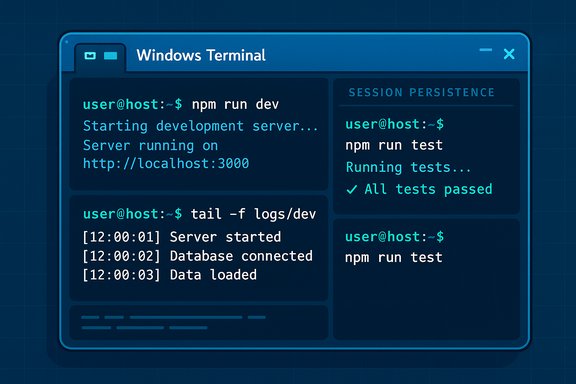
The single biggest practical benefit tmux brings is session persistence. With tmux you can:- Start a session, run tests, builds, or monitoring tools.
- Detach the session (Ctrl-b d) and close the terminal window.
- Reattach later — even from another machine — and resume where you left off.
Powerful, keyboard-driven multitasking
Itmux brings tmux’s pane-tiling and windowing model to Windows with mintty’s responsive rendering. Once you internalize a few key bindings, workflows become faster because your fingers do the navigation and layout instead of reaching for the mouse.- Run a development server in one pane, logs in another, a shell for quick commands in a third.
- Use tmux’s synchronized-keys features to send a command to multiple panes at once.
- Save commonly used layouts so you can spin up your environment with a single command.
Native SSH from the same environment
Because the bundle includes an OpenSSH client, remote connections become frictionless. You can SSH into servers, attach to tmux sessions on remote hosts, or run local tmux sessions that initiate remote commands. That built-in SSH is more convenient than wiring multiple apps together — especially for people who work across several remote systems daily.Low visual friction, high keyboard velocity
mintty is far more comfortable for Unix-style shells than the legacy Windows console. TrueColor, font rendering, hyperlinks, copy/paste, and mouse support all behave in ways Unix users expect. Combined with tmux’s tiny runtime footprint, the result is a fast, keyboard-first environment that stays out of the way.itmux vs. Windows Terminal: a practical comparison
Windows Terminal modernized the console experience for Windows and provides features that meet the needs of many users: tabs, split panes, profiles, JSON-configurable settings, GPU rendering, and dynamic WSL integration. However, for terminal-centric power users the differences matter:- Multiplexing and panes: Both allow split panes, but tmux provides more flexible, scriptable layouts and persistent sessions. Windows Terminal’s panes are tab-level UI constructs; tmux panes are part of the session model.
- Session persistence: tmux persists processes at the session level; Windows Terminal does not replicate that server-side persistence out of the box.
- SSH integration: Windows Terminal can be used as an SSH client by invoking ssh.exe, but it does not bundle an SSH client nor provide a dedicated, tmux-style, SSH-anchored session experience by default. itmux bundles an OpenSSH client for immediate use.
- Customization and automation: Windows Terminal is highly customizable visually and in key bindings. tmux’s configuration is more focused on workflow automation and scripting; both are customizable, but they solve different problems.
Installation and first-steps (concise, practical)
- Download the itmux ZIP archive from the official distributor’s page.
- Unzip to a folder you control (no admin rights required for a per-user install).
- Run tmux.cmd from the extracted folder to start mintty.
- In the mintty shell, run: tmux
- Create a named session: tmux new -s work
- Split panes with tmux keybindings (default prefix is Ctrl-b, then % for vertical, " for horizontal).
- Detach with Ctrl-b d and reattach with tmux attach -t work
Note: The vendor instructions explicitly show unzipping and launching tmux.cmd. If you plan to deploy this across multiple machines, test the bundle’s behavior in an isolated environment first.
Recommended tmux commands and micro-workflows
- Start a named session: tmux new -s dev
- List sessions: tmux ls
- Attach to a session: tmux attach -t dev
- Detach (from inside tmux): Ctrl-b then d
- Split window vertically: Ctrl-b %
- Split window horizontally: Ctrl-b "
- Switch panes: Ctrl-b arrow-key
- Kill a pane/window: Ctrl-b x
- Save/restore layouts: install plugins such as tmux-resurrect / tmux-continuum (works in many Cygwin environments)
- Start tmux session dev.
- Left pane: run npm run dev.
- Bottom-right: run tail -f logs.
- Top-right: run unit tests.
- Detach; SSH back later and reattach to continue.
Customization: make it your own
- Re-map tmux prefix to Ctrl-a if you prefer (simple .tmux.conf change).
- Use tmux plugins (TPM) to add features: status bars, session save/restore, battery and CPU widgets.
- Configure mintty settings for colors, fonts, and mouse behavior via its options dialog or config file.
- Create small scripts that launch mintty, start tmux with a named session, and restore workspace panes automatically for project contexts.
Security, compatibility, and maintenance considerations
Security posture
Bundling OpenSSH is convenient, but any client that transports credentials and keys requires proper handling:- Keep private keys protected with passphrases and use modern key algorithms (ed25519).
- Use SSH agent forwarding only when necessary and prefer key-based auth over passwords.
- Review the bundle contents if you download a ZIP from a third-party; verify checksums when available and prefer HTTPS/official mirrors.
Compatibility with WSL and native Linux workflows
If you already use WSL, you can run tmux natively inside your Linux distro. The tradeoffs are:- WSL + native tmux: Runs in a full Linux userland, integrates with Linux tooling, and is often preferred for development that depends on Linux behaviors.
- itmux (Cygwin + tmux): Easier, zero-WSL setup; better for workflows that must run pure Windows binaries alongside Unix-style shells; offers mintty niceties.
Upgrades and support
Because itmux is a packaging of upstream projects, updates to tmux, mintty, OpenSSH, or Cygwin may be released independently. Maintain a simple update workflow:- Track upstream releases of tmux/mintty/OpenSSH.
- Periodically re-download the vendor bundle or rebuild from components if you maintain an internal mirror.
- Test upgrades in a staging environment before deploying to production workstations.
Potential pitfalls
- Keyboard conflicts: tmux uses a prefix key (default Ctrl-b). If you also use Windows Terminal or a key-remapping tool, expect and resolve conflicts.
- GUI expectations: itmux intentionally avoids heavy GUI features; users expecting rich visuals or integrated Windows GUI debugging tools may find the environment spartan.
- Third-party distribution risk: exercise the same caution you would with any third-party binary distribution. If your security policy forbids such bundles, prefer building tmux and mintty from source in a controlled environment.
Alternatives and when to choose them
- Use Windows Terminal + ssh.exe when you want a modern GUI terminal with profile-driven customizations; add WSL for Linux workflows.
- Use WSL with native tmux if you need the most faithful Linux behavior and direct access to Linux packages and system calls.
- Use MobaXterm or Royal TS/Devolutions products when you need integrated remote-session management with GUI conveniences and session encryption features.
- Evaluate modern terminal emulators like WezTerm or Alacritty if GPU rendering and cross-platform performance are your priority — both can be paired with tmux inside WSL or Cygwin.
Practical tips for getting the most out of itmux
- Map a single keystroke to launch your typical workspace: a shortcut that runs tmux.cmd and immediately attaches to your preferred session.
- Keep a tiny .tmux.conf in your home directory that defines only the mappings and plugins you need, then source more complex configs conditionally.
- Use tmuxinator or equivalent session managers to declare multi-pane layouts as code — that makes reproducible workspaces trivial.
- Combine itmux with a small set of Git aliases and editor keybindings so your entire dev flow can be keyboard-driven from opening code to running tests.
- If you collaborate, use tmux’s client-sharing features (or tmate/tmux sharing tools) for pair debugging — but never expose sensitive SSH keys or password data in shared sessions.
Critical analysis — strengths and risks
Strengths
- Real session persistence: This is the killer feature for many workflows. Persistent sessions change how you structure development, monitoring, and remote administration.
- Single-bundle convenience: Everything needed to get a functional tmux-based environment is included. No WSL setup, no installing components piecemeal.
- SSH and portability: Built-in OpenSSH plus mintty’s high-quality rendering make remote and local work smoother.
- Customizability and extensibility: The tmux + TPM ecosystem and mintty’s config options let you tailor the environment precisely to your habits.
Risks and limitations
- Third-party distribution: Relying on a vendor-supplied ZIP introduces supply-chain risk; verify integrity and consider how you will update.
- Overlap with WSL: Users heavily invested in WSL may find it redundant; native tmux inside WSL is sometimes a better fit.
- Compatibility edge cases: Some Windows-native tools interact poorly with PTY-based terminals provided by Cygwin; certain workflows may require tweaks.
- Maintenance responsibility: Because itmux bundles multiple components, you are responsible for tracking updates and security fixes across them.
Final verdict and who should adopt it
For command-line enthusiasts, sysadmins, and developers who spend serious time in terminals on Windows, itmux is a practical, low-friction way to gain tmux’s benefits without leaving the Windows ecosystem. It is especially useful if you:- Value persistent sessions that survive terminal closures and network interruptions.
- Need quick, keyboard-centric multitasking with multiple panes and windows.
- Want a portable, no-admin installation you can unzip and run.
- Prefer using native Windows tools alongside Unix-style shells without a full VM or WSL setup.
The right approach is pragmatic: try itmux in a contained environment for a few days, replicate a couple of your daily tasks inside tmux, and measure whether session persistence and keyboard-driven workflows speed you up. For many users, the moment they relearn a handful of tmux commands, the difference becomes obvious — day-to-day friction vanishes and focus returns to the work, not the windows.
In short: itmux brings the best of tmux to Windows in a convenient package. It’s not a silver bullet, but for anyone who treats the terminal as more than a one-off utility, itmux is a productivity multiplier worth testing.
Source: MakeUseOf Anyone who uses the Windows terminal should use this productivity game-changer
