

Termux does not ship as a native Windows application — it’s an Android terminal and Linux userland that runs on Android — but you can get the Termux experience on a Windows PC in three practical ways: run the official Android build inside an Android emulator, install Android (android‑x86) in a virtual machine, or, for many Windows users, pick a native Windows alternative such as Windows Subsystem for Linux (WSL), Windows Terminal, Git Bash, or Cygwin that delivers equivalent Linux tooling and workflows. This feature examines each route, verifies technical claims, explains trade‑offs, and gives step‑by‑step options so Windows users can choose the best path for development, automation, or learning.
Termux is a free, open‑source terminal emulator and Linux environment built for Android that includes a package system patterned on Debian APT and a curated Termux package repository. The project’s source and releases are maintained on GitHub and distributed via F‑Droid (or GitHub releases), which is the current recommended channel for Android installations; there is no official Termux build for Windows. Evidence from the Termux GitHub organization and F‑Droid confirms the app’s architecture and distribution model. Windows users who want the Termux workflow — lightweight shells, apt‑style package management, SSH clients/servers, editors, language runtimes (Python, Node.js, Ruby), and typical Unix commands — have multiple practical options. Each path favors different priorities: authenticity and exact Termux package behavior, Windows integration and performance, or ease of setup. The rest of this article breaks those choices down, validates the technical details, and highlights security, compatibility, and performance trade‑offs.
How it works
Why use it
Source: PrioriData Download Termux for Windows PC | Priori Data
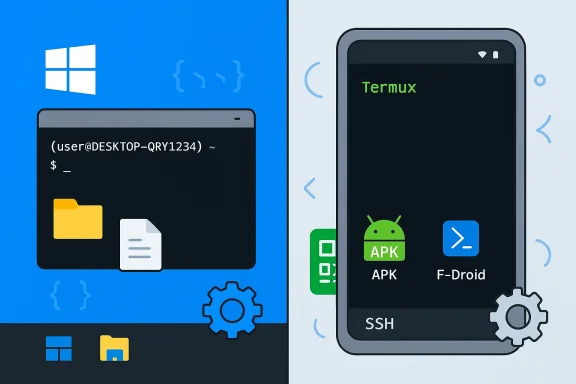 Background / Overview
Termux is a free, open‑source terminal emulator and Linux environment built for Android that includes a package system patterned on Debian APT and a curated Termux package repository. The project’s source and releases are maintained on GitHub and distributed via F‑Droid (or GitHub releases), which is the current recommended channel for Android installations; there is no official Termux build for Windows. Evidence from the Termux GitHub organization and F‑Droid confirms the app’s architecture and distribution model. Windows users who want the Termux workflow — lightweight shells, apt‑style package management, SSH clients/servers, editors, language runtimes (Python, Node.js, Ruby), and typical Unix commands — have multiple practical options. Each path favors different priorities: authenticity and exact Termux package behavior, Windows integration and performance, or ease of setup. The rest of this article breaks those choices down, validates the technical details, and highlights security, compatibility, and performance trade‑offs.What Termux actually is (short technical summary)
Termux provides:- A terminal emulator front end on Android devices.
- A minimal Linux userland and package management built around an APT‑style workflow (termux’s package system).
- A broad set of packages for languages, editors, networking tools, and utilities that make mobile devices behave like small Linux systems.
Why people try to “download Termux for Windows”
Many users seek Termux on Windows for these reasons:- Familiarity: they already use Termux on phones and want the same setup on a desktop.
- Portability: Termux dotfiles, scripts, and workflows are compact and easy to move.
- Specific packages: some Termux packages or scripts have been tailored to mobile device integration (e.g., Termux:API).
- SSH & quick development: Termux’s small footprint makes it attractive for ad‑hoc development and remote administration.
The practical ways to run Termux on Windows
Option A — Android emulators (most common for authentic Termux experience)
Android emulators create a full Android runtime that can run the official Termux Android app unmodified. This is the most straightforward way to use the exact Termux build, with the same packages and behavior you get on a phone.How it works
- Install an Android emulator on Windows (examples: BlueStacks, NoxPlayer, and other emulators).
- Sign in to Google Play (if the emulator supports it) or sideload the Termux APK / use an F‑Droid client inside the emulator.
- Launch Termux and use it exactly as on Android.
- Authenticity: you get the genuine Termux app, the same package manager, and the same package repository behavior.
- Simplicity: install the emulator, then install Termux from Play Store or F‑Droid — no special configuration required. BlueStacks even documents a “run Termux on PC” walkthrough.
- Performance overhead: emulation adds CPU, memory, and graphics overhead; heavy packages (compilers, servers) will be slower than native Windows or WSL. Emulation adds latency and can change timing-sensitive behavior.
- Integration friction: file and clipboard sharing work, but aren’t as seamless as native tools; drag‑and‑drop and shared folders depend on the emulator.
- Security and distribution: installing APKs outside trusted channels requires extra caution — prefer F‑Droid or verified GitHub releases and validate APK hashes.
- Download and install BlueStacks (or your chosen emulator) and complete the initial setup. BlueStacks provides a documented path to run Termux inside the emulator.
- Inside the emulator, install Termux from the Play Store or use the F‑Droid client to fetch the Termux APK (F‑Droid builds are reproducible and signed by F‑Droid).
- Launch Termux and run your familiar pkg/apt commands.
- You need the official Termux package ecosystem unchanged.
- You want to test or run mobile‑specific Termux scripts (Termux:API, device sensors, etc..
- You accept the emulation performance trade‑offs.
Option B — Virtual machine with Android‑x86 (more control, more resources)
If you prefer a VM rather than an emulator, install Android‑x86 (a community port of AOSP to x86) inside VirtualBox or VMware and install Termux inside that Android VM. This often produces more authentic hardware behavior and can be tuned for performance.Why use it
- You get a nearly native Android runtime using a VM, with the ability to allocate memory, CPU cores, and disk to the guest.
- Android‑x86 is an active open‑source project with explicit VirtualBox guidance and ISO downloads.
- Download an Android‑x86 ISO from the official site.
- Create a new virtual machine in VirtualBox / VMware; set the guest type to Linux and choose recommended settings (allocate >2GB RAM for smooth operation). VirtualBox instructions are provided in the android‑x86 documentation.
- Boot the VM from the ISO and install Android‑x86 to the virtual disk. After boot, sideload or install Termux (F‑Droid or GitHub releases), then use Termux inside the Android VM.
- Hardware acceleration: Android‑x86 + VirtualBox sometimes needs extra tweaks for graphics and guest additions; performance is good but not equal to a native Linux environment.
- Complexity: VM setup is more involved than running an emulator; it uses more disk space and can be slower to iterate.
Option C — Native Windows alternatives (best for Windows integration and performance)
For many workflows — development, scripting, SSH, local servers, package management — a Windows native environment will be faster, simpler to maintain, and better integrated with your files and tools. The key native options:- Windows Subsystem for Linux (WSL) — A near‑native Linux environment inside Windows that supports Ubuntu, Debian and other distributions. WSL provides a real Linux userland and package managers (apt), near‑native performance, tight file integration, and first‑class support from Microsoft and major Linux vendors. Installing WSL is a single command (wsl --install) on recent Windows versions and is the recommended route for a native, performant Linux CLI inside Windows.
- Windows Terminal — A modern, GPU‑accelerated terminal host that integrates PowerShell, WSL distros, CMD, and other shells in tabs and panes. It’s a superior terminal front end for Windows workflows and pairs well with WSL or native shells.
- Git Bash (Git for Windows) — Provides a compact Unix command environment (bash, common GNU tools) for Windows via the Git project’s MSYS2/runtime. It’s lightweight and handy for common shell tasks.
- Cygwin — A POSIX compatibility layer providing thousands of packages and an environment close to Unix; good for advanced Unix tooling without WSL.
- Performance: WSL and native Windows tools run far faster than emulated Android.
- Integration: Access to Windows file paths, editors (VS Code), and networking is simpler and more reliable.
- Maintainability: Updates and package management are handled via standard Linux channels (for WSL) or Windows package managers.
- If you require Termux‑specific packages that are packaged for Android ABIs, native alternatives may not replicate behavior exactly — for those edge cases, an emulator or VM remains required.
Deep technical comparisons and verification
Termux package model vs WSL/Ubuntu apt
- Termux’s package collection is built specifically for Android ABIs; it uses an APT‑like workflow but packages are tailored for Android constraints. The Termux GitHub repositories and F‑Droid distribution pages document package builds and ABI targets.
- WSL runs true Linux distributions (Ubuntu, Debian, etc. with packages built for x86_64 Linux and therefore offers the broadest compatibility with desktop Linux packages. Microsoft’s WSL documentation shows that distributions are full Linux userlands, not emulated Android.
SSH, remote access, and daemon differences
- Termux includes an OpenSSH client and can run an SSH server on Android, but running network services inside emulators or VMs requires careful port forwarding and firewall rules.
- WSL and native Windows OpenSSH integrate with Windows networking and are simpler for production or workstation use; Microsoft documents WSL networking behavior and installation.
File system semantics and interoperability
- Termux on Android runs within Android’s storage and permission model; some filesystem operations (e.g., access to external storage, special Android paths) behave differently than desktop Linux.
- WSL offers seamless access between Windows and Linux file systems (with caveats on performance when accessing Windows files from Linux processes). Microsoft and Ubuntu documentation outline best practices for WSL file placement.
Risks, security and distribution cautions
- Sideloading APKs: When installing Termux in an emulator or VM, prefer official F‑Droid builds or GitHub releases rather than third‑party mirrors. F‑Droid provides signed APKs and build logs — use them to verify integrity. The F‑Droid Termux page explicitly warns about the security difference between installing via the client and downloading raw APKs and encourages verifying builds.
- Emulator vendor concerns: Emulators are third‑party software with different security and bundling practices. BlueStacks publicly supports running Termux and documents recommended minimum system requirements; other emulators have a mixed reputation for bundling extra software in installers, so always download emulators from official vendor sites and check community reports.
- VM and Android‑x86 stability: Android‑x86 is a community project; VirtualBox installations can require configuration tweaks (graphics controller, VT‑x/AMD‑V enabled) to run reliably. The android‑x86 documentation and VirtualBox how‑to detail these steps and common pitfalls.
- Package parity caveat: Some Android packages or Termux add‑ons are compiled for mobile kernels, Android libraries, or use device‑specific features. These may not behave identically when emulated, or their performance may be degraded. Treat claims about “packages work identically under emulation” as conditionally true: they generally work, but expect exceptions and test critical packages before relying on them in production.
Practical recommendations: choose the right path
- If you want the authentic Termux experience, accept some overhead, and prefer the exact Termux package behavior: run Termux in an Android emulator (BlueStacks is widely documented) or install Android‑x86 in a VM and use the F‑Droid/GitHub Termux APK inside it.
- If your priority is speed, integration with Windows tools (VS Code, Windows file system), and maintainability for real development work: use WSL (install with wsl --install), combined with Windows Terminal as your terminal host. This combination gives native Linux package management, faster performance, and best Windows interoperability. Microsoft’s WSL docs and Windows Terminal repository provide the authoritative installation and usage instructions.
- If you want a lightweight Unix shell for quick commands, scripts, and git workflows without installing a full WSL distro: use Git Bash (Git for Windows) or Cygwin. Cygwin is heavier but provides thousands of Unix tools on Windows when a closer POSIX layer is required.
- For long‑running processes or session persistence features (tmux) on Windows, consider pairing WSL with tmux, or investigate purpose‑built Windows bundles (e.g., itmux which packages tmux, mintty and OpenSSH — a WindowsForum analysis covered similar tooling and tradeoffs). In Windows contexts where session persistence is critical, tmux inside WSL replicates the canonical Linux behavior.
Quick start cheat‑sheet (copy/paste)
- Run Termux in BlueStacks (authentic Termux)
- Install BlueStacks from the official BlueStacks site.
- Inside BlueStacks, open Play Store or F‑Droid and install Termux (F‑Droid recommended for up‑to‑date community builds).
- Run Termux in an Android VM (control + authenticity)
- Download an Android‑x86 ISO from android‑x86.org.
- Create a new VirtualBox VM (Type: Linux) and follow the Android‑x86 VirtualBox guide.
- Boot, install Android‑x86, then install Termux (F‑Droid/GitHub).
- Native and recommended — WSL + Windows Terminal (performance + integration)
- Open an elevated PowerShell and run: wsl --install. Restart when prompted.
- Install Windows Terminal from the Microsoft Store or via winget: winget install --id Microsoft.WindowsTerminal -e.
- Use apt / pacman / zypper inside your WSL distro to install Python, Node, editors, and SSH.
Advanced notes and troubleshooting
- Emulators: If Termux refuses to run or crashes in an emulator, verify the emulator’s ABI support (x86 vs arm emulation) and ensure the Termux build matches the emulator’s architecture or that the emulator supports ARM translation. Emulators like BlueStacks include many compatibility layers but may still exhibit device‑specific issues.
- VM + Android‑x86: If the VM displays a console prompt or fails to boot fully, the Android‑x86 VirtualBox guide recommends setting the VM’s graphics controller and verifying VT‑x/AMD‑V virtualization support.
- Sideloaded APKs: Always verify APK signatures/hashes when not using official store installations. F‑Droid publishes build logs and signatures for reproducibility.
- WSL file performance: For large I/O tasks, run heavy workloads inside WSL on the Linux filesystem (e.g., /home) rather than on mounted Windows NTFS paths for best performance. Microsoft’s WSL docs explain these performance trade‑offs.
Strengths, weaknesses and final analysis
Strengths of each approach- Emulators / Android VM: exact Termux behavior and packages; good for mobile‑targeted scripts and device‑specific features.
- WSL + Windows Terminal: best performance, Windows integration, and long‑term maintainability for development tasks; official guidance simplifies installation.
- Cygwin / Git Bash: lightweight, quick Unix tool availability without full Linux distro setup; useful for simple cross‑platform scripts.
- Emulation overhead and compatibility: some packages or low‑level functionality can behave differently under emulation; expect performance penalties for heavy tasks.
- Security posture: sideloaded APKs and third‑party emulator installers increase attack surface — always validate hashes and prefer official channels.
- Maintenance and updates: emulator + Termux stacks are multiple layers to update; WSL and native Windows tools generally integrate better with system updates and package managers.
- Claims such as “all Termux packages will work identically in any emulator” are conditional. In practice most userland utilities behave the same, but any package that relies on device hardware, kernel interfaces, or Android‑specific behavior can diverge. Treat blanket compatibility statements cautiously and run targeted tests for critical packages.
Conclusion
There is no official Termux binary for Windows — Termux is an Android app — but Windows users have validated, practical routes to run Termux or achieve the same outcomes. For the truest Termux replication, run the official Android app inside an emulator like BlueStacks or in an Android‑x86 VM and install Termux from F‑Droid or the Termux GitHub releases. For most developers and system administrators who want native speed, seamless integration, and robust package management, WSL paired with Windows Terminal is the better long‑term choice: it provides a real Linux userland on Windows with superior performance and enterprise readiness. Evaluate your priorities — authenticity versus performance and integration — and pick the approach that matches your workflow. For authenticity choose emulator/VM approaches; for productivity and reliability choose WSL and native Windows tooling.Source: PrioriData Download Termux for Windows PC | Priori Data
