

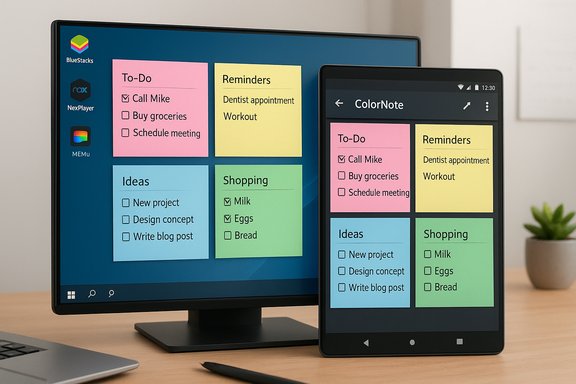
ColorNote’s familiar colored sticky notes and simple checklist UI remain a beloved tool on Android, but for PC users the path to the same experience is no longer a one‑click download—ColorNote no longer ships a supported native Windows app, and you’ll need to choose between running the Android app under an emulator, using portable APK wrappers, or switching to a native desktop alternative depending on your risk tolerance, performance needs, and synchronization habits.
ColorNote began life as a lightweight Android notepad: fast, tiny, and intentionally simple. Its color‑coded sticky‑note metaphor, two note types (text and checklist), widget support, and one‑tap backup/sync made it popular for millions of users who wanted a no‑friction notes app. The developer continues to maintain the Android app and the official site documents backup and online sync behavior (AES encryption of synced notes, daily automatic sync and manual sync options). In early 2024 the developer removed the ColorNote Windows listing from the Microsoft Store and stopped shipping an official native PC build. That change means the only officially supported platform today is Android (plus web/third‑party bridges where available). Microsoft support forums and community threads independently confirm that the developer no longer provides a Windows Store build. This feature explains the practical choices for Windows 7/8/10/11 and macOS users who want ColorNote on a desktop: how to run it with emulators (BlueStacks, NoxPlayer, MEmu), what to verify before you install, storage and performance expectations, migration and backup best practices, security tradeoffs, and sensible native alternatives for people who want a desktop‑first experience.
ColorNote remains a compelling, low‑friction notes app — but Windows users must weigh convenience against the operational cost of running an emulator or the potential friction of migrating to a native desktop alternative. For those who choose emulation, follow vendor system‑requirements guidance, enable virtualization, and treat your ColorNote backups as the single source of truth before any migration or uninstallation. Conclusion
ColorNote’s removal from native Windows distribution doesn’t end the desktop story; it only means the route changes. Emulators deliver full app parity with modest setup cost and verifiable vendor guidance. Native desktop alternatives give native integration and reduced attack surface. Back up first, and pick the path that matches your priorities—simplicity and identical UI (emulation) or desktop integration and reduced complexity (native alternatives).
Source: PrioriData Download Colornote for PC (Windows 7/8/10 & Mac) | Priori Data
 Background / Overview
ColorNote began life as a lightweight Android notepad: fast, tiny, and intentionally simple. Its color‑coded sticky‑note metaphor, two note types (text and checklist), widget support, and one‑tap backup/sync made it popular for millions of users who wanted a no‑friction notes app. The developer continues to maintain the Android app and the official site documents backup and online sync behavior (AES encryption of synced notes, daily automatic sync and manual sync options). In early 2024 the developer removed the ColorNote Windows listing from the Microsoft Store and stopped shipping an official native PC build. That change means the only officially supported platform today is Android (plus web/third‑party bridges where available). Microsoft support forums and community threads independently confirm that the developer no longer provides a Windows Store build. This feature explains the practical choices for Windows 7/8/10/11 and macOS users who want ColorNote on a desktop: how to run it with emulators (BlueStacks, NoxPlayer, MEmu), what to verify before you install, storage and performance expectations, migration and backup best practices, security tradeoffs, and sensible native alternatives for people who want a desktop‑first experience.Why ColorNote isn’t straightforward on PC anymore
- Developer decision: The ColorNote developer has stopped publishing a native Windows client and now focuses maintenance on Android. The Microsoft Q&A thread and multiple community reports document the Store removal and the resulting need to emulate or choose alternatives.
- Platform economics: Mobile‑first utilities are low‑cost to maintain on Android and iOS but require extra engineering and distribution work for native Windows and macOS builds. Many smaller developers choose to focus on mobile and web instead of desktop binaries.
- User expectations: Because ColorNote’s feature set is intentionally small (text + checklist, simple widgets), the developer likely judged that emulation or browser‑based alternatives would be sufficient for most users rather than re‑engineering a desktop client.
Two practical approaches to run ColorNote on PC
Option A — Run the Android app inside an emulator (recommended for most users)
Running ColorNote under an Android emulator gives you the native Android app experience—same UI, widgets, and sync behavior—on Windows or macOS. The three mainstream emulators to consider are BlueStacks, NoxPlayer, and MEmu.- Why emulate?
- Full feature parity (widget support, reminders, checklist behavior).
- Easy access to Google Play to install official ColorNote package.
- Keyboard and windowed operation with copy/paste support.
- Tradeoffs:
- Emulation consumes CPU, RAM, and disk space.
- Emulators create a bigger attack surface than a single native app; only install emulators from official sources.
- Some widget or notification behavior may not match a phone exactly.
BlueStacks — the broadly compatible choice
BlueStacks positions itself as the mainstream option for running Android apps on PC. Its own download/How‑to page walks through installing BlueStacks, signing in to Google Play, then installing ColorNote like a normal Android app. BlueStacks documents Windows 7+ and macOS support and lists practical minimums (4 GB RAM recommended; allot 10 GB free disk for BlueStacks image). Real‑world users report good compatibility for ColorNote inside BlueStacks. Installation (quick verified steps):- Download BlueStacks from the official BlueStacks site and run the installer as Administrator.
- Launch BlueStacks and sign into a Google account to access the Play Store.
- Search for “ColorNote” in the Play Store and install.
- Launch the app from BlueStacks’ home screen and sign into ColorNote’s online backup if you use it.
NoxPlayer — lightweight on older machines
NoxPlayer is commonly recommended for older systems because it tends to be lighter and offers fine CPU/RAM allocation controls. The official Nox docs include minimum recommendations (2 GB RAM minimum; recommend 4 GB) and show how to adjust allocated cores/ram inside settings. Nox is a solid choice on older Windows 7/8/10 machines where BlueStacks might feel heavier. Installation (quick verified steps):- Download NoxPlayer from the official Nox site.
- Install and sign in to Google Play inside Nox.
- Search/install ColorNote from Play Store and configure sync.
MEmu — efficient multi‑instance option
MEmu is useful if you plan to run multiple Android instances or want a lighter minimum footprint. Official MEmu documentation shows conservative minimums (2 GB RAM for x86, 4 GB for x64; ~5 GB disk), but recommends more for smooth operation. MEmu tends to perform well for productivity apps and low‑overhead utilities like ColorNote. Installation (quick verified steps):- Download MEmu from the official site and install.
- Set virtualization on and confirm DirectX/OpenGL drivers are current.
- Launch MEmu’s Google Play Store, install ColorNote, and sign in for sync.
Option B — Use a PC‑native alternative (if you prefer no emulation)
If you want a native Windows app with less setup overhead and better integration with the desktop, consider a PC‑native notes app. Community roundups of Sticky Notes alternatives list several strong choices: Windows Sticky Notes, Simplenote, Evernote, Notion, Joplin, and Google Keep (web). These options vary by privacy, sync, formatting, and multimedia support; pick a native app that best matches your workflow rather than trying to force the exact ColorNote UI onto a desktop.- Windows Sticky Notes — built into Windows, lightweight, syncs with Microsoft account.
- Simplenote — cross‑platform, fast search, text‑focused.
- Evernote — full‑featured (images, clippings, rich search), more heavyweight.
- Notion — modular workspace (databases + notes), steeper learning curve.
- Joplin — open‑source, local‑first with optional E2EE sync, great for privacy‑minded users.
Technical verification: app sizes, emulator requirements and sync behavior
- App size: multiple APK repositories and mirrored listings show the ColorNote APK is tiny — typically ~3–5 MB for recent builds — which matches the app’s lightweight design. This means the ColorNote binary itself consumes negligible disk space on a PC; the emulator image (BlueStacks, Nox, MEmu) is the primary storage cost. Confirmed by APK repository mirrors and package listings.
- Emulators system requirements (verified against each vendor):
- BlueStacks: Windows 7 or newer and macOS Big Sur or newer; recommended 4 GB RAM and ~10 GB free disk for BlueStacks image. BlueStacks explicitly documents the Google‑Play based installation path for ColorNote.
- NoxPlayer: Minimum ~2 GB RAM / recommended 4 GB; small disk footprint but allocate a few GB for the emulator image; supports Windows 7/8/10/11. Nox allows runtime customization of CPU/RAM in its settings.
- MEmu: Official minimums as low as 2 GB RAM and 5 GB disk but recommended 4+ GB for x64 systems; performance benefits from VT enabled and an SSD.
- Sync & backup behavior: ColorNote documents online backup/sync which encrypts notes with AES before upload and syncs once per day automatically, with manual sync options available. If you rely on online backup to migrate phone → emulator → desktop, sign into the same ColorNote account inside the emulator install to restore your notes. Always confirm a fresh backup exists before moving devices.
Step‑by‑step: Installing ColorNote in BlueStacks (tested flow)
- Verify host system:
- Windows 7 SP1 / 8 / 10 / 11 or macOS 11+.
- Free disk: 10 GB (for BlueStacks + system swap + app cache).
- RAM: 4 GB minimum; 8 GB recommended if you multitask.
- Download BlueStacks from the official BlueStacks site and run the installer as Administrator.
- Complete the initial setup wizard. Restart if the installer requests it.
- Launch BlueStacks, open Google Play Store, and sign in with a Google account.
- Search for “ColorNote Notepad Notes” and install the official package (package name com.socialnmobile.dictapps.notepad.color.note).
- Open ColorNote inside BlueStacks and, if you use online backup, sign in to your ColorNote account to sync notes from mobile. If you don’t use online backup, export/import via the app’s local backup options before switching devices.
- Optional: Pin the BlueStacks window or create a desktop shortcut for faster access.
Migrating notes and backups — a safe checklist
If your primary device is a phone and you want an easy, safe transition to PC, follow these steps:- On your phone, open ColorNote → Settings → Backup (or Account Settings).
- Create a manual cloud backup to ColorNote’s online service (or export an SD/local backup file and copy it to your PC).
- Confirm backup completion and verify the backup file size/updated timestamp.
- On the emulator install, sign into the same ColorNote account and trigger a manual restore/sync.
- Verify your notes inside the emulator (open several long notes and check attachments or checklist behavior).
- Keep at least two copies: one cloud backup + one local exported copy (saved outside the emulator) for redundancy.
Security, privacy, and risk analysis
- Emulator attack surface: Emulators run a complete Android stack on your PC. That increases the number of components that can be exploited if you install untrusted APKs or third‑party plugins. Only install ColorNote from Google Play inside the emulator (or from the official site/APK mirror you trust), and avoid running random APKs. BlueStacks and Nox are widely used and generally safe when downloaded from their official sites, but they still increase exposure compared with a single native desktop app.
- Backup encryption: ColorNote says cloud backups are AES‑encrypted before upload. That’s a positive signal, but always treat cloud backups as additional copies — don’t store extremely sensitive secrets without extra encryption layers. If you prefer full local control, use local exported backups and store them in an encrypted container.
- APK mirrors and third‑party stores: If you download an APK outside Google Play, verify signatures and checksums. Reputable mirrors (APKMirror, APKPure) publish metadata and historical versions; they are useful for checking file sizes and package names but are still third‑party hosts. Cross‑check package signatures with the Play Store listing where possible.
- Privacy vs convenience tradeoff: If you prefer minimal desktop risk, choose a native notes app (Simplenote, Joplin, Windows Sticky Notes) rather than emulating an Android app. Native apps reduce the number of moving parts to secure and often integrate better with Windows backup and sync workflows. Recommendations and community roundups list appropriate native alternatives and their strengths.
Troubleshooting & practical tips
- If ColorNote doesn’t appear in Play Store inside an emulator, search by package name: com.socialnmobile.dictapps.notepad.color.note. That avoids confusion with similarly named apps.
- If notifications or widgets don’t behave correctly: emulators sometimes handle background services differently. Use the app manually inside the emulator and rely on manual sync where notifications appear unreliable.
- If performance is sluggish:
- Increase emulator RAM/CPU allocation (Nox, BlueStacks, MEmu all support this).
- Enable virtualization (VT‑x/AMD‑V) in BIOS/UEFI.
- Move emulator to an SSD and free disk space for swap/cache.
- If you’re worried about preserving long historical note data, export a local backup file from your phone first (ColorNote supports local backup/export) and keep it outside any emulator images. That backup file can be stored on cloud storage or copied to your PC for safekeeping.
Native alternatives worth considering (short pros/cons)
- Windows Sticky Notes
- Pros: Preinstalled, light, Windows integration.
- Cons: Lacks ColorNote’s mobile widget parity and checklist focus.
- Simplenote
- Pros: Fast search, cross‑platform, plain text focus.
- Cons: No rich formatting or built‑in checklist UX beyond plain text.
- Evernote
- Pros: Powerful search, attachments, web clipping.
- Cons: Heavier, some features behind paywall.
- Notion
- Pros: Extremely flexible (databases, templates).
- Cons: Learning curve, heavier than ColorNote.
- Joplin
- Pros: Open source, E2EE option, local‑first control.
- Cons: More configuration if you self‑host sync.
FAQs — verified answers
- Is ColorNote free on PC?
- ColorNote remains free on Android. Running it on PC via emulators involves free emulator software options (BlueStacks, Nox, MEmu). Some emulator vendors offer paid features, but the basic emulator + ColorNote path is free.
- Will my phone notes sync with the PC emulator?
- Yes, if you use ColorNote’s online backup and sign into the same ColorNote account inside the emulator, notes will sync. Always make a manual backup first to avoid surprises.
- Which emulator is best for ColorNote?
- For broad compatibility and ease of use: BlueStacks. For older machines with limited RAM: NoxPlayer. For multi‑instance usage: MEmu. Vendor docs and user reports support these recommendations.
- Can ColorNote be used offline on PC?
- Yes. The Android app works offline for creating/editing notes; sync/backups occur when you next have internet access. Inside an emulator, offline behavior is the same as on a phone.
- Are emulators safe?
- Major emulators are widely used and regularly updated, but running any additional runtime increases the attack surface. Only download emulator installers from official vendor pages and keep both emulator and Windows/macOS up to date. Avoid side‑loading untrusted APKs.
Final analysis: strengths, costs and recommended approach
ColorNote’s strengths — ultra‑small binary, clear color coding, checklist focus, and quick backup — make it ideal for casual note‑takers. The app remains tiny (the APK typically ranges in the low megabytes) and the official site documents secure sync options, which are attractive for users who value simplicity and low overhead. However, the removal of the native Windows build changes the tradeoffs:- Strengths preserved with emulation:
- Full feature parity (widgets, lists, colors, sync).
- Familiar workflow with mobile → desktop parity.
- Quick to set up for someone comfortable installing an emulator.
- Notable risks and costs:
- Emulator resource overhead (allocate 4 GB+ RAM for acceptable performance).
- Increased attack surface and complexity compared with a single native desktop app.
- Potential loss of Store installs or broken Store versions; rely on backups.
- If you want the exact ColorNote mobile experience and accept a bit of extra resource use, run ColorNote in BlueStacks (or Nox/MEmu on constrained hardware) and sign into ColorNote’s cloud backup to restore notes cleanly. Back up first.
- If you prefer lower risk, less resource use, or tighter Windows integration, adopt a native notes app (Simplenote, Joplin, Evernote, Notion or Windows Sticky Notes) and export your ColorNote content to a standard format to migrate. Use Joplin or Simplenote if privacy/local control is a priority.
- Always keep two copies of important notes: one cloud encrypted backup and one local exported file outside any emulator images.
ColorNote remains a compelling, low‑friction notes app — but Windows users must weigh convenience against the operational cost of running an emulator or the potential friction of migrating to a native desktop alternative. For those who choose emulation, follow vendor system‑requirements guidance, enable virtualization, and treat your ColorNote backups as the single source of truth before any migration or uninstallation. Conclusion
ColorNote’s removal from native Windows distribution doesn’t end the desktop story; it only means the route changes. Emulators deliver full app parity with modest setup cost and verifiable vendor guidance. Native desktop alternatives give native integration and reduced attack surface. Back up first, and pick the path that matches your priorities—simplicity and identical UI (emulation) or desktop integration and reduced complexity (native alternatives).
Source: PrioriData Download Colornote for PC (Windows 7/8/10 & Mac) | Priori Data
