

The Geeni smart‑home app is a practical way to centralize control of bulbs, plugs, and cameras on a Windows PC — but getting there requires a bit of translation: the official Windows route is limited, so most PC installations use an Android emulator. The app itself is feature‑rich, free to use, and designed for broad compatibility with voice assistants and third‑party devices, yet it carries the usual tradeoffs of a cloud‑centric IoT platform: convenience and broad device support in exchange for data‑collection, remote dependence, and occasional connectivity quirks.
Geeni is the consumer smart‑home platform produced by Merkury Innovations. It bundles control of Wi‑Fi smart bulbs, plugs, switches, and cameras into a single mobile app and exposes integrations with both Amazon Alexa and Google Assistant for voice control. The vendor emphasizes simplicity — no hub required, local Wi‑Fi pairing for devices, and cloud accounts for remote access. The official app distribution for phones and tablets is active and frequently updated; version metadata and privacy practices are published in app stores and on the vendor’s site. The article that prompted this feature explained how Geeni can be installed on Windows 10/8/7 by running the Android app inside an emulator such as BlueStacks or NoxPlayer. That route is accurate: because Geeni does not offer a native, fully supported Windows desktop client, emulation is the dominant method for PC users who prefer desktop control rather than using their phone or a physical hub. The emulator route gives you the larger display and interaction model of a PC while running the same mobile app experience.
Choose Geeni on PC if:
Geeni offers a convenient, free way to bring basic smart home controls to a Windows desktop through emulation, and its core features — device grouping, scheduling, voice control, camera feeds, and energy reporting — serve mainstream needs well. However, the convenience of cloud‑enabled remote access and broad device compatibility comes with tangible privacy and stability tradeoffs. For Windows users who prioritize security, reliability, or advanced automation, local‑first platforms or fully supported desktop integrations will remain the better long‑term choice. For everyone else, Geeni on PC is an inexpensive and practical option that delivers immediate, visible value when installed carefully and run on a properly provisioned machine.
Source: Priori Data Geeni App for PC: Free Download for Windows 10/8/7 | Priori Data
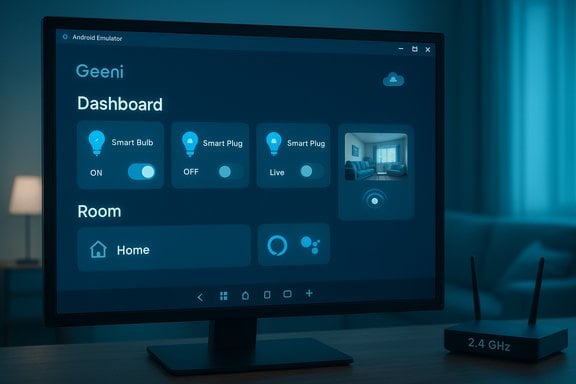 Background / Overview
Geeni is the consumer smart‑home platform produced by Merkury Innovations. It bundles control of Wi‑Fi smart bulbs, plugs, switches, and cameras into a single mobile app and exposes integrations with both Amazon Alexa and Google Assistant for voice control. The vendor emphasizes simplicity — no hub required, local Wi‑Fi pairing for devices, and cloud accounts for remote access. The official app distribution for phones and tablets is active and frequently updated; version metadata and privacy practices are published in app stores and on the vendor’s site. The article that prompted this feature explained how Geeni can be installed on Windows 10/8/7 by running the Android app inside an emulator such as BlueStacks or NoxPlayer. That route is accurate: because Geeni does not offer a native, fully supported Windows desktop client, emulation is the dominant method for PC users who prefer desktop control rather than using their phone or a physical hub. The emulator route gives you the larger display and interaction model of a PC while running the same mobile app experience.What Geeni Does: Feature Summary
Geeni’s value proposition is straightforward: make routine and security tasks easier across a home network with a single app.- Device control and grouping. Turn individual devices on/off, dim or recolor bulbs, and group devices by room or function for single‑tap scenes. The app supports scheduling, timers, and scene macros that trigger multiple devices together.
- Live camera monitoring. Many Geeni cameras stream live video to the app, support two‑way audio on compatible cameras, and offer motion detection alerts and recording options. The vendor’s camera models rely on the Geeni app for management and do not function with generic third‑party camera clients.
- Energy monitoring. Smart plugs and some outlets provide consumption stats so users can track daily, weekly, and monthly usage and identify high‑draw devices.
- Voice assistant integration. Geeni integrates with Alexa and Google Assistant so you can use voice commands to control devices after linking accounts. The official help documentation details the linking process for both assistants.
- Cloud remote access. Remote monitoring and control from outside the home are provided through Geeni’s cloud services, requiring internet access and an authenticated Geeni account.
Key Strengths
- Simplicity and device breadth. Geeni’s UI and onboarding are aimed at mainstream buyers. The product line covers the most common smart‑home entry points (light bulbs, plugs, basic cameras) and is frequently stocked at big‑box retailers and online marketplaces.
- Voice ecosystem support. Native compatibility with both Alexa and Google Assistant makes Geeni a practical choice if you already use one of those voice platforms. The official documentation walks through linking accounts and assigning devices to rooms for voice control.
- No hub requirement. Devices are Wi‑Fi native and pair directly to an existing 2.4 GHz network, simplifying hardware setup for non‑technical users.
- Free entry cost. There is no mandatory subscription to operate core features; cameras may offer optional cloud upgrades on some models, but baseline control and local features remain available without recurring fees.
Real‑world Limitations and Risks
- Cloud dependence and privacy footprint. Geeni relies on cloud accounts for many remote features. The vendor’s privacy policy discloses collection of personal and technical information (IP, device identifiers, usage, location data) and notes that data can be stored and transmitted across borders; it also acknowledges reliance on third‑party services. This makes privacy and account security material considerations for buyers.
- 2.4 GHz only. Geeni devices commonly require a 2.4 GHz Wi‑Fi network for setup and operation; they typically won’t pair to 5 GHz SSIDs. That constraint can cause user frustration on modern mesh routers or networks that default to single‑band SSIDs. The vendor’s system requirements specify 2.4 GHz Wi‑Fi and WPA2‑PSK/AES recommendations.
- Router limits, not app limits. The app itself reports no hard cap on the number of devices you can manage, but home routers often have practical connection limits (many consumer routers throttle or recommend a modest device count per SSID, e.g., ~24). In large deployments, network architecture becomes the limiting factor, not the Geeni service.
- Camera compatibility. Geeni’s cameras are intended to be managed through the Geeni app; third‑party camera clients are not supported. Relying on a single vendor app for camera access raises long‑term availability concerns if the vendor changes cloud policies or discontinues services.
- Community‑reported stability quirks. User threads report occasional device setup and re‑connectivity issues, especially on mesh networks or when router settings change. These issues are typical for low‑cost Wi‑Fi devices and often resolve with router/SSID configuration or firmware updates. Community reports also suggest that some Geeni devices use Tuya‑based firmware, which can affect interoperability in rare cases. Treat community reports as experiential data rather than authoritative vendor claims.
Installing Geeni on a Windows PC — Verified Steps & Best Practice
Because Geeni doesn’t ship a native, fully supported Windows desktop client, the most practical PC route today is to run the Android app inside an Android emulator. Two mainstream emulators used by PC owners are BlueStacks and NoxPlayer. Both provide a Google Play environment so you can install Geeni as if you were on an Android phone. Below are verified, step‑by‑step instructions and verified system guidance.System preparation: practical minimums (verified)
- Emulation is CPU and memory sensitive. Official emulator guidance indicates a minimum of 2 GB RAM, but realistic everyday usage benefits from 4 GB or more for a single emulator instance; 8 GB is better if you multitask. BlueStacks documentation and mainstream how‑to coverage list 2 GB as a lower bound but recommend 4 GB for smooth operation. Nox’s official support pages show similar guidance and list hardware/BIOS notes for virtualization. Treat the higher values as practical recommendations, not strict cutoffs.
- Operating system: Windows 7 SP1 and later (Windows 8/8.1/10) are generally supported by emulators, though modern builds and drivers improve compatibility. For older Windows 7 machines, check virtualization features and driver support first.
- Disk and GPU: set aside at least 2 GB of storage for the emulator + additional space for the app and cache. An OpenGL‑capable GPU (OpenGL 2.0+) or equivalent DirectX support is useful for rendering.
Method 1 — BlueStacks (recommended for broad compatibility)
- Download BlueStacks from the official BlueStacks download page and run the installer with administrative privileges. The installer is automated and requires a few minutes depending on bandwidth and CPU. BlueStacks documentation confirms this flow and details the Play Store sign‑in step.
- Open BlueStacks and sign in with your Google account to access the Play Store.
- In BlueStacks’ Play Store, search for “Geeni” (app name or package com.merkuryinnovations.geeni) and install.
- Launch Geeni inside BlueStacks and sign in with your Geeni account or register a new account. Proceed with device setup as you would on a phone: ensure your PC is on the same local network during initial device provisioning if you are using the emulator to mirror setup flows.
- Optional: pin Geeni to your Windows desktop via BlueStacks shortcuts for quicker access.
Method 2 — NoxPlayer
- Download NoxPlayer from the official Nox channels and run the installer; follow the setup wizard. Nox’s support documentation lists system requirements and common install troubleshooting steps.
- Launch Nox and open the Play Store inside the emulator. Sign in with a Google account.
- Search for and install Geeni. Launch the app and configure your Geeni account and devices.
- Create a desktop shortcut from Nox for rapid launch.
Step‑by‑step setup checklist for PC users (compact)
- Confirm your Wi‑Fi router supports 2.4 GHz and has space for devices; configure a stable SSID for device setup.
- Install BlueStacks or Nox from official vendor pages and allocate at least 2–4 GB RAM to the emulator.
- Sign into Google Play inside the emulator and install Geeni.
- Use the Geeni mobile flow inside the emulator to add devices: follow pairing instructions and ensure the phone/emulator and the device are on the same network for initial discovery.
- Link voice assistants (Alexa or Google) via the Geeni app and their respective consoles if you want voice control.
Alternatives: When Geeni Isn’t the Right Fit
If using an emulator feels like a kludge or if you want more robust desktop support, several options exist for PC smart‑home control. These were covered in community guidance and developer forums and are relevant decision points for Windows users.- Samsung SmartThings. Strong cross‑vendor support and more advanced automation capabilities; better for users who want rules and device drivers beyond basic scenes.
- Amazon Alexa (desktop and devices). If you live inside the Alexa ecosystem, an Echo device plus the Alexa web/desktop tools offers a reliable path. Be aware that Windows client availability has shifted over time.
- Google Home Web Dashboard / Phone Link. Google’s web/desktop tools plus Microsoft Phone Link (for Android mirroring) can let you run mobile apps on a PC without a heavyweight emulator; Phone Link is particularly useful for Android app mirroring.
- Local-first platforms (Hubitat, Home Assistant). For privacy‑minded or power users, a local hub decouples you from vendor clouds and offers far deeper automation and device control — at the cost of setup complexity.
Security, Privacy, and Mitigation Strategies
Geeni’s privacy policy and support documents are candid about the data collected and cloud dependence: device identifiers, IP addresses, usage diagnostics, and optional media uploads are part of normal operation. The policy also notes that data may be stored in and transferred between jurisdictions, and that third‑party services are used for infrastructure and analytics. That is standard for low‑cost IoT vendors, but it’s important to treat it as a material risk vector. Mitigation checklist:- Use strong, unique passwords for your Geeni account and enable any available multi‑factor authentication options. If the app or account pages offer 2FA, enable it.
- Harden the Wi‑Fi network used for IoT devices: place smart devices on a separate VLAN or guest SSID where possible to isolate them from PCs and sensitive systems. Many consumer routers support a guest network that isolates clients by default.
- Review camera storage options: prefer cameras that allow local microSD recording if you want to avoid or minimize cloud storage of video. Be explicit about retention policies and purge footage if necessary.
- Keep firmware and app versions current. Vendors occasionally issue security patches or stability fixes; install them promptly.
- Limit account sharing and review third‑party integrations periodically (unlink unused services).
- For very sensitive use cases (e.g., around children or biometric data), seriously consider local‑first alternatives that minimize cloud transfer.
Troubleshooting and Practical Tips
- If a device fails to pair, verify you are connected to a 2.4 GHz SSID during setup; many users fail to switch from a 5 GHz default and never see the device.
- Mesh routers: temporarily disable satellites or connect the device to the primary router during setup if pairing fails; some mesh implementations fragment SSIDs or block multicast discovery. Community forums include many troubleshooting threads on this exact issue.
- If the emulator reports graphic or virtualization errors, enable VT/virtualization in UEFI/BIOS and update GPU drivers; consult the emulator vendor troubleshooting pages rather than third‑party mirrors.
Unverifiable or Cautionary Claims
- “Unlimited device counts”: the vendor documentation states there is no app‑enforced limit on devices, but this is bounded in practice by the capacity of the home network and the app’s real‑world performance under heavy device loads. Treat any ‘infinite’ claim as theoretically true but practically limited by networking constraints.
- App package size and version numbers vary by platform and app store; sizes reported in third‑party APK aggregators differ from iOS/macOS store entries. Always verify the app version on the official app store for your platform. The iOS app shows version metadata and privacy details, while Android package sites provide Android APK builds — these values are not directly comparable.
Verdict: Who Should Use Geeni on PC?
Geeni is a solid, low‑friction option for general consumers who want inexpensive smart bulbs, plugs, and basic cameras with easy voice assistant integration. Installing the app on a Windows PC via an emulator is workable and gives you a large‑screen control surface for monitoring and management, but it is a second‑class experience compared to a native desktop client or a local hub.Choose Geeni on PC if:
- You already own Geeni hardware and want a centralized desktop view without changing ecosystems.
- You value simplicity and low initial cost over deep automation or absolute privacy.
- You are comfortable using an emulator and applying the network hardening steps above.
- You require enterprise‑grade privacy or local‑only operation.
- You need large‑scale reliability and guaranteed long‑term service for camera feeds without vendor cloud dependency. In those cases, consider local hubs or more robust ecosystems.
Geeni offers a convenient, free way to bring basic smart home controls to a Windows desktop through emulation, and its core features — device grouping, scheduling, voice control, camera feeds, and energy reporting — serve mainstream needs well. However, the convenience of cloud‑enabled remote access and broad device compatibility comes with tangible privacy and stability tradeoffs. For Windows users who prioritize security, reliability, or advanced automation, local‑first platforms or fully supported desktop integrations will remain the better long‑term choice. For everyone else, Geeni on PC is an inexpensive and practical option that delivers immediate, visible value when installed carefully and run on a properly provisioned machine.
Source: Priori Data Geeni App for PC: Free Download for Windows 10/8/7 | Priori Data
