

Joplin’s rise from a competent open‑source note app to what many Windows users now call their “ride‑or‑die” notes tool speaks to a rare alignment of features: true cross‑platform support, a local‑first design, powerful Markdown editing, and—crucially—privacy controls that don’t demand a subscription. The SlashGear pick that favors Joplin as the best notes app on Windows is easy to understand once you parse what the app does and how it compares to the rest of the landscape.
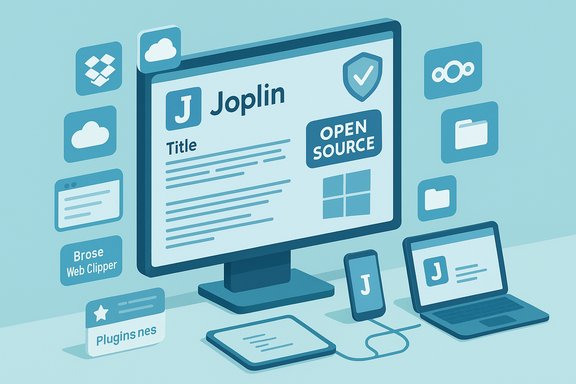
Joplin is a free, open‑source note‑taking and to‑do application that stores notes in Markdown and is available on Windows, macOS, Linux, Android and iOS. It’s built around the principle of being “offline‑first”: your notes live on your device and remain accessible even without an internet connection. The app supports attachments, rich Markdown editing, a browser Web Clipper, plugins and themes, and optional end‑to‑end encryption for sync data. These design choices are the reason many Windows power users favor it over proprietary alternatives. At a glance, the capabilities that put Joplin in contention as a top notes app for Windows are:
The SlashGear endorsement and the broader Windows community conversation are indicative: for users who want a full‑featured, privacy‑forward, customizable notes experience on Windows without sacrificing cross‑platform parity, Joplin is a compelling choice. Community discussions and review roundups support that view while highlighting the usual caveats about sync setup and mobile behavior.
If you want a notes app that puts your files and your privacy first, while still offering the conveniences of clipping, cross‑device sync and a vibrant plugin ecosystem, Joplin deserves a top spot on your “must install” list—just bring your backups, test your sync, and treat encryption keys like the small, indispensable pieces of infrastructure they are.
Source: SlashGear These Are My Top 5 Ride-Or-Die Apps For Windows - SlashGear
 Background / Overview
Joplin is a free, open‑source note‑taking and to‑do application that stores notes in Markdown and is available on Windows, macOS, Linux, Android and iOS. It’s built around the principle of being “offline‑first”: your notes live on your device and remain accessible even without an internet connection. The app supports attachments, rich Markdown editing, a browser Web Clipper, plugins and themes, and optional end‑to‑end encryption for sync data. These design choices are the reason many Windows power users favor it over proprietary alternatives. At a glance, the capabilities that put Joplin in contention as a top notes app for Windows are:- Open source and local‑storage first.
- End‑to‑end encryption (E2EE) for synchronized data if you enable it.
- Flexible synchronization: use Dropbox, OneDrive, Nextcloud, WebDAV, a local filesystem, or Joplin Cloud.
- Browser Web Clipper (Chrome/Firefox) to save pages and screenshots.
- Customizable UI via plugins and themes, with multiple editor options (Markdown, rich text).
- Optional paid managed sync (Joplin Cloud) plus a self‑hosted server option for businesses.
Why Joplin stands out on Windows
1. Open‑source, local‑first architecture
Joplin saves notes as files you control. That local‑first posture means offline reliability plus the option to manage your own backups and sync mechanism. For Windows users who like to keep control of file paths, folder organization and automated backups through the OS, Joplin’s file model integrates cleanly with typical Windows workflows (File Explorer backups, OneDrive folder sync, etc.. The project’s code and formats are public, reducing the vendor‑lock risk associated with proprietary databases.2. Real privacy controls: E2EE on sync
One of Joplin’s important differentiators is the ability to enable end‑to‑end encryption for synchronized notes so that third‑party servers (including paid Joplin Cloud) can’t read your content. That encryption is optional but robust, and it’s available with any supported sync target when configured properly. This matters for users who want cross‑device syncing without exposing notes to their cloud provider’s indexing or scanning.3. Sync your way — self‑host, cloud provider, or managed service
Joplin is flexible:- Use your existing cloud storage (Dropbox, OneDrive, Nextcloud, WebDAV).
- Self‑host with Joplin Server for businesses that want in‑house control.
- Subscribe to Joplin Cloud (managed) if you prefer an out‑of‑the‑box, low‑maintenance option.
4. Extensible editors, web clipper and plugin ecosystem
Joplin supports both classic Markdown and a rich text experience, and it ships with a browser Web Clipper extension for saving pages and screenshots into notes. The plugin and theme systems (hundreds of community extensions) let you adapt the app to different workflows: code snippets, task management, calendar integrations, or custom styling for long writing sessions. That extensibility is a key reason technical Windows users and developers gravitate toward Joplin.Deep dive: synchronization — strengths, caveats, and real‑world behavior
Synchronization is the feature that will make or break a note app for most people. Joplin’s approach offers great flexibility, but with trade‑offs you should understand before migrating a large, active notebook.- Joplin lets you pick a sync target: Dropbox, OneDrive, Nextcloud (WebDAV), WebDAV servers, local filesystem or Joplin Cloud for managed hosting. The official docs list all supported targets and how encryption integrates with them.
- Joplin Cloud is a paid managed sync option with tiered plans, collaboration tools and hosting in France. It’s useful if you want a Joplin‑specific backend with simplified setup. The Joplin Cloud page lists Basic/Pro/Teams plans and features.
- Joplin’s desktop client behavior has two relevant synchronization behaviors:
- A short automatic sync after edits (desktop clients have historically pushed small, rapid syncs after recent edits — forum posts note an automatic sync can happen within seconds).
- A configurable periodic synchronization interval (many users see the “Synchronization interval” set to 5 minutes in the options by default or in common setups). That means there is both immediate small‑delay syncing and a scheduled interval you can adjust or disable. Relying on assumptions about instant, universal sync across every platform can lead to surprises if you switch devices quickly.
- Mobile background syncing can be limited by the OS: iOS and Android aggressively suspend background work. Users have reported slower or non‑instant mobile sync after edits unless the mobile app is foregrounded, which affects time‑sensitive collaboration. That limitation is a platform constraint rather than a Joplin design flaw, but it affects practical cross‑device workflows.
- Conflicts and deletion incidents have occurred when sync targets or settings were misconfigured. Long‑running forum threads show users discovering entirely missing notes after misapplied sync changes or incorrect folder mappings. This underscores the importance of backups and caution when changing sync targets or directories.
- Bandwidth and initial sync time: large sync operations (initial encryption + first full sync) can take a long time and consume significant upload bandwidth. Users with constrained upload speeds often choose to disable automatic interval sync until initial sync finishes.
Practical setup steps (Windows): getting Joplin working well
- Install Joplin desktop for Windows from the official installer and open Tools > Options > Synchronization.
- Choose your sync target (Dropbox, OneDrive, Nextcloud/WebDAV, or Joplin Cloud). If you use local filesystem sync, pick a folder you back up separately.
- If you want end‑to‑end encryption, enable it under Tools > Options > Encryption, set a strong master password, and perform the initial sync on every device to propagate keys. Do not lose that password—encrypted data is unrecoverable without it.
- Configure synchronization interval to suit your network. If you are on a metered or slow connection, set the interval to Disabled or a long interval and use manual sync when needed. Remember desktop clients may still attempt rapid syncs after edits; test in a safe notebook first.
- Add the Web Clipper extension to your browser and configure clip destination notebooks. Test clipping with images and long pages to verify attachment handling.
How Joplin compares to other popular choices for Windows users
Notion
- Strengths: polished UI, databases and templates, strong collaboration, rich embedding.
- Weaknesses for Windows power users: offline behavior is limited compared with local‑first apps; heavy reliance on Notion servers and a subscription model for higher tiers. Notion’s offline persistence can be spotty compared to an offline‑first client like Joplin.
Obsidian
- Strengths: local Markdown files, powerful backlinking and graph view, rich plugin ecosystem. Core app free for local use; optional Obsidian Sync (E2EE) and Publish are paid add‑ons. Obsidian’s paid sync starts at a low monthly price for encrypted sync but is optional because the app is perfectly functional offline and with third‑party sync.
- Differences: Obsidian emphasizes personal knowledge management and backlinks; Joplin is closer to a traditional note/notebook with built‑in clipper and to‑do features.
Standard Notes / Simplenote
- Strengths: extreme focus on privacy (Standard Notes offers strong encryption), simplicity and minimalism.
- Differences: Standard Notes locks some advanced feature sets (editors/plugins) behind a subscription; Joplin offers more built‑in formatting and functionality without mandatory payment.
Strengths — what Joplin does exceptionally well
- Data ownership and future‑proofing. Notes are saved in open formats you can export and back up. The open‑source model reduces the risk of vendor lock‑in.
- Privacy with optional E2EE. You can sync across devices securely even when using a third‑party cloud provider.
- Feature breadth without paywall. Web Clipper, plugins, themes, and both Markdown and rich editors are available without mandatory paid tiers.
- Multiple reliable sync targets. If you already pay for Dropbox or OneDrive, you can use existing storage rather than buying another subscription.
Risks and real trade‑offs — what to watch for
- Sync complexity and the risk of data loss. Misconfiguring sync targets or changing directories can lead to conflicts or deletions. Always keep backups before switching sync methods. Multiple forum threads document painful sync‑related data loss, so treat this as a real operational risk.
- Mobile sync latency and foreground requirements. Mobile OS constraints mean edits on a phone or tablet may not propagate instantly unless the app is active; that can be inconvenient for users who rely on immediate cross‑device updates.
- Managed sync costs if you choose Joplin Cloud. Joplin Cloud is a paid option with reasonable pricing tiers, but it’s optional. If you choose it for convenience, factor the recurring cost into your tool stack. For many users, existing cloud storage or self‑hosting will stay cheaper long term.
- Higher responsibility compared to fully managed, locked‑in services. Joplin gives you freedom and control, and with that comes the responsibility to plan backups, encryption keys and sync settings. If you prefer a fully managed “set it and forget it” experience and don’t want to think about keys or conflicts, a proprietary note service might be less work day‑to‑day—albeit with trade‑offs on privacy and portability.
Tips and recommended plugins / configurations for Windows power users
- Use a dedicated folder for filesystem sync targets and pair that with File History or a third‑party backup tool so you have multiple restore points.
- Enable E2EE if notes contain sensitive personal or work data; keep the master password in a secure password manager.
- Recommended plugin types:
- Markdown extensions and table editors for richer documents.
- Task/To‑Do integrations if you want Joplin to act as a lightweight GTD hub.
- Theme packs for reduced eye strain during long writing sessions.
- If you use multiple platforms, test the initial sync on a shallow sample notebook to validate behavior before migrating large volumes.
- If you need instant mobile‑to‑desktop sync for mission‑critical items, consider combining Joplin with a local network sync (Syncthing) or a managed sync service, and test thoroughly. Community threads show diverse real‑world setups—some users prefer Syncthing or OneDrive + local encryption layers.
Verdict: who should choose Joplin on Windows?
Choose Joplin if you value:- Data ownership and local access with robust export options.
- Privacy (E2EE) and the flexibility to pick or self‑host sync backends.
- Customization through plugins and themes and the freedom to use Markdown or rich text interchangeably.
- A free, open‑source tool that doesn’t force a subscription for core features.
The SlashGear endorsement and the broader Windows community conversation are indicative: for users who want a full‑featured, privacy‑forward, customizable notes experience on Windows without sacrificing cross‑platform parity, Joplin is a compelling choice. Community discussions and review roundups support that view while highlighting the usual caveats about sync setup and mobile behavior.
Closing thoughts
Joplin’s value proposition is simple and powerful: give users control without losing convenience. On Windows, that translates to a notes app that works with your existing workflows (file backups, cloud storage, and local editors) while providing strong privacy options and enough polish to be usable by less technical people. For power users, the trade‑offs are manageable: a little careful configuration up front prevents headaches later.If you want a notes app that puts your files and your privacy first, while still offering the conveniences of clipping, cross‑device sync and a vibrant plugin ecosystem, Joplin deserves a top spot on your “must install” list—just bring your backups, test your sync, and treat encryption keys like the small, indispensable pieces of infrastructure they are.
Source: SlashGear These Are My Top 5 Ride-Or-Die Apps For Windows - SlashGear
