

Microsoft’s June 9, 2026 Windows security updates changed how Windows 10, Windows 11, and supported Windows Server releases handle
The symptom is ordinary enough to look like a bug. A folder that had a custom icon suddenly becomes a plain yellow folder. A folder that displayed a localized name reverts to its underlying filesystem name. Nothing inside the folder disappears, permissions do not change, and the folder still opens normally.
That is why the first wave of confusion is predictable. Windows users have been conditioned, not unfairly, to treat visual regressions after cumulative updates as update fallout. File Explorer has had enough real bugs over the years that “my folders changed after Patch Tuesday” sounds like the beginning of a familiar support thread.
But Microsoft’s explanation is more specific. Beginning with the Windows security updates released on June 9, 2026, Windows ignores certain
That distinction matters. Microsoft is not saying custom folder icons are dead. It is saying that folder customizations now have to clear a trust boundary that they previously did not.
For years, that flexibility was treated as benign. A folder icon was just decoration. A localized folder name was just a usability feature. A software package, shared folder, backup set, or translated Windows profile could use
The problem is that presentation is not neutral. An icon, a folder name, and a familiar-looking shell object can all shape user behavior. If attackers can make something look like a trusted location, a media folder, a system-adjacent object, or a harmless shortcut container, they do not always need a dramatic exploit chain to win a click.
That is the broader security logic behind this change. Microsoft is increasingly treating shell presentation as part of the attack surface. The question is no longer only “does this code execute?” It is also “does this object make untrusted content appear safer than it is?”
The June 2026
This is a subtle but important shift. Windows is not merely warning users before opening a suspicious executable. It is refusing to let an untrusted metadata file influence how content is visually framed in the shell.
That will irritate people who have spent years curating folder icons. It will matter more in environments where line-of-business applications, shared content repositories, multilingual folder structures, or remote storage systems rely on
There is also a Group Policy option: “Allow the use of remote paths in file shortcut icons.” Enabling it can restore the previous behavior for broader compatibility scenarios. Microsoft’s warning is exactly what administrators would expect: doing so reduces protection against malicious remote folder customization content.
The third option is to remove MOTW from trusted
The uncomfortable part is that all three fixes require users or administrators to understand why the icon disappeared in the first place. Microsoft may be right on security and still face a communication problem. To the average user, a missing icon is not a trust boundary. It is Windows being Windows.
In those cases, the practical advice is boring but sound: do not rush to unblock anything just because an icon changed. If the folder came from the internet, an email attachment, a file-sharing service, or a random download, Windows is doing exactly what the update tells it to do. The files are still accessible, and the missing icon is not evidence of data loss.
Power users will be tempted to turn the old behavior back on because power users hate being second-guessed by the operating system. That instinct is understandable. Windows customization has always had a tinkerer culture around it, and folder icons are one of the safer-feeling forms of personalization.
But this is precisely where the new rule makes sense. The risk is not that your own custom icon pack is malicious. The risk is that a mechanism designed for personalization can also be used by content you did not create and should not implicitly trust.
The policy decision is not simply whether to “fix the icons.” Administrators have to decide which sources deserve trust. An internal file server with controlled publishing and access policies is a different risk profile from a broadly writable share, a WebDAV endpoint, or a third-party remote repository.
The right enterprise response is likely inventory before rollback. If the breakage is concentrated in a known internal source, adding that source to the appropriate trusted zone is cleaner than disabling the protection everywhere. If a line-of-business workflow depends on remote
This is also where Microsoft’s naming does not help. “Allow the use of remote paths in file shortcut icons” sounds narrower and more obscure than the user-visible behavior at stake. An administrator searching for “folder icons disappeared after June update” may not immediately connect that policy to
The shared theme is that Windows is no longer willing to treat familiar file types and shell metadata as harmless simply because they are old. That is a healthy development, even when the execution is clumsy. Attackers love old behaviors because defenders mentally file them under “legacy plumbing” rather than active risk.
There is also a product tension here. Windows sells itself as compatible. Compatibility means old workflows keep working, old applications still run, and old customization tricks survive longer than they would on a cleaner platform. Security hardening means some of those assumptions must eventually be revoked.
Microsoft rarely wins applause when it chooses security over continuity. If it breaks something visible, users call it a bug. If it leaves the behavior alone and attackers abuse it, users ask why Windows still trusted a 1990s-era shell trick in 2026. The company is trapped between two kinds of blame, and in this case it has chosen the one that is easier to defend.
That migration will be uneven. Some changes will be obvious, like a warning dialog before opening a risky file. Others will be quiet, like refusing to honor a hidden configuration file that changes how a folder appears. The quiet ones may actually be more disruptive because they do not announce themselves as security decisions.
There is a design problem here that Microsoft still needs to solve. If Windows is going to ignore a
Security hardening works best when users can tell the difference between “blocked because risky” and “broken because buggy.” Microsoft has the policy right, but the user experience remains too opaque.
desktop.ini files, causing some custom folder icons and localized folder names to disappear when those files come from locations Windows does not trust. This is not, by Microsoft’s account, another case of File Explorer randomly breaking after Patch Tuesday. It is a deliberate hardening change aimed at an old customization mechanism that can make files and folders look more trustworthy than they are. The surprise is not that Microsoft tightened the rule; it is that so much of Windows still depends on tiny legacy behaviors most users never knew existed.
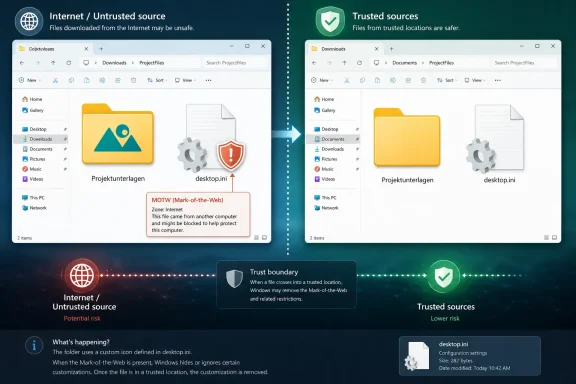 The “broken icon” is really a trust decision
The symptom is ordinary enough to look like a bug. A folder that had a custom icon suddenly becomes a plain yellow folder. A folder that displayed a localized name reverts to its underlying filesystem name. Nothing inside the folder disappears, permissions do not change, and the folder still opens normally.That is why the first wave of confusion is predictable. Windows users have been conditioned, not unfairly, to treat visual regressions after cumulative updates as update fallout. File Explorer has had enough real bugs over the years that “my folders changed after Patch Tuesday” sounds like the beginning of a familiar support thread.
But Microsoft’s explanation is more specific. Beginning with the Windows security updates released on June 9, 2026, Windows ignores certain
desktop.ini files when it cannot determine that the source is trusted. The result is that the folder still exists, but the presentation layer controlled by that file is discarded.That distinction matters. Microsoft is not saying custom folder icons are dead. It is saying that folder customizations now have to clear a trust boundary that they previously did not.
A dusty Windows feature finally meets the modern threat model
Thedesktop.ini file is one of those Windows mechanisms that feels almost invisible until it stops working. It is a hidden configuration file used by File Explorer to customize how a folder is displayed. It can define a custom icon, provide a localized display name, and influence folder presentation in ways that date back to an older model of the Windows shell.For years, that flexibility was treated as benign. A folder icon was just decoration. A localized folder name was just a usability feature. A software package, shared folder, backup set, or translated Windows profile could use
desktop.ini to present itself more neatly to the user.The problem is that presentation is not neutral. An icon, a folder name, and a familiar-looking shell object can all shape user behavior. If attackers can make something look like a trusted location, a media folder, a system-adjacent object, or a harmless shortcut container, they do not always need a dramatic exploit chain to win a click.
That is the broader security logic behind this change. Microsoft is increasingly treating shell presentation as part of the attack surface. The question is no longer only “does this code execute?” It is also “does this object make untrusted content appear safer than it is?”
Mark-of-the-Web keeps spreading through the Windows shell
The key phrase behind the change is Mark-of-the-Web, or MOTW. This is the Windows mechanism that tags files as having originated from the internet or another potentially untrusted zone. The tag has become one of Microsoft’s most important quiet defenses because it lets Windows, Office, SmartScreen, Defender, and other components make risk-based decisions before a user opens something.The June 2026
desktop.ini hardening extends that logic into folder cosmetics. If a desktop.ini file carries MOTW, comes from certain internet-originated locations, is copied from some WebDAV or HTTP-based sources, or resides on a network path that Windows does not classify as intranet or trusted, Windows may treat it as untrusted. In that case, File Explorer behaves as if the desktop.ini file is not there.This is a subtle but important shift. Windows is not merely warning users before opening a suspicious executable. It is refusing to let an untrusted metadata file influence how content is visually framed in the shell.
That will irritate people who have spent years curating folder icons. It will matter more in environments where line-of-business applications, shared content repositories, multilingual folder structures, or remote storage systems rely on
desktop.ini to make content legible. But from Microsoft’s view, the old behavior assumed too much about the trustworthiness of presentation metadata.Microsoft’s fix is targeted, but the blast radius is messy
Microsoft’s published guidance draws a line between narrow trust and broad rollback. The recommended approach is to add known internal or managed sources to the Trusted Sites list so Windows can processdesktop.ini files from those places while continuing to block untrusted ones elsewhere. That is the least risky path because it preserves the new default for internet-originated and ambiguous sources.There is also a Group Policy option: “Allow the use of remote paths in file shortcut icons.” Enabling it can restore the previous behavior for broader compatibility scenarios. Microsoft’s warning is exactly what administrators would expect: doing so reduces protection against malicious remote folder customization content.
The third option is to remove MOTW from trusted
desktop.ini files, typically with PowerShell’s Unblock-File. That can work for a known-good folder tree, but it is also the sort of workaround that should make security teams twitch. Removing MOTW is not a cosmetic action; it changes how Windows evaluates the file’s origin.The uncomfortable part is that all three fixes require users or administrators to understand why the icon disappeared in the first place. Microsoft may be right on security and still face a communication problem. To the average user, a missing icon is not a trust boundary. It is Windows being Windows.
For home users, this is mostly visual noise
Most consumer systems will barely notice the change. The average Windows 11 user does not manually maintain a library of customized folders driven bydesktop.ini. If anything shows up, it will likely be in downloaded archives, copied folders, old backup sets, game mod collections, media libraries, or tools that package customized folders for convenience.In those cases, the practical advice is boring but sound: do not rush to unblock anything just because an icon changed. If the folder came from the internet, an email attachment, a file-sharing service, or a random download, Windows is doing exactly what the update tells it to do. The files are still accessible, and the missing icon is not evidence of data loss.
Power users will be tempted to turn the old behavior back on because power users hate being second-guessed by the operating system. That instinct is understandable. Windows customization has always had a tinkerer culture around it, and folder icons are one of the safer-feeling forms of personalization.
But this is precisely where the new rule makes sense. The risk is not that your own custom icon pack is malicious. The risk is that a mechanism designed for personalization can also be used by content you did not create and should not implicitly trust.
For enterprise IT, this is another compatibility bill for old assumptions
The heavier impact lands in managed environments. Enterprises are full of shared paths, document repositories, redirected folders, legacy applications, multilingual deployments, and vendor packages that quietly rely on decades-old shell behaviors. A security update that changes visual presentation can become a help desk incident if users suddenly cannot recognize the folders they use every day.The policy decision is not simply whether to “fix the icons.” Administrators have to decide which sources deserve trust. An internal file server with controlled publishing and access policies is a different risk profile from a broadly writable share, a WebDAV endpoint, or a third-party remote repository.
The right enterprise response is likely inventory before rollback. If the breakage is concentrated in a known internal source, adding that source to the appropriate trusted zone is cleaner than disabling the protection everywhere. If a line-of-business workflow depends on remote
desktop.ini behavior from a messy or user-writable location, the update has exposed a design debt rather than merely created a new problem.This is also where Microsoft’s naming does not help. “Allow the use of remote paths in file shortcut icons” sounds narrower and more obscure than the user-visible behavior at stake. An administrator searching for “folder icons disappeared after June update” may not immediately connect that policy to
desktop.ini trust handling.The shell is becoming less forgiving by design
Thedesktop.ini change fits a pattern. Microsoft has spent the last several years tightening old Windows affordances that were designed when local files, intranet shares, Office documents, shortcuts, scripts, and downloaded archives lived in a more trusting world. MOTW enforcement has become more important. Office macros from the internet have been constrained. Shortcut and remote content handling has faced more scrutiny. Even Remote Desktop files have been pulled into a more explicit warning model.The shared theme is that Windows is no longer willing to treat familiar file types and shell metadata as harmless simply because they are old. That is a healthy development, even when the execution is clumsy. Attackers love old behaviors because defenders mentally file them under “legacy plumbing” rather than active risk.
There is also a product tension here. Windows sells itself as compatible. Compatibility means old workflows keep working, old applications still run, and old customization tricks survive longer than they would on a cleaner platform. Security hardening means some of those assumptions must eventually be revoked.
Microsoft rarely wins applause when it chooses security over continuity. If it breaks something visible, users call it a bug. If it leaves the behavior alone and attackers abuse it, users ask why Windows still trusted a 1990s-era shell trick in 2026. The company is trapped between two kinds of blame, and in this case it has chosen the one that is easier to defend.
The real lesson is not about yellow folders
It would be easy to reduce this story to a small annoyance: custom icons broke, Microsoft says it is intentional, here are the workarounds. That undersells what is happening. The deeper story is that Windows is continuing its slow migration from a compatibility-first shell to a trust-aware shell.That migration will be uneven. Some changes will be obvious, like a warning dialog before opening a risky file. Others will be quiet, like refusing to honor a hidden configuration file that changes how a folder appears. The quiet ones may actually be more disruptive because they do not announce themselves as security decisions.
There is a design problem here that Microsoft still needs to solve. If Windows is going to ignore a
desktop.ini file for trust reasons, File Explorer could do more to explain that to users and administrators. A missing icon with no visible clue looks like breakage. A properties hint, event log entry, or Defender-style explanation would turn the same behavior into something people can diagnose.Security hardening works best when users can tell the difference between “blocked because risky” and “broken because buggy.” Microsoft has the policy right, but the user experience remains too opaque.
The June patch turns folder polish into a security boundary
The practical conclusions are narrow, but they are worth spelling out because this change will produce confusing reports across Windows 10, Windows 11, and Server estates over the next few weeks. A folder that loses its custom appearance after the June 2026 security update is not necessarily damaged. It may simply be carrying presentation metadata that Windows no longer trusts.- Custom folder icons and localized folder names can disappear after the June 9, 2026 Windows security updates when they depend on untrusted
desktop.inifiles. - The underlying folders and files remain accessible; the change affects presentation, not content access.
- Microsoft recommends trusting specific managed sources rather than broadly restoring the old behavior.
- The Group Policy workaround restores compatibility but weakens the new protection against untrusted remote customization content.
- Removing Mark-of-the-Web with PowerShell should be reserved for files and folder trees whose origin is actually trusted.
- Administrators should treat widespread icon regressions as a signal to review trust zones, remote paths, and legacy shell dependencies.
References
- Primary source: Windows Central
Published: Thu, 11 Jun 2026 18:17:08 GMT
Loading…
www.windowscentral.com - Official source: support.microsoft.com
Loading…
support.microsoft.com - Official source: learn.microsoft.com
Loading…
learn.microsoft.com - Related coverage: hardwarepremium.com
Loading…
www.hardwarepremium.com - Official source: microsoft.com
Loading…
www.microsoft.com