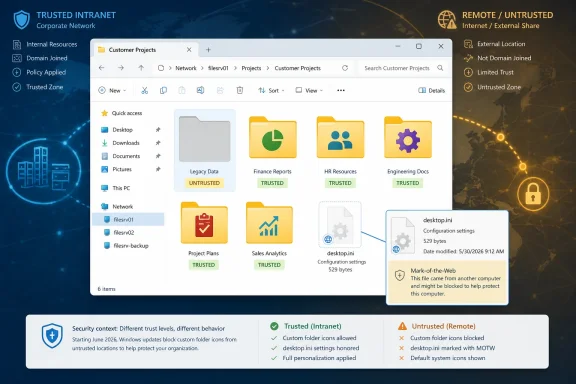
Microsoft says Windows security updates released on or after June 9, 2026, may stop some custom folder icons and localized folder display names from appearing because Windows now ignores desktop.ini files whose source it cannot verify as trusted. That is not a cosmetic bug in the usual Patch Tuesday sense. It is a security hardening change that deliberately breaks a familiar bit of Windows shell behavior when the file carrying the customization looks like it came from the wrong side of the trust boundary.
The affected list is broad enough to make this more than a niche annoyance. Microsoft’s advisory covers supported and extended-support Windows client and server lines ranging from Windows 10 Enterprise LTSB 2016 and LTSC releases through Windows 11 22H2, 23H2, 24H2, 25H2, and 26H1, as well as Windows Server 2012 ESU through Windows Server 2025. In plain terms, if an organization still has a modern Windows estate with shared folders, redirected content, packaged application trees, language-specific folder names, or carefully branded file repositories, this change can show up in places users actually notice.
The humble
That flexibility has always made
Starting with the June 9, 2026 security updates, Windows no longer treats every syntactically valid
That distinction matters. This is not a data-loss advisory, and Microsoft is not saying that folders become inaccessible. It is saying that a file designed to alter how a folder appears in the shell now has to clear a trust hurdle before Windows will let it do so.
That creates a confusing user experience. An administrator may inspect the folder and see that the hidden file remains present. A deployment script may still show the expected
This is why the issue will likely be misdiagnosed at first as icon cache corruption, broken folder attributes, sync-tool damage, or a localization regression. Those things can still happen, but this advisory points to a new class of failure: the shell is behaving correctly under a new security model. The old recipe may be intact, but Windows no longer trusts the cookbook.
For consumer users, the visible symptom may be a folder that loses its custom artwork after being downloaded from a ZIP file, synchronized from a web-backed location, or copied from a network source. For enterprises, the symptom may be messier: shared departmental folders that used to carry localized names, training materials that relied on iconography, or application-created directories that suddenly look generic after a security baseline update.
The June 2026 change makes that same provenance logic relevant to folder presentation. A
On paper, that is sensible. A file that can influence how Explorer presents a folder can be abused to make hostile or misleading content look ordinary, official, or local. The risk is not that a custom icon alone runs code. The risk is that shell presentation is part of the user’s decision-making surface, and Windows has spent years slowly reducing the number of places where untrusted content can dress itself up as something safer.
The uncomfortable part is that MotW is sticky enough to surprise people. Files extracted from archives, pulled through collaboration platforms, copied from web-based storage, or handled by browsers and mail clients can inherit or retain provenance information in ways users do not see in Explorer’s default view. A folder customization that worked before June 2026 can therefore stop working without any visible change to the folder’s contents.
Windows has long had a complicated relationship with zones, intranet detection, mapped drives, UNC paths, and browser-era trust classifications. Administrators who manage Internet Options zone assignments, site-to-zone policies, and hardened network baselines already know that “internal” does not always mean “trusted” to Windows. A file server, document portal, or WebDAV endpoint can sit inside the company’s perimeter and still fail the policy test that Windows uses for this shell behavior.
The result is a new reason to audit assumptions about internal content locations. If a folder tree sits on a traditional SMB share that Windows classifies as intranet, its
That inconsistency will irritate help desks because the user-facing report is simple: “the icons disappeared.” The diagnostic reality is not simple at all. It involves where the folder came from, how it was copied, whether zone metadata followed it, how the path is classified, and whether Group Policy has been used to alter the default.
A localized folder name lets Windows show a user-friendly or language-specific name while preserving an underlying filesystem name. That matters in OS special folders, packaged content, educational labs, application templates, and environments where scripts expect stable paths but users expect names in their own language. If
In a single-language home setup, that may be a small nuisance. In an enterprise image distributed across regions, it can look like a localization defect. In a training environment, it can make documentation mismatch what users see on screen. In support workflows, it can cause a technician and user to describe the same folder differently.
The change also exposes how much of the Windows user experience is still built on translation layers between filesystem reality and Explorer presentation. That layering is powerful, but it creates a dependency on small hidden files whose behavior is not obvious. When trust rules change, the illusion breaks in ways that feel disproportionate to the size of the file involved.
This is the right instinct. If a company owns the file server, controls the WebDAV endpoint, or manages the content distribution path, classifying that source as trusted can restore the old Explorer behavior without reopening the door for arbitrary internet-sourced
The catch is operational hygiene. “Trusted Sites” can become a junk drawer if administrators use it as a quick way to silence user complaints. A narrow entry for a controlled internal host is one thing. A broad wildcard, a loosely scoped zone assignment, or a hasty policy that blesses too much content is another.
This is where Microsoft’s wording should be read less as a support tip and more as a warning label. The company is giving organizations a compatibility path, but it clearly wants them to preserve the new protection wherever possible. That is a subtle but important shift from the old Windows tradition of offering a registry knob and hoping administrators know what they are doing.
That escape hatch should be treated as a last resort, not a standard operating procedure. It exists because Windows compatibility matters, and because some organizations have years of shell customizations embedded in network shares, shortcuts, templates, and internal portals. But broad opt-outs tend to age badly. They solve today’s ticket and become tomorrow’s forgotten exception.
The policy name is also narrower than the effect administrators may infer from this advisory. It evokes shortcut icons, but Microsoft is discussing it in the context of
Security teams will reasonably ask why a user interface customization mechanism needs to reach across untrusted paths at all. Desktop administrators will reasonably answer that the business has built workflows around it for years. The hard part is not deciding who is technically correct; it is deciding how much legacy polish is worth preserving when the operating system is telling you the old behavior crossed a trust line.
That is useful, but it should make administrators uneasy in exactly the right way. Removing MotW is not a cosmetic repair. It is a security decision that says, “we have inspected or otherwise trust this file enough to discard the provenance warning.” Used carefully, that is perfectly legitimate. Used broadly, it can erase one of Windows’ most important clues about where content came from.
The recursive example is especially powerful. A command that walks a tree and unblocks every
This is the practical line administrators should draw: unblock known content, not unknown locations. A signed vendor package, an internally generated training library, or a migrated file share can be validated and remediated. A random folder downloaded from the internet should not gain trusted shell presentation just because a user misses a custom icon.
MotW has become a central part of that tightening. Office macro blocking, archive extraction behavior, SmartScreen reputation checks, and developer tooling warnings all orbit the same idea: where a file came from should affect what the platform lets it do without explicit trust. The June 2026
That makes sense because deception is not limited to executable code. A malicious or misleading folder can use names and icons to borrow trust from familiar system locations, corporate branding, or expected workflows. If Windows lets untrusted content alter its presentation too freely, it gives attackers another surface for social engineering.
The change is therefore less about stopping
Now some of that work becomes conditional. If the customization originated locally or from a trusted source, it survives. If it arrived through a path Windows distrusts, it vanishes from the shell view. The content remains, but the intent encoded in its presentation is lost.
This will be especially annoying for communities that trade curated folder packs, icon sets, portable application bundles, game mod libraries, and localized resource collections. Many of those arrive through downloads or archives, exactly the channels that may carry MotW. The more polished the folder tree, the more visible the regression.
For IT departments, the pain is less sentimental and more procedural. Help desks will need a short script for distinguishing harmless presentation loss from actual access problems. Endpoint teams will need to decide whether to alter zone policy, unblock specific content, or accept the new defaults. Documentation teams may need to update screenshots and instructions if folder display names revert in managed environments.
Administrators should first identify where
They should also separate local presentation problems from network classification problems. If a folder copied from an internal WebDAV path loses its icon but the same folder works from a trusted SMB share, the issue is probably not the file syntax. If only downloaded archives are affected, MotW is the likely suspect. If all remote customizations fail after the update, policy may be involved.
Most importantly, organizations should resist the temptation to treat “make the icon come back” as the whole requirement. The real requirement is to restore expected presentation only where the source deserves that trust. That is a more tedious answer, but it is the answer Microsoft’s hardening is trying to force.
The affected list is broad enough to make this more than a niche annoyance. Microsoft’s advisory covers supported and extended-support Windows client and server lines ranging from Windows 10 Enterprise LTSB 2016 and LTSC releases through Windows 11 22H2, 23H2, 24H2, 25H2, and 26H1, as well as Windows Server 2012 ESU through Windows Server 2025. In plain terms, if an organization still has a modern Windows estate with shared folders, redirected content, packaged application trees, language-specific folder names, or carefully branded file repositories, this change can show up in places users actually notice.
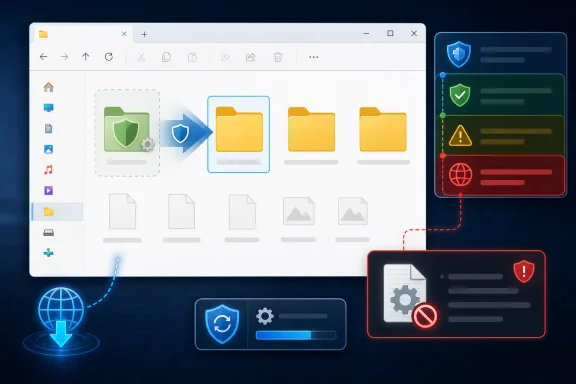 Microsoft Turns a Shell Convenience Into a Trust Decision
The humble desktop.ini file is one of those Windows mechanisms that most users never asked to understand but have lived with for decades. It is the hidden configuration file that lets a folder present itself with a custom icon, localized display name, infotip, or other shell-facing personality. A real folder can therefore have one name on disk, another name in Explorer, and a visual identity that follows it across views and shortcuts.That flexibility has always made
desktop.ini feel slightly magical and slightly fragile. Anyone who has copied a customized folder tree only to watch icons revert to yellow defaults has already brushed against the underlying bargain: Windows Explorer honors the file only when the surrounding attributes, paths, and metadata line up in the way the shell expects. Microsoft’s June 2026 change adds a more explicit security test to that bargain.Starting with the June 9, 2026 security updates, Windows no longer treats every syntactically valid
desktop.ini file as eligible to influence folder presentation. If Windows cannot establish that the file’s source is trusted, the shell ignores it as if it were absent. The folder still opens, the files are still there, and permissions do not change; what disappears is the layer of presentation that desktop.ini supplied.That distinction matters. This is not a data-loss advisory, and Microsoft is not saying that folders become inaccessible. It is saying that a file designed to alter how a folder appears in the shell now has to clear a trust hurdle before Windows will let it do so.
The Patch Does Not Delete the Decoration; It Refuses to Believe It
The most important word in Microsoft’s note is “ignores.” Windows is not necessarily removingdesktop.ini, rewriting it, clearing folder attributes, or deleting icon resources. It may simply decide that a particular desktop.ini file is not trustworthy enough to consume.That creates a confusing user experience. An administrator may inspect the folder and see that the hidden file remains present. A deployment script may still show the expected
IconFile, IconIndex, or localized resource name entries. A backup product may still have restored the configuration exactly as stored. Yet Explorer displays the default folder icon or the original folder name, because the decision is being made upstream of the old “is the file there?” troubleshooting checklist.This is why the issue will likely be misdiagnosed at first as icon cache corruption, broken folder attributes, sync-tool damage, or a localization regression. Those things can still happen, but this advisory points to a new class of failure: the shell is behaving correctly under a new security model. The old recipe may be intact, but Windows no longer trusts the cookbook.
For consumer users, the visible symptom may be a folder that loses its custom artwork after being downloaded from a ZIP file, synchronized from a web-backed location, or copied from a network source. For enterprises, the symptom may be messier: shared departmental folders that used to carry localized names, training materials that relied on iconography, or application-created directories that suddenly look generic after a security baseline update.
Mark-of-the-Web Comes for the Folder Aesthetic
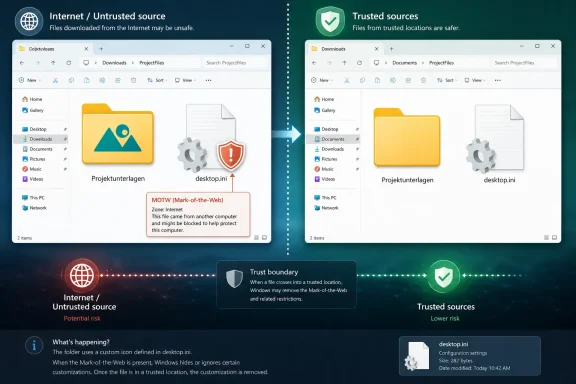
Microsoft calls out Mark-of-the-Web, or MotW, as one of the main signals that can push adesktop.ini file into untrusted territory. MotW is the metadata Windows uses to remember that a file originated from the internet or another zone treated with caution. Users usually encounter it indirectly through SmartScreen warnings, Protected View behavior, macro blocking, or the familiar “unblock” checkbox on downloaded files.The June 2026 change makes that same provenance logic relevant to folder presentation. A
desktop.ini file downloaded from the internet may carry zone information that tells Windows it did not originate locally. If that file then attempts to define a folder icon or localized display name, the shell may decline to honor it.On paper, that is sensible. A file that can influence how Explorer presents a folder can be abused to make hostile or misleading content look ordinary, official, or local. The risk is not that a custom icon alone runs code. The risk is that shell presentation is part of the user’s decision-making surface, and Windows has spent years slowly reducing the number of places where untrusted content can dress itself up as something safer.
The uncomfortable part is that MotW is sticky enough to surprise people. Files extracted from archives, pulled through collaboration platforms, copied from web-based storage, or handled by browsers and mail clients can inherit or retain provenance information in ways users do not see in Explorer’s default view. A folder customization that worked before June 2026 can therefore stop working without any visible change to the folder’s contents.
Network Paths Are Now Part of the Story
The advisory does not stop at internet downloads. Microsoft also says Windows may treatdesktop.ini files as untrusted when they are copied from certain remote locations, including some WebDAV or HTTP-based paths, or when they live on network paths not classified as intranet or trusted by zone policy. That is where the change moves from home-user oddity to enterprise maintenance problem.Windows has long had a complicated relationship with zones, intranet detection, mapped drives, UNC paths, and browser-era trust classifications. Administrators who manage Internet Options zone assignments, site-to-zone policies, and hardened network baselines already know that “internal” does not always mean “trusted” to Windows. A file server, document portal, or WebDAV endpoint can sit inside the company’s perimeter and still fail the policy test that Windows uses for this shell behavior.
The result is a new reason to audit assumptions about internal content locations. If a folder tree sits on a traditional SMB share that Windows classifies as intranet, its
desktop.ini files may continue to work. If a similar tree arrives through a web-backed document system, a cloud gateway, or a path that zone policy treats more cautiously, the same files may suddenly lose their visual behavior.That inconsistency will irritate help desks because the user-facing report is simple: “the icons disappeared.” The diagnostic reality is not simple at all. It involves where the folder came from, how it was copied, whether zone metadata followed it, how the path is classified, and whether Group Policy has been used to alter the default.
The Localized Name Breakage Is the Quietly Serious Part
Custom folder icons will get most of the attention because they are obvious. A carefully branded folder that turns into a plain yellow folder feels broken immediately. But localized display names may be the more consequential casualty in multinational and managed environments.A localized folder name lets Windows show a user-friendly or language-specific name while preserving an underlying filesystem name. That matters in OS special folders, packaged content, educational labs, application templates, and environments where scripts expect stable paths but users expect names in their own language. If
desktop.ini is ignored, the shell can fall back to the original folder name instead.In a single-language home setup, that may be a small nuisance. In an enterprise image distributed across regions, it can look like a localization defect. In a training environment, it can make documentation mismatch what users see on screen. In support workflows, it can cause a technician and user to describe the same folder differently.
The change also exposes how much of the Windows user experience is still built on translation layers between filesystem reality and Explorer presentation. That layering is powerful, but it creates a dependency on small hidden files whose behavior is not obvious. When trust rules change, the illusion breaks in ways that feel disproportionate to the size of the file involved.
Microsoft’s Recommended Fix Is Narrow Trust, Not Blind Reversal
Microsoft’s preferred workaround is to add the affected source to Trusted Sites when the content is stored on a known internal or managed location. That recommendation is revealing. The company is not telling administrators to turn the feature back on everywhere; it is telling them to make the trust boundary explicit.This is the right instinct. If a company owns the file server, controls the WebDAV endpoint, or manages the content distribution path, classifying that source as trusted can restore the old Explorer behavior without reopening the door for arbitrary internet-sourced
desktop.ini files. The security hardening remains in place for less trusted locations.The catch is operational hygiene. “Trusted Sites” can become a junk drawer if administrators use it as a quick way to silence user complaints. A narrow entry for a controlled internal host is one thing. A broad wildcard, a loosely scoped zone assignment, or a hasty policy that blesses too much content is another.
This is where Microsoft’s wording should be read less as a support tip and more as a warning label. The company is giving organizations a compatibility path, but it clearly wants them to preserve the new protection wherever possible. That is a subtle but important shift from the old Windows tradition of offering a registry knob and hoping administrators know what they are doing.
The Broad Opt-Out Is There, and It Is a Trap for the Impatient
Microsoft also identifies a policy path for organizations that need broader compatibility: enabling “Allow the use of remote paths in file shortcut icons.” According to the advisory, enabling that policy restores pre-June 2026 behavior for affected remote or untrusted scenarios. In other words, there is an escape hatch for shops that cannot quickly reclassify sources or remediate content.That escape hatch should be treated as a last resort, not a standard operating procedure. It exists because Windows compatibility matters, and because some organizations have years of shell customizations embedded in network shares, shortcuts, templates, and internal portals. But broad opt-outs tend to age badly. They solve today’s ticket and become tomorrow’s forgotten exception.
The policy name is also narrower than the effect administrators may infer from this advisory. It evokes shortcut icons, but Microsoft is discussing it in the context of
desktop.ini-driven folder presentation as well. That mismatch is exactly the kind of thing that leads to policy sprawl, where a setting enabled for one incident remains deployed long after the original rationale has been lost.Security teams will reasonably ask why a user interface customization mechanism needs to reach across untrusted paths at all. Desktop administrators will reasonably answer that the business has built workflows around it for years. The hard part is not deciding who is technically correct; it is deciding how much legacy polish is worth preserving when the operating system is telling you the old behavior crossed a trust line.
Unblock-File Is a Scalpel With a Sharp Edge
The third Microsoft-supported remediation path is to check whether the affecteddesktop.ini file has Mark-of-the-Web and, if appropriate, remove it. Microsoft’s examples use PowerShell’s Unblock-File, either against a single desktop.ini file or recursively against matching files in a folder tree. This can restore the expected icon or localized name because it removes the zone marker that made Windows suspicious.That is useful, but it should make administrators uneasy in exactly the right way. Removing MotW is not a cosmetic repair. It is a security decision that says, “we have inspected or otherwise trust this file enough to discard the provenance warning.” Used carefully, that is perfectly legitimate. Used broadly, it can erase one of Windows’ most important clues about where content came from.
The recursive example is especially powerful. A command that walks a tree and unblocks every
desktop.ini file can be the correct answer for a known-good internal content package that arrived through a channel that stamped it as internet-originated. The same command run casually across a downloads folder, collaboration cache, or mixed archive extraction area would be reckless.This is the practical line administrators should draw: unblock known content, not unknown locations. A signed vendor package, an internally generated training library, or a migrated file share can be validated and remediated. A random folder downloaded from the internet should not gain trusted shell presentation just because a user misses a custom icon.
The Security Rationale Is Bigger Than Desktop.ini
It is tempting to dismiss this as Microsoft being fussy about icons. That would miss the larger pattern. Over the last several years, Windows has been steadily tightening the way it handles content with internet provenance, remote resources, and user interface surfaces that can be manipulated by files rather than installed programs.MotW has become a central part of that tightening. Office macro blocking, archive extraction behavior, SmartScreen reputation checks, and developer tooling warnings all orbit the same idea: where a file came from should affect what the platform lets it do without explicit trust. The June 2026
desktop.ini change brings the Windows shell’s folder presentation layer further into that model.That makes sense because deception is not limited to executable code. A malicious or misleading folder can use names and icons to borrow trust from familiar system locations, corporate branding, or expected workflows. If Windows lets untrusted content alter its presentation too freely, it gives attackers another surface for social engineering.
The change is therefore less about stopping
desktop.ini from being dangerous by itself and more about reducing the number of ways untrusted content can influence what users think they are seeing. That is a familiar tradeoff in platform security. The operating system removes ambiguity; users and administrators lose a little convenience.The Compatibility Cost Lands on the People Who Kept Windows Tidy
There is an irony here. The users most likely to notice this change are often the users and administrators who cared enough to organize Windows neatly. They used custom icons to distinguish project folders. They used localized names to make shared repositories less Anglo-centric. They used shell customization to make complicated storage structures approachable.Now some of that work becomes conditional. If the customization originated locally or from a trusted source, it survives. If it arrived through a path Windows distrusts, it vanishes from the shell view. The content remains, but the intent encoded in its presentation is lost.
This will be especially annoying for communities that trade curated folder packs, icon sets, portable application bundles, game mod libraries, and localized resource collections. Many of those arrive through downloads or archives, exactly the channels that may carry MotW. The more polished the folder tree, the more visible the regression.
For IT departments, the pain is less sentimental and more procedural. Help desks will need a short script for distinguishing harmless presentation loss from actual access problems. Endpoint teams will need to decide whether to alter zone policy, unblock specific content, or accept the new defaults. Documentation teams may need to update screenshots and instructions if folder display names revert in managed environments.
The Right Response Starts With Inventory, Not Outrage
The worst response to this change would be a reflexive estate-wide rollback of the new behavior. The second-worst response would be pretending the complaints are merely cosmetic and leaving users to rediscover broken visual cues one ticket at a time. The right response sits between those extremes.Administrators should first identify where
desktop.ini matters. That does not mean scanning every drive in panic, but it does mean paying attention to managed shares, redirected folders, packaged internal content, training labs, multilingual folder trees, and application deployments that intentionally rely on custom folder presentation. If those sources are controlled, they are candidates for narrow trust configuration or targeted unblocking.They should also separate local presentation problems from network classification problems. If a folder copied from an internal WebDAV path loses its icon but the same folder works from a trusted SMB share, the issue is probably not the file syntax. If only downloaded archives are affected, MotW is the likely suspect. If all remote customizations fail after the update, policy may be involved.
Most importantly, organizations should resist the temptation to treat “make the icon come back” as the whole requirement. The real requirement is to restore expected presentation only where the source deserves that trust. That is a more tedious answer, but it is the answer Microsoft’s hardening is trying to force.
The June Patch Teaches Explorer a New Suspicion
The concrete takeaways are straightforward, but the policy implications are not. Microsoft has made folder presentation part of Windows’ broader trust model, and that means administrators should treat broken icons as a signal to inspect provenance rather than merely rebuild caches.- Windows security updates released on or after June 9, 2026 can cause custom folder icons and localized folder names defined by
desktop.inito stop appearing. - The affected folder contents remain accessible, because the change targets shell presentation rather than file or folder permissions.
desktop.inifiles downloaded from the internet, copied from certain remote locations, or stored on network paths outside trusted zone policy are the most likely to be ignored.- Microsoft’s preferred mitigation is to trust only controlled internal sources rather than broadly restoring old behavior everywhere.
- PowerShell’s
Unblock-Filecan restore behavior for known-gooddesktop.inifiles, but it also removes provenance protection and should not be used indiscriminately. - The broad policy opt-out may help with compatibility, but it reduces the protection Microsoft added and should be documented as an exception.
desktop.ini answer to source trust, Microsoft is choosing a slightly less decorative Windows in exchange for a slightly less gullible one, and administrators now have to decide which old customizations deserve to cross that new line.References
- Primary source: Microsoft Support
Published: Wed, 10 Jun 2026 16:43:02 Z
- Official source: learn.microsoft.com

How to Customize Folders with Desktop.ini - Win32 apps | Microsoft Learn
Customize the appearance and behavior of an individual folder with a Desktop.ini file.learn.microsoft.com - Official source: answers.microsoft.com
There are these random desktop.ini files appearing on my computer... - Microsoft Q&A
I have currently 2 files listed as desktop.ini on my computer. When I try to delete them, a message pops up saying this might harm Windows. Is it safe…answers.microsoft.com - Related coverage: howtogeek.com

Why are There Two desktop.ini Files on Windows Desktops?
If you have ever had hidden system files set to display on your Windows system, then you have likely noticed a 'matching' pair of desktop. www.howtogeek.com
- Related coverage: stackoverflow.com

Custom Windows folder icon
Skype has a nice custom folder icon for the Skype folder in C:\Program Files. How do you do register a custom icon for a specific windows (XP and up) folder?stackoverflow.com
- Related coverage: techbloat.com

Where Are Icons Stored In Windows 11 - TechBloat
Exploring the Location of Icons in Windows 11 Storage
www.techbloat.com

- Related coverage: superuser.com

Set custom folder icon for a network folder in Windows File Explorer
I access a Windows share and the 'folder icon' section (the bottom one) is missing in its settings. It shows up properly in local folders. I would like to have it with both. A folder properties wi...superuser.com
- Related coverage: rw-designer.com
Customizing folder icons
www.rw-designer.com
- Related coverage: techyorker.com

Where Are Icons Stored In Windows 11 - TechYorker
×AIDiscover the way to a Faster PC - Chipps AI AssistantNew Update: Boost Your Device Performance Today with Chipps.Get Your...
techyorker.com
- Related coverage: archive.decromancer.ca