

TP-Link’s Kasa Smart remains a popular way to manage plugs, bulbs, switches and cameras — but the convenience of a native Windows or macOS desktop client is still missing, and the practical path for PC/Mac users is to run the mobile app inside an Android runtime or move to a cross‑brand hub. Recent vendor updates mean the Kasa ecosystem is also changing: TP‑Link now offers Tapo app integration for Kasa devices, while the Kasa mobile app continues to be the primary control surface for TP‑Link products. These realities change how enthusiasts should approach “Kasa on PC”: emulation works, but so does adopting a different control strategy that may be faster, safer, or more future‑proof.
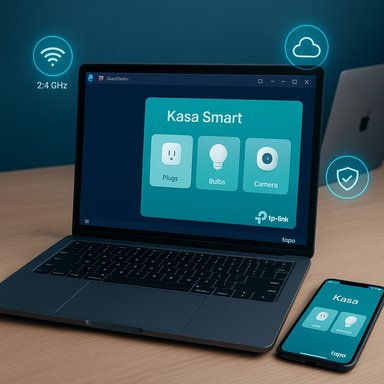
Kasa Smart is TP‑Link’s mobile app for controlling its Kasa-branded smart home devices: smart plugs, bulbs, switches, power strips and cameras. The app exposes the usual feature set — remote on/off, scheduling, scene creation, energy monitoring for supported plugs, and integrations with voice assistants such as Amazon Alexa and Google Assistant. TP‑Link’s product pages list remote access and scheduling as core capabilities and note device requirements (Wi‑Fi 2.4 GHz for many models, and minimum mobile OS versions). Historically, TP‑Link published a dedicated Kasa mobile app for Android and iOS. In 2024–2025 the company introduced deeper cross‑support between the Kasa and Tapo lines: the Tapo App now optionally links with Kasa devices so users can manage both families from one mobile app. That shift is important for PC users because the vendor’s official desktop strategy remains centered on mobile apps and cloud services rather than native desktop clients. Because TP‑Link doesn’t offer a first‑party Windows or macOS app for Kasa as the primary control path, the most widely used PC approach is to run the Android Kasa app inside an Android emulator (BlueStacks, NoxPlayer, LDPlayer, etc.. Emulator vendors publish step‑by‑step guides showing how to download BlueStacks/Nox, sign into Google Play, then install Kasa — a dependable fallback when no native client exists. BlueStacks publishes explicit system requirements and guidance for Windows 7 and later; the emulator route is well trodden but not free of trade‑offs.
Source: PrioriData Download Kasa Smart for PC – Windows 7/8/11 & MAC | Priori Data
 Background / Overview
Kasa Smart is TP‑Link’s mobile app for controlling its Kasa-branded smart home devices: smart plugs, bulbs, switches, power strips and cameras. The app exposes the usual feature set — remote on/off, scheduling, scene creation, energy monitoring for supported plugs, and integrations with voice assistants such as Amazon Alexa and Google Assistant. TP‑Link’s product pages list remote access and scheduling as core capabilities and note device requirements (Wi‑Fi 2.4 GHz for many models, and minimum mobile OS versions). Historically, TP‑Link published a dedicated Kasa mobile app for Android and iOS. In 2024–2025 the company introduced deeper cross‑support between the Kasa and Tapo lines: the Tapo App now optionally links with Kasa devices so users can manage both families from one mobile app. That shift is important for PC users because the vendor’s official desktop strategy remains centered on mobile apps and cloud services rather than native desktop clients. Because TP‑Link doesn’t offer a first‑party Windows or macOS app for Kasa as the primary control path, the most widely used PC approach is to run the Android Kasa app inside an Android emulator (BlueStacks, NoxPlayer, LDPlayer, etc.. Emulator vendors publish step‑by‑step guides showing how to download BlueStacks/Nox, sign into Google Play, then install Kasa — a dependable fallback when no native client exists. BlueStacks publishes explicit system requirements and guidance for Windows 7 and later; the emulator route is well trodden but not free of trade‑offs. What Kasa Smart on PC actually gives you
Running the Kasa app on a PC via an emulator or other runtime produces an experience that is functionally identical to the phone app — the same UI, the same menus and the same device features. That means you’ll get:- Remote device control (on/off, brightness for supported bulbs, basic camera streaming when the app allows).
- Schedules and timers for plugs, lights and switches.
- Energy monitoring dashboards on supported smart plugs that report real‑time and historical usage.
- Scene and grouping controls to activate multiple devices at once.
- Voice assistant linking through the same account linking flows you use on mobile.
What you won’t get (without extra work)
- A native Windows system tray client, live tile, or integrated Windows Service — unless you use third‑party wrappers or a dedicated dashboard/hub solution.
- Hardware-accelerated decoding and native Windows device integration the same way a purpose‑built desktop VMS (video management system) would provide.
- Reduced power/CPU overhead: emulators add virtualization overhead compared to a native desktop program.
Is there a native Kasa Smart app for Windows or macOS?
Short answer: no mainstream, vendor‑supported native desktop client exists for Kasa as the primary management path. TP‑Link continues to invest in the Kasa mobile app and in cross‑support between Kasa and Tapo, but the company’s published support primarily references iOS and Android apps for device setup and remote control. The practical implication is that if you want the exact Kasa UI on a PC, the emulator route is the supported fallback for most users. Be cautious with third‑party claims of “Kasa for Windows” installers — those are often repackaged mobile clients or unofficial wrappers. Always prefer the vendor guidance and official app stores to avoid security risks.How to run Kasa Smart on PC — verified, step‑by‑step
Two mainstream emulators dominate this use case: BlueStacks (broad compatibility, actively maintained) and NoxPlayer (lightweight tuning options). The steps below are the validated, practical path used by many Windows and macOS users.Method 1 — BlueStacks (recommended for broad compatibility)
- Download BlueStacks 5 from the official BlueStacks site and run the installer as Administrator. BlueStacks documents Windows 7 and later support and lists minimum and recommended resource targets.
- Launch BlueStacks and sign into the Google Play Store inside the emulator with a Google account.
- Open Google Play, search for Kasa Smart (confirm publisher is TP‑Link) and install the app.
- Launch Kasa inside BlueStacks and sign in with your TP‑Link account (create one if you don’t have it). Complete device pairing the same way you would on your phone (follow Kasa’s setup wizard).
- Optionally create a desktop shortcut from BlueStacks for quick launch.
- Allocate at least 4 GB RAM to the emulator for a single instance; 8 GB+ is recommended if you multitask or stream multiple camera feeds.
- Enable virtualization (Intel VT‑x / AMD‑V) in BIOS/UEFI for stable performance.
Method 2 — NoxPlayer
- Download NoxPlayer from the official Nox site and install it.
- Start Nox, sign into Google Play, search for Kasa Smart, and install.
- Launch the app and complete sign‑in and provisioning.
macOS note
- BlueStacks offers macOS builds; for Apple Silicon Macs, check BlueStacks’ documentation for native Apple Silicon support or fallback virtualization guidance. Nox’s macOS support has been less consistent historically, so BlueStacks tends to be the recommended choice for recent macOS releases.
System requirements and performance expectations
Official emulator documentation and community testing converge on practical minimums:- Operating system: Windows 7 SP1 or later (Windows 10/11 recommended); macOS Big Sur or later for BlueStacks mac builds.
- RAM: 4 GB minimum; 8 GB+ recommended for good responsiveness and multi‑camera streaming.
- Storage: SSD recommended; allocate at least 5–10 GB free for the emulator and apps.
- GPU/Drivers: Up‑to‑date graphics drivers; virtualization enabled for best performance.
Security, privacy and hardening — do not skip this
Running mobile apps in an emulator increases attack surface. The emulator plus the mobile app and the device cloud each introduce potential risks. Follow these hardening steps:- Download emulators only from their official vendor pages and keep them updated. Scanning older or third‑party builds is essential.
- Use strong, unique passwords for your TP‑Link/Kasa account and enable two‑factor authentication if it’s offered.
- Put IoT devices on a segregated guest VLAN or a separate SSID to stop compromised smart devices from reaching PCs or sensitive gear.
- Avoid sideloaded APKs from untrusted sources. Install Kasa from Google Play inside the emulator to reduce repackaging risk.
- Keep device firmware and the Kasa app updated; firmware patches address stability and security fixes. Vendor support pages list device firmware and update flows.
Key technical clarifications and vendor‑verified claims (what to trust)
- Remote control and cloud features: TP‑Link documents that its smart plugs and devices support remote access via the Kasa app when you have Internet connectivity; that means many conveniences (remote on/off, cloud streaming) depend on TP‑Link’s cloud services. Local‑only control options vary by device and firmware.
- Energy monitoring: Supported Kasa plugs explicitly include energy‑use dashboards in the Kasa app on mobile. The same screens appear when running the app under an emulator.
- 2.4 GHz setup caveat: Many TP‑Link devices still require a 2.4 GHz SSID during initial pairing. If your router defaults to a mixed SSID or hides the 2.4 GHz band, pairing may fail. This is noted in device support pages and community troubleshooting resources.
Alternatives worth considering (and why they may be a better long‑term choice)
If you want broader device compatibility, local‑first operation, or a true desktop control center, evaluate these alternatives:- SmartThings (Samsung) — Broad third‑party device ecosystem and more powerful cross‑vendor automations. There are desktop/web options and broader platform integrations for multi‑brand homes. Many community guides show SmartThings as the most convenient cross‑brand platform for typical users.
- Home Assistant — Open‑source, self‑hosted platform with unmatched device compatibility and privacy for power users. Runs on a Raspberry Pi, NUC, or VM and offers a full web UI, native desktop/telemetry integrations and local control for many TP‑Link devices (via integrations). If local control and privacy matter, Home Assistant is the go‑to.
- Hubitat Elevation — Local automation hub that prioritizes responsiveness and privacy; a good middle ground for those who prefer local rules but not the hands‑on maintenance of Home Assistant.
- Amazon Alexa + Echo devices — If voice and a simple desktop glance are your main needs, an Echo on your desk plus the Alexa web/desktop tools can be a practical alternative. Community guides discuss the changing availability of Alexa desktop clients and recommend device‑based voice as more stable.
Practical recommendations for readers who want Kasa on a PC today
- If you simply want the Kasa experience on a larger screen and are comfortable with a VM-like workload: use BlueStacks (or Nox) and install Kasa from Google Play inside the emulator. Follow emulator vendor guidance for system allocation and virtualization.
- Harden your network: isolate Kasa devices on a guest SSID/VLAN, enable 2FA on accounts where available, and use strong unique passwords.
- If you need multi‑camera surveillance, long retention, or heavy recording: evaluate a native Windows VMS or an NVR (e.g., Blue Iris, Agent DVR) rather than running camera streams through an emulator. Emulators can be CPU‑heavy and less reliable for sustained recording workloads.
- If you require local‑first operation, broad cross‑vendor automation, or a future‑proof control plane: test Home Assistant or Hubitat. These platforms reduce cloud dependency and give you more control over privacy and integrations.
What to watch for — risks and unverifiable claims
- Watch for repackaged “Kasa for PC” installers from unknown sites. These are frequently just mobile apps wrapped as an exe and may include unwanted software. Prefer Google Play inside an emulator or official vendor downloads.
- Cloud dependency: many Kasa features rely on TP‑Link’s cloud for remote control and camera access. If local‑only operation is a hard requirement, confirm your specific device’s local control capabilities and firmware options before buying. TP‑Link docs are explicit that remote access uses the cloud; community threads discuss local integration workarounds but those require advanced configuration.
- Emulation fragility: emulators are not the same as native apps. Expect occasional hiccups with Play Services, emulator updates, or app changes that may temporarily break features. Keep backups and test carefully for critical automations.
Conclusion
Putting Kasa Smart on a PC is doable and often practical, but it is a workaround rather than a first‑class experience. The cleanest, lowest‑risk path is to use the Kasa or Tapo mobile app on a phone or tablet for daily control, and use an emulator on PC only when the larger screen or multitasking is genuinely helpful. For long‑term stability, privacy, and expanded automation, evaluate local‑first platforms (Home Assistant, Hubitat) or cross‑brand hubs (SmartThings). If you follow the emulator route, do so deliberately: use official downloads, allocate sufficient hardware resources, enable virtualization, and harden your home network. The ecosystem is evolving — TP‑Link’s Tapo integration with Kasa devices signals consolidation, and that may change the best desktop strategy for many users over the next year.Source: PrioriData Download Kasa Smart for PC – Windows 7/8/11 & MAC | Priori Data
