• Thread Author
Microsoft released the January 13, 2026 security baseline today — published as KB5074109 — and enterprise administrators should treat this as both a mandatory security checkpoint and a practical reminder about the new Hotpatch servicing cadence for Windows 11 Enterprise (24H2 and 25H2). The baseline advances Windows 11 builds to 26100.7623 (24H2) and 26200.7623 (25H2), bundles the latest Servicing Stack Update (SSU) with the Latest Cumulative Update (LCU), and includes AI component updates and targeted fixes for networking and compatibility scenarios; at the same time, Microsoft’s Hotpatch release notes and Intune guidance confirm that Hotpatch months and baseline months follow a quarterly rhythm that affects restart behavior and eligibility.

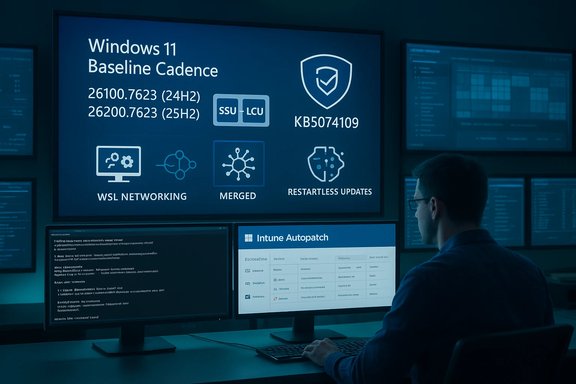
IT professional monitors Windows 11 baseline cadence on a large wall display in a high-tech operations center.Background​

What Microsoft means by “Baseline” and why January matters​

Microsoft’s Baseline releases are the quarterly checkpoints that consolidate security fixes, servicing-stack updates, and selected quality improvements. Baselines require a restart and form the prerequisite for the subsequent Hotpatch months — the no‑restart security-only updates Microsoft delivers during the two months that follow each baseline. The Hotpatch model reduces the annual count of forced reboots from twelve to four by design: baseline months (January, April, July, October) remain restart-required, while the next two months are Hotpatch months (no restart for eligible devices). This cadence and its calendar are documented in Microsoft’s Hotpatch release notes and Windows release-health pages.

Why this particular baseline (KB5074109) is operationally important​

KB5074109 is the January 13, 2026 monthly cumulative for Windows 11 24H2 and 25H2. In addition to security fixes, the package carries updates to specific on‑device AI components (applicable to Copilot+/Copilot‑enabled devices), driver removals for legacy modem stacks, and reliability fixes for networking scenarios (notably WSL mirrored networking and some AVD RemoteApp conditions). Microsoft publishes combined SSU+LCU packages for baselines so that offline servicing and image updates are reliable — but that packaging also changes rollback and uninstall behavior, as SSUs are effectively permanent once installed. The community and vendor reporting that accompanied this month’s release confirm these points.

What’s in KB5074109 (January 13, 2026 baseline)​

Key technical highlights​

  • OS build updates: Windows 11 25H2 devices report Build 26200.7623 after the update; Windows 11 24H2 devices report Build 26100.7623. These build numbers are Microsoft’s official reporting values for the baseline release.
  • Combined SSU+LCU packaging: Microsoft bundles the Servicing Stack Update (SSU) to ensure the servicing pipeline can apply the LCU reliably; this is the recommended install model for offline image servicing.
  • AI component updates: the baseline contains refreshed on‑device AI model binaries and runtime components (these install only on Copilot+/Copilot‑eligible devices). Administrators should expect larger offline MSU bundle sizes when AI components are included.
  • Notable fixes and behavior changes: driver removals for obsolete modem drivers and fixes for WSL mirrored networking and some Azure Virtual Desktop RemoteApp errors. Administrators managing specialized hardware or virtual desktop services should review the device inventory for affected drivers and test the networking fixes in a representative lab.

What’s explicitly not in every baseline​

Baselines do not universally flip on new features for all devices. Microsoft uses server‑side gating and controlled feature rollouts (CFR) to enable certain Copilot-era UI or AI features on qualified devices over time. As such, installing the baseline does not guarantee that every Copilot‑style UI element will appear; eligibility is influenced by device hardware, SKU, and Microsoft gating.

Installation and servicing guidance — verified steps​

Two supported offline install models (and why they matter)​

Microsoft documents two practical approaches to applying combined baseline packages when you’re not using Windows Update:
  • Method A — Install all MSU files together (recommended for image servicing): place every MSU file for the baseline in a single folder and run DISM or the Windows Update Standalone Installer. DISM will discover, sequence, and apply prerequisites in the correct order automatically. This model reduces human sequencing error and is the recommended approach for mounted images and offline servicing.
  • Method B — Install each MSU file individually, in the precise order Microsoft lists: acceptable for manual host servicing, but error‑prone if you miss a checkpoint MSU or SSU dependency. Microsoft lists the canonical MSU filenames and the required sequencing on the KB page; follow them exactly if you choose this path.

Quick CLI commands you should keep in your runbook​

  • Mount an offline image and add the package:
  • DISM /Image:C:\Mount\ /Add-Package /PackagePath:C:\Packages\Windows11.0-KB5074109-x64.msu
  • Apply to a running system (recommended: use DISM with all MSUs in one folder):
  • DISM /Online /Add-Package /PackagePath:C:\Packages\Windows11.0-KB5074109-x64.msu
  • To enumerate installed packages and verify the LCU name:
  • DISM /Online /Get-Packages | findstr /i 5074109
Note: Running wusa.exe /uninstall on a combined SSU+LCU package will not remove the SSU; the SSU portion is effectively permanent on that host. That behavior is important for rollback planning.

Hotpatch: cadence, eligibility, and management (verified)​

The calendar and the rule-of-thumb​

Hotpatch uses a simple quarterly rhythm: the first month of each quarter is a Baseline (restart required), and the following two months are Hotpatch months (security‑only, no restart for eligible devices). For 2025 and continuing into 2026, Microsoft explicitly lists which months are baseline and which are hotpatch in their Hotpatch release notes and Windows release health pages. Administrators should plan feature upgrades and image servicing to align with baseline months to preserve Hotpatch eligibility.

Who is eligible and what administrators must configure​

  • Licensing and SKU: Hotpatch is targeted at Windows 11 Enterprise (and equivalent commercial SKUs). Consumer editions remain on the standard LCU cycle.
  • Management tooling: Microsoft requires Windows Autopatch or Microsoft Intune (with a Windows quality update policy configured for Hotpatch) to orchestrate Hotpatch distribution. The quality‑update policy includes an explicit Hotpatch option and produces Hotpatch telemetry and reporting.
  • Baseline alignment and platform prerequisites: Devices must be on the latest baseline release and meet OS configuration prerequisites (for example, virtualization‑based security (VBS) in certain scenarios and other platform protections where specified). Devices that fail prerequisites automatically receive the standard Latest Cumulative Update (LCU), which requires a restart.

Practical impact on restart behavior​

When Hotpatch is properly enabled and devices meet eligibility, they will receive no‑restart security updates for the two months following each baseline. If a device upgrades to a new feature release during a Hotpatch month, it may temporarily revert to the standard update track (requiring restarts) until the next baseline — a nuance that can cause unexpected restarts if not accounted for in change windows.

Risks, limitations, and real‑world caveats​

SSU permanence and rollback complexity​

Because Microsoft bundles the SSU with the LCU in baseline packages, the SSU component cannot be uninstalled once applied. That reduces uninstall flexibility and means rollbacks usually require full image redeploy or restoring a preserved golden image. For organizations that rely on quick rollback playbooks, this necessitates explicit process changes (maintain unmodified golden images and test restore procedures).

Application/driver compatibility​

Hotpatch and no‑restart flows are intentionally narrow in scope, but even small in‑memory fixes can interact poorly with out‑of‑date kernel‑mode drivers, security agents, or third‑party endpoint software. The safe path is to pilot updates against the most realistic device images you run in production and to coordinate with critical software vendors for signed driver and agent compatibility validation.

Telemetry blind spots and visibility​

Hotpatch installs silently and reports success without requiring a restart, which can create an expectation gap if administrators rely on visible reboot cues to confirm patching. Integrate Hotpatch telemetry into your monitoring dashboards and use Intune/Autopatch reporting to confirm actual installation success across pilot and production rings.

Recent servicing incidents — a cautionary example​

Microsoft and community reporting documented a servicing misdistribution tied to WSUS and Hotpatch enrollment in late 2025 that caused a small number of Hotpatch‑enrolled servers to lose Hotpatch eligibility after installing an incorrect out‑of‑band package. Microsoft published corrective guidance and a remediation path that required installing the January 2026 baseline to re‑establish Hotpatch enrollment for affected systems. Independent community telemetry described the affected population as a “very limited number,” but the exact count remains unverified publicly, so treat the “very limited” phrasing with caution and assume you must verify enrollment state across your estate. Administrators who manage WSUS servers should follow Microsoft’s KB guidance and validate WSUS/Hotpatch status proactively.

Practical operational checklist (what to do this week)​

  • Inventory and classify:
  • Identify all Windows 11 devices and tag those running Enterprise 24H2/25H2 and those enrolled in Intune/Autopatch.
  • Identify WSUS servers, WSUS roles, and whether any server hosts are reachable from untrusted networks.
  • Pilot the baseline:
  • Create a pilot ring (20–50 devices) that mirrors production profiles.
  • Apply KB5074109 to the pilot group using Windows Update (online) or DISM (offline image).
  • Validate critical LOB apps, drivers, and device telemetry for 72 hours.
  • Prepare image servicing:
  • For offline images, place all MSU files for KB5074109 into one folder and use DISM to let the service sequence prerequisites automatically. Preserve an unmodified golden image before injecting the combined SSU+LCU.
  • Update change calendars:
  • Schedule feature upgrades and large rollouts during baseline months where possible so Hotpatch eligibility is maintained. If upgrades must occur during Hotpatch months, plan for temporary LCU behavior and reboots.
  • Monitor and validate:
  • Integrate Intune/Autopatch Hotpatch reporting into your existing dashboards.
  • Collect DISM, CBS, and Windows Update logs from pilot devices for at least one servicing cycle.

Critical analysis — strengths and remaining gaps​

Strengths​

  • Reduced downtime: Hotpatch meaningfully reduces the number of forced restarts for eligible enterprise devices, improving availability for critical workloads. Microsoft’s Hotpatch documentation and Autopatch integration make this an operationally tangible benefit.
  • Smaller, targeted packages: Hotpatch payloads are intentionally narrow, allowing for faster distribution and lower bandwidth use in day‑to‑day security operations.
  • Clear servicing rhythm: The baseline/hotpatch cadence is explicit and predictable, allowing admins to plan upgrades and maintenance windows more effectively.

Remaining risks and tradeoffs​

  • Eligibility complexity: The Hotpatch model’s prerequisites (license SKUs, baseline alignment, Intune/Autopatch enrollment, and platform protections) mean many endpoints remain ineligible — and the default update behavior for those devices remains the restart‑required LCU. This creates a two‑track operational model that increases planning overhead.
  • Rollback constraints: Bundled SSUs remove uninstall flexibility, increasing the importance of golden image preservation and validated rollback procedures.
  • Operational surprises: Upgrading a device to a new Windows version in a Hotpatch month can force it back into the restart‑required path until the next baseline. This nuance has produced confusion in some organizations and must be managed by change windows and communication.

Final recommendations for IT teams​

  • Treat KB5074109 as a required baseline update and stage it through standard pilot → ringed deployment processes.
  • Use DISM with all MSUs in one folder for offline image servicing to avoid sequencing errors; retain an untouched golden image for emergency rollback.
  • Validate Hotpatch eligibility across your estate now — confirm licensing, Intune/Autopatch enrollment, baseline build, and platform prerequisites (VBS, etc.. If you require restart‑free updates for mission‑critical endpoints, ensure they meet those gate checks.
  • Update operational runbooks to reflect SSU permanence: document the golden image restore path, DISM commands to verify package presence, and logging collection points for post‑install troubleshooting.
  • Monitor vendor advisories for third‑party agents and drivers — coordinate compatibility testing with those vendors before mass deployment.

Conclusion​

The January 13, 2026 baseline (KB5074109) is both a standard security checkpoint and an operational milestone: a consolidated SSU+LCU package that brings Windows 11 24H2 and 25H2 fleets up to their expected reporting builds, while the Hotpatch servicing model continues to reshape how enterprises think about restarts and update windows. Organizations that invest modest effort now — inventorying devices, confirming Hotpatch eligibility, piloting on realistic images, and preserving golden images — will capture the availability benefits Hotpatch promises while avoiding common operational pitfalls. Administrators should treat Microsoft’s baseline KB and Hotpatch guidance as the authoritative operational playbook, verify their own estate against those prerequisites, and plan maintenance windows with the new cadence fully in mind.
Source: Microsoft Support January 13, 2026—Baseline - Microsoft Support
 

Microsoft pushed the first cumulative for Windows 11 in January 2026 — KB5074109 — to devices running versions 25H2 and 24H2, advancing systems to OS Build 26200.7623 (25H2) and 26100.7623 (24H2) and delivering a mix of security hardening, reliability fixes, and staged UI/AI feature rollouts; the package is available via Windows Update and as downloadable MSU installers for offline servicing.

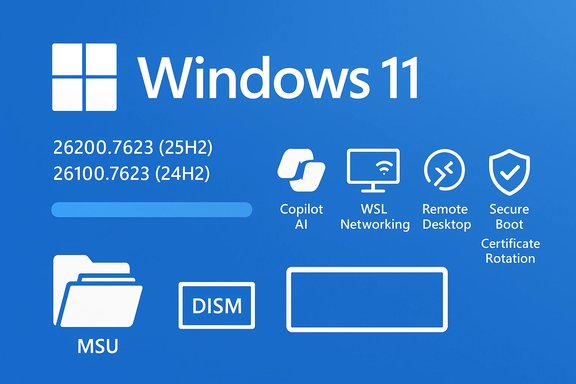
Windows 11 startup screen with version numbers, progress bar, and feature icons.Background / Overview​

Microsoft’s January 13, 2026 cumulative (KB5074109) is a standard monthly security-and-quality baseline for Windows 11 that combines the Latest Cumulative Update (LCU) with servicing-stack components and selected component payloads. That packaging approach improves online reliability but also affects offline servicing behavior — catalog MSU bundles can contain multiple sequenced packages (checkpoint/SSU + LCU) that must be handled correctly when installing manually. The January baseline also aligns with Microsoft’s quarterly Baseline / Hotpatch cadence: baseline months (January, April, July, October) typically require a restart and consolidate security fixes, after which some updates may be delivered as no-restart Hotpatches to eligible enterprise endpoints. KB5074109 is the January baseline for Windows 11 and therefore should be treated as a restart-required security checkpoint in most managed environments. Why this matters now:
  • Baseline updates contain both security fixes and important servicing updates (SSUs) that are often included in the same MSU bundle. Once an SSU is installed as part of a combined package it is effectively persistent on that host. That persistence affects rollback strategies and golden-image management.
  • Microsoft continues to use Controlled Feature Rollouts (CFR) for Copilot-era UI and AI experiences; installing the LCU does not guarantee that every device will immediately surface the new UI elements — server-side gating, licensing, device hardware, and region/account entitlements determine visibility.

What’s inside KB5074109 — headline fixes and changes​

KB5074109 is primarily a quality-and-stability release, but it includes several targeted fixes and platform updates that matter for both home users and enterprise administrators.
Notable technical and security items:
  • Advance to OS Build 26200.7623 (25H2) and 26100.7623 (24H2) after installation.
  • Servicing stack and SSU + LCU packaging: the update ships as combined SSU+LCU bundles in the Update Catalog; offline installers may appear as multiple MSU files that must be applied in sequence or placed in a single folder and installed with DISM for automatic sequencing.
  • WinSqlite3.dll security and detection improvements: the Windows core component winSqlite3.dll was updated to address false-positive vulnerability detections from some security software. (If third-party apps include sqlite3.dll in their own folders, they remain the responsibility of the app developer.
  • WSL / VPN networking fixes: repairs to issues that affected WSL networking in mirrored or VPN-bound scenarios (practical improvements for developers and remote-access users).
  • Azure Virtual Desktop (AVD) / Remote Desktop fixes: fixes targeting RemoteApp and other AVD conditions that previously caused errors in some environments.
  • Secure Boot certificate updates: Microsoft is preparing to rotate Secure Boot certificates that begin to expire in mid‑2026; this update contains the device-targeting metadata and will distribute new certificates to eligible devices in a phased fashion based on update success telemetry. Administrators should plan for the Secure Boot certificate change and follow Microsoft guidance for certificates that begin expiring in June 2026.
  • WDS hands‑free deployment hardening: WDS will stop supporting hands‑free deployment by default, and guidance for administrators has been updated to reflect this hardening.
These items are documented in Microsoft’s official KB and echoed in community reporting and independent outlets. Where Microsoft’s KB lists detailed file and package information, organizations should use that authoritative record for final verification.

What’s new or being rolled out in Build 26200.7623​

Although KB5074109 primarily focuses on stability and security, it continues the staged rollout of Copilot-era and other UI improvements that Microsoft introduced across late 2025. Key user-visible items reported in the release and observed by community outlets include:

Share with Copilot (taskbar)​

  • A “Share with Copilot” option can appear on taskbar thumbnails, enabling a quick capture / analyze workflow that launches Copilot Vision scoped to a window and asks for user permission before sharing content. This is a permissioned flow and is staged via server-side gating; managed or enterprise accounts may not see this capability by default.

Recommended section in File Explorer​

  • Recommended is a new File Explorer Home area that highlights frequently used or recently downloaded files (distinct from “Recent”). It’s tied to a Microsoft account experience and can be turned on/off in Folder Options. Availability can be region- and account-gated.

Advanced Settings management​

  • A centralized Settings > System > Advanced Settings page now surfaces optional features such as Windows Sandbox, Hyper‑V, and other virtualization toggles previously buried in legacy dialogs. This change simplifies discoverability for both consumers and admins.

File Explorer dark mode improvements​

  • Dark mode coverage in File Explorer dialogs (confirmation dialogs, copy/move progress dialogs, and other legacy dialogs) continues to expand for a more consistent dark‑theme experience. Microsoft and community testing previously flagged a transient visual regression in dark mode; the baseline aims to stabilize behavior.

Full‑Screen Experience (FSE) for handhelds​

  • The Xbox Full Screen Experience (FSE) — a controller-first, console-like session posture that hides many desktop ornaments and reduces background work — is being rolled out to more handhelds and previewed on additional PC form factors. On tuned handhelds this posture can free runtime resources and improve perceived gaming performance. Availability and quality depend on OEM entitlements, firmware, and drivers.

Performance improvements, gaming polish, HID fixes​

  • A collection of smaller fixes aimed at reducing stuttering on some games/apps, improving HID keyboard backlight behavior, and fine‑tuning monitor-mode queries at app launch are included. These incremental performance items are expected to produce smoother gameplay and fewer launch stutters on affected hardware.
Caveat: Many of the higher-visibility Copilot and AI features remain staged by Microsoft; simply installing KB5074109 does not guarantee immediate feature exposure for every device. Controlled feature rollouts limit initial exposure to qualifying hardware and accounts.

Installation options and offline servicing guidance​

Administrators and power users have three practical installation paths:
  • Windows Update (recommended for most users): Microsoft’s express/differential delivery reduces download size and handles SSU/LCU sequencing automatically. This is the safest option for consumer and many business devices.
  • Microsoft Update Catalog / MSU offline installers: The update is available as one or more MSU files in the Microsoft Update Catalog for offline installation, scripting, and image servicing. Community reports and catalog entries show combined SSU+LCU MSU bundles commonly fall into the ~3.7–4.3 GB range for x64 packages, with variation by architecture and whether on-device AI payloads are included. Expect multi‑gigabyte downloads for offline bundles.
  • DISM-based image servicing (recommended for offline images): Place all MSU files for the KB into a single folder and use DISM to perform automatic prerequisite discovery and correct sequencing. This prevents out-of-order installation errors that can cause partial servicing states. Example commands:
  • On a running PC (elevated CMD):
    DISM /Online /Add-Package /PackagePath:C:\Packages\Windows11.0-KB5074109-x64.msu
  • To apply to a mounted WIM image:
    DISM /Image:C:\Mount\ /Add-Package /PackagePath:C:\Packages\Windows11.0-KB5074109-x64.msu
  • Verify install:
    DISM /Online /Get-Packages | findstr /i 5074109
    Use Add-WindowsPackage-PowerShell equivalents where you prefer PowerShell syntax.
Important notes about SSUs and rollbacks:
  • When SSU bits are bundled into a combined package the SSU portion is effectively permanent on the host; wusa.exe /uninstall will not remove the SSU. If you anticipate needing to revert an LCU, plan for golden-image redeployment rather than relying on wusa uninstall. This is an operationally significant change to rollback workflows.

Package size and AI model payloads — what to expect​

Offline MSU bundles for the 26100/26200 families are commonly reported in the community and catalogs to be around 3.7–4.3 GB for x64 combined SSU+LCU packages. The growth in offline package size is partially attributable to the inclusion of on‑device AI components and small-model binaries that Microsoft delivers to supported Copilot+ devices. When planning bandwidth- or storage-constrained rollouts, expect multi‑gigabyte downloads for the full offline MSU set. Exact file sizes vary by architecture and whether particular AI components are included in that month’s bundle; always confirm the Update Catalog file sizes before staging distribution. Cautionary note: community-reported sizes are useful planning data points, but the authoritative size and file list are the Microsoft Update Catalog entries for the exact architecture and SKU you plan to deploy. If your images are air‑gapped, prefetch all MSUs for the KB and place them in one folder for DISM-based install to ensure correct sequencing.

Known issues and troubleshooting​

As of the January 13 release there are no broad new regressions widely reported, but Microsoft lists a pertinent known issue and provides mitigations:
  • Lock screen password icon disappearance: a persistent issue first observed in August 2025 where the password text box icon may not appear on the lock screen in certain enterprise-managed scenarios. Microsoft has enabled a Known Issue Rollback (KIR) and published a Group Policy workaround that IT admins can deploy to temporarily disable the change causing the issue until a permanent fix ships. This primarily affects enterprise-managed devices; most Home/Pro users are unlikely to encounter it. Administrators should follow Microsoft’s instructions to deploy the special Group Policy and restart devices to apply the mitigation.
  • Third-party compatibility and driver regressions: historically the largest source of post-update problems is interactions with third-party agents, kernel-mode drivers, virtualization stacks, or specialized hardware drivers (GPU, NICs, NPU drivers). Maintain driver rollback plans, test on representative fleets, and coordinate with vendors where needed.
Troubleshooting checklist:
  • Confirm build with winver or Settings → System → About after installation.
  • Use DISM /Online /Get-Packages to locate the installed LCU.
  • Inspect CBS logs and Event Viewer for component-based servicing events when installations fail.

Enterprise impact and deployment guidance​

KB5074109 is a baseline security update and should be treated with the usual staging discipline in enterprise environments.
Recommended deployment strategy:
  • Pilot in a small, representative group first. Validate critical line-of-business apps, device drivers, virtualization host behavior, and remote desktop workloads.
  • For offline or air-gapped rollouts, download all required MSU files from the Microsoft Update Catalog, store them in a single folder, and use DISM to install so prerequisites are resolved automatically. Avoid double-clicking MSU files out of sequence when multiple MSUs are listed.
  • Update process flows to account for SSU permanence. If your rollback plan depends on uninstalling an update, revise it to include golden-image reimaging rather than relying on wusa uninstall for combined SSU+LCU packages.
  • Inventory devices for NPU/AI entitlements and Secure Boot implications. The Secure Boot certificate rotation commencing in mid‑2026 requires planning for certificate updates; Microsoft is phasing distribution based on update success telemetry to reduce boot risk. Coordinate with OEMs for devices with custom firmware expectations.
Group policy and management knobs:
  • KIR and specific Group Policy workarounds are published for the lock-screen icon regression; IT admins can use those until Microsoft ships a permanent fix. Follow Microsoft’s published guidance when deploying the KIR policy.

Critical analysis — strengths, trade-offs, and risks​

KB5074109 delivers a pragmatic mix of security hardening and quality improvements while continuing Microsoft’s strategy of shipping binaries broadly and gating feature visibility via server-side flags. This approach has clear operational benefits and trade-offs.
Strengths
  • Improved online reliability: Combining SSU + LCU and using Windows Update’s express/delta delivery reduces common failure modes for connected desktops and laptops. For most users, Windows Update remains the simplest, lowest-risk path.
  • Streamlined offline servicing: DISM’s package-discovery when given all MSUs in a single folder simplifies sequencing and reduces human error in image servicing — an important operational improvement for imaging teams.
  • Targeted fixes for virtualization and remote desktop scenarios: WSL networking and AVD fixes are specifically helpful for developers and cloud desktop deployments.
Operational trade-offs and risks
  • SSU permanence complicates rollback: Once the SSU portion is applied from a combined MSU, it cannot be removed. Organizations that rely on uninstall-based rollback must reconsider their recovery playbooks. Golden-image retention and tested reimaging workflows now matter more.
  • Increased offline package size: Bundled on-device AI payloads increase MSU sizes into the multi‑gigabyte range. This impacts bandwidth planning for offline deployments, WSUS distribution, and image storage.
  • Third-party incompatibilities remain the largest real-world risk: Large cumulatives can reveal driver and agent mismatches; these are the most frequent sources of post-patch outages. Prepare rollback and vendor coordination for critical third-party components.
  • Privacy and governance implications for Copilot features: Quick-share Copilot integrations (taskbar Share with Copilot, Copilot Vision) increase convenience but require thoughtful governance in enterprise settings. Managed devices, shared machines, and regulated environments should assess policy controls and user consent flows before enabling broad rollouts.
Unverifiable or variable claims
  • Community reports indicate offline MSU sizes often exceed 4 GB when AI model payloads are included; however, exact file sizes vary by architecture and month, and the authoritative record is the Update Catalog entry for the SKU. Treat community numbers as planning estimates and verify direct catalog sizes for distribution planning.

Practical checklist — what to do right now​

  • Confirm whether Windows Update already delivered KB5074109 to target machines by checking winver or Settings → System → About for Build 26200.7623 / 26100.7623.
  • For offline deployment, download all MSU files for KB5074109 from the Microsoft Update Catalog and place them into one folder to allow DISM to sequence prerequisites automatically.
  • Pilot the update on a representative sample of devices: focus on virtualization hosts, Azure Virtual Desktop images, WSL-heavy developer machines, and machines using third-party security/management agents.
  • Update recovery playbooks: if you expect to need rollback capability, rely on golden-image reprovisioning strategies rather than uninstalling SSU components.
  • If you manage enterprise devices, review Microsoft’s KIR and Group Policy workarounds for the lock-screen password icon issue and have the policy package ready for rapid deployment if the issue surfaces.
  • Check OEM guidance for Secure Boot certificates and coordinate updates for systems where firmware expectations could affect boot behavior after certificate rotation.

Conclusion​

KB5074109 is a typical Microsoft January baseline: security-first, stabilization-focused, and operationally significant for enterprises because of combined SSU + LCU packaging and the inclusion of targeted AI components. The release advances Windows 11 to Build 26200.7623 (25H2) and 26100.7623 (24H2), provides fixes for WSL/VPN and AVD scenarios, updates core components such as WinSqlite3.dll, and continues the staged rollout of Copilot-era UI and AI features like Share with Copilot and File Explorer’s Recommended area. Administrators should treat the update as mandatory baseline work: pilot it, account for multi‑gigabyte offline installers, use DISM for offline sequencing, and revise rollback plans to reflect SSU permanence. Microsoft’s official KB and the Update Catalog remain the authoritative sources for catalog files, exact file sizes, and the latest mitigation guidance; cross-check those pages when creating deployment runbooks.
Source: Emegypt Windows 11 KB5074109 (25H2) Launches with Major Fixes, Direct MSU Downloads Available
 

Microsoft’s first Patch Tuesday of 2026 delivers a substantive Windows 11 cumulative update — KB5074109 — that fixes power-draining behavior on NPU-equipped machines, removes legacy modem drivers, tightens Secure Boot certificate deployment, and patches more than a hundred vulnerabilities across the platform, including at least one actively exploited flaw in Desktop Window Manager.

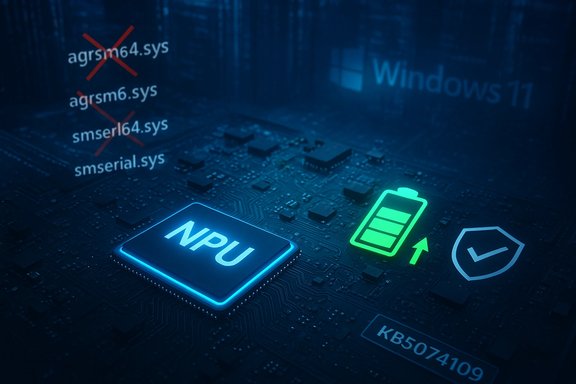
Glowing NPU chip on a blue motherboard with a battery icon and Windows 11 backdrop.Background​

Windows 11 users on versions 24H2 and 25H2 began receiving the January 13, 2026 cumulative update packaged as KB5074109 (OS Builds 26100.7623 and 26200.7623). This release is Microsoft’s first scheduled security rollup for the year and follows December’s optional preview updates. Unlike some recent Patch Tuesdays that included optional feature previews, this update focuses on security hardening, reliability fixes, and a handful of non-feature changes that are immediately relevant for both consumer devices and managed fleets.
The update is delivered through standard Windows Update channels and includes servicing-stack improvements, AI component updates, and a set of targeted quality fixes. Administrators should plan for testing and phased deployment: the update contains behavior changes that affect device firmware interaction, driver support, and deployment services.

What’s in KB5074109 — Overview of key fixes and changes​

KB5074109 is primarily a quality-and-security rollup, but it contains several changes with operational impact. The most notable items are:
  • NPU (Neural Processing Unit) power management fix — addresses devices where certain NPUs remained powered while the system was idle, causing unexpected battery drain.
  • Removal of legacy modem drivers — agrsm64.sys, agrsm.sys, smserl64.sys, and smserial.sys are being removed; hardware that depends on these drivers will no longer function in Windows.
  • Secure Boot certificate deployment behavior — quality updates now include high-confidence device targeting data so eligible devices can automatically receive new Secure Boot certificates, but only after demonstrating reliable update telemetry.
  • Networking fixes — mirrored networking in WSL that produced “No route to host” errors is fixed, and RemoteApp connection failures in Azure Virtual Desktop (AVD) environments are addressed.
  • WDS (Windows Deployment Services) behavior change — hands-free deployment functionality is disabled by default; administrators are directed to hardening guidance for hands-free deployment.
  • WinSqlite3.dll update — the Windows core SQLite component was updated to avoid false positives from security software that previously flagged it as vulnerable.
  • AI component updates and SSU — several AI components were refreshed to new internal versions and the servicing stack update (SSU) was also included to improve update reliability.
Each of these items has operational implications for device performance, firmware security, and mass deployment practices that IT teams should evaluate before broad rollout.

Deep dive: The NPU battery drain fix​

What happened​

Certain modern Windows PCs include dedicated Neural Processing Units (NPUs) used for on-device AI inference. A bug introduced or surfaced in recent updates caused some NPUs to remain powered even while the host system was idle. The result for affected users was measurable battery life degradation on laptops and other battery-powered devices.

What the update changes​

KB5074109 contains a targeted fix: the system now properly transitions NPU power states when the device is idle, preventing those NPUs from staying powered unnecessarily. The change is aimed at restoring expected power-performance behavior for NPU-capable hardware.

Why it matters​

  • For mobile users, even small increases in background power draw translate to noticeable reductions in unplugged run-time.
  • For IT-managed fleets, NPU misbehavior can escalate operational costs by driving extra charge cycles and increasing helpdesk tickets for “poor battery life” complaints.
  • The fix restores a predictable power profile for AI-capable devices, which is important as NPUs become common in mainstream laptops and tablets.

Practical impact​

End users on affected hardware should see improved battery life after installing KB5074109 and rebooting. Devices without NPUs are unaffected by this particular fix, but still benefit from the update’s other security and reliability patches.

Secure Boot certificate deployment: phased, telemetry-driven rollout​

What Microsoft changed​

Starting with this update, Microsoft’s cumulative quality updates include a subset of high confidence device targeting data that helps the servicing pipeline determine which devices are eligible to receive updated Secure Boot certificates automatically. However, the certificates are not applied to every device immediately; eligible machines only receive firmware certificate updates after demonstrating sufficient successful update signals—a conservative, phased approach.

Why Microsoft is doing this​

Secure Boot certificates used in many devices are approaching expiration timelines. Updating those certificates is critical to maintain robust boot-time security and prevent firmware-level trust failures. Microsoft’s approach attempts to balance urgency with safety:
  • Avoid a broad, immediate push that might trigger compatibility or boot failures on vulnerable firmware.
  • Use telemetry to confirm a device’s ability to process Secure Boot variable updates reliably before applying certificate changes.
  • Provide IT controls (Group Policy or registry) for enterprises that prefer to manage the process manually or require targeted rollouts.

What administrators should know​

  • Automatic certificate deployment can be controlled via Group Policy settings if an organization needs to opt out or manage deployment centrally.
  • Devices with Secure Boot disabled will not receive these certificate updates automatically.
  • Because firmware-level changes are involved, IT teams should validate firmware compatibility (UEFI implementations) before allowing broad automatic application.

Risk and mitigation​

While automated deployment reduces the administrative overhead of root-of-trust maintenance, it also introduces firmware-level changes that are difficult to roll back. Administrators should:
  • Maintain an inventory of devices with older firmware versions.
  • Pilot the update on a small, representative set of hardware to identify firmware anomalies.
  • Ensure firmware vendors have available recovery procedures if a device fails to boot after certificate application.

Driver removals: legacy modems will stop working​

KB5074109 explicitly removes four legacy modem drivers from Windows: agrsm64.sys, agrsm.sys, smserl64.sys, and smserial.sys. The practical implication:
  • Any modem hardware that depends on these drivers will no longer function after the update.
  • Systems still using these legacy soft-modem drivers—commonly found in older hardware or specialized industrial equipment—may lose dial-up or modem-dependent connectivity.
Key guidance for affected environments:
  • Identify devices in your estate that still rely on legacy modem support before deploying the update broadly.
  • For critical systems that require these drivers, consider delaying the update or creating an exception path until alternative connectivity or driver options are available.
  • Where possible, obtain modern driver replacements from hardware vendors or migrate away from equipment that depends on deprecated drivers.
This removal is an example of Microsoft pruning legacy code paths for security and maintenance reasons but delivers real operational impact to edge scenarios.

Networking and virtualization fixes (WSL mirrored networking, AVD RemoteApp)​

Two networking issues addressed in KB5074109 deserve attention:
  • WSL mirrored networking: Mirrored networking in Windows Subsystem for Linux could fail and produce “No route to host” errors, particularly disrupting access to corporate resources over VPN even when the Windows host remained connected. This was reported following a prior update and is now fixed.
  • Azure Virtual Desktop (AVD) RemoteApp: RemoteApp connection failures in some Azure Virtual Desktop environments—reported after a December preview update—have been addressed to restore reliable connectivity.
Why this matters:
  • Organizations that use WSL for developer workflows, containerized tooling, or remote resource access should see restored networking behaviors.
  • Managed virtual desktop deployments in AVD that saw regressions should find RemoteApp stability improved.
Administrators should confirm connectivity in test environments before signaling full deployment, especially for remote-work scenarios that depend on VPN and virtual desktop infrastructure.

WDS hands-free deployment hardening​

Windows Deployment Services (WDS) will stop supporting hands-free deployment functionality by default following KB5074109. This behavior change is a hardening measure designed to reduce the attack surface associated with unattended image application.
What IT teams must do:
  • Review the Windows Deployment Services (WDS) Hands‑Free Deployment Hardening Guidance.
  • Reconfigure WDS deployments that previously relied on hands-free deployment to use more secure alternatives.
  • Validate imaging workflows and automation scripts after the update to avoid deployment interruptions.
The change reflects an industry trend to make out-of-the-box mass-deployment mechanisms more secure by default, but it requires administrators to reconcile automation workflows with tightened defaults.

WinSqlite3.dll update and compatibility notes​

KB5074109 updates WinSqlite3.dll, a Windows core component used by the OS. The update addresses instances where security software flagged the component as vulnerable.
Important clarifications:
  • WinSqlite3.dll is a Windows component and distinct from application-bundled sqlite3.dll files. False positives from security tools may persist for non-Windows copies of sqlite3.dll; in such cases, contact the third-party app vendor or ensure the app is updated.
  • The update reduces noisy false-positive detections and aligns the component with current security expectations.
Administrators who maintain endpoint protection signatures should verify detection rules and confirm that updated signatures no longer flag the patched OS component.

Security posture: vulnerabilities fixed and exploited zero-day​

This Patch Tuesday resolves a substantial number of security flaws across the Windows ecosystem, including at least one actively exploited vulnerability in Desktop Window Manager that allows information disclosure (local exploitation). The cumulative rollout addresses many other elevation-of-privilege and remote code execution issues across core components.
Operational recommendations:
  • Prioritize devices that are exposed to untrusted or multi-user environments for early deployment, especially systems used in development, shared workstations, or public kiosks.
  • Apply the update promptly on high-risk systems and apply rigorous testing in controlled environments for critical servers or domain controllers.
  • Monitor detection signatures and IDS/EDR alerts for indications of exploitation that might correlate with pre-patch activity.
Note: counts of patched CVEs may vary among third-party summaries; the critical point is that the January rollup contains multiple important fixes and at least one exploited issue, underscoring the need for timely patching.

Deployment guidance — practical steps for users and admins​

For individual power users and administrators alike, follow these steps to apply KB5074109 safely:
  • Back up important data and create a system restore point (or a full image) before major updates.
  • Test the update on a small subset of representative hardware (including any devices with NPUs, legacy modems, or specialized firmware).
  • For managed environments, schedule deployment during maintenance windows and use phased rings (pilot → broader test → production).
  • If you rely on WDS hands-free deployment, review and apply the hardening guidance prior to allowing the update to reach imaging servers.
  • Confirm Secure Boot settings and consider Group Policy controls if certificate deployment needs to be managed centrally.
Windows Update will deliver the rollup to consumer systems automatically, but enterprises using WSUS, Microsoft Update Catalog, or other management tools should import and approve the KB5074109 package according to internal change control.

Troubleshooting and rollback options​

If problems arise after installing KB5074109, consider the following mitigations:
  • Use System Restore or recovery images to roll systems back to a known-good state.
  • Uninstall the KB via “Installed Updates” in Control Panel or through command-line management tools if immediate rollback is necessary.
  • For driver-dependent devices that stop functioning due to removed legacy drivers, investigate vendor-supplied drivers or hardware replacement options. If the device is critical, consider restoring the system image and isolating that machine from the update ring until a plan is in place.
  • If Secure Boot certificate changes cause boot issues, check firmware recovery procedures from the device maker; firmware-level certificate changes are not trivially reversible from Windows alone.
Because some firmware/boot changes are involved, administrators should have recovery media and vendor documentation on hand prior to wide deployment.

Critical analysis: strengths, trade-offs, and risks​

Strengths​

  • Targeted power fix for NPUs addresses a real and measurable pain point as on-device AI silicon becomes mainstream. The update restores expected battery behavior and reduces user disruption.
  • Proactive Secure Boot certificate management signals Microsoft’s attention to upcoming certificate expirations and the need to update firmware trust anchors before expiration windows cause outages.
  • Removal of legacy drivers eliminates long-lived attack surfaces tied to soft-modem code that has repeatedly produced serious vulnerabilities.
  • Multiple security fixes — including a fix for an actively exploited DWM vulnerability — demonstrate a rapid response posture to live threats.

Trade-offs and operational risks​

  • Automatic firmware-level changes (Secure Boot certificates) carry non-trivial risk: if device firmware is buggy or lacks proper variable update support, updates could cause boot failures. Microsoft’s telemetry-gated deployment mitigates risk but does not eliminate it.
  • Driver removals can break specialized legacy hardware, forcing operational workarounds or hardware refreshes that some organizations may not have budgeted for.
  • WDS behavior change could disrupt imaging pipelines for organizations that relied on hands-free deployments, requiring rework and additional testing.
  • False-positive malware detections for sqlite DLLs in third-party apps may persist, meaning endpoint teams must carefully distinguish OS component fixes from application-bundled libraries.

The balancing act​

Microsoft is balancing security urgency against operational stability: telemetry-driven, phased certificate deployment is a pragmatic attempt to reduce wide-scale breakage while preventing certificate expiration issues. However, administrators must step up with testing, firmware validation, and change management to avoid being caught off-guard.

Recommendations — what to do now​

  • For home users: Install the update via Windows Update when prompted; reboot and verify battery behavior and basic device functions. If you use dial-up or legacy modem hardware, delay the update until you confirm driver alternatives.
  • For small businesses: Create a pilot group of 10–20 representative machines (including any special-purpose hardware) to validate the update before broader rollout.
  • For enterprise IT:
  • Inventory your fleet for NPUs, legacy modem dependencies, and devices with older UEFI firmware.
  • Configure Group Policy for Secure Boot certificate deployment if you need centralized control, and consult vendor firmware documentation for recovery instructions.
  • Review and update WDS deployment scripts to align with hardened defaults.
  • Update endpoint detection signatures and ensure monitoring for exploitation signals related to Desktop Window Manager and other patched components.

Final verdict​

KB5074109 is more than a routine monthly rollup — it’s a practical update that addresses a modern hardware regression (NPUs), prepares Windows fleets for looming Secure Boot certificate expirations, and finishes off legacy components that have been security liabilities. The update’s security fixes, including at least one actively exploited vulnerability, make timely deployment a priority.
However, the changes carry real operational implications. IT teams should not treat this as a low-risk background update: driver removals, firmware-level certificate changes, and WDS behavior modifications require deliberate testing and rollout policies. Organizations that invest a few hours in inventory, pilot testing, and policy configuration will benefit from improved battery performance and a stronger security posture without the surprises that can come from blind deployment.
In short: install, but test first; prioritize high-risk systems and hardware with special requirements; and use the update as an opportunity to tighten deployment hygiene around firmware and device trust.

Source: Windows Central The first Windows 11 OS update for 2026 is now rolling out with big fixes
 

Microsoft’s January cumulative for Windows 11, delivered as KB5074109, patches a broad set of security issues while correcting a surprisingly practical battery‑life regression on NPU‑equipped devices and preparing the platform for a phased Secure Boot certificate rotation — but it also introduces operational trade‑offs and a handful of early regressions that make careful piloting essential.

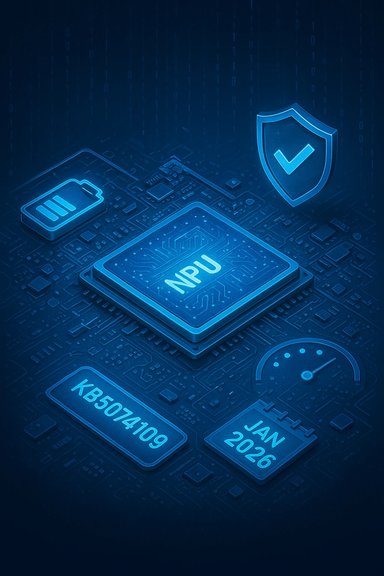
Blue illustration of an NPU chip on a circuit board with a security shield and date badge.Background / Overview​

KB5074109 was released on January 13, 2026 as the January baseline cumulative for Windows 11 versions 25H2 and 24H2, advancing systems to OS Build 26200.7623 (25H2) and 26100.7623 (24H2). The package is published as a combined Servicing Stack Update (SSU) plus Latest Cumulative Update (LCU) and therefore affects installation sequencing and rollback behavior for managed images. This month’s rollup is primarily security‑focused but includes several targeted non‑security quality fixes that are operationally significant:
  • A power management fix that prevents some Neural Processing Units (NPUs) from remaining powered while the system is idle.
  • A phased, telemetry‑driven mechanism to distribute replacement Secure Boot certificates ahead of certificates that begin to expire in mid‑2026.
  • The removal of several legacy modem drivers from the in‑box image.
  • Networking and WSL fixes, changes to Windows Deployment Services (WDS) default behavior, and an update to winSqlite3.dll to reduce false‑positive detections by some security products.
Security vendors and incident responders note that Microsoft patched a large batch of CVEs in this release (reports vary between ~112 and ~114 CVEs depending on the counting method), including at least one vulnerability in Desktop Window Manager (DWM) that Microsoft and national CERTs say has been observed exploited in the wild. Organizations should treat the security portion of this release as high priority while planning testing for the quality and operational changes.

What changed: concise, verifiable highlights​

  • Release date and builds: January 13, 2026 — OS Build 26200.7623 (25H2) / 26100.7623 (24H2).
  • Packaging: delivered as a combined SSU + LCU; the SSU portion is persistent after installation.
  • NPU power management: fixes devices where an NPU could stay powered while idle, causing battery drain.
  • Secure Boot: adds device‑targeting metadata to quality updates so eligible devices can receive updated Secure Boot certificates in a phased, telemetry‑driven rollout.
  • Driver removal: agrsm64.sys / agrsm.sys and smserl64.sys / smserial.sys are removed from the in‑box image — hardware relying on those drivers will no longer function without vendor updates.
  • Notable security coverage: multiple CVEs including an actively exploited information disclosure bug in DWM (CVE‑2026‑20805), and several critical and important disclosures. Third‑party and vendor advisories give the total CVE count as roughly 112–114 for January 2026.
These items are all documented in Microsoft’s KB entry for KB5074109 and corroborated by multiple independent outlets. The following sections unpack the most consequential technical items and explain practical steps for users and administrators.

Deep dive: the NPU idle‑power fix and why it matters​

What is the problem?​

Modern laptops and some desktops now include dedicated Neural Processing Units (NPUs) used for on‑device AI acceleration (inference for vision, speech, and other Copilot/AI flows). A bug was observed on some devices where the NPU remained powered in idle system states, producing measurable battery drain and reduced unplugged runtime. This is particularly visible on battery‑sensitive mobile platforms such as thin‑and‑light notebooks and handheld gaming devices.

What does KB5074109 change?​

The update corrects power‑state transitions so that eligible NPUs are placed into low‑power or powered‑down states when the host is idle. The fix restores the expected power profile and should reduce background power draw on affected hardware after the update and a subsequent reboot.

Practical impact​

  • End users on affected hardware can expect measurable improvements to battery life in real‑world idle and light‑use scenarios after installing the update and rebooting.
  • Devices without an NPU are unaffected by this specific fix but still receive the security and other quality improvements.
  • For fleet managers, the fix reduces support load from “sudden battery drain” tickets on Copilot+ or NPU‑enabled fleets.

Caveats and verification​

  • The behaviour and exact power savings depend on the specific NPU implementation and OEM firmware. Where NPUs are integrated tightly with vendor power‑management firmware, OEM driver and BIOS updates may be required to realize the full benefit. Treat the KB change as the OS side of a cross‑stack solution.

Secure Boot certificate rotation: phased, telemetry‑driven deployment​

Why Microsoft is changing behavior now​

Several Secure Boot certificates issued in 2011 are approaching expiration in mid‑2026. Expiration of those certificates, if unaddressed, risks breaking boot‑time integrity checks and may impede devices from booting securely or accepting future critical firmware or OS updates. Microsoft is therefore preparing a certificate rotation to update device UEFI databases safely.

What KB5074109 does​

The update introduces a high‑confidence device targeting mechanism in quality updates. That data lets the servicing pipeline identify devices that are eligible and safe to receive a Secure Boot certificate update. The rollout to any single device will only occur after telemetry shows the device has reliably processed updates — a conservative, phased approach designed to limit the blast radius from firmware incompatibilities.

Operational implications for administrators​

  • Devices that do not demonstrate sufficient successful update signals will be held back from certificate delivery. This reduces risk, but it also means some fleets may not receive certificates automatically and will require manual action.
  • Firmware validation matters: devices with buggy UEFI implementations or restrictions on OEM firmware writes may fail certificate application, producing boot problems that can be difficult to recover from without vendor recovery tools. Administrators should inventory firmware versions and consult vendor guidance.
  • Group Policy and management controls are available to opt organizations out of automatic certificate enrollment or to stage updates deliberately.

Recommended steps for admins​

  • Inventory devices by firmware/UEFI version and whether Secure Boot is enabled.
  • Pilot certificate updates on a small, diverse ring of representative hardware.
  • Coordinate with OEMs for recovery instructions (USB recovery, firmware reflash procedures) before deploying widely.
  • If you require manual control, use Group Policy or existing management tooling to prevent automatic certificate application and follow vendor rollouts.

Driver removals: legacy modem drivers pulled from the in‑box image​

KB5074109 removes a small set of long‑deprecated modem drivers from the Windows in‑box driver set: agrsm64.sys, agrsm.sys, smserl64.sys, and smserial.sys. Devices that depend on those specific legacy drivers will cease to function unless the hardware vendor supplies updated drivers or the device is replaced. Microsoft’s advisory is explicit — this is not a suggested deprecation; the drivers are gone from the image. Practical note: most modern systems are unaffected; these drivers primarily affect very old soft‑modem hardware and some specialized serial/modem devices. Nevertheless, organizations running legacy peripherals should:
  • Audit their hardware inventory for dependent devices.
  • Contact hardware vendors for updated drivers or replacement plans.
  • Flag any business‑critical systems that use those drivers for prioritized remediation.

Packaging, installation, and rollback considerations​

KB5074109 is shipped as a combined SSU + LCU package. The SSU portion, once installed, is persistent on the host and is not removable via wusa.exe /uninstall. For administrators who rely on uninstall-based rollback strategies, this requires adjusting recovery playbooks (for example, preserving golden images or reimaging rather than simple uninstall). The Microsoft KB and Update Catalog provide the file lists and offline installer options. Practical installation paths:
  • Windows Update (recommended for most consumers): handles express/differential payloads and the SSU/LCU sequencing automatically.
  • Microsoft Update Catalog / offline MSU files: download all MSUs into a single folder and apply via DISM /Image (or DISM /Online /Add‑Package) to ensure correct sequencing. Double‑clicking individual MSUs can lead to out‑of‑order failures.
Key advice: create a full image or system restore point before wider deployment; test on pilot hardware; and verify build numbers post‑install using Settings → System → About or winver to confirm the expected OS build.

Regressions and early community reports — be cautious, validate​

Within hours of rollout, community and enterprise channels reported several categories of post‑update issues. These are corroborated by multiple independent reports and community threads; they should be treated as real but not necessarily universal.
Noted problems include:
  • Azure Virtual Desktop (AVD) / RemoteApp authentication failures: some environments saw immediate authentication failures when launching AVD sessions (error shown as “An authentication error has occurred (Code: 0x80080005)”), a regression that Microsoft acknowledged and mitigated via a Known Issue Rollback (KIR) Group Policy package for affected enterprise environments. Microsoft’s advisory distinguishes that consumer Home/Pro devices are very unlikely to be affected and focuses the problem on enterprise SSO/Entra ID/managed client combinations.
  • Installation/servicing errors: reports surfaced of update failures with error codes like 0x800f0922, 0x80070306, 0x800f0991, and 0x80073712 on a subset of machines; some users found temporary workarounds (for example disabling Sandbox on one report) but scope remains uncertain. Community threads, Reddit posts, and Windows‑oriented outlets captured a range of install symptom profiles.
  • Intermittent black screens and display freezes: isolated reports tied to certain NVIDIA GPU configurations were reported. Community testing and vendor coordination are ongoing; pairing the OS update with the latest vendor GPU drivers is the recommended mitigation step if display anomalies are seen.
How to treat these reports:
  • Do not treat early community noise as universal truth; instead, validate on representative pilot hardware that mirrors your fleet mix (by CPU architecture, GPU vendor, firmware, virtualization usage, and NPU presence).
  • If you run managed enterprise devices, consider applying Microsoft’s KIR for the AVD regression or temporarily holding deployment for affected rings until a remediation is shipped.

Deployment checklist: step‑by‑step for admins​

  • Inventory and classification
  • Identify devices with NPUs, devices with legacy modem dependencies, and devices with constrained firmware update pathways.
  • Pilot ring (1–5%)
  • Pilot KB5074109 on hardware representative of your fleet (endpoints, handhelds, virtualization hosts, imaging servers). Verify WinRE, BitLocker suspend/resume, AVD/VDI, and recovery flows.
  • Validate drivers and firmware
  • Confirm vendor GPU/NIC/firmware compatibility. Update OEM firmware and vendor drivers where recommended before mass deployment. This is especially important for handheld/gaming devices where cross‑stack changes matter.
  • Prepare rollback and recovery playbooks
  • For combined SSU+LCU packages, rely on image reimaging or cached golden images for rollback rather than wusa uninstall. Preserve an image snapshot pre‑deploy.
  • For AVD/managed enterprise customers
  • Monitor Microsoft release health and apply KIR via Group Policy if you encounter the AVD auth regression. Ensure to restart devices after applying the Group Policy to enact the workaround.
  • Track Secure Boot telemetry and firmware recovery plans
  • For devices slated to receive Secure Boot certificates, confirm OEM recovery instructions are available before authorizing automated certificate application in production rings.

Security analysis: what to prioritize​

  • Patch the actively exploited DWM vulnerability (CVE‑2026‑20805) quickly. Multiple national CERTs and Microsoft list this as exploited in the wild; attackers can use it to disclose user‑mode memory, which may help chaining attacks. Prioritize endpoints where local user execution is possible.
  • The January rollup addresses a large number of privilege‑escalation and RCE issues. Risk teams should consult the Microsoft Security Update Guide and prioritize endpoints based on exposure (public RDP servers, high‑privilege workstations, internet‑accessible services). Reports on the overall CVE counts vary slightly (112–114), which is expected for large monthly releases — treat the variations as counting differences rather than substantive disagreement. Flagging this counting variance avoids unnecessary precision claims.
  • The removal of vulnerable modem drivers (Agere/Broadcom soft‑modem drivers) is effectively a hard mitigation for a previously exposed kernel driver vulnerability (CVE references in Microsoft advisories). While disruptive for legacy hardware, removal eliminates a dangerous attack surface for modern fleets.

Strengths, trade‑offs, and risks — critical perspective​

Strengths
  • Pragmatic platform hardening. The combined security fixes, the targeted NPU power change, and the Secure Boot preparatory work show Microsoft is tackling both classic CVE risk and emergent platform integrity issues in a single baseline.
  • Conservative Secure Boot rollout. Using telemetry to phase certificate updates reduces the chance of a single catastrophic firmware compatibility failure affecting large swathes of devices.
Trade‑offs and Risks
  • Operational complexity. SSU persistence, offline installer sequencing, and certificate updates that interact with OEM firmware increase deployment planning complexity for enterprises and imaging teams. Rollback strategies must be updated.
  • Legacy hardware disruption. Immediate removal of some legacy drivers will break older peripherals; organizations with specialized hardware need to budget for vendor engagement or hardware replacement.
  • Short‑term regressions. Early community reports of AVD authentication failures and install/display anomalies show that even security‑focused baselines can produce operational regressions when driver/agent diversity is high. Those regressions are being mitigated with KIR and vendor coordination, but they underscore the need for cautious rollouts.
Unverifiable claims flagged
  • Community reports of wide‑scale NVIDIA black‑screen incidents vary in detail and reproduce rate; treat those as community‑sourced early observations until confirmed by OEM advisories or Microsoft service health updates. Enterprises should evaluate these on pilot hardware and coordinate with GPU vendor support if anomalies appear.

Bottom line — practical guidance for different user types​

  • Home users: Use Windows Update (Settings → Windows Update → Check for updates) and install KB5074109 after ensuring file/OneDrive backups are current. Most consumers will receive the security and quality benefits with minimal friction. If you experience display or installation errors, check for updated GPU/OEM drivers and consider uninstalling the update only after consulting community guidance and creating a recovery image.
  • Gamers & handheld owners: Update GPU drivers to the latest stable vendor releases before applying KB5074109. Test the Full Screen Experience and gaming workloads in a pilot configuration to catch any cross‑stack regressions.
  • Enterprise and managed fleets: Treat KB5074109 as a baseline security rollout that requires a controlled pilot. Follow the deployment checklist above, prepare for SSU persistence, and be ready to deploy Microsoft’s KIR Group Policy if your environment uses Azure Virtual Desktop or shows the AVD auth regression. Inventory devices for Secure Boot certificate eligibility and OEM recovery guidance before enabling automatic certificate distribution.

Conclusion​

KB5074109 is a consequential January baseline: an efficient mix of urgent security fixes, a targeted NPU power‑state correction that restores the expected battery profile for AI‑enabled devices, and preparatory plumbing for an upcoming Secure Boot certificate rotation. Those improvements come alongside real operational implications — SSU persistence, legacy driver removals, and early reports of regressions in managed scenarios — that make cautious, staged deployment essential for administrators.
Immediate priorities for most organizations should be: patch quickly for the actively exploited DWM vulnerability, pilot KB5074109 on representative hardware, update OEM drivers and firmware before broad rollout, and prepare recovery and KIR procedures for enterprise clients that rely on Azure Virtual Desktop or specialized peripherals. When handled deliberately, this update closes significant security gaps while addressing a practical quality issue (NPU drain); handled without preparation, it can create avoidable disruption.
Source: www.guru3d.com https://www.guru3d.com/story/windows-11-kb5074109-fixes-npu-idle-drain-phases-secure-boot-updates/
 

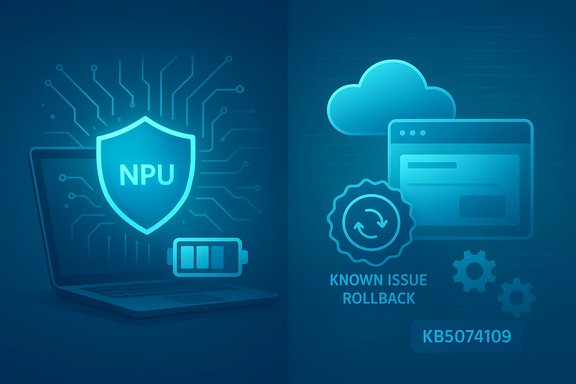
Laptop displays an illuminated NPU chip with security and cloud icons around it.
Microsoft’s January 13, 2026 cumulative update for Windows 11 — KB5074109 — is rolling out to devices running Windows 11 versions 25H2 and 24H2, delivering a mix of security fixes and quality improvements with an emphasis on battery and boot integrity, but also introducing changes that require immediate attention from IT teams and some end users.

Background​

Microsoft’s Patch Tuesday cadence continues to blend security patches with targeted reliability fixes. The January 2026 cumulative package (OS Builds 26200.7623 and 26100.7623) does not add consumer-facing features; instead, it tightens security, updates core components, and addresses specific regressions reported in late 2025. The update also carries expanded telemetry-based behavior for delivering Secure Boot certificates ahead of a looming certificate expiry window later in 2026. This release matters because it touches several areas that enterprise administrators, managed-service providers, and power users rely on: kernel-mode drivers, networking stacks (including Windows Subsystem for Linux), secure-boot certificate handling, Windows Deployment Services, and a core Windows library that previously triggered false positives in security scans. The combination of low-level changes and targeted fixes makes the update both important and potentially disruptive for some environments.

What’s in KB5074109 — the headline fixes​

Neural Processing Unit (NPU) power behavior fixed​

One of the most consequential fixes for laptop and mobile device users in this cumulative update is a correction to power management behavior for machines that include a Neural Processing Unit (NPU). Microsoft says some NPUs could remain powered on while the system is idle, causing degraded battery life and elevated power consumption; KB5074109 contains a fix to ensure NPUs idle correctly when they should. This is a targeted energy-efficiency improvement for Copilot+ and other AI-accelerated devices that rely on on-device inferencing. Why this matters: NPUs are increasingly common in modern thin-and-light devices and certain SoC platforms. When firmware, drivers, or OS logic fail to put those accelerators into low-power states, battery penalties can be substantial — especially for always-on background telemetry or inference workloads.

Secure Boot certificate handling and the 2026 certificate expiration​

KB5074109 introduces a confidence‑based deployment mechanism for automatic Secure Boot certificate provisioning. Under this mechanism, Windows quality updates will include device-targeting data that lets Microsoft identify devices eligible to receive updated Secure Boot certificates automatically — but only after those devices show sufficient successful update signals to reduce risk. This behavior is part of a multi-pronged effort to replace expiring Secure Boot certificates issued in 2011 with newer 2023 certificates to avoid a serviceability and security gap beginning in June 2026. What to watch for: the certificate replacement process is deliberate and phased. Microsoft and OEMs recommend that organizations prepare firmware updates, review device inventories, and plan remediation for systems that might not accept the new certificates automatically.

Removal of legacy modem drivers (compatibility and security)​

Microsoft removed several legacy modem drivers from the shipping Windows image, specifically:
  • agrsm64.sys (x64) and agrsm.sys (x86) — Agere SoftModem family
  • smserl64.sys (x64) and smserial.sys (x86)
Consequently, hardware that depends on these specific drivers will no longer work after the update. Microsoft’s reasoning is security-first: the drivers were linked to privilege-escalation vulnerabilities and had been flagged by the security community for active risk. The removal eliminates a class of kernel-execution risk but creates the practical issue of broken legacy hardware.

Networking fixes: WSL mirrored networking and AVD RemoteApp​

This update resolves two class-of-networking issues:
  • A mirrored networking regression in Windows Subsystem for Linux (WSL) that could present “No route to host” errors and break VPN-bound access to corporate resources. This regression had been reported after earlier updates and is explicitly corrected in KB5074109.
  • A RemoteApp connection failure scenario in Azure Virtual Desktop (AVD) environments that impacted authentication and connection flow for some client combinations. Microsoft lists this as fixed in the KB; however, real-world incidents surfaced immediately after deployment and required service-side mitigation and Known Issue Rollback (KIR) handling for affected Azure services. Administrators running AVD or Windows 365 should treat this as high-priority operational risk.

Windows Deployment Services (WDS) — hands-free deployment hardening​

KB5074109 signals a behavior change for Windows Deployment Services: Microsoft is phasing out hands-free deployment over unauthenticated channels by default to mitigate a CVE (CVE-2026-0386). The rollout is staged in two phases: initial hardening and event logging beginning January 13, 2026, and a secure-by-default configuration that disables hands-free deployment by default in April 2026 unless explicitly re-enabled with a registry override. Microsoft provides a concrete registry key — AllowHandsFreeFunctionality under HKEY_LOCAL_MACHINE\SYSTEM\CurrentControlSet\Services\WdsServer\Providers\WdsImgSrv\Unattend — to control behavior. Administrators must act to prepare deployment workflows.

WinSqlite3.dll update​

Microsoft updated the Windows core component WinSqlite3.dll to address reports from some security software that previously flagged it as vulnerable. The KB clarifies that WinSqlite3.dll is separate from application-specific sqlite3.dll files; organizations running third-party apps that bundle sqlite3.dll should still seek app-level updates if scanners continue to report vulnerabilities.

Cross-verification and independent reporting​

Microsoft’s KB5074109 page is the authoritative changelog for this release, and it explicitly lists the items summarized above. Independent coverage from technology news outlets confirmed the removal of legacy modem drivers and the focus on Secure Boot certificate readiness, while community telemetry and forum reports documented immediate production impacts to Azure Virtual Desktop connections in some geographies. These independent reports make it clear that the KB’s stated fixes are genuine, and that at least one fix triggered collateral operational impact requiring mitigation. Key corroborations:
  • The modem-driver removal and NPU power fix are described verbatim in the official KB and echoed by several outlets reporting on Patch Tuesday.
  • Azure Virtual Desktop authentication failures were widely reported by administrators and surfaced in Azure service‑health notices and community threads; Microsoft coordinated a mitigation and KIR release for affected customers.
  • WDS hands-free deployment hardening guidance is published in a separate Microsoft advisory and contains precise registry guidance and a phased timeline.

Practical impact: who will feel the effects, and how severe​

Consumers and personal devices​

  • Most consumer laptops and desktops will see improvements in battery behavior on NPU-equipped systems and will benefit from the WinSqlite3.dll fix with reduced false-positive alerts from some security products. However, typical consumer setups are unlikely to use the Agere or legacy serial modems removed by this update.

Small businesses and SMBs​

  • Organizations still relying on older modem hardware (for faxing, telemetry, or specialized serial devices) must inventory endpoints. The driver removals will break those devices until vendor-supplied signed drivers or alternatives are obtained.
  • Smaller organizations that consume Azure Virtual Desktop may have experienced interrupted access during the initial rollout window. Workarounds were available (use the Web client or the older Remote Desktop client), but the incident demonstrates that even cumulative updates can change client-side authentication behavior.

Enterprises and managed fleets​

  • The WDS change is the headline administrative impact: organizations using hands-free WDS deployments must take action now to either migrate away from unattend-based, unauthenticated hands-free flows or set the documented registry key to maintain legacy behavior while planning for a permanent migration to secure methods. The phased timeline gives a short window (January–April 2026) to prepare.
  • Enterprises running Azure Virtual Desktop should verify whether client builds that received KB5074109 are present across their fleet and monitor Azure Service Health for KIR or mitigation guidance. If authentication failures are observed, IT should apply documented mitigations or temporarily roll back the update where operationally necessary.

Strengths: what Microsoft got right in this release​

  • Focused security hardening: removing known-vulnerable kernel drivers (Agere family) reduces attack surface for privilege escalation in ring‑0. This is a decisive action that favors platform security over legacy compatibility.
  • Proactive Secure Boot certificate strategy: the confidence‑based deployment model recognizes the complexity of boot-time trust relationships across OEM firmware and allows for a safer, phased roll-out of new certificates. It pairs technical action with administrative guidance for enterprises.
  • Clarity and tooling for WDS hardening: Microsoft published clear registry keys, timeline, and event logging so administrators can take measured steps rather than being surprised by a breaking change. The two‑phase approach is responsible and gives time to migrate.

Risks, regressions, and operational concerns​

  • Regressions with cloud services: AVD authentication failures after update deployment underscore the risk that low-level security changes can interact unexpectedly with cloud authentication paths and service-side processing. The practical result was service disruption for some customers and the need for Azure-side mitigations. This kind of regression is especially painful in mixed-managed fleets.
  • Legacy hardware breakage: removing drivers is justified for security, but organizations that still depend on serial/modem hardware — including specialized industrial or POS systems — may face device downtime. The burden rests on IT to inventory and remediate.
  • Certificate deployment complexity: while a confidence-based rollout helps safety, it leaves edge cases where devices won’t receive new Secure Boot certificates automatically and thus may miss critical boot-time fixes before the 2011 CAs expire in mid‑2026. Firmware limitations and OEM update cadence remain wildcards.
  • QA and speed of rollout: the AVD authentication incident highlights gaps in regression detection against large-scale cloud integration scenarios. The balance between rapid security patching and exhaustive interoperability testing remains difficult.

Actionable guidance: immediate steps for admins and users​

Below are prioritized, practical steps. Implement them in the order that matches your environment’s risk profile.
  1. Inventory and prioritize:
    • Identify critical devices with NPUs and review battery telemetry to determine whether the NPU fix is beneficial for your fleet.
    • Search for any devices that might use the removed modem drivers (agrsm64.sys, agrsm.sys, smserl64.sys, smserial.sys) and flag them for remediation.
  2. WDS hands-free deployments:
    • If you use WDS hands-free deployments with unattended answer files, apply the recommended registry setting now to enforce secure behavior and block unauthenticated unattend.xml requests:
      • Registry location:
        HKEY_LOCAL_MACHINE\SYSTEM\CurrentControlSet\Services\WdsServer\Providers\WdsImgSrv\Unattend
        DWORD name: AllowHandsFreeFunctionality
        Value: 0 (to disable hands-free)
    • If you must continue hands-free for legacy reasons, document the risks and plan migration to supported alternatives (Autopilot, MEM, or secure WDS flows).
  3. Azure Virtual Desktop / AVD:
    • Monitor Azure Service Health and Known Issue Rollback notices. If you see authentication failures consistent with the KB timeframe, use these mitigations:
      • Use the AVD Web client (windows.cloud) or the older Remote Desktop client as a workaround.
      • Consider blocking or removing the KB on affected clients until a service-level KIR or Microsoft patch resolves the regression. Microsoft published remediation guidance and Microsoft/partner communities shared practical uninstall steps.
  4. Secure Boot certificate readiness:
    • Work with OEMs to confirm which devices will accept automatic certificate updates.
    • Review the Secure Boot certificate advisory and plan firmware updates where needed. Test certificate updates on a representative sample of devices before broad deployment.
  5. Uninstall and rollback (when necessary):
    • If a client must be restored to pre-update behavior, Microsoft’s KB contains guidance on removing the LCU via DISM and package removal commands. Use documented DISM sequences to remove the cumulative package, then reboot and validate. Be mindful that servicing stack components cannot be removed after installation.
  6. Communication and change control:
    • Inform helpdesk and end users of temporary workarounds (e.g., AVD Web client) and expected timelines.
    • Use controlled rollouts (ringed deployments, pilot groups) and monitor telemetry closely for authentication, network, and boot errors after deployment.

Recommended monitoring and long-term posture​

  • Expand vulnerability and hardware inventory scans to detect legacy modem drivers and identify endpoints with outdated firmware that might reject Secure Boot certificate updates.
  • Maintain a rollback plan for any cumulative update that hits production hard: keep unattended removal scripts, WSUS deferral policies, and a list of impacted host pools or user cohorts.
  • Coordinate with cloud teams: cross-team playbooks for Azure service health incidents, including Expected Mitigation times (KIR timelines) and known workarounds, will reduce MTTR for outages linked to client updates.
  • Adopt a proactive firmware update program with OEM partners: Secure Boot certificate transitions depend on firmware behavior and OEM cooperation — the sooner firmware is validated, the smoother the boot-certificate deployment.

Final analysis — balancing security and operational risk​

KB5074109 is a solid security-and-reliability update with clear, defensible motives: prune legacy, vulnerable kernel drivers; fix power-draining NPU behavior; and prepare the platform for a vital Secure Boot certificate refresh. These moves reduce attack surface and shore up pre-boot trust, which is essential for platform security as firmware-level threats persist.
However, the January rollout also demonstrates the perennial trade-off: security hardening and low-level fixes can interact unpredictably with cloud authentication flows and legacy hardware. The Azure Virtual Desktop authentication regression illustrates that even well-tested updates can cause regionally concentrated service degradation when they touch the intersection of client and cloud logic. Likewise, removing drivers breaks legacy hardware that still performs legitimate business functions in some sectors.
The practical takeaway for IT leaders: treat this update as mandatory from a security standpoint, but deploy it with discipline. Use pilot rings, monitor telemetry, be ready to apply registry or rollback actions for narrowly impacted workloads (WDS, AVD, legacy modem-based systems), and coordinate with OEMs on Secure Boot readiness.
KB5074109 is an example of the OS maker choosing platform security and forward-looking correctness over backward compatibility. That is the right decision for a secure modern ecosystem — provided organizations allocate the resources to inventory, test, and respond to the inevitable short-term disruption such changes can cause.

Quick checklist for deployment (concise)​

  • Inventory: NPUs, modem-dependent hardware, firmware versions, WDS usage.
  • Pilot: stage KB5074109 to a small, representative group first.
  • WDS: apply AllowHandsFreeFunctionality = 0 where secure deployment is required.
  • AVD: if users report authentication failures, route them to the Web client or older Remote Desktop client and consult Azure Service Health for KIR guidance.
  • Secure Boot: confirm OEM firmware updates and plan certificate deployment before June 2026.
  • Rollback: maintain tested DISM removal scripts and deferral policies for emergency rollbacks.
KB5074109 is a necessary, security-focused update with clear wins for platform integrity and power efficiency, but it also underscores that modern OS servicing is a systems‑integration challenge — one that must be handled deliberately, with cross-team coordination, testing, and contingency planning.

Source: filmogaz.com Windows 11 Launches 2026 Update with Key Battery Life Fixes
 

The January 13, 2026 cumulative update for Windows 11 (KB5074109) delivers a heavy-duty security and quality package — but it also created a sharp trade‑off for some users: critical CVE mitigations and an NPU-related battery fix arrive alongside a client-side regression that can break Azure Virtual Desktop (AVD) and a cluster of community‑reported display and gaming problems. This feature unpacks what KB5074109 changes, what’s actually verified, the tangible risks for different user groups, and the practical mitigation and rollout steps administrators and power users should take now.

Tech illustration showing an NPU shield and cloud rollback with known issue patch KB5074109.Background / Overview​

Microsoft published the KB5074109 release notes for Windows 11 versions 24H2 and 25H2, which advance systems to OS Builds 26100.7623 (24H2) and 26200.7623 (25H2). The package is a combined servicing‑stack + cumulative update (SSU+LCU) delivered via Windows Update and the Update Catalog. The official KB highlights fixes for networking, power/NPU behavior, removal of legacy modem drivers, Secure Boot certificate rollout mechanics, and multiple security hardenings. This is a baseline month update — meaning it consolidates security and quality fixes and is intended as the restart‑required checkpoint for the patch cycle. Because the update includes the SSU portion, part of the servicing stack becomes effectively persistent on hosts after installation; that changes rollback mechanics and planning for managed fleets.

What KB5074109 actually changes​

Major, verifiable changes (what Microsoft documents)​

  • Security coverage and builds: KB5074109 is the January 13, 2026 baseline and advances Windows 11 to the builds listed above. It contains the usual collection of critical, important and moderate CVE fixes included in a monthly baseline.
  • NPU (Neural Processing Unit) power‑state fix: Microsoft explicitly lists a fix that prevents certain NPUs from remaining powered while the system is idle, which in affected hardware produced reduced battery life. This is a targeted quality fix for NPU‑equipped laptops and handhelds. Independent outlets also confirmed the NPU item as a headline fix.
  • Removal of legacy modem drivers: Several in‑box modem drivers (agrsm64.sys, agrsm.sys, smserl64.sys, smserial.sys) were removed to reduce driver-based attack surface; devices that rely on these specific in‑box drivers will no longer work without vendor updates. Administrators with specialized telephony or legacy hardware must inventory for these drivers.
  • Secure Boot certificate rollout preparation: The update introduces a phased, telemetry-driven mechanism so eligible devices can automatically receive new Secure Boot certificates only after demonstrating successful update signals — a safety‑first approach to a high‑risk firmware change.
  • File Explorer and UI consistency tweaks: The File Explorer Home can expose a Recommended feed (account‑gated) that surfaces frequently used or recently downloaded files, and several dialogs now better respect Dark Mode for a consistent visual experience. These UI items are part of gradual feature rollouts and may be gated by account/telemetry.
  • Windows Deployment Services hardening: Hands‑free deployment behavior is disabled by default (registry gating available) to harden unattended Unattend.xml retrieval. IT teams using WDS automation must plan migration or controlled exceptions.

Smaller but useful usability additions (rolling out/staged)​

  • A staged rollout of Copilot-era UI elements (Share with Copilot taskbar integration, account manager in Start) and improved taskbar/Start interactions — features that have been appearing to Insiders and are now expanding in scope, but remain server‑gated and staged. The new Start menu account manager and the ability to drag pinned Start apps to the taskbar were introduced in Insider flights and are surfacing more broadly.
  • QR code sharing has been extended in recent Windows/Edge builds to make sharing links and cloud file links from the Windows share dialog easier (scan from phone rather than phone‑linking). That broader share/QR capability has been part of ongoing work and is visible in some channels and documentation. It’s part of the same general sharing workstream that KB5074109 continues to enable in staged ways.

The verified problems and known issues​

Two categories matter: Microsoft‑acknowledged regressions, and community‑reported issues that are not yet fully substantiated by vendors.

1) Azure Virtual Desktop (AVD) / Windows App authentication regression — verified and serious​

What happened: Within hours of the KB roll‑out, multiple customers reported that launching an AVD/Windows 365 Cloud PC session via the Windows App failed immediately with credential prompt errors such as:
  • “An authentication error has occurred (Code: 0x80080005)” with zeroed extended error codes, and no session establishment.
Microsoft acknowledged the symptom, documented it in the release health/KB notes, and provided a mitigation path: a Known Issue Rollback (KIR) package intended for managed environments. The vendor also advised using alternative connection paths — the classic Remote Desktop client (MSRDC) or the web Windows App portal — until a permanent servicing fix ships. Uninstalling the LCU restores connectivity in many reported reproductions, but that removes the security fixes the LCU delivered. Why this is important: Cloud‑hosted desktops are mission‑critical for many organizations. A client‑side change that breaks the credential prompt or SSO token exchange halts session establishment before any server-side authentication can proceed — an immediate outage for remote workers. Microsoft’s KIR approach minimizes the security-vs‑availability trade‑off by reversing only the problematic change while leaving other fixes in place. Actionable mitigation (high level):
  • Pause broad deployment to production rings if you manage fleets that rely on AVD/Windows 365.
  • Deploy Microsoft’s KIR MSI/Group Policy artifact to affected device OUs via Intune/Group Policy and reboot machines to apply it.
  • If KIR isn’t possible, use the web AVD client or the classic Remote Desktop client until a corrected update ships.
  • As a last resort, uninstall the LCU via DISM (understanding the security consequences) and block reinstallation until the fix is available. Administrators should prefer KIR rather than full removal where feasible.

2) Display and gaming anomalies — community‑reported, mixed evidence​

What’s been reported: Shortly after the roll‑out, community forums documented:
  • Spikes of black screens, brief display freezes or random GPU hangs on some NVIDIA systems.
  • Reports of frame‑rate drops in some games and configurations (varying by title, GPU, driver, and OS build).
  • Others saw high idle temperatures, thermal throttling, or stuttering after installing the update.
Independent editorial testing in past months showed how a previous Windows cumulative (October 2025 KB5066835) produced dramatic FPS collapses in certain titles on high‑end rigs, and vendors sometimes released targeted driver hotfixes to remediate those regressions. Early community anecdotes for KB5074109 mirror that pattern: some users report severe drops in FPS or black screens, while others see no change. There is not yet a broad, vendor‑confirmed universal failure tied solely to KB5074109. What’s verified vs. uncertain:
  • Verified: There are community reports and forum threads describing display/gaming problems shortly after KB5074109. Evidence is reproducible in some cases but heterogeneous across hardware/software stacks.
  • Not fully verified: No single, universally applicable Microsoft or NVIDIA bulletin explicitly attributes a broad gaming FPS collapse to KB5074109 across all systems. NVIDIA historically issues driver hotfixes (if needed) and publishers or independent labs publish reproducible benches when a specific pattern is confirmed. For KB5074109, vendor-level remediation guidance may still be pending at the time of writing.
Practical precautions for gamers / high‑performance users:
  • Update to the latest GPU drivers from the vendor (NVIDIA/AMD) before or immediately after applying the Windows update.
  • Pilot the update on a small representative gaming/test rig and run the titles you care about.
  • If you experience crashes, black screens, or large FPS drops: test a driver rollback or install the vendor’s hotfix driver if one is available; otherwise consider holding KB5074109 until the vendor confirms a fix. Community reproductions show driver updates often restore pre‑update performance when the problem is driver/OS interaction.

3) USB FAT32 formatting anomalies — unverified / likely unrelated​

Community posts sometimes claimed Windows refused to format USB drives to FAT32 after the update. It’s important to be precise: Windows has long‑standing GUI limitations for FAT32 formatting on large volumes (default 32 GB cap in the File Explorer UI), and many formatting failures stem from disk geometry, partition layout, or third‑party tool oddities rather than update regressions. We did not find an authoritative Microsoft KB note tying KB5074109 to a systematic FAT32 format regression; treat this as an isolated user symptom until vendor guidance appears. If you need FAT32 on larger drives, use command‑line or trusted partitioning tools while verifying device health / partition state.

Cross‑verification and source reliability​

Key load‑bearing claims are cross‑checked against independent sources:
  • Microsoft’s official KB entry for KB5074109 documents the update contents, build numbers, the NPU fix, driver removals and the Secure Boot rollout mechanism. That is the authoritative release note for what the package contains.
  • The AVD/Windows App authentication regression and Microsoft’s mitigation (KIR + alternative clients) were corroborated by independent press and community reporting (TechRadar, Windows community threads) which reproduced the symptom and documented Microsoft’s guidance. That cross‑verification establishes both the reality and the scope (client‑side credential prompt regression concentrated in managed/SS0/Entra flows).
  • For gaming/display issues the most credible history is precedent: earlier cumulative updates (October 2025) caused tangible GPU performance regressions that were widely measured by technical outlets; those earlier incidents explain why the community is quick to test and call out any anomalies after KB5074109. Current KB5074109 gaming reports are largely community‑sourced and vendor confirmation may follow if a pattern emerges. Treat those reports as early signals, not universal statements.
Flagging unverifiable claims: any single‑line claim such as “KB5074109 causes an exact 20 FPS drop on NVIDIA cards” is not verifiable across the installed base. Frame‑rate changes are highly dependent on game, resolution, settings, driver build, and hardware combination. Present community numbers as anecdotal and encourage local validation.

Risk analysis — strengths and weaknesses of KB5074109​

Strengths (what Microsoft got right)​

  • Strong security posture: The update consolidates the January security baseline, closing a large set of vulnerabilities and addressing at least one actively exploited issue in core components — an essential risk reduction step for all environments.
  • NPU battery correction: Fixing an NPU idle‑power misbehavior is important for battery life on AI‑enabled laptops and handhelds; this is a focused, high‑impact quality fix for end‑user device experience.
  • Managed mitigation path (KIR): Microsoft’s rapid delivery of a Known Issue Rollback package for the AVD regression shows operational maturity: KIR lets enterprises restore availability without undoing all security fixes.

Weaknesses / Risks​

  • Client‑side regressions with outsized impact: The AVD credential‑prompt regression demonstrates how a small client‑side change can cause large, synchronous outages for cloud‑based desktops. That risk is amplified in broad, rapid enterprise deployments.
  • Hardware/driver heterogeneity: Low‑level servicing changes coupled with a vibrant GPU driver ecosystem can produce timing‑sensitive interactions that are hard to fully validate pre‑release across countless hardware combos.
  • Rollback friction: Because the SSU portion is persistent, rollback strategies are more complex; uninstalling the combined package undoes the LCU but leaves SSU in place. Managed KIR deployment is preferable but requires active device‑management tooling and communication.

Practical recommendations and deployment checklist​

These are prescriptive, actionable steps tailored to different user groups and IT roles.

For home users (non‑AVD, general consumers)​

  • If you use your PC for everyday tasks: install KB5074109 via Windows Update to receive the security fixes and NPU battery improvements. Back up critical data first.
  • If you are a heavy gamer: pilot the update on one machine first. Update your GPU drivers (NVIDIA/AMD) to the latest stable release before installing KB5074109. If you see severe FPS regressions, try a driver rollback or a vendor hotfix.

For gamers and high‑performance users​

  • Update GPU drivers to the latest vendor‑recommended release before installing the OS update.
  • Run a quick benchmark and gameplay test in your critical titles on the pilot machine.
  • If you encounter black screens or major FPS drops, test the following in order:
  • Driver rollback to a previously stable driver.
  • Install the vendor’s hotfix driver if available.
  • If unresolved, defer KB5074109 on your primary gaming rig until vendor guidance arrives.

For administrators and enterprise IT (especially AVD/Cloud PC environments)​

  • Inventory & scope: Identify which endpoints use AVD/Windows 365 and which devices have KB5074109 installed (use winver.exe, Update History, or DISM). Example enumeration: DISM /online /get-packages | findstr 5074109.
  • Pause broad rollout: Halt further deployment rings until pilot validation completes. Prefer a staged rollout.
  • Preferred mitigation: Deploy Microsoft’s Known Issue Rollback (KIR) MSI/Group Policy package targeted to affected OUs. Reboot devices after KIR application. KIR is the safest operational approach because it preserves other security fixes.
  • Temporary user workarounds: Instruct users to use the AVD web client (windows.cloud) or the classic Remote Desktop client as interim connection paths.
  • Last resort: If KIR isn’t available and user impact is severe, you may remove the LCU with DISM, then block reinstallation. Use this only after risk evaluation (removal removes security fixes). Example removal pattern: enumerate package name with DISM, then dism /online /remove-package /packagename:PACKAGE_ID.
  • Monitor vendor channels: Track Microsoft release health, Windows Update status, vendor GPU advisories, and major community reproduction threads for emergent fixes.

How to validate post‑install (quick checklist)​

  • Confirm OS build: run winver.exe — you should see 26100.7623 or 26200.7623 after install.
  • Verify AVD behavior: attempt a Windows App connect on a pilot device; if you see the authentication error 0x80080005, begin KIR deployment.
  • Check battery behavior on NPU devices: compare battery runtime/idle drain before/after update on a test NPU laptop. Expect improved idle power if you were previously seeing NPU‑stay‑on behavior.
  • For gaming rigs: run a known benchmark or a short esports title run to compare FPS and frame‑time stability pre/post update. If regressions appear, test driver rollbacks or hotfixes.

Final analysis — how to decide whether to install KB5074109​

  • If you are a typical home user (no reliance on AVD, not a competitive gamer): the security and quality fixes — including the NPU power‑state fix — outweigh potential, low‑probability regressions for most consumers. Installing via Windows Update after ensuring recent backups is the reasonable course.
  • If you run Azure Virtual Desktop, Windows 365 Cloud PCs, or enterprise AVD environments: do not push KB5074109 to critical rings until you’ve piloted it. Instead, inventory devices, prepare KIR artifacts for rapid deployment, and communicate fallback connection paths to end users. KIR avoids an all‑or‑nothing uninstall while preserving security fixes.
  • If you are a serious gamer or manage gaming handhelds/high‑performance rigs: pilot the update and prioritize vendor drivers. Community reports suggest some affected GPU combinations show problems; the right mitigation is careful testing and vendor driver updates rather than wholesale blocking for all users.

What to watch next​

  • Microsoft’s servicing cadence: expect an out‑of‑band (OOB) servicing update if the AVD regression is confirmed at scale; KIR is intended to be temporary until that update ships. Monitor the Windows release health dashboard for the OOB timeline.
  • GPU vendor advisories and hotfix drivers: if community reports solidify into reproducible failure modes, NVIDIA/AMD will usually publish targeted hotfix drivers or guidance. Update drivers quickly when vendor guidance appears.
  • Community reproduction threads and editorial benches: look for reproducible, instrumented bench results (frame‑time plots and reproducible scenarios) before assuming a universal FPS regression number; performance impacts are highly scenario dependent.

KB5074109 is a high‑value security and quality update that also illustrates the classic servicing trade‑off: broad, rapid patching reduces exposure to vulnerabilities but compresses the time available to detect complex cross‑stack regressions in the wild. The right response for administrators is a disciplined pilot → KIR‑ready → staged rollout path; the right response for consumers is to back up, pilot if you rely on sensitive workloads (AVD/gaming), and keep vendor drivers current. Where issues appear, prefer Microsoft’s KIR for managed fleets and vendor driver hotfixes for gaming/display anomalies rather than blunt uninstalls of security updates, unless immediate availability needs force a last‑resort rollback.

Source: Technetbook Windows 11 Update KB5074109 Critical Security Fixes and Major Bugs for AVD and Gaming
 

Microsoft’s January Patch Tuesday landed as a practical, security‑first update for Windows 11 — but the changes go beyond CVE fixes: Microsoft’s KB5074109 and companion updates close a large set of vulnerabilities, prepare devices for an impending Secure Boot certificate rotation, and remove legacy in‑box drivers that will break a narrow slice of hardware; the rollout also surfaced regressions (notably AVD authentication failures and some display issues) that make careful piloting essential for both consumers and IT teams.

Neon shield with Windows logo, a cloud diagram, and a Secure Boot icon in a cybersecurity scene.Background / Overview​

Microsoft issued the January 13, 2026 cumulative updates as its first baseline of the year. KB5074109 advances Windows 11 25H2 and 24H2 to OS Builds 26200.7623 and 26100.7623 respectively, and is delivered as a combined Servicing Stack Update (SSU) + Latest Cumulative Update (LCU). That packaging improves update reliability for most devices but complicates offline sequencing and rollback for image teams. At the same time Microsoft published KB5073455 for the 23H2 servicing line and pushed server‑side baseline packages (for example, KB5073379 for Windows Server 2025), signaling a wider, coordinated server/client security push. The January release is primarily about risk reduction — the visible consumer feature set is minimal while the security footprint is large and consequential.

What’s included in KB5074109 and companion updates​

The headline fixes and platform moves​

  • Security coverage: January’s rollup patches a large batch of vulnerabilities across Windows components; independent vulnerability trackers and major security vendors report roughly 112–114 CVEs addressed in the January packages, including at least one actively exploited Desktop Window Manager bug (CVE‑2026‑20805).
  • NPU power management fix: Devices with on‑board Neural Processing Units (NPUs) could leave those units powered while the host appears idle, causing measurable battery drain; KB5074109 corrects the NPU power‑state transitions so NPUs enter low‑power modes when appropriate. This is a tangible quality win for mobile AI‑accelerated hardware.
  • Secure Boot certificate rotation prep: Microsoft started a phased, telemetry‑gated mechanism that will deliver replacement Secure Boot certificates to eligible devices ahead of certain firmware certificates expiring in mid‑2026. Devices must demonstrate reliable update telemetry before enrollment, reducing blast radius but increasing the need for firmware testing on managed fleets.
  • Removal of legacy modem/serial drivers: Microsoft removed several in‑box kernel drivers (examples: agrsm64.sys, agrsm.sys, smserl64.sys, smserial.sys). This eliminates known, rarely used attack surface but will break very old modems, some legacy telephony devices, and specialized equipment in regulated industries that still rely on those drivers.
  • WinSqlite3.dll refresh: The Windows‑packaged SQLite runtime was updated to reduce false‑positive vulnerability detections from some third‑party security tools — an operational change that reduces noisy SOC alerts.
  • WDS hands‑free hardening: Windows Deployment Services now disables hands‑free deployment by default and includes guidance for administrators, with plans to flip defaults toward a more secure posture.

Security context and CVE specifics​

Security analysts and vendors consistently flagged January’s package as significant. Several respected vulnerability‑tracking bodies summarize the month as patching over a hundred CVEs, with some organizations counting 112 new items and others reporting 114 once related third‑party components are included. The rollup fixes multiple attack vectors (elevation of privilege, remote code execution, information disclosure), and the Desktop Window Manager vulnerability (CVE‑2026‑20805) was identified as actively exploited in the wild — a reason to prioritize deployment on high‑risk systems.

Early deployment fallout: regressions and real‑world problems​

KB5074109’s security and quality benefits arrived with friction in the wild. Two classes of post‑deploy problems stood out:
  • AVD / Windows 365 Cloud PC authentication regression: Within hours of the January roll‑out, many organizations reported immediate authentication failures when launching Azure Virtual Desktop (AVD) or Windows 365 Cloud PC sessions via the Windows App client. Symptoms commonly included “An authentication error has occurred (Code: 0x80080005)” and instant session failure. Microsoft acknowledged the issue and published mitigation guidance using a Known Issue Rollback (KIR) for managed fleets; alternative connection paths (web client or the classic Remote Desktop client) are recommended while a permanent fix is prepared. This regression disproportionately affected enterprise SSO/Entra ID flows and managed environments.
  • Installation, display and driver interactions: Community telemetry and forum reports surfaced installation errors (servicing failures like 0x800f0922 and 0x80070306) and intermittent black screens or brief display freezes on some NVIDIA‑equipped systems. While vendor confirmation is mixed and the root cause may be a third‑party driver/firmware interaction with the update, the incidents highlight the fragility of large‑scale cumulatives that touch kernel and display stacks.
Practical point: these regressions do not negate the security urgency, but they do shift the deployment calculus for organizations that depend on the affected subsystems (VDI, Cloud PCs, GPU‑intensive workloads, and legacy hardware).

Independent tools and third‑party projects in the same news cycle​

While Microsoft tightened platform security, community projects and third‑party tools remain popular choices for enthusiasts and admins who want slimmer, more controllable Windows experiences.

Tiny11 (lightweight Windows 11 builds)​

  • Tiny11 — a community project from NTDEV/ntdevlabs — is a scripted, lightweight Windows 11 image that strips many bundled apps and services (OneDrive, Outlook, Edge, some store components) to improve performance on older hardware. It’s built from Windows 11 25H2 and targets users who faced Windows 10’s end of support or who want a smaller footprint on older machines. Tech coverage positions Tiny11 as a pragmatic stopgap for users lacking modern Windows 11 hardware.
  • Caveats: Tiny11 and its more aggressive variants (such as Nano11) are community‑maintained, not supported by Microsoft, and can break update behavior, security provisioning, or OEM features. They often rely on scripts that remove “bloat,” which can interfere with future cumulative updates or security telemetry. For business or security‑sensitive scenarios, unsupported Windows builds are a risky long‑term strategy.

ThisIsWin11 (tweaking and debloating utility)​

  • ThisIsWin11 is a popular third‑party tweaking suite that positions itself as “the real PowerToys for Windows 11.” It wraps numerous customization, privacy, and debloating options into a single, portable interface and provides automated “one‑click” flows for common tasks (remove preinstalled apps, lock down telemetry, batch installations). The project is active on GitHub and is widely used by power users who want granular control without manually editing dozens of settings.
  • Caveats: Such tools modify system settings that may conflict with organizational policies or vendor expectations, and aggressive debloating can lead to unexpected side effects when major cumulatives modify app or component behavior. Always test before deploying across managed fleets.

App roundups and curation​

  • Weekly app roundups like BetaNews’ “Best Windows apps this week” keep users informed about new Store listings, useful utilities, and timely deals; they’re valuable for enthusiasts and help administrators discover small tools that improve workflows or diagnostics. However, usage guidance should treat Store and third‑party apps the same: verify publisher, signing, and update behavior before adding to corporate images.

Why administrators should regard January’s release as an operational event​

This month’s baseline is more than a routine security update. Several converging factors make KB5074109 and its cousins operationally intensive:
  • The update bundles SSU + LCU: offline installers and image maintainers must preserve correct MSU sequencing (DISM is recommended for offline application) because the SSU component persists after installation and complicates rollbacks.
  • Secure Boot certificate changes cross the OS/firmware boundary: certificate injection depends on firmware writeability, OEM cooperation, and telemetry — any of which can stall or fail, producing complex, low‑level recovery scenarios. Inventory firmware readiness and include UEFI testing in pilot rings.
  • Legacy driver removal is irreversible from the in‑box image perspective: once the driver is removed in your baseline, rolling back the LCU doesn’t always restore the driver. Devices with vendor‑provided replacements can survive; unsupported legacy devices will need replacement or bespoke vendor drivers.
  • The regression profile (AVD failures, GPU display glitches, installation errors) is real and documented: relying solely on the “install broadly now” mantra risks productivity interruptions for organizations that depend on remote desktop services or GPU‑intensive workloads. Use KIR for surgical mitigations when available.

Recommended deployment checklist (practical steps)​

  • Inventory and risk‑rank devices
  • Identify NPU‑equipped laptops, AVD/Cloud PC users, GPUs (especially NVIDIA), and devices that rely on legacy modem drivers.
  • Prioritize patching for systems exposed to local threat actors or hosting high‑value workloads.
  • Pilot widely and measure
  • Deploy KB5074109 to representative pilot rings: consumer/home devices, managed enterprise clients, NPU hardware, GPU systems, and a VDI/AVD cohort.
  • Monitor for authentication regressions, display blackouts, Servicing Stack errors, and WDS behavior changes.
  • Prepare rollback and KIR plans
  • For managed fleets, preconfigure Known Issue Rollback (KIR) Group Policy packages where Microsoft provides them so you can surgically disable the regression without removing the entire security baseline.
  • Maintain golden images and offline MSU bundles; use DISM sequencing for offline installs.
  • Coordinate firmware and OEM updates
  • For Secure Boot certificate rotation readiness, collect OEM firmware versions and vendor advisories. Schedule firmware updates in maintenance windows and validate certificate injection in test hardware.
  • Protect critical access paths
  • If you run AVD/Cloud PC widely, verify alternative connection paths (web client, classic RDP) and ensure helpdesk scripts include those fallbacks.
  • If gaming or GPU workloads are mission critical, test with current GPU drivers and hold on broad deployment if display instability appears in pilot cohorts.
  • Communicate and document
  • Notify stakeholders (helpdesk, desktop services, procurement, and compliance teams) of the driver removals and certificate rotations, and publish a short runbook for recovery and KIR procedures.

Strengths, trade‑offs and risks — a critical lens​

Strengths​

  • High security ROI: Patching known exploited vulnerabilities (notably CVE‑2026‑20805) reduces the immediate risk of compromise and post‑compromise escalation. The seriousness of a live‑exploited DWM flaw justifies rapid action on exposed systems.
  • Proactive platform hardening: Removing legacy, high‑risk drivers and preparing for Secure Boot certificate rotation demonstrates Microsoft shifting from patch‑now to reduce‑attack‑surface and supply‑chain‑resilience strategies. This reduces long‑term operational risk.
  • Concrete quality fixes: The NPU power‑state fix addresses a measurable battery‑life regression on AI‑accelerated devices — a substantive, user‑facing improvement for affected hardware.

Trade‑offs and risks​

  • Operational complexity: Combining SSU + LCU, certificate handling, and driver removals in one baseline increases the chance that a single update affects multiple parts of an organization’s stack simultaneously. This raises the bar for testing and rollback readiness.
  • Regressions with real impact: The AVD authentication regression and GPU display reports are not theoretical; they produced immediate helpdesk pain and required Microsoft‑provided KIR mitigations. Organizations that deploy quickly without pilot rings may face widespread productivity losses.
  • Unsupported community builds and third‑party debloaters: Tools and distributions such as Tiny11 or ThisIsWin11 offer flexibility and smaller footprints but can conflict with security updates, telemetry gating for Secure Boot certificates, and vendor support expectations. Enterprises should avoid community‑built Windows images for production use.

Unverifiable or variable claims (flagged)​

  • CVE counts in public reporting vary slightly (reports commonly range between 112 and 114 CVEs). The discrepancy arises from different counting methods and inclusion of third‑party components; treat counts as an operational estimate and consult Microsoft’s Security Update Guide for the definitive list when precision is required.
  • Community reports of NVIDIA black screens are numerous but not universally reproduced; vendor confirmation or a targeted driver advisory may be required to move that item from “probable” to “confirmed.” Treat GPU issues as plausible but verify against vendor and Microsoft guidance.

What home users and enthusiasts should know​

  • For most consumers, the security gains outweigh the short‑term risk. Home users who do not rely on AVD/Cloud PC or niche hardware should let Windows Update install the baseline automatically and install updated GPU drivers if display issues appear.
  • Power users tempted by Tiny11 or aggressive debloaters should weigh the trade‑offs: these builds can reduce bloat and improve responsiveness on older machines, but they are unsupported and can break future cumulative updates or security features like Secure Boot certificate updates. If you try such builds, do so on non‑critical hardware and keep full backups.
  • Third‑party tweaking tools such as ThisIsWin11 are useful for privacy tweaks and convenience but should be used with caution: avoid applying radical changes on production or work devices, and document every change to simplify troubleshooting after future updates.

Final assessment and practical verdict​

January 2026’s Patch Tuesday is a substantive security and platform maintenance milestone: it closes a large set of vulnerabilities (including at least one actively exploited DWM bug), corrects tangible quality problems on modern AI‑accelerated hardware, and starts a necessary Secure Boot certificate transition. Those strengths come with operational complexity — bundled SSU/LCU packaging, firmware interactions, driver removals, and a small but consequential regression profile (AVD auth and some display anomalies) that demand a disciplined deployment strategy. For administrators: prioritize inventory, pilot, and phased deployment. Use Known Issue Rollback (KIR) when Microsoft provides it and coordinate firmware updates for Secure Boot readiness. For home users: install the baseline via Windows Update unless you have niche hardware or rely on enterprise VDI that might be affected. For enthusiasts: community tools like Tiny11 and ThisIsWin11 remain useful but come with explicit trade‑offs — treat them as experimental and keep full recovery options available.
The January update is a reminder that modern OS servicing is no longer just “security vs convenience”: it’s a cross‑stack exercise involving OS, firmware, drivers, management tooling, and third‑party software. Managed change control, clear runbooks, and quick access to mitigations (KIR or alternative clients) are the practical tools that will keep systems secure and available while Microsoft and the wider ecosystem complete this important platform transition.

Quick reference — actionable links (what to check right now)​

  • Confirm devices have received KB5074109 / KB5073455 and note OS build numbers (26200.7623 / 26100.7623 / 22631.6491).
  • Inventory legacy hardware that may rely on removed in‑box drivers (agrsm64.sys, agrsm.sys, smserl64.sys, smserial.sys).
  • Include NPU devices, AVD users, and GPU systems in pilot deployment rings.
  • Prepare KIR Group Policy packages and alternate access guidance for AVD/Cloud PC users.
  • Coordinate with OEMs for UEFI/firmware updates for Secure Boot certificate readiness.
(These action points summarize the operational priorities in the January baseline and are consistent with Microsoft’s KB guidance and community reporting. Conclusion: install, but test first — the January 2026 updates are a critical security baseline that also touch low‑level firmware and driver surfaces; the right deployment discipline will deliver improved security and reliability without the disruptive fallout some early adopters experienced.

Source: seczine.com https://seczine.com/technology/2026....com/series/best-windows-apps-this-week-170/]
 

Microsoft’s first Patch Tuesday of 2026 shipped on January 13 with a substantial Windows 11 cumulative—KB5074109—that advances consumer installs to OS Build 26200.7623 (25H2) and 26100.7623 (24H2), bundles servicing‑stack changes with the Latest Cumulative Update (LCU), and mixes security hardening with several operationally significant fixes and targeted Copilot‑era component updates.

Laptop screen shows Patch Tuesday update progress for Windows 11.Background / Overview​

Microsoft classified the January 13, 2026 rollup as a baseline cumulative for Windows 11 versions 24H2 and 25H2. The package is delivered through normal Windows Update channels and is also published as downloadable MSU bundles in the Microsoft Update Catalog for offline servicing. The vendor’s KB notes the update combines an SSU (Servicing Stack Update) with the LCU, which changes uninstall and rollback semantics compared with older, single‑MSU cumulatives. This month’s rollout follows Microsoft’s modern servicing rhythm: quarterly baseline months (January, April, July, October) that require a restart and consolidate fixes, followed by Hotpatch months for eligible enterprise devices. The January baseline design means administrators should treat KB5074109 as a restart‑required security checkpoint and plan accordingly.

What’s included in KB5074109​

The update is primarily a security‑and‑quality rollup, but several items have clear operational impact. The key, verifiable highlights are:
  • Build advancement: Devices on 25H2 move to OS Build 26200.7623; 24H2 devices move to 26100.7623 after installation.
  • NPU power‑state fix: A bug that could leave certain Neural Processing Units (NPUs) powered while the host was idle—causing measurable battery drain on affected laptops and handhelds—was corrected. This is one of the tangible quality wins for AI‑accelerated systems.
  • Removal of legacy modem drivers: The in‑box drivers agrsm64.sys, agrsm.sys, smserl64.sys and smserial.sys are being removed; devices that depend on those drivers will no longer function unless the vendor provides a modern replacement. Administrators managing legacy telephony or specialized hardware must inventory endpoints.
  • Secure Boot certificate staging: The update carries device‑targeting metadata to support a phased, telemetry‑driven rollout of refreshed Secure Boot certificates ahead of expirations expected mid‑2026. Devices will receive new certificates only after demonstrating stable update telemetry. This reduces blast radius but requires OEM and firmware coordination for full coverage.
  • Networking and virtualization fixes: Repairs for WSL mirrored networking “No route to host” errors and fixes for RemoteApp failures in Azure Virtual Desktop (AVD) environments were included. These fixes matter to dev and VDI teams.
  • WinSqlite3.dll update: The Windows‑packaged SQLite component was updated to reduce false‑positive vulnerability detections by some security software.
  • AI component refreshes: Microsoft lists updated AI component versions (Image Search, Content Extraction, Semantic Analysis and Settings Model) in the KB for on‑device Copilot/AI functionality; these install where device eligibility and server‑side gating permit.
Independent coverage confirms these items: reporting from Windows Central and Pureinfotech highlights the NPU battery fix, the Secure Boot preparations and the fact that this is primarily a security/quality rollup rather than a feature release.

Packaging, download options and installation sequencing​

KB5074109 is published in two common delivery formats:
  • Automatic delivery via Windows Update (recommended for most consumer devices).
  • Offline installers (MSU packages) available via the Microsoft Update Catalog for image servicing and offline deployments.
Important packaging notes and practical guidance:
  • Microsoft frequently distributes baselines as combined SSU + LCU bundles. When MSU bundles are split into multiple files in the Update Catalog, those files form a sequenced chain (checkpoint/SSU + LCU). Installing the files out of order can produce failures; DISM is the recommended tool for offline installs because it will discover and sequence prerequisites automatically when all MSUs for a given KB are placed in the same folder.
  • Offline MSU sizes for recent cumulatives have grown—community reports and catalog entries indicate combined offline bundles often exceed multiple gigabytes. Expect multi‑gigabyte downloads (community observations typically report packages in the ~3.7–4.3 GB range, depending on architecture and whether on‑device AI payloads are included). Exact file sizes should be verified in the Update Catalog for the SKU you plan to deploy.
How to install for offline servicing (recommended pattern):
  • Download all MSU files listed for KB5074109 from the Microsoft Update Catalog to a single folder.
  • Use DISM to apply the package set (DISM will auto‑sequence prerequisites when given the folder path).
  • Reboot and validate the OS build (winver or Settings → System → About should show 26200.7623 / 26100.7623).
If you need to remove just the LCU after a combined SSU+LCU install, Microsoft documents that you can remove the LCU with DISM /Remove‑Package using the exact package name (SSUs cannot be removed once installed as part of a combined package). This is crucial for rollback planning.

Known issues, regressions and emergent problems​

Every baseline month carries both fixes and a risk of regressions; KB5074109 is no exception. Several significant, documented issues emerged quickly after release:
  • Classic Outlook POP profiles hang and freeze. Microsoft published an investigation notice after reports that Outlook (desktop) with POP profiles fails to exit properly or becomes unresponsive after the January cumulative. The Outlook and Windows teams are actively investigating, and Microsoft’s advisory notes the issue is emerging. Administrators and consumer users who rely on POP profiles should be cautious and monitor the vendor advisory for updates.
  • Azure Virtual Desktop / Cloud PC credential failures. Multiple reports and status updates indicated that credential prompt failures occurred during Remote Desktop connections to Cloud PCs and AVD after installing the update; Microsoft confirmed the problem and worked on a mitigation, recommending web/alternate clients as a temporary workaround while teams prepared a fix. This issue affected not only Windows 11 but also several Windows 10 servicing streams in some configurations.
  • Lock screen password icon visibility. A known issue persisted where the password icon might be invisible on the lock screen for some managed or enterprise devices; Microsoft provided Known Issue Rollback (KIR) guidance and a Group Policy mitigation for managed environments.
  • Community reports of install failures and UI edge cases. Early community threads recorded install errors (for example 0x800f0989), UI glitches after hibernation on some hardware, and intermittent driver/firmware interactions that required vendor driver updates. These remain environment‑specific and emphasize the need for representative piloting.
When serious, Microsoft’s official KB and the Windows release‑health dashboard are the authoritative places to check status and mitigations. Administrators should subscribe to release health notifications and set staged deployment gates.

Risk assessment: what to worry about and why​

KB5074109 shifts the operational calculus in several ways; here’s a prioritized risk assessment for IT teams and power users:
  • SSU permanence and rollback friction (High risk for image teams). Because the SSU piece is bundled into the combined package, once installed it is effectively persistent. That complicates simple LCU rollback strategies and places importance on golden‑image retention and reprovisioning rather than relying on uninstall as a rollback method. Plan image snapshots and retention policies accordingly.
  • Legacy driver removal (Medium–High risk for niche hardware). The removal of legacy modem drivers is low impact for most modern users but can be show‑stopping for specialized telephony endpoints and legacy appliances. Identify any inventory items that might depend on these drivers and confirm vendor support before mass rollout.
  • Secure Boot certificate rotation (Medium risk requiring coordination). The Secure Boot certificate rollout mitigates a looming certificate expiration issue; however, it introduces a cross‑layer dependency between OS updates, firmware/OEM signing, and telemetry. Environments with limited telemetry or air‑gapped systems will need special handling, possible manual firmware updates, and specific operational plans to ensure continuity.
  • Application regressions (Outlook POP, RDP/AVD) (High immediate operational risk for affected services). The Outlook POP hang and AVD credential failures can be critical for business continuity where those services are relied on. Because Microsoft acknowledged and investigated these issues, administrators should track vendor mitigations and consider targeted rollbacks or mitigations where feasible.
  • On‑device AI updates (Low–Medium, but impacts footprint). Updated AI components may increase offline package size and change device behavior on eligible hardware; feature enablement remains server‑gated. For enterprises, the primary impact is distribution size and the need for updated firmware/drivers on Copilot+/NPU devices.

Deployment checklist and recommended actions​

For a controlled, low‑risk rollout of KB5074109, follow this practical, prioritized checklist:
  • Inventory & triage
  • Identify systems with legacy modem dependencies, NPU hardware, or specialized telephony appliances.
  • Flag VDI/AVD environments and Cloud PCs as priority pilots because of reported credential failures.
  • Pilot in representative groups
  • Test in a lab and a small production cohort that mirrors your fleet (virtualization hosts, developer WSL users, handheld gaming hardware, and managed devices).
  • Download strategy for offline servicing
  • Download all MSU files from the Microsoft Update Catalog to one folder.
  • Use DISM for offline image servicing so prerequisites are discovered and applied in sequence.
  • Prepare rollback & recovery
  • Retain golden images and snapshots—do not rely solely on SSU/L RU uninstall for full rollback.
  • Confirm DISM /Remove‑Package procedures for LCU removal if needed and document package names before and after install.
  • Mitigations for known regressions
  • For Outlook POP hangs: track Microsoft’s Office/Windows advisory and be ready to revert affected clients or use alternate mail profiles until a fix is released.
  • For AVD/Cloud PC access failures: use web clients or alternate RDP clients where available until Microsoft’s mitigation is applied.
  • Communicate
  • Notify end users about expected restart behavior, potential app impacts (Outlook POP), and the need to report issues promptly.
  • Monitor
  • Watch the Windows release health dashboard and Microsoft support advisories for hotfixes, KIR packages, or follow‑up cumulatives.

Troubleshooting quick wins​

  • Verify that the update installed correctly by running winver or checking Settings → System → About for OS Build 26200.7623 (25H2) or 26100.7623 (24H2).
  • For offline installs, place every .msu file for KB5074109 into a single folder and run DISM; this avoids sequencing errors.
  • If Outlook POP profiles hang, temporarily isolate an affected machine from automatic updates and follow Microsoft’s guidance while awaiting a patch; consider using alternative mail clients where business continuity is at risk.
  • If Remote Desktop credential prompts fail for Cloud PCs or AVD, use the Windows App Web Client / alternate RDP clients and keep a close watch on Microsoft’s status updates for an out‑of‑band fix.

Critical analysis — strengths, tradeoffs and long‑term implications​

KB5074109 demonstrates Microsoft’s dual priorities: tighten platform security and manage on‑device AI rollouts while minimizing large‑scale disruption. The strengths of this release include clear fixes for measurable problems (notably NPU idle power and WSL/AVD networking issues), proactive Secure Boot certificate preparedness, and OS‑level polishing (File Explorer dark mode work, copy‑conflict dialog fixes seen in community testing). Independent coverage and community testing corroborate these practical improvements. However, the tradeoffs are real:
  • Increased package footprint — On‑device AI components and combined SSU/LCU packaging inflate offline installers, which complicates bandwidth planning for imaging and enterprise distribution. Community reports that offline bundles exceed multi‑gigabyte sizes are good planning signals; always verify catalog sizes for your target SKUs.
  • Operational complexity from SSU permanence — Bundled SSUs reduce fragmentation and improve reliability, but they remove a simple uninstall path and force image‑centric rollback strategies instead. This is a deliberate tradeoff for reliability, yet it raises process demands for IT teams.
  • Server‑side gating complicates feature expectations — Many Copilot‑era features are gated server side; installing the LCU does not guarantee immediate visibility. This is sensible for controlled rollouts but can frustrate end users expecting feature parity after patching.
  • Short‑term regression risk — The Outlook POP and AVD credential failures highlight that even security‑focused baselines can trigger visible regressions, and the speed of Microsoft’s response will determine operational impact.
Overall, KB5074109 is necessary from a security and maintainability perspective, but it increases the stakes for careful rollout planning, particularly in environments with legacy hardware, heavy VDI/AVD reliance, or strict rollback requirements.

Final recommendations​

  • For home and most consumer devices: allow automatic delivery via Windows Update (recommended) but watch for vendor advisories if you use POP in Outlook or rely on Cloud PC/AVD.
  • For enterprise and managed fleets: pilot KB5074109 on representative hosts (incl. virtualization, NPU devices, and telephony appliances), download all MSUs for offline servicing and use DISM for sequencing, retain golden images, and coordinate with OEMs for firmware and driver updates where Secure Boot or NPU support is relevant.
  • Treat Microsoft’s KB and Update Catalog entries as the authoritative records for file manifests, exact MSU sizes and formal mitigations; cross‑check those pages when drafting distribution plans.
KB5074109 is both routine and consequential: routine because it’s a quarterly baseline consolidating security fixes, consequential because combined SSU packaging, Secure Boot certificate staging, deprecated in‑box drivers and early regressions change the operational playbook for administrators. Rigorous piloting, disciplined image management, and a preparedness plan for the reported Outlook and AVD regressions will keep deployments smooth while preserving the security benefits this baseline delivers.

Conclusion
The January 13, 2026 Windows 11 cumulative (KB5074109) should be deployed—but with a plan. It hardens the platform, corrects visible battery and networking problems on specific hardware, and prepares the ecosystem for Secure Boot certificate rotation. Those improvements come with larger offline packages, sequenced MSU mechanics, and a short list of early regressions that demand attention. Follow the checklist above, validate in representative environments, and rely on Microsoft’s KB and release‑health announcements to guide your rollout windows and mitigations.
Source: thewincentral.com https://thewincentral.com/kb5074109...0-7623-whats-new-what-to-know-download-link/]
 

Microsoft has started rolling out the January 2026 cumulative update for Windows 11—KB5074109—which advances affected machines to OS Build 26200.7623 (25H2) or 26100.7623 (24H2) and bundles this month's security fixes, quality improvements, and a phased distribution of updated Secure Boot certificates.

Windows 11 update KB5074109 undergoing a phased rollout with secure boot.Background​

Windows cumulative updates issued on Patch Tuesday combine security hardening with reliability and compatibility fixes. January’s update is no exception: it is a mandatory security rollup for modern Windows 11 releases and includes the non-security changes Microsoft previewed last month. The package is cumulative, so it incorporates prior fixes and improvements that affect system components across the OS. Microsoft has also simplified update naming and titles as part of a minor UX change—moving to date-prefixed KB labels and removing extraneous technical references from the visible title to make update records easier to read for end users and administrators.

What KB5074109 Delivers: High‑Level Summary​

  • Security: This update is part of a larger January 2026 Patch Tuesday that fixes a broad set of vulnerabilities across Windows and related products—reporting shows the bundle addresses roughly 114 CVEs, including multiple zero-day issues of elevated concern.
  • Secure Boot certificates: Microsoft has started a phased rollout of new Secure Boot certificates to replace certificates that begin expiring in June 2026; updates will target devices that require them to avoid boot interruptions.
  • Reliability and compatibility fixes: Key fixes include networking and WSL networking recovery, Azure Virtual Desktop RemoteApp connection fixes, battery/power behavior on NPU-equipped systems, and changes to deployment and legacy-driver support.
These areas represent the most immediately relevant changes for both consumers and IT administrators. The remainder of this article breaks down the technical details, real-world impacts, known issues reported so far, and recommended actions for home users and enterprises.

Overview: Security Context and the January Patch Tuesday​

The security landscape this month​

January’s cumulative updates (the ones distributed alongside KB5074109) close a large number of vulnerabilities across Microsoft products. Multiple independent trackers and security outlets agree that this round covers well over a hundred vulnerabilities, with several high-priority and zero-day issues flagged as exploited or publicly disclosed prior to the patch. For organizations that must maintain strong patching hygiene, this is a high-priority rollout.

Why the Secure Boot certificate refresh matters​

Certain Secure Boot certificates issued in 2011 are scheduled to start expiring from June 2026. If an affected device is still using those legacy certificates at expiry, Secure Boot validation may be weakened or fail for some pre‑boot components. Microsoft’s approach in KB5074109 is to safely deliver new certificates to devices via Windows Update in a phased manner—prioritizing stability and avoiding broad firmware/boot breaks by using telemetry to target recipients. This reduces the immediate risk of mass boot failures but places a responsibility on admins to monitor certificate deployment status.

Deep Dive: Notable Fixes and Behavioral Changes​

Networking and WSL​

One of the headline fixes corrects a previously reported WSL (Windows Subsystem for Linux) networking regression where mirrored networking configurations could “lose route to host,” breaking access to corporate resources over VPN despite the Windows host being connected. Microsoft specifically calls this out and provides a rollback mitigation for managed environments. This addresses pain points for developers and enterprise environments relying on WSL for connectivity to internal services.

Azure Virtual Desktop (AVD) / RemoteApp​

KB5074109 includes a resolution for RemoteApp connection failures in AVD scenarios. The bug manifested as a login/connection flow break for some RemoteApp sessions—primarily in enterprise-managed deployments. Microsoft notes the issue mostly affects managed environments rather than typical consumer devices. Administrators can apply the Known Issue Rollback (KIR) policy while a permanent resolution is developed.

Power and battery behavior on NPU-equipped machines​

A specific bug that left devices with a Neural Processing Unit (NPU) remaining powered on when idle was addressed. Users reporting unexpected idle wakefulness or increased battery drain on AI/NPU-enabled laptops may see improvements after installing KB5074109. This fix is particularly relevant to modern “AI PC” hardware configurations where NPU power management interacts with the OS power state logic.

Core components and false positive flags​

The update also updates core runtime components such as WinSqlite3.dll, addressing cases where security scanners misidentified the component as vulnerable. This reduces false-positive alerts and avoids unnecessary remediation steps by security teams or end users.

Windows Deployment Services (WDS) hardening​

Windows Deployment Services now disables hands-free deployment by default after the update. This change tightens security around unattended provisioning, requiring administrators to explicitly enable hands-free modes when needed. It’s a small but meaningful hardening step for organizations that run automated deployment pipelines.

Legacy modem drivers removed​

KB5074109 removes several legacy modem drivers from the OS image (agrsm64.sys, agrsm.sys, smserl64.sys, smserial.sys). Microsoft has taken this step to mitigate long-standing vulnerabilities associated with those drivers (including publicly disclosed CVEs). The tradeoff is that legacy modem hardware dependent on those drivers will stop working, so inventory and compatibility testing are essential for organizations that still rely on such devices.

Known Issues and Early Community Reports​

Installation failures and servicing errors​

There are community and Microsoft Q&A reports of some systems failing to install KB5074109, with errors such as update timeouts and servicing stack inconsistencies. In affected cases, tools like DISM and the Windows Update Troubleshooter or manual .msu install via the Microsoft Update Catalog have been helpful. Microsoft documentation and community threads outline standard remediation steps.

Azure Virtual Desktop connectivity regressions​

Despite fixes included in KB5074109, early reports show some AVD customers experienced breakages until the update was removed. Microsoft has published mitigations and KIR options for admins to temporarily revert the offending change if their environment is affected. If you rely on AVD for production workloads, test the update in a controlled environment before broad deployment.

Outlook POP account hang or exit issues​

An emerging issue reported in conjunction with this update affects Outlook POP account profiles: Outlook may not exit properly after updating and can hang or fail to restart. Microsoft is investigating and monitoring reports; affected users should review Microsoft’s support guidance and community threads for status updates.

Mixed user reports​

Across forums, users report a mix of outcomes: many saw the specific bug fixes they expected (e.g., File Explorer dialog corrections), while a minority experienced installation errors or service regressions. These mixed experiences underline the importance of testing before broadly applying updates in production environments.

Patch Deployment: How to Get KB5074109​

Microsoft distributes KB5074109 through the normal update channels; administrators and users have several options depending on their needs:
  • Automatic Windows Update: The update will appear for supported Windows 11 24H2/25H2 devices and install in the background, typically requiring a restart to finalize. This is the default and recommended path for most consumer devices.
  • Microsoft Update Catalog (.msu): For manual control or scenarios where Windows Update is unreliable, download and install the standalone .msu package from the Microsoft Update Catalog. This is useful for air-gapped machines or when troubleshooting persistent Windows Update failures.
  • Enterprise channels: Use WSUS/SCCM/Intune and staged deployment rings (test → pilot → broad) for enterprise rollout. Microsoft’s update notes include guidance on KIR policies and specific group policy configuration for environments that need to mitigate known issues.

Manual Install and Troubleshooting: Practical Steps​

If Windows Update stalls or you prefer a manual install, follow these steps in sequence:
  • Run Windows Update Troubleshooter and reboot.
  • If the update still fails, run these commands from an elevated prompt:
  • DISM /Online /Cleanup-Image /ScanHealth
  • DISM /Online /Cleanup-Image /RestoreHealth
  • sfc /scannow
  • If DISM reports problems or the update still times out, download the appropriate KB5074109 .msu package from the Microsoft Update Catalog and install it with:
  • wusa.exe KB5074109.msu /quiet /norestart
  • If you must uninstall the latest LCU, Microsoft documents the DISM /Remove-Package path; note that removing the combined SSU + LCU via wusa.exe uninstall will not work because the SSU is combined in the package.
If you see unexplained errors or repeated failures, escalate to Microsoft Support or your organizational help desk after collecting logs (WindowsUpdate.log, CBS logs, and DISM output).

Enterprise Considerations: Testing, KIR, and Firmware Coordination​

  • Test before wide deployment: Given reports of AVD and some app regressions, IT should pilot KB5074109 in a representative test ring for at least one week before broad rollout. Use telemetry and help-desk feedback for early detection.
  • Known Issue Rollback (KIR): Microsoft has published KIR guidance and group policy items for issues such as RemoteApp connection problems. Organizations using automated group policy deployment can apply a temporary rollback while awaiting the permanent fix.
  • Secure Boot coordination with OEM firmware: The Secure Boot certificate refresh touches both OS and firmware trust chains. OEMs may publish firmware (UEFI) updates for older devices; administrators should track firmware availability for critical platforms. Delivering the new CA certificates via Windows Update helps most managed fleets, but firmware updates may still be required for full compatibility on some legacy systems.
  • Legacy hardware inventory: Since KB5074109 removes legacy modem drivers, any organization that still has hardware dependent on those drivers must identify affected endpoints and either replace the hardware or isolate the machines where functionality is necessary. This removal is intentional for security reasons but has real operational implications.

Risk Assessment: Benefits vs. Potential Disruption​

Benefits​

  • Security: Patching known exploited vulnerabilities and a large set of CVEs reduces attack surface and addresses high-risk bugs, including an actively exploited DWM information disclosure. For most organizations, the security benefits strongly outweigh transient compatibility risks.
  • Resilience and performance: Fixes targeted at battery drain, WSL networking, and other regressions yield improved day-to-day usability, particularly for developers and AI-enabled laptop users.
  • Proactive Secure Boot remediation: Delivering new Secure Boot certificates ahead of the June 2026 expiry reduces the chance of mass boot failures and preserves trusted boot enforcement.

Risks​

  • Compatibility hits: Removal of legacy drivers will break certain hardware. Environments that still use ancient modem peripherals must plan replacements or accept loss of functionality.
  • Deployment hiccups: Some systems experience installation timeouts or servicing stack inconsistencies. While many of these issues have documented mitigations, they introduce friction and potential downtime during remediation.
  • App regressions: Early reports of Outlook POP exit issues and AVD interruptions highlight the risk that even security-focused cumulative updates can trigger application-level regressions in specific configurations. Keep cautious rollout strategies for production-critical endpoints.

Recommended Action Plan​

  • For home users: Allow automatic installation via Windows Update or manually apply the Microsoft Update Catalog .msu if your device does not receive it. Keep backups of important data and create a restore point before installing if you prefer extra safety.
  • For power users and developers: Test KB5074109 in a non‑production VM or spare machine; validate WSL, virtualization, and any toolchains linked to networking and pre-boot security. If you rely on AVD, test connections and sign-in flows first.
  • For IT admins and enterprises:
  • Stage the update through pilot rings.
  • Prepare Known Issue Rollback group policies for affected scenarios.
  • Inventory legacy hardware that may be impacted by removed drivers and plan replacements.
  • Track firmware updates from OEMs for systems that might require UEFI/firmware updates to accept the new Secure Boot certificates.
  • If you encounter installation errors: Use DISM and SFC to repair the component store, try the Microsoft Update Catalog .msu installer, and consult Microsoft Q&A threads for servicing-specific troubleshooting steps. Collect logs before opening a support ticket.

Final Analysis and Takeaway​

KB5074109 is a substantial January 2026 security and quality rollup for Windows 11 that addresses dozens of high-priority vulnerabilities, begins the measured rollout of replacement Secure Boot certificates ahead of a June 2026 expiry, and removes legacy drivers that have been a persistent risk. For the majority of consumers and most business endpoints, the update improves security posture and corrects tangible bugs—particularly in networking and power management on modern hardware. However, the update is not without operational tradeoffs. Legacy hardware compatibility loss, the potential for isolated installation and application regressions, and the need for coordinated firmware/OS certificate updates demand that informed organizations stage and validate the rollout. Administrators should use pilot rings, apply KIR where necessary, and ensure firmware coordination with OEMs. Home users should allow the update to install on its default schedule but maintain simple backups and be aware of the troubleshooting steps if an installation problem arises. In short: KB5074109 should be applied, but with the usual caution and verification in environments where uptime or legacy hardware support is critical. The security fixes and the Secure Boot certificate work make this update an important one—just plan the deployment and test accordingly to avoid surprises.
Conclusion: KB5074109 represents Microsoft’s first major security and reliability delivery for Windows 11 in 2026—addressing immediate risk, refreshing critical boot-time trust material, and removing known-vulnerable legacy components. For most users, it’s a necessary update; for organizations with special configurations, it’s one to stage and verify. Follow vendor guidance, keep devices updated, and make sure firmware and driver inventories are part of your update checklist to smooth the transition.
Source: WinCentral Windows 11 January 2026 Update: KB5074109 (Build 26200 & 26100). download link - WinCentral
 

Microsoft’s first scheduled Windows 11 cumulative update of 2026 began rolling out on January 13, 2026 as KB5074109, advancing consumer installs to OS Build 26200.7623 (25H2) and 26100.7623 (24H2) while delivering a mix of security patches, reliability fixes and a handful of operational changes that deserve immediate attention from both home users and IT teams. The package fixes a measurable battery‑drain regression affecting devices with on‑board Neural Processing Units (NPUs), removes several long‑running legacy modem drivers from the in‑box image, and includes a phased mechanism to deliver replacement Secure Boot certificates before a looming mid‑2026 expiration window — all packaged together as a combined Servicing Stack Update (SSU) + Latest Cumulative Update (LCU).

Blue laptop displays an AI chip, with a Secure Boot shield and certificate icons.Background​

Why January’s update matters now​

Microsoft’s January 13, 2026 release follows the standard Patch Tuesday cadence but functions as a baseline cumulative — meaning it consolidates security fixes and servicing updates and is intended as a restart‑required checkpoint for most managed environments. The update is published as KB5074109 for Windows 11 versions 24H2 and 25H2 and is available through Windows Update and as offline MSU packages via the Microsoft Update Catalog. Because the package often bundles servicing‑stack components alongside the cumulative payload, offline installers can appear as multiple MSU files that must be applied in sequence or installed via DISM to ensure prerequisite sequencing.

The release context: security, AI hardware, and firmware readiness​

January’s rollup is notable for three coordination points that elevate its operational importance:
  • Security breadth. The monthly bundle patches a substantial number of CVEs across Windows components and related products; independent tracking for January shows over a hundred vulnerabilities being addressed, including at least one bug actively observed in the wild.
  • AI‑accelerator hardware fixes. A practical bug affecting NPU power management — observed on some AI‑accelerated notebooks and devices — was corrected to prevent the NPU from remaining powered while the system is idle. This directly impacts unplugged battery life on affected machines.
  • Secure Boot certificate preparedness. Microsoft is initiating a phased, telemetry‑driven process to deliver replacement Secure Boot certificates ahead of certificates that begin expiring in mid‑2026; the update includes device‑targeting metadata to identify safe recipients. This work requires firmware and OEM coordination to ensure devices accept the new certificates.

What’s in KB5074109 — Headline fixes and changes​

NPU idle‑power correction (Power & Battery)​

  • The update fixes an issue where certain Neural Processing Units (NPUs) could remain powered even when the host system was idle, causing measurable background power draw and reduced unplugged battery life. For users of Copilot‑era and AI‑accelerated devices, this is the clearest immediate quality win in the package. Benchmarks and community reports suggest affected systems will see improved idle power characteristics after installation, assuming OEM drivers and firmware are up to date.

Secure Boot certificate rotation (firmware trust)​

  • Starting with KB5074109, Windows quality updates include a subset of high‑confidence device targeting data that lets Microsoft identify devices eligible to automatically receive new Secure Boot certificates. Devices will be awarded the replacement certificates only after they demonstrate sufficient successful update telemetry, enabling a deliberate, phased rollout to reduce the risk of wide‑scale boot failures when older certificates begin to expire in June 2026. Organizations should not assume automatic, simultaneous certificate delivery — firmware updates and OEM coordination remain critical.

Removal of legacy modem drivers (compatibility & security)​

  • Microsoft removed the following legacy in‑box drivers from the Windows image: agrsm64.sys, agrsm.sys, smserl64.sys, smserial.sys. Devices that depend on these exact drivers will no longer function after the update unless the hardware vendor provides a modern, signed replacement. The removal is a defensive move: these drivers have historically presented kernel‑level attack surfaces and are infrequently used on modern hardware. Still, organizations with legacy telephony or specialized serial/modem equipment must inventory endpoints before broad deployment.

Networking, WSL and AVD fixes​

  • The update resolves a WSL (Windows Subsystem for Linux) mirrored‑networking regression that could produce “No route to host” errors and disrupt access to corporate resources over VPN, and it addresses RemoteApp connection failures in Azure Virtual Desktop (AVD) environments. These fixes matter for developers and enterprise VDI/VDI‑as‑a‑service deployments.

WinSqlite3.dll update​

  • Microsoft updated the Windows packaged SQLite component (WinSqlite3.dll) to avoid false‑positive vulnerability detections by some security products. This is distinct from third‑party sqlite3.dll instances bundled inside applications; those remain the responsibility of the app developer.

Windows Deployment Services (WDS) behavior change​

  • WDS will stop supporting hands‑free deployment functionality by default after this update. Microsoft provides hardening guidance for IT teams that still rely on automated, unattended deployment modes. This is a security‑oriented hardening step that may alter large‑scale imaging and provisioning workflows.

Servicing Stack Update (SSU) packaging and offline installers​

  • KB5074109 is commonly delivered as a combined SSU + LCU. When offline installers include multiple MSU files, they form a sequenced chain; installers must be applied in order or installed together with DISM so prerequisites are detected and applied automatically. After the SSU portion is installed as part of the combined package, it persists on the device and cannot be removed via the standard wusa /uninstall path — this changes rollback semantics for administrators. Community reports also indicate catalog offline bundles for this family commonly range in the multi‑gigabyte area (~3.9–4.3 GB) depending on architecture.

Security content: scope and urgency​

January’s Patch Tuesday covers a broad swath of vulnerabilities across Windows and related Microsoft products, and several public trackers place the January CVE count well north of 100 items for the month. Among the patched issues is at least one Desktop Window Manager (DWM) vulnerability that was observed exploited in the wild; independent security reporting flagged this as an urgent fix. For organizations with mature patching programs, the security portion of KB5074109 should be prioritized and treated as a required baseline update.

Known issues and early regressions​

Remote Desktop / Cloud PC credential prompt failures (Azure Virtual Desktop / Windows 365)​

  • Multiple community reports and vendor coverage document an emergent problem: after installing the January 2026 cumulative (OS Build 26100.7623 / 26200.7623), some organizations experienced credential prompt failures during Remote Desktop connections, impacting Azure Virtual Desktop and Microsoft 365 Cloud PC access. Microsoft acknowledged the issue and provided a Known Issue Rollback (KIR) Group Policy to mitigate the problem while engineering works on a resolution. Enterprises that run Cloud PC or AVD services must validate remote‑access workflows during pilot testing.

Other reported issues​

  • As with any broad cumulative that touches kernel, driver, and firmware handoffs, administrators have reported isolated installation failures on certain hardware, and some managed environments have observed transient device stability issues tied to unsigned or vendor‑specific drivers. Microsoft’s KB entry and the Windows release health dashboard remain the authoritative places to track reported issues and published KIR mitigations.

Practical impact and recommended actions​

For home users and enthusiasts​

  • Install via Windows Update if you are a consumer on a typical home device; most home devices will receive the update automatically and will benefit from corrected NPU power behavior and numerous security fixes.
  • If you use very old modem hardware (serial modems or soft‑modems), verify whether your device relies on agrsm/smserial drivers; if so, check with the hardware vendor for updated drivers or consider replacing the hardware. The vast majority of mainstream users will be unaffected, but legacy telephony gear is at risk.

For enterprise administrators and MSPs — a recommended deployment checklist​

  • Inventory: Run an immediate inventory for endpoints that:
  • Use specialized modem/serial hardware.
  • Rely on WDS hands‑free deployment workflows.
  • Are Copilot+-class devices with NPUs, or high‑density VDI hosts.
  • Provide Azure Virtual Desktop / Cloud PC access.
    Use automated tools (MDM/CMDB) to classify affected endpoints.
  • Pilot: Create a pilot ring with representative hardware (desktop, laptop, VDI hosts, Copilot+ devices). Verify battery behavior, Remote Desktop/AVD connections, WDS workflows, and firmware acceptance of Secure Boot certificates.
  • Firmware & Drivers: Coordinate with OEMs to confirm firmware that will accept the 2023 replacement certificates and obtain updated drivers for any hardware that vendors still support. Devices that do not accept new certificates may require firmware updates or manual remediation.
  • Offline servicing plans: If using offline MSU installers, collect all MSU files into a single folder and use DISM to install so package sequencing is handled automatically. Update your image‑build and golden‑image pipelines to account for the persisted SSU and verify rollback procedures.
  • Known Issue Rollback (KIR): For environments affected by the Remote Desktop credential prompt problem, deploy the Microsoft‑provided Group Policy KIR while awaiting the fix. Test the KIR in a staging environment before broad application.
  • Security prioritization: Prioritize systems exposed to external attack surface or that host sensitive workloads — apply the update early within your rollout windows, since some of the patched CVEs include actively exploited vulnerabilities.

For OEMs and hardware partners​

  • Review the Secure Boot certificate replacement plan and validate that firmware updates will accept the 2023 certificates. For devices with integrated NPUs, test the new power‑management behavior in combination with vendor drivers and telemetry collectors. Communicate driver updates to customers where legacy components must be replaced.

Technical deep dive: packaging, uninstallability, and servicing stack permanence​

  • KB5074109 is commonly delivered as a combined Servicing Stack Update plus Latest Cumulative Update. This combined packaging improves online installation reliability but changes uninstall semantics: the SSU portion is persistent on the host once installed as part of a combined package. Administrators who expect to fully revert a baseline update must instead use DISM /Remove‑Package with the LCU package name (found via DISM /online /get‑packages) rather than relying on wusa /uninstall. This nuance affects image management, golden images, and rollback plans.
  • Offline MSU bundles can be several gigabytes; community reports and catalog entries show offline bundle sizes commonly in the ~3.9–4.3 GB range depending on architecture and included components. For organizations that stage images or ship offline installers, plan distribution bandwidth accordingly.

Strengths, trade‑offs, and risk assessment​

Strengths​

  • The update fixes a tangible, user‑visible battery regression tied to on‑device AI hardware — a practical quality improvement for modern notebooks.
  • Microsoft proactively prepares for Secure Boot certificate expirations with a telemetry‑based, phased rollout method that reduces the risk of mass boot failures.
  • Removing long‑unused, high‑risk kernel drivers reduces Windows’ long‑term attack surface and limits BYOVD (Bring‑Your‑Own‑Vulnerable‑Driver) exploitation vectors.

Trade‑offs and operational risks​

  • The removal of legacy modem drivers will break very old hardware; organizations that still rely on such devices must plan upgrades or keep a controlled subset of systems off the baseline update until replacements are found.
  • The combined SSU+LCU packaging simplifies online installs but complicates rollback and golden‑image hygiene for teams that routinely revert updates as part of change control.
  • Server‑side gating and telemetry‑driven behaviors (Secure Boot certificates, Copilot feature exposure) fragment the deterministic behavior of identical endpoints, complicating support and documentation for help desks.

Known unknowns and unverifiable claims (cautionary notes)​

  • Where reporting references exact offline bundle sizes and the experience of particular OEM firmware, these data points vary by architecture and OEM. Administrators should verify file sizes and firmware compatibility against their specific catalog entries and OEM advisories rather than relying on community‑reported averages. When vendor‑provided firmware releases are not available, some device classes may require manual remediation to accept replacement Secure Boot certificates. Treat these cases as potential risk points until verified in your environment.

Final assessment and recommended timeline​

KB5074109 is a consequential January baseline for Windows 11: it patches a broad set of vulnerabilities, addresses a real-world battery problem for NPU‑equipped devices, and initiates a careful, telemetry‑based preparation for Secure Boot certificate rotation. For most consumer devices, the update is net positive and should be allowed to install via Windows Update. For managed environments, the update should be treated as a high‑priority baseline that requires standard pilot testing and OEM coordination before broad deployment. Prioritize systems that host externally facing services, VDI/Cloud PC endpoints, and any equipment that depends on legacy modem drivers.
Suggested rollout timeline (example):
  • Day 0–3: Inventory and vendor checks; block automatic deployment to non‑pilot rings.
  • Day 4–10: Pilot on representative hardware, including Copilot+ devices and VDI hosts.
  • Day 11–21: Stage wider rollout to production rings after validating pilot results and applying KIR mitigations where needed.
  • Day 22+: Full deployment and post‑deployment verification (certificate distribution status, WDS behavior, remote‑access stability).
Deploying with this discipline reduces surprises and ensures the security benefits of the update are realized while keeping the operational blast radius manageable.
Microsoft’s January 2026 cumulative demonstrates a trade‑off seen increasingly in modern OS servicing: security and firmware‑level stewardship require low‑level changes that are operationally meaningful. KB5074109 is not a cosmetic patch — it changes driver inventories, affects firmware trust chains, and alters servicing semantics. The most effective response is straightforward: inventory, pilot, coordinate with OEMs, and prioritize patches for exposed systems — then treat the update as a mandatory baseline that both secures and modernizes Windows fleets.
Source: MSN https://www.msn.com/en-us/news/tech...s-now-rolling-out-with-big-fixes/ar-AA1UbZ4o]
 

Back
Top