

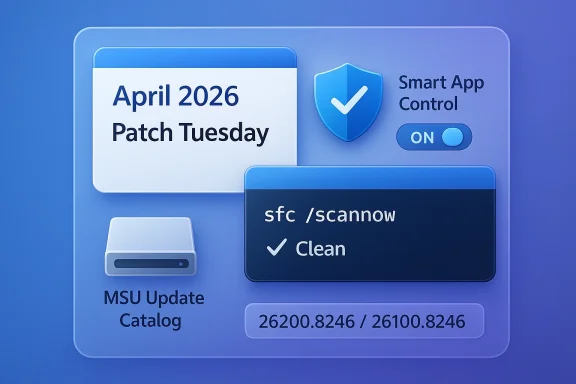
Windows 11’s April 2026 Patch Tuesday lands as a smaller headline update than some of Microsoft’s recent feature-heavy rollouts, but it still matters for one simple reason: it combines a mandatory security release with a meaningful quality-of-life fix for Smart App Control and a long-overdue cleanup for sfc /scannow behavior. The package, KB5083769, advances Windows 11 25H2 to build 26200.8246 and Windows 11 24H2 to build 26100.8246, while Microsoft also continues its pattern of offering offline installers through the Update Catalog. That makes this month’s patch less about splashy new consumer features and more about operational control, reliability, and the realities of modern Windows servicing. Microsoft’s own servicing guidance and support materials for nearby releases confirm the broader context: Smart App Control has been a clean-install-only feature until now, and Microsoft has been steadily refining how admins and power users repair and service Windows images with DISM and SFC.
Microsoft’s monthly Windows servicing model has evolved far beyond the old idea of a single Patch Tuesday that simply “fixed security issues.” Today, every cumulative update tends to do double duty: it protects the platform and also carries forward non-security improvements staged in earlier preview or feature flights. That is why KB5083769 should be viewed not just as an April 2026 security rollup, but as part of a larger cadence where Microsoft uses monthly servicing to move the Windows 11 platform forward incrementally. The company’s recent 25H2 and 24H2 documentation shows this clearly, with features often appearing first in preview channels and then graduating into mainstream servicing once tested.
This release also fits into a wider shift in how Microsoft treats security and manageability on Windows 11. Smart App Control is a good example. Microsoft’s documentation has long said that SAC works like a cloud-backed reputation gate for apps and files, but it also historically carried a major constraint: once you were on a running installation, the safest “official” route back into SAC was often a reset or clean install. That made it powerful but awkward, especially for users and IT teams who wanted to experiment with it and then back out. The fact that KB5083769 is now surfacing a toggle to turn it on or off without reinstalling the OS suggests Microsoft is finally acknowledging that real-world flexibility matters as much as theoretical security purity.
The SFC fix is just as telling, though in a quieter way. Microsoft’s own guidance for repairing corrupted Windows files still points users to a classic two-step workflow: DISM first, then sfc /scannow. When a monthly update improves the accuracy of SFC’s reporting, that is not a cosmetic tweak. It affects the confidence administrators and power users place in a foundational maintenance tool. An error that falsely suggests corruption can waste time, trigger unnecessary remediation, or send help desks down the wrong path. In other words, this patch is about restoring trust in the OS’s self-diagnosis machinery.
There is also a broader deployment story here. Microsoft has been increasingly explicit about offering standalone MSU packages, supporting offline servicing, and documenting the exact order of installation when multiple packages are involved. Even when the headline update is a normal cumulative release, the ecosystem around it reflects a more enterprise-minded servicing model. That matters because many Windows users still update through Windows Update, but a large and growing portion of the audience relies on catalog downloads, imaging workflows, and scripted maintenance.
The most visible change is the ability to manage Smart App Control directly on an existing installation. Microsoft’s support pages still make clear that SAC is a reputation-based security layer intended to block untrusted or potentially harmful apps, and they also still explain its original clean-install assumptions. But the practical significance of KB5083769 is that Windows 11 users are no longer forced into a reinstall just to adjust that setting. That is a major usability improvement, especially for testers, gamers, and enterprise users who need to disable a policy that gets in the way of legitimate software.
Another improvement is the correction to sfc /scannow. Microsoft’s own documentation says SFC is intended to detect and repair corrupted system files, typically after DISM has done its part. If Windows has been incorrectly flagging errors, the issue is not merely that a command prompt message looked ugly. It is that the OS may have been misrepresenting the integrity of a device that was actually fine. For support engineers, that distinction matters a great deal.
For consumers, that build number is mostly a diagnostic convenience. For admins, it is a compliance signal. If a fleet is supposed to be on the new build and some devices lag behind, the gap can reveal update deferrals, policy problems, or maintenance windows that never happened. In that sense, the build increment is a small number with a large operational footprint.
The old limitation was the real problem. If SAC was enabled or disabled in the “wrong” state, the official path back often involved a reset or reinstall. Microsoft’s own FAQ still describes the clean-install logic behind SAC, which is why the April update is notable: it appears to be shifting the feature from an almost-immutable security posture to something users can actually manage. That is a huge difference in daily usability, because security features only become genuinely practical when they can be adjusted without rebuilding the machine.
For home users, the immediate value is obvious. A game that gets blocked, a developer tool that misfires, or a legitimate utility that triggers a false positive can now be handled without a drastic system reset. That lowers the friction of experimenting with Windows security features. It also increases the odds that more people will actually leave SAC enabled for longer, because the exit ramp is no longer so painful.
That said, the flexibility does not eliminate the policy challenge. Enterprises still need to decide whether they want the extra protection and the possible friction it creates. The update just makes that decision more reversible. In practice, that is a better engineering outcome, because security products should be usable enough that administrators can pilot, measure, and retreat if necessary. Rigid security is not always secure security when it causes avoidable operational pain.
Microsoft’s recent release notes have also emphasized performance improvements in Settings navigation and more structured device information views. Those changes are small individually, but they add up to a more coherent system experience. A faster Settings home page, a better About page, and fewer legacy pop-ups all reinforce the same message: Windows 11 is still being tuned to feel more like a modern product and less like a collection of inherited components.
It is also worth noting that Microsoft has been weaving Microsoft 365 management deeper into Windows. Recent Windows servicing notes have pointed to in-Settings management flows for subscriptions and account options. That is another sign of where the company wants the OS to go: less browser hopping, more control from the operating system itself. Whether users appreciate that depends on how much they trust Microsoft’s ecosystem design, but the direction is unmistakable.
There is a broader UX principle at work here. Users do not think in terms of “keyboard shortcuts,” “pen buttons,” and “assistant keys” as separate technical silos. They think in terms of what opens my preferred app when I press a button. Synchronizing those behaviors is a sensible step, even if the audience is niche.
When the command reports an extraneous error message, it creates diagnostic noise. That noise can lead users to misinterpret a healthy device as compromised, or convince support staff that deeper corruption exists when it does not. In the worst case, it can trigger unnecessary reinstall attempts, extended downtime, or misplaced blame on unrelated apps and drivers. Fixing that behavior is a quality-of-life patch for the support ecosystem as much as it is a code fix.
This is also a symbolic update. Windows has spent years trying to balance consumer friendliness with enterprise manageability, and SFC sits right in that overlap. It is one of those rare tools that casual users are told to run and power users actually do run. Making its output more trustworthy helps both groups. That kind of invisible reliability work is often the best kind.
That is especially important for enterprise and regulated environments, where support teams need predictable, scriptable methods to confirm and restore system integrity. Even if most users never touch SFC directly, the tool’s reliability affects the quality of the entire support stack around Windows.
That matters because Windows fleets are not all built alike. Some are consumer PCs that update automatically. Others are managed enterprise endpoints with maintenance windows, approval rings, and compliance checks. Still others are lab machines, disconnected systems, or deployment images that need servicing before they ever see the network. The more Microsoft continues to publish standalone installers, the easier it becomes for those environments to stay current.
Offline installers also reduce the gap between testing and deployment. A team can validate the exact MSU package in a lab, then roll it into automation with fewer surprises. That is one reason catalog packages still have real value even when Windows Update can deliver the same core payload. Convenience is nice; reproducibility is better.
It also explains why the offline installer size is less important than the servicing model behind it. A 4GB-plus catalog package looks large, but it is really a reflection of how much content Microsoft is consolidating into a single servicing artifact. The practical question is not just “how big is it?” but “how controllable is it?”
Smart App Control is a good example of Microsoft threading that needle. The company wants stronger reputation-based app protection, but it also needs to avoid making legitimate software workflows painful. Allowing post-install toggling is a pragmatic answer. It keeps the feature relevant to enterprise security conversations while reducing the chance that it becomes a nuisance to enthusiasts or developers.
The Settings refinements and SFC cleanup point to the same strategic goal. Microsoft is trying to make the default Windows experience feel more coherent and less intimidating, especially for users who do not want to live in PowerShell or policy consoles. That has competitive value because perceived polish still matters in operating systems, even when the underlying architecture is mature.
The flip side is that Microsoft’s own quality control becomes more visible. If a built-in feature misbehaves, the backlash is bigger because users are relying on the platform itself, not a niche add-on. That is the tradeoff of integration: better convenience, higher expectations.
The update’s biggest opportunity is trust. If users can disable or re-enable Smart App Control without reinstalling Windows, they are more likely to experiment with it rather than avoid it. If SFC reports more accurately, users and IT teams are more likely to trust the repair workflow when something is actually wrong. That is the kind of improvement that pays off quietly over time.
There is also the risk that Smart App Control’s newfound flexibility will expose more edge cases. Once a security feature becomes easier to toggle, it becomes easier to misunderstand, misconfigure, or disable prematurely. That does not mean the change is bad; it means Microsoft will need to keep educating users about when SAC is appropriate and when it is likely to interfere. Security features are only as good as the confidence people have in them.
The SFC fix is likely to be even more durable in impact, precisely because it is less visible. Support tooling improvements tend to age well. They do not always generate praise on day one, but they save hours over the life of the platform. Microsoft has an opportunity here to strengthen confidence in its self-repair ecosystem, which is still one of the best reasons Windows remains administratively viable at scale.
What to watch next:
Source: Windows Latest Windows 11 KB5083769 out with improved /scannow, direct download links for offline installers (.msu)
 Background
Microsoft’s monthly Windows servicing model has evolved far beyond the old idea of a single Patch Tuesday that simply “fixed security issues.” Today, every cumulative update tends to do double duty: it protects the platform and also carries forward non-security improvements staged in earlier preview or feature flights. That is why KB5083769 should be viewed not just as an April 2026 security rollup, but as part of a larger cadence where Microsoft uses monthly servicing to move the Windows 11 platform forward incrementally. The company’s recent 25H2 and 24H2 documentation shows this clearly, with features often appearing first in preview channels and then graduating into mainstream servicing once tested.This release also fits into a wider shift in how Microsoft treats security and manageability on Windows 11. Smart App Control is a good example. Microsoft’s documentation has long said that SAC works like a cloud-backed reputation gate for apps and files, but it also historically carried a major constraint: once you were on a running installation, the safest “official” route back into SAC was often a reset or clean install. That made it powerful but awkward, especially for users and IT teams who wanted to experiment with it and then back out. The fact that KB5083769 is now surfacing a toggle to turn it on or off without reinstalling the OS suggests Microsoft is finally acknowledging that real-world flexibility matters as much as theoretical security purity.
The SFC fix is just as telling, though in a quieter way. Microsoft’s own guidance for repairing corrupted Windows files still points users to a classic two-step workflow: DISM first, then sfc /scannow. When a monthly update improves the accuracy of SFC’s reporting, that is not a cosmetic tweak. It affects the confidence administrators and power users place in a foundational maintenance tool. An error that falsely suggests corruption can waste time, trigger unnecessary remediation, or send help desks down the wrong path. In other words, this patch is about restoring trust in the OS’s self-diagnosis machinery.
There is also a broader deployment story here. Microsoft has been increasingly explicit about offering standalone MSU packages, supporting offline servicing, and documenting the exact order of installation when multiple packages are involved. Even when the headline update is a normal cumulative release, the ecosystem around it reflects a more enterprise-minded servicing model. That matters because many Windows users still update through Windows Update, but a large and growing portion of the audience relies on catalog downloads, imaging workflows, and scripted maintenance.
What KB5083769 Actually Changes
KB5083769 is a cumulative update, so its first job is to carry the latest security fixes. But the more interesting part is the mix of platform improvements layered on top. Microsoft’s recent preview notes for Windows 11 25H2 and 24H2 point to the same general direction: more polish in Settings, reliability work in core shell components, and changes to Smart App Control that were first disclosed earlier and are only now becoming broadly usable. That sequencing is important because it shows that KB5083769 is not a standalone island; it is the production destination for work that began earlier in the servicing cycle.The most visible change is the ability to manage Smart App Control directly on an existing installation. Microsoft’s support pages still make clear that SAC is a reputation-based security layer intended to block untrusted or potentially harmful apps, and they also still explain its original clean-install assumptions. But the practical significance of KB5083769 is that Windows 11 users are no longer forced into a reinstall just to adjust that setting. That is a major usability improvement, especially for testers, gamers, and enterprise users who need to disable a policy that gets in the way of legitimate software.
Another improvement is the correction to sfc /scannow. Microsoft’s own documentation says SFC is intended to detect and repair corrupted system files, typically after DISM has done its part. If Windows has been incorrectly flagging errors, the issue is not merely that a command prompt message looked ugly. It is that the OS may have been misrepresenting the integrity of a device that was actually fine. For support engineers, that distinction matters a great deal.
Why the build numbers matter
The build jump to 26200.8246 on 25H2 and 26100.8246 on 24H2 is a reminder that Windows 11 is now serviced as a family of release branches rather than one monolithic OS. Microsoft’s documentation around 25H2 makes clear that current feature updates are offered progressively, and that Home and Pro devices may receive them automatically when ready. That means build numbers are not trivia; they are a quick way to determine which servicing lane a PC is on and whether it has received the April payload.For consumers, that build number is mostly a diagnostic convenience. For admins, it is a compliance signal. If a fleet is supposed to be on the new build and some devices lag behind, the gap can reveal update deferrals, policy problems, or maintenance windows that never happened. In that sense, the build increment is a small number with a large operational footprint.
Smart App Control Finally Becomes Manageable
Smart App Control is the headline that will matter most to enthusiasts and power users. Microsoft describes it as a security feature that evaluates apps and files using cloud reputation, then blocks content that looks malicious or potentially unwanted. That makes SAC attractive as a guardrail, especially for people who routinely download new tools. But it also means the feature can get in the way of niche utilities, custom software, game launchers, or anti-cheat components that do not have a strong reputation footprint.The old limitation was the real problem. If SAC was enabled or disabled in the “wrong” state, the official path back often involved a reset or reinstall. Microsoft’s own FAQ still describes the clean-install logic behind SAC, which is why the April update is notable: it appears to be shifting the feature from an almost-immutable security posture to something users can actually manage. That is a huge difference in daily usability, because security features only become genuinely practical when they can be adjusted without rebuilding the machine.
For home users, the immediate value is obvious. A game that gets blocked, a developer tool that misfires, or a legitimate utility that triggers a false positive can now be handled without a drastic system reset. That lowers the friction of experimenting with Windows security features. It also increases the odds that more people will actually leave SAC enabled for longer, because the exit ramp is no longer so painful.
Enterprise implications
The enterprise angle is more complicated, and more important. Microsoft has already acknowledged that SAC may be a poor fit for some corporate environments, especially those with internal tools, bespoke applications, or controlled software distribution paths. A feature that relies on cloud reputation can be conservative by design, which is exactly what some organizations want and exactly what others cannot tolerate. Allowing toggles without reinstalling means IT can test SAC in smaller groups without turning deployment into a one-way door.That said, the flexibility does not eliminate the policy challenge. Enterprises still need to decide whether they want the extra protection and the possible friction it creates. The update just makes that decision more reversible. In practice, that is a better engineering outcome, because security products should be usable enough that administrators can pilot, measure, and retreat if necessary. Rigid security is not always secure security when it causes avoidable operational pain.
Settings Gets a Long Overdue Cleanup
KB5083769 also appears to continue Microsoft’s effort to modernize the Windows 11 Settings app. The Windows UI still contains remnants of older dialog designs, and Microsoft has been steadily replacing them with more consistent, dark-mode-aware interfaces. That sort of work may not make headlines, but it affects how polished Windows feels every day. When a dialog is visually inconsistent, users notice it immediately, even if they cannot explain why the experience feels dated.Microsoft’s recent release notes have also emphasized performance improvements in Settings navigation and more structured device information views. Those changes are small individually, but they add up to a more coherent system experience. A faster Settings home page, a better About page, and fewer legacy pop-ups all reinforce the same message: Windows 11 is still being tuned to feel more like a modern product and less like a collection of inherited components.
It is also worth noting that Microsoft has been weaving Microsoft 365 management deeper into Windows. Recent Windows servicing notes have pointed to in-Settings management flows for subscriptions and account options. That is another sign of where the company wants the OS to go: less browser hopping, more control from the operating system itself. Whether users appreciate that depends on how much they trust Microsoft’s ecosystem design, but the direction is unmistakable.
Tail button and pen behavior
One of the more obscure changes mentioned in the rollout is support for aligning stylus tail-button behavior with the Copilot key preference. That is a small feature, but it reveals the way Microsoft is trying to normalize input across devices. When hardware controls and software shortcuts behave consistently, Windows feels less fragmented across OEMs and accessory ecosystems.There is a broader UX principle at work here. Users do not think in terms of “keyboard shortcuts,” “pen buttons,” and “assistant keys” as separate technical silos. They think in terms of what opens my preferred app when I press a button. Synchronizing those behaviors is a sensible step, even if the audience is niche.
The SFC /scannow Fix Is More Important Than It Sounds
The fix for sfc /scannow may be the most undervalued part of KB5083769. Windows support documentation still positions SFC as a repair tool for corrupted or missing system files, with DISM providing the underlying component store repair first. In that workflow, SFC’s output is not just informational text; it is the basis for deciding whether a machine is truly broken or simply in need of a routine maintenance pass.When the command reports an extraneous error message, it creates diagnostic noise. That noise can lead users to misinterpret a healthy device as compromised, or convince support staff that deeper corruption exists when it does not. In the worst case, it can trigger unnecessary reinstall attempts, extended downtime, or misplaced blame on unrelated apps and drivers. Fixing that behavior is a quality-of-life patch for the support ecosystem as much as it is a code fix.
This is also a symbolic update. Windows has spent years trying to balance consumer friendliness with enterprise manageability, and SFC sits right in that overlap. It is one of those rare tools that casual users are told to run and power users actually do run. Making its output more trustworthy helps both groups. That kind of invisible reliability work is often the best kind.
Why repair tooling still matters
It is tempting to think that cloud-connected Windows should make tools like SFC obsolete. The reality is the opposite. The more complex Windows becomes, the more important local repair tooling is when something goes wrong and the network is unavailable, slow, or blocked by policy. Microsoft’s continued documentation of DISM and SFC shows that the company still expects devices to be repaired in the field, not just reimaged from scratch.That is especially important for enterprise and regulated environments, where support teams need predictable, scriptable methods to confirm and restore system integrity. Even if most users never touch SFC directly, the tool’s reliability affects the quality of the entire support stack around Windows.
Offline Installers Still Matter
The availability of offline MSU installers is not an afterthought. Microsoft has repeatedly documented catalog-based servicing and offline installation paths, especially for environments that need stronger control over deployment timing or network access. In the Windows servicing world, “download and install from Windows Update” is only one path among several.That matters because Windows fleets are not all built alike. Some are consumer PCs that update automatically. Others are managed enterprise endpoints with maintenance windows, approval rings, and compliance checks. Still others are lab machines, disconnected systems, or deployment images that need servicing before they ever see the network. The more Microsoft continues to publish standalone installers, the easier it becomes for those environments to stay current.
Offline installers also reduce the gap between testing and deployment. A team can validate the exact MSU package in a lab, then roll it into automation with fewer surprises. That is one reason catalog packages still have real value even when Windows Update can deliver the same core payload. Convenience is nice; reproducibility is better.
Consumer vs. enterprise download behavior
For consumers, the offline route is mostly a fallback. If Windows Update fails or stalls, the catalog gives a second chance to get current. For enterprises, the offline route is often the primary path, because it fits packaging tools, image management, and change control processes better than ad hoc downloading. That split explains why Microsoft keeps both channels alive.It also explains why the offline installer size is less important than the servicing model behind it. A 4GB-plus catalog package looks large, but it is really a reflection of how much content Microsoft is consolidating into a single servicing artifact. The practical question is not just “how big is it?” but “how controllable is it?”
Competitive and Market Implications
On the surface, KB5083769 is an ordinary Windows cumulative update. In reality, it reflects how Microsoft is trying to keep Windows competitive by making it both more secure and more usable without forcing disruptive reinstalls. That is especially important as alternative ecosystems continue to market themselves on simplicity, stability, or tighter app control. Windows cannot afford to look like the platform where every meaningful security change requires a wipe.Smart App Control is a good example of Microsoft threading that needle. The company wants stronger reputation-based app protection, but it also needs to avoid making legitimate software workflows painful. Allowing post-install toggling is a pragmatic answer. It keeps the feature relevant to enterprise security conversations while reducing the chance that it becomes a nuisance to enthusiasts or developers.
The Settings refinements and SFC cleanup point to the same strategic goal. Microsoft is trying to make the default Windows experience feel more coherent and less intimidating, especially for users who do not want to live in PowerShell or policy consoles. That has competitive value because perceived polish still matters in operating systems, even when the underlying architecture is mature.
Ecosystem effects
There is also an ecosystem effect here. When Microsoft improves built-in security and repair tools, third-party utilities have to compete harder on clarity, speed, and trust. That does not eliminate the need for external software, but it does raise the bar. Users are more likely to stick with what comes with Windows if the built-in options are good enough.The flip side is that Microsoft’s own quality control becomes more visible. If a built-in feature misbehaves, the backlash is bigger because users are relying on the platform itself, not a niche add-on. That is the tradeoff of integration: better convenience, higher expectations.
Strengths and Opportunities
KB5083769 has several clear strengths. It improves a security feature that had been too rigid, and it tightens one of Windows’ most familiar repair tools. It also continues Microsoft’s gradual cleanup of the Settings experience, which helps the OS feel more coherent and modern.The update’s biggest opportunity is trust. If users can disable or re-enable Smart App Control without reinstalling Windows, they are more likely to experiment with it rather than avoid it. If SFC reports more accurately, users and IT teams are more likely to trust the repair workflow when something is actually wrong. That is the kind of improvement that pays off quietly over time.
- Better control over Smart App Control without reinstalling Windows.
- Cleaner diagnostics from a more reliable sfc /scannow experience.
- More polished Settings dialogs that improve day-to-day usability.
- Stronger enterprise testability for security policies that were previously too rigid.
- Useful offline installer availability for admins and advanced users.
- Incremental platform modernization without a disruptive feature-update jump.
- Improved confidence in Windows repair and maintenance workflows.
Risks and Concerns
The main concern is that Microsoft’s servicing story is becoming more complex even as it becomes more capable. Features roll out gradually, some changes are gated, and the difference between Windows Update and catalog servicing still matters a great deal. That is manageable for IT pros, but it can be confusing for ordinary users who just want to know whether they are up to date.There is also the risk that Smart App Control’s newfound flexibility will expose more edge cases. Once a security feature becomes easier to toggle, it becomes easier to misunderstand, misconfigure, or disable prematurely. That does not mean the change is bad; it means Microsoft will need to keep educating users about when SAC is appropriate and when it is likely to interfere. Security features are only as good as the confidence people have in them.
- Feature rollout lag may leave some devices without the new SAC toggle immediately.
- Confusion over servicing channels could persist between Windows Update and offline MSUs.
- Misconfiguration risk rises when powerful security features become easier to change.
- False confidence in SFC outputs could remain if users assume every warning is serious.
- Administrative drift may continue across fleets with mixed build numbers.
- Support overhead may increase if help desks need to explain gradual feature availability.
- Complexity fatigue remains a real issue for small businesses and home power users.
Looking Ahead
The next few weeks will tell us whether KB5083769 behaves like a classic “quiet but useful” Windows update or whether the new Smart App Control flexibility becomes one of those changes users immediately appreciate. The answer will depend less on the patch itself than on how quickly Microsoft finishes the gradual rollout. If the feature appears broadly and works as advertised, this could become one of the more practically significant Windows 11 updates of the spring.The SFC fix is likely to be even more durable in impact, precisely because it is less visible. Support tooling improvements tend to age well. They do not always generate praise on day one, but they save hours over the life of the platform. Microsoft has an opportunity here to strengthen confidence in its self-repair ecosystem, which is still one of the best reasons Windows remains administratively viable at scale.
What to watch next:
- Whether Smart App Control appears for all eligible systems or remains staggered by rollout rings.
- Whether Microsoft publishes additional clarifications about the new SAC toggle behavior.
- Whether users and admins report fewer false-positive diagnostics from sfc /scannow.
- Whether future cumulative updates continue the Settings cleanup with more legacy dialog replacements.
- Whether Microsoft keeps expanding offline servicing guidance for Windows 11 update packages.
Source: Windows Latest Windows 11 KB5083769 out with improved /scannow, direct download links for offline installers (.msu)
