

Microsoft released the May 26, 2026 preview update KB5089573 for Windows 11 versions 24H2 and 25H2, moving PCs to OS builds 26100.8524 and 26200.8524 while adding staged performance, audio, setup, Task Manager, camera, and reliability changes. The headline is not merely that another five-gigabyte cumulative package has arrived. It is that Microsoft is finally attacking Windows 11’s most persistent reputational wound: the feeling that the operating system is sometimes slower than the hardware beneath it. KB5089573 is a preview update, but it reads like a statement of intent.
For years, Windows performance debates have been trapped in the wrong measurements. Users compare boot times, benchmark scores, frame rates, and synthetic CPU results, while the real complaint often lives somewhere smaller and more irritating: the Start menu takes a beat too long, Search feels sleepy, File Explorer stutters at the exact moment it should disappear into muscle memory.
KB5089573 is interesting because Microsoft’s changelog now talks directly about that layer of experience. The update says it accelerates app launch and core shell experiences such as Start, Search, and Action Center. That is a careful sentence, but it points at the right target.
Windows 11 has rarely been unusably slow on modern PCs. Its problem has been that it too often feels hesitant. That distinction matters because hesitation is what makes a premium laptop feel cheap, what makes a desktop with plenty of RAM feel oddly burdened, and what sends enthusiasts into registry tweaks and third-party launchers.
The new Low Latency Profile appears designed to shave off those moments of delay by briefly raising CPU responsiveness during interactive actions. In plain English, Windows is trying to wake the machine up faster when the user is clearly asking for something now. It is not a magic performance mode, and it is not the same as running the processor flat out all day.
That modesty is exactly why the feature matters. Microsoft does not need Windows 11 to win a benchmark it was already winning. It needs Windows to stop losing the first half-second.
That will irritate a certain kind of Windows purist, because it sounds like papering over architectural latency instead of eliminating it. There is some truth in that criticism. A perfectly lean shell should not need a tiny turbo nudge to make the Start menu feel immediate.
But operating systems are not clean-room ideals. They are sprawling compromises between battery life, thermals, security boundaries, telemetry, app compatibility, animation, accessibility, and a thousand pieces of legacy behavior. If a short-lived power-state adjustment makes visible interactions faster without destroying battery life, it is a practical fix to a practical problem.
The more important point is that Microsoft is acknowledging that perceived performance is performance. A system that launches a menu instantly but finishes background work a moment later often feels faster than a system that optimizes for an abstract average. Apple has understood this for years; Linux desktop environments vary wildly, but the best of them understand it too.
Windows 11’s problem has been that it often behaved like a background services platform that also happened to have a desktop attached. KB5089573 suggests Microsoft is trying to re-rank the human sitting in front of the screen.
That distinction matters for home users and IT departments alike. A preview update can be production-quality and still not be something every fleet should install on day one. Microsoft is also rolling out several features gradually, which means two fully updated PCs can behave differently after installing the same KB.
This staged model is now central to Windows servicing. The build number tells only part of the story. A machine can be on 26100.8524 or 26200.8524 and still not have every visible feature enabled immediately.
For enthusiasts, that is frustrating because the update becomes a lottery. For administrators, it is more complicated: staged features can reduce blast radius, but they also make validation messier. A help desk cannot simply say, “install KB5089573 and you will see the new button,” because the correct answer may be “install it, wait, and maybe.”
The preview label also intersects awkwardly with Microsoft’s “Get the latest updates as soon as they’re available” toggle. Users who enable that switch are effectively telling Windows they want earlier access to these non-security improvements. That is a defensible choice for enthusiasts, but it is not a neutral setting.
The use cases are immediate. Two people on a plane watch a movie from one laptop without using a splitter. A student and a friend listen to the same lecture. A family member uses hearing-aid-compatible hardware while someone else uses earbuds. This is not the usual Windows feature that requires a diagram to justify itself.
The catch is hardware. Shared Audio depends on Bluetooth LE Audio broadcast support from the PC’s Bluetooth adapter and the listening devices. That means many existing headphones will not qualify, and some PCs that feel “new enough” may still lack the right support.
This is where Windows 11’s hardware story becomes awkward again. Microsoft can add a feature that feels universal, but the ecosystem underneath it is fragmented. Users will look for the Shared Audio button, fail to see their headset, and blame Windows even when the limiting factor is the Bluetooth stack or accessory support.
Still, this is the right kind of platform feature. It makes the PC better at being a shared device, not just a personal productivity terminal. Windows has spent years becoming more account-centric and cloud-aware; Shared Audio is refreshingly physical.
That breadth is normal for Windows cumulative updates, but it is worth pausing on what it says about the operating system. Windows is now serviced as a continuous construction site. Features arrive, regressions are patched, accessibility improves, AI components rev, and hardware compatibility gets refined in one rolling package.
Task Manager’s improved NPU visibility is a good example. A few years ago, most users had no reason to care about neural processing units. Now Microsoft is adding optional NPU and NPU Engine columns, along with memory visibility for AI-related workloads, because Copilot+ PCs and on-device AI have made this silicon part of the platform story.
That does not mean every Windows 11 user is suddenly running meaningful local AI workloads. It does mean Microsoft is preparing the monitoring surface before most users know what they would monitor. Task Manager has always been where Windows turns invisible system behavior into a civic record.
The camera changes follow a similar logic. Multi-App Camera allows more than one application to access a camera stream at the same time, while Basic Camera mode gives users and administrators a simpler fallback for troubleshooting. On paper, these are minor. In daily hybrid work, they may be the difference between a meeting starting normally and the familiar ritual of closing three apps to figure out which one stole the webcam.
Windows has long had a habit of deriving user folder names in ways that annoy people who care about clean paths. Microsoft account names, truncated email identifiers, and setup defaults can leave users with profile folders they would never have chosen. Once created, changing that folder name is possible but risky enough that most people wisely avoid it.
Letting users choose during setup is the correct place to solve the problem. It prevents a nuisance before it becomes a migration project. It also shows that not every meaningful Windows improvement has to involve AI, silicon acceleration, or cloud integration.
For IT pros, the impact will depend on deployment method. Managed environments already have ways to standardize user provisioning, but clearer setup options help smaller shops, labs, consultants, and power users who live between consumer defaults and enterprise tooling.
This is the kind of fix that makes Windows feel less arbitrary. A good operating system should not surprise users with a permanent folder name before they understand what choice was made for them.
Microsoft has technical explanations for why cumulative updates are large. Windows servicing has to account for language resources, component baselines, hardware diversity, optional features, rollback behavior, and now AI components that may apply only to certain classes of PC. The cumulative model also ensures a machine can get current without installing a long chain of historical patches.
Those explanations are real, but they do not erase the user experience. A large update is still a large update. It consumes bandwidth, disk space, time, and trust.
The irony is sharp: an update designed partly to make PCs feel more responsive arrives as a multi-gigabyte package that reminds users how heavy Windows has become. That does not make KB5089573 bad. It makes it a perfect snapshot of modern Windows servicing, where meaningful improvements are delivered through machinery that often feels oversized for the job.
For administrators, the direct Microsoft Update Catalog packages remain useful. Offline .msu installers are not glamorous, but they matter when Windows Update fails, when multiple machines need the same package, or when a controlled deployment process beats waiting for each PC to pull bits on its own.
This is the kind of bug that looks mundane until it happens to a fleet. The EFI System Partition is not something most users inspect, and it is not where ordinary cleanup tools focus their attention. OEM decisions, older layouts, third-party boot files, and years of servicing can combine into a tiny partition with too little breathing room.
Microsoft has mitigation guidance, including a registry-based adjustment and Known Issue Rollback handling for some devices. But the broader lesson is that Windows servicing increasingly depends on low-level assumptions that are invisible to the user until they break.
For home users, the symptom will be familiar: “Something didn’t go as planned. Undoing changes.” For IT departments, it is another reminder that update readiness is not just about free space on C:. Firmware-era plumbing still matters.
This is especially relevant because Microsoft is also warning about Secure Boot certificate expiration beginning in June 2026. KB5089573 includes changes related to targeting devices for updated Secure Boot certificates, which gives this preview update a second identity: it is not only about polish, but also about preparing the boot trust chain for the next deadline.
That is a very different class of change from Shared Audio. Users can understand two headphones playing the same movie. Fewer will notice certificate targeting data or policy controls unless something goes wrong. But if Secure Boot trust material ages out badly, the consequences are far more severe than a missing Quick Settings button.
The update also adds policy control for limiting certain Secure Boot service data sent by Windows. That belongs to the long-running tension between operational telemetry and restricted-traffic environments. Microsoft needs enough signal to safely update sensitive boot components; some organizations need to minimize what Windows components report back.
This is where KB5089573 becomes more than an enthusiast update. It sits at the intersection of user-visible polish and platform maintenance. The same package that makes Start feel faster may also help determine whether a device is ready for Secure Boot certificate renewal.
That is modern Windows in miniature. The fun feature and the fleet hygiene task arrive in the same cumulative bundle.
That creates a new kind of early adopter. Installing KB5089573 is not like joining the Dev Channel, but it is also not the conservative path. It is closer to stepping onto Microsoft’s public staging lane.
For power users, that can be a good trade. The update brings real improvements, and many of the fixes target daily annoyances rather than obscure edge cases. If a PC is well backed up and not mission-critical, the preview may be worth installing.
For managed environments, the answer is more cautious. Preview updates deserve testing rings, not blanket deployment. The staged rollout of features complicates validation, and the EFI partition known issue is exactly the kind of servicing problem that can turn a quality update into a support event.
The toggle that offers “latest updates as soon as they’re available” should be treated as a policy decision, not a cosmetic preference. Microsoft’s language makes early access sound friendly. Administrators should read it as a channel choice.
The build-number difference will matter more to administrators than consumers. Most users will see Windows 11, a KB number, and maybe a vague “preview update” label. IT pros will see the servicing branches and start thinking about enablement packages, compatibility baselines, and whether 25H2 is going to be another small turn of the Windows 11 crank rather than a disruptive feature upgrade.
That would fit Microsoft’s current pattern. The company has been using Windows 11’s annual version labels while delivering many changes continuously. By the time a named version arrives, some of its most visible features have already been flighted, staged, or partially deployed through earlier updates.
The practical result is that version numbers are less useful as markers of user experience. Two PCs on the same “Windows 11” marketing label can differ by rollout phase, hardware eligibility, AI component applicability, and feature flags.
KB5089573 therefore looks less like a one-off update and more like a bridge. It ties the current 24H2 installed base to the 25H2 servicing future while continuing Microsoft’s broader effort to make Windows improvement feel monthly rather than annual.
Those users are difficult to win back because they are not merely asking for features. They are asking for confidence. They want to believe that Microsoft sees the same rough edges they do.
Low Latency Profile is a direct appeal to that audience. It says Microsoft is no longer content to describe Windows 11 as modern while leaving small delays intact. It also suggests the company understands that responsiveness is emotional. A fast PC that feels slow is a broken promise.
But Microsoft should be careful not to overclaim. If users install KB5089573 and do not immediately see the staged performance feature, they may conclude the hype was hollow. If the improvement is most visible on certain hardware, expectations will need calibration.
The right framing is not “Windows 11 is fixed.” The right framing is that Microsoft has finally chosen the right category of problem to fix.
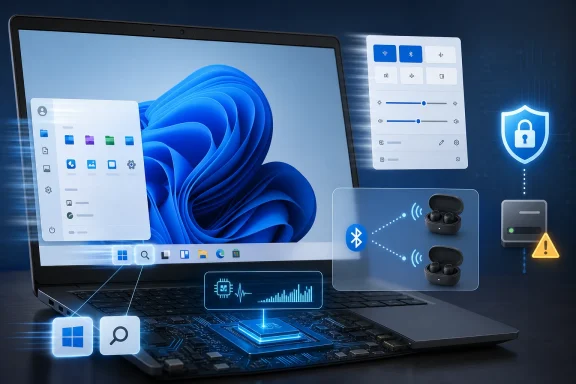 Microsoft Finally Treats Responsiveness as a Feature
For years, Windows performance debates have been trapped in the wrong measurements. Users compare boot times, benchmark scores, frame rates, and synthetic CPU results, while the real complaint often lives somewhere smaller and more irritating: the Start menu takes a beat too long, Search feels sleepy, File Explorer stutters at the exact moment it should disappear into muscle memory.KB5089573 is interesting because Microsoft’s changelog now talks directly about that layer of experience. The update says it accelerates app launch and core shell experiences such as Start, Search, and Action Center. That is a careful sentence, but it points at the right target.
Windows 11 has rarely been unusably slow on modern PCs. Its problem has been that it too often feels hesitant. That distinction matters because hesitation is what makes a premium laptop feel cheap, what makes a desktop with plenty of RAM feel oddly burdened, and what sends enthusiasts into registry tweaks and third-party launchers.
The new Low Latency Profile appears designed to shave off those moments of delay by briefly raising CPU responsiveness during interactive actions. In plain English, Windows is trying to wake the machine up faster when the user is clearly asking for something now. It is not a magic performance mode, and it is not the same as running the processor flat out all day.
That modesty is exactly why the feature matters. Microsoft does not need Windows 11 to win a benchmark it was already winning. It needs Windows to stop losing the first half-second.
The CPU Boost Is Small, but the Politics Are Large
The reported mechanics of Low Latency Profile are straightforward: when the user opens interface elements or starts certain tasks, Windows can briefly push the CPU into a higher-frequency state. The boost is measured in seconds, not sessions. It is a responsiveness trick, not a new power plan.That will irritate a certain kind of Windows purist, because it sounds like papering over architectural latency instead of eliminating it. There is some truth in that criticism. A perfectly lean shell should not need a tiny turbo nudge to make the Start menu feel immediate.
But operating systems are not clean-room ideals. They are sprawling compromises between battery life, thermals, security boundaries, telemetry, app compatibility, animation, accessibility, and a thousand pieces of legacy behavior. If a short-lived power-state adjustment makes visible interactions faster without destroying battery life, it is a practical fix to a practical problem.
The more important point is that Microsoft is acknowledging that perceived performance is performance. A system that launches a menu instantly but finishes background work a moment later often feels faster than a system that optimizes for an abstract average. Apple has understood this for years; Linux desktop environments vary wildly, but the best of them understand it too.
Windows 11’s problem has been that it often behaved like a background services platform that also happened to have a desktop attached. KB5089573 suggests Microsoft is trying to re-rank the human sitting in front of the screen.
Preview Does Not Mean Experimental, but It Does Mean Uneven
KB5089573 is a non-security preview update, which means it is not the mandatory Patch Tuesday security payload most administrators instinctively prioritize. Microsoft uses these releases to ship quality improvements and feature changes ahead of the next security update cycle. In this case, the changes are expected to flow into the June 2026 Patch Tuesday release.That distinction matters for home users and IT departments alike. A preview update can be production-quality and still not be something every fleet should install on day one. Microsoft is also rolling out several features gradually, which means two fully updated PCs can behave differently after installing the same KB.
This staged model is now central to Windows servicing. The build number tells only part of the story. A machine can be on 26100.8524 or 26200.8524 and still not have every visible feature enabled immediately.
For enthusiasts, that is frustrating because the update becomes a lottery. For administrators, it is more complicated: staged features can reduce blast radius, but they also make validation messier. A help desk cannot simply say, “install KB5089573 and you will see the new button,” because the correct answer may be “install it, wait, and maybe.”
The preview label also intersects awkwardly with Microsoft’s “Get the latest updates as soon as they’re available” toggle. Users who enable that switch are effectively telling Windows they want earlier access to these non-security improvements. That is a defensible choice for enthusiasts, but it is not a neutral setting.
Shared Audio Is the Rare Windows Feature Everyone Understands
The most consumer-friendly feature in KB5089573 may not be the CPU work at all. Shared Audio lets two people listen to audio from one Windows 11 PC at the same time using compatible Bluetooth LE Audio hardware. It is the sort of capability that sounds obvious only after it exists.The use cases are immediate. Two people on a plane watch a movie from one laptop without using a splitter. A student and a friend listen to the same lecture. A family member uses hearing-aid-compatible hardware while someone else uses earbuds. This is not the usual Windows feature that requires a diagram to justify itself.
The catch is hardware. Shared Audio depends on Bluetooth LE Audio broadcast support from the PC’s Bluetooth adapter and the listening devices. That means many existing headphones will not qualify, and some PCs that feel “new enough” may still lack the right support.
This is where Windows 11’s hardware story becomes awkward again. Microsoft can add a feature that feels universal, but the ecosystem underneath it is fragmented. Users will look for the Shared Audio button, fail to see their headset, and blame Windows even when the limiting factor is the Bluetooth stack or accessory support.
Still, this is the right kind of platform feature. It makes the PC better at being a shared device, not just a personal productivity terminal. Windows has spent years becoming more account-centric and cloud-aware; Shared Audio is refreshingly physical.
The Update Is Bigger Than Its Headline
Low Latency Profile and Shared Audio will get the attention, but KB5089573 is a broad cumulative update. Microsoft is also improving Magnifier behavior, Task Manager visibility, camera access, Windows Hello, Search, Storage settings, USB reliability, input behavior, font rendering, Task Scheduler persistence, desktop shortcut loading, Microsoft Store downloads, and general reliability.That breadth is normal for Windows cumulative updates, but it is worth pausing on what it says about the operating system. Windows is now serviced as a continuous construction site. Features arrive, regressions are patched, accessibility improves, AI components rev, and hardware compatibility gets refined in one rolling package.
Task Manager’s improved NPU visibility is a good example. A few years ago, most users had no reason to care about neural processing units. Now Microsoft is adding optional NPU and NPU Engine columns, along with memory visibility for AI-related workloads, because Copilot+ PCs and on-device AI have made this silicon part of the platform story.
That does not mean every Windows 11 user is suddenly running meaningful local AI workloads. It does mean Microsoft is preparing the monitoring surface before most users know what they would monitor. Task Manager has always been where Windows turns invisible system behavior into a civic record.
The camera changes follow a similar logic. Multi-App Camera allows more than one application to access a camera stream at the same time, while Basic Camera mode gives users and administrators a simpler fallback for troubleshooting. On paper, these are minor. In daily hybrid work, they may be the difference between a meeting starting normally and the familiar ritual of closing three apps to figure out which one stole the webcam.
Windows Setup Gets a Small Fix to a Long-Standing Irritation
One of KB5089573’s quieter changes appears during Windows setup: users can now choose a custom name for the user folder on the Device Name page. This is a small feature with an outsized emotional footprint.Windows has long had a habit of deriving user folder names in ways that annoy people who care about clean paths. Microsoft account names, truncated email identifiers, and setup defaults can leave users with profile folders they would never have chosen. Once created, changing that folder name is possible but risky enough that most people wisely avoid it.
Letting users choose during setup is the correct place to solve the problem. It prevents a nuisance before it becomes a migration project. It also shows that not every meaningful Windows improvement has to involve AI, silicon acceleration, or cloud integration.
For IT pros, the impact will depend on deployment method. Managed environments already have ways to standardize user provisioning, but clearer setup options help smaller shops, labs, consultants, and power users who live between consumer defaults and enterprise tooling.
This is the kind of fix that makes Windows feel less arbitrary. A good operating system should not surprise users with a permanent folder name before they understand what choice was made for them.
The Five-Gigabyte Update Problem Is Not Going Away
KB5089573 also underlines a less flattering trend: Windows updates are huge. The x64 packages for Windows 11 24H2 and 25H2 are roughly in the five-gigabyte range, while Arm64 packages are smaller but still substantial. For users on fast broadband, that is an inconvenience. For schools, small businesses, metered connections, field devices, and remote workers, it is operational weight.Microsoft has technical explanations for why cumulative updates are large. Windows servicing has to account for language resources, component baselines, hardware diversity, optional features, rollback behavior, and now AI components that may apply only to certain classes of PC. The cumulative model also ensures a machine can get current without installing a long chain of historical patches.
Those explanations are real, but they do not erase the user experience. A large update is still a large update. It consumes bandwidth, disk space, time, and trust.
The irony is sharp: an update designed partly to make PCs feel more responsive arrives as a multi-gigabyte package that reminds users how heavy Windows has become. That does not make KB5089573 bad. It makes it a perfect snapshot of modern Windows servicing, where meaningful improvements are delivered through machinery that often feels oversized for the job.
For administrators, the direct Microsoft Update Catalog packages remain useful. Offline .msu installers are not glamorous, but they matter when Windows Update fails, when multiple machines need the same package, or when a controlled deployment process beats waiting for each PC to pull bits on its own.
The Known Issue Is a Warning From the Boot Partition
The most important caution around this update is not the responsiveness feature. It is the known installation failure tied to devices with very limited free space on the EFI System Partition. Microsoft describes cases where installation can fail during the restart phase around the mid-30 percent mark, roll back, and show error 0x800f0922.This is the kind of bug that looks mundane until it happens to a fleet. The EFI System Partition is not something most users inspect, and it is not where ordinary cleanup tools focus their attention. OEM decisions, older layouts, third-party boot files, and years of servicing can combine into a tiny partition with too little breathing room.
Microsoft has mitigation guidance, including a registry-based adjustment and Known Issue Rollback handling for some devices. But the broader lesson is that Windows servicing increasingly depends on low-level assumptions that are invisible to the user until they break.
For home users, the symptom will be familiar: “Something didn’t go as planned. Undoing changes.” For IT departments, it is another reminder that update readiness is not just about free space on C:. Firmware-era plumbing still matters.
This is especially relevant because Microsoft is also warning about Secure Boot certificate expiration beginning in June 2026. KB5089573 includes changes related to targeting devices for updated Secure Boot certificates, which gives this preview update a second identity: it is not only about polish, but also about preparing the boot trust chain for the next deadline.
Secure Boot Turns a Preview Update Into Infrastructure Work
The Secure Boot material in KB5089573 may not trend on social media, but it deserves administrator attention. Microsoft says Secure Boot certificates used by most Windows devices begin expiring starting in June 2026, and the company is using Windows quality updates to improve targeting for devices eligible to receive new certificates.That is a very different class of change from Shared Audio. Users can understand two headphones playing the same movie. Fewer will notice certificate targeting data or policy controls unless something goes wrong. But if Secure Boot trust material ages out badly, the consequences are far more severe than a missing Quick Settings button.
The update also adds policy control for limiting certain Secure Boot service data sent by Windows. That belongs to the long-running tension between operational telemetry and restricted-traffic environments. Microsoft needs enough signal to safely update sensitive boot components; some organizations need to minimize what Windows components report back.
This is where KB5089573 becomes more than an enthusiast update. It sits at the intersection of user-visible polish and platform maintenance. The same package that makes Start feel faster may also help determine whether a device is ready for Secure Boot certificate renewal.
That is modern Windows in miniature. The fun feature and the fleet hygiene task arrive in the same cumulative bundle.
Optional Updates Are Now Microsoft’s Real Test Track
The old mental model of Windows updates was simple: Patch Tuesday was serious, optional updates were skippable, and feature upgrades were major events. Windows 11 has blurred those lines. Optional previews now carry meaningful changes that may define how the OS feels weeks before the security release makes them unavoidable.That creates a new kind of early adopter. Installing KB5089573 is not like joining the Dev Channel, but it is also not the conservative path. It is closer to stepping onto Microsoft’s public staging lane.
For power users, that can be a good trade. The update brings real improvements, and many of the fixes target daily annoyances rather than obscure edge cases. If a PC is well backed up and not mission-critical, the preview may be worth installing.
For managed environments, the answer is more cautious. Preview updates deserve testing rings, not blanket deployment. The staged rollout of features complicates validation, and the EFI partition known issue is exactly the kind of servicing problem that can turn a quality update into a support event.
The toggle that offers “latest updates as soon as they’re available” should be treated as a policy decision, not a cosmetic preference. Microsoft’s language makes early access sound friendly. Administrators should read it as a channel choice.
The Windows 11 25H2 Signal Is Getting Louder
KB5089573 covers both Windows 11 24H2 and 25H2, with builds 26100.8524 and 26200.8524 respectively. That dual-track support tells us something about where Microsoft is in the Windows 11 cycle. The 25H2 branch is no longer a distant preview concept; it is close enough to share cumulative update identity with the current mainstream release.The build-number difference will matter more to administrators than consumers. Most users will see Windows 11, a KB number, and maybe a vague “preview update” label. IT pros will see the servicing branches and start thinking about enablement packages, compatibility baselines, and whether 25H2 is going to be another small turn of the Windows 11 crank rather than a disruptive feature upgrade.
That would fit Microsoft’s current pattern. The company has been using Windows 11’s annual version labels while delivering many changes continuously. By the time a named version arrives, some of its most visible features have already been flighted, staged, or partially deployed through earlier updates.
The practical result is that version numbers are less useful as markers of user experience. Two PCs on the same “Windows 11” marketing label can differ by rollout phase, hardware eligibility, AI component applicability, and feature flags.
KB5089573 therefore looks less like a one-off update and more like a bridge. It ties the current 24H2 installed base to the 25H2 servicing future while continuing Microsoft’s broader effort to make Windows improvement feel monthly rather than annual.
Microsoft Is Trying to Win Back the People Who Notice Lag
The most interesting audience for KB5089573 is not the average user who clicks Install and moves on. It is the group of Windows users who notice when Explorer hesitates, who can feel animation latency, who know which laptop used to feel snappier before an update, and who have spent years arguing that Windows 11 traded immediacy for polish.Those users are difficult to win back because they are not merely asking for features. They are asking for confidence. They want to believe that Microsoft sees the same rough edges they do.
Low Latency Profile is a direct appeal to that audience. It says Microsoft is no longer content to describe Windows 11 as modern while leaving small delays intact. It also suggests the company understands that responsiveness is emotional. A fast PC that feels slow is a broken promise.
But Microsoft should be careful not to overclaim. If users install KB5089573 and do not immediately see the staged performance feature, they may conclude the hype was hollow. If the improvement is most visible on certain hardware, expectations will need calibration.
The right framing is not “Windows 11 is fixed.” The right framing is that Microsoft has finally chosen the right category of problem to fix.
The Patch That Makes Windows Feel Less Like It Is Thinking About It
KB5089573 is not a release most users need to chase blindly, but it is one they should understand. It marks a shift toward improving the parts of Windows that users feel dozens of times per day, while also carrying the normal cargo of platform maintenance, hardware support, and servicing risk.- KB5089573 was released on May 26, 2026 as a non-security preview update for Windows 11 24H2 and 25H2.
- The update moves Windows 11 24H2 to build 26100.8524 and Windows 11 25H2 to build 26200.8524.
- Microsoft’s performance work targets app launch and shell experiences such as Start, Search, and Action Center, with Low Latency Profile rolling out gradually.
- Shared Audio requires compatible Bluetooth LE Audio broadcast hardware, so installing the update alone does not guarantee the feature appears.
- The Microsoft Update Catalog .msu packages are useful for offline installation, failed Windows Update scenarios, and controlled multi-PC deployment.
- Administrators should watch the known EFI System Partition issue and the Secure Boot certificate preparation work rather than treating this as a simple consumer feature drop.
References
- Primary source: Windows Latest
Published: Thu, 28 May 2026 01:00:54 GMT

Windows 11 KB5089573 just made PCs more responsive, direct download links (.msu)
Windows 11 KB5089573 is a major update that bumps the OS to Build 26200.8524 and adds multiple new features. www.windowslatest.com
- Related coverage: windowscentral.com
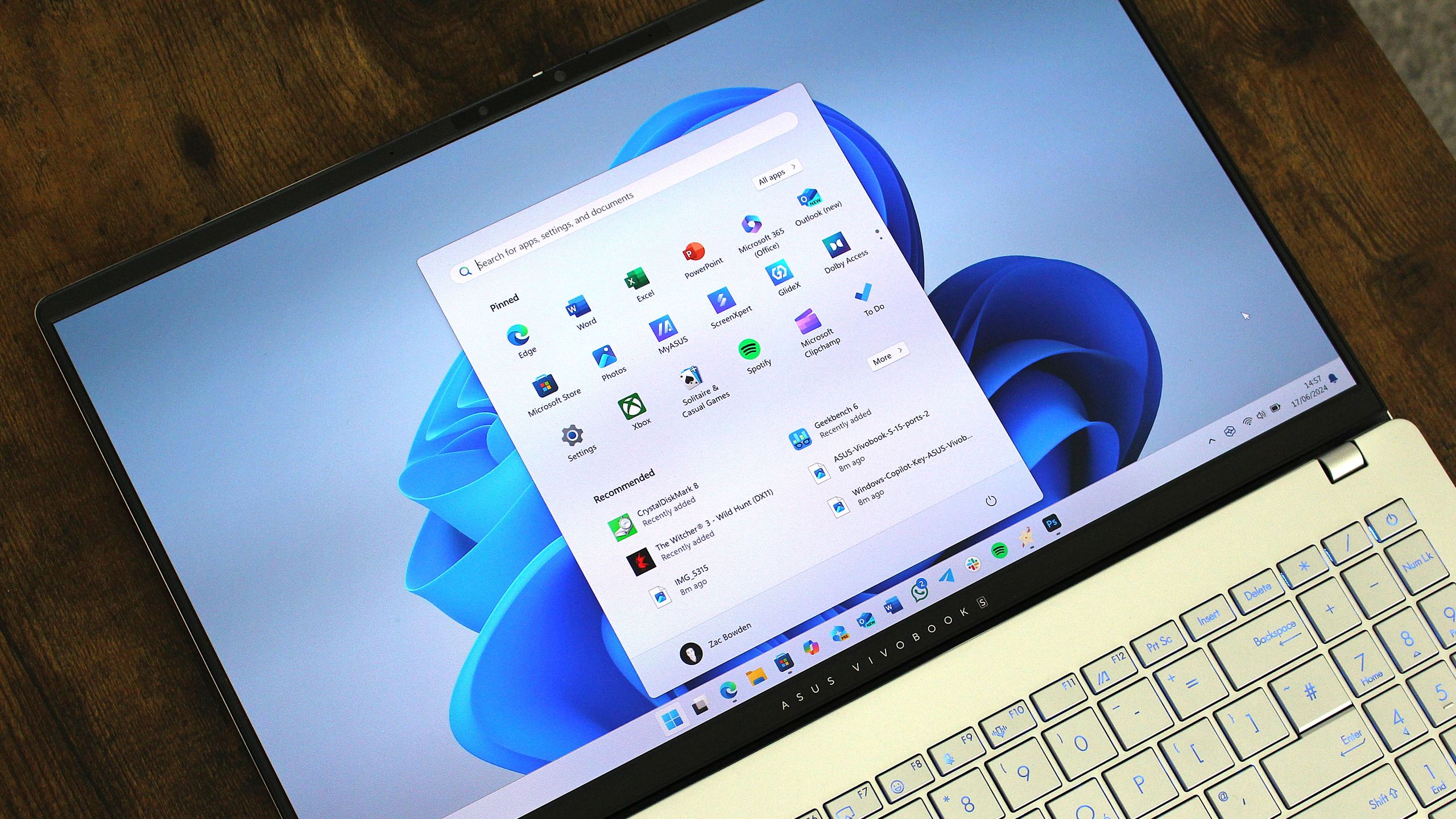
Windows 11's latest OS update is packing serious performance gains
Windows 11 update KB5089573 is now generally available as Microsoft's non-security preview update for May, and is packing genuinely notable performance improvements. www.windowscentral.com
- Related coverage: notebookcheck.net

Windows 11 update KB5089573: Shared audio & partition fix
Microsoft's KB5089573 preview adds Shared Audio and NPU tracking to Windows 11, while flagging an EFI partition install failure on older OEM hardware. www.notebookcheck.net
- Official source: support.microsoft.com
May 26, 2026—KB5089573 (OS Builds 26200.8524 and 26100.8524) Preview - Microsoft Support
 support.microsoft.com
- Related coverage: windowsreport.com
- Related coverage: ninjaone.com

KB5089573 - Details, Issues, & Feedback - NinjaOne
Community reception of KB5089573 demonstrates cautious optimism tempered by historical skepticism regarding Windows update reliability. Users acknowledge t www.ninjaone.com
- Related coverage: notebookcheck.org

Actualización KB5089573 de Windows 11: Corrección del audio compartido y la partición
El avance KB5089573 de Microsoft añade audio compartido y seguimiento de NPU a Windows 11, al tiempo que señala un fallo de instalación de la partición EFI en hardware OEM antiguo. www.notebookcheck.org
- Related coverage: technobezz.com
Windows 11 KB5089573 update speeds up system flyouts by 70 percent and app launches by 40 percent
Windows 11's KB5089573 update boosts system flyouts by 70% and app launches by 40% under a new performance initiative. www.technobezz.com
- Related coverage: windows101tricks.com
Windows 11 KB5089573 Update Finally Makes Windows 11 Feel Faster
Windows 11 KB5089573 update improves performance, battery life, Windows Hello, Search, USB reliability, and adds Shared Audio support for two Bluetooth devices. windows101tricks.com
- Related coverage: pureinfotech.com
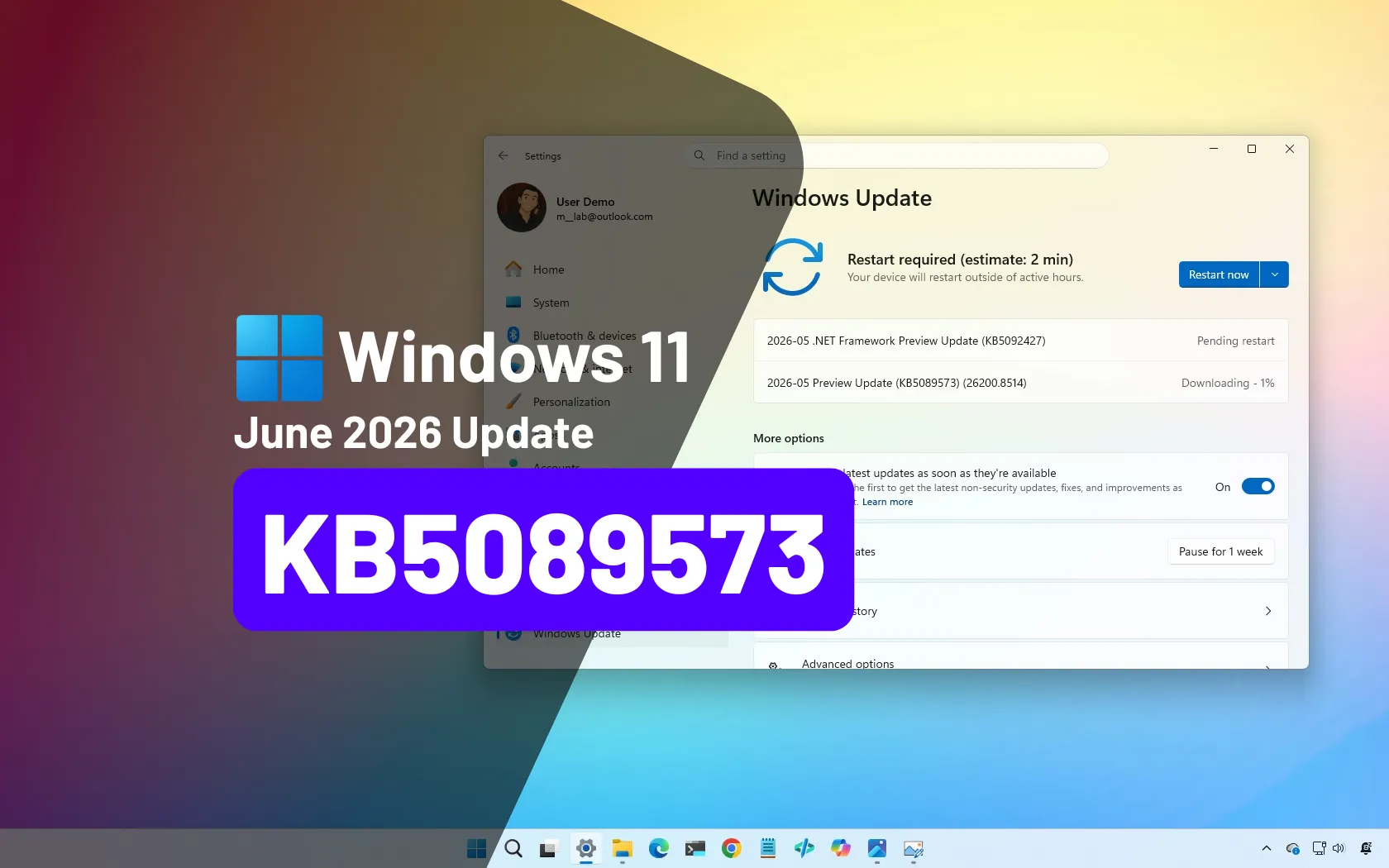
Microsoft rolls out Windows 11 June 2026 update (preview) with major upgrades
KB5089573 (build 26200.8524) for Windows 11 brings Shared Audio, NPU tracking in Task Manager, and faster app launch improvements for 25H2 and 24H2. pureinfotech.com
