

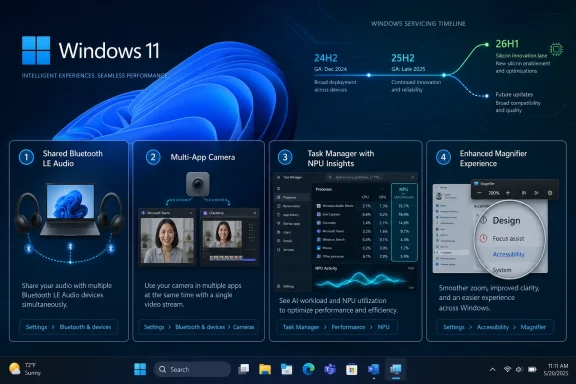
Microsoft released Windows 11 builds 26100.8514 and 26200.8514 under KB5089573 to the Release Preview Channel on May 14, 2026, previewing the non-security optional update expected for Windows 11 versions 24H2 and 25H2 later this month. The headline features are practical rather than theatrical: shared Bluetooth LE audio, better camera sharing, NPU visibility in Task Manager, and accessibility polish. But the more revealing move is Microsoft’s parallel Release Preview build for Windows 11 version 26H1, a branch that exists less for users than for silicon logistics. This is Windows as a shipping platform, not just an operating system.
The May optional update is the kind of Windows release that rarely earns mainstream attention but often matters more in daily use than a keynote feature. Shared audio lets two people listen from the same Windows 11 PC using compatible Bluetooth LE Audio accessories. Multi-App Camera support lets more than one application access the same camera stream at once, which is a small change with outsized relevance for people who live in Teams, Zoom, browser apps, recording tools, and accessibility software.
Task Manager’s new NPU columns are another sign that Microsoft is trying to make AI hardware visible to users and admins. For years, CPU, memory, disk, GPU, and network graphs have been the practical language of Windows troubleshooting. If Copilot+ PCs and local AI workloads are going to be more than marketing, IT needs to see when the neural processing unit is actually doing work.
That visibility matters because “AI PC” has been sold mostly as an identity, not an observable system behavior. Adding optional NPU and NPU Engine columns is not glamorous, but it gives power users a way to separate real workload acceleration from idle silicon. It also gives enterprise support desks another metric when diagnosing battery drain, thermal behavior, or uneven performance in AI-enabled apps.
The Magnifier improvements sit in the same category: not flashy, but overdue. Clearer screen-reader announcements and smoother behavior in lens mode are the sort of changes that make Windows feel less like a pile of features and more like a coherent environment. Accessibility improvements are rarely peripheral; they are often the best test of whether the platform team is paying attention to the details.
That distinction matters with KB5089573 because most of the visible additions are tagged for gradual rollout. Microsoft continues to use feature enablement as a throttle, not a switch. Two users on the same build may not see the same feature set on the same day, and that makes Windows servicing more flexible for Microsoft but messier for anyone documenting, supporting, or troubleshooting PCs.
For consumers, gradual rollout is mostly an annoyance. For IT, it complicates validation. A help desk cannot simply ask “Are you on build 26200.8514?” and infer the entire feature state of the machine. The build number is now only part of the story; rollout state, device capability, policy configuration, and Microsoft’s server-side decisions all sit between the patch and the user experience.
That is the quiet bargain of modern Windows. Microsoft can reduce blast radius when something breaks, but administrators lose some of the old determinism. The May optional update is another example of Windows becoming a service not just in branding, but in operational reality.
Still, the broader direction is important. Windows has long treated audio output as a single-user, single-device assumption with workarounds layered on top. Shared audio hints at a future where the PC is less tied to one seat and one headset, particularly as hybrid work makes laptops double as conference hubs, training stations, and media devices.
The constraint is that LE Audio support remains uneven across accessories and PCs. Microsoft can add the UI in Quick Settings, but the experience will only feel mainstream when enough headphones, earbuds, hearing aids, and laptops support the right Bluetooth capabilities. Until then, shared audio will be one of those Windows features that delights the right user and simply does not exist for everyone else.
For WindowsForum readers, the practical advice is simple: do not judge the feature from the button alone. The meaningful compatibility chain includes the PC’s Bluetooth radio, driver stack, firmware, Windows build, and both audio accessories. If any one of those pieces is out of date, “shared audio” becomes another greyed-out promise.
Allowing multiple apps to access the camera stream at the same time reduces friction in exactly the places where Windows currently feels brittle. It could help creators monitor and record at once. It could help support teams diagnose camera issues without asking users to close every other app. It could help accessibility and communication tools coexist with standard meeting software.
The enterprise angle is just as important. Microsoft says administrators can manage Multi-App Camera mode and Basic Camera mode through Group Policy under Windows Components > Camera. That matters because camera access is not merely a convenience feature; it is a privacy and compliance surface.
Organizations will need to decide where simultaneous access is acceptable. In a classroom, clinic, call center, or regulated workplace, the ability for multiple apps to tap the camera stream may be useful, risky, or both. Microsoft is giving admins a policy lever, but the governance decision remains theirs.
Task Manager is where Windows makes resource use legible. Once NPU columns appear on Processes, Users, and Details pages, users can begin asking direct questions. Which process is using the neural engine? Is that workload running on the NPU or falling back to the GPU or CPU? Is an app consuming dedicated or shared NPU memory?
That transparency will not answer every question. Developers still need good profiling tools, and admins still need fleet-level telemetry if they are managing thousands of AI-capable PCs. But putting NPU activity into Task Manager is a symbolic threshold: the NPU is no longer just a spec-sheet line. It is part of the operating system’s visible resource model.
This also helps puncture some of the AI PC fog. If a feature is marketed as local, efficient, and accelerated, users should be able to observe that claim. The May preview does not solve AI accountability, but it gives Windows users a better instrument panel.
That makes its appearance in Release Preview feel odd at first glance. Release Preview is generally where future public updates for existing supported versions get their final shakedown. But 26H1 is not meant to be the next upgrade for the Windows 11 machines already sitting on most desks.
The simplest explanation is that Microsoft needs a servicing lane for devices that will ship with 26H1 preinstalled. If next-generation Arm hardware needs platform changes before the mainstream annual Windows release is ready, Microsoft has to support that branch somewhere. Release Preview gives the company a public-ish channel to validate cumulative updates without pretending that 26H1 is for everyone.
The result is a bifurcated Windows story. Most users should be watching 24H2 and 25H2 servicing. New devices on specific silicon may arrive with 26H1. The branch exists because hardware calendars and Windows release calendars do not always line up neatly.
That pressure is especially visible around Arm. Windows on Arm has improved substantially, but it remains more sensitive to platform enablement than the x64 mainstream. New chips may require scheduler changes, power management work, driver model updates, security assumptions, or firmware coordination that cannot be cleanly backported into the current broad-release branch.
Microsoft’s answer appears to be a targeted H1 platform release that supports specific new devices, followed later by the more conventional annual feature update path. That is rational from an engineering standpoint. It is less elegant from a customer communication standpoint.
The risk is confusion. A buyer may see “Windows 11 version 26H1” and assume it is newer, better, and more generally desirable than 25H2. An admin may wonder whether to test it. An enthusiast may try to install it on unsupported hardware just to see what happens. Microsoft’s message has to be unusually clear: 26H1 is not the next stop for most PCs.
That shift has advantages. Microsoft can deliver camera, accessibility, Store, Task Manager, USB, input, font, and shell improvements without waiting for a once-a-year spectacle. A bug fix for USB4 display reliability or a performance improvement for Start and Search does not need to be held hostage by a marketing calendar.
But the model also makes Windows harder to explain. A user may be on 25H2 but missing a feature that another 25H2 user has. A feature may be announced, gradually rolled out, paused, resumed, and then quietly made broadly available. The changelog becomes less a contract than a weather report.
For admins, optional preview updates remain a double-edged tool. They are useful for early validation and for getting non-security fixes before Patch Tuesday. They are also not the same as a security baseline, and broad deployment requires caution. In a managed environment, the May preview should be treated as a signal of what is coming, not an automatic green light.
The Start menu and Search in particular have carried years of user frustration. Even when they work, they can feel less direct than they should on powerful hardware. If this update genuinely improves launch and shell responsiveness, it may do more for perceived quality than several more visible features.
The same is true of Store download behavior. The Microsoft Store is now a key distribution channel for inbox apps, third-party apps, and update components, yet it still has a reputation for opaque failures and uneven performance. Better bandwidth handling and error reporting will not make headlines, but they can reduce the kind of low-grade friction that makes users distrust the platform.
Windows quality is often won or lost in these mundane areas. A smoother Start menu, a less flaky Store, a camera that works in two apps, and a Task Manager that reports the right hardware are not revolutionary. They are what make the OS feel maintained.
Secure Boot certificate rotation and trust management are among the least user-friendly parts of Windows security, yet they are central to keeping the boot chain defensible. Microsoft has to move carefully because firmware diversity across the PC ecosystem is enormous. A botched Secure Boot change can strand machines in ways that are far more severe than a broken app.
The phrasing suggests Microsoft is using telemetry and staged eligibility to reduce risk. That is the right instinct. It also shows why Windows servicing is not merely a matter of shipping code; it is a massive compatibility exercise across firmware, drivers, OEM images, and real-world machines with unpredictable histories.
Security-minded readers should see this as another reminder that some of the most consequential Windows updates are invisible until they fail. Certificate trust, driver policy, boot integrity, and recovery behavior rarely appear in consumer marketing. They are, however, among the reasons enterprises test updates instead of simply admiring feature lists.
Gradual rollout means the update may not deliver every advertised feature right away. Hardware requirements mean shared audio and NPU telemetry may be irrelevant on many systems. Policy settings may determine whether Multi-App Camera appears in managed environments. And optional previews can still carry regressions that only surface at scale.
A sensible enthusiast approach is to test KB5089573 on a secondary PC or image-backed system first, especially if the machine relies on Bluetooth audio, webcams, USB docks, or specialized accessibility tools. Those are precisely the areas touched by this release. When an update modifies the parts of Windows that connect users to peripherals, “works on my machine” remains the only test that truly counts.
For IT pros, the preview is best read as a deployment rehearsal. Validate the camera policy. Check Task Manager behavior on NPU-equipped hardware. Test Bluetooth LE Audio accessories if your organization uses them. Watch for Store behavior and shell responsiveness. Then wait for the broader optional release or the following Patch Tuesday depending on risk tolerance.
Source: Thurrott.com Windows 11's May Optional Update Lands on the Release Preview Channel
 Microsoft’s May Preview Is About Plumbing, Not Pageantry
The May optional update is the kind of Windows release that rarely earns mainstream attention but often matters more in daily use than a keynote feature. Shared audio lets two people listen from the same Windows 11 PC using compatible Bluetooth LE Audio accessories. Multi-App Camera support lets more than one application access the same camera stream at once, which is a small change with outsized relevance for people who live in Teams, Zoom, browser apps, recording tools, and accessibility software.Task Manager’s new NPU columns are another sign that Microsoft is trying to make AI hardware visible to users and admins. For years, CPU, memory, disk, GPU, and network graphs have been the practical language of Windows troubleshooting. If Copilot+ PCs and local AI workloads are going to be more than marketing, IT needs to see when the neural processing unit is actually doing work.
That visibility matters because “AI PC” has been sold mostly as an identity, not an observable system behavior. Adding optional NPU and NPU Engine columns is not glamorous, but it gives power users a way to separate real workload acceleration from idle silicon. It also gives enterprise support desks another metric when diagnosing battery drain, thermal behavior, or uneven performance in AI-enabled apps.
The Magnifier improvements sit in the same category: not flashy, but overdue. Clearer screen-reader announcements and smoother behavior in lens mode are the sort of changes that make Windows feel less like a pile of features and more like a coherent environment. Accessibility improvements are rarely peripheral; they are often the best test of whether the platform team is paying attention to the details.
Release Preview Is Becoming Microsoft’s Public Dress Rehearsal
The Release Preview Channel has become the most consequential Insider ring for ordinary users because it is where Microsoft’s experiments stop being abstract and start looking like the next month’s PC behavior. Dev and Beta can absorb unfinished ideas. Release Preview is where the company effectively says: this is close enough to ship.That distinction matters with KB5089573 because most of the visible additions are tagged for gradual rollout. Microsoft continues to use feature enablement as a throttle, not a switch. Two users on the same build may not see the same feature set on the same day, and that makes Windows servicing more flexible for Microsoft but messier for anyone documenting, supporting, or troubleshooting PCs.
For consumers, gradual rollout is mostly an annoyance. For IT, it complicates validation. A help desk cannot simply ask “Are you on build 26200.8514?” and infer the entire feature state of the machine. The build number is now only part of the story; rollout state, device capability, policy configuration, and Microsoft’s server-side decisions all sit between the patch and the user experience.
That is the quiet bargain of modern Windows. Microsoft can reduce blast radius when something breaks, but administrators lose some of the old determinism. The May optional update is another example of Windows becoming a service not just in branding, but in operational reality.
Shared Audio Is the Consumer Feature with Enterprise Implications
Shared audio sounds like a travel feature: two people watching a movie on one laptop, two students listening to a lecture, two colleagues reviewing a recording without a splitter dongle. It relies on Bluetooth LE Audio broadcast technology, which means its usefulness will depend heavily on compatible hardware. On unsupported earbuds or older Bluetooth stacks, the feature may be invisible or irrelevant.Still, the broader direction is important. Windows has long treated audio output as a single-user, single-device assumption with workarounds layered on top. Shared audio hints at a future where the PC is less tied to one seat and one headset, particularly as hybrid work makes laptops double as conference hubs, training stations, and media devices.
The constraint is that LE Audio support remains uneven across accessories and PCs. Microsoft can add the UI in Quick Settings, but the experience will only feel mainstream when enough headphones, earbuds, hearing aids, and laptops support the right Bluetooth capabilities. Until then, shared audio will be one of those Windows features that delights the right user and simply does not exist for everyone else.
For WindowsForum readers, the practical advice is simple: do not judge the feature from the button alone. The meaningful compatibility chain includes the PC’s Bluetooth radio, driver stack, firmware, Windows build, and both audio accessories. If any one of those pieces is out of date, “shared audio” becomes another greyed-out promise.
Multi-App Camera Finally Catches Up with How People Use PCs
Multi-App Camera support is arguably the most useful addition in this preview because it resolves a long-standing mismatch between Windows and modern workflows. Users routinely want a camera feed in more than one place: a video call, a recording app, a browser-based identity check, a streaming tool, or an assistive application. Windows has often forced those apps to compete for exclusive access.Allowing multiple apps to access the camera stream at the same time reduces friction in exactly the places where Windows currently feels brittle. It could help creators monitor and record at once. It could help support teams diagnose camera issues without asking users to close every other app. It could help accessibility and communication tools coexist with standard meeting software.
The enterprise angle is just as important. Microsoft says administrators can manage Multi-App Camera mode and Basic Camera mode through Group Policy under Windows Components > Camera. That matters because camera access is not merely a convenience feature; it is a privacy and compliance surface.
Organizations will need to decide where simultaneous access is acceptable. In a classroom, clinic, call center, or regulated workplace, the ability for multiple apps to tap the camera stream may be useful, risky, or both. Microsoft is giving admins a policy lever, but the governance decision remains theirs.
NPU Telemetry Turns AI Hardware into Something Admins Can See
The NPU additions to Task Manager may look minor, but they are part of a larger reckoning for AI PCs. Microsoft, Intel, AMD, Qualcomm, and OEMs have spent the past two years telling buyers that local AI acceleration is a defining feature of the next PC generation. The problem is that invisible acceleration is hard to trust.Task Manager is where Windows makes resource use legible. Once NPU columns appear on Processes, Users, and Details pages, users can begin asking direct questions. Which process is using the neural engine? Is that workload running on the NPU or falling back to the GPU or CPU? Is an app consuming dedicated or shared NPU memory?
That transparency will not answer every question. Developers still need good profiling tools, and admins still need fleet-level telemetry if they are managing thousands of AI-capable PCs. But putting NPU activity into Task Manager is a symbolic threshold: the NPU is no longer just a spec-sheet line. It is part of the operating system’s visible resource model.
This also helps puncture some of the AI PC fog. If a feature is marketed as local, efficient, and accelerated, users should be able to observe that claim. The May preview does not solve AI accountability, but it gives Windows users a better instrument panel.
The 26H1 Build Is the Stranger Story
The more unusual part of Microsoft’s May 14 release is not KB5089573. It is the simultaneous Release Preview build 28000.2173 for Windows 11 version 26H1. Microsoft has described 26H1 as a targeted release for specific device hardware and silicon, not a conventional feature update for the installed base.That makes its appearance in Release Preview feel odd at first glance. Release Preview is generally where future public updates for existing supported versions get their final shakedown. But 26H1 is not meant to be the next upgrade for the Windows 11 machines already sitting on most desks.
The simplest explanation is that Microsoft needs a servicing lane for devices that will ship with 26H1 preinstalled. If next-generation Arm hardware needs platform changes before the mainstream annual Windows release is ready, Microsoft has to support that branch somewhere. Release Preview gives the company a public-ish channel to validate cumulative updates without pretending that 26H1 is for everyone.
The result is a bifurcated Windows story. Most users should be watching 24H2 and 25H2 servicing. New devices on specific silicon may arrive with 26H1. The branch exists because hardware calendars and Windows release calendars do not always line up neatly.
Windows Is Being Bent Around Silicon Schedules
The 26H1 branch shows how much the PC business has changed. In the old Windows era, hardware generally waited for the operating system. In the modern AI PC era, Microsoft cannot afford to let platform support lag new silicon by half a year if Qualcomm, Nvidia, or another partner is trying to launch a new class of device.That pressure is especially visible around Arm. Windows on Arm has improved substantially, but it remains more sensitive to platform enablement than the x64 mainstream. New chips may require scheduler changes, power management work, driver model updates, security assumptions, or firmware coordination that cannot be cleanly backported into the current broad-release branch.
Microsoft’s answer appears to be a targeted H1 platform release that supports specific new devices, followed later by the more conventional annual feature update path. That is rational from an engineering standpoint. It is less elegant from a customer communication standpoint.
The risk is confusion. A buyer may see “Windows 11 version 26H1” and assume it is newer, better, and more generally desirable than 25H2. An admin may wonder whether to test it. An enthusiast may try to install it on unsupported hardware just to see what happens. Microsoft’s message has to be unusually clear: 26H1 is not the next stop for most PCs.
Optional Updates Are Still Microsoft’s Real Feature Pipeline
The May optional update also reinforces a pattern: many Windows features now arrive through cumulative update previews rather than old-style feature releases. The annual version number still matters for lifecycle, support, and platform baselines, but the user-visible surface of Windows changes month by month.That shift has advantages. Microsoft can deliver camera, accessibility, Store, Task Manager, USB, input, font, and shell improvements without waiting for a once-a-year spectacle. A bug fix for USB4 display reliability or a performance improvement for Start and Search does not need to be held hostage by a marketing calendar.
But the model also makes Windows harder to explain. A user may be on 25H2 but missing a feature that another 25H2 user has. A feature may be announced, gradually rolled out, paused, resumed, and then quietly made broadly available. The changelog becomes less a contract than a weather report.
For admins, optional preview updates remain a double-edged tool. They are useful for early validation and for getting non-security fixes before Patch Tuesday. They are also not the same as a security baseline, and broad deployment requires caution. In a managed environment, the May preview should be treated as a signal of what is coming, not an automatic green light.
Microsoft Store and Shell Performance Remain the Unfinished Business
Microsoft says the update includes underlying changes to improve Microsoft Store download performance and bandwidth usage, along with improvements to app launch and core shell experiences such as Start, Search, and Action Center. Those claims are worth noting because they target some of Windows 11’s most persistent irritants. The operating system’s big design changes are no longer new; the lingering question is whether the everyday surfaces feel fast and reliable.The Start menu and Search in particular have carried years of user frustration. Even when they work, they can feel less direct than they should on powerful hardware. If this update genuinely improves launch and shell responsiveness, it may do more for perceived quality than several more visible features.
The same is true of Store download behavior. The Microsoft Store is now a key distribution channel for inbox apps, third-party apps, and update components, yet it still has a reputation for opaque failures and uneven performance. Better bandwidth handling and error reporting will not make headlines, but they can reduce the kind of low-grade friction that makes users distrust the platform.
Windows quality is often won or lost in these mundane areas. A smoother Start menu, a less flaky Store, a camera that works in two apps, and a Task Manager that reports the right hardware are not revolutionary. They are what make the OS feel maintained.
The Security Footnote Is Larger Than It Looks
Both Release Preview tracks include a Secure Boot-related quality improvement that expands device targeting for new Secure Boot certificates. Microsoft describes this as controlled and phased, with devices receiving certificates only after sufficient successful update signals. That wording is classic servicing caution, but the topic is significant.Secure Boot certificate rotation and trust management are among the least user-friendly parts of Windows security, yet they are central to keeping the boot chain defensible. Microsoft has to move carefully because firmware diversity across the PC ecosystem is enormous. A botched Secure Boot change can strand machines in ways that are far more severe than a broken app.
The phrasing suggests Microsoft is using telemetry and staged eligibility to reduce risk. That is the right instinct. It also shows why Windows servicing is not merely a matter of shipping code; it is a massive compatibility exercise across firmware, drivers, OEM images, and real-world machines with unpredictable histories.
Security-minded readers should see this as another reminder that some of the most consequential Windows updates are invisible until they fail. Certificate trust, driver policy, boot integrity, and recovery behavior rarely appear in consumer marketing. They are, however, among the reasons enterprises test updates instead of simply admiring feature lists.
The New Windows Cadence Rewards Patience
For enthusiasts, the temptation is always to install the newest build immediately. That instinct is understandable; Release Preview is usually stable enough, and the new features are tangible. But the current Windows servicing model rewards patience, especially on primary machines.Gradual rollout means the update may not deliver every advertised feature right away. Hardware requirements mean shared audio and NPU telemetry may be irrelevant on many systems. Policy settings may determine whether Multi-App Camera appears in managed environments. And optional previews can still carry regressions that only surface at scale.
A sensible enthusiast approach is to test KB5089573 on a secondary PC or image-backed system first, especially if the machine relies on Bluetooth audio, webcams, USB docks, or specialized accessibility tools. Those are precisely the areas touched by this release. When an update modifies the parts of Windows that connect users to peripherals, “works on my machine” remains the only test that truly counts.
For IT pros, the preview is best read as a deployment rehearsal. Validate the camera policy. Check Task Manager behavior on NPU-equipped hardware. Test Bluetooth LE Audio accessories if your organization uses them. Watch for Store behavior and shell responsiveness. Then wait for the broader optional release or the following Patch Tuesday depending on risk tolerance.
The May Build Tells Admins Where to Look First
The practical story of KB5089573 is not that Windows 11 gets a handful of new features. It is that Microsoft is continuing to distribute meaningful platform behavior through cumulative previews while maintaining a separate 26H1 servicing lane for next-generation hardware. That combination should shape how WindowsForum readers test and interpret this release.- Shared audio will matter only on systems with compatible Bluetooth LE Audio hardware and accessories, so feature availability will vary widely.
- Multi-App Camera support is likely to be immediately useful, but organizations should review privacy expectations and Group Policy controls before enabling it broadly.
- NPU usage in Task Manager gives Copilot+ PCs and other AI-capable systems a more observable performance model.
- The 26H1 Release Preview build is not a mainstream upgrade signal for existing PCs; it is a servicing path for specific new hardware.
- Performance claims around Start, Search, Action Center, app launch, and Microsoft Store downloads deserve real-world testing because they touch daily Windows quality.
- Secure Boot certificate targeting changes are a reminder that the most important servicing work often happens beneath the visible feature layer.
Source: Thurrott.com Windows 11's May Optional Update Lands on the Release Preview Channel
