

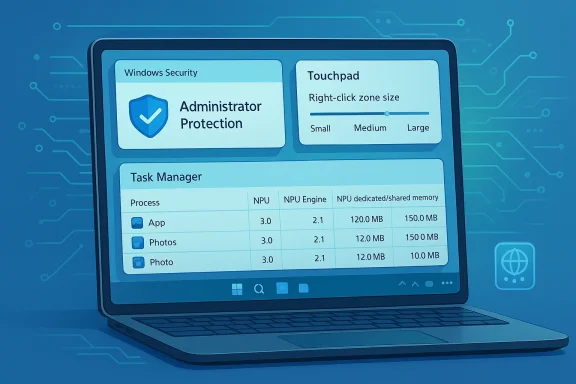
Windows 11 Insider Preview Build 26220.8138 is less about flashy consumer-facing gimmicks and more about Windows continuing its slow pivot toward a security-hardened, AI-aware, and hardware-sensitive operating system. Released to the Beta Channel on March 30, 2026, the build arrives as a Windows 11, version 25H2 enablement-package flight and fits neatly into Microsoft’s familiar two-bucket rollout model: features that land first for Insiders who opt into the latest updates, and features that later widen to everyone in the channel. The headline changes are modest on paper, but they reveal where Microsoft is placing its bets: Administrator Protection, more granular touchpad controls, and a much more informative Task Manager for devices with NPUs.
At a glance, this is a classic Insider build in the best and worst sense of the phrase. It does not dramatically alter the desktop experience, but it does keep the platform moving in directions that matter for Windows 11’s next phase: stronger default security, clearer visibility into AI hardware, and small usability refinements that help Windows feel more polished on modern PCs. The changes also underscore how Microsoft is increasingly treating the Beta Channel as a proving ground for enterprise controls and silicon-specific telemetry, not just consumer UI experiments.
The Windows Insider Program has always been part product lab, part messaging machine, and part pressure valve for Microsoft’s platform ambitions. In 2026, that role is even more obvious in the Beta Channel, which now often acts as a staging area for features tied to a specific Windows version rather than a loose experimental branch. Build 26220.8138 continues that trend, arriving as a 25H2-based flight delivered through an enablement package rather than as a wholesale reinvention of the OS.
That matters because the enablement-package model tells you Microsoft is optimizing for continuity. Instead of asking Insiders to absorb a disruptive jump, the company can toggle on dormant capabilities and iterate on them while keeping the underlying platform relatively stable. For enterprises, that reduces some of the anxiety around preview testing. For enthusiasts, it can be a little anticlimactic, but it also means the features under test are closer to what shipping Windows will actually look like.
Microsoft’s wording around gradual rollout is also part of the story. The company continues to use Controlled Feature Rollout for many preview features, which means the Beta Channel no longer functions as a single homogenous cohort. Some Insiders get changes early with the toggle enabled, while others receive them later even within the same ring. That creates a more realistic deployment model and lets Microsoft observe how features behave under partial exposure before widening them. It is a sensible engineering choice, but it also makes Insider builds harder to interpret because two people on the same build may not have the same experience.
The backdrop here is the steady evolution of Windows 11 itself. Over the last year, Microsoft has repeatedly pushed the platform toward a posture where security, AI readiness, and device-specific intelligence are central rather than peripheral. The company has already been talking publicly about Administrator Protection as a way to reduce “free floating admin rights,” and it has been expanding security features across Windows Security and related settings surfaces. At the same time, newer hardware categories with NPUs have made performance reporting more complicated, which explains why Task Manager is being taught to surface NPU usage, NPU engines, and memory allocation patterns.
Finally, the touchpad update may look small, but it is emblematic of a broader Windows 11 reality: the OS has to serve everything from legacy laptops to premium ultrabooks to AI PCs with specialized input devices. Even a setting for right-click zone size says something about Microsoft’s priorities, because it acknowledges that touchpad behavior is not universal and that user comfort still matters in an era dominated by platform narratives about AI. That is the sort of change that never trends on its own, yet it affects daily satisfaction more than many bigger-sounding features.
That has obvious appeal for enterprise administrators, who know that standing privilege is one of the easiest ways for malware and lateral-movement attacks to escalate damage. It also aligns with Microsoft’s broader security-first narrative, especially in environments where identity is the new perimeter. The fact that the feature is now being exposed in Settings suggests Microsoft wants feedback on usability as much as on security posture.
For consumers, the upside is more subtle. Most people do not think in terms of privilege escalation, but they do care when admin permissions interfere with app installs or device maintenance. If Microsoft can make the elevated-permission path less intrusive without creating confusion, that would be a real quality-of-life win. The risk, of course, is that another security control becomes another thing users do not understand when something suddenly asks for a restart or a one-time approval.
Key takeaways:
Task Manager has historically been the place where Windows translates complex system behavior into plain English for admins, enthusiasts, and support teams. Adding NPU visibility follows the same tradition, just for a new class of silicon. In practice, it should help answer questions like whether an app is actually using the NPU, whether it is overcommitting memory, and how much AI work is still being handled by the CPU or GPU instead.
There is also a broader strategic angle. Microsoft wants Windows to look like the natural home for AI PCs, and the operating system cannot do that unless its own diagnostics keep pace. A modern monitoring surface that only shows CPU and RAM would feel incomplete on devices whose headline feature is a neural processor. This update helps close that gap.
This is a smart complement to the NPU work because it broadens Task Manager from a raw resource meter into a richer diagnostic surface. Knowing what is using a resource is good; knowing how it is isolated is better. For troubleshooting, this can help explain why two apps with similar names behave very differently.
Bullet points worth noting:
The note about pressable surfaces matters too. It suggests this setting is targeted, not universal, and Microsoft is being careful not to promise functionality on hardware that cannot support it. The mention of manufacturer apps is also a reminder that Windows often coexists with vendor-specific touchpad utilities, sometimes awkwardly. If a manufacturer has already customized the behavior, Windows will preserve that with a Custom dropdown entry.
In the broader laptop market, this is the kind of tweak that helps premium Windows devices close the gap with competing platforms whose input tuning has long been praised as more coherent. It does not solve the entire problem, but it nudges Windows toward a more polished baseline experience. That is worth a lot, especially for users who spend all day on a notebook.
The localization fix is equally significant in practical terms. Windows is a global product, and language regressions can quickly undermine trust, especially in preview channels where users are already volunteering to absorb instability. A build that randomly falls back to English can make a system feel unfinished and can also generate confusion in support scenarios.
That is why these fixes matter strategically. They help keep the Beta Channel credible to the broadest possible set of testers, including users whose feedback is often underrepresented in enthusiast discussions. The healthier the channel feels, the better the feedback Microsoft gets on the truly ambitious features.
The downside is interpretive. Users may assume “small build number” equals “small change,” when in reality the underlying feature state can be fairly dynamic. Microsoft tries to address that by separating gradual rollouts from channel-wide updates, but the result is still a moving target that requires close reading.
On AI hardware, Windows is clearly trying to avoid looking behind the curve. If NPUs are going to define a new generation of personal computers, then Windows itself needs to expose those devices clearly and coherently. Task Manager becoming NPU-aware is a sign that Microsoft understands the platform story has to be visible at the system level, not just in marketing copy.
What rivals should notice is not the specific toggle, but the trend line. Microsoft is trying to make Windows feel native to AI-era hardware while also giving administrators better control over security surfaces and diagnostics. If it succeeds, Windows keeps its strategic advantage. If it fails, users may conclude that the platform is becoming more complex without becoming meaningfully better.
The other thing to watch is whether Microsoft keeps expanding small, high-value refinements like the touchpad setting. These are not splashy features, but they are the kind of details that shape day-to-day perception of Windows quality. A mature operating system is often defined less by its biggest headlines than by the accumulation of these modest but thoughtful improvements.
Source: Microsoft - Windows Insiders Blog Announcing Windows 11 Insider Preview Build 26220.8138 (Beta Channel)
At a glance, this is a classic Insider build in the best and worst sense of the phrase. It does not dramatically alter the desktop experience, but it does keep the platform moving in directions that matter for Windows 11’s next phase: stronger default security, clearer visibility into AI hardware, and small usability refinements that help Windows feel more polished on modern PCs. The changes also underscore how Microsoft is increasingly treating the Beta Channel as a proving ground for enterprise controls and silicon-specific telemetry, not just consumer UI experiments.
 Background
The Windows Insider Program has always been part product lab, part messaging machine, and part pressure valve for Microsoft’s platform ambitions. In 2026, that role is even more obvious in the Beta Channel, which now often acts as a staging area for features tied to a specific Windows version rather than a loose experimental branch. Build 26220.8138 continues that trend, arriving as a 25H2-based flight delivered through an enablement package rather than as a wholesale reinvention of the OS.That matters because the enablement-package model tells you Microsoft is optimizing for continuity. Instead of asking Insiders to absorb a disruptive jump, the company can toggle on dormant capabilities and iterate on them while keeping the underlying platform relatively stable. For enterprises, that reduces some of the anxiety around preview testing. For enthusiasts, it can be a little anticlimactic, but it also means the features under test are closer to what shipping Windows will actually look like.
Microsoft’s wording around gradual rollout is also part of the story. The company continues to use Controlled Feature Rollout for many preview features, which means the Beta Channel no longer functions as a single homogenous cohort. Some Insiders get changes early with the toggle enabled, while others receive them later even within the same ring. That creates a more realistic deployment model and lets Microsoft observe how features behave under partial exposure before widening them. It is a sensible engineering choice, but it also makes Insider builds harder to interpret because two people on the same build may not have the same experience.
The backdrop here is the steady evolution of Windows 11 itself. Over the last year, Microsoft has repeatedly pushed the platform toward a posture where security, AI readiness, and device-specific intelligence are central rather than peripheral. The company has already been talking publicly about Administrator Protection as a way to reduce “free floating admin rights,” and it has been expanding security features across Windows Security and related settings surfaces. At the same time, newer hardware categories with NPUs have made performance reporting more complicated, which explains why Task Manager is being taught to surface NPU usage, NPU engines, and memory allocation patterns.
Finally, the touchpad update may look small, but it is emblematic of a broader Windows 11 reality: the OS has to serve everything from legacy laptops to premium ultrabooks to AI PCs with specialized input devices. Even a setting for right-click zone size says something about Microsoft’s priorities, because it acknowledges that touchpad behavior is not universal and that user comfort still matters in an era dominated by platform narratives about AI. That is the sort of change that never trends on its own, yet it affects daily satisfaction more than many bigger-sounding features.
Security First, But With a Softer On-Ramp
The most consequential addition in Build 26220.8138 is the ability for IT-managed devices to enable Administrator Protection and for some Insiders to turn it on directly in Settings under Privacy & security > Windows Security > Account protection. Microsoft has been positioning this as a way to protect standing administrative rights by shifting toward just-in-time elevation rather than persistent privilege. That is a meaningful architectural statement, not just a new toggle.Why this matters for Windows security
Windows has spent years layering on protections such as UAC, Defender hardening, tamper protection, and credential isolation. Administrator Protection is part of the same philosophical arc, but it goes a step further by trying to make elevated privileges more transient and less broadly exploitable. In plain English, Microsoft is trying to make admin access behave more like a controlled action than a permanent state.That has obvious appeal for enterprise administrators, who know that standing privilege is one of the easiest ways for malware and lateral-movement attacks to escalate damage. It also aligns with Microsoft’s broader security-first narrative, especially in environments where identity is the new perimeter. The fact that the feature is now being exposed in Settings suggests Microsoft wants feedback on usability as much as on security posture.
Enterprise and consumer implications
For enterprises, the key question is not whether the feature sounds good in a blog post; it is whether it fits existing deployment and support models without surprising admins. Microsoft’s own support documentation around security features like Account protection and Windows Security implies that the company is trying to keep these controls visible and manageable within familiar interfaces. That lowers friction, but only if policy, telemetry, and user education stay aligned.For consumers, the upside is more subtle. Most people do not think in terms of privilege escalation, but they do care when admin permissions interfere with app installs or device maintenance. If Microsoft can make the elevated-permission path less intrusive without creating confusion, that would be a real quality-of-life win. The risk, of course, is that another security control becomes another thing users do not understand when something suddenly asks for a restart or a one-time approval.
Key takeaways:
- Administrator Protection is now surfacing more broadly in Settings.
- The design goal is just-in-time elevation, not permanent admin freedom.
- The setting requires a restart, which hints at deep platform integration.
- Enterprises will care most about policy fit and help-desk impact.
Task Manager Gets Smarter About AI Hardware
The most technically interesting change for power users is the Task Manager update. Microsoft is adding optional NPU and NPU Engine columns across Processes, Users, and Details, plus NPU Dedicated Memory and NPU Shared Memory in Details. It is also exposing neural engines inside GPUs on the Performance page, which gives a more complete picture of AI-related work happening on the machine.Why the NPU story matters
This is a strong signal that Microsoft no longer sees AI acceleration as a niche feature of a few premium devices. By elevating NPU metrics into the core system-monitoring tool, Windows is acknowledging that users and administrators will increasingly want to know what these chips are doing, how much memory they use, and whether workloads are landing on the intended engine. That is especially important as AI features spread across Copilot+ PCs and more mainstream hardware.Task Manager has historically been the place where Windows translates complex system behavior into plain English for admins, enthusiasts, and support teams. Adding NPU visibility follows the same tradition, just for a new class of silicon. In practice, it should help answer questions like whether an app is actually using the NPU, whether it is overcommitting memory, and how much AI work is still being handled by the CPU or GPU instead.
What the new columns could unlock
For developers, these columns may become a lightweight validation tool. If an app claims to support on-device AI or neural acceleration, Task Manager can help confirm whether the workload is flowing through the intended path. For IT teams, the benefit is more operational: it becomes easier to compare different device classes and spot patterns when performance complaints involve AI-heavy workloads.There is also a broader strategic angle. Microsoft wants Windows to look like the natural home for AI PCs, and the operating system cannot do that unless its own diagnostics keep pace. A modern monitoring surface that only shows CPU and RAM would feel incomplete on devices whose headline feature is a neural processor. This update helps close that gap.
AppContainer visibility adds a security lens
The new optional Isolation column on Processes and Details is a quieter but potentially important addition. It tells users which apps are running in AppContainer, which is Windows’ isolation model for constrained app execution. That gives power users another way to distinguish normal desktop processes from sandboxed or restricted ones.This is a smart complement to the NPU work because it broadens Task Manager from a raw resource meter into a richer diagnostic surface. Knowing what is using a resource is good; knowing how it is isolated is better. For troubleshooting, this can help explain why two apps with similar names behave very differently.
Bullet points worth noting:
- NPU metrics now appear in multiple Task Manager tabs.
- GPU neural engines are now more visible on the Performance page.
- The Isolation column makes AppContainer usage easier to inspect.
- These additions are most useful on AI-capable PCs.
Touchpad Controls Get More Granular
The new touchpad option is not dramatic, but it is the kind of refinement that can make a laptop feel noticeably better over time. Windows is adding a setting under Bluetooth & devices > Touchpad that lets users choose the size of the right-click zone on supported touchpads, with options ranging from default to small, medium, and large.Why this is a better input story
Touchpads are one of the most personal pieces of hardware on a PC. A setting that feels perfect to one user can feel awkward to another, especially when hand size, typing posture, and trackpad geometry all differ. By exposing right-click-zone sizing, Microsoft is giving users more control over a small but persistent pain point.The note about pressable surfaces matters too. It suggests this setting is targeted, not universal, and Microsoft is being careful not to promise functionality on hardware that cannot support it. The mention of manufacturer apps is also a reminder that Windows often coexists with vendor-specific touchpad utilities, sometimes awkwardly. If a manufacturer has already customized the behavior, Windows will preserve that with a Custom dropdown entry.
OEMs and fragmentation
This change also exposes one of the enduring tensions in Windows hardware design: Microsoft wants consistent UX, while OEMs often want differentiated touchpad software. A native setting for the right-click zone can reduce friction for some users, but it could also create more complexity if OEM utilities and Windows settings overlap in confusing ways. The Custom state is a smart acknowledgment of that reality.In the broader laptop market, this is the kind of tweak that helps premium Windows devices close the gap with competing platforms whose input tuning has long been praised as more coherent. It does not solve the entire problem, but it nudges Windows toward a more polished baseline experience. That is worth a lot, especially for users who spend all day on a notebook.
Accessibility and Localization Fixes Still Matter
Two fixes in the build deserve more attention than they usually get. Microsoft says it addressed an issue affecting Braille use for Insiders in recent flights, and it also fixed a problem that caused Windows to display in English for some users instead of their preferred language. These are not flashy features, but they are essential to making a preview build feel like a real product rather than a demo.Accessibility as a core quality bar
Braille support is especially important because accessibility regressions can be disproportionately disruptive. If a feature breaks for a sighted power user, that is annoying; if it breaks for a user who relies on it for daily computing, the impact is far greater. Microsoft’s decision to call this out signals that accessibility remains part of the Insider quality checklist, not an afterthought.The localization fix is equally significant in practical terms. Windows is a global product, and language regressions can quickly undermine trust, especially in preview channels where users are already volunteering to absorb instability. A build that randomly falls back to English can make a system feel unfinished and can also generate confusion in support scenarios.
The hidden cost of preview testing
There is a reason Microsoft keeps repeating that some features may not be fully localized yet. Insider testing works because users tolerate rough edges, but that tolerance has limits. If accessibility or language support is broken, the preview channel stops feeling like a controlled experiment and starts feeling like a liability.That is why these fixes matter strategically. They help keep the Beta Channel credible to the broadest possible set of testers, including users whose feedback is often underrepresented in enthusiast discussions. The healthier the channel feels, the better the feedback Microsoft gets on the truly ambitious features.
Beta Channel Strategy and the 25H2 Signal
Build 26220.8138 reinforces the idea that the Beta Channel is now closely tied to the 25H2 release train. Microsoft explicitly says the update is based on Windows 11, version 25H2, via an enablement package, which suggests the company is preserving a more stable base while layering in evolving capabilities. That is a practical way to run a living platform in public.What enablement packages imply
Enablement packages have become Microsoft’s preferred way to turn on a broader feature set without forcing a dramatic branch jump. For Insiders, that means the build number can look incremental even when the UX changes are more meaningful underneath. For enterprises, it means previewing the future of Windows without constantly rebuilding confidence from scratch.The downside is interpretive. Users may assume “small build number” equals “small change,” when in reality the underlying feature state can be fairly dynamic. Microsoft tries to address that by separating gradual rollouts from channel-wide updates, but the result is still a moving target that requires close reading.
A channel defined by confidence management
The Beta Channel has become less about novelty and more about confidence management. Microsoft wants Insiders to validate not just whether a feature works, but whether it works predictably enough to survive broader deployment. That is a much higher bar, and it explains why many of the most valuable changes in this build are about polish, visibility, and safety rather than headline-seeking innovation.- The build is explicitly tied to Windows 11, version 25H2.
- Microsoft is using an enablement package model.
- Feature exposure is still governed by Controlled Feature Rollout.
- The Beta Channel increasingly serves as a quasi-production validation ring.
Competitive and Market Implications
Build 26220.8138 may look like incremental maintenance, but it touches competitive areas that matter. Security, AI hardware visibility, and hardware tuning are all spaces where Windows is under pressure to prove that it can be both modern and dependable. Microsoft is trying to show that Windows 11 can support the AI PC era without losing the manageability that made Windows dominant in the first place.Against rival desktop ecosystems
On security, Administrator Protection is part of Microsoft’s attempt to make Windows less exposed by default while still preserving the flexibility that power users and enterprises expect. That’s important because competitors often win praise for simpler security models, but they rarely have to support Windows’ range of legacy apps, hardware diversity, and enterprise policies. Microsoft’s challenge is to harden the platform without making it feel more restrictive than necessary.On AI hardware, Windows is clearly trying to avoid looking behind the curve. If NPUs are going to define a new generation of personal computers, then Windows itself needs to expose those devices clearly and coherently. Task Manager becoming NPU-aware is a sign that Microsoft understands the platform story has to be visible at the system level, not just in marketing copy.
What rivals should notice
Apple, Google, and Linux distributions each have their own strengths, but Windows still wins in environments where breadth, compatibility, and enterprise control matter most. The risk for Microsoft is that those same strengths can make the platform feel cluttered or inconsistent. Features like the right-click-zone setting and Task Manager’s new columns are small attempts to create coherence in places where hardware variation would otherwise produce confusion.What rivals should notice is not the specific toggle, but the trend line. Microsoft is trying to make Windows feel native to AI-era hardware while also giving administrators better control over security surfaces and diagnostics. If it succeeds, Windows keeps its strategic advantage. If it fails, users may conclude that the platform is becoming more complex without becoming meaningfully better.
Strengths and Opportunities
This build’s biggest strength is that it advances several important Windows priorities at once without destabilizing the whole experience. It nudges the platform forward in security, hardware visibility, and input refinement, which is exactly the sort of balanced progress that tends to age well. The opportunity for Microsoft is to turn these preview changes into durable quality improvements that users notice only because things simply work better.- Administrator Protection could reduce standing privilege exposure.
- Task Manager now reflects the reality of AI-capable PCs.
- The new Isolation column improves process transparency.
- Touchpad tuning becomes more user-friendly and precise.
- Accessibility and localization fixes improve channel credibility.
- The 25H2 enablement model supports smoother rollout discipline.
- The changes are small enough to test broadly without overwhelming users.
Risks and Concerns
The biggest risk is that Microsoft continues adding sophisticated controls faster than it simplifies the surrounding experience. Security features can become confusing if they are visible but not intuitive, and system-monitoring metrics can become noise if users do not understand what the numbers mean. There is also the familiar Insider risk that a feature feels polished in Beta but becomes inconsistent once it meets real-world hardware diversity.- Administrator Protection may confuse users if prompts and restarts are not clearly explained.
- NPU telemetry could overwhelm casual users who just want simple performance data.
- OEM touchpad apps may conflict with Windows-native controls.
- Gradual rollout means the channel can feel inconsistent across users.
- Localization and accessibility regressions remain a recurring preview risk.
- Security hardening can create friction if policy and UX do not align.
- AI-specific diagnostics may outpace support documentation if Microsoft does not keep up.
Looking Ahead
The next phase for Build 26220.8138 will be less about whether these features exist and more about how Microsoft tunes them. If Administrator Protection proves easy to understand and reliable in policy-heavy environments, it could become a meaningful piece of Windows’ enterprise security story. If the NPU and Isolation columns resonate with power users and IT staff, Task Manager may quietly become one of the clearest examples of how Windows is adapting to AI hardware.The other thing to watch is whether Microsoft keeps expanding small, high-value refinements like the touchpad setting. These are not splashy features, but they are the kind of details that shape day-to-day perception of Windows quality. A mature operating system is often defined less by its biggest headlines than by the accumulation of these modest but thoughtful improvements.
- Watch whether Administrator Protection becomes more widely available in the Beta Channel.
- Watch whether NPU telemetry remains understandable to non-specialists.
- Watch whether OEM touchpad software coexists cleanly with the new setting.
- Watch whether the Braille and language fixes hold steady in later flights.
- Watch whether 25H2 preview behavior stays consistent as rollouts widen.
Source: Microsoft - Windows Insiders Blog Announcing Windows 11 Insider Preview Build 26220.8138 (Beta Channel)
Last edited:
