

Microsoft released Windows 11 Release Preview builds 26100.8514 and 26200.8514 as KB5089573 for versions 24H2 and 25H2, plus build 28000.2173 as KB5089570 for version 26H1, on May 14, 2026, for Windows Insiders in the Release Preview channel. The interesting part is not that another pair of preview updates exists; Windows has become a rolling construction site by design. The interesting part is what Microsoft chose to polish: AI observability, input reliability, camera and audio plumbing, driver trust, and the increasingly awkward distinction between Windows as a universal OS and Windows as a silicon-tuned platform. This is a maintenance release with a strategy problem hiding in plain sight.
Release Preview builds are not supposed to be theatrical. They are the place where features and fixes are close enough to general availability that Microsoft wants broader telemetry, but not so final that the company is willing to call the rollout complete. That makes this channel unusually revealing: it shows the work Microsoft expects ordinary systems to absorb soon, rather than the speculative ideas it floats in Canary or Experimental rings.
For Windows 11 24H2 and 25H2, KB5089573 is the mainstream story. These are the branches that most users and administrators should care about because they represent the current regular servicing path. Microsoft is using the same update package to move build 26100.8514 and build 26200.8514 forward, continuing the pattern in which 24H2 and 25H2 share much of the same foundation while receiving staged feature exposure.
The 26H1 build is stranger. KB5089570 moves Windows 11 26H1 to build 28000.2173, but Microsoft has been careful to say that 26H1 is not the next ordinary feature update for existing Windows 11 PCs. It is a targeted release for specific new hardware and silicon platforms, not a broad in-place upgrade path from 25H2.
That distinction matters because Windows version numbers have trained users to expect a sequence. A name like 26H1 sounds like “the first Windows release of 2026.” In practice, Microsoft is asking the market to understand that some Windows versions are calendar releases, some are enablement-style servicing milestones, and some are specialized hardware branches that happen to look like normal versions from a distance.
This is the kind of feature Windows should have had the moment “AI PC” became a retail category. For the past two years, NPUs have been described with a fog of marketing language: TOPS ratings, Copilot branding, local inference promises, and battery-life claims. But if a user cannot see whether an application is actually using the NPU, the silicon becomes a badge rather than an accountable resource.
Task Manager has always been one of Windows’ most important truth-telling tools. CPU spikes, memory leaks, disk churn, and GPU load all become easier to argue about once they are visible. Adding NPU visibility is not just a nerd convenience; it is a necessary step toward making local AI acceleration measurable rather than mystical.
Microsoft is also adding an optional Isolation column that shows which apps are running inside an AppContainer. That belongs in the same philosophical bucket. Windows security and performance features are only useful to administrators when they can be observed, audited, and explained. The more Windows hides its own operating model behind friendly surfaces, the harder it becomes for power users and IT teams to trust it.
Windows is expected to support everything. That is its advantage and its curse. Features that feel seamless on vertically integrated platforms often arrive more slowly on PCs because Microsoft must coordinate silicon, firmware, drivers, Bluetooth stacks, device vendors, and user interface polish across a sprawling ecosystem.
Shared audio depends on supported, paired, and connected devices. That caveat will do a lot of work. Some users will see the toggle and love it; others will wonder why their expensive headphones do not participate. The feature’s success will be judged less by the presence of a button in Quick Settings than by whether hardware support becomes predictable enough for normal people to understand.
Still, this is the right kind of Windows feature. It takes a modern standard, exposes it through a simple system surface, and avoids requiring every app to invent its own sharing model. If it works reliably, it makes the PC feel less like a compatibility warehouse and more like a current consumer device.
That is a very 2026 Windows problem. The webcam is no longer a peripheral you use occasionally. It is authentication hardware, conferencing hardware, streaming hardware, classroom hardware, remote-care hardware, and sometimes a compliance headache. When the camera stack fails, the user does not experience a minor accessory problem; they experience work stoppage.
Multi-app access is particularly important because modern workflows routinely involve overlapping consumers. A meeting app, transcription tool, capture utility, browser session, and security layer may all want camera involvement. Historically, Windows users have learned that whichever app grabs the camera first may become the accidental owner of the session.
Basic Camera mode is the other side of the same coin. IT departments need a way to reduce complexity when drivers, effects, or vendor utilities misbehave. A less ambitious camera path can be the difference between a user joining a meeting and a help desk ticket that ends with reinstalling half the OEM software stack.
Input reliability gets similar treatment. The update improves touch keyboard invocation on the login screen, explorer.exe reliability when closing the input switcher, and performance when invoking or navigating clipboard history. These are the small frictions that make Windows feel either solid or vaguely cursed.
The login screen touch keyboard fix is a good example. If the keyboard fails inside a running desktop session, the user may have alternatives. If it fails when entering a password or changing credentials, the machine suddenly feels hostile. Reliability at authentication boundaries matters more than reliability inside the comfort of a fully loaded desktop.
Windows has spent years accumulating input modes: keyboard, mouse, touch, pen, voice, controller, accessibility devices, remote sessions, virtual desktops, cloud PCs, and hybrid form factors. The difficulty is no longer adding another input method. The difficulty is making every one of them behave consistently at moments when the shell, security model, and app platform intersect.
USB4 dock reliability remains a sharp edge because docks sit at the intersection of standards, firmware, graphics routing, power delivery, and sleep behavior. A display that does not light up after standby is not merely an annoyance; it is the sort of defect that makes users distrust suspend and resume entirely. When that happens, they reboot more often, disable power-saving behavior, or blame hardware that may not be the real culprit.
The sensor and HID changes point to another recurring Windows issue: power drain caused by components that should be quiet but are not. Microsoft says the update improves resiliency against apps keeping the sensor hub powered on and improves power hygiene when applications initiate HID transfers during standby. In plain English, Windows is still fighting the long war against devices that are technically asleep but not meaningfully resting.
This is also where Microsoft’s telemetry-driven staged rollouts make sense. Peripheral bugs can be wildly hardware-specific. A change that improves reliability for one dock or input stack could expose a regression on another combination of firmware and driver. Gradual rollout is frustrating when users want a new feature immediately, but it is defensible when the blast radius includes docks, displays, authentication devices, and standby power behavior.
That is not merely a servicing note. It is a signal that Windows is becoming more willing to differentiate by silicon generation and platform target. Microsoft has always had hardware-specific code paths, of course. What is different here is the visibility of the branch itself and the risk that version naming will imply availability where none exists.
For IT administrators, the recommendation remains straightforward. Windows 11 24H2 and 25H2 continue to be the releases for regular enterprise deployment. Organizations evaluating new hardware platforms can adopt 26H1 selectively, but they should not treat it as the next ring in a normal Windows migration ladder.
For users, the message is harder. A consumer may see 26H1 discussed online and assume their 25H2 machine is behind. In reality, their PC may be on the correct mainstream path. Microsoft’s challenge is that the Windows version number now has to communicate both chronology and platform eligibility, and it does not do that cleanly.
This is not a new dream. Microsoft has spent more than a decade trying to reconcile Xbox and Windows gaming without making either side feel compromised. The PC is powerful and open; the console is predictable and lean-back friendly. Xbox Mode is another attempt to borrow the console’s focus without surrendering the PC’s flexibility.
The timing is notable because handheld gaming PCs have made the Windows shell look increasingly awkward. On a desktop monitor, the taskbar, Start menu, notifications, and window chrome are normal. On a seven-inch handheld screen with a controller, they can feel like artifacts from another device category. A full-screen gaming mode is less a luxury than an admission that Windows needs contextual personalities.
The risk is fragmentation of expectation. If Xbox Mode is excellent on 26H1 hardware but absent, delayed, or inconsistent elsewhere, Microsoft will again face the problem of advertising Windows experiences that depend on asterisks. The PC gaming audience is technically literate enough to notice when a feature is real, and impatient enough to punish it when it feels artificially gated.
NuGet package support is especially telling. A .nupkg file is not a mainstream consumer archive in the way a ZIP file is. It belongs more naturally to developers, build systems, and package distribution. By letting Explorer handle more of these formats, Microsoft is reducing friction for technical users who live between Windows as a workstation and Windows as a development environment.
Explorer also gets quality fixes in this build, including preservation of View and Sort preferences when apps launch directly into common folders, removal of a dark-mode white flash in certain views, and reliability improvements so Explorer-related processes exit more cleanly. These are not banner features, but Explorer is one of the most emotionally loaded parts of Windows. Users forgive abstract platform defects more easily than a file manager that flickers, forgets, hangs, or leaves zombie processes behind.
The irony is that File Explorer is both mundane and sacred. Microsoft can modernize it only so far before users accuse it of tampering with muscle memory. That is why practical format support and reliability fixes often land better than sweeping redesigns.
This is Microsoft tightening one of Windows’ oldest risk zones. Drivers run close to the kernel, and a bad or malicious driver can undermine protections that look strong at the application layer. The history of Windows security is full of reminders that kernel trust is not an administrative detail; it is the foundation beneath the foundation.
The compatibility window is important. Microsoft is not simply flipping a switch and hoping old hardware survives. The 100-hour and three-reboot audit period suggests a cautious rollout model that tries to identify systems likely to break before enforcement begins. That does not eliminate risk, but it shows Microsoft knows the political cost of blocking drivers in the Windows ecosystem.
For enterprises, this is a policy shift to inventory against, not a line item to ignore. Legacy security tools, niche peripherals, industrial equipment, lab gear, old VPN components, and specialized hardware utilities can all depend on driver models that outlive their ideal expiration date. If an organization has tolerated old cross-signed drivers because “they still work,” Microsoft is signaling that this tolerance has a shorter future.
The policy-based removal of preinstalled Microsoft apps is particularly relevant because it touches a long-running complaint from business customers. Windows Enterprise and Education administrators can use a dynamic app removal list with the “Remove Default Microsoft Store packages” policy, specifying package family names for additional MSIX or APPX-packaged apps. Microsoft notes that the dynamic list is not currently available in the Intune Settings Catalog, which means validation relies on Group Policy or custom OMA-URI.
That caveat matters. Microsoft’s management story often spans old and new control planes, and administrators are left reconciling Group Policy, Intune, CSPs, OMA-URI settings, and documentation that may arrive before the prettiest management interface catches up. The capability is welcome, but the operational path still asks IT departments to know exactly which management layer exposes which knob.
The batch file processing change is another example of Microsoft improving security by narrowing a class of old behavior. Administrators and Application Control for Business policy authors can enable a mode that prevents batch files from changing during execution. It is the kind of setting that will interest security teams more than ordinary users, but it reflects a broader pattern: Windows is trying to make legacy execution surfaces less abusable without breaking the workflows that still depend on them.
From Microsoft’s perspective, staged rollout is rational. Windows runs on too many hardware combinations to treat every update as a single synchronized event. If telemetry shows trouble on a subset of devices, Microsoft can slow or block delivery before the problem becomes universal.
From the user’s perspective, staged rollout can feel arbitrary. Two PCs on the same desk may report the same Windows version but expose different features. A forum thread may fill with screenshots of a toggle that half the readers cannot find. The result is a strange kind of product uncertainty: Windows is installed, updated, and still not necessarily the same Windows everyone else is seeing.
That uncertainty is manageable for small consumer conveniences. It becomes more frustrating when the features affect administration, accessibility, power behavior, or hardware support. Microsoft’s engineering rationale is sound, but the company still has work to do in making staged rollout feel like controlled deployment rather than roulette.
Source: igor´sLAB Windows 11: New Release Preview builds for 24H2/25H2 and 26H1|igor´sL…
 Microsoft’s Quiet Preview Drop Says More Than a Flashy Launch Would
Release Preview builds are not supposed to be theatrical. They are the place where features and fixes are close enough to general availability that Microsoft wants broader telemetry, but not so final that the company is willing to call the rollout complete. That makes this channel unusually revealing: it shows the work Microsoft expects ordinary systems to absorb soon, rather than the speculative ideas it floats in Canary or Experimental rings.For Windows 11 24H2 and 25H2, KB5089573 is the mainstream story. These are the branches that most users and administrators should care about because they represent the current regular servicing path. Microsoft is using the same update package to move build 26100.8514 and build 26200.8514 forward, continuing the pattern in which 24H2 and 25H2 share much of the same foundation while receiving staged feature exposure.
The 26H1 build is stranger. KB5089570 moves Windows 11 26H1 to build 28000.2173, but Microsoft has been careful to say that 26H1 is not the next ordinary feature update for existing Windows 11 PCs. It is a targeted release for specific new hardware and silicon platforms, not a broad in-place upgrade path from 25H2.
That distinction matters because Windows version numbers have trained users to expect a sequence. A name like 26H1 sounds like “the first Windows release of 2026.” In practice, Microsoft is asking the market to understand that some Windows versions are calendar releases, some are enablement-style servicing milestones, and some are specialized hardware branches that happen to look like normal versions from a distance.
The Mainstream Builds Are About Making Windows Less Mysterious
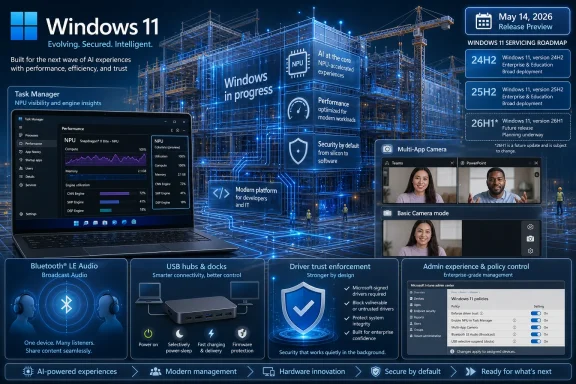
The headline feature in KB5089573 is not the kind that sells a laptop by itself, but it does touch a sore spot in the AI PC era. Task Manager is gaining optional columns for NPU and NPU Engine usage, along with NPU dedicated and shared memory values. Neural engines that are part of a GPU can also appear on the Performance page, giving users and administrators a clearer view of AI-related activity.This is the kind of feature Windows should have had the moment “AI PC” became a retail category. For the past two years, NPUs have been described with a fog of marketing language: TOPS ratings, Copilot branding, local inference promises, and battery-life claims. But if a user cannot see whether an application is actually using the NPU, the silicon becomes a badge rather than an accountable resource.
Task Manager has always been one of Windows’ most important truth-telling tools. CPU spikes, memory leaks, disk churn, and GPU load all become easier to argue about once they are visible. Adding NPU visibility is not just a nerd convenience; it is a necessary step toward making local AI acceleration measurable rather than mystical.
Microsoft is also adding an optional Isolation column that shows which apps are running inside an AppContainer. That belongs in the same philosophical bucket. Windows security and performance features are only useful to administrators when they can be observed, audited, and explained. The more Windows hides its own operating model behind friendly surfaces, the harder it becomes for power users and IT teams to trust it.
Shared Audio Is a Small Feature With a Big Platform Subtext
Shared audio, arriving gradually for 24H2 and 25H2 systems, lets two people listen to the same audio stream from a Windows 11 PC using Bluetooth LE Audio broadcast technology. The consumer pitch is obvious: two people watching a movie on a plane, listening together in a dorm room, or sharing a video without passing around earbuds. It is a modest addition, but it points to a larger Windows problem that Microsoft has been trying to solve for years.Windows is expected to support everything. That is its advantage and its curse. Features that feel seamless on vertically integrated platforms often arrive more slowly on PCs because Microsoft must coordinate silicon, firmware, drivers, Bluetooth stacks, device vendors, and user interface polish across a sprawling ecosystem.
Shared audio depends on supported, paired, and connected devices. That caveat will do a lot of work. Some users will see the toggle and love it; others will wonder why their expensive headphones do not participate. The feature’s success will be judged less by the presence of a button in Quick Settings than by whether hardware support becomes predictable enough for normal people to understand.
Still, this is the right kind of Windows feature. It takes a modern standard, exposes it through a simple system surface, and avoids requiring every app to invent its own sharing model. If it works reliably, it makes the PC feel less like a compatibility warehouse and more like a current consumer device.
The Camera Stack Is Becoming Infrastructure, Not an Accessory
Multi-App Camera and Basic Camera mode are more consequential than their names suggest. Multi-App Camera allows multiple applications to access the same camera stream at once, while Basic Camera mode simplifies camera functionality when troubleshooting or stability matters more than advanced features. Enterprise administrators can control these camera options through Group Policy.That is a very 2026 Windows problem. The webcam is no longer a peripheral you use occasionally. It is authentication hardware, conferencing hardware, streaming hardware, classroom hardware, remote-care hardware, and sometimes a compliance headache. When the camera stack fails, the user does not experience a minor accessory problem; they experience work stoppage.
Multi-app access is particularly important because modern workflows routinely involve overlapping consumers. A meeting app, transcription tool, capture utility, browser session, and security layer may all want camera involvement. Historically, Windows users have learned that whichever app grabs the camera first may become the accidental owner of the session.
Basic Camera mode is the other side of the same coin. IT departments need a way to reduce complexity when drivers, effects, or vendor utilities misbehave. A less ambitious camera path can be the difference between a user joining a meeting and a help desk ticket that ends with reinstalling half the OEM software stack.
Accessibility and Input Fixes Show the Value of Unfashionable Work
Magnifier improvements are easy to skim past, but they are exactly the kind of work that separates an operating system from a product demo. Microsoft says Magnifier now provides clearer and more consistent announcements when used with a screen reader, supports magnification of permitted protected content, and moves more smoothly in lens mode. None of that will trend on social media, but all of it matters to users who depend on accessibility features as primary interfaces.Input reliability gets similar treatment. The update improves touch keyboard invocation on the login screen, explorer.exe reliability when closing the input switcher, and performance when invoking or navigating clipboard history. These are the small frictions that make Windows feel either solid or vaguely cursed.
The login screen touch keyboard fix is a good example. If the keyboard fails inside a running desktop session, the user may have alternatives. If it fails when entering a password or changing credentials, the machine suddenly feels hostile. Reliability at authentication boundaries matters more than reliability inside the comfort of a fully loaded desktop.
Windows has spent years accumulating input modes: keyboard, mouse, touch, pen, voice, controller, accessibility devices, remote sessions, virtual desktops, cloud PCs, and hybrid form factors. The difficulty is no longer adding another input method. The difficulty is making every one of them behave consistently at moments when the shell, security model, and app platform intersect.
Power and Peripheral Fixes Are Where Real Stability Lives
KB5089573 includes fixes for USB4 docks and hubs, USB3 resiliency, sensor hub power behavior, and HID device battery life. This is the least glamorous part of the release and probably the part that will matter most in enterprise fleets. The modern Windows laptop is often only half a computer until it is attached to a dock, external displays, input devices, storage, audio peripherals, and a security stack.USB4 dock reliability remains a sharp edge because docks sit at the intersection of standards, firmware, graphics routing, power delivery, and sleep behavior. A display that does not light up after standby is not merely an annoyance; it is the sort of defect that makes users distrust suspend and resume entirely. When that happens, they reboot more often, disable power-saving behavior, or blame hardware that may not be the real culprit.
The sensor and HID changes point to another recurring Windows issue: power drain caused by components that should be quiet but are not. Microsoft says the update improves resiliency against apps keeping the sensor hub powered on and improves power hygiene when applications initiate HID transfers during standby. In plain English, Windows is still fighting the long war against devices that are technically asleep but not meaningfully resting.
This is also where Microsoft’s telemetry-driven staged rollouts make sense. Peripheral bugs can be wildly hardware-specific. A change that improves reliability for one dock or input stack could expose a regression on another combination of firmware and driver. Gradual rollout is frustrating when users want a new feature immediately, but it is defensible when the blast radius includes docks, displays, authentication devices, and standby power behavior.
26H1 Is a Version Number With an Asterisk Attached
The 26H1 branch is where the release becomes more politically interesting. Microsoft says Windows 11 version 26H1 is designed for specific device hardware and silicon, and its IT documentation makes the point even more bluntly: it is not offered through Windows Update as an in-place update for existing devices and is not intended for broad deployment across the current Windows 11 ecosystem.That is not merely a servicing note. It is a signal that Windows is becoming more willing to differentiate by silicon generation and platform target. Microsoft has always had hardware-specific code paths, of course. What is different here is the visibility of the branch itself and the risk that version naming will imply availability where none exists.
For IT administrators, the recommendation remains straightforward. Windows 11 24H2 and 25H2 continue to be the releases for regular enterprise deployment. Organizations evaluating new hardware platforms can adopt 26H1 selectively, but they should not treat it as the next ring in a normal Windows migration ladder.
For users, the message is harder. A consumer may see 26H1 discussed online and assume their 25H2 machine is behind. In reality, their PC may be on the correct mainstream path. Microsoft’s challenge is that the Windows version number now has to communicate both chronology and platform eligibility, and it does not do that cleanly.
Xbox Mode Turns the PC Into a Living-Room Surface
Build 28000.2173 gives 26H1 one of the flashier additions: Xbox Mode for Windows 11 PCs. Microsoft describes it as a full-screen, console-like experience for laptops, desktops, and tablets, accessible from the Xbox app, Game Bar settings, or with Windows key + F11. The goal is obvious: make Windows behave better when the user wants a controller-first gaming session rather than a desktop session with games on top.This is not a new dream. Microsoft has spent more than a decade trying to reconcile Xbox and Windows gaming without making either side feel compromised. The PC is powerful and open; the console is predictable and lean-back friendly. Xbox Mode is another attempt to borrow the console’s focus without surrendering the PC’s flexibility.
The timing is notable because handheld gaming PCs have made the Windows shell look increasingly awkward. On a desktop monitor, the taskbar, Start menu, notifications, and window chrome are normal. On a seven-inch handheld screen with a controller, they can feel like artifacts from another device category. A full-screen gaming mode is less a luxury than an admission that Windows needs contextual personalities.
The risk is fragmentation of expectation. If Xbox Mode is excellent on 26H1 hardware but absent, delayed, or inconsistent elsewhere, Microsoft will again face the problem of advertising Windows experiences that depend on asterisks. The PC gaming audience is technically literate enough to notice when a feature is real, and impatient enough to punish it when it feels artificially gated.
File Explorer Keeps Absorbing Jobs Once Left to Utilities
The 26H1 build expands File Explorer archive support to include uu, cpio, xar, and NuGet packages. That sounds like a small utility improvement, but it continues a broader trend: Microsoft is slowly turning Explorer into a more capable file management front end for formats that once required third-party tools or developer-specific workflows.NuGet package support is especially telling. A .nupkg file is not a mainstream consumer archive in the way a ZIP file is. It belongs more naturally to developers, build systems, and package distribution. By letting Explorer handle more of these formats, Microsoft is reducing friction for technical users who live between Windows as a workstation and Windows as a development environment.
Explorer also gets quality fixes in this build, including preservation of View and Sort preferences when apps launch directly into common folders, removal of a dark-mode white flash in certain views, and reliability improvements so Explorer-related processes exit more cleanly. These are not banner features, but Explorer is one of the most emotionally loaded parts of Windows. Users forgive abstract platform defects more easily than a file manager that flickers, forgets, hangs, or leaves zombie processes behind.
The irony is that File Explorer is both mundane and sacred. Microsoft can modernize it only so far before users accuse it of tampering with muscle memory. That is why practical format support and reliability fixes often land better than sweeping redesigns.
Driver Trust Is the Security Change Administrators Should Not Ignore
The most consequential 26H1 change may be the Windows driver policy update. Microsoft says the kernel will no longer apply default trust to cross-signed third-party drivers, while drivers from the Windows Hardware Compatibility Program and an allow list of trusted legacy drivers remain permitted. Windows will audit compatibility for at least 100 hours and three restarts before enforcement, after which some cross-signed drivers may be blocked.This is Microsoft tightening one of Windows’ oldest risk zones. Drivers run close to the kernel, and a bad or malicious driver can undermine protections that look strong at the application layer. The history of Windows security is full of reminders that kernel trust is not an administrative detail; it is the foundation beneath the foundation.
The compatibility window is important. Microsoft is not simply flipping a switch and hoping old hardware survives. The 100-hour and three-reboot audit period suggests a cautious rollout model that tries to identify systems likely to break before enforcement begins. That does not eliminate risk, but it shows Microsoft knows the political cost of blocking drivers in the Windows ecosystem.
For enterprises, this is a policy shift to inventory against, not a line item to ignore. Legacy security tools, niche peripherals, industrial equipment, lab gear, old VPN components, and specialized hardware utilities can all depend on driver models that outlive their ideal expiration date. If an organization has tolerated old cross-signed drivers because “they still work,” Microsoft is signaling that this tolerance has a shorter future.
The Enterprise Story Is Control, But Not Yet Simplicity
Build 28000.2173 also adds enterprise-facing changes around app removal, Enterprise State Roaming, Windows Protected Print Mode indicators, kiosk behavior, and batch file processing. The theme is control. Microsoft is giving administrators more levers to define what ships on devices, how state follows users, how printing security is surfaced, and how script execution can be constrained.The policy-based removal of preinstalled Microsoft apps is particularly relevant because it touches a long-running complaint from business customers. Windows Enterprise and Education administrators can use a dynamic app removal list with the “Remove Default Microsoft Store packages” policy, specifying package family names for additional MSIX or APPX-packaged apps. Microsoft notes that the dynamic list is not currently available in the Intune Settings Catalog, which means validation relies on Group Policy or custom OMA-URI.
That caveat matters. Microsoft’s management story often spans old and new control planes, and administrators are left reconciling Group Policy, Intune, CSPs, OMA-URI settings, and documentation that may arrive before the prettiest management interface catches up. The capability is welcome, but the operational path still asks IT departments to know exactly which management layer exposes which knob.
The batch file processing change is another example of Microsoft improving security by narrowing a class of old behavior. Administrators and Application Control for Business policy authors can enable a mode that prevents batch files from changing during execution. It is the kind of setting that will interest security teams more than ordinary users, but it reflects a broader pattern: Windows is trying to make legacy execution surfaces less abusable without breaking the workflows that still depend on them.
Staged Rollout Is Microsoft’s Safety Valve and Its Communication Tax
Both KB5089573 and KB5089570 are described in terms of gradual and normal rollout phases. Gradual rollout means features arrive over time and availability varies by device; normal rollout means broad release to eligible devices, typically around general availability. This model is now central to Windows servicing, but it remains one of the hardest things for users to emotionally accept.From Microsoft’s perspective, staged rollout is rational. Windows runs on too many hardware combinations to treat every update as a single synchronized event. If telemetry shows trouble on a subset of devices, Microsoft can slow or block delivery before the problem becomes universal.
From the user’s perspective, staged rollout can feel arbitrary. Two PCs on the same desk may report the same Windows version but expose different features. A forum thread may fill with screenshots of a toggle that half the readers cannot find. The result is a strange kind of product uncertainty: Windows is installed, updated, and still not necessarily the same Windows everyone else is seeing.
That uncertainty is manageable for small consumer conveniences. It becomes more frustrating when the features affect administration, accessibility, power behavior, or hardware support. Microsoft’s engineering rationale is sound, but the company still has work to do in making staged rollout feel like controlled deployment rather than roulette.
The May 14 Builds Draw a Map of Microsoft’s Windows Priorities
The concrete lessons from these Release Preview builds are less about any one checkbox and more about the direction of the platform. Microsoft is making Windows more observable for AI workloads, more adaptable for modern peripherals, more security-conscious around drivers, and more willing to create hardware-specific branches when the platform demands it.- Windows 11 24H2 and 25H2 users should treat KB5089573 as the mainstream preview update, with NPU visibility, Shared Audio, camera improvements, USB fixes, input reliability work, and shell performance changes arriving through staged rollout.
- Windows 11 26H1 users are on a specialized hardware-targeted branch, not the next ordinary upgrade path for existing 25H2 PCs.
- Task Manager’s new NPU columns are a meaningful step toward making AI PC claims auditable instead of purely promotional.
- The driver trust change in 26H1 is the update administrators should evaluate early, especially in environments with legacy peripherals, specialized hardware, or older security agents.
- Xbox Mode and expanded File Explorer archive support show Microsoft continuing to reshape Windows for gaming devices and developer-adjacent workflows.
- The rollout model remains a double-edged sword because it reduces update risk while making Windows feature availability harder for users and help desks to explain.
Source: igor´sLAB Windows 11: New Release Preview builds for 24H2/25H2 and 26H1|igor´sL…
