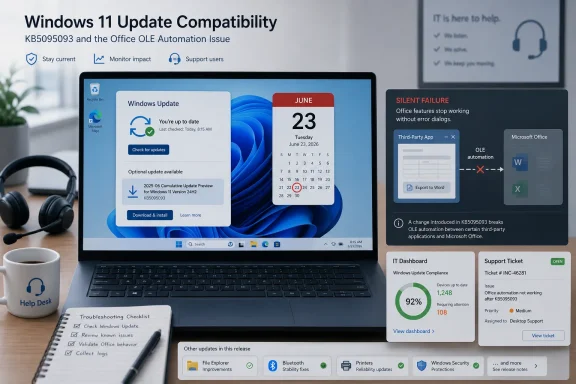
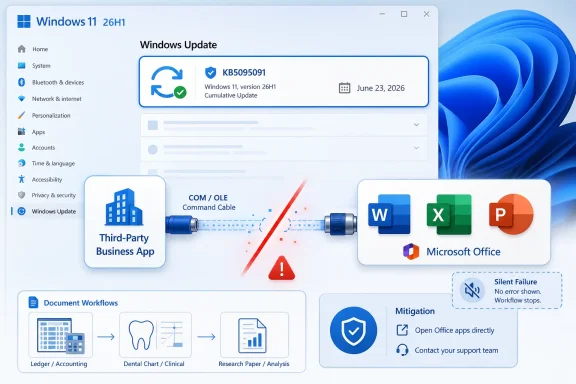
Microsoft’s June 23, 2026 preview update KB5095091 for Windows 11 version 26H1, OS Build 28000.2340, acknowledges that Windows updates released on or after June 9 can prevent some third-party applications from launching Microsoft Office apps or opening Office documents through OLE automation. The immediate workaround is blunt: open the Office file directly, or, for organizations, ask Microsoft Support for a mitigation. That is not a satisfying answer for admins whose business processes are built around document workflows, but it is the clearest sign yet that the June servicing train has tripped over one of Windows’ oldest integration layers. The headline feature work in KB5095091 is useful; the operational story is the Office automation break.
KB5095091 is not a security update. It is a preview cumulative update, the sort of late-month Windows release that gives Microsoft a place to stage fixes, refinements, and smaller feature changes before they roll into the next broader servicing wave. In ordinary months, that distinction lets cautious administrators breathe: preview updates are optional, and production fleets can often wait.
This month is less tidy. The known issue described in KB5095091 is not caused only by the preview update itself. Microsoft says the problem can appear after installing Windows updates released on or after June 9, 2026, which means the damage may already exist on machines that took the regular Patch Tuesday security update earlier in the month.
That timing matters. Optional previews are easy to defer; security updates are harder to avoid, especially in regulated businesses, managed fleets, and cyber-insurance-driven environments where patch cadence is not merely an IT preference. A bug that rides in through the security channel has a different blast radius from a bug introduced by a voluntary preview package.
Microsoft’s language is careful, as it usually is in support notes. It has “received reports” of the issue, the affected apps “might” include Word, Excel, PowerPoint, Access, and other Office applications, and “other similar applications” might also be affected. But the named examples are enough to make the scope feel less theoretical: CCH Engagement, Workpaper Manager, Dentrix, Softdent, and Zotero are not toys. They sit in accounting, dental practices, research workflows, and document-heavy professional environments where Office automation is not a convenience but plumbing.
That is exactly why this bug is so disruptive. The failure is not necessarily that Word cannot open a .docx file when a user double-clicks it. Microsoft’s workaround says users should open the application or document directly instead of launching it from the affected third-party program. The break appears at the boundary between the business application and Office.
For end users, that distinction often disappears. A hygienist trying to open a treatment-plan document from dental software does not care whether the failure happened inside the document management module, COM registration, process creation, permissions enforcement, or an Office startup path. The button did not work, no useful error appeared, and the patient is waiting.
For admins, however, the distinction is everything. If Office itself opens normally, reinstalling Office is likely to waste time. If the third-party app opens normally, reinstalling that app may do the same. The fault line runs through interprocess automation, and that is the place where Windows compatibility promises are both most valuable and most fragile.
Silent failures generate bad tickets. Users report that “Word is broken,” “Zotero lost my document,” or “the client file will not open,” when the actual condition is narrower and harder to prove. Support teams then burn cycles reproducing the path: launch the third-party app, choose the document function, observe nothing, try Office directly, try a different workstation, compare patch levels, ask whether the user recently rebooted, and only then discover the Windows update correlation.
They also generate riskier workarounds. In the absence of a clear message, users invent their own fixes: copying documents to desktops, bypassing managed storage, emailing files to themselves, saving reports outside the system of record, or using stale templates. A bug that merely blocks automation can become a governance problem if the workaround moves documents out of the controlled workflow.
This is where Microsoft’s seemingly modest workaround becomes operationally important. “Open the application or document directly” is not just a tip; it is the new temporary workflow. Organizations affected by this issue need to tell users exactly what “directly” means in their environment, where the authoritative document lives, and which shortcuts are safe.
These are not the places where a support article becomes an abstract compatibility note. They are the places where a failed Office launch interrupts a billable hour, a patient visit, an audit deliverable, a grant deadline, or a manuscript revision. The issue may be narrow in code terms, but it lands in high-friction human processes.
Microsoft’s third-party disclaimer is legally predictable. The company is not warranting the performance or reliability of independent products, and it is careful not to imply that every named product is definitely broken in every configuration. Still, naming the apps is a practical service to administrators. It gives help desks search terms, gives software vendors a common incident vocabulary, and gives users a clue that their local setup is not uniquely cursed.
The list also hints at a broader category: mature Windows applications that treat Office as an automation endpoint rather than a separate productivity suite. That category is huge. It includes custom internal tools, old Access front ends, practice-management systems, document assembly products, reporting engines, legal templates, ERP add-ons, and homegrown scripts whose original author retired two reorganizations ago.
Those are not trivial changes. The NPU visibility work is especially telling, because Microsoft continues to make Windows a more explicit platform for local AI workloads. If neural processing units are going to matter to ordinary users and admins, Task Manager has to show them as first-class resources instead of mysterious silicon doing invisible work.
The camera changes also fit the modern Windows reality. Multiple applications competing for a camera stream has become normal in hybrid work, telehealth, education, and support environments. Giving administrators policy controls over Multi-App Camera and Basic Camera mode is the sort of unglamorous platform work that reduces help desk churn.
But these improvements are crowded off the stage by the Office issue because they represent different kinds of value. NPU columns and camera policy are forward-looking platform investments. Broken Office automation is a backward-compatibility tax. Windows has to do both at once, and this update shows how difficult that balancing act remains.
The Office automation issue is the counterweight. Enterprises do not run Windows merely because they like the Start menu or the settings app. They run Windows because decades of business software assumes Windows behaviors, Office automation patterns, shell conventions, identity mechanisms, printer paths, COM interfaces, and registry state that often predate today’s product strategy.
Microsoft can replace a GIF provider in the emoji panel, improve Dev Drive dialogs, optimize Windows Hello behavior, and adjust Task Manager all in the same release. But the platform’s credibility still depends on whether a practice-management program can open Word when the user clicks the button it has always clicked.
That is why compatibility bugs are emotionally outsized. A new feature that arrives late is annoying. A workflow that worked yesterday and silently fails today feels like a breach of contract, even if no formal support boundary has been crossed. Windows’ value proposition is continuity; every servicing regression spends a little of that trust.
For IT departments, that complicates triage. Machines on the June 23 preview may show the issue, but so may machines that never touched the preview. Machines held back before June 9 may be unaffected, but they may also be missing security fixes. That creates the familiar Windows servicing dilemma: remaining patched may preserve security posture while disrupting business workflow; rolling back may restore workflow while reopening known vulnerabilities.
The answer is rarely a fleet-wide rollback. The better response is targeted evidence gathering. Admins need to identify which systems have affected third-party workflows, which Windows update level they are on, whether Office opens directly, whether the same document opens outside the line-of-business application, and whether vendor-specific updates or advisories exist.
Microsoft says an organizational workaround is available for affected devices through Microsoft Support for business. That wording suggests there may be a mitigation more precise than telling users to open files directly, but it is not being published as a broad public registry key or script in the support note. That is frustrating, but not unusual when a workaround may be configuration-sensitive or carries side effects Microsoft does not want broadly applied.
This is one of the recurring divides in Windows servicing. The organizations most dependent on older automation patterns are not always the organizations with the strongest direct Microsoft support muscle. A dental office running Dentrix through a local managed service provider may experience the same bug as a large enterprise, but its path to a Microsoft-supplied mitigation is longer and less obvious.
Software vendors will therefore become the practical front line. If Dentrix, Softdent, CCH, Zotero, or other affected vendors can reproduce the issue and publish their own guidance, most customers will see that before they see a Microsoft case response. The fastest path to stability may be a triangle: Microsoft identifies the Windows-side change, vendors validate affected workflows, and admins apply either Microsoft’s mitigation or a vendor-specific workaround.
That triangle is messy, but it is how Windows compatibility often works in practice. Microsoft owns the platform, vendors own the integration layer, and customers own the operational pain in between.
The pattern to watch for is specific. If Word, Excel, PowerPoint, or Access will not open from inside another application, but opens normally from the Start menu or when launching the document directly, this known issue should be on the suspect list. If Office is crashing everywhere, refusing activation, or failing to open any document from File Explorer, that may be a different problem.
Home users should resist the urge to perform drastic repairs first. An Office online repair, Windows reset, or third-party registry cleaner is unlikely to be the cleanest first move when Microsoft has already acknowledged a Windows update interaction. The sensible path is to test direct document opening, check update history for June 9 or later Windows updates, and watch for guidance from both Microsoft and the affected application vendor.
The preview nature of KB5095091 also matters for individuals. If you do not need the late-month fixes, and your work depends on Office automation through another app, waiting for the next security update may be wiser than installing a preview immediately. Preview updates are valuable for some users, but they are not a badge of honor.
That model has real advantages. It can limit exposure when a new feature misbehaves, and it gives Microsoft telemetry before changes hit every PC at once. It also creates a strange interpretive problem for admins: two machines may both be “up to date” yet not behave identically if feature availability is staged.
For the Office automation issue, the known issue framing is more important than the staged feature framing. Microsoft ties the problem to Windows updates released on or after June 9, not to a slowly rolling feature flag in the support text. Still, the broader servicing model can make field diagnosis feel blurry. Users report behavior, admins compare machines, and the answer may involve update level, rollout phase, policy state, Office build, vendor version, and local configuration.
This is the price of Windows as a living platform. Microsoft no longer ships monolithic, easily described operating system moments. It ships a stream of cumulative servicing, controlled feature rollout, app updates, Store components, Office channels, policy toggles, and cloud-backed experiences. The support burden is keeping that stream legible.
Those fixes are the reason preview updates exist. Microsoft uses them to move quality improvements faster than the monthly security cadence allows, while still letting organizations choose whether to absorb the risk. For test rings, IT labs, and pilot groups, KB5095091 is exactly the kind of build that should be evaluated before broad deployment.
The problem is that preview updates are also marketing surfaces now. The same release that improves Netlogon and WNS reliability also talks about NPU accounting, Multi-App Camera, and AI component versioning. Windows servicing has become a hybrid artifact: part bug fix rollup, part feature pipeline, part enterprise policy delivery system, part signal of Microsoft’s strategic bets.
That hybrid nature makes the known issues section more important, not less. Admins should read the bottom of the support article before they read the highlights. In this case, the most consequential enterprise information is not the new column in Task Manager. It is the warning that an Office document may not open from the application that users rely on to find it.
Pilot rings become valuable here. If a small set of machines already showed the issue after June 9, the organization should preserve that evidence and use it when contacting Microsoft Support or the third-party vendor. If the issue has not appeared, admins should still test the workflows most likely to use Office automation before approving broader deployment of June updates in sensitive environments.
User communication should be plain and specific. Tell staff that some Office documents may fail to open from inside certain business applications, that Office itself may still work, and that the temporary workaround is to open the document or Office app directly. If the organization has document retention requirements, tell users where not to save copies.
The most important thing is to keep the workaround from becoming a shadow process. Temporary manual opening is acceptable. Scattered document duplication across desktops, downloads folders, and email threads is how a Windows update bug becomes an audit problem.
 Microsoft Ships a Preview Update With a Production-Grade Caveat
KB5095091 is not a security update. It is a preview cumulative update, the sort of late-month Windows release that gives Microsoft a place to stage fixes, refinements, and smaller feature changes before they roll into the next broader servicing wave. In ordinary months, that distinction lets cautious administrators breathe: preview updates are optional, and production fleets can often wait.This month is less tidy. The known issue described in KB5095091 is not caused only by the preview update itself. Microsoft says the problem can appear after installing Windows updates released on or after June 9, 2026, which means the damage may already exist on machines that took the regular Patch Tuesday security update earlier in the month.
That timing matters. Optional previews are easy to defer; security updates are harder to avoid, especially in regulated businesses, managed fleets, and cyber-insurance-driven environments where patch cadence is not merely an IT preference. A bug that rides in through the security channel has a different blast radius from a bug introduced by a voluntary preview package.
Microsoft’s language is careful, as it usually is in support notes. It has “received reports” of the issue, the affected apps “might” include Word, Excel, PowerPoint, Access, and other Office applications, and “other similar applications” might also be affected. But the named examples are enough to make the scope feel less theoretical: CCH Engagement, Workpaper Manager, Dentrix, Softdent, and Zotero are not toys. They sit in accounting, dental practices, research workflows, and document-heavy professional environments where Office automation is not a convenience but plumbing.
OLE Automation Is the Ancient Plumbing Everyone Forgot They Still Needed
The phrase OLE automation sounds like it belongs in a museum display next to beige towers and Visual Basic 6 manuals. In reality, it remains one of the reasons Windows is still sticky in offices, clinics, law firms, accounting practices, and academic departments. It lets one application drive another, passing commands into Word, Excel, Access, or PowerPoint to create documents, populate templates, open files, run macros, export reports, or attach generated output to a client record.That is exactly why this bug is so disruptive. The failure is not necessarily that Word cannot open a .docx file when a user double-clicks it. Microsoft’s workaround says users should open the application or document directly instead of launching it from the affected third-party program. The break appears at the boundary between the business application and Office.
For end users, that distinction often disappears. A hygienist trying to open a treatment-plan document from dental software does not care whether the failure happened inside the document management module, COM registration, process creation, permissions enforcement, or an Office startup path. The button did not work, no useful error appeared, and the patient is waiting.
For admins, however, the distinction is everything. If Office itself opens normally, reinstalling Office is likely to waste time. If the third-party app opens normally, reinstalling that app may do the same. The fault line runs through interprocess automation, and that is the place where Windows compatibility promises are both most valuable and most fragile.
The Silent Failure Is the Worst Part of the Bug
Microsoft says that in some cases the Office application or document might fail to open without displaying an error message. That sentence should raise the pulse of anyone who has ever supported line-of-business Windows software. A visible crash at least gives help desks a breadcrumb. A silent no-op turns the incident into folklore.Silent failures generate bad tickets. Users report that “Word is broken,” “Zotero lost my document,” or “the client file will not open,” when the actual condition is narrower and harder to prove. Support teams then burn cycles reproducing the path: launch the third-party app, choose the document function, observe nothing, try Office directly, try a different workstation, compare patch levels, ask whether the user recently rebooted, and only then discover the Windows update correlation.
They also generate riskier workarounds. In the absence of a clear message, users invent their own fixes: copying documents to desktops, bypassing managed storage, emailing files to themselves, saving reports outside the system of record, or using stale templates. A bug that merely blocks automation can become a governance problem if the workaround moves documents out of the controlled workflow.
This is where Microsoft’s seemingly modest workaround becomes operationally important. “Open the application or document directly” is not just a tip; it is the new temporary workflow. Organizations affected by this issue need to tell users exactly what “directly” means in their environment, where the authoritative document lives, and which shortcuts are safe.
The Named Apps Point to the Real Blast Radius
The list of reported applications is eclectic, but not random. CCH Engagement and Workpaper Manager point toward accounting and audit workflows, where Excel and Word automation are deeply embedded in engagement binders, workpapers, financial statements, and review packages. Dentrix and Softdent point toward dental offices, where Office documents may be invoked from patient records, forms, correspondence, and billing workflows. Zotero points toward researchers and writers who integrate citation management with Word.These are not the places where a support article becomes an abstract compatibility note. They are the places where a failed Office launch interrupts a billable hour, a patient visit, an audit deliverable, a grant deadline, or a manuscript revision. The issue may be narrow in code terms, but it lands in high-friction human processes.
Microsoft’s third-party disclaimer is legally predictable. The company is not warranting the performance or reliability of independent products, and it is careful not to imply that every named product is definitely broken in every configuration. Still, naming the apps is a practical service to administrators. It gives help desks search terms, gives software vendors a common incident vocabulary, and gives users a clue that their local setup is not uniquely cursed.
The list also hints at a broader category: mature Windows applications that treat Office as an automation endpoint rather than a separate productivity suite. That category is huge. It includes custom internal tools, old Access front ends, practice-management systems, document assembly products, reporting engines, legal templates, ERP add-ons, and homegrown scripts whose original author retired two reorganizations ago.
Preview Features Are Not the Story, but They Reveal Microsoft’s Priorities
KB5095091 contains a respectable bundle of improvements. Task Manager gets better visibility into NPU usage, including optional NPU and NPU Engine columns, along with AI-related memory details. Magnifier gains clearer screen reader announcements and support for magnifying permitted protected content. Windows 11 adds a Multi-App Camera feature and a Basic Camera mode, with enterprise policy controls for camera behavior.Those are not trivial changes. The NPU visibility work is especially telling, because Microsoft continues to make Windows a more explicit platform for local AI workloads. If neural processing units are going to matter to ordinary users and admins, Task Manager has to show them as first-class resources instead of mysterious silicon doing invisible work.
The camera changes also fit the modern Windows reality. Multiple applications competing for a camera stream has become normal in hybrid work, telehealth, education, and support environments. Giving administrators policy controls over Multi-App Camera and Basic Camera mode is the sort of unglamorous platform work that reduces help desk churn.
But these improvements are crowded off the stage by the Office issue because they represent different kinds of value. NPU columns and camera policy are forward-looking platform investments. Broken Office automation is a backward-compatibility tax. Windows has to do both at once, and this update shows how difficult that balancing act remains.
Windows 11 26H1 Is Being Asked to Modernize Without Breaking the Office Machine
Windows 11 version 26H1, as represented by OS Build 28000.2340, is moving in the direction Microsoft has been signaling for years: more AI-aware system surfaces, more managed experiences, more performance work around shell launch paths, more integration between Windows features and cloud-backed services. That is the modern Windows agenda.The Office automation issue is the counterweight. Enterprises do not run Windows merely because they like the Start menu or the settings app. They run Windows because decades of business software assumes Windows behaviors, Office automation patterns, shell conventions, identity mechanisms, printer paths, COM interfaces, and registry state that often predate today’s product strategy.
Microsoft can replace a GIF provider in the emoji panel, improve Dev Drive dialogs, optimize Windows Hello behavior, and adjust Task Manager all in the same release. But the platform’s credibility still depends on whether a practice-management program can open Word when the user clicks the button it has always clicked.
That is why compatibility bugs are emotionally outsized. A new feature that arrives late is annoying. A workflow that worked yesterday and silently fails today feels like a breach of contract, even if no formal support boundary has been crossed. Windows’ value proposition is continuity; every servicing regression spends a little of that trust.
The June 9 Anchor Makes Patch Management Messier
The key date in Microsoft’s known issue text is not June 23. It is June 9, 2026. That is when the relevant Windows updates began, according to Microsoft’s description, and it means the problem sits across a servicing window rather than inside a single optional build.For IT departments, that complicates triage. Machines on the June 23 preview may show the issue, but so may machines that never touched the preview. Machines held back before June 9 may be unaffected, but they may also be missing security fixes. That creates the familiar Windows servicing dilemma: remaining patched may preserve security posture while disrupting business workflow; rolling back may restore workflow while reopening known vulnerabilities.
The answer is rarely a fleet-wide rollback. The better response is targeted evidence gathering. Admins need to identify which systems have affected third-party workflows, which Windows update level they are on, whether Office opens directly, whether the same document opens outside the line-of-business application, and whether vendor-specific updates or advisories exist.
Microsoft says an organizational workaround is available for affected devices through Microsoft Support for business. That wording suggests there may be a mitigation more precise than telling users to open files directly, but it is not being published as a broad public registry key or script in the support note. That is frustrating, but not unusual when a workaround may be configuration-sensitive or carries side effects Microsoft does not want broadly applied.
The Enterprise Workaround Is Also a Test of Support Channels
The instruction to contact Microsoft Support for business is doing a lot of work. For enterprises with Premier-style relationships, unified support agreements, or mature escalation paths, that may be manageable. For smaller clinics, local accounting firms, university departments, and nonprofit offices, it may feel like being told the bridge is out and the detour requires a badge.This is one of the recurring divides in Windows servicing. The organizations most dependent on older automation patterns are not always the organizations with the strongest direct Microsoft support muscle. A dental office running Dentrix through a local managed service provider may experience the same bug as a large enterprise, but its path to a Microsoft-supplied mitigation is longer and less obvious.
Software vendors will therefore become the practical front line. If Dentrix, Softdent, CCH, Zotero, or other affected vendors can reproduce the issue and publish their own guidance, most customers will see that before they see a Microsoft case response. The fastest path to stability may be a triangle: Microsoft identifies the Windows-side change, vendors validate affected workflows, and admins apply either Microsoft’s mitigation or a vendor-specific workaround.
That triangle is messy, but it is how Windows compatibility often works in practice. Microsoft owns the platform, vendors own the integration layer, and customers own the operational pain in between.
Home Users May See the Bug Only as a Broken Button
For many WindowsForum readers, the natural question is whether this affects ordinary home PCs. The answer is probably “less often,” but not “never.” Zotero alone makes the issue relevant to students, researchers, writers, and anyone using Word integration for citations or document workflows.The pattern to watch for is specific. If Word, Excel, PowerPoint, or Access will not open from inside another application, but opens normally from the Start menu or when launching the document directly, this known issue should be on the suspect list. If Office is crashing everywhere, refusing activation, or failing to open any document from File Explorer, that may be a different problem.
Home users should resist the urge to perform drastic repairs first. An Office online repair, Windows reset, or third-party registry cleaner is unlikely to be the cleanest first move when Microsoft has already acknowledged a Windows update interaction. The sensible path is to test direct document opening, check update history for June 9 or later Windows updates, and watch for guidance from both Microsoft and the affected application vendor.
The preview nature of KB5095091 also matters for individuals. If you do not need the late-month fixes, and your work depends on Office automation through another app, waiting for the next security update may be wiser than installing a preview immediately. Preview updates are valuable for some users, but they are not a badge of honor.
Microsoft’s Gradual Rollout Language Cuts Both Ways
KB5095091 uses Microsoft’s familiar distinction between gradual rollout and normal rollout. Gradual rollout lets Microsoft stage features and fixes over time, so not every eligible device sees every change immediately. Normal rollout is the broad release phase, when availability becomes general.That model has real advantages. It can limit exposure when a new feature misbehaves, and it gives Microsoft telemetry before changes hit every PC at once. It also creates a strange interpretive problem for admins: two machines may both be “up to date” yet not behave identically if feature availability is staged.
For the Office automation issue, the known issue framing is more important than the staged feature framing. Microsoft ties the problem to Windows updates released on or after June 9, not to a slowly rolling feature flag in the support text. Still, the broader servicing model can make field diagnosis feel blurry. Users report behavior, admins compare machines, and the answer may involve update level, rollout phase, policy state, Office build, vendor version, and local configuration.
This is the price of Windows as a living platform. Microsoft no longer ships monolithic, easily described operating system moments. It ships a stream of cumulative servicing, controlled feature rollout, app updates, Store components, Office channels, policy toggles, and cloud-backed experiences. The support burden is keeping that stream legible.
The Other Fixes Are Useful, Especially for Admins Watching Reliability
It would be unfair to treat KB5095091 as only a known-issue notice. The update fixes a Recycle Bin confirmation problem that could show an internal file name rather than the original file name when permanently deleting a file. It addresses an issue that could cause Outlook and other applications using Windows Push Notification Services to hang. It includes improvements to Netlogon secure channel connections, BitLocker testing reliability, sign-in and lock screen reliability, File Explorer, touch gestures, and theme changes.Those fixes are the reason preview updates exist. Microsoft uses them to move quality improvements faster than the monthly security cadence allows, while still letting organizations choose whether to absorb the risk. For test rings, IT labs, and pilot groups, KB5095091 is exactly the kind of build that should be evaluated before broad deployment.
The problem is that preview updates are also marketing surfaces now. The same release that improves Netlogon and WNS reliability also talks about NPU accounting, Multi-App Camera, and AI component versioning. Windows servicing has become a hybrid artifact: part bug fix rollup, part feature pipeline, part enterprise policy delivery system, part signal of Microsoft’s strategic bets.
That hybrid nature makes the known issues section more important, not less. Admins should read the bottom of the support article before they read the highlights. In this case, the most consequential enterprise information is not the new column in Task Manager. It is the warning that an Office document may not open from the application that users rely on to find it.
The Practical Response Is Boring, Which Is Exactly Why It Works
The right response to this issue is not panic. It is disciplined change management. Affected organizations should avoid turning this into a generic “Office is broken” incident and instead define the failure path precisely: which third-party application, which Office application, which document type, which Windows build, which Office channel, and whether direct launch works.Pilot rings become valuable here. If a small set of machines already showed the issue after June 9, the organization should preserve that evidence and use it when contacting Microsoft Support or the third-party vendor. If the issue has not appeared, admins should still test the workflows most likely to use Office automation before approving broader deployment of June updates in sensitive environments.
User communication should be plain and specific. Tell staff that some Office documents may fail to open from inside certain business applications, that Office itself may still work, and that the temporary workaround is to open the document or Office app directly. If the organization has document retention requirements, tell users where not to save copies.
The most important thing is to keep the workaround from becoming a shadow process. Temporary manual opening is acceptable. Scattered document duplication across desktops, downloads folders, and email threads is how a Windows update bug becomes an audit problem.
The Office Button That Stopped Working Says More Than the Feature List
This release is a reminder that Windows servicing is judged less by its most ambitious new features than by whether old workflows survive the trip. KB5095091 brings useful improvements, but the Office automation issue is the piece administrators should operationalize first.- KB5095091 is a June 23, 2026 preview cumulative update for Windows 11 version 26H1, raising the operating system to Build 28000.2340.
- Microsoft says the Office automation issue can occur after Windows updates released on or after June 9, 2026, so it is not limited to users who install the June 23 preview.
- The affected pattern is Office failing to launch or open documents from certain third-party applications that use OLE automation, while direct opening may still work.
- Microsoft names reported examples including CCH Engagement, Workpaper Manager, Dentrix, Softdent, and Zotero, while warning that similar applications may also be affected.
- The public workaround is to open the Office application or document directly, while organizations can contact Microsoft Support for business for a device mitigation.
- Admins should test document workflows before broad deployment, especially in accounting, dental, research, legal, and other environments where Office is embedded inside line-of-business software.
References
- Primary source: Microsoft Support
Published: Tue, 23 Jun 2026 17:45:16 Z
June 23, 2026—KB5095091 (OS Build 28000.2340) Preview - Microsoft Support
 support.microsoft.com