

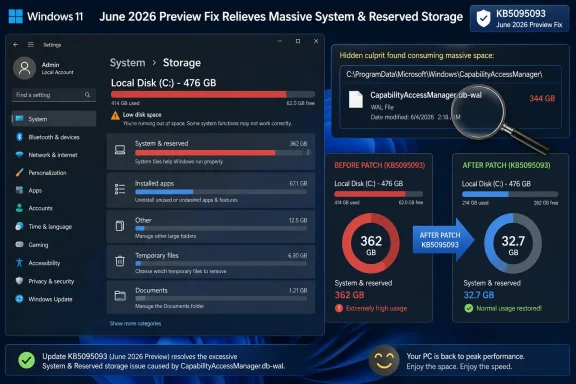
Microsoft’s June 23, 2026 preview update for Windows 11 versions 24H2 and 25H2 addresses a storage bug in which the hidden CapabilityAccessManager.db-wal file could reportedly swell from megabytes into tens, hundreds, and in some cases roughly 500GB on the system drive. The fix, documented quietly in Microsoft’s KB5095093 release notes and amplified by Windows Latest, ExtremeTech, TechRadar, and Windows Central, is less a dramatic new Windows disaster than a familiar Windows maintenance problem: the operating system can still hide very large failures behind very bland wording. For users, the immediate question is simple — where did my free space go? For IT, the larger question is why a privacy-permissions log was allowed to become a storage emergency in the first place.
The most Microsoft thing about this episode is not that a Windows component generated a runaway file. It is that the official description of the fix arrived as a single line: “This update improves disk space usage for the CapabilityAccessManager.db-wal file.” That wording appeared in the KB5095093 preview update, whose release notes say the storage fix was added to the normal rollout on June 29, 2026.
ExtremeTech’s write-up, citing Windows Latest’s reporting, puts a sharper edge on the problem: on affected systems, the file can grow so large that users may lose hundreds of gigabytes of space on their boot drive. Windows Latest connected the terse Microsoft note to user reports of unusually large System files usage and a bloated database write-ahead log under the Capability Access Manager folder. TechRadar and Windows Central subsequently picked up the story, with both outlets emphasizing that the bug could be especially painful on PCs with smaller SSDs.
That matters because Windows 11 no longer lives in a world where every desktop has a 2TB system disk. Many laptops still ship with 256GB or 512GB SSDs, and plenty of business machines are provisioned tightly because storage is one of the easiest places to shave cost at scale. A 60GB leak is annoying. A 200GB leak is operationally disruptive. A 500GB leak on the wrong machine can turn a perfectly functional Windows install into a constant low-disk-space alarm.
The file at the center of the problem is not malware, not a rogue download cache, and not some forgotten user folder. It is part of Windows’ own machinery. That distinction is important because it explains both why users are unlikely to find it casually and why ordinary cleanup rituals may not solve the mystery.
The file attracting attention, CapabilityAccessManager.db-wal, is a write-ahead log. In database terms, a WAL file is not exotic. It is a staging area that helps preserve database integrity by recording changes before they are fully committed to the main database. Under normal conditions, such a file should be small, transient, and largely invisible to the user.
The bug appears to be that, on some systems, the log was not being trimmed or checkpointed as expected. Instead of remaining in the realm of kilobytes or megabytes, it kept growing. Because it lives under C:\ProgramData\Microsoft\Windows\CapabilityAccessManager, it contributes to system storage rather than showing up as an obvious personal file that users can delete from Downloads or Videos.
This is why the symptom can be so maddening. Windows Settings may tell a user that System files are consuming an absurd amount of space, but that category is broad enough to be nearly accusatory rather than explanatory. It points at Windows without telling the user which piece of Windows has gone feral.
The underlying component also gives this bug a slightly ironic cast. The file exists because Windows is trying to keep track of privacy and application-access behavior. Yet when the bookkeeping fails, the user’s experience is not “my privacy controls are broken.” It is “my SSD is full, my updates may fail, and I don’t know why.”
The more direct check is to look for the file itself. The reported path is C:\ProgramData\Microsoft\Windows\CapabilityAccessManager, and the suspicious file is CapabilityAccessManager.db-wal. ProgramData is hidden by default, so users may need to enable hidden items in File Explorer or paste the path directly into the address bar.
If the file is a few megabytes or smaller, there is probably no story. If it is 50GB, 100GB, 200GB, or worse, the mystery of the missing drive space may be solved. Several reports from users on Reddit and Microsoft-adjacent support communities described the file swelling to large sizes over time, with some users recovering substantial space after forcing the database to rebuild.
But that does not mean the best fix is to start deleting system database files by hand. A WAL file is part of a database system, and treating it like a disposable temp file can be risky if the service is actively using it. Microsoft has now shipped an update specifically intended to improve disk usage for that file, which means the first-line recommendation should be to patch, not improvise.
That said, the difficulty of discovery is itself an indictment. A user should not need a disk-usage analyzer, a Reddit thread, and a willingness to spelunk through hidden system folders to figure out why Windows has quietly occupied half a terabyte.
Preview cumulative updates occupy an awkward place in the Windows servicing calendar. They are official, publicly available, and often reliable enough for many users. But they are also optional and arrive before the next mandatory Patch Tuesday security release, which is why cautious administrators often avoid deploying them broadly unless a specific fix is needed.
That distinction matters here. If a system is actively losing disk space, installing KB5095093 may be a reasonable move. If a machine is stable and merely eligible for the update, waiting for the July Patch Tuesday rollup may be the better choice, because Microsoft says preview changes flow into the next security update.
The trade-off is familiar to anyone who manages Windows fleets. Optional previews can solve urgent annoyances earlier, but they also introduce a bundle of unrelated changes. KB5095093 is not just a one-line storage patch. It includes changes across File Explorer, Bluetooth, Widgets, networking, printing, Windows Subsystem for Linux, accessibility, search, taskbar behavior, and other areas.
That bundling is central to modern Windows servicing. Users do not get to install “just the CapabilityAccessManager.db-wal fix.” They install the cumulative update, with all the benefits and all the possible regressions that entails. For home users desperate to reclaim space, that may be fine. For enterprises, it is a testing event.
That context helps explain why the storage fix could be easy to miss. Microsoft’s release notes are written as a running inventory of servicing changes, not as a news story. A line about a database WAL file sits alongside Bluetooth headset behavior, taskbar notification badges, and File Explorer responsiveness when mounting disk images.
For enthusiasts, that is merely irritating. For administrators, it is part of the job. Every cumulative update is both a fix vehicle and a risk container. The fact that the CapabilityAccessManager fix lives inside a broader optional update means IT departments need to decide whether the storage risk outweighs the risk of deploying the preview.
There is also a known issue in the same update involving Microsoft Office applications failing to launch from certain third-party apps after Windows updates released on or after June 9, 2026. Microsoft says the issue affects certain applications that use OLE automation to interact with Office, and it names examples such as CCH Engagement, Workpaper Manager, some dental software, and Zotero. That is exactly the sort of footnote that makes businesses cautious about “just install the optional update” advice.
For consumers, the calculus is more personal. If the system drive is nearly full and CapabilityAccessManager.db-wal is the reason, the preview update is likely less risky than living with a machine that cannot update, cannot create restore points, and may slow down because the SSD has little working room. But users should still understand that they are installing a full cumulative preview, not a single-file cleanup utility.
That ambiguity pushes users toward third-party tools such as WizTree, TreeSize Free, or WinDirStat, which are often better at showing exactly which files consume space. There is nothing inherently wrong with power users reaching for specialized tools. The problem is that the built-in Windows experience still struggles with the most important storage question: what changed?
A modern operating system should be able to say, in plain language, that a specific system file grew by 80GB in the past week. It should be able to flag abnormal growth in a hidden database log. It should not require a user to infer a bug from the fact that “System files” is absurdly large.
The same criticism applies to cleanup. Storage Sense and Disk Cleanup can remove a variety of legitimate detritus, but they are not designed to diagnose a misbehaving service log. When the culprit is a live database file owned by a Windows component, the system needs a service-aware repair path, not another button that deletes temporary files.
This is where Windows still feels old. The operating system has grown increasingly cloud-connected, AI-branded, and telemetry-rich, yet the user-facing explanation of local storage problems remains blunt. Microsoft has more than enough instrumentation to know when a WAL file has grown out of proportion. The question is whether Windows will surface that knowledge to the person whose disk is full.
Still, not every Windows 11 PC is silently losing half a terabyte. Microsoft’s release note does not say the bug affects all systems, does not publish a population count, and does not describe the trigger conditions. The careful conclusion is that this is a real Windows 11 storage bug acknowledged through a servicing fix, but its practical impact appears uneven.
That unevenness is common with Windows bugs because Windows is not one environment. It is an enormous matrix of OEM images, drivers, preinstalled utilities, app behaviors, corporate policies, optional features, Insider builds, and user habits. Some community reports have speculated about OEM utilities or specific app behavior contributing to excessive logging, but Microsoft has not publicly provided a full root-cause analysis.
The lack of a root cause leaves administrators in the uncomfortable position of treating symptoms. They can detect large files. They can deploy the update. They can reclaim space. What they cannot yet do is explain with confidence which machines are most at risk and why.
That matters for fleet management. If an issue is tied to a specific Windows build, OEM package, service state, privacy-access pattern, or third-party app, IT can target remediation. If the public guidance is only “this update improves disk space usage,” the response becomes broader, more manual, and less satisfying.
The safer path begins with installing the fixed cumulative update through Windows Update or the Microsoft Update Catalog, depending on whether the device is managed and how urgent the problem is. After rebooting, users should recheck storage and inspect the CapabilityAccessManager folder. If the file remains huge, a service-aware reset may be needed, but that is the point where most users should prefer official guidance, a backup, or experienced help.
Some community workarounds involve Safe Mode, stopping related services, renaming or deleting the CAM database files, and allowing Windows to rebuild them. Those procedures may work, and some users report recovering large amounts of storage that way. But they are not the advice to give casually to a mainstream audience, especially when Microsoft has now shipped a servicing fix.
For admins, the immediate operational move is more straightforward. Add detection for oversized CapabilityAccessManager.db-wal files, especially on Windows 11 24H2 and 25H2 systems with unexplained System files growth. Then decide whether affected machines justify early deployment of KB5095093 or whether they can wait for the July security update.
That distinction between detection and remediation is important. You do not need to install a preview update across every machine just to know whether the problem exists. You can inventory the file size first, assess urgency, and then patch according to risk.
That sense of opacity is damaging because storage is one of the few resources ordinary users still understand viscerally. They may not know what a servicing stack update is, but they know that 500GB is a lot. They know when the C: drive was fine last month and red this week. They know when Windows tells them to clean up files while Windows itself is the thing making the mess.
The privacy angle also complicates the optics. Capability Access Manager is tied to app permissions and sensitive capabilities. There is no evidence in the reporting that this is a privacy breach, and it should not be described as one. But when a permissions database log balloons wildly, users are entitled to wonder what exactly is being recorded, how long it is being retained, and why the system did not enforce sane limits.
Microsoft does not need to publish every internal detail of every Windows component. It does, however, need better public language for bugs that affect user resources at this scale. “Improves disk space usage” may be technically accurate, but it is not meaningfully transparent when the real-world symptom is hundreds of gigabytes disappearing.
The company has improved Windows servicing in many ways over the past decade. Updates are more cumulative, rollback mechanisms are better, and Windows Update is generally less chaotic than it was in the Windows 10 launch era. But the communication gap remains: the release notes often speak to a database of fixes, while users experience one very specific failure.
Low disk space can block updates, disrupt app installs, prevent crash dumps, interfere with temporary files, and degrade performance. On BitLocker-protected laptops, remote remediation can become painful if a system becomes unstable. On shared workstations, kiosks, or lab machines, a hidden Windows file consuming storage can generate support tickets that look like user behavior until someone digs deeper.
This bug is a reminder that “system” is not a useful root cause category. Endpoint management tools should be able to separate user data growth from OS component growth, update cache growth, restore point growth, and abnormal log growth. If they cannot, administrators end up reacting to symptoms instead of preventing outages.
It also underscores the value of keeping preview update policy intentional. Some organizations avoid optional previews entirely. Others deploy them to pilot rings. Still others use them when they solve a named operational issue. The CapabilityAccessManager bug is a textbook case for targeted preview deployment: find affected machines, test the update, then remediate where the storage pressure is real.
For smaller businesses without mature endpoint telemetry, the practical response can be as simple as adding this file path to a troubleshooting checklist. When someone reports a mysteriously full C: drive on Windows 11, check System & reserved, then check CapabilityAccessManager.db-wal before blaming OneDrive sync, Teams caches, or user downloads.
This is not a demand for simplistic deletion. Databases need integrity, and WAL files exist for a reason. But there is a wide gap between unsafe cleanup and unbounded growth. Windows should be able to detect that a supporting log for a small permissions database has become wildly disproportionate and trigger repair.
There is also a product-design issue. Windows increasingly treats storage as elastic because cloud storage is everywhere and SSD prices have fallen. But the boot drive remains finite, and Windows Update still depends on local headroom. When Microsoft adds more AI components, restore features, richer indexing, recall-like histories, and app integration layers, the need for transparent storage accounting grows rather than shrinks.
KB5095093 itself includes a new point-in-time restore capability, which is useful but also storage-relevant. Restore mechanisms, snapshots, update rollback files, and system databases all compete for the same finite disk. The more Windows does on behalf of the user, the more Windows owes the user clear accounting.
The CapabilityAccessManager incident is therefore not just a bug in a file. It is a stress test of Microsoft’s assumption that background system complexity can remain invisible. It can, until it fills the disk.
That does not change the core fix: Microsoft’s KB5095093 preview update remains the safer remediation path, with the same fix expected to flow into the regular July 2026 security update. But it does strengthen the caution around “just delete the huge file” advice. Capability Access Manager is tied to system permission handling, so removing its database files or disabling its service can have side effects beyond storage cleanup.
For Windows users and admins, the practical takeaway is to treat manual deletion as a last resort, not a first response. Check the file size, install the Microsoft update where needed, reboot, and reassess disk usage before attempting service-level repairs or database resets.
 A Half-Terabyte Bug Hiding Behind a One-Line Changelog
The most Microsoft thing about this episode is not that a Windows component generated a runaway file. It is that the official description of the fix arrived as a single line: “This update improves disk space usage for the CapabilityAccessManager.db-wal file.” That wording appeared in the KB5095093 preview update, whose release notes say the storage fix was added to the normal rollout on June 29, 2026.ExtremeTech’s write-up, citing Windows Latest’s reporting, puts a sharper edge on the problem: on affected systems, the file can grow so large that users may lose hundreds of gigabytes of space on their boot drive. Windows Latest connected the terse Microsoft note to user reports of unusually large System files usage and a bloated database write-ahead log under the Capability Access Manager folder. TechRadar and Windows Central subsequently picked up the story, with both outlets emphasizing that the bug could be especially painful on PCs with smaller SSDs.
That matters because Windows 11 no longer lives in a world where every desktop has a 2TB system disk. Many laptops still ship with 256GB or 512GB SSDs, and plenty of business machines are provisioned tightly because storage is one of the easiest places to shave cost at scale. A 60GB leak is annoying. A 200GB leak is operationally disruptive. A 500GB leak on the wrong machine can turn a perfectly functional Windows install into a constant low-disk-space alarm.
The file at the center of the problem is not malware, not a rogue download cache, and not some forgotten user folder. It is part of Windows’ own machinery. That distinction is important because it explains both why users are unlikely to find it casually and why ordinary cleanup rituals may not solve the mystery.
The Culprit Is a Privacy Ledger, Not a Junk Folder
Capability Access Manager, often shortened to CAM, is one of those Windows components most people never need to think about until it breaks. It is involved in tracking and enforcing access to capabilities such as camera, microphone, location, and other privacy-sensitive resources. When an app asks for access, Windows needs a durable way to record and manage that permission state.The file attracting attention, CapabilityAccessManager.db-wal, is a write-ahead log. In database terms, a WAL file is not exotic. It is a staging area that helps preserve database integrity by recording changes before they are fully committed to the main database. Under normal conditions, such a file should be small, transient, and largely invisible to the user.
The bug appears to be that, on some systems, the log was not being trimmed or checkpointed as expected. Instead of remaining in the realm of kilobytes or megabytes, it kept growing. Because it lives under C:\ProgramData\Microsoft\Windows\CapabilityAccessManager, it contributes to system storage rather than showing up as an obvious personal file that users can delete from Downloads or Videos.
This is why the symptom can be so maddening. Windows Settings may tell a user that System files are consuming an absurd amount of space, but that category is broad enough to be nearly accusatory rather than explanatory. It points at Windows without telling the user which piece of Windows has gone feral.
The underlying component also gives this bug a slightly ironic cast. The file exists because Windows is trying to keep track of privacy and application-access behavior. Yet when the bookkeeping fails, the user’s experience is not “my privacy controls are broken.” It is “my SSD is full, my updates may fail, and I don’t know why.”
The Check Is Easy; The Discovery Was Not
For affected users, the first practical check is mercifully simple. Open Settings, go to Storage, expand the storage categories, and inspect System & reserved. If the System files number is merely large in the ordinary Windows sense — tens of gigabytes, depending on configuration, update state, hibernation, restore points, and installed components — that alone does not prove anything is wrong. If it is in the hundreds of gigabytes, this bug becomes a plausible suspect.The more direct check is to look for the file itself. The reported path is C:\ProgramData\Microsoft\Windows\CapabilityAccessManager, and the suspicious file is CapabilityAccessManager.db-wal. ProgramData is hidden by default, so users may need to enable hidden items in File Explorer or paste the path directly into the address bar.
If the file is a few megabytes or smaller, there is probably no story. If it is 50GB, 100GB, 200GB, or worse, the mystery of the missing drive space may be solved. Several reports from users on Reddit and Microsoft-adjacent support communities described the file swelling to large sizes over time, with some users recovering substantial space after forcing the database to rebuild.
But that does not mean the best fix is to start deleting system database files by hand. A WAL file is part of a database system, and treating it like a disposable temp file can be risky if the service is actively using it. Microsoft has now shipped an update specifically intended to improve disk usage for that file, which means the first-line recommendation should be to patch, not improvise.
That said, the difficulty of discovery is itself an indictment. A user should not need a disk-usage analyzer, a Reddit thread, and a willingness to spelunk through hidden system folders to figure out why Windows has quietly occupied half a terabyte.
KB5095093 Is a Fix, But It Is Also a Preview
Microsoft’s fix is in KB5095093, the June 23, 2026 preview cumulative update for Windows 11 version 24H2 and 25H2. The update raises the relevant builds to 26100.8737 and 26200.8737, and Microsoft describes it as a non-security preview containing production-quality improvements. The storage fix was added to the changelog on June 29.Preview cumulative updates occupy an awkward place in the Windows servicing calendar. They are official, publicly available, and often reliable enough for many users. But they are also optional and arrive before the next mandatory Patch Tuesday security release, which is why cautious administrators often avoid deploying them broadly unless a specific fix is needed.
That distinction matters here. If a system is actively losing disk space, installing KB5095093 may be a reasonable move. If a machine is stable and merely eligible for the update, waiting for the July Patch Tuesday rollup may be the better choice, because Microsoft says preview changes flow into the next security update.
The trade-off is familiar to anyone who manages Windows fleets. Optional previews can solve urgent annoyances earlier, but they also introduce a bundle of unrelated changes. KB5095093 is not just a one-line storage patch. It includes changes across File Explorer, Bluetooth, Widgets, networking, printing, Windows Subsystem for Linux, accessibility, search, taskbar behavior, and other areas.
That bundling is central to modern Windows servicing. Users do not get to install “just the CapabilityAccessManager.db-wal fix.” They install the cumulative update, with all the benefits and all the possible regressions that entails. For home users desperate to reclaim space, that may be fine. For enterprises, it is a testing event.
The Storage Bug Lands in an Already Crowded Update
KB5095093 is a busy update even without the storage story. Microsoft’s release notes highlight new Windows 11 PC experiences, including point-in-time restore, a calendar-style Windows Update pause interface, widget behavior changes, accessibility additions, File Explorer improvements, Bluetooth fixes, networking reliability work, and a shift toward Internet Printing Protocol defaults for supported new printer installations.That context helps explain why the storage fix could be easy to miss. Microsoft’s release notes are written as a running inventory of servicing changes, not as a news story. A line about a database WAL file sits alongside Bluetooth headset behavior, taskbar notification badges, and File Explorer responsiveness when mounting disk images.
For enthusiasts, that is merely irritating. For administrators, it is part of the job. Every cumulative update is both a fix vehicle and a risk container. The fact that the CapabilityAccessManager fix lives inside a broader optional update means IT departments need to decide whether the storage risk outweighs the risk of deploying the preview.
There is also a known issue in the same update involving Microsoft Office applications failing to launch from certain third-party apps after Windows updates released on or after June 9, 2026. Microsoft says the issue affects certain applications that use OLE automation to interact with Office, and it names examples such as CCH Engagement, Workpaper Manager, some dental software, and Zotero. That is exactly the sort of footnote that makes businesses cautious about “just install the optional update” advice.
For consumers, the calculus is more personal. If the system drive is nearly full and CapabilityAccessManager.db-wal is the reason, the preview update is likely less risky than living with a machine that cannot update, cannot create restore points, and may slow down because the SSD has little working room. But users should still understand that they are installing a full cumulative preview, not a single-file cleanup utility.
Windows’ Storage Categories Still Obscure More Than They Reveal
The bug also exposes a longstanding weakness in Windows’ storage reporting. Settings can tell users that System & reserved is massive, but it often does not provide enough granularity to explain why. Windows Update cleanup, hibernation, reserved storage, restore points, driver stores, memory dumps, component store growth, indexing databases, and now a runaway Capability Access Manager WAL file can all blur into the same general region of blame.That ambiguity pushes users toward third-party tools such as WizTree, TreeSize Free, or WinDirStat, which are often better at showing exactly which files consume space. There is nothing inherently wrong with power users reaching for specialized tools. The problem is that the built-in Windows experience still struggles with the most important storage question: what changed?
A modern operating system should be able to say, in plain language, that a specific system file grew by 80GB in the past week. It should be able to flag abnormal growth in a hidden database log. It should not require a user to infer a bug from the fact that “System files” is absurdly large.
The same criticism applies to cleanup. Storage Sense and Disk Cleanup can remove a variety of legitimate detritus, but they are not designed to diagnose a misbehaving service log. When the culprit is a live database file owned by a Windows component, the system needs a service-aware repair path, not another button that deletes temporary files.
This is where Windows still feels old. The operating system has grown increasingly cloud-connected, AI-branded, and telemetry-rich, yet the user-facing explanation of local storage problems remains blunt. Microsoft has more than enough instrumentation to know when a WAL file has grown out of proportion. The question is whether Windows will surface that knowledge to the person whose disk is full.
The 500GB Number Is Real Enough to Matter, But It Needs Context
The headline figure — up to 500GB — is attention-grabbing, and understandably so. ExtremeTech used that framing, and Windows Latest reported cases in which the file reached enormous size. Reddit posts and support discussions show a range of reported values, from tens of gigabytes to 200GB and beyond.Still, not every Windows 11 PC is silently losing half a terabyte. Microsoft’s release note does not say the bug affects all systems, does not publish a population count, and does not describe the trigger conditions. The careful conclusion is that this is a real Windows 11 storage bug acknowledged through a servicing fix, but its practical impact appears uneven.
That unevenness is common with Windows bugs because Windows is not one environment. It is an enormous matrix of OEM images, drivers, preinstalled utilities, app behaviors, corporate policies, optional features, Insider builds, and user habits. Some community reports have speculated about OEM utilities or specific app behavior contributing to excessive logging, but Microsoft has not publicly provided a full root-cause analysis.
The lack of a root cause leaves administrators in the uncomfortable position of treating symptoms. They can detect large files. They can deploy the update. They can reclaim space. What they cannot yet do is explain with confidence which machines are most at risk and why.
That matters for fleet management. If an issue is tied to a specific Windows build, OEM package, service state, privacy-access pattern, or third-party app, IT can target remediation. If the public guidance is only “this update improves disk space usage,” the response becomes broader, more manual, and less satisfying.
The Safe Advice Is Patch First, Delete Second
The temptation with a huge file is to delete it immediately. That instinct is understandable; when a single file is eating 200GB of SSD space, patience feels like a luxury. But system database files are not the same as old installers or browser caches, and careless deletion can create new problems.The safer path begins with installing the fixed cumulative update through Windows Update or the Microsoft Update Catalog, depending on whether the device is managed and how urgent the problem is. After rebooting, users should recheck storage and inspect the CapabilityAccessManager folder. If the file remains huge, a service-aware reset may be needed, but that is the point where most users should prefer official guidance, a backup, or experienced help.
Some community workarounds involve Safe Mode, stopping related services, renaming or deleting the CAM database files, and allowing Windows to rebuild them. Those procedures may work, and some users report recovering large amounts of storage that way. But they are not the advice to give casually to a mainstream audience, especially when Microsoft has now shipped a servicing fix.
For admins, the immediate operational move is more straightforward. Add detection for oversized CapabilityAccessManager.db-wal files, especially on Windows 11 24H2 and 25H2 systems with unexplained System files growth. Then decide whether affected machines justify early deployment of KB5095093 or whether they can wait for the July security update.
That distinction between detection and remediation is important. You do not need to install a preview update across every machine just to know whether the problem exists. You can inventory the file size first, assess urgency, and then patch according to risk.
A Small File Became a Big Trust Problem
Storage bugs hit differently from many Windows defects because they erode a user’s sense of control. A Bluetooth bug is annoying. A File Explorer crash is visible. A missing printer driver has a trail. But a hidden file that quietly eats the system drive feels like the computer is lying by omission.That sense of opacity is damaging because storage is one of the few resources ordinary users still understand viscerally. They may not know what a servicing stack update is, but they know that 500GB is a lot. They know when the C: drive was fine last month and red this week. They know when Windows tells them to clean up files while Windows itself is the thing making the mess.
The privacy angle also complicates the optics. Capability Access Manager is tied to app permissions and sensitive capabilities. There is no evidence in the reporting that this is a privacy breach, and it should not be described as one. But when a permissions database log balloons wildly, users are entitled to wonder what exactly is being recorded, how long it is being retained, and why the system did not enforce sane limits.
Microsoft does not need to publish every internal detail of every Windows component. It does, however, need better public language for bugs that affect user resources at this scale. “Improves disk space usage” may be technically accurate, but it is not meaningfully transparent when the real-world symptom is hundreds of gigabytes disappearing.
The company has improved Windows servicing in many ways over the past decade. Updates are more cumulative, rollback mechanisms are better, and Windows Update is generally less chaotic than it was in the Windows 10 launch era. But the communication gap remains: the release notes often speak to a database of fixes, while users experience one very specific failure.
Enterprise IT Will Read This as a Monitoring Failure
For sysadmins, the lesson is not simply “install KB5095093.” The lesson is that local disk monitoring still matters, even in an era of cloud profiles, OneDrive redirection, Intune management, and increasingly disposable endpoints. A machine with a full system drive is still a machine that fails in practical ways.Low disk space can block updates, disrupt app installs, prevent crash dumps, interfere with temporary files, and degrade performance. On BitLocker-protected laptops, remote remediation can become painful if a system becomes unstable. On shared workstations, kiosks, or lab machines, a hidden Windows file consuming storage can generate support tickets that look like user behavior until someone digs deeper.
This bug is a reminder that “system” is not a useful root cause category. Endpoint management tools should be able to separate user data growth from OS component growth, update cache growth, restore point growth, and abnormal log growth. If they cannot, administrators end up reacting to symptoms instead of preventing outages.
It also underscores the value of keeping preview update policy intentional. Some organizations avoid optional previews entirely. Others deploy them to pilot rings. Still others use them when they solve a named operational issue. The CapabilityAccessManager bug is a textbook case for targeted preview deployment: find affected machines, test the update, then remediate where the storage pressure is real.
For smaller businesses without mature endpoint telemetry, the practical response can be as simple as adding this file path to a troubleshooting checklist. When someone reports a mysteriously full C: drive on Windows 11, check System & reserved, then check CapabilityAccessManager.db-wal before blaming OneDrive sync, Teams caches, or user downloads.
The Fix Arrives, But the Architecture Still Needs Guardrails
The most obvious technical question is why the file was allowed to grow without an apparent ceiling. Logs and database journals can misbehave, but mature systems usually include guardrails: rotation, checkpointing, quotas, compaction, health checks, and alerts. A privacy-permissions database log should not be able to consume a quarter, half, or all of a boot drive without the OS noticing and intervening.This is not a demand for simplistic deletion. Databases need integrity, and WAL files exist for a reason. But there is a wide gap between unsafe cleanup and unbounded growth. Windows should be able to detect that a supporting log for a small permissions database has become wildly disproportionate and trigger repair.
There is also a product-design issue. Windows increasingly treats storage as elastic because cloud storage is everywhere and SSD prices have fallen. But the boot drive remains finite, and Windows Update still depends on local headroom. When Microsoft adds more AI components, restore features, richer indexing, recall-like histories, and app integration layers, the need for transparent storage accounting grows rather than shrinks.
KB5095093 itself includes a new point-in-time restore capability, which is useful but also storage-relevant. Restore mechanisms, snapshots, update rollback files, and system databases all compete for the same finite disk. The more Windows does on behalf of the user, the more Windows owes the user clear accounting.
The CapabilityAccessManager incident is therefore not just a bug in a file. It is a stress test of Microsoft’s assumption that background system complexity can remain invisible. It can, until it fills the disk.
The Fix Is One Update Away, But the Lesson Is in the Path Name
The immediate guidance is concrete, and it is worth treating this as a short diagnostic rather than a panic. If a Windows 11 PC suddenly lost a large amount of free space, especially after normal cleanup tools failed to help, CapabilityAccessManager.db-wal belongs near the top of the suspect list. If the file is normal-sized, move on. If it is huge, patch first and escalate carefully.- Windows 11 users should check Settings > Storage > System & reserved when the C: drive is mysteriously full and ordinary cleanup does not explain the loss.
- The file to inspect is CapabilityAccessManager.db-wal under C:\ProgramData\Microsoft\Windows\CapabilityAccessManager.
- Microsoft’s KB5095093 preview update for Windows 11 24H2 and 25H2 includes the official disk-usage fix for this file.
- Users who are not under immediate storage pressure can reasonably wait for the July 2026 Patch Tuesday update rather than installing the optional preview.
- Administrators should inventory affected systems before broad deployment, because the preview update contains many other changes and at least one notable Office-related known issue.
- Manual deletion should be treated as a last resort, preferably after backup and with an understanding that the file is part of a live Windows database mechanism.
Update: Manual cleanup may disrupt networking (July 8, 2026)
ProPakistani’s follow-up adds a sharper warning for users tempted to reclaim space by deleting CapabilityAccessManager.db-wal or disabling the related Windows service manually. According to its report, some people who tried manual removal or service changes later reported Wi-Fi or broader network connectivity problems.That does not change the core fix: Microsoft’s KB5095093 preview update remains the safer remediation path, with the same fix expected to flow into the regular July 2026 security update. But it does strengthen the caution around “just delete the huge file” advice. Capability Access Manager is tied to system permission handling, so removing its database files or disabling its service can have side effects beyond storage cleanup.
For Windows users and admins, the practical takeaway is to treat manual deletion as a last resort, not a first response. Check the file size, install the Microsoft update where needed, reboot, and reassess disk usage before attempting service-level repairs or database resets.
References
- Primary source: extremetech.com
Published: Tue, 07 Jul 2026 19:16:08 GMT
Windows Might Be Wasting 500GB of Your Storage. Here's How to Check | Extremetech
Microsoft acknowledged the problem when it shipped an update to correct the wastage.www.extremetech.com - Related coverage: techradar.com
Keep running low on storage and don't know why? Mysterious Windows 11 file that ate tons of drive space is fixed in latest update | TechRadar
Latest update finally fixes a 'notorious culprit for system bloat'www.techradar.com - Related coverage: windowsforum.com
Windows 11 KB5095093 Fixes Runaway CapabilityAccessManager.db-wal Disk Use | Windows Forum
Microsoft’s June 23, 2026 optional Windows 11 preview update, KB5095093, includes a fix for runaway disk usage tied to CapabilityAccessManager.db-wal, a...windowsforum.com - Related coverage: windowscentral.com
Windows 11 is accidentally wasting up to 500GB of your PC's storage | Windows Central
A bloated file related to app permissions is gobbling up hard drive space, but Microsoft's latest update addresses the issue.www.windowscentral.com - Related coverage: wintips.org
How to Fix CapabilityAccessManager.db-wal Taking up Huge Disk Space on Windows 11.
This guide explains what the Capability Access Manager is, why its database file (CapabilityAccessManager.db-wal) can grow too large, taking up many gigabytes owww.wintips.org - Related coverage: windowslatest.com
Microsoft admits a Windows 11 bug is eating up to 500GB of storage, verify if you are affected
Microsoft admits a Windows 11 bug is silently eating up to 500GB of your storage, fix coming July 14, 2026. www.windowslatest.com
- Related coverage: computerbase.de
Microsoft bestätigt Bug: Windows 11 kann fehlerbedingt um bis zu 500 GB anwachsen - ComputerBase
Microsoft hat einen Fehler in Windows 11 bestätigt, durch den auf der Systempartition bis zu mehrere hundert Gigabyte belegt werden können.www.computerbase.de
- Official source: microsofters.com
Windows 11 corrige un fallo que devoraba espacio en disco | Microsofters
Microsoft corrige en KB5095093 un fallo de Capability Access Manager que podía hacer crecer un archivo oculto hasta ocupar decenas de GB. microsofters.com
- Related coverage: windowsreport.com
Windows 11 KB5095093 Fixes Massive Disk Space Bug
Windows 11 KB5095093 now fixes a Capability Access Manager issue that caused the db-wal file to use unusually large disk space. windowsreport.com
- Related coverage: scscc.club
- Related coverage: welcomehomevetsofnj.org
Last edited:
