

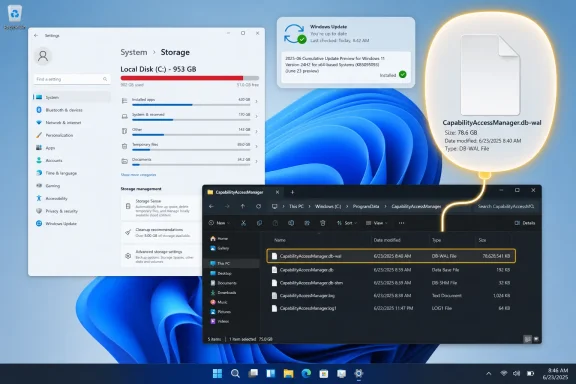
Microsoft acknowledged in late June 2026 that Windows 11 versions 24H2 and 25H2 can mishandle the CapabilityAccessManager.db-wal database log file, allowing it to consume unusually large amounts of storage, and shipped a fix in the June 23 optional preview update KB5095093. The bug is not glamorous, not security-theater material, and not the kind of Windows failure that comes with a blue screen. That is precisely why it matters. A silent system file eating tens or hundreds of gigabytes is the sort of failure that turns modern Windows from an appliance into a scavenger hunt.
As reported by Techgenyz and corroborated by Microsoft’s own KB5095093 release notes, the relevant fix is described in the most Microsoft way imaginable: “improves disk space usage” for CapabilityAccessManager.db-wal. Windows Latest and TechRadar tied that changelog line to months of user reports in which the file grew from ordinary database-log size into 60GB, 100GB, 200GB, and reportedly even 500GB territory. Microsoft’s wording is careful; the practical meaning is not. A privacy-permissions database log that becomes one of the largest files on the system drive is a bug users should never have had to diagnose themselves.
Capability Access Manager is not a household Windows name, but it sits close to features every user recognizes. The service is part of the machinery that tracks and mediates app access to privacy-sensitive capabilities such as the camera, microphone, location, contacts, and other protected resources. In a sane world, that kind of bookkeeping is exactly where Windows should be boring.
The problem appears to sit in the database plumbing behind that bookkeeping. The file at the center of the story, CapabilityAccessManager.db-wal, is a write-ahead log, the kind of file databases use to record changes before folding them back into the main database. A WAL file is supposed to grow temporarily and then be checkpointed, trimmed, or merged away as part of routine database maintenance.
On affected Windows 11 systems, that routine appears to have failed. Users reported the file sitting under the CapabilityAccessManager folder in ProgramData and swelling far beyond any plausible operational need. In Microsoft’s KB5095093 notes, the company does not narrate the failure mechanism in detail, but the fix arriving under a storage heading is enough to confirm that Windows itself needed correction.
That distinction matters because affected users were not merely dealing with “junk files.” They were dealing with a system-owned database artifact tied to a Windows service. When storage analyzers surfaced the file, the next question was not just “Can I delete this?” but “What part of Windows will I break if I do?”
There is a pattern here. Microsoft often uses cumulative update notes as a ledger of repaired symptoms rather than a narrative of user impact. “Improves disk space usage” is technically accurate, but it undersells a failure mode that can make Windows Update fail, break application installs, prevent profile growth, and push small SSD systems into crisis.
For IT pros, the language also complicates triage. A sysadmin reading Microsoft’s note cold might reasonably ask whether this is a minor cleanup optimization or a fix for runaway disk consumption. The difference changes deployment urgency, help-desk scripts, and whether administrators go hunting for oversized WAL files before the next scheduled maintenance window.
The community did the translation work. Reddit threads, Microsoft Q&A posts, Tech Community discussions, and independent reporting connected the terse update note with real-world cases. That is useful, but it is not ideal. If the user community has to reconstruct the severity of a Windows bug from disk screenshots and changelog fragments, the vendor communication has already fallen short.
That is why this bug is more than a curiosity for power users with TreeSize installed. Budget laptops, education devices, kiosks, and shared office PCs live close to the storage floor. When Windows silently burns through 20GB or 60GB, users do not see “CapabilityAccessManager.db-wal is too large.” They see failed updates, mysterious low-disk warnings, apps refusing to install, and support desks asking them to empty Downloads for the third time.
The situation is worse because the file sits in ProgramData, not in a familiar user folder. Storage Settings may show alarming growth in “System & Reserved,” but that category is more of a hint than a diagnosis. Windows has improved its storage UI over the years, yet it still rarely tells ordinary users which specific system-owned file is responsible for runaway consumption.
That opacity is part of the real story. Windows 11 has become a large mesh of background services, local databases, telemetry queues, AI-adjacent components, permissions brokers, update caches, and recovery systems. Most of the time, that complexity is invisible. When one piece misbehaves, the user is handed a nearly forensic problem.
The failure is that the housekeeping contract broke. A WAL file can grow during activity, but the database engine or owning service needs to checkpoint it back into the main database and reclaim disk space. When that cycle stalls, the log becomes a kind of sedimentary record of operations that should already have been compacted away.
That matters because users searching for workarounds found advice ranging from careful service stoppage to blunt deletion. Some reported success after stopping the Capability Access Manager service, removing the oversized file, and letting Windows rebuild it. Others warned that the file could regenerate or that permissions and related services might behave oddly if the wrong thing was removed at the wrong time.
Microsoft has not broadly recommended manual deletion as the normal fix, and that restraint is appropriate. The responsible path is to install the update that corrects the underlying behavior. Manual cleanup may be necessary for machines with critically low free space, but it should be treated as an administrative intervention, not a household maintenance ritual.
For consumers, the phrase “optional preview” can sound like beta software even when the update is intended for broad validation. For enterprises, it is often a nonstarter unless there is a specific problem to solve. Many organizations avoid optional previews because they do not want to absorb new regressions in exchange for non-security fixes.
That creates a dilemma for this particular bug. If a device is actively losing disk space, KB5095093 may be the quickest supported route to relief. If the device is stable, waiting for the next Patch Tuesday rollout is the more conservative path. Since the current date is July 6, 2026, that broader Patch Tuesday cycle is imminent, not theoretical.
The ambiguity is not unique to this incident. Microsoft’s servicing model increasingly uses previews as both a pressure-release valve and a staging lane. Users who need a fix now can take it; everyone else can wait. But when the bug can consume storage silently, the decision is less clean than it looks in a servicing diagram.
That does not mean users should avoid the update categorically. It means the storage fix must be weighed against the update’s broader risk profile. On a machine with 80GB vanishing into a system log, the trade-off is obvious. On a business laptop used daily for printing, imaging, or line-of-business workflows, an administrator may decide to wait for the Patch Tuesday cumulative release after testing.
This is where Microsoft’s compressed release language again becomes a problem. The company’s notes identify fixes and known issues, but they rarely provide the operational color that helps users rank severity. Is the storage fix preventive only? Does it clean existing oversized files after installation? Under what conditions did the WAL fail to checkpoint? Which systems are most likely to be affected?
In the absence of that detail, administrators have to infer from field reports. That is workable for a forum community like WindowsForum.com, where readers are comfortable correlating reports and testing fixes. It is less acceptable for the broader Windows installed base.
The file path matters: the oversized file has been reported under the CapabilityAccessManager folder inside ProgramData. A normal file should be small by the standards of modern storage, usually in the kilobyte-to-megabyte range depending on activity and timing. A file measured in many gigabytes is not normal.
The useful tools are the familiar ones: WizTree, TreeSize Free, WinDirStat, or enterprise inventory scripts that can query file size across managed endpoints. The key is to run them elevated, because system and ProgramData locations may not be fully visible from a standard user context. If the file is huge, the next step is to check Windows Update status and decide whether the optional preview is appropriate or whether the system can wait for the imminent cumulative release.
For administrators, this is scriptable. A simple inventory pass looking for CapabilityAccessManager.db-wal above a defined threshold would identify machines that need attention before users open tickets. The threshold does not need to be perfect. If the file is 5GB, 20GB, or 100GB, the diagnostic conversation is over.
To be fair, modern operating systems need local state. Privacy prompts need history. Databases need logs. Update systems need rollback files. Recovery features need snapshots. The alternative is a fragile OS that cannot remember, repair, or recover.
But every invisible state store needs a budget and a failure mode. If Windows is going to create and maintain system-owned databases, it also needs guardrails that prevent a support file from becoming the largest thing on the drive. A 500GB runaway log is not merely a missed cleanup. It is a missing ceiling.
This is especially relevant as Windows 11 gains more recovery, AI, indexing, and cross-device features. Each new background capability brings storage implications. Users can tolerate that if Windows is transparent and self-correcting. They are less forgiving when the fix arrives as one cryptic line in a preview update after months of community sleuthing.
Techgenyz’s write-up brought the issue to a broader audience, while Windows Latest and TechRadar connected Microsoft’s support note with the growing pile of user reports. The important point is not which outlet first found which thread. It is that the public record of the bug was assembled from Microsoft’s understated release note plus community evidence.
That dynamic has become normal in Windows coverage. Microsoft publishes a minimal line. Users produce screenshots and symptoms. Reporters connect the two. Administrators decide whether the issue is big enough to act on. Somewhere in that chain, a consumer with a nearly full SSD just wants the computer to stop eating itself.
There is a place for concise changelogs. There is also a place for plain-language advisories when a system file can balloon by orders of magnitude. Microsoft does not need to dramatize every defect. But it should not rely on Reddit, support forums, and the tech press to explain why a one-line storage fix matters.
That specificity is useful. Users checking for this bug should look for one file in one location and compare its size against common sense. If the file is small, move on. If it is enormous, the path from symptom to cause is unusually direct.
The fix also does not mean every affected machine instantly becomes healthy the moment the update appears in Windows Update. Some users may need the update to install successfully before cleanup occurs. Some may need a reboot. Some may still have to reclaim space manually if the drive is so full that Windows Update cannot proceed. That last scenario is where the bug becomes especially cruel: the fix may require the very free space the bug consumed.
For managed environments, the sane response is to identify outliers, test the cumulative update, and prioritize machines where the file is already large. There is no reason to panic-scan every endpoint every hour. There is also no reason to ignore a bug that can silently erase the storage margin needed for patching.
Here is the narrow, practical shape of the issue as it stands now:
Microsoft has fixed the immediate CapabilityAccessManager.db-wal problem in preview form, and the wider Patch Tuesday rollout should turn this from an active nuisance into a case study. But the next version of this bug may not involve camera permissions or a WAL file at all. As Windows grows more stateful, more recoverable, and more automated, Microsoft’s obligation is not just to patch the leak after users find the puddle; it is to build an operating system that notices when its own hidden bookkeeping starts consuming the room.
As reported by Techgenyz and corroborated by Microsoft’s own KB5095093 release notes, the relevant fix is described in the most Microsoft way imaginable: “improves disk space usage” for CapabilityAccessManager.db-wal. Windows Latest and TechRadar tied that changelog line to months of user reports in which the file grew from ordinary database-log size into 60GB, 100GB, 200GB, and reportedly even 500GB territory. Microsoft’s wording is careful; the practical meaning is not. A privacy-permissions database log that becomes one of the largest files on the system drive is a bug users should never have had to diagnose themselves.
 A Tiny Privacy Ledger Became a Storage Sinkhole
Capability Access Manager is not a household Windows name, but it sits close to features every user recognizes. The service is part of the machinery that tracks and mediates app access to privacy-sensitive capabilities such as the camera, microphone, location, contacts, and other protected resources. In a sane world, that kind of bookkeeping is exactly where Windows should be boring.The problem appears to sit in the database plumbing behind that bookkeeping. The file at the center of the story, CapabilityAccessManager.db-wal, is a write-ahead log, the kind of file databases use to record changes before folding them back into the main database. A WAL file is supposed to grow temporarily and then be checkpointed, trimmed, or merged away as part of routine database maintenance.
On affected Windows 11 systems, that routine appears to have failed. Users reported the file sitting under the CapabilityAccessManager folder in ProgramData and swelling far beyond any plausible operational need. In Microsoft’s KB5095093 notes, the company does not narrate the failure mechanism in detail, but the fix arriving under a storage heading is enough to confirm that Windows itself needed correction.
That distinction matters because affected users were not merely dealing with “junk files.” They were dealing with a system-owned database artifact tied to a Windows service. When storage analyzers surfaced the file, the next question was not just “Can I delete this?” but “What part of Windows will I break if I do?”
Microsoft’s Changelog Says Less Than Users Needed to Know
Microsoft’s support document for KB5095093 identifies the update as a June 23, 2026 preview cumulative update for Windows 11 versions 24H2 and 25H2, with OS builds 26100.8737 and 26200.8737. The storage entry was added on June 29, according to Microsoft’s own release-note history. That timing is revealing: the fix landed in an optional preview update, while the public explanation remained minimal.There is a pattern here. Microsoft often uses cumulative update notes as a ledger of repaired symptoms rather than a narrative of user impact. “Improves disk space usage” is technically accurate, but it undersells a failure mode that can make Windows Update fail, break application installs, prevent profile growth, and push small SSD systems into crisis.
For IT pros, the language also complicates triage. A sysadmin reading Microsoft’s note cold might reasonably ask whether this is a minor cleanup optimization or a fix for runaway disk consumption. The difference changes deployment urgency, help-desk scripts, and whether administrators go hunting for oversized WAL files before the next scheduled maintenance window.
The community did the translation work. Reddit threads, Microsoft Q&A posts, Tech Community discussions, and independent reporting connected the terse update note with real-world cases. That is useful, but it is not ideal. If the user community has to reconstruct the severity of a Windows bug from disk screenshots and changelog fragments, the vendor communication has already fallen short.
The Machines Most Hurt Are the Ones With the Least Margin
A 500GB storage bug sounds spectacular, but the more common and more damaging cases may be smaller. A 13GB or 25GB hidden system file is annoying on a 2TB desktop. On a 128GB laptop, it can be catastrophic. The Windows ecosystem still contains millions of inexpensive machines where the system drive has very little spare capacity after Windows, Office, browser caches, Teams data, OneDrive placeholders, recovery partitions, and OEM software take their share.That is why this bug is more than a curiosity for power users with TreeSize installed. Budget laptops, education devices, kiosks, and shared office PCs live close to the storage floor. When Windows silently burns through 20GB or 60GB, users do not see “CapabilityAccessManager.db-wal is too large.” They see failed updates, mysterious low-disk warnings, apps refusing to install, and support desks asking them to empty Downloads for the third time.
The situation is worse because the file sits in ProgramData, not in a familiar user folder. Storage Settings may show alarming growth in “System & Reserved,” but that category is more of a hint than a diagnosis. Windows has improved its storage UI over the years, yet it still rarely tells ordinary users which specific system-owned file is responsible for runaway consumption.
That opacity is part of the real story. Windows 11 has become a large mesh of background services, local databases, telemetry queues, AI-adjacent components, permissions brokers, update caches, and recovery systems. Most of the time, that complexity is invisible. When one piece misbehaves, the user is handed a nearly forensic problem.
The WAL File Is Not the Villain; Failed Maintenance Is
It is tempting to treat CapabilityAccessManager.db-wal as the villain because it is the file users can see. That is too simplistic. Write-ahead logging is a normal, durable way to protect database consistency. The presence of a WAL file does not imply bloat, corruption, or bad design by itself.The failure is that the housekeeping contract broke. A WAL file can grow during activity, but the database engine or owning service needs to checkpoint it back into the main database and reclaim disk space. When that cycle stalls, the log becomes a kind of sedimentary record of operations that should already have been compacted away.
That matters because users searching for workarounds found advice ranging from careful service stoppage to blunt deletion. Some reported success after stopping the Capability Access Manager service, removing the oversized file, and letting Windows rebuild it. Others warned that the file could regenerate or that permissions and related services might behave oddly if the wrong thing was removed at the wrong time.
Microsoft has not broadly recommended manual deletion as the normal fix, and that restraint is appropriate. The responsible path is to install the update that corrects the underlying behavior. Manual cleanup may be necessary for machines with critically low free space, but it should be treated as an administrative intervention, not a household maintenance ritual.
Optional Preview Updates Are Now the Awkward Middle Lane
KB5095093 is an optional, non-security preview update. That matters almost as much as the fix itself. Preview updates are where Microsoft ships production-quality improvements before the next mandatory Patch Tuesday cumulative update, but they occupy an ambiguous space for administrators and enthusiasts alike.For consumers, the phrase “optional preview” can sound like beta software even when the update is intended for broad validation. For enterprises, it is often a nonstarter unless there is a specific problem to solve. Many organizations avoid optional previews because they do not want to absorb new regressions in exchange for non-security fixes.
That creates a dilemma for this particular bug. If a device is actively losing disk space, KB5095093 may be the quickest supported route to relief. If the device is stable, waiting for the next Patch Tuesday rollout is the more conservative path. Since the current date is July 6, 2026, that broader Patch Tuesday cycle is imminent, not theoretical.
The ambiguity is not unique to this incident. Microsoft’s servicing model increasingly uses previews as both a pressure-release valve and a staging lane. Users who need a fix now can take it; everyone else can wait. But when the bug can consume storage silently, the decision is less clean than it looks in a servicing diagram.
The Known Issues Make Waiting a Rational Choice
The June preview update does not exist solely to fix CapabilityAccessManager.db-wal. As with most Windows cumulative updates, it contains a bundle of changes, and Microsoft’s release notes also document known issues. Reports around KB5095093 have highlighted problems including Photos app crashes related to the built-in AI eraser tool and certain USB printing trouble on some HP models.That does not mean users should avoid the update categorically. It means the storage fix must be weighed against the update’s broader risk profile. On a machine with 80GB vanishing into a system log, the trade-off is obvious. On a business laptop used daily for printing, imaging, or line-of-business workflows, an administrator may decide to wait for the Patch Tuesday cumulative release after testing.
This is where Microsoft’s compressed release language again becomes a problem. The company’s notes identify fixes and known issues, but they rarely provide the operational color that helps users rank severity. Is the storage fix preventive only? Does it clean existing oversized files after installation? Under what conditions did the WAL fail to checkpoint? Which systems are most likely to be affected?
In the absence of that detail, administrators have to infer from field reports. That is workable for a forum community like WindowsForum.com, where readers are comfortable correlating reports and testing fixes. It is less acceptable for the broader Windows installed base.
The Right First Move Is Measurement, Not Deletion
Users who suspect this bug should not start by deleting system files. They should start by measuring. Windows Settings can show whether “System & Reserved” storage looks abnormal, but the better diagnostic is a disk usage analyzer running with administrative privileges.The file path matters: the oversized file has been reported under the CapabilityAccessManager folder inside ProgramData. A normal file should be small by the standards of modern storage, usually in the kilobyte-to-megabyte range depending on activity and timing. A file measured in many gigabytes is not normal.
The useful tools are the familiar ones: WizTree, TreeSize Free, WinDirStat, or enterprise inventory scripts that can query file size across managed endpoints. The key is to run them elevated, because system and ProgramData locations may not be fully visible from a standard user context. If the file is huge, the next step is to check Windows Update status and decide whether the optional preview is appropriate or whether the system can wait for the imminent cumulative release.
For administrators, this is scriptable. A simple inventory pass looking for CapabilityAccessManager.db-wal above a defined threshold would identify machines that need attention before users open tickets. The threshold does not need to be perfect. If the file is 5GB, 20GB, or 100GB, the diagnostic conversation is over.
Microsoft Keeps Learning the Same Lesson About Invisible State
This episode fits a familiar Windows pattern: the most painful bugs often involve invisible state. Update caches that refuse to clear, component store growth, search index corruption, Teams and Outlook caches, delivery optimization files, temporary profiles, and now a permissions database WAL file all share the same user-facing symptom. The drive fills up, and Windows does not explain itself clearly enough.To be fair, modern operating systems need local state. Privacy prompts need history. Databases need logs. Update systems need rollback files. Recovery features need snapshots. The alternative is a fragile OS that cannot remember, repair, or recover.
But every invisible state store needs a budget and a failure mode. If Windows is going to create and maintain system-owned databases, it also needs guardrails that prevent a support file from becoming the largest thing on the drive. A 500GB runaway log is not merely a missed cleanup. It is a missing ceiling.
This is especially relevant as Windows 11 gains more recovery, AI, indexing, and cross-device features. Each new background capability brings storage implications. Users can tolerate that if Windows is transparent and self-correcting. They are less forgiving when the fix arrives as one cryptic line in a preview update after months of community sleuthing.
The Community Found the Smoke Before Microsoft Named the Fire
One of the healthier parts of the Windows ecosystem is that users still investigate. The reports around CapabilityAccessManager.db-wal show the classic community diagnostic loop: someone notices disk space disappearing, runs a storage analyzer, finds a suspicious file, searches the filename, and discovers others with the same problem. That loop is messy, but it is also powerful.Techgenyz’s write-up brought the issue to a broader audience, while Windows Latest and TechRadar connected Microsoft’s support note with the growing pile of user reports. The important point is not which outlet first found which thread. It is that the public record of the bug was assembled from Microsoft’s understated release note plus community evidence.
That dynamic has become normal in Windows coverage. Microsoft publishes a minimal line. Users produce screenshots and symptoms. Reporters connect the two. Administrators decide whether the issue is big enough to act on. Somewhere in that chain, a consumer with a nearly full SSD just wants the computer to stop eating itself.
There is a place for concise changelogs. There is also a place for plain-language advisories when a system file can balloon by orders of magnitude. Microsoft does not need to dramatize every defect. But it should not rely on Reddit, support forums, and the tech press to explain why a one-line storage fix matters.
The Practical Reading of KB5095093 Is Narrow but Important
KB5095093 should not be treated as a general cure for Windows storage bloat. It addresses a specific file and a specific failure mode. If a PC is low on space because of Windows.old, game installs, OneDrive sync, hibernation files, virtual machines, or developer containers, this update will not magically restore the drive.That specificity is useful. Users checking for this bug should look for one file in one location and compare its size against common sense. If the file is small, move on. If it is enormous, the path from symptom to cause is unusually direct.
The fix also does not mean every affected machine instantly becomes healthy the moment the update appears in Windows Update. Some users may need the update to install successfully before cleanup occurs. Some may need a reboot. Some may still have to reclaim space manually if the drive is so full that Windows Update cannot proceed. That last scenario is where the bug becomes especially cruel: the fix may require the very free space the bug consumed.
For managed environments, the sane response is to identify outliers, test the cumulative update, and prioritize machines where the file is already large. There is no reason to panic-scan every endpoint every hour. There is also no reason to ignore a bug that can silently erase the storage margin needed for patching.
The Clues That Separate This Bug From Ordinary Disk Bloat
The most concrete lesson from this incident is that “System & Reserved” is not a diagnosis. It is a category. When that category looks wrong, users and administrators need to move from Windows’ broad storage view to file-level evidence.Here is the narrow, practical shape of the issue as it stands now:
- Microsoft’s June 23, 2026 KB5095093 preview update for Windows 11 versions 24H2 and 25H2 includes a fix for excessive disk usage tied to CapabilityAccessManager.db-wal.
- The affected file sits under ProgramData in the Microsoft Windows CapabilityAccessManager folder and is associated with the Capability Access Manager service.
- The file should normally be small, so multi-gigabyte growth is a strong signal that the machine has hit the bug or a related database-maintenance failure.
- Users should prefer Windows Update over manual deletion unless storage is critically low and they understand the risks of manipulating system-owned database files.
- Organizations should inventory for unusually large instances of the file before deciding whether to deploy the optional preview immediately or wait for the July Patch Tuesday cumulative update.
- Microsoft’s restrained changelog language understates the impact on small-SSD systems, where even tens of gigabytes of hidden growth can break normal maintenance.
Microsoft has fixed the immediate CapabilityAccessManager.db-wal problem in preview form, and the wider Patch Tuesday rollout should turn this from an active nuisance into a case study. But the next version of this bug may not involve camera permissions or a WAL file at all. As Windows grows more stateful, more recoverable, and more automated, Microsoft’s obligation is not just to patch the leak after users find the puddle; it is to build an operating system that notices when its own hidden bookkeeping starts consuming the room.
References
- Primary source: Techgenyz
Published: Mon, 06 Jul 2026 10:54:13 GMT
- Related coverage: techradar.com
Keep running low on storage and don't know why? Mysterious Windows 11 file that ate tons of drive space is fixed in latest update | TechRadar
Latest update finally fixes a 'notorious culprit for system bloat'www.techradar.com - Official source: support.microsoft.com
- Related coverage: windowslatest.com
Microsoft admits a Windows 11 bug is eating up to 500GB of storage, verify if you are affected
Microsoft admits a Windows 11 bug is silently eating up to 500GB of your storage, fix coming July 14, 2026. www.windowslatest.com
- Related coverage: computerbase.de
Microsoft bestätigt Bug: Windows 11 kann fehlerbedingt um bis zu 500 GB anwachsen - ComputerBase
Microsoft hat einen Fehler in Windows 11 bestätigt, durch den auf der Systempartition bis zu mehrere hundert Gigabyte belegt werden können.www.computerbase.de
- Related coverage: windowsforum.com
Windows 11 KB5095093 Fixes Runaway CapabilityAccessManager.db-wal Disk Use | Windows Forum
Microsoft’s June 23, 2026 optional Windows 11 preview update, KB5095093, includes a fix for runaway disk usage tied to CapabilityAccessManager.db-wal, a...windowsforum.com

- Official source: download.microsoft.com
- Related coverage: bd.com
whitelisted microsoft and third party patches bd alaris products february 2026
PDF documentwww.bd.com