

Microsoft’s June 23, 2026 optional preview update for Windows 11 24H2 and 25H2, KB5095093, improves File Explorer launch performance and responsiveness, moving systems to OS builds 26100.8737 and 26200.8737 while staging the same fixes for broader delivery in July. That is the news, but it is not the whole story. File Explorer is where Microsoft’s grand Windows strategy meets the user’s muscle memory, and a faster launch is less a triumph than an admission that the basics still matter. The argument now raging among Windows diehards is really about whether Windows 11 is slow because NT is old, or because Microsoft keeps hanging modern furniture on a very sturdy old frame.
File Explorer is not a glamour feature. It is not Copilot, not Recall, not a cloud dashboard, not a pitch deck for hybrid work. It is the door users open dozens of times a day to reach downloads, project folders, network shares, screenshots, installers, logs, ISOs, and all the small debris of actual computing.
That is why even a modest launch-speed improvement carries symbolic weight. If File Explorer hesitates on a modern NVMe machine, the user does not blame the shell’s dependency graph, the Home page’s cloud hooks, or the cost of initializing a modern XAML surface. The user blames Windows.
KB5095093 appears to be one of Microsoft’s more practical Windows 11 updates: it targets File Explorer launch speed, improves responsiveness when mounting disk images, and folds in a spread of fixes across the operating system. It is an optional preview update, which means cautious administrators will treat it as a preview of July’s servicing payload rather than as an emergency install.
But the larger significance is that Microsoft is spending real engineering effort on a complaint enthusiasts have been making since Windows 11 shipped. The file manager feels heavier than it should. Context menus have felt delayed. Home can feel overdesigned. Cloud-backed surfaces can feel like they are negotiating with services before letting the user see a folder.
That friction is not catastrophic. It is worse: it is persistent. A one-second pause repeated across thousands of interactions becomes part of the operating system’s personality.
NT’s foundations were not a lazy continuation of DOS-era Windows. The original NT line brought a portable kernel design, hardware abstraction, preemptive multitasking, protected memory, Unicode orientation, NTFS, security descriptors, and a seriousness about system architecture that separated it from the consumer Windows 9x branch. Its design reflected hard-won lessons from earlier operating systems and from the professional workstation/server world Microsoft was trying to enter.
That does not mean NT was perfect from birth. Early NT demanded more hardware than many users had, driver maturity took time, and compatibility was a constant negotiation. NT 4.0’s decision to move more graphics work into kernel mode improved performance but altered the original cleanliness of the user-mode graphics design. Windows 2000 and Windows XP succeeded not because NT was flawless in 1993, but because Microsoft spent years making the architecture usable, compatible, and fast enough for the mainstream.
The commenter’s castle metaphor lands because it distinguishes structure from clutter. The castle may have been built with sound engineering, but the hallways are now full of kiosks, notification banners, sync clients, cloud identity prompts, telemetry plumbing, compatibility shims, and half-modernized rooms where a glassy Windows 11 dialog opens into a decades-old control panel.
That is not an NT problem. It is a product-management problem, an ecosystem problem, and a platform-transition problem.
That does not make Win32 elegant. It is sprawling, historically inconsistent, and full of footguns. Developers have spent decades learning which messages to handle, which APIs to avoid, and which parts of the shell are best treated as folklore.
But Win32 has one advantage that matters enormously on the desktop: it is close to the habits and performance assumptions of Windows itself. It was built for applications that start, paint, handle input, touch files, and exit. It does not require a philosophical explanation before it can show a list view.
Microsoft’s problem is that many of its post-Win32 application frameworks have not convincingly replaced that experience. UWP promised a modern app model but never won the broad desktop developer base. WinUI is technically important and still evolving, but Windows users are not grading architectural intent; they are grading whether Explorer opens quickly and whether right-click feels instant. Electron’s rise on Windows is, in part, a market verdict on Microsoft’s failure to provide a modern native stack that developers consistently prefer.
This is why File Explorer matters. It is a Microsoft-built, Microsoft-maintained, Windows-native application that should be the showcase for the platform. When it feels sluggish, every lecture about modern UI architecture becomes harder to hear.
But clean is not the same as quick. Windows 11’s shell often feels like a hybrid of old and new technologies joined by adapter plates. The user sees a single file manager; underneath, Microsoft is juggling shell extensions, cloud file providers, modern UI layers, decades of compatibility behavior, search integration, thumbnailing, security checks, network locations, OneDrive, Microsoft 365 surfacing, and third-party context-menu history.
The old Explorer could be ugly and still feel immediate. The new Explorer can be visually calmer while feeling more hesitant. That tradeoff is dangerous because the desktop is not a showroom. It is a workshop.
Microsoft has been working through that tension in waves. There have been fixes for context menus, navigation, dark-mode inconsistencies, reliability, and launch behavior. The company previously tested preloading File Explorer in the background, an approach that can make launch feel faster by moving work earlier in the boot or idle cycle. KB5095093’s launch-speed work is notable because reporting indicates it is not merely the same preload trick repackaged.
That distinction matters. Preloading can be useful, but it is also a tell. If the answer to a slow core component is “keep it half-awake at all times,” users reasonably ask why the component became so expensive to start in the first place.
Performance complaints often cluster around that first impression. If Explorer opens to a view that has to assemble recent files, recommended documents, cloud metadata, pinned locations, and account-specific surfaces, then launch performance becomes entangled with personalization. The file manager starts to feel less like a tool and more like a portal.
That is where Microsoft’s incentives collide with user expectations. Microsoft wants Windows to be the front end for services. Users want Windows to be the fast, reliable substrate beneath their work. Both can be true, but only if the service layer never makes the substrate feel slower.
The best version of File Explorer would degrade gracefully. If the cloud is unavailable, if a network path is sleeping, if a Microsoft 365 tenant is not relevant, if the user has disabled recommendations, Explorer should still appear instantly and let the user work. The worst version blocks the user’s local intent behind remote or optional integrations.
KB5095093’s improvements should be judged against that standard. Faster launch is welcome, but the win is durable only if Microsoft has reduced avoidable work rather than hidden it.
That perception matters during migrations. Windows 10’s consumer support deadline has already pushed organizations toward Windows 11, and the remaining Windows 10 estate is increasingly defined by hardware eligibility, application testing, budget cycles, and user acceptance. A sluggish file manager is not a blocker on paper, but it becomes ammunition for every department resisting change.
Optional preview updates like KB5095093 also put administrators in a familiar bind. The fixes may be desirable, but the preview channel is not where conservative shops want to discover a regression in printing, VPN behavior, file operations, or shell extensions. Many will wait for the July cumulative security update unless they are specifically validating the fix for a known pain point.
The right enterprise reaction is measured optimism. Test the update on representative hardware, especially machines with OneDrive known folder move, redirected folders, third-party shell extensions, mapped drives, document management integrations, and endpoint security products. File Explorer is not isolated; it is a meeting place for half the desktop stack.
If Microsoft has improved launch performance without creating new edge-case failures, administrators will take the win. They do not need a manifesto. They need fewer users saying Explorer froze when they mounted an ISO or renamed a folder.
Both arguments contain truth, but one is more technically useful. Windows has accumulated bloat, and modern Microsoft has repeatedly blurred the line between operating system utility and service promotion. Users are not imagining the creep of OneDrive prompts, Microsoft account nudges, Edge tie-ins, ads, recommendations, cloud content, and AI entry points.
But blaming the NT architecture for File Explorer’s Windows 11 sluggishness is like blaming concrete because a hotel lobby added too many revolving displays. The base architecture is not what made the new context menu hesitate. NTFS is not what made the Home page feel busier. The HAL is not what inserted cloud recents into the file manager.
The deeper issue is that Microsoft keeps treating Windows as both a platform and a distribution channel. Every team wants a surface. Every service wants a hook. Every strategy wants a button. The result is not one giant mistake, but a thousand small claims on the user’s attention and the machine’s startup path.
That is why enthusiasts reach for the word bloat. It is imprecise, but it describes the lived experience of a system where the basics sometimes feel subordinated to the roadmap.
But moats are not affection. Gamers may keep Windows because it runs the games, not because they enjoy the shell. Sysadmins may deploy Windows because line-of-business software requires it, not because they admire the Settings app. Developers may use Windows because their toolchain or employer does, while still preferring Unix-like environments for many workflows.
That distinction should worry Microsoft. A platform can remain dominant while losing goodwill. The first effect is jokes. The second is workarounds. The third is migration where migration becomes practical.
The Windows desktop still has enormous strengths: compatibility, hardware breadth, enterprise manageability, driver support, accessibility work, and an application library no rival can casually reproduce. But every slow Explorer launch spends a little of that capital. Every unwanted prompt spends more.
Performance polish is therefore not cosmetic. It is retention work.
Memory is unfair. Old systems were not as perfect as nostalgia claims. Windows XP could rot, Windows 7 had its own baggage, and Windows 10 accumulated plenty of rough edges. But memory does not need to be benchmark-accurate to shape user sentiment.
When a Windows 11 user says an old Win32 tool feels faster, Microsoft has a messaging problem. When a 2026 desktop with fast storage makes opening a folder feel less immediate than users expect, Microsoft has an engineering problem. When both happen at once, Microsoft has a trust problem.
The company’s recent performance push suggests it understands this. Reports around Windows 11 improvements in 2026 have emphasized File Explorer, context menus, folder navigation, search, app launch time, memory usage, and reliability. Those are not flashy features. They are the substrate.
That is the right priority. Windows does not need more surfaces before it needs faster surfaces.
There is also the problem of measurement. Microsoft’s release notes say performance is improved, but users will judge across different hardware, account types, shell extensions, folder contents, and enterprise configurations. A clean test VM is not a photo editor’s media folder, a developer’s node_modules tree, or an accountant’s SharePoint-synced document library.
The most credible path is iterative and boring: reduce startup work, defer optional surfaces, isolate slow providers, improve cancellation, make network and cloud failures non-blocking, and keep optimizing WinUI and shell integration until modern Explorer feels native rather than layered. That is not a single update. It is a discipline.
Microsoft should also keep giving users escape hatches. Let Explorer open to This PC. Let cloud recommendations be quiet. Let administrators control service-backed surfaces. Let local workflows remain first-class. The fastest code is sometimes the code the user never asked to run.
KB5095093 is encouraging because it addresses a daily irritation instead of merely adding another feature. It acknowledges that File Explorer’s feel matters, that performance is a feature, and that the shell has to earn back confidence one interaction at a time. For a company often accused of chasing AI headlines while the desktop creaks, that is the right kind of unglamorous work.
Still, users are right to be skeptical. Windows has seen many “finally faster” moments that solved one hitch while leaving the broader heaviness intact. The real test is whether Explorer remains faster after months of updates, third-party integrations, cloud sync activity, and enterprise policy layers.
A castle can survive centuries because its foundation is sound. But if every owner adds signage, wires, kiosks, velvet ropes, and sponsored plaques, eventually visitors stop admiring the stonework and start complaining that they cannot get through the door.
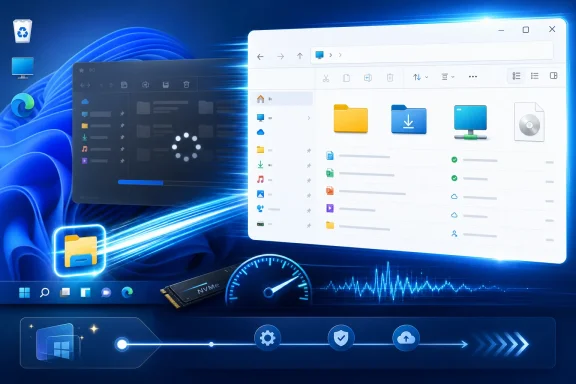 Microsoft Finally Tunes the Door Everyone Walks Through
File Explorer is not a glamour feature. It is not Copilot, not Recall, not a cloud dashboard, not a pitch deck for hybrid work. It is the door users open dozens of times a day to reach downloads, project folders, network shares, screenshots, installers, logs, ISOs, and all the small debris of actual computing.That is why even a modest launch-speed improvement carries symbolic weight. If File Explorer hesitates on a modern NVMe machine, the user does not blame the shell’s dependency graph, the Home page’s cloud hooks, or the cost of initializing a modern XAML surface. The user blames Windows.
KB5095093 appears to be one of Microsoft’s more practical Windows 11 updates: it targets File Explorer launch speed, improves responsiveness when mounting disk images, and folds in a spread of fixes across the operating system. It is an optional preview update, which means cautious administrators will treat it as a preview of July’s servicing payload rather than as an emergency install.
But the larger significance is that Microsoft is spending real engineering effort on a complaint enthusiasts have been making since Windows 11 shipped. The file manager feels heavier than it should. Context menus have felt delayed. Home can feel overdesigned. Cloud-backed surfaces can feel like they are negotiating with services before letting the user see a folder.
That friction is not catastrophic. It is worse: it is persistent. A one-second pause repeated across thousands of interactions becomes part of the operating system’s personality.
The NT Core Is Not the Villain in This Story
The easiest rant is that Windows is old, bloated, and doomed by legacy code. It is also the least precise explanation. Windows NT is old in the same way Unix is old, TCP/IP is old, and the x86 PC ecosystem is old: the age is not the defect; the accumulated compromises are.NT’s foundations were not a lazy continuation of DOS-era Windows. The original NT line brought a portable kernel design, hardware abstraction, preemptive multitasking, protected memory, Unicode orientation, NTFS, security descriptors, and a seriousness about system architecture that separated it from the consumer Windows 9x branch. Its design reflected hard-won lessons from earlier operating systems and from the professional workstation/server world Microsoft was trying to enter.
That does not mean NT was perfect from birth. Early NT demanded more hardware than many users had, driver maturity took time, and compatibility was a constant negotiation. NT 4.0’s decision to move more graphics work into kernel mode improved performance but altered the original cleanliness of the user-mode graphics design. Windows 2000 and Windows XP succeeded not because NT was flawless in 1993, but because Microsoft spent years making the architecture usable, compatible, and fast enough for the mainstream.
The commenter’s castle metaphor lands because it distinguishes structure from clutter. The castle may have been built with sound engineering, but the hallways are now full of kiosks, notification banners, sync clients, cloud identity prompts, telemetry plumbing, compatibility shims, and half-modernized rooms where a glassy Windows 11 dialog opens into a decades-old control panel.
That is not an NT problem. It is a product-management problem, an ecosystem problem, and a platform-transition problem.
Win32 Remains the Awkward Benchmark Microsoft Cannot Escape
The uncomfortable fact for Microsoft is that old Windows software often still feels fast. Not beautiful, not touch-friendly, not adaptive, not cloud-aware — fast. A compact Win32 utility can open instantly, draw controls without drama, and do its job before a modern framework has finished deciding how many layers of composition it needs.That does not make Win32 elegant. It is sprawling, historically inconsistent, and full of footguns. Developers have spent decades learning which messages to handle, which APIs to avoid, and which parts of the shell are best treated as folklore.
But Win32 has one advantage that matters enormously on the desktop: it is close to the habits and performance assumptions of Windows itself. It was built for applications that start, paint, handle input, touch files, and exit. It does not require a philosophical explanation before it can show a list view.
Microsoft’s problem is that many of its post-Win32 application frameworks have not convincingly replaced that experience. UWP promised a modern app model but never won the broad desktop developer base. WinUI is technically important and still evolving, but Windows users are not grading architectural intent; they are grading whether Explorer opens quickly and whether right-click feels instant. Electron’s rise on Windows is, in part, a market verdict on Microsoft’s failure to provide a modern native stack that developers consistently prefer.
This is why File Explorer matters. It is a Microsoft-built, Microsoft-maintained, Windows-native application that should be the showcase for the platform. When it feels sluggish, every lecture about modern UI architecture becomes harder to hear.
Windows 11 Made the Shell Prettier Before It Made It Faster
Windows 11’s File Explorer redesign brought visual coherence in places where Windows 10 looked increasingly tired. The command bar was simplified, spacing became more touch-friendly, icons were refreshed, tabs arrived, and the Home page became a more central launch surface. For many users, the result looks cleaner.But clean is not the same as quick. Windows 11’s shell often feels like a hybrid of old and new technologies joined by adapter plates. The user sees a single file manager; underneath, Microsoft is juggling shell extensions, cloud file providers, modern UI layers, decades of compatibility behavior, search integration, thumbnailing, security checks, network locations, OneDrive, Microsoft 365 surfacing, and third-party context-menu history.
The old Explorer could be ugly and still feel immediate. The new Explorer can be visually calmer while feeling more hesitant. That tradeoff is dangerous because the desktop is not a showroom. It is a workshop.
Microsoft has been working through that tension in waves. There have been fixes for context menus, navigation, dark-mode inconsistencies, reliability, and launch behavior. The company previously tested preloading File Explorer in the background, an approach that can make launch feel faster by moving work earlier in the boot or idle cycle. KB5095093’s launch-speed work is notable because reporting indicates it is not merely the same preload trick repackaged.
That distinction matters. Preloading can be useful, but it is also a tell. If the answer to a slow core component is “keep it half-awake at all times,” users reasonably ask why the component became so expensive to start in the first place.
The Home Page Became a Performance and Trust Boundary
File Explorer’s Home view is one of the most consequential design changes in modern Windows because it turned the file manager’s starting point into a personalized, cloud-aware surface. That may be useful in a Microsoft 365 enterprise where recent files, shared documents, and identity-backed content are part of the workflow. It is less obviously useful to a local-first user who just wants This PC, a NAS share, or a downloads folder.Performance complaints often cluster around that first impression. If Explorer opens to a view that has to assemble recent files, recommended documents, cloud metadata, pinned locations, and account-specific surfaces, then launch performance becomes entangled with personalization. The file manager starts to feel less like a tool and more like a portal.
That is where Microsoft’s incentives collide with user expectations. Microsoft wants Windows to be the front end for services. Users want Windows to be the fast, reliable substrate beneath their work. Both can be true, but only if the service layer never makes the substrate feel slower.
The best version of File Explorer would degrade gracefully. If the cloud is unavailable, if a network path is sleeping, if a Microsoft 365 tenant is not relevant, if the user has disabled recommendations, Explorer should still appear instantly and let the user work. The worst version blocks the user’s local intent behind remote or optional integrations.
KB5095093’s improvements should be judged against that standard. Faster launch is welcome, but the win is durable only if Microsoft has reduced avoidable work rather than hidden it.
Administrators Will Measure This in Tickets, Not Feelings
For IT pros, File Explorer performance is not a matter of aesthetics. It affects help-desk volume, user confidence, and upgrade resistance. When a user moves from Windows 10 to Windows 11 and says “my computer is slower,” they often mean the shell, Start menu, Explorer, search, and context menus — not kernel scheduling or raw disk throughput.That perception matters during migrations. Windows 10’s consumer support deadline has already pushed organizations toward Windows 11, and the remaining Windows 10 estate is increasingly defined by hardware eligibility, application testing, budget cycles, and user acceptance. A sluggish file manager is not a blocker on paper, but it becomes ammunition for every department resisting change.
Optional preview updates like KB5095093 also put administrators in a familiar bind. The fixes may be desirable, but the preview channel is not where conservative shops want to discover a regression in printing, VPN behavior, file operations, or shell extensions. Many will wait for the July cumulative security update unless they are specifically validating the fix for a known pain point.
The right enterprise reaction is measured optimism. Test the update on representative hardware, especially machines with OneDrive known folder move, redirected folders, third-party shell extensions, mapped drives, document management integrations, and endpoint security products. File Explorer is not isolated; it is a meeting place for half the desktop stack.
If Microsoft has improved launch performance without creating new edge-case failures, administrators will take the win. They do not need a manifesto. They need fewer users saying Explorer froze when they mounted an ISO or renamed a folder.
Enthusiasts Are Arguing About Bloat Because Microsoft Trained Them To
The forum exchange around this story is more interesting than the update itself because it captures the emotional split in the Windows community. One side sees Windows as a bloated surveillance-era operating system propped up by gaming, inertia, and enterprise lock-in. The other side sees NT as fundamentally sound and blames Microsoft’s modern layering, service ambitions, and framework churn for obscuring a strong base.Both arguments contain truth, but one is more technically useful. Windows has accumulated bloat, and modern Microsoft has repeatedly blurred the line between operating system utility and service promotion. Users are not imagining the creep of OneDrive prompts, Microsoft account nudges, Edge tie-ins, ads, recommendations, cloud content, and AI entry points.
But blaming the NT architecture for File Explorer’s Windows 11 sluggishness is like blaming concrete because a hotel lobby added too many revolving displays. The base architecture is not what made the new context menu hesitate. NTFS is not what made the Home page feel busier. The HAL is not what inserted cloud recents into the file manager.
The deeper issue is that Microsoft keeps treating Windows as both a platform and a distribution channel. Every team wants a surface. Every service wants a hook. Every strategy wants a button. The result is not one giant mistake, but a thousand small claims on the user’s attention and the machine’s startup path.
That is why enthusiasts reach for the word bloat. It is imprecise, but it describes the lived experience of a system where the basics sometimes feel subordinated to the roadmap.
Gaming Keeps Windows Safe, But Not Loved
The comment about DirectX is blunt, but it points to an important reality. Gaming remains one of Windows’ strongest consumer moats. The combination of DirectX, driver support, anti-cheat compatibility, game-store assumptions, peripheral utilities, and decades of developer targeting keeps Windows central to PC gaming even as Linux gaming has improved dramatically through Proton and Steam Deck momentum.But moats are not affection. Gamers may keep Windows because it runs the games, not because they enjoy the shell. Sysadmins may deploy Windows because line-of-business software requires it, not because they admire the Settings app. Developers may use Windows because their toolchain or employer does, while still preferring Unix-like environments for many workflows.
That distinction should worry Microsoft. A platform can remain dominant while losing goodwill. The first effect is jokes. The second is workarounds. The third is migration where migration becomes practical.
The Windows desktop still has enormous strengths: compatibility, hardware breadth, enterprise manageability, driver support, accessibility work, and an application library no rival can casually reproduce. But every slow Explorer launch spends a little of that capital. Every unwanted prompt spends more.
Performance polish is therefore not cosmetic. It is retention work.
The Real Competition Is the Memory of Windows Itself
Windows 11 is not only competing with macOS, Linux desktops, ChromeOS, or SteamOS. It is competing with remembered Windows. Users remember Windows 7’s snap, Windows 10’s relative familiarity, and even earlier eras when the shell felt less mediated by online services.Memory is unfair. Old systems were not as perfect as nostalgia claims. Windows XP could rot, Windows 7 had its own baggage, and Windows 10 accumulated plenty of rough edges. But memory does not need to be benchmark-accurate to shape user sentiment.
When a Windows 11 user says an old Win32 tool feels faster, Microsoft has a messaging problem. When a 2026 desktop with fast storage makes opening a folder feel less immediate than users expect, Microsoft has an engineering problem. When both happen at once, Microsoft has a trust problem.
The company’s recent performance push suggests it understands this. Reports around Windows 11 improvements in 2026 have emphasized File Explorer, context menus, folder navigation, search, app launch time, memory usage, and reliability. Those are not flashy features. They are the substrate.
That is the right priority. Windows does not need more surfaces before it needs faster surfaces.
A Faster Explorer Is Welcome, But the Bar Is Higher Than It Looks
The risk for Microsoft is declaring victory too early. File Explorer can launch faster and still feel burdened if the context menu lags, if thumbnails crawl, if network folders hang the window, if search is inconsistent, or if cloud-backed views make local file management feel secondary. The user experiences Explorer as a whole, not as a collection of patched subsystems.There is also the problem of measurement. Microsoft’s release notes say performance is improved, but users will judge across different hardware, account types, shell extensions, folder contents, and enterprise configurations. A clean test VM is not a photo editor’s media folder, a developer’s node_modules tree, or an accountant’s SharePoint-synced document library.
The most credible path is iterative and boring: reduce startup work, defer optional surfaces, isolate slow providers, improve cancellation, make network and cloud failures non-blocking, and keep optimizing WinUI and shell integration until modern Explorer feels native rather than layered. That is not a single update. It is a discipline.
Microsoft should also keep giving users escape hatches. Let Explorer open to This PC. Let cloud recommendations be quiet. Let administrators control service-backed surfaces. Let local workflows remain first-class. The fastest code is sometimes the code the user never asked to run.
The Castle Still Stands, But the Corridors Need Clearing
The argument over NT versus bloat should end with a practical distinction. Windows’ underlying architecture has proved remarkably durable. The modern Windows experience, however, is only as good as the layers Microsoft keeps adding above it.KB5095093 is encouraging because it addresses a daily irritation instead of merely adding another feature. It acknowledges that File Explorer’s feel matters, that performance is a feature, and that the shell has to earn back confidence one interaction at a time. For a company often accused of chasing AI headlines while the desktop creaks, that is the right kind of unglamorous work.
Still, users are right to be skeptical. Windows has seen many “finally faster” moments that solved one hitch while leaving the broader heaviness intact. The real test is whether Explorer remains faster after months of updates, third-party integrations, cloud sync activity, and enterprise policy layers.
A castle can survive centuries because its foundation is sound. But if every owner adds signage, wires, kiosks, velvet ropes, and sponsored plaques, eventually visitors stop admiring the stonework and start complaining that they cannot get through the door.
The July Patch Will Tell Us Whether This Is Polish or a Pattern
The concrete readout from KB5095093 is simple, but the implications are broader than one preview build. Microsoft is trying to show that Windows 11 can become faster in the places users actually touch.- Microsoft’s KB5095093 preview update targets Windows 11 versions 24H2 and 25H2 and includes File Explorer launch and responsiveness improvements.
- The File Explorer work matters because the file manager is one of the most frequently used and most emotionally judged parts of Windows.
- The slowdown complaints are better understood as a modern shell and services problem than as a failure of the NT architecture.
- Administrators should validate the update against shell extensions, OneDrive configurations, mapped drives, endpoint security tools, and real user workflows before broad deployment.
- Microsoft’s long-term challenge is not merely making Explorer open faster, but making the entire Windows shell feel less encumbered by optional cloud and service layers.
- The strongest defense of Windows remains its compatibility and ecosystem, but those strengths do not excuse daily friction in core tools.
References
- Primary source: TechPowerUp
Published: 2026-07-01T16:50:23.744447
Loading…
www.techpowerup.com - Related coverage: techradar.com
Windows 11's File Explorer is getting a long-awaited revamp — but here's hoping a future update doesn't ruin it | TechRadar
The revamp I've been waiting forwww.techradar.com - Related coverage: windowscentral.com
Windows 11’s huge July 14 update is loaded with new features — these are the 13 that matter most | Windows Central
Windows 11's July 2026 update is bigger than expected, bringing a new recovery feature, long-requested update controls, and many improvements.www.windowscentral.com - Related coverage: notebookcheck.net
Windows 11 update speeds up File Explorer launch times - Notebookcheck News
Microsoft launches Windows 11 update KB5095093, delivering a major speed boost to File Explorer by cleaning up the Home tab layout and fixing BITS shutdown lag. www.notebookcheck.net
- Related coverage: techspot.com
Windows 11's updated File Explorer remains painfully slow despite using twice as much RAM | TechSpot
Microsoft's solution for the sluggish Windows 11 File Explorer is more of a workaround than a proper fix. To boost response times, the OS now preloads the...www.techspot.com - Related coverage: tweaktown.com
Microsoft finally improves File Explorer launch speed in Windows 11
Microsoft's new update speeds up File Explorer's launch time on Windows 11, part of an ongoing string of performance fixes for the app. www.tweaktown.com
- Related coverage: windowslatest.com
Microsoft is giving Windows 11 File Explorer a speed boost, dark mode fix, and reducing explorer.exe crashes
Microsoft now says it's preparing a big update for File Explorer that would allow it to run faster, address 'white flashes,' and more. www.windowslatest.com
- Related coverage: pcworld.com
Loading…
www.pcworld.com - Related coverage: tomshardware.com
Microsoft promises major improvements to Windows 11 performance, reliability, and updates — lower RAM usage, fewer Copilot interactions, and enhanced File Explorer incoming | Tom's Hardware
It only took four years to get the taskbar working properly.www.tomshardware.com - Related coverage: pcgamer.com
Loading…
www.pcgamer.com - Related coverage: notebookcheck.org
La versión preliminar de Windows 11 KB5095093 incorpora la función de restauración a un punto concreto en el tiempo - NotebookCheck.org News
Microsoft lanza la actualización opcional de vista previa de Windows 11 KB5095093 para las versiones 24H2 y 25H2, que introduce la restauración a un punto concreto en el tiempo y un parche para la visualización de la Papelera de reciclaje. www.notebookcheck.org
- Official source: support.microsoft.com
- Related coverage: windowsforum.com
KB5095093 Preview for Windows 11 24H2/25H2: IPP Printing, Local AI, Secure Boot | Windows Forum
Microsoft released KB5095093 on June 23, 2026, as an optional preview update for Windows 11 versions 24H2 and 25H2, moving 24H2 to Build 26100.8737 and 25H2...windowsforum.com - Related coverage: windowsreport.com
Loading…
windowsreport.com - Related coverage: allthings.how
Windows 11 KB5095093 preview brings Point-in-time Restore (build 26200.8728)
The July 2026 preview update adds system recovery snapshots, calendar-based update pausing, and quieter Widgets across 25H2 and 24H2.allthings.how - Related coverage: pureinfotech.com
KB5095093 (build 26200.8737) for Windows 11 drops as part of the July 2026 update (preview) - Pureinfotech
KB5095093 for Windows 11 (build 26200.8737) introduces Point-in-time Restore, Widgets changes, and major improvements to File Explorer, Bluetooth, and the system. pureinfotech.com
- Related coverage: notebookcheck.it
Loading…
www.notebookcheck.it - Related coverage: techrounder.com
how to fix nvidia gpu performance drop and low fps in windows 11 24h2 and 25h2
PDF documentwww.techrounder.com
- Official source: techcommunity.microsoft.com
- Related coverage: static1.squarespace.com
Loading…
static1.squarespace.com
