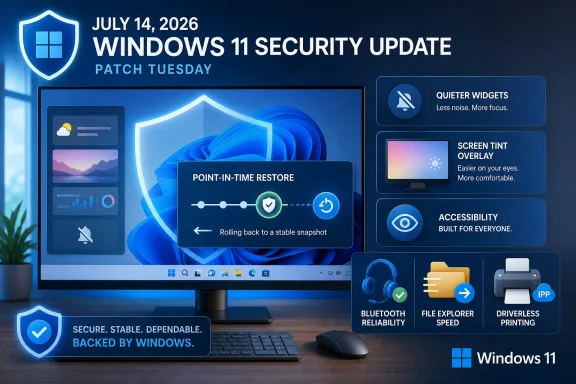
The headline feature is deceptively simple: Windows can now keep recent, automatic, full-system snapshots and roll the machine back to one of them in minutes. The important part is not that Windows has discovered restore points in 2026. The important part is that this new mechanism treats the PC as a coherent state — operating system, applications, settings, and local personal files — rather than pretending that system health and user data live in separate universes.
Microsoft Finally Admits That “System” and “User” Were Never Separate Problems
System Restore has always occupied an odd place in Windows. It was useful enough to be remembered fondly by many power users, limited enough to disappoint anyone who expected it to behave like a true time machine, and hidden enough that many Windows 11 PCs never had it meaningfully configured in the first place. Its promise was recovery without reinstalling Windows; its reality was recovery with caveats.
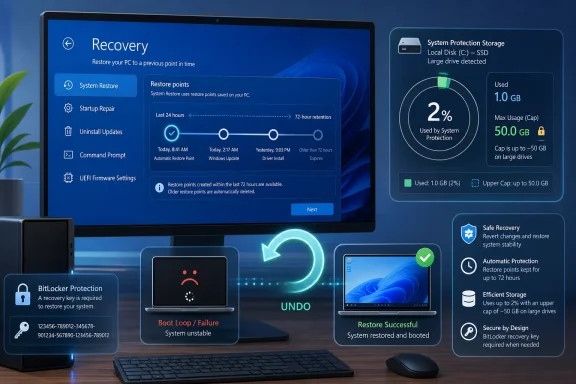
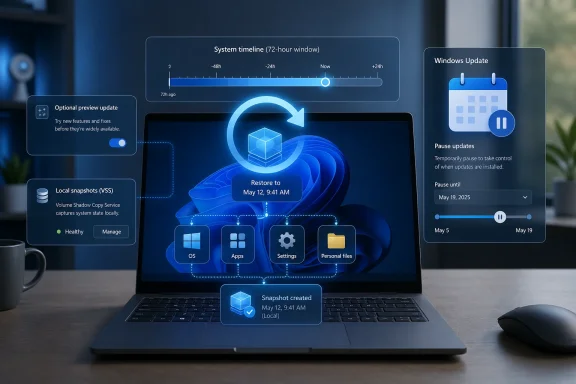
Point-in-Time Restore is Microsoft’s attempt to close that gap by making the restore target the entire local system state. The snapshots are captured using Volume Shadow Copy Service, stored locally, and created automatically on a schedule that defaults to once every 24 hours. Each restore point is retained for up to 72 hours, after which it is automatically deleted.
That short retention window is the clue to Microsoft’s intent. This is not a replacement for backup, cloud sync, file history, enterprise disaster recovery, or a properly imaged workstation fleet. It is a panic button for the most common modern Windows failure: something changed yesterday, the machine is now wrong, and the user or admin needs to put it back quickly.
The old System Restore model was born in an era when the PC was mostly a software stack with some documents nearby. The new model assumes the machine is a live workspace, where the damage caused by a bad driver, botched update, broken app install, or misapplied setting may be inseparable from the files and configuration changes that happened around it. That is a much more honest model of how people actually use Windows.
The 72-Hour Clock Is the Feature, Not the Fine Print
The most obvious complaint about Point-in-Time Restore is also the most important design choice: three days is not very long. System Restore could hold restore points for far longer, subject to disk space and cleanup behavior. Point-in-Time Restore deliberately narrows the window.
That trade-off makes sense if the target is rapid recovery from recent breakage rather than archival rollback. A restore point from six weeks ago may look comforting in a UI, but using it on a production machine can be a mess of stale applications, outdated credentials, missing patches, and unpredictable file state. Microsoft appears to be optimizing for the moment when the user can still remember what went wrong.
The 72-hour limit also keeps the storage story from becoming ridiculous. Full-system local snapshots that include personal files are inherently more ambitious than System Restore’s selective model. Without a firm retention policy and managed allocation, the feature would risk becoming another quiet disk-space tax on already cramped laptops.
This is why Microsoft’s comparison with System Restore matters. Point-in-Time Restore is automatic by default when enabled, has a defined retention maximum, uses reserved storage allocation, and aims at full system state. System Restore is more flexible in some ways, but it is also more dependent on user configuration, legacy control panel surfaces, and the ambiguous boundary between “system” and “not system.”
The result is a tool that is less romantic but more operational. It does not promise a museum of your PC’s past. It promises a short, recent escape hatch.
The Real Upgrade Is Psychological
Windows recovery has long suffered from a trust problem. Users are told to back up, sync, restore, reset, reinstall, repair, roll back, or troubleshoot, but the menu of options often feels like a taxonomy of anxiety. Each tool protects a different slice of the machine, and the user has to understand the difference at precisely the moment something has gone wrong.
Point-in-Time Restore reduces that cognitive load. If a machine can be returned to the state it was in yesterday afternoon — including Windows, installed applications, settings, and local files — the recovery decision becomes easier to understand. The user is no longer being asked to know whether the problem lives in the registry, a driver package, a profile folder, an app dependency, or a configuration file.
That matters for consumers, but it may matter even more for small businesses and loosely managed environments. Not every Windows fleet is wrapped in Intune policy, image management, endpoint detection, cloud backup, and disciplined change control. Many real-world Windows PCs are semi-managed, occasionally patched, full of locally important data, and supported by whoever in the room knows the most about computers.
For those machines, a short-window full rollback could be transformative. It is not enterprise resilience in the formal sense. It is a practical reduction in downtime for the class of incidents that normally turn into hours of trial-and-error repair.
There is also a subtle admission here about Windows itself. Microsoft has spent years making Windows Update more reliable, drivers more controlled, app deployment more sandboxed, and recovery options more accessible. Yet the company is still investing in a feature that assumes things will break badly enough that users need to go back in time. That is not pessimism. It is maturity.
KB5095093 Is a Preview Update With a Production-Sized Payload
KB5095093 applies to Windows 11 version 24H2 and version 25H2, moving 24H2 to build 26100.8737 and 25H2 to build 26200.8737. Because it is an optional preview update, it does not include security fixes and will not be treated the same way as Patch Tuesday’s mandatory cumulative releases. Users typically get it by manually checking Windows Update or by enabling Microsoft’s “get the latest updates” toggle.
That distinction matters. Optional previews are where Microsoft increasingly stages non-security fixes, feature enablement, and quality improvements before the next broader cumulative release. Enthusiasts often install them early; conservative admins usually wait unless a specific fix matters.
Point-in-Time Restore is also a gradual rollout feature. Installing KB5095093 may be necessary, but it may not be sufficient for the controls to appear immediately on every eligible device. Microsoft’s Windows feature delivery model now routinely separates the presence of code from the activation of user-visible capability.
That approach gives Microsoft room to manage telemetry, compatibility, and staged enablement. It also gives users another reason to feel that Windows Update is less a single event than a continuing negotiation. The build number may say the machine is current; the settings app may not yet expose the thing everyone is talking about.
For IT departments, that means testing KB5095093 cannot stop at “did the patch install?” The real evaluation is whether Point-in-Time Restore appears, how much storage it reserves, how it behaves under policy, and what the restore workflow looks like on real hardware.
The Recycle Bin Bug Is Small, but It Shows Why Preview Updates Exist
One of the more visible fixes in KB5095093 addresses a Recycle Bin issue introduced with June’s Patch Tuesday release. When permanently deleting a file, Windows could display an internal system filename in the confirmation dialog instead of the original filename. That is not the kind of bug that brings down a fleet, but it is exactly the kind of bug that makes users distrust the operating system.
Deletion prompts are supposed to be boring. If Windows asks whether you want to permanently delete a file, the filename is not ornamental; it is the last line of defense before user error becomes data loss. Showing the wrong name or an internal name turns a familiar confirmation into a moment of uncertainty.
This is the unglamorous side of cumulative updates. The same servicing machinery that delivers major platform shifts also carries repairs for small paper cuts that arrived only weeks earlier. Microsoft’s monthly update cadence means defects and fixes now travel through the same public pipeline, sometimes in rapid succession.
The preview channel gives Microsoft a place to land those repairs before they become part of the next security cumulative update. That is useful, but it also leaves users with a choice: take the optional update early and accept preview risk, or wait and live with the bug a little longer.
For most home users, the answer depends on how much they care about the new features. For administrators, the answer should depend on testing and incident pressure. Optional does not mean experimental, but it does mean the urgency is different.
The GIF Provider Switch Is the Weirdly Urgent Part
The most time-sensitive change in KB5095093 may not be recovery at all. Windows 11’s emoji panel includes GIF search, and that integration has depended on Google’s Tenor service. With the Tenor API being retired at the end of June 2026, Microsoft is switching the Windows integration to GIPHY.
This is a tiny feature until it breaks. Then it becomes a reminder that modern operating systems contain a surprising number of cloud dependencies hiding behind simple keyboard shortcuts. Press Windows plus period, search for a reaction GIF, and suddenly the health of a third-party API matters to the desktop shell.
Microsoft says devices that do not receive KB5095093 or a later update before the cutoff may see a “GIF service is not available” message when using GIF search in the emoji panel. That is not a catastrophic failure, but it is a visible one, and visible failures produce support tickets disproportionate to their technical seriousness.
There is also a larger story here about Windows as a connected product. The shell is no longer just local code and resources. It includes web-backed search, widgets, recommendations, identity hooks, cloud content, AI services, and third-party integrations. The more Windows behaves like a service, the more it inherits the lifecycle problems of services.
In that light, the GIPHY switch is not trivia. It is maintenance of the modern desktop’s supply chain.
Windows Update Gets a Calendar Instead of a Guessing Game
KB5095093 also adds a more precise pause option for Windows Update, letting users choose a specific end date up to 35 days out instead of pausing only by preset intervals. That sounds minor, but it fixes a real usability flaw. People plan around dates, not around abstract chunks of update deferral.
For consumers, the improvement is convenience. For small offices, schools, labs, and field machines, it is more practical. A user can pause updates until after a presentation, a trip, an event, or a payroll cycle without counting weeks in their head.
This does not change Microsoft’s basic Windows Update philosophy. The company still wants consumer and lightly managed devices to remain current, and the 35-day limit preserves that. But a calendar-based pause recognizes that “not now” often has a perfectly legitimate end date.
It is also consistent with the broader theme of KB5095093. Microsoft is reducing the amount of Windows knowledge required to make a safe decision. A restore point every 24 hours is easier than configuring legacy protection settings. A calendar pause is easier than mentally translating update windows. Recovery and servicing are becoming less arcane, at least at the surface.
The hard part will be making sure the underlying behavior matches the simplicity of the interface. Windows Update has trained many users to expect exceptions, restarts, deferrals that do not quite defer, and toggles whose meaning changes depending on edition, policy, or rollout state. A better pause UI only works if it behaves predictably.
Bluetooth and Voice Improvements Round Out a Very 2026 Windows Update
Beyond recovery and update controls, KB5095093 includes quality improvements that speak to the kinds of devices people actually connect to Windows PCs now. Microsoft says AirPods should appear faster when entering pairing mode, and Beats Studio Pro reliability improves as well. That is the Windows ecosystem in miniature: Microsoft’s desktop must work gracefully with Apple-linked accessories because users do not buy peripherals according to platform strategy decks.
Bluetooth remains one of the great everyday sources of Windows irritation. It has improved substantially over the years, but pairing delays, unreliable reconnects, and inconsistent headset behavior still shape user perception of the OS. A faster AirPods pairing experience will not make headlines like Point-in-Time Restore, but it may be felt more often.
Voice access and voice typing also expand to French, German, and Spanish, with real-time grammar and punctuation correction during dictation. That is part accessibility feature, part productivity feature, and part Microsoft’s continuing attempt to make speech input feel less like a demo and more like a normal way to operate a PC. The language expansion matters because voice tools that work only for English-speaking users are not truly platform-level features.
These additions make KB5095093 feel less like a single-feature release and more like one of Microsoft’s now-familiar Windows 11 bundles: a recovery feature here, a shell dependency fix there, input improvements, device reliability, and update plumbing. The cumulative update has become the delivery vehicle for nearly everything.
That is efficient, but it also makes each update harder to evaluate. A user may want the GIF fix, not the new recovery feature. An admin may want the Recycle Bin correction, not the staged shell changes. Microsoft’s packaging increasingly asks everyone to accept Windows as a moving bundle rather than a menu.
The Known Office Issue Is a Reminder That Recovery Cuts Both Ways
KB5095093 still carries a known issue from June’s Patch Tuesday cycle involving some third-party applications that launch Microsoft Office apps or open Office documents from inside another app. In affected scenarios, the handoff can fail, while opening Office apps directly remains the workaround. Microsoft says a fix is coming in a future update.
That kind of bug is exactly why Point-in-Time Restore is compelling and exactly why it must be handled carefully. If a patch breaks a workflow, rapid rollback can be a lifesaver. But if rollback also reverts local files and application state, the decision is more consequential than undoing a driver.
This is the central tension of full-system restore. The more complete the rollback, the more useful it is when the machine’s state is corrupted. The more complete the rollback, the more it can undo work the user intended to keep. Microsoft is choosing coherence over selectivity, and that is probably the right call for a short-window recovery tool, but it demands clear messaging in the restore experience.
Users need to understand that Point-in-Time Restore is not a file recovery feature. It is not “undo the bad update but keep everything else exactly as I touched it afterward.” It is “return the machine to that captured point.” That distinction should be explicit every time the restore workflow runs.
Administrators will also need to think about policy boundaries. On shared machines, lab PCs, kiosks, and lightly managed business systems, restoring local files may be desirable or dangerous depending on the use case. A feature that saves a home user from a botched install could erase a student’s local-only work if misunderstood.
This Is Not a Backup Strategy, No Matter How Much It Looks Like One
The danger of Point-in-Time Restore is that it looks enough like backup to be mistaken for backup by exactly the people who need backup most. A full local snapshot that includes personal files sounds reassuring. The problem is that it lives on the same device, expires quickly, and is designed for recent operational recovery.
If the SSD dies, the snapshots die with it. If ransomware encrypts local data and the attacker can affect shadow copies, the feature may not save the user. If a user deletes a file and notices a week later, the 72-hour window has already closed. If a laptop is stolen, local restore points are irrelevant.
Microsoft deserves credit for tightening the everyday rollback story, but the old hierarchy still applies. Cloud sync protects some user files across devices. Backup protects against device loss and delayed discovery. Enterprise recovery protects business continuity. Point-in-Time Restore protects against the fresh wound.
This distinction will be especially important because the feature’s best demo is dramatic. Break the machine, press restore, and watch Windows return in minutes. That is the kind of experience that can convince users they are protected more broadly than they are.
The right mental model is not “Windows now backs itself up.” It is “Windows now has a short-term black box recorder.” When something goes wrong soon after it happened, the recorder may let you rewind the crash. It does not replace keeping a copy of the flight data somewhere else.
Enterprise IT Will Like the Direction and Worry About the Edges
For managed environments, Point-in-Time Restore is promising because it attacks downtime. A help desk that can tell a user to roll back to yesterday’s known-good state may avoid a reimage, a desk visit, or a long remote-control session. In branch offices and small teams, that could be a meaningful productivity gain.
But enterprise enthusiasm will depend on controls, reporting, and predictability. Administrators will want to know how restore points are configured, how storage is allocated, how the feature interacts with encryption, endpoint security, compliance tooling, data loss prevention, and update rings. They will also want clear logs when a restore happens.
The feature’s local-file scope creates governance questions. In some environments, reverting user files may be unacceptable without explicit consent or backup validation. In others, it may be exactly what makes the feature useful, especially where applications store critical state locally and traditional user-profile redirection is not comprehensive.
There is also the question of support burden. If Point-in-Time Restore becomes another option users discover independently, help desks may inherit machines that have been rolled back without context. A successful restore can still create confusion if an app version, policy state, or local file set no longer matches what backend systems expect.
That does not make the feature bad. It makes it real. Any recovery technology powerful enough to save time is powerful enough to surprise the support desk.
Microsoft Is Building a Recovery Stack, Not a Single Button
Point-in-Time Restore should be read alongside Microsoft’s broader push to modernize Windows recovery. Quick Machine Recovery, Windows Update reliability work, cloud reset, repair installs through Windows Update, and servicing stack improvements all point in the same direction. Microsoft wants fewer Windows failures to end in wipe-and-reload.
That ambition is overdue. For years, Windows recovery has been a patchwork of legacy control panels, boot environment tools, cloud downloads, OEM recovery partitions, restore points, image backups, and command-line incantations. Power users could navigate it. Ordinary users often could not.
The new direction is more opinionated. Microsoft is trying to automate capture, shorten decision paths, and make recovery faster. It is also accepting that modern Windows needs multiple rollback layers: some for failed updates, some for unbootable machines, some for recent local corruption, and some for full reset.
The challenge is coherence. If Windows exposes too many recovery options with overlapping names and subtly different consequences, users will still be lost. “Reset this PC,” “repair using Windows Update,” “System Restore,” “Point-in-Time Restore,” “File History,” and “OneDrive restore” can all be technically distinct and still blur together in a crisis.
The best version of this future is a recovery experience that starts with plain-language outcomes. Keep my files but repair Windows. Restore the whole PC to yesterday. Recover a deleted file. Reinstall clean. The machinery can be complex underneath; the decision should not be.
The June Preview Turns Windows Recovery Into a Three-Day Escape Hatch
KB5095093 is worth treating as more than a routine optional update because it changes what Windows can promise after a bad day. The practical details matter more than the marketing name, especially for anyone deciding whether to install the preview now or wait for broader rollout.
- KB5095093 was released on June 23, 2026, for Windows 11 versions 24H2 and 25H2, moving them to builds 26100.8737 and 26200.8737 respectively.
- Point-in-Time Restore creates automatic local snapshots on a default 24-hour schedule and retains each restore point for up to 72 hours.
- Restoring returns the PC’s operating system, installed applications, settings, and local personal files to the captured state, which makes it more complete than traditional System Restore.
- The update is optional and contains no security fixes, so cautious users and organizations can wait unless they need one of its specific fixes or feature changes.
- The GIF search provider change is time-sensitive because devices without KB5095093 or a later update may lose emoji-panel GIF search after the Tenor API cutoff on June 30, 2026.
- The remaining known Office launch issue means some workflows still need testing before broad deployment in environments where third-party apps open Office files directly.
The most important thing Microsoft has done here is not invent restoration; it has narrowed the promise until it may actually be dependable. Point-in-Time Restore does not absolve anyone from backups, and it will not eliminate the need for disciplined update testing, but it gives Windows 11 a modern short-term rollback mechanism that matches how failures usually arrive: suddenly, locally, and with the user needing the machine back now. If Microsoft can make the experience clear, controllable, and boringly reliable, the three-day window may become one of Windows 11’s most useful safety nets precisely because it does not pretend to be anything larger.