

If the clock, notification area, or network/volume/battery cluster disappeared after installing Windows 11 update KB5101650, first document the symptom and audit the effective user policy in the affected user’s session. This service procedure covers Windows 11 versions 24H2 and 25H2 on locally managed, domain-managed, and MDM-managed PCs; as of July 18, 2026, Microsoft had not classified a missing tray as a known KB5101650 issue.
Similar-looking clock and system-tray symptoms can have different causes, so use the following decision tree to separate a configured restriction from a Windows shell or update interaction.
Microsoft’s Windows 11, version 24H2 release-health page documents the Dell/Intel compatibility hold involving KB5101650. As of July 18, 2026, the page did not list a missing clock, missing notification area, or vanished network/volume/battery cluster as a known issue for the update.
That leaves three cases to test:
Microsoft commonly uses notification area for the tray region in policy names and descriptions.
For the affected user’s normal user-policy results, elevation is not required:
If alternate administrator credentials are required for elevation, do not treat that elevated process as a report of the affected user’s identity.
For the documented notification-area policy, enabling Hide the notification area hides that area, including its notification icons. Disabling it or leaving it not configured allows the notification area to be shown.
Microsoft’s Start policy reference provides the supported scope, editions, and behavior for Start and taskbar-related policy settings. Use the entry for each policy rather than assuming that similarly named clock, icon, and Quick Settings controls have identical requirements.
Treat the names as diagnostic signposts:
For a domain-managed PC:
Do not create an unmanaged local administrator solely for this test unless the organization authorizes it.
An Explorer restart result is evidence for the escalation packet; by itself, it does not identify the underlying cause.
If KB5101650 is not offered for removal, do not use undocumented package manipulation. Escalate through the organization’s Windows servicing process or Microsoft support.
Include screenshots where permitted, but do not substitute screenshots for build numbers and policy reports.
Why should
The affected user’s standard session provides the correct user identity for a user-scope report. Running an elevated Command Prompt with alternate administrator credentials can report the administrator’s context instead. Elevate separately only when computer-scope access requires it.
User Configuration > Administrative Templates > Start Menu and Taskbar
The relevant documented settings include Remove Clock from the system notification area and Hide the notification area.
Similar-looking clock and system-tray symptoms can have different causes, so use the following decision tree to separate a configured restriction from a Windows shell or update interaction.
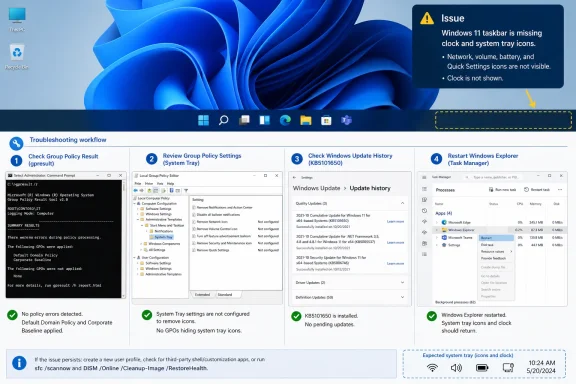 What Microsoft currently acknowledges
Microsoft’s Windows 11, version 24H2 release-health page documents the Dell/Intel compatibility hold involving KB5101650. As of July 18, 2026, the page did not list a missing clock, missing notification area, or vanished network/volume/battery cluster as a known issue for the update.That leaves three cases to test:
- A documented policy is hiding the component.
- A managed configuration is interacting with the updated system.
- The Windows shell is not displaying the component correctly.
- Whether KB5101650 is installed
- Windows version and OS build
- Affected user
- Hardware model
- Exact missing elements
- Effective-policy report
- Assigned GPO or MDM profile, if identified
- Result after an approved policy change, Explorer restart, or rollback
Start with the exact symptom
Use the visible symptom to choose the first policy to inspect.| Symptom | Inspect first |
|---|---|
| Clock alone is missing | Remove Clock from the system notification area |
| The notification area is hidden | Hide the notification area |
| Quick Settings cannot be opened from the taskbar | Remove Quick Settings |
| Only network, volume, or battery is missing | The corresponding removal policy, where supported |
| Quick Settings opens with a restricted layout | The separate Simplify Quick Settings policy |
| Entire taskbar is blank, frozen, or repeatedly reloads | Windows Explorer and shell troubleshooting |
| Only one user is affected | Effective user policy and that user’s assigned configuration |
| Multiple users are affected | Shared configuration and Windows shell troubleshooting |
Confirm the update and record the build
- Press Windows key + R.
- Enter:
winver- Select OK.
- Record the Windows version and OS build.
- Open Settings > Windows Update > Update history.
- Expand Quality Updates.
- Confirm whether KB5101650 is installed.
- Record its installation date.
Generate the effective policy report as the affected user
The report must be generated in the affected user’s sign-in session. Do not launch Command Prompt with another administrator’s credentials: doing so can make%USERPROFILE% and the reported user context refer to the administrator rather than the affected user.For the affected user’s normal user-policy results, elevation is not required:
- Sign in as the affected user.
- Open Start.
- Type
cmd. - Open Command Prompt normally.
- Run:
gpresult /h "%USERPROFILE%\Desktop\gp-report.html" /scope user- Wait for confirmation that the report was saved.
- Open gp-report.html from the affected user’s desktop.
- Search for:
- Remove Clock from the system notification area
- Hide the notification area
- Remove Quick Settings
- Remove the networking icon
- Remove the volume control icon
- Remove the battery meter
- Also search for
clock,notification area,Quick Settings,network,volume, andbattery. - Record any displayed policy source information.
gpresult /h "%PUBLIC%\Desktop\gp-computer-report.html" /scope computerIf alternate administrator credentials are required for elevation, do not treat that elevated process as a report of the affected user’s identity.
Optional RSoP check
Resultant Set of Policy can provide another view where it is available:- While signed in as the affected user, press Windows key + R.
- Enter:
rsop.msc- Select OK.
- Allow the console to gather data.
- Review the displayed user settings for the Start menu, taskbar, notification area, clock, and Quick Settings.
- Compare the result with the HTML report.
Inspect the documented user policies
Where Local Group Policy Editor is available:- Press Windows key + R.
- Enter:
gpedit.msc- Select OK.
- Go to:
- Locate the policies associated with the observed symptom.
- Record whether each policy is Enabled, Disabled, or Not Configured.
For the documented notification-area policy, enabling Hide the notification area hides that area, including its notification icons. Disabling it or leaving it not configured allows the notification area to be shown.
Microsoft’s Start policy reference provides the supported scope, editions, and behavior for Start and taskbar-related policy settings. Use the entry for each policy rather than assuming that similarly named clock, icon, and Quick Settings controls have identical requirements.
Treat the names as diagnostic signposts:
- For a missing clock, inspect Remove Clock from the system notification area.
- For a hidden tray region, inspect Hide the notification area.
- For a missing Quick Settings entry point, inspect Remove Quick Settings.
- For one missing status indicator, inspect the corresponding policy if it is present and supported on the affected Windows edition.
Simplify Quick Settings is a separate control
Simplify Quick Settings is a separate GPO/CSP-controlled setting. Consider it only when Quick Settings still opens but presents a restricted layout. Do not use it to explain a missing clock or an entirely absent notification area unless the organization’s policy records identify that setting.Correct an identified policy through management
If the effective report identifies a configured restriction, determine whether it is intentional before changing it.For a domain-managed PC:
- Give the effective-policy report to the Group Policy administrator.
- Identify the GPO shown as supplying the setting.
- Confirm the intended configuration for the affected user.
- Apply any approved correction through the organization’s Group Policy management system.
- Limit the initial change to designated test users or systems.
- Verify the result on an affected test PC.
- Open the organization’s device-management platform.
- Find the policy or profile assigned to the affected user or device.
- Review the taskbar, Start, Quick Settings, and user-interface restrictions.
- Confirm whether the restriction is intended.
- Apply an approved correction to a limited test assignment.
- Verify the effective result on the test PC.
Refresh policy and verify every component
After an approved policy correction:- Sign in as the affected user.
- Open Command Prompt.
- Run:
gpupdate /force- Wait for processing to finish.
- Sign out and sign back in.
- Restart Windows if the interface has not refreshed.
- Verify each item separately:
- Clock
- Notification-area application icons
- Network indicator
- Volume indicator
- Battery indicator, where applicable
- Quick Settings entry point
- Quick Settings contents
- Generate a new user-scope report:
gpresult /h "%USERPROFILE%\Desktop\gp-report-after.html" /scope user- Retain both reports and record the result.
Use a second account to narrow the scope
If organizational policy permits, test another authorized account on the same PC:- Sign out of the affected account.
- Sign in with the comparison account.
- Check the clock, notification area, network, volume, battery, and Quick Settings.
- Generate that account’s user-scope
gpresultreport. - Record differences between the two effective reports.
Do not create an unmanaged local administrator solely for this test unless the organization authorizes it.
Test Windows Explorer
If the effective policy does not account for the symptom, restart Windows Explorer and observe the result:- Press Ctrl + Shift + Esc to open Task Manager.
- Find Windows Explorer under Processes.
- Right-click Windows Explorer.
- Select Restart.
- Wait for the desktop and taskbar to reload.
- Test all previously missing components.
- Record whether the components returned and whether they remained available.
An Explorer restart result is evidence for the escalation packet; by itself, it does not identify the underlying cause.
Perform an approved rollback test
If the organization approves uninstalling KB5101650 on a test device, use the supported Settings route:- Preserve the current OS build and effective-policy reports.
- Open Settings.
- Select Windows Update.
- Select Update history.
- Select Uninstall updates.
- Locate KB5101650.
- Select Uninstall.
- Restart when prompted.
- Run
winverand record the resulting build. - Verify every previously missing tray component.
- Generate another affected-user policy report.
- Record whether the symptom changed.
If KB5101650 is not offered for removal, do not use undocumented package manipulation. Escalate through the organization’s Windows servicing process or Microsoft support.
Build a compact escalation packet
Provide these fields to the desktop, policy, servicing, or Microsoft support team:| Field | Required detail |
|---|---|
| Update | KB5101650 and installation date |
| Windows | Edition, version, and full OS build |
| Affected user | User identifier and whether other users reproduce it |
| Policy result | Relevant entries from the before-and-after gpresult reports |
| Managed assignment | Assigned MDM profile or GPO identified in management records |
| Hardware | Manufacturer and model |
| Missing elements | Clock, notification area, network, volume, battery, Quick Settings, or entire taskbar |
| Explorer test | Whether restart changed the symptom and for how long |
| Rollback result | Before/after build and whether each element returned |
| Reproduction | Exact sign-in and verification steps |
Frequently Asked Questions
Does a missing clock prove that KB5101650 broke Explorer?
No. As of July 18, 2026, Microsoft had not listed a missing clock or notification area as a known KB5101650 issue. Check the documented user policies and collect shell and rollback results before classifying the incident.Should administrators pause KB5101650 everywhere?
Use the organization’s servicing process and the evidence from representative systems. Check Microsoft’s current release-health page, effective policy, affected hardware, and controlled test results before making a deployment-wide decision.Why should gpresult be run without elevation first?
The affected user’s standard session provides the correct user identity for a user-scope report. Running an elevated Command Prompt with alternate administrator credentials can report the administrator’s context instead. Elevate separately only when computer-scope access requires it.Where are the clock and notification-area policies?
Open Local Group Policy Editor and go to:User Configuration > Administrative Templates > Start Menu and Taskbar
The relevant documented settings include Remove Clock from the system notification area and Hide the notification area.
What evidence should be retained?
Keep the KB number, Windows version and build, affected user, before-and-after policy reports, assigned MDM or GPO profile, hardware model, exact missing elements, Explorer restart result, and before-and-after rollback result.References
- Primary source: learn.microsoft.com
List of the Policy Settings To Configure the Windows Taskbar | Microsoft Learn
Learn about the CSP and GPO policy settings to configure the Windows taskbar.learn.microsoft.com - Independent coverage: support.microsoft.com
KB5017130: Managing Windows 11 “System requirements not met” message in your organization | Microsoft Support
KB5017130: Managing Windows 11 “System requirements not met” message in your organizationsupport.microsoft.com - Primary source: WindowsForum
Windows 10 Clock Update: Missing Seconds and Windows 11's Reintroduction Effort | Windows Forum
In a recent update to Windows 10, users have noticed a subtle yet significant change: the removal of the clock displaying seconds in the Calendar flyout...windowsforum.com