

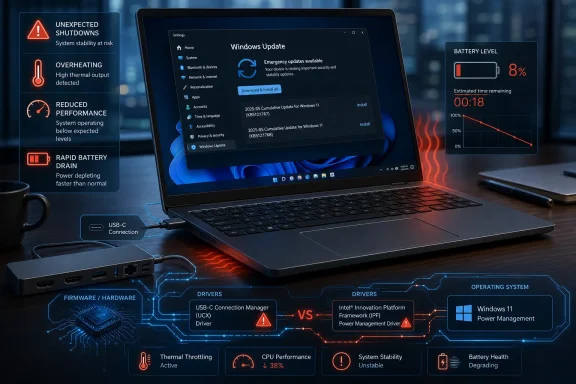
Microsoft has moved quickly to contain a serious Windows 11 compatibility failure on a limited number of Dell PCs, releasing the out-of-band updates KB5121767 and KB5121768 after affected systems began suffering unexpected shutdowns, degraded performance, excessive heat, and accelerated battery drain. The emergency packages resolve a conflict between Windows’ newer USB-C Connection Manager interface and an Intel Innovation Platform Framework driver used to coordinate power and thermal behavior. Although the incident is narrowly scoped, it illustrates how a seemingly routine platform change can destabilize the tightly interconnected firmware, driver, and operating-system stack inside modern laptops.
The immediate trigger was not a standalone Dell utility or a conventional application update. Microsoft says the incompatibility first appeared after the optional June 23, 2026 preview update KB5095093, which introduced a new Windows USB-C Connection Manager interface.
That change was later carried into the mandatory July 14, 2026 security update KB5101650 for Windows 11 versions 24H2 and 25H2. Affected Dell systems could then encounter a conflict with the Intel Innovation Platform Framework Processor Participant driver.
Microsoft initially applied a compatibility safeguard to prevent the July security update from reaching systems believed to be vulnerable. On July 18, 2026, it released KB5121767 and KB5121768 outside the normal monthly servicing schedule so those devices could receive the security fixes without inheriting the power-management failure.
In this case, the symptoms were serious enough to justify accelerated servicing. Unexpected shutdowns can cause data loss, while broken thermal and power controls can make portable computers unreliable even when they remain operational.
Modern laptops rely on a chain of components that exchange information about temperature, power limits, workload, battery state, user presence, and connected accessories. If one component stops loading, reports incorrect data, or becomes incompatible with an operating-system interface, the effects can surface far from the original point of failure.
Installing a preview is optional, but its code does not remain confined to preview users. Once validated, those changes are generally rolled into a subsequent security update, which is how the USB-C interface modification reached a broader population through KB5101650 in July.
This sequence also explains why descriptions of the incident can appear inconsistent. The underlying change originated in the June preview, while many users encountered it only after installing the July security update.
The limited scope suggests that the failure depends on a particular combination of hardware, firmware, driver revision, and Windows build. Two PCs with similar Intel processors may behave differently if their manufacturers use different thermal designs, firmware policies, USB-C controllers, or OEM driver packages.
Windows therefore needs a reliable mechanism for coordinating USB-C connection states with the system’s broader power framework. A compatibility failure at this layer can disrupt decisions about power availability, performance limits, sleep states, or thermal behavior even when no obvious USB device appears to be malfunctioning.
The affected Processor Participant is not equivalent to a conventional peripheral driver such as a printer or webcam driver. It participates in decisions that can influence the operating characteristics of the processor and surrounding platform.
Laptop manufacturers tune these policies for individual products. A thin Dell notebook with limited cooling capacity will have different thermal targets from a larger mobile workstation, even when both use processors from the same Intel generation.
If a central IPF participant fails, the system may lose access to the expected thermal or power-management path. It may then fall back to less efficient behavior, impose excessive throttling, consume more power than intended, or shut down defensively.
Those conveniences are not the principal reason for the emergency update, but they demonstrate how broad the framework has become. A platform participant may serve several Windows and OEM features rather than one visible hardware device.
The newest generic Intel package is not automatically the safest package for every Dell PC. Firmware compatibility, thermal tables, Windows power policies, and OEM services may all depend on versions that have been tested together.
For this incident, the preferred resolution is the Microsoft update delivered for the affected configuration, supplemented by Dell-approved BIOS and driver updates where appropriate. Randomly replacing platform drivers should be a last resort, not the first troubleshooting step.
The exact presentation may vary because the failed driver sits inside an adaptive control system. A computer might run hot, throttle heavily, drain its battery unusually quickly, or shut down when the platform reaches a state it cannot manage correctly.
One unexplained shutdown does not prove that this update is responsible. Power-adapter faults, failing batteries, overheating from blocked vents, firmware defects, memory errors, and unrelated drivers can produce similar behavior.
The update conflict becomes more plausible when the shutdowns began after KB5095093 or KB5101650, occur on a Dell model with the relevant Intel driver, and appear alongside the Device Manager warning documented by Microsoft.
These symptoms can result from inappropriate power limits or repeated attempts to recover from a failed platform-management component. They can also indicate conservative fallback behavior intended to protect the hardware when normal thermal coordination is unavailable.
Battery drain is inherently difficult to diagnose because screen brightness, background applications, wireless signal quality, browser activity, battery health, and power mode all affect runtime. The timing of the decline and the presence of the driver warning are therefore more informative than battery life alone.
A yellow warning icon beside the Intel Innovation Platform Framework Processor Participant driver is the clearest publicly documented indicator. Even then, administrators should record the associated error details rather than assuming every warning has the same cause.
PowerShell can also provide a quick inventory, although update-history reporting may differ depending on how an update was installed or superseded:
For a more focused search, administrators can query individual identifiers:
The absence of a result from
The update should not be selected solely because a computer has an Intel processor or USB-C port. The operating-system branch and device applicability rules must also match.
Event Viewer may log Kernel-Power Event ID 41 after an unclean shutdown. That event confirms Windows detected an improper shutdown, but it does not identify the root cause by itself.
Users should save open work and connect portable PCs to reliable AC power before beginning. A restart may be required, particularly on systems that had not yet installed the July security update.
After installation, restart the computer even if the interface does not make the requirement appear urgent. Platform drivers and low-level Windows components may not return to a known-good state until the system completes a full reboot.
Once Windows restarts, verify the following:
Windows Autopatch customers using hotpatch-enabled configurations may receive the emergency correction automatically where applicable. Intune administrators can accelerate deployment using expedited quality-update policies, while traditional environments can use their existing Windows Update for Business or software-distribution workflows.
A sensible enterprise sequence is:
Cumulative Windows updates can eventually reach a wider range of systems through normal servicing. The important distinction is that unaffected users do not need to hunt for the package, install it manually, or modify drivers in response to headlines about Dell shutdowns.
Likewise, the presence of an Intel Innovation Platform Framework entry does not prove vulnerability. The failure reportedly affects particular combinations of Dell hardware and driver versions interacting with the Windows interface change.
Windows Update compatibility metadata should do much of the filtering. Manual installation removes some of that convenience and increases the chance that a user will select the wrong architecture, Windows branch, or package.
Microsoft’s compatibility hold and OOB correction are designed to avoid that trade-off. Once affected systems receive the corrected package, they can obtain the security content while avoiding the Intel IPF conflict.
Consumers also face a troubleshooting challenge because the symptoms resemble failing hardware. A suddenly hot laptop with poor battery life can easily lead an owner to suspect the battery, charger, cooling system, or processor.
A safer response is to document the current state, install the applicable Microsoft correction, check Dell’s support tools for model-specific BIOS and driver updates, and retest. If the device continues shutting down, professional diagnosis may be necessary.
Repeated power interruptions can corrupt open files and, in unusual cases, damage the Windows installation or application databases. The remediation process should therefore prioritize data protection rather than treating the incident only as a performance problem.
The more effective strategy is configuration-based detection. Endpoint analytics should correlate the Windows build, Dell model, Intel IPF driver, recent quality updates, thermal complaints, and abnormal shutdown telemetry.
For field workers, battery drain creates an additional operational risk. A laptop expected to last most of a workday may become unreliable away from a charger, even if it never shuts down unexpectedly.
Enterprises should include docked and undocked scenarios in their validation rings. USB-C charging, external displays, Thunderbolt accessories, sleep transitions, and battery operation all belong in modern Windows update testing.
Failures often emerge in the interfaces between those layers. Each component may work correctly in isolation while a new combination exposes an assumption that no longer holds.
That does not make previews inherently unsafe. It does reinforce that they should be deployed deliberately, with clear telemetry and rollback plans, rather than installed broadly on production systems simply because they appear in Windows Update.
The drawback is that a blocked security update cannot remain blocked indefinitely. Microsoft must either correct the operating-system change, deliver a compatible driver, or construct a package that safely handles the affected configuration.
That complexity makes regressions more likely even as telemetry and staged rollouts improve. The practical goal is not to promise that no conflict will ever occur, but to detect failures early, contain them accurately, and repair them without destabilizing unaffected systems.
Microsoft is also likely to incorporate the correction into a future cumulative Windows update. Once that happens, the standalone urgency of the OOB packages will diminish because later cumulative builds will supersede them.
Firmware updates deserve the same caution as Windows updates. Systems should remain connected to AC power, BitLocker recovery information should be available, and users should not interrupt a BIOS installation.
Until such detail is broadly available, the best indicators remain the documented Windows versions, recent update history, presence of the Intel IPF Processor Participant, Device Manager warning, and associated performance or power symptoms.
Enterprises should not wait for that process to evolve. Representative Dell hardware, USB-C docks, battery-mode testing, sleep transitions, and thermal workloads should become standard components of update validation now.
The release of KB5121767 and KB5121768 is a necessary and appropriately targeted response to a disruptive Windows 11 regression, but it also exposes the fragility of modern platform integration. For affected Dell owners, the practical course is clear: verify the Windows version and update history, inspect the Intel Innovation Platform Framework Processor Participant, install the applicable out-of-band correction through a trusted channel, restart, and confirm that shutdowns, heat, performance, and battery behavior return to normal. For Microsoft, Dell, Intel, and enterprise administrators, the larger task is ensuring that future changes to USB-C and power-management infrastructure are tested as parts of a complete physical system rather than as isolated software components.
 Background
The immediate trigger was not a standalone Dell utility or a conventional application update. Microsoft says the incompatibility first appeared after the optional June 23, 2026 preview update KB5095093, which introduced a new Windows USB-C Connection Manager interface.That change was later carried into the mandatory July 14, 2026 security update KB5101650 for Windows 11 versions 24H2 and 25H2. Affected Dell systems could then encounter a conflict with the Intel Innovation Platform Framework Processor Participant driver.
Microsoft initially applied a compatibility safeguard to prevent the July security update from reaching systems believed to be vulnerable. On July 18, 2026, it released KB5121767 and KB5121768 outside the normal monthly servicing schedule so those devices could receive the security fixes without inheriting the power-management failure.
Why an out-of-band release matters
Microsoft normally concentrates Windows security and reliability updates around the monthly Patch Tuesday cycle. An out-of-band, or OOB, update is published when waiting for the next scheduled cumulative update would leave users exposed to an unacceptable security, operational, or compatibility problem.In this case, the symptoms were serious enough to justify accelerated servicing. Unexpected shutdowns can cause data loss, while broken thermal and power controls can make portable computers unreliable even when they remain operational.
Which Windows editions receive each update
The two emergency updates target different Windows servicing branches:- KB5121767 applies to Windows 11 versions 25H2 and 24H2, advancing the operating-system builds to 26200.8894 and 26100.8894 respectively.
- KB5121768 applies to Windows 11 Enterprise LTSC 2024, including organizations using the long-term servicing release for fixed-purpose or tightly managed systems.
- Unaffected devices do not need either update specifically for this problem, according to Microsoft’s guidance.
How the Driver Conflict Developed
The problem lies at the boundary between Windows’ hardware-management interfaces and an Intel platform driver selected and packaged for particular Dell models. That distinction matters because it means neither every Dell PC nor every Intel-based Windows 11 computer is affected.Modern laptops rely on a chain of components that exchange information about temperature, power limits, workload, battery state, user presence, and connected accessories. If one component stops loading, reports incorrect data, or becomes incompatible with an operating-system interface, the effects can surface far from the original point of failure.
The June preview update was the starting point
KB5095093 was an optional preview cumulative update released on June 23. Preview updates typically contain non-security changes that Microsoft intends to include in the following month’s mandatory cumulative release.Installing a preview is optional, but its code does not remain confined to preview users. Once validated, those changes are generally rolled into a subsequent security update, which is how the USB-C interface modification reached a broader population through KB5101650 in July.
This sequence also explains why descriptions of the incident can appear inconsistent. The underlying change originated in the June preview, while many users encountered it only after installing the July security update.
A platform-specific incompatibility
Microsoft identified the issue as an incompatibility between the new Windows USB-C Connection Manager interface and the Intel Innovation Platform Framework Processor Participant driver installed on certain Dell devices. Dell reportedly detected the issue during testing and worked with Microsoft on containment.The limited scope suggests that the failure depends on a particular combination of hardware, firmware, driver revision, and Windows build. Two PCs with similar Intel processors may behave differently if their manufacturers use different thermal designs, firmware policies, USB-C controllers, or OEM driver packages.
Why the USB-C layer can affect system power
USB-C is no longer merely a connector for copying files. On current laptops, it may carry charging power, DisplayPort video, Thunderbolt or USB4 traffic, docking-station connectivity, and power-delivery negotiations.Windows therefore needs a reliable mechanism for coordinating USB-C connection states with the system’s broader power framework. A compatibility failure at this layer can disrupt decisions about power availability, performance limits, sleep states, or thermal behavior even when no obvious USB device appears to be malfunctioning.
What Intel Innovation Platform Framework Does
Intel Innovation Platform Framework, commonly abbreviated as Intel IPF, is part of the platform-management architecture used on supported Intel computers. Its participants expose information and controls that higher-level policies use to balance responsiveness, temperature, fan noise, and battery endurance.The affected Processor Participant is not equivalent to a conventional peripheral driver such as a printer or webcam driver. It participates in decisions that can influence the operating characteristics of the processor and surrounding platform.
Dynamic Tuning Technology
Intel Dynamic Tuning Technology, or DTT, dynamically adjusts platform behavior according to workloads, temperatures, system configuration, and available power. The computer can use this information to decide whether to sustain higher performance, reduce processor power, alter thermal limits, or prioritize quieter operation.Laptop manufacturers tune these policies for individual products. A thin Dell notebook with limited cooling capacity will have different thermal targets from a larger mobile workstation, even when both use processors from the same Intel generation.
If a central IPF participant fails, the system may lose access to the expected thermal or power-management path. It may then fall back to less efficient behavior, impose excessive throttling, consume more power than intended, or shut down defensively.
Context Sensing Technology
Intel’s platform framework may also connect Windows with Context Sensing Technology features. These can support experiences such as Wake on Approach, Walk Away Lock, presence detection, and context-aware power behavior.Those conveniences are not the principal reason for the emergency update, but they demonstrate how broad the framework has become. A platform participant may serve several Windows and OEM features rather than one visible hardware device.
OEM tuning complicates driver replacement
Users sometimes respond to a Device Manager warning by downloading the newest generic driver available from a chip manufacturer. That approach can be risky for power-management components because Dell may customize or validate a specific package for a particular model.The newest generic Intel package is not automatically the safest package for every Dell PC. Firmware compatibility, thermal tables, Windows power policies, and OEM services may all depend on versions that have been tested together.
For this incident, the preferred resolution is the Microsoft update delivered for the affected configuration, supplemented by Dell-approved BIOS and driver updates where appropriate. Randomly replacing platform drivers should be a last resort, not the first troubleshooting step.
Symptoms on Affected Dell PCs
Unexpected shutdowns are the most alarming symptom, but they are not the only indication of the conflict. Microsoft has also associated the issue with poor performance, increased heat, changes in power consumption, and battery drain.The exact presentation may vary because the failed driver sits inside an adaptive control system. A computer might run hot, throttle heavily, drain its battery unusually quickly, or shut down when the platform reaches a state it cannot manage correctly.
Unexpected shutdowns
An unexpected shutdown can resemble a sudden loss of power rather than a normal Windows restart. Unsaved documents may be lost, applications may not close cleanly, and Windows may log an unexpected termination after the next boot.One unexplained shutdown does not prove that this update is responsible. Power-adapter faults, failing batteries, overheating from blocked vents, firmware defects, memory errors, and unrelated drivers can produce similar behavior.
The update conflict becomes more plausible when the shutdowns began after KB5095093 or KB5101650, occur on a Dell model with the relevant Intel driver, and appear alongside the Device Manager warning documented by Microsoft.
Poor performance and thermal changes
Users may notice that applications open slowly, video calls stutter, games or creative workloads lose performance, or the processor fails to sustain its usual clock speeds. Fans may remain active during light workloads, or the chassis may become warmer than expected.These symptoms can result from inappropriate power limits or repeated attempts to recover from a failed platform-management component. They can also indicate conservative fallback behavior intended to protect the hardware when normal thermal coordination is unavailable.
Battery drain
Battery life can deteriorate if Windows and the Intel framework cannot select efficient operating states. The computer may remain in a higher-power condition, wake more often, or fail to enforce the manufacturer’s normal balance between performance and endurance.Battery drain is inherently difficult to diagnose because screen brightness, background applications, wireless signal quality, browser activity, battery health, and power mode all affect runtime. The timing of the decline and the presence of the driver warning are therefore more informative than battery life alone.
How to Check Whether a PC Is Affected
Microsoft has emphasized that only a limited number of Dell systems are involved. Users should verify the operating-system build, update history, manufacturer, and driver status before treating KB5121767 as a universal Windows repair.A yellow warning icon beside the Intel Innovation Platform Framework Processor Participant driver is the clearest publicly documented indicator. Even then, administrators should record the associated error details rather than assuming every warning has the same cause.
Inspect Device Manager
The following sequence provides a practical first check:- Right-click the Start button and select Device Manager.
- Expand System devices.
- Locate Intel Innovation Platform Framework Processor Participant.
- Check whether the entry displays a yellow triangle or exclamation mark.
- Double-click the device and read the message under Device status.
- Open the Driver tab and record the provider, version, and date before making changes.
Check the Windows update history
Open Settings, select Windows Update, choose Update history, and inspect the Quality Updates section. The relevant sequence includes KB5095093, KB5101650, and the corrective OOB package.PowerShell can also provide a quick inventory, although update-history reporting may differ depending on how an update was installed or superseded:
Get-HotFix | Sort-Object InstalledOn -DescendingFor a more focused search, administrators can query individual identifiers:
Get-HotFix -Id KB5101650,KB5121767,KB5121768 -ErrorAction SilentlyContinueThe absence of a result from
Get-HotFix is not always conclusive. Settings, Windows Update logs, servicing records, Intune, Windows Autopatch, or an endpoint-management platform may provide a more complete picture.Confirm the Windows version
Typewinver into Start or the Run dialog to display the installed Windows version and OS build. KB5121767 is intended for supported Windows 11 24H2 and 25H2 systems, while KB5121768 serves the Enterprise LTSC 2024 branch.The update should not be selected solely because a computer has an Intel processor or USB-C port. The operating-system branch and device applicability rules must also match.
Review reliability and event data
Reliability Monitor offers a useful timeline of application failures, hardware errors, and unexpected shutdowns. Search Start for View reliability history, then compare critical events with the dates on which the Windows updates were installed.Event Viewer may log Kernel-Power Event ID 41 after an unclean shutdown. That event confirms Windows detected an improper shutdown, but it does not identify the root cause by itself.
Installing KB5121767 or KB5121768
Microsoft recommends the out-of-band update only for devices affected by this specific compatibility issue. The safest installation path is Windows Update because Microsoft can evaluate applicability and deliver the correct package for the installed Windows branch.Users should save open work and connect portable PCs to reliable AC power before beginning. A restart may be required, particularly on systems that had not yet installed the July security update.
Windows Update deployment
On an affected consumer or unmanaged business PC, open Settings > Windows Update and select Check for updates. If the corrective package applies, Windows should offer or install the appropriate cumulative update.After installation, restart the computer even if the interface does not make the requirement appear urgent. Platform drivers and low-level Windows components may not return to a known-good state until the system completes a full reboot.
Once Windows restarts, verify the following:
- The OOB update appears in Update history.
- The Intel Processor Participant no longer displays a warning.
- Performance and fan behavior return to their normal baseline.
- Unexpected shutdowns do not recur during representative workloads.
- Battery consumption stabilizes over several normal charge cycles.
Enterprise deployment
Organizations should begin with a targeted hardware inventory rather than pushing the OOB update indiscriminately. The affected population can be identified using manufacturer, model, Windows version, installed update, driver inventory, and Device Manager or endpoint-health status.Windows Autopatch customers using hotpatch-enabled configurations may receive the emergency correction automatically where applicable. Intune administrators can accelerate deployment using expedited quality-update policies, while traditional environments can use their existing Windows Update for Business or software-distribution workflows.
A sensible enterprise sequence is:
- Identify Dell devices running the relevant Windows 11 branches.
- Detect the Intel IPF Processor Participant driver and its status.
- Prioritize systems already showing shutdown, thermal, or battery symptoms.
- Deploy the applicable OOB update to a small validation ring.
- Confirm driver health, boot reliability, BitLocker status, docking behavior, and battery performance.
- Expand deployment to the remaining affected population.
- Preserve logs from systems that continue to fail after remediation.
Why Unaffected PCs Do Not Need the Emergency Update
Microsoft’s guidance is unusually explicit: if a computer is not affected, no action is required for this particular issue. That does not imply the package is inherently dangerous; it means its exceptional release exists to solve a narrow compatibility problem.Cumulative Windows updates can eventually reach a wider range of systems through normal servicing. The important distinction is that unaffected users do not need to hunt for the package, install it manually, or modify drivers in response to headlines about Dell shutdowns.
Applicability is more precise than branding
“Dell PC” is too broad a category for remediation. Dell sells systems using multiple processor generations, firmware architectures, thermal designs, and driver stacks.Likewise, the presence of an Intel Innovation Platform Framework entry does not prove vulnerability. The failure reportedly affects particular combinations of Dell hardware and driver versions interacting with the Windows interface change.
Windows Update compatibility metadata should do much of the filtering. Manual installation removes some of that convenience and increases the chance that a user will select the wrong architecture, Windows branch, or package.
Security updates should not be broadly avoided
The affected July cumulative update contains security corrections in addition to the problematic compatibility change. Delaying it indefinitely across an entire fleet would trade a limited hardware issue for broader exposure to vulnerabilities fixed in the July release.Microsoft’s compatibility hold and OOB correction are designed to avoid that trade-off. Once affected systems receive the corrected package, they can obtain the security content while avoiding the Intel IPF conflict.
Consumer Impact
For home users, the most immediate danger is loss of work from an abrupt shutdown. Battery drain and heat may be less dramatic, but they can make a laptop unpleasant or impractical to use during travel, school, gaming, or remote work.Consumers also face a troubleshooting challenge because the symptoms resemble failing hardware. A suddenly hot laptop with poor battery life can easily lead an owner to suspect the battery, charger, cooling system, or processor.
Avoid aggressive driver surgery
Users should resist advice that begins with deleting every Intel platform component, disabling thermal devices, or forcing generic drivers onto the computer. Those actions can remove useful diagnostic evidence and create a configuration that Dell or Microsoft has not tested.A safer response is to document the current state, install the applicable Microsoft correction, check Dell’s support tools for model-specific BIOS and driver updates, and retest. If the device continues shutting down, professional diagnosis may be necessary.
Protect data during remediation
Anyone experiencing unexpected shutdowns should back up important files before prolonged testing. OneDrive, File History, another trusted cloud provider, or an external drive can reduce the risk of losing irreplaceable documents.Repeated power interruptions can corrupt open files and, in unusual cases, damage the Windows installation or application databases. The remediation process should therefore prioritize data protection rather than treating the incident only as a performance problem.
Enterprise and IT Administrator Impact
The incident is more complicated for businesses because Dell hardware is common in managed fleets, and apparently similar models may contain different driver revisions or configurations. A blanket policy based only on manufacturer name could overstate the affected population and waste maintenance time.The more effective strategy is configuration-based detection. Endpoint analytics should correlate the Windows build, Dell model, Intel IPF driver, recent quality updates, thermal complaints, and abnormal shutdown telemetry.
Operational disruption
Unexpected shutdowns can interrupt meetings, transactions, engineering workloads, software builds, and remote-support sessions. Systems that run hot or throttle heavily may remain online yet deliver significantly reduced productivity.For field workers, battery drain creates an additional operational risk. A laptop expected to last most of a workday may become unreliable away from a charger, even if it never shuts down unexpectedly.
Help-desk triage
Support teams should give technicians a short, consistent decision tree:- Confirm that the endpoint is a Dell system running a relevant Windows 11 release.
- Check whether KB5101650 or the preceding June preview was installed.
- Inspect the Intel IPF Processor Participant in Device Manager or through management telemetry.
- Record shutdown, thermal, performance, and battery symptoms.
- Install the applicable OOB update through the approved management channel.
- Escalate systems that remain unstable after the update and a full restart.
Change-management lessons
Preview updates deserve representative testing on real OEM hardware, especially in organizations that standardize on several laptop generations. Virtual machines cannot reproduce the firmware, USB-C, docking, power, and thermal interactions that caused this failure.Enterprises should include docked and undocked scenarios in their validation rings. USB-C charging, external displays, Thunderbolt accessories, sleep transitions, and battery operation all belong in modern Windows update testing.
The Broader Windows Servicing Problem
The Dell incident demonstrates the difficulty of maintaining compatibility across an enormous Windows hardware ecosystem. Microsoft can update the operating system, Intel can provide a platform framework, and Dell can tune the final hardware, but the user experiences the combined system as one product.Failures often emerge in the interfaces between those layers. Each component may work correctly in isolation while a new combination exposes an assumption that no longer holds.
Preview updates are early-warning opportunities
Optional preview updates give Microsoft and enterprise administrators an opportunity to detect non-security regressions before the same code enters a mandatory security release. In this case, Dell reportedly identified the problem during testing, but the change still required a compatibility hold and emergency correction.That does not make previews inherently unsafe. It does reinforce that they should be deployed deliberately, with clear telemetry and rollback plans, rather than installed broadly on production systems simply because they appear in Windows Update.
Safeguard holds remain essential
A compatibility hold can frustrate users who expect every update immediately, but it is one of Microsoft’s most important defenses against known hardware-specific failures. Preventing an update from reaching a vulnerable configuration is often safer than relying on users to recognize symptoms afterward.The drawback is that a blocked security update cannot remain blocked indefinitely. Microsoft must either correct the operating-system change, deliver a compatible driver, or construct a package that safely handles the affected configuration.
Driver validation is increasingly difficult
Power and thermal drivers now interact with AI-assisted workload scheduling, USB4 docks, presence sensors, modern standby, battery optimization, performance modes, firmware controls, and vendor utilities. The test matrix expands with every new platform feature.That complexity makes regressions more likely even as telemetry and staged rollouts improve. The practical goal is not to promise that no conflict will ever occur, but to detect failures early, contain them accurately, and repair them without destabilizing unaffected systems.
Strengths and Opportunities
Microsoft’s response contains several positive elements despite the severity of the original regression.- The compatibility safeguard limited wider exposure. Blocking KB5101650 on identified Dell configurations prevented additional systems from entering the failure state while Microsoft and Dell prepared a correction.
- The response targeted the affected servicing branches. Separate packages for mainstream Windows 11 and Enterprise LTSC 2024 reduce ambiguity for administrators managing different release channels.
- The OOB update preserved access to July’s security fixes. Affected organizations do not have to choose between leaving systems unpatched and accepting known shutdown or thermal problems.
- The Device Manager indicator provides a practical diagnostic clue. A visible warning on the Intel Processor Participant gives users and support teams something more concrete than subjective reports of heat or battery drain.
- The incident can improve hardware-aware testing. Dell, Intel, Microsoft, and enterprise customers now have a reproducible compatibility scenario to add to future Windows, firmware, driver, and USB-C validation.
- Management tools can automate remediation. Intune, Windows Autopatch, inventory systems, and endpoint analytics can identify affected configurations and accelerate a controlled deployment.
Risks and Concerns
The emergency fix addresses the documented incompatibility, but several concerns remain for users and administrators.- Similar symptoms may have unrelated causes. Installing KB5121767 will not repair a failing battery, blocked cooling system, defective charger, unrelated driver, or damaged Windows installation.
- Manual driver replacement can worsen the situation. Removing OEM-tuned Intel components or installing generic packages may introduce new thermal, sleep, or performance problems.
- Unexpected shutdowns can cause secondary damage. Even after the root conflict is corrected, users may need to repair corrupted files, application data, or Windows components.
- Broad deployment can obscure targeting. Installing an emergency package across unaffected hardware creates noise and makes it harder to measure whether the correction solved the intended problem.
- Incomplete inventories can delay remediation. Organizations that do not track driver versions and hardware models may struggle to identify the vulnerable population quickly.
- Trust in routine updates can erode. Highly visible regressions encourage users to postpone security updates, potentially exposing systems to risks unrelated to the Dell issue.
- Thermal symptoms require careful follow-up. A system that continues to run unusually hot after the fix should not be assumed safe merely because Device Manager no longer shows a warning.
What to Watch Next
The next test will be whether KB5121767 and KB5121768 consistently clear the Device Manager error and restore expected performance, thermal behavior, and battery life across the affected Dell population. Reports of continuing shutdowns will require careful separation between failed remediation, secondary corruption, and unrelated hardware defects.Microsoft is also likely to incorporate the correction into a future cumulative Windows update. Once that happens, the standalone urgency of the OOB packages will diminish because later cumulative builds will supersede them.
Updated Dell drivers and firmware
Dell may publish or revise model-specific Intel IPF, chipset, BIOS, or power-management packages as part of the longer-term response. Users should obtain those updates through Dell’s official support channels or approved enterprise-management tools rather than third-party driver sites.Firmware updates deserve the same caution as Windows updates. Systems should remain connected to AC power, BitLocker recovery information should be available, and users should not interrupt a BIOS installation.
Confirmation of the affected model list
Microsoft has described the population as a limited number of Dell devices, but administrators will benefit from more granular model and driver-version guidance. Precise applicability data would make fleet detection faster and reduce unnecessary concern among owners of unaffected Dell computers.Until such detail is broadly available, the best indicators remain the documented Windows versions, recent update history, presence of the Intel IPF Processor Participant, Device Manager warning, and associated performance or power symptoms.
Long-term servicing lessons
Microsoft’s handling of future preview updates will also deserve attention. If hardware-sensitive changes receive broader physical-device validation before entering a mandatory security release, the incident may produce a meaningful improvement in Windows servicing quality.Enterprises should not wait for that process to evolve. Representative Dell hardware, USB-C docks, battery-mode testing, sleep transitions, and thermal workloads should become standard components of update validation now.
The release of KB5121767 and KB5121768 is a necessary and appropriately targeted response to a disruptive Windows 11 regression, but it also exposes the fragility of modern platform integration. For affected Dell owners, the practical course is clear: verify the Windows version and update history, inspect the Intel Innovation Platform Framework Processor Participant, install the applicable out-of-band correction through a trusted channel, restart, and confirm that shutdowns, heat, performance, and battery behavior return to normal. For Microsoft, Dell, Intel, and enterprise administrators, the larger task is ensuring that future changes to USB-C and power-management infrastructure are tested as parts of a complete physical system rather than as isolated software components.
References
- Primary source: TweakTown
Published: 2026-07-21T16:35:09+00:00
KB5121767 out-of-band Windows Update fixes shutdown bug on affected Dell PCs
Microsoft issues out-of-band KB5121767 and KB5121768 Windows Updates to fix a shutdown bug on certain Dell PCs caused by a driver conflict. www.tweaktown.com
- Related coverage: windowscentral.com
Microsoft issues emergency Windows 11 KB5121767 update to address unexpected shutdowns and overheating on certain Dell PCs | Windows Central
After blocking the most recent Patch Tuesday updates on Dell PCs, Microsoft has now released an emergency fix that addresses some big issues.www.windowscentral.com - Related coverage: techradar.com
Microsoft fixes Windows 11's nasty bugs with Dell laptops — and shows there's a catch to jumping the update queue | TechRadar
Emergency patch could end up on your non-Dell PC if you're not carefulwww.techradar.com - Related coverage: bleepingcomputer.com
- Related coverage: ground.news
%22 d=%22M44,140.1h42.8V272H54.9c0-0.1,0-103.8,0-103.8H44V140.1z M44,1c28.4,0,42.6,16.2,42.6,42.2v66.1H54.9V43.8 c0-7.2-3.1-11.7-10.6-11.7c-7,0-10.6,4.2-10.6,11.7c0,0,0,228.1,0,228.2H0.2c0-0.5,0-228.8,0-228.8C0.1,16.8,14.8,1,44,1L44,1z%22/><style>path { fill: %23262626 } @media (prefers-color-scheme: dark) { path { fill: %23EEEFE9 } }</style></svg>)
Microsoft: Some Dell PCs Shut Down After Recent Windows Updates
Microsoft is blocking this month's Windows 11 security updates on some Dell devices because they are causing shutdowns and performance issues.
ground.news