

KDE Discover brings an app-store-style, graphical method for finding, installing, updating, and removing Linux software to desktops that otherwise rely on package managers and terminals, and installing it on Raspberry Pi OS “Trixie” demonstrates just how friendly Linux software management can be for newcomers. The Tom’s Hardware how‑to walks through the simple steps to add Discover to a Debian‑based Raspberry Pi system, explains the Discover user interface, and argues the tool is an excellent on‑ramp for beginners who find command‑line package management intimidating.
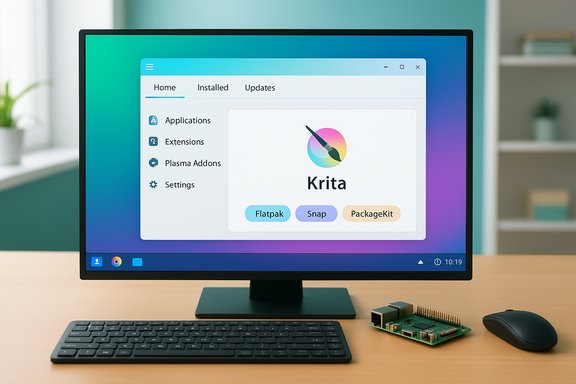
Linux software distribution has always been diverse: classic package managers such as APT, DNF, and Pacman coexist with alternative formats like Flatpak, Snap, and AppImage. That flexibility is powerful but can be confusing for newcomers who are used to single-vendor app stores on smartphones. KDE Discover exists to bridge that gap by presenting a unified, graphical storefront that can aggregate apps from multiple sources, surface screenshots and descriptions, and handle updates and removals in a familiar way. The KDE project describes Discover as a front end that can manage distribution packages, Flatpak repos, the Snap store, and even AppImages listed on store.kde.org. Tom’s Hardware’s practical walkthrough centers on Raspberry Pi OS (a Debian derivative, in the article referred to as “Trixie”) and shows that, with a few terminal commands and the installation of the plasma-discover package, users get a familiar app-store experience on the Raspberry Pi desktop. The original guide’s steps—update package lists, install plasma-discover, and reboot—are simple and broadly applicable to Debian-based systems. The article highlights Discover’s core UI areas (home/updates/installed, category list, and content pane), demonstrates installing a graphical app (Krita), and shows how Discover handles updates and removals.
In short: KDE Discover is a practical, approachable GUI that makes installing and updating Linux software feel familiar to app-store users; its multi-backend architecture is powerful, but the real-world footprint and behavior depend on distribution packaging and which backends you enable. Verify the packages apt will pull on your system before proceeding, install the backends you need deliberately, and use Discover as a friendly bridge into the full power of Linux package management.
Source: Tom's Hardware Linux software management made simple with Discover
 Background / Overview
Linux software distribution has always been diverse: classic package managers such as APT, DNF, and Pacman coexist with alternative formats like Flatpak, Snap, and AppImage. That flexibility is powerful but can be confusing for newcomers who are used to single-vendor app stores on smartphones. KDE Discover exists to bridge that gap by presenting a unified, graphical storefront that can aggregate apps from multiple sources, surface screenshots and descriptions, and handle updates and removals in a familiar way. The KDE project describes Discover as a front end that can manage distribution packages, Flatpak repos, the Snap store, and even AppImages listed on store.kde.org. Tom’s Hardware’s practical walkthrough centers on Raspberry Pi OS (a Debian derivative, in the article referred to as “Trixie”) and shows that, with a few terminal commands and the installation of the plasma-discover package, users get a familiar app-store experience on the Raspberry Pi desktop. The original guide’s steps—update package lists, install plasma-discover, and reboot—are simple and broadly applicable to Debian-based systems. The article highlights Discover’s core UI areas (home/updates/installed, category list, and content pane), demonstrates installing a graphical app (Krita), and shows how Discover handles updates and removals.What Discover actually is (and is not)
A single GUI that aggregates multiple backends
Discover is a graphical application store built by KDE that uses modular backends to talk to different application sources: your distro’s package system (via PackageKit), Flatpak, Snap, and additional extension backends. This modular design is explicit in Discover’s documentation and release notes: it lists a Flatpak backend, a PackageKit backend, and a Snap backend among its extensions. That means Discover itself is a UI layer; the actual sources and installers remain Flatpak, Snap, or the native package system.It’s not a replacement for the terminal or APT
Discover aims at discoverability and convenience, not replacing power-user workflows. It’s excellent for browsing categories, reading screenshots and summaries, and performing routine installs or updates. Advanced package configuration, complex dependency resolution, scripting, or diagnostic tasks are still best handled at the terminal with tools like apt, dpkg, or distribution-specific package managers. The Tom’s Hardware piece emphasizes this point—Discover is a friendly entry point, not a full replacement for a package manager’s flexibility.Installing Discover: practical notes and what to expect
Tom’s Hardware gives a simple three-step approach: update package lists, install plasma-discover, and reboot. That sequence is correct for Debian-derived systems in general, but the real-world download and disk‑space impact depend heavily on what KDE components are already installed on the machine.- Step 1: Update package lists
sudo apt update — refreshes the package index so apt knows what packages and versions are available. This is standard and required on Debian-based systems prior to installing new packages. - Step 2: Install Discover
sudo apt install plasma-discover — installs Discover’s package. On Debian repositories the plasma-discover package itself is small; current Debian package pages show the plasma-discover package at a few hundred kilobytes for the package file and a few megabytes installed. That small package is a front-end; if your system lacks the supporting KDE frameworks or specific backends (flatpak, snapd, PackageKit) apt will add those, which increases the download size. For example, Debian’s package listing reports modest package sizes for plasma-discover. - Step 3: Reboot (optional but sometimes useful)
Rebooting is not strictly required to make Discover functional, but it is commonly recommended when installing system services (like snapd or xdg-dbus-proxy) or when you install a lot of new libraries that might require a log‑out/log‑in to fully integrate with the running desktop session. Tom’s Hardware reports that rebooting forced Discover to refresh and show available apps; other users have also found logging out and back in sufficient.
Discover’s UI and how it maps to workflows
Discover’s UI breaks down into three areas that match how most people expect a store to work:- Top-level navigation (Home, Installed, Updates, Settings) — quick access to the most common tasks.
- Category list — browse by application type (Graphics, Multimedia, Productivity, etc..
- Content pane — displays search results, app details, screenshots, and install/uninstall buttons.
What Discover integrates with (Flatpak, Snap, AppImage, PackageKit)
Discover’s strength is in acting as a unified UI for multiple packaging formats — but this depends on backends and distribution packaging. Core facts verified from KDE’s own site and distribution packaging:- Flatpak: Discover provides a Flatpak backend that integrates Flatpak applications (and requires Flatpak to be installed for full functionality). If you want Flathub integration, you’ll typically add the Flathub remote separately.
- Snap: Discover has a Snap backend and can list Snap Store applications when snapd and the Snap backend are present. Some distros require manually enabling snap support first.
- PackageKit (distribution packages): Discover uses PackageKit to present native repository packages. That’s how Discover shows and installs Debian/Ubuntu packages without invoking apt directly.
- AppImage: Discover can surface AppImages that are listed on store.kde.org, but AppImage handling is inherently different — AppImages are portable executables and often expect a different UX (download + mark executable + run). Community threads show mixed experiences and point out that AppImage support in Discover may be more limited than Flatpak or Snap, and the degree of functionality depends on repository/metadata and installed helper tools. In other words, AppImage availability in Discover is possible in certain contexts, but it is not as universal or seamless as Flatpak or native packages. This is an area with some conflicting signals across documentation and user reports, so treat AppImage support as conditional.
Troubleshooting: Common issues and practical fixes
Discover is generally straightforward, but a few recurring issues appear in community discussions and official docs. Here are the most common pain points and practical fixes.- Nothing shows up or “unable to load applications”
Often this is because essential backends or metadata utilities are missing (appstream data, PackageKit, libappstream-glib, or xdg helpers). Installing packagekit, libappstream, and the necessary Discover backends typically resolves the problem. Community posts recommend: sudo apt install plasma-discover packagekit libpackagekitqt5-dev appstream, then log out and back in or reboot. - Snap or Flatpak entries are missing in Discover
Install the respective backends: plasma-discover-backend-flatpak and plasma-discover-backend-snap, and ensure flatpak or snapd are installed and enabled on the system. Add the Flathub remote for Flatpak if you want the Flathub catalog. After installing these packages, restart Discover or reboot. - Large download size warnings
If apt reports a large download (hundreds of MBs) when installing plasma-discover, inspect the list of packages apt will add; it may be pulling a full set of KDE frameworks and runtime libraries. Confirm you want those installed, or consider using the Snap version of Discover if you prefer a packaged, sandboxed option: sudo snap install plasma-discover. Snap installs include their own dependencies packaged inside the snap. - Permissions or sandboxing quirks (Snaps & Flatpaks)
Snap and Flatpak have their own permission models and sandbox rules that are separate from Debian packages. If an app you install via Discover behaves differently from the distro package, check its Flatpak/snap permissions and filesystem access settings. Flatpak uses portals for desktop integration; snap uses interface connections. Discover shows which backend an app will use in the app’s details pane.
Strengths: Why Discover matters (and who benefits most)
- Beginner-friendly app discovery: Discover brings the familiar app-store browsing paradigm to Linux, lowering the barrier for newcomers who prefer GUIs to terminals. The Tom’s Hardware walkthrough demonstrates how a user can find, install, and launch an app like Krita with a few clicks.
- Multi‑source aggregation: Discover’s modular backend design lets users browse apps from native repos, Flatpak, Snap, and supported AppImage sources in one place. That reduces confusion about where an app is packaged and how it will be installed.
- Centralized updates: Discover can show updates across supported backends and handle bulk updates inside a single interface. For casual users who don’t want to juggle apt, flatpak, and snap update commands, Discover simplifies maintenance.
- Plugs into KDE ecosystem: For users already on KDE Plasma, Discover integrates smoothly with Plasma’s look-and-feel and provides add-on management for Plasma itself (widgets, global themes, etc., making it a one-stop hub for desktop customization as well as app installs.
Risks, trade-offs and notable limitations
- Fragmented semantics across backends
Discover can present apps from different packaging formats side-by-side, but those formats carry different semantics (updates, permissions, disk usage, sandboxing). Users may be surprised that a “same” app installed from Flatpak behaves slightly differently than the native Debian package. The UX hides these differences but does not eliminate them. - Dependency bloat on non-KDE desktops
Installing plasma-discover on a minimal GNOME or LXQt system may pull a wide set of KDE runtime libraries, increasing download size and disk usage. Tom’s Hardware reported a ~470MB download in their environment; package metadata shows the plasma-discover package is small, so that larger figure likely reflects additional KDE runtime packages pulled as dependencies on a non‑KDE system. Users should inspect apt’s confirmation before proceeding. If the additional footprint is a concern, consider the Snap version of Discover, or use distribution-native package managers and the Flatpak/Snap CLIs directly. - AppImage ambiguity
AppImage handling can be inconsistent. While Discover advertises the ability to show AppImages from store.kde.org, community feedback indicates AppImage support and lifecycle management (install/uninstall semantics) are less mature than Flatpak or Snap integration. Treat AppImages as a special case and understand that they’re fundamentally different from installed packages. - Not a substitute for advanced package management
Power users will still rely on apt, dpkg, and distribution tooling for scripting, precise dependency control, and troubleshooting. Discover is aimed at discoverability and convenience; it’s an entry point, not a deep administrative toolkit. Tom’s Hardware makes this distinction clear.
Practical recommendations and a minimal step‑by‑step for Raspberry Pi OS “Trixie”
- Backup and snapshot: if you’re testing on a system you care about, take a filesystem snapshot or backup first. Adding large dependency sets can change system behavior and disk usage.
- Update package lists: sudo apt update.
- Inspect what apt will install: sudo apt install --simulate plasma-discover (or just run sudo apt install plasma-discover and read the confirmation prompt). The apt output tells you exactly what additional packages will be pulled and the total download size.
- If you want Flatpak or Snap integration, install the backends explicitly so you control their addition:
- Flatpak: sudo apt install flatpak plasma-discover-backend-flatpak; add Flathub with flatpak remote-add --if-not-exists flathub https://dl.flathub.org/repo/flathub.flatpakrepo.
- Snap: sudo apt install snapd plasma-discover-backend-snap (or use the snap to install Discover itself).
- Install Discover: sudo apt install plasma-discover (or sudo snap install plasma-discover if you prefer the snap). Review apt/snap download size before confirming.
- Log out and back in, or reboot if services like snapd were just installed.
- Open Discover (Menu → System Tools → Discover in many KDE menus), browse categories, and try installing one app to confirm behavior. Tom’s Hardware walks through installing Krita as an accessible example.
Cross‑checking claims and verifying facts (transparency)
- Package size and expected download: Debian package metadata shows the plasma-discover base package is small (hundreds of kilobytes), while Tom’s Hardware observed a ~470MB download on Raspberry Pi OS in their test. Both can be true: the base package is small but apt may pull in many KDE runtime and helper packages on systems that don’t already provide them. Debian package pages confirm the small base package size and installed-size metadata. This difference is why users must inspect apt’s confirmation prompt.
- Backend support (Flatpak, Snap, PackageKit): KDE’s official Discover page documents Flatpak, PackageKit, and Snap backends. It explicitly lists these extensions and describes multi-source capability. Community reports and distribution guides corroborate that these backends must be installed/enabled for full integration. That cross-check gives confidence that Discover’s multi-source claims are accurate, while also showing that practical activation varies by distro.
- AppImage handling: official KDE docs indicate Discover can reference AppImage entries published to store.kde.org, but community discussions show this is not always straightforward or enabled by default. Because documentation and user experiences diverge here, AppImage support should be considered conditional and tested before relying on it.
Final assessment: who should use Discover — and how to proceed safely
Discover is a smart, user-centric way to make Linux software more approachable. It’s ideal for:- Newcomers and casual users who prefer graphical workflows.
- Users migrating from Windows or macOS who expect a curated, visual app-browsing experience.
- KDE users who want an integrated way to manage Plasma add-ons and app installs.
- Check the apt/installation preview before accepting large downloads. Installing Discover on a minimal system can pull substantial KDE runtime dependencies.
- Explicitly install and enable Flatpak or Snap backends if you want those catalogs integrated, and add Flathub for the most extensive Flatpak catalog.
- Treat AppImage support as experimental or conditional; rely on Flatpak/Snap or native packages for the most predictable behavior.
- Learn a few basic terminal commands (apt, flatpak, snap) — Discover is a gateway, not a lifetime replacement for package management skills.
In short: KDE Discover is a practical, approachable GUI that makes installing and updating Linux software feel familiar to app-store users; its multi-backend architecture is powerful, but the real-world footprint and behavior depend on distribution packaging and which backends you enable. Verify the packages apt will pull on your system before proceeding, install the backends you need deliberately, and use Discover as a friendly bridge into the full power of Linux package management.
Source: Tom's Hardware Linux software management made simple with Discover
