

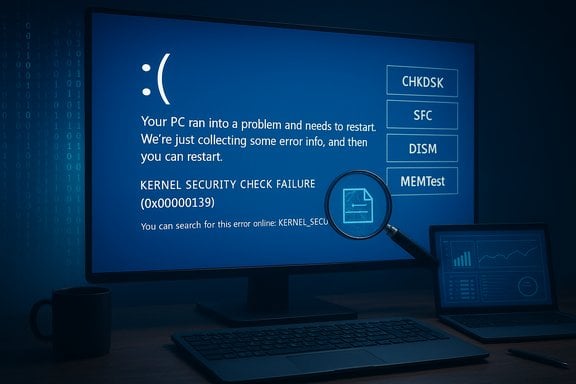
The sudden appearance of a blue screen labeled Kernel Security Check Failure can turn a routine work session into an urgent troubleshooting exercise, but the stop code is usually Windows doing its job—halting the system because the kernel found corrupted or inconsistent data it cannot safely ignore.
The Windows kernel is the core of the operating system: it manages memory, schedules processes, and mediates hardware access. When the kernel detects memory corruption or a critical inconsistency in system structures, Windows triggers a stop code—most commonly displayed as KERNEL_SECURITY_CHECK_FAILURE (0x00000139)—to prevent potential data loss or security breaches. This behavior is intentionally defensive rather than merely diagnostic.
Modern Windows versions (Windows 10 and Windows 11) include more aggressive integrity checks than older releases, which has made these kernel-level faults more visible to end users and technicians. The same checks that protect the system can, however, make troubleshooting more complex because the root cause may be software, firmware, or hardware—and sometimes a subtle interaction between them.
Key causes fall into several categories:
Source: 9meters Kernel Security Check Failure Explained - 9meters
 Background
The Windows kernel is the core of the operating system: it manages memory, schedules processes, and mediates hardware access. When the kernel detects memory corruption or a critical inconsistency in system structures, Windows triggers a stop code—most commonly displayed as KERNEL_SECURITY_CHECK_FAILURE (0x00000139)—to prevent potential data loss or security breaches. This behavior is intentionally defensive rather than merely diagnostic.Modern Windows versions (Windows 10 and Windows 11) include more aggressive integrity checks than older releases, which has made these kernel-level faults more visible to end users and technicians. The same checks that protect the system can, however, make troubleshooting more complex because the root cause may be software, firmware, or hardware—and sometimes a subtle interaction between them.
What “Kernel Security Check Failure” Actually Means
At a technical level, the error is Windows enforcing kernel integrity: the kernel validates critical memory regions and internal tables used for object tracking and driver state. If a driver writes outside its allocated memory, or a memory block is corrupted by failing RAM, the kernel may find that internal structures no longer match expected values and will crash to prevent further damage. The displayed stop code 0x00000139 is the formal identifier for this protective action.Key causes fall into several categories:
- Faulty or outdated drivers, especially storage, GPU, and network drivers, which operate at privileged levels and can corrupt kernel state if buggy.
- Memory (RAM) errors—either physical defects or instability caused by overclocking.
- Disk and filesystem corruption, including failing SSD/HDD sectors or corrupted system files.
- Firmware/BIOS incompatibilities that interact poorly with new Windows behavior.
- Software conflicts and third‑party security tools, which can intercept or alter kernel-level operations.
Quick Triage: What to Do Immediately
When the blue screen appears, perform the following steps in order. These are fast, safe, and often sufficient to get the system back for deeper analysis.- Note the stop code and any driver name printed on the screen (take a photo if needed).
- Disconnect external peripherals (USB drives, docks, printers). Many intermittent BSODs are tied to external hardware.
- Reboot and attempt Safe Mode if normal boot fails (Advanced Startup → Troubleshoot → Startup Settings → Enable Safe Mode). Safe Mode loads minimal drivers and often lets you remove or roll back problematic software.
Proven Diagnostic Tools and How to Use Them
Windows includes several built-in utilities that address the most common root causes. Use them in the order listed: non‑destructive first, escalating to more invasive options if needed. This staged approach reduces the risk of data loss.1. Windows Memory Diagnostic and MemTest86
- Run Windows Memory Diagnostic (mdsched.exe) to perform an initial RAM check. If errors appear, swap or reseat memory sticks and re-test.
- For deeper validation, boot MemTest86 from USB and run multiple full passes; memory faults will often reveal themselves after prolonged cycles.
2. System File Checker (SFC) and DISM
- Run elevated Command Prompt:
- DISM /Online /Cleanup-Image /RestoreHealth
- sfc /scannow
These commands repair the Windows component store and then replace corrupted system files. Run DISM first because SFC relies on the component store to restore files.
3. Check Disk (CHKDSK)
- Run chkdsk C: /f /r from an elevated Command Prompt and schedule the scan at reboot if prompted. CHKDSK inspects the filesystem and attempts to repair bad sectors. If disk errors are frequent or CHKDSK reports extensive repairs, image the drive and prioritize replacement.
4. Driver and Firmware Updates
- Update Windows via Settings → Windows Update and then update chipset, storage controller, GPU, and network drivers from vendor sites rather than relying solely on third‑party updater tools. Firmware (UEFI/BIOS and SSD firmware) should be updated only with vendor guidance and after a verified backup.
5. Minidump Analysis (WinDbg, BlueScreenView, WhoCrashed)
- Collect minidumps from C:\Windows\Minidump and open them in WinDbg or a friendly analyzer to see which module or driver is on the faulting stack. The minidump often points directly to a suspicious driver binary, though interpretation requires a degree of expertise.
6. Driver Verifier (Advanced)
- Driver Verifier deliberately stresses drivers to surface latent corruption. Only enable it after preparing a recovery plan (recovery USB or system image). Run it selectively for suspect drivers, because enabling all drivers can produce continual BSODs that prevent normal recovery. Microsoft explicitly warns that Driver Verifier can cause crashes as part of diagnosis.
Step‑by‑Step Repair Flow (Recommended Order)
This checklist is a pragmatic flow from least to most invasive:- Reboot, disconnect peripherals, and attempt Safe Mode.
- Roll back recent drivers or uninstall recently added apps.
- Run SFC and DISM to repair system files.
- Run Windows Memory Diagnostic and MemTest86 for RAM checks.
- Run chkdsk /f /r and check SMART status with vendor tools. If SMART shows failing sectors, image the drive immediately.
- Update BIOS/UEFI and SSD firmware only after backing up; vendor fixes sometimes resolve kernel-level incompatibilities.
- If crashes persist, collect minidumps and run targeted Driver Verifier on suspect drivers.
- As a last software step, perform an in‑place repair (run Setup from a matching Windows ISO and choose “Keep personal files and apps”) or Reset This PC (Keep my files). Back up first.
Advanced Scenarios and Modern Gotchas
The Windows ecosystem is not static, and feature updates occasionally reveal new hardware interactions that manifest as BSODs. Two modern examples illustrate important caveats.DRAM‑less NVMe SSDs and Host Memory Buffer (HMB)
Some DRAM‑less NVMe SSDs rely on the Host Memory Buffer to borrow system RAM for internal mapping. A Windows change in recent feature updates increased HMB allocations on some systems, which produced reproducible blue screens on specific SSD models. Community and vendor advisories documented temporary registry mitigations (HmbAllocationPolicy) to cap or disable HMB allocations, but these are emergency workarounds that can degrade performance and must be replaced by an SSD firmware update when available. Always back up before applying such registry changes and treat them as temporary.Kernel‑level Code Changes and Language Migrations
Recent work to rewrite parts of the Windows graphics stack in memory‑safe languages revealed that logic and edge‑case handling still matters: a bounds-checking failure in a Rust-based kernel module caused a graphics-related kernel panic that was fixed in a quality update. This demonstrates that even with safer languages, integration, and runtime behavior at privileged levels must be handled carefully. When such faults become public, Microsoft and hardware vendors typically publish a quality update or firmware fix.Prevention: Long‑Term Maintenance to Reduce BSOD Frequency
Preventive maintenance reduces the chance of encountering KERNEL_SECURITY_CHECK_FAILURE and makes recovery easier when it does occur.- Keep Windows and drivers updated, but stagger major feature upgrades on critical machines until stability reports come in.
- Use vendor-provided drivers and firmware rather than one‑click driver updaters.
- Maintain periodic backups: a full image plus file-level backup allows safe experimentation and recovery.
- Monitor storage health (SMART) with vendor utilities and replace drives showing instability.
- Run periodic memory checks and avoid aggressive overclocking unless stability-tested.
When to Stop and Seek Professional Help
If diagnostics identify failing hardware (SMART warnings, repeated bad sectors, MemTest86 errors), or if the system fails before any OS-level tools can run (pre‑BIOS or UEFI stage), professional hardware diagnostics and data recovery should be prioritized. If BitLocker is enabled, ensure the recovery key is accessible before attempting deep repairs—losing the key can permanently lock data. Imaging the drive before destructive fixes preserves the state for recovery professionals.Common Myths and Misconceptions
- Myth: “A single sfc /scannow will always fix kernel crashes.” Reality: SFC helps when system files are corrupted, but kernel crashes caused by hardware, firmware, or bad third‑party drivers require different fixes. Use SFC + DISM as part of the flow, not as a silver bullet.
- Myth: “Driver updaters are harmless and fix everything.” Reality: Automatic driver updaters can install incompatible or unsigned drivers and sometimes create more problems than they solve. Prefer vendor downloads validated for the exact OS build.
- Myth: “Registry tweaks recommended on forums are safe.” Reality: Some registry workarounds (e.g., HMB caps) may mitigate symptoms but can reduce performance or hide the real fix; treat them as temporary emergency patches and seek vendor firmware updates. Always back up before editing the registry.
Example: Reproducing a Fix — From BSOD to Stable System (Practical Walkthrough)
- Capture crash details (photo of screen) and boot to Safe Mode.
- In Safe Mode, uninstall any recently installed driver or antivirus that coincided with the first crash. Reboot. If the crash disappears, reinstall the driver from the vendor site or choose an earlier stable version.
- If crashes continue, run DISM /Online /Cleanup-Image /RestoreHealth, then sfc /scannow. Reboot and test.
- Run chkdsk C: /f /r on reboot. If CHKDSK reports many recoveries, image the disk and plan replacement.
- If minidump analysis implicates a driver, enable Driver Verifier for that driver only and reproduce the crash to capture clearer diagnostic data. Use the resulting stack to obtain the specific offending module and either remove or update it.
- If the system still fails, perform an in‑place repair using the matching Windows ISO to preserve files and apps; if that fails, reset the PC (Keep my files) after backing up.
Risks, Tradeoffs, and Warnings
- Driver Verifier and aggressive CHKDSK passes can intentionally create additional crashes or stress failing hardware; always have recovery media and a backup before running these tools.
- Firmware updates (BIOS/UEFI or SSD firmware) fix compatibility issues but carry risk—flash only with vendor instructions and AC power. Back up before flashing.
- Emergency registry workarounds should be temporary. Document changes and revert them after vendor fixes are applied.
Conclusion
The Kernel Security Check Failure BSOD is an OS-level emergency stop that protects systems when the kernel finds corruption or inconsistency in critical memory structures. While frightening, most cases follow familiar patterns and can be resolved with a disciplined troubleshooting flow: capture crash details, run non‑destructive diagnostics (SFC/DISM, CHKDSK, Memory Diagnostic), update drivers and firmware, analyze minidumps, and escalate to targeted Driver Verifier or in‑place repair where necessary. Regular backups, timely firmware updates, and cautious staging of major Windows feature updates reduce the risk of encountering this stop code. When diagnostics indicate hardware failure or when deeper expertise is required, preserve data by imaging the drive and involve a professional technician.Source: 9meters Kernel Security Check Failure Explained - 9meters
