

For years, my Start menu felt like a ritual I didn’t enjoy: click the Windows icon, wait for the UI to load, hunt through pinned tiles and a “Recommended” feed, and hope the search box finally returned the file or app I needed. I stopped doing that. Instead I rebuilt the way I launch things around a keyboard-first workflow powered by Microsoft PowerToys—first with PowerToys Run and, more recently, with the new Command Palette—and the result is a faster, quieter, and far more controllable Windows experience that, for my work, leaves the Start menu obsolete. e got here and why it matters
Windows has always been defined by how quickly you can open apps and files. The Start menu used to be that shortcut; in Windows 11 it became something else: an interface that tries to surface recent items, tips, and even promotional recommendations. That design decision has driven a steady stream of complaints from power users and admins who prefer minimal friction and predictable keyboard shortcuts. If you want the Start experience pared back to a tool that simply launches things, you’re not alone—and there are robust alternatives today that take a keyboard-first approach.
Microsoft’s optionaloduced a “Recommended” area that can show app promotions inside the Start menu, a change that many saw as the Start menu drifting into ad territory. You can disable those recommendations through Settings → Personalization → Start, but the presence of the toggle hasn’t stopped debate about whether the OS should promote commercial content in a core system surface. Coverage from independent outlets documented the rollout and how to disable the recommendations shortly after the change began shipping.
PowerToys Run and its successor, the Command Palette, approach the launcher problem the way macOS’s Spotlight or Alfred do: a single, instant search box you activate from the keyboard. You don’t click, you type. That reduces context switching—and context switching is the productivity tax that the Windows Start menu quietly levies on people who stay at the keyboard.
PowerToys Run and Command Palette are signals that Microsoft recognizes this split. The Command Palette’s integration with system commands, Winget, and PowerToys utilities is a pragmatic way to give power users a unified interface while keeping the Start menu for broader audiences. The long-term question is whether core Windows UX surfaces should continue to ship with different feature sets for different user profiles, or whether Microsoft will make the launcher experience more composable and user-configurable at the OS level.
Accessibility is also a consideration: Command Palette includes accessibility improvements and a design meant to work with screen readers, but any keyboard-centric approach will require careful defaults to avoid disadvantaging users who rely on visual discovery or alternative input devices. Microsoft’s documentation and release notes show attention to these details, but practical QA in diverse environmentsro
That said, the transition requires trade-offs: you accept some instability while the Command Palette matures, and you must be mindful of enterprise constraints and extension trust. For power users, however, the advantages are clear enough that the Start menu becomes optional rather than essential. If you’ve felt the Start menu’s friction for a long time, try the keyboard-first path: a week of using a launcher will tell you whether it’s a better default for the way you work.
Source: MakeUseOf I stopped using the Start Menu—and I don’t miss it at all
Windows has always been defined by how quickly you can open apps and files. The Start menu used to be that shortcut; in Windows 11 it became something else: an interface that tries to surface recent items, tips, and even promotional recommendations. That design decision has driven a steady stream of complaints from power users and admins who prefer minimal friction and predictable keyboard shortcuts. If you want the Start experience pared back to a tool that simply launches things, you’re not alone—and there are robust alternatives today that take a keyboard-first approach.
Microsoft’s optionaloduced a “Recommended” area that can show app promotions inside the Start menu, a change that many saw as the Start menu drifting into ad territory. You can disable those recommendations through Settings → Personalization → Start, but the presence of the toggle hasn’t stopped debate about whether the OS should promote commercial content in a core system surface. Coverage from independent outlets documented the rollout and how to disable the recommendations shortly after the change began shipping.
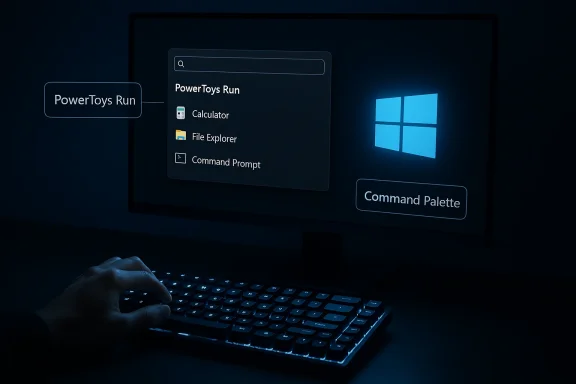 The keyboard-first alternative: what PowerToys Run and Command Palette solve
PowerToys Run and its successor, the Command Palette, approach the launcher problem the way macOS’s Spotlight or Alfred do: a single, instant search box you activate from the keyboard. You don’t click, you type. That reduces context switching—and context switching is the productivity tax that the Windows Start menu quietly levies on people who stay at the keyboard.- PowerToys Run is a compact launcher (Alt+Space by default) that finds apps, files, processes, and even executes simple shell commands. It’s fast and intentionally minimal.
- Command Palette is Microsoft’s evolution of that idea: a richer, extensible tool that surfaces system commands, Winget package actions, app launching, window switching, and more from a single prompt (Win+Alt+Space by default). It’s built explicitly to replace—rather than be an add-on to—legacy search workflows.
Why the switch matters in practice
- Speed: Launch, type, and hit Enter. No mouse. No scrolling.
- Predictability: Results are focused on local files and commands, not on algorithmically recommended stories or store ads.
- Extensibility: Command Palette accepts extensions—Everything, clipboard history, Winget, Steam support—and can become the single ction.
- Control: You choose which extensions run and how the launcher behaves; the launcher respects your browser/search engine choices where the Start menu sometimes does not.
Verifying the claims: performance, features, and reality checks
I audited the major claims around the Command Palette and PowerToys releases to separate marketing from measured improvements.- Microsoft’s PowerToys release notes and public changelog document the shift to full Ahead‑of‑Time (AOT) compilation for the Command Palette and list concrete performance improvements: approximately 40% faster load times, ~15% lower startup memory, ~70% faster extension loading, and a ~55% smaller installation size attributed to AOT in the Windows App SDK. Those numbers appear in the official GitHub release notes and are echoed by Microsoft’s own documentation and the PowerToys engineering blog.
- Independent tech coverage (Windows Central and The Verge) picked up the same facts and tested the overall behavior, reporting meaningful responsiveness gains and noting that Command Palette is being rolled out as the intended successor to PowerToys Run. Those outlets also emphasize that Command Palette remains under active development and that PowerToys Run is kept available for compatibility.
- The Microsoft Learn docs confirm the default activation keys (PowerToys Run default: Alt+Space; Command Palette default: Win+Alt+Space) and list the same feature set—apps, files, commands, WinGet integration hints, extension support, and the low-level keyboard hook option that improves responsiveness on some systems. Those docs are the canonical, up-to-date reference for end users.
Caveats and verifiability
- The performance percentages were published in release notes and observed by independent outlets, but your mileage will vary with system configuration (CPU, storage, background load) and which extensions you enable. AOT reduces runtime JIT overhead but increases installation size complexity and relies on Windows App SDK behavior; verify against your own systems before rolling it out broadly.
- Command Palette is still maturing. GitHub issue trackers and community threads show users reporting shortcut remapping edge cases and some crashes or regressions as the utility grows in complexity. Those are normal for fast-evolving open-source projects, but they matter for production users. If you plan to make Command Palette central to a workflow, keep PowerToys updated and monitor GitHub issues for fixes or workarounds.
A practical migration path: from Start menu to a launcher-first workflow
If you’re convinced by the concept and want to switch, here’s a pragmatic, low-friction plan you can follow. Each step is short and reversible.- Install Microsoft PowerToys and enable the launcher utilities:
- Enable PowerToys Run first (Alt+Space default). Use it for a week to see how much friction it removes.
- Add the Command Palette once you want extensions and richer command plumbing:
- Set Command Palette to Win+Alt+Space (default). If you prefer Alt+Space, test that mapping carefully—there are known remapping edge cases and a low-level keyboard hook you may need to enable to get consistent behavior.
- Configure integrations that replace Start menu search pain points:
- Add an Everything extension to the Command Palette or PowerToys Run for instant file indexing results (Everything is significantly faster at file name searches than Windows Search when configured). Consider Network and admin scope for corporate devices before enabling.
- Turn off Start menu recommendations:
- Settings → Personalization → Start → turn off “Show recommendations for tips, app promotions, and more.” This removes the ad/recommendation surface so the Start menu stops competing for attention.
- Change muscle-memory shortcuts for specific apps:
- Use PowerToys Keyboard Manager or system shortcuts to pin frequently used apps to hotkeys that work alongside the launcher. Keep a short list of hotkeys in a text file for the first week of the transition.
Strengths: why this is genuinely better for power users
- Reduced context switching. With one keystroke you can launch apps, search files, send a web search, run a calculator expression, or start a Winget package install. That single-context flow is what feels faster, even when numeric speed gains are marginal.
- Extensibility and automation. Command Palette’s extension model allows you to add domain-specific actions—launch Steam games, query currency exchange, paste formatted snippets, or toggle PowerToys utilities—without leaving the launcher. That consolidates cognitive overhead.
- Respect for user preferences. Command Palette and PowerToys Run won’t redirect searches to Edge or Bing by default; they work with your system defaults and third-party integrations in ways the Start menu historically did not.
- Measurable engineering wins. The AOT move lowered memory spikes and load times in measurable ways in the PowerToys release notes, an important engineering step for a background utility that needs to be responsive without consuming excessive resources.
Risks and trade-offs: what to watch for before you commit
- Stability during rapid development. Command Palette is actively developed. Users have reported crashes, shortcut conflicts, and remapping quirks. Follow the project’s GitHub issues and release notes if you rely on it for critical workflows. Keep PowerToys on an update cadence and test new versions on a secondary machine when possible. ([github.com](Command Palette shortcut customization is disabled; unable to change to any other keybind, such as Alt+Space · Issue #38931 · microsoft/PowerToys policy and support.** Corporate environments with locked-down endpoints or strict Group Policy may not allow PowerToys or third-party indexers like Everything. If you’re an IT admin, test for compatibility and check telemetry/policy impacts before recommending these changes company-wide.
- Security and extension trust. Extensions increase attack surface. Only enable well-maintained extensions from trusted authors. If you create custom extensions internally, maintain code review and deployment standards.
- Feature regression risk. Disabling Start menu recommendations affects other system surfaces (recent files in Jump Lists or File Explorer) because some of these settings are shared. The convenience you remove in one area may ripple into others—plan for those side effects.
- Accessibility and discoverability. Some casual users prefer graphical menus because they visually expose features and recent items. Replacing the Start menu with a launcher assumes a keyboard-first proficiency that not every user has; keep both paths available for newcomers.
Comparative glance: Command Palette / PowerToys Run vs alternatives
- PowerToys Run / Command Palette
- Pros: deep Windows integration, Winget access, minimal footprint, supported by Microsoft.
- Cons: evolving feature set and occasional regressions.
- Everything + launcher integration
- Pros: blindingly fast filename search at scale; integrates as an extension.
- Cons: separate indexer; must be configured for privacy in enterprise settings.
- Flow Launcher, Wox, and other community launchers
- Pros: highly customizable, plugin ecosystems, cross-OS inspirations.
- Cons: third-party trust and maintenance vary; not backed by Microsoft’s ecosystem.
Accessibility, power-user ergonomics, and the future of the Start menu
The Start menu debate is largely about audience. Microsoft’s design priorities—simplicity, discovery, and monetizable surfaces—are useful for many consumers and OEM flows. But for the audience that spends all day in terminals, editors, and tabbed browsers, the Start menu’s ornamental evolution is a step away from direct control.PowerToys Run and Command Palette are signals that Microsoft recognizes this split. The Command Palette’s integration with system commands, Winget, and PowerToys utilities is a pragmatic way to give power users a unified interface while keeping the Start menu for broader audiences. The long-term question is whether core Windows UX surfaces should continue to ship with different feature sets for different user profiles, or whether Microsoft will make the launcher experience more composable and user-configurable at the OS level.
Accessibility is also a consideration: Command Palette includes accessibility improvements and a design meant to work with screen readers, but any keyboard-centric approach will require careful defaults to avoid disadvantaging users who rely on visual discovery or alternative input devices. Microsoft’s documentation and release notes show attention to these details, but practical QA in diverse environmentsro
Recommendations: how to choose the right path for you
- If you’re a power user or developer who lives at the keyboard: install PowerToys, use PowerToys Run to start, then graduate to Command Palette and add the extensions you need. Keep an eye on GitHub for bug fixes and enable the low-level keyboard hook if you experience activation lag.
- If you’re an IT admin evaluating for teams: test on representative hardware, verify Group Policy and security constraints, and document rollback steps. Consider deploying PowerToys through standardized packaging and provide a transition cheat sheet for users (hotkeys, how to access Start, and how to disable Start recommendations).
- If you’re a casual user who likes icons and mouse-driven discovery: tweak Start’s personalization settings to hide recommendations, and try PowerToys Run for occasional speed boosts. You can have the best of both worlds without committing fully to a keyboard-centric workflow.
Conclusion
The Start menu hasn’t been “bad” for everyone, but it has become a blunt instrument thn the way of people who need precision and speed. Replacing my daily reliance on the Start menu with a keystroke-first launcher fundamentally changed how I work: fewer context switches, faster launches, and better control over search and actions. Microsoft’s PowerToys Run and the Command Palette deliver on that promise with real engineering improvements behind them—AOT compilation and optimized extension loading are not just marketing bullets, they materially change responsiveness for a utility that must be instant.That said, the transition requires trade-offs: you accept some instability while the Command Palette matures, and you must be mindful of enterprise constraints and extension trust. For power users, however, the advantages are clear enough that the Start menu becomes optional rather than essential. If you’ve felt the Start menu’s friction for a long time, try the keyboard-first path: a week of using a launcher will tell you whether it’s a better default for the way you work.
Source: MakeUseOf I stopped using the Start Menu—and I don’t miss it at all
