

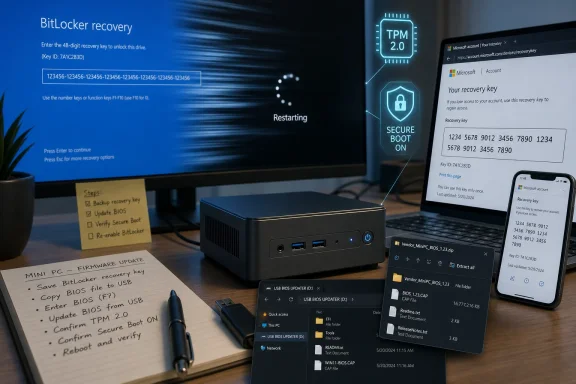
On May 10, 2026, CNX Software published a first-person account of a Khadas Mind 2 BIOS update that turned a five-minute Windows 11 firmware job into a two-hour BitLocker recovery detour. The story is not remarkable because BitLocker reacted to a firmware change; that is exactly what it is designed to do. It is remarkable because the supposedly routine consumer PC maintenance flow still assumes a level of preparation, patience, and command-line fluency that many Windows users simply do not have. In 2026, the weakest link in the Windows security chain may not be encryption itself, but the handoff between OEM firmware tools, Microsoft account recovery, TPM state, and the human being staring at a 48-digit key.
The Khadas Mind 2 episode begins in the most ordinary way possible: a vendor-supplied BIOS ZIP file, an updater executable, and instructions that imply the whole process should be over before a cup of coffee cools. The flash itself reportedly completed without drama. The trouble arrived only after the reboot, when Windows 11’s device encryption machinery noticed that the platform beneath it had changed.
That moment is where BitLocker stops being an invisible feature and becomes a gatekeeper. On many modern Windows 11 PCs, particularly devices sold with TPM support and signed-in Microsoft accounts, drive encryption is no longer something users consciously opt into. It is just part of the baseline security posture, until the day firmware changes and Windows asks the user to prove they still belong there.
In principle, this is the correct behavior. BitLocker’s job is to protect data when the boot environment no longer looks like the one it previously trusted. A BIOS or UEFI update changes measurements that can affect how the Trusted Platform Module decides whether to release the keys needed to boot Windows normally.
But “correct” is not the same thing as “usable.” The CNX Software account describes a recovery screen that appeared only briefly before the system rebooted again, making it practically impossible to enter the 48-digit recovery key in time. At that point, the security feature was no longer merely challenging an unexpected platform change; it was trapping a legitimate owner in a loop.
The deeper problem is coordination. A secure Windows firmware update should be a choreographed sequence: confirm the recovery key is backed up, suspend BitLocker for the appropriate number of reboots, apply the firmware update, boot successfully, and then resume protection. If any part of that choreography is left to the user after the fact, the recovery path becomes the product experience.
Microsoft has long documented that BIOS, UEFI, TPM, and other non-Windows firmware changes can require BitLocker suspension. Major PC vendors often wrap this into their update utilities, especially on enterprise-focused systems. The best tools do not merely warn the user; they detect encryption state, suspend protection, perform the update, and restore the machine to a protected state after the expected reboot cycle.
That matters because BitLocker recovery is not a normal password prompt. It is a crisis prompt. It asks for a long numeric key that most users do not know, may not have saved, and may not even realize exists until the machine is already blocked.
The Khadas case shows what happens when the warning and automation layer is too thin. The BIOS installer may have done exactly what it promised at the firmware level, but it did not appear to guide the Windows encryption layer through the same transition. The result was a technically successful BIOS flash followed by an operationally failed reboot.
This is where Microsoft’s increasingly aggressive Microsoft account requirements intersect with a real-world recovery scenario. Many enthusiasts dislike being pushed toward an online account during Windows setup, and not without reason. Local accounts are simpler, more private, and less entangled with cloud identity.
Yet the BitLocker recovery story complicates that debate. If device encryption is enabled and the recovery key is not saved somewhere recoverable, a firmware-triggered recovery event can become data loss. A Microsoft account backup is not elegant, but for many consumers it is the difference between annoyance and a wiped drive.
That does not make Microsoft’s account pressure beyond criticism. It means the company has built a security model in which cloud identity quietly becomes the safety net for local hardware changes. Users are not always told this in plain English at the moment it matters most.
Windows setup may present Microsoft account sign-in as a personalization, sync, or app-store convenience. In practice, it can also be the escrow mechanism for the recovery key that saves the user during a BIOS update. That is a much more serious bargain, and it deserves clearer disclosure.
That middle market is where firmware updates can feel riskiest. Users may be comfortable downloading BIOS files from vendor support pages, but they may not be steeped in BitLocker protector management. Vendors may provide the firmware, but not always the full Windows-aware wrapper that handles encryption state and recovery preparedness.
Enterprise IT has learned this lesson through pain. Firmware updates are scheduled, tested, scripted, and paired with recovery-key escrow in Active Directory, Entra ID, Intune, or a management platform. A recovery prompt is still disruptive, but it is usually recoverable because the help desk has the key and the process is documented.
The home user gets the same cryptographic enforcement without the same operational scaffolding. The enthusiast gets the power to flash firmware manually, but also the responsibility to know that
The workaround was to skip the drive, enter Windows recovery options, open Command Prompt, unlock the drive, and suspend BitLocker manually. That is a perfectly valid path for a reviewer, sysadmin, or battle-hardened Windows enthusiast. It is also absurd as a mainstream recovery path.
A 48-digit key is already hostile enough under pressure. Users must read it from another device, type it without transposition errors, and understand that they are unlocking the correct machine. Add a reboot loop, and the system turns a recoverable event into a race condition.
This is where Windows still feels like two products stitched together. The consumer-facing layer says “we’ll protect your data automatically.” The recovery layer says “please know the right command-line tool, the right protector syntax, and the right drive letter.” The gap between those two statements is where lost afternoons live.
Windows Hello PINs are not just short passwords. They are bound to the device and its security hardware. When firmware, TPM state, or platform trust changes, Windows may decide that a previously valid sign-in method must be re-established.
Again, the security logic is defensible. If the platform’s identity has changed, Windows should be cautious about credentials tied to that platform. But the user experience compounds the earlier failure. First BitLocker demands recovery, then Windows Hello demands repair, and the user is left wondering which part of the machine still trusts them.
In this case, resetting the PIN through the recovery flow worked. But that was after the user had already navigated Microsoft account recovery, BitLocker recovery, Windows recovery tools, and administrative commands. The BIOS update may have taken five minutes; the trust repair took the afternoon.
Microsoft can fairly say that BitLocker is behaving as designed. OEMs can fairly say that firmware updates necessarily change platform measurements. Both statements can be true while the user experience remains unacceptable.
The mature answer is not to weaken BitLocker. It is to make firmware servicing encryption-aware by default. Before a BIOS updater proceeds, it should detect BitLocker or device encryption state, confirm recovery-key availability, suspend protection for an appropriate reboot count, and explain exactly when protection will resume.
Some vendor tools already do versions of this. The problem is inconsistency. On a Windows ecosystem that prides itself on hardware diversity, the same basic maintenance operation can range from invisible to catastrophic depending on the vendor utility, firmware delivery method, management state, and user account configuration.
That inconsistency undermines trust. Users who have one bad BitLocker recovery experience often do not conclude that their data is safer. They conclude that encryption is dangerous, Windows updates are dangerous, BIOS updates are dangerous, or all three.
That invisibility is a design choice. Microsoft has spent years making encryption feel automatic, and in many ways that is good. Users should not have to become storage-security specialists to benefit from full-disk encryption.
But automatic security needs automatic recovery preparation. If the operating system can turn on device encryption, back up a recovery key, and bind protectors to the TPM, it should also provide a more obvious pre-flight checklist when firmware changes are about to happen. That checklist should not live in a support article users discover only after the machine fails to boot.
The irony is that the manual commands worked. Once the user got to the right place and issued the right instruction, the system returned to normal. The problem was not that Windows lacked the mechanism. The problem was that Windows and the firmware updater failed to put the mechanism in the user’s path before the failure.
Windows 11’s security model is increasingly built around the assumption that the boot chain is measured, stable, and controlled. Enthusiast computing is often built around the opposite assumption: users will change firmware settings, test operating systems, swap storage, boot from USB, and experiment.
Those two cultures can coexist, but not by accident. A user installing Linux alongside Windows needs to understand whether BitLocker is enabled, where the recovery key is stored, what changing Secure Boot or boot order might trigger, and how to suspend protection before making changes. Without that preparation, a routine OS experiment can look to Windows like tampering.
This is why the Khadas story resonates beyond one mini PC. The more Windows leans on hardware-rooted security, the more platform changes become security events. That is sensible for stolen laptops and enterprise compliance. It is less friendly to people who still treat PCs as machines they are allowed to modify.
That is dangerous, because BitLocker and device encryption are genuinely valuable. A lost or stolen laptop with an unencrypted drive remains one of the simplest data-loss scenarios in computing. TPM-backed encryption has raised the security floor for millions of Windows devices.
But security features lose political capital when they surprise people during normal maintenance. A BIOS update is not exotic behavior. It may be required for bug fixes, hardware support, performance stability, or security patches. Treating it as a trapdoor event teaches users to fear the maintenance they should be encouraged to perform.
The right lesson is not “disable BitLocker permanently.” The right lesson is “do not update firmware until you know your recovery key is accessible and protection is properly suspended.” Unfortunately, Windows still does a poor job of teaching that lesson at the moment when users are most likely to need it.
A good BIOS updater in 2026 should not merely flash firmware. It should refuse to proceed blindly on an encrypted Windows system. It should display whether BitLocker or device encryption is active, whether a recovery key appears to be backed up, whether protection has been suspended, and how many reboots the suspension covers.
Windows could help by exposing a clearer consumer-grade firmware maintenance mode. Instead of burying recovery guidance across settings pages, support articles, and command-line tools, Microsoft could provide a first-class “prepare for firmware update” flow that handles recovery-key verification and temporary suspension. Enterprise admins would still script their own processes, but consumers and enthusiasts would have a safer default.
OEMs also need to stop assuming that posting a BIOS ZIP file with a short instruction page is enough. On modern Windows systems, firmware updates are not just firmware events. They are encryption, identity, and boot-integrity events.
The cost of doing this poorly is not theoretical. It is measured in support tickets, forum threads, wiped drives, and users who decide that the safest way to maintain a PC is to avoid maintaining it.
Source: CNX Software My experience upgrading the BIOS of a Windows 11 mini PC (with BitLocker) in 2026 - CNX Software
 A Five-Minute BIOS Update Became a Trust Test
The Khadas Mind 2 episode begins in the most ordinary way possible: a vendor-supplied BIOS ZIP file, an updater executable, and instructions that imply the whole process should be over before a cup of coffee cools. The flash itself reportedly completed without drama. The trouble arrived only after the reboot, when Windows 11’s device encryption machinery noticed that the platform beneath it had changed.That moment is where BitLocker stops being an invisible feature and becomes a gatekeeper. On many modern Windows 11 PCs, particularly devices sold with TPM support and signed-in Microsoft accounts, drive encryption is no longer something users consciously opt into. It is just part of the baseline security posture, until the day firmware changes and Windows asks the user to prove they still belong there.
In principle, this is the correct behavior. BitLocker’s job is to protect data when the boot environment no longer looks like the one it previously trusted. A BIOS or UEFI update changes measurements that can affect how the Trusted Platform Module decides whether to release the keys needed to boot Windows normally.
But “correct” is not the same thing as “usable.” The CNX Software account describes a recovery screen that appeared only briefly before the system rebooted again, making it practically impossible to enter the 48-digit recovery key in time. At that point, the security feature was no longer merely challenging an unexpected platform change; it was trapping a legitimate owner in a loop.
BitLocker Did Its Job, Then the Experience Fell Apart
It is tempting to blame BitLocker whenever a BIOS update triggers recovery. That is too easy, and mostly wrong. BitLocker is supposed to be suspicious when firmware changes, because firmware is part of the pre-boot trust boundary.The deeper problem is coordination. A secure Windows firmware update should be a choreographed sequence: confirm the recovery key is backed up, suspend BitLocker for the appropriate number of reboots, apply the firmware update, boot successfully, and then resume protection. If any part of that choreography is left to the user after the fact, the recovery path becomes the product experience.
Microsoft has long documented that BIOS, UEFI, TPM, and other non-Windows firmware changes can require BitLocker suspension. Major PC vendors often wrap this into their update utilities, especially on enterprise-focused systems. The best tools do not merely warn the user; they detect encryption state, suspend protection, perform the update, and restore the machine to a protected state after the expected reboot cycle.
That matters because BitLocker recovery is not a normal password prompt. It is a crisis prompt. It asks for a long numeric key that most users do not know, may not have saved, and may not even realize exists until the machine is already blocked.
The Khadas case shows what happens when the warning and automation layer is too thin. The BIOS installer may have done exactly what it promised at the firmware level, but it did not appear to guide the Windows encryption layer through the same transition. The result was a technically successful BIOS flash followed by an operationally failed reboot.
The Microsoft Account Is Now Part of the Firmware Update Story
One of the more revealing details in the CNX Software account is the recovery-key retrieval path. The user went to Microsoft’s recovery-key page on another machine and found the 48-digit key associated with the mini PC. That worked, but only because the key had been backed up to a Microsoft account.This is where Microsoft’s increasingly aggressive Microsoft account requirements intersect with a real-world recovery scenario. Many enthusiasts dislike being pushed toward an online account during Windows setup, and not without reason. Local accounts are simpler, more private, and less entangled with cloud identity.
Yet the BitLocker recovery story complicates that debate. If device encryption is enabled and the recovery key is not saved somewhere recoverable, a firmware-triggered recovery event can become data loss. A Microsoft account backup is not elegant, but for many consumers it is the difference between annoyance and a wiped drive.
That does not make Microsoft’s account pressure beyond criticism. It means the company has built a security model in which cloud identity quietly becomes the safety net for local hardware changes. Users are not always told this in plain English at the moment it matters most.
Windows setup may present Microsoft account sign-in as a personalization, sync, or app-store convenience. In practice, it can also be the escrow mechanism for the recovery key that saves the user during a BIOS update. That is a much more serious bargain, and it deserves clearer disclosure.
Mini PCs Expose the Messy Middle Between Consumer and Enterprise Windows
The Khadas Mind 2 is not a generic beige office desktop, but it is also not a toy. Mini PCs like it increasingly sit in the strange middle of the Windows ecosystem: enthusiast hardware, creator hardware, home-lab hardware, and sometimes small-business hardware all at once. They use modern Windows security assumptions, but they often lack the polished lifecycle tooling of a Dell Latitude, HP EliteBook, or Lenovo ThinkPad fleet.That middle market is where firmware updates can feel riskiest. Users may be comfortable downloading BIOS files from vendor support pages, but they may not be steeped in BitLocker protector management. Vendors may provide the firmware, but not always the full Windows-aware wrapper that handles encryption state and recovery preparedness.
Enterprise IT has learned this lesson through pain. Firmware updates are scheduled, tested, scripted, and paired with recovery-key escrow in Active Directory, Entra ID, Intune, or a management platform. A recovery prompt is still disruptive, but it is usually recoverable because the help desk has the key and the process is documented.
The home user gets the same cryptographic enforcement without the same operational scaffolding. The enthusiast gets the power to flash firmware manually, but also the responsibility to know that
manage-bde exists. That is not a failure of cryptography. It is a failure of product boundary design.The Recovery Loop Is the Part That Should Embarrass Everyone
The most damning detail in the account is not that BitLocker asked for a recovery key. It is that the screen reportedly stayed visible for only about five seconds before rebooting again. A recovery process that cannot realistically be completed by a human is not security; it is accidental denial of service.The workaround was to skip the drive, enter Windows recovery options, open Command Prompt, unlock the drive, and suspend BitLocker manually. That is a perfectly valid path for a reviewer, sysadmin, or battle-hardened Windows enthusiast. It is also absurd as a mainstream recovery path.
A 48-digit key is already hostile enough under pressure. Users must read it from another device, type it without transposition errors, and understand that they are unlocking the correct machine. Add a reboot loop, and the system turns a recoverable event into a race condition.
This is where Windows still feels like two products stitched together. The consumer-facing layer says “we’ll protect your data automatically.” The recovery layer says “please know the right command-line tool, the right protector syntax, and the right drive letter.” The gap between those two statements is where lost afternoons live.
The PIN Failure Was a Second Trust Boundary, Not a Random Glitch
After suspending BitLocker and getting Windows to boot, the CNX Software author hit another familiar Windows security behavior: the PIN was no longer available and had to be set up again. That may sound like a separate annoyance, but it belongs to the same family of problems.Windows Hello PINs are not just short passwords. They are bound to the device and its security hardware. When firmware, TPM state, or platform trust changes, Windows may decide that a previously valid sign-in method must be re-established.
Again, the security logic is defensible. If the platform’s identity has changed, Windows should be cautious about credentials tied to that platform. But the user experience compounds the earlier failure. First BitLocker demands recovery, then Windows Hello demands repair, and the user is left wondering which part of the machine still trusts them.
In this case, resetting the PIN through the recovery flow worked. But that was after the user had already navigated Microsoft account recovery, BitLocker recovery, Windows recovery tools, and administrative commands. The BIOS update may have taken five minutes; the trust repair took the afternoon.
Microsoft and OEMs Keep Treating Firmware as Someone Else’s Problem
The Windows PC ecosystem has always had a split-brain problem around firmware. Microsoft owns the operating system experience, OEMs own the BIOS or UEFI delivery experience, and silicon vendors influence the low-level security behavior that determines whether the update is seamless. When it works, nobody notices. When it fails, the user sees only Windows demanding a recovery key.Microsoft can fairly say that BitLocker is behaving as designed. OEMs can fairly say that firmware updates necessarily change platform measurements. Both statements can be true while the user experience remains unacceptable.
The mature answer is not to weaken BitLocker. It is to make firmware servicing encryption-aware by default. Before a BIOS updater proceeds, it should detect BitLocker or device encryption state, confirm recovery-key availability, suspend protection for an appropriate reboot count, and explain exactly when protection will resume.
Some vendor tools already do versions of this. The problem is inconsistency. On a Windows ecosystem that prides itself on hardware diversity, the same basic maintenance operation can range from invisible to catastrophic depending on the vendor utility, firmware delivery method, management state, and user account configuration.
That inconsistency undermines trust. Users who have one bad BitLocker recovery experience often do not conclude that their data is safer. They conclude that encryption is dangerous, Windows updates are dangerous, BIOS updates are dangerous, or all three.
The Command Line Remains the Escape Hatch Windows Pretends Users Do Not Need
The commands in the CNX Software account are familiar to administrators:manage-bde -protectors -disable to suspend BitLocker protection, and manage-bde -protectors -enable to resume it. PowerShell’s Suspend-BitLocker and Resume-BitLocker can serve similar roles. These tools are not obscure to IT pros, but they are invisible to ordinary users until something breaks.That invisibility is a design choice. Microsoft has spent years making encryption feel automatic, and in many ways that is good. Users should not have to become storage-security specialists to benefit from full-disk encryption.
But automatic security needs automatic recovery preparation. If the operating system can turn on device encryption, back up a recovery key, and bind protectors to the TPM, it should also provide a more obvious pre-flight checklist when firmware changes are about to happen. That checklist should not live in a support article users discover only after the machine fails to boot.
The irony is that the manual commands worked. Once the user got to the right place and issued the right instruction, the system returned to normal. The problem was not that Windows lacked the mechanism. The problem was that Windows and the firmware updater failed to put the mechanism in the user’s path before the failure.
Linux Dual-Boot Plans Make the Same Fault Line Wider
The CNX Software author ends by noting that BitLocker may need to be suspended again for a planned Ubuntu 26.04 installation. That aside is more than a throwaway enthusiast comment. Dual-booting, Secure Boot changes, bootloader edits, recovery partitions, and firmware settings all live near the same trust boundary that BitLocker watches closely.Windows 11’s security model is increasingly built around the assumption that the boot chain is measured, stable, and controlled. Enthusiast computing is often built around the opposite assumption: users will change firmware settings, test operating systems, swap storage, boot from USB, and experiment.
Those two cultures can coexist, but not by accident. A user installing Linux alongside Windows needs to understand whether BitLocker is enabled, where the recovery key is stored, what changing Secure Boot or boot order might trigger, and how to suspend protection before making changes. Without that preparation, a routine OS experiment can look to Windows like tampering.
This is why the Khadas story resonates beyond one mini PC. The more Windows leans on hardware-rooted security, the more platform changes become security events. That is sensible for stolen laptops and enterprise compliance. It is less friendly to people who still treat PCs as machines they are allowed to modify.
Security That Surprises Users Trains Them to Disable It
There is a hard truth here for Microsoft and OEMs: users do not judge security features by architecture diagrams. They judge them by the day those features interrupt work, block data, or demand a key they do not have. If the experience feels arbitrary, users will look for ways to turn it off.That is dangerous, because BitLocker and device encryption are genuinely valuable. A lost or stolen laptop with an unencrypted drive remains one of the simplest data-loss scenarios in computing. TPM-backed encryption has raised the security floor for millions of Windows devices.
But security features lose political capital when they surprise people during normal maintenance. A BIOS update is not exotic behavior. It may be required for bug fixes, hardware support, performance stability, or security patches. Treating it as a trapdoor event teaches users to fear the maintenance they should be encouraged to perform.
The right lesson is not “disable BitLocker permanently.” The right lesson is “do not update firmware until you know your recovery key is accessible and protection is properly suspended.” Unfortunately, Windows still does a poor job of teaching that lesson at the moment when users are most likely to need it.
The Real Fix Is Boring, Which Is Why It Has Been Neglected
The fix for this class of problem is not glamorous. It does not require a new AI assistant, a redesigned Start menu, or another security branding campaign. It requires boring, reliable plumbing between OEM firmware tools and Windows encryption state.A good BIOS updater in 2026 should not merely flash firmware. It should refuse to proceed blindly on an encrypted Windows system. It should display whether BitLocker or device encryption is active, whether a recovery key appears to be backed up, whether protection has been suspended, and how many reboots the suspension covers.
Windows could help by exposing a clearer consumer-grade firmware maintenance mode. Instead of burying recovery guidance across settings pages, support articles, and command-line tools, Microsoft could provide a first-class “prepare for firmware update” flow that handles recovery-key verification and temporary suspension. Enterprise admins would still script their own processes, but consumers and enthusiasts would have a safer default.
OEMs also need to stop assuming that posting a BIOS ZIP file with a short instruction page is enough. On modern Windows systems, firmware updates are not just firmware events. They are encryption, identity, and boot-integrity events.
The cost of doing this poorly is not theoretical. It is measured in support tickets, forum threads, wiped drives, and users who decide that the safest way to maintain a PC is to avoid maintaining it.
The Practical Lesson From One Very Long Reboot
The Khadas Mind 2 case is useful because it compresses the whole modern Windows security bargain into one afternoon: stronger default protection, more cloud-dependent recovery, more firmware-sensitive boot trust, and more ways for routine maintenance to become unintuitive. For Windows enthusiasts and administrators, the lesson is not panic. It is preparation.- Before applying a BIOS, UEFI, TPM, or major firmware update, confirm whether BitLocker or Windows device encryption is enabled on the system drive.
- Before changing firmware, verify that the BitLocker recovery key is available from a Microsoft account, work or school account, Active Directory, Entra ID, Intune, or a saved offline copy.
- Before rebooting into the firmware update, suspend BitLocker protection for the expected update cycle rather than assuming the vendor utility will do it correctly.
- After the update and successful boot, confirm that BitLocker protection has resumed instead of assuming Windows automatically restored the intended state.
- If Windows Hello PIN sign-in breaks after firmware changes, treat it as part of the same platform-trust reset rather than as evidence that the account password itself has failed.
- If the machine will be used for dual-booting or frequent firmware experimentation, keep recovery material and encryption-state procedures documented before the next change.
Source: CNX Software My experience upgrading the BIOS of a Windows 11 mini PC (with BitLocker) in 2026 - CNX Software
