

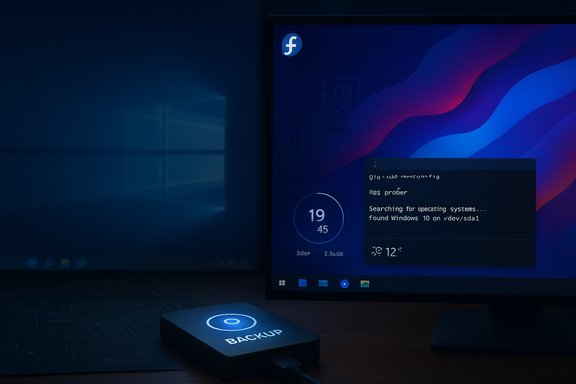
A writer at XDA took the plunge, wiped Windows from their machine after a five‑month Linux trial, and — after imaging Windows to an external drive — committed to Fedora KDE as their daily driver while experimenting with dual‑boot setups that repeatedly tripped over GRUB and os‑prober.
The account begins as a fairly common migration story: curiosity → trial → comfort. The author tried several distributions (Arch, EndeavourOS, openSUSE) before returning to the environment that won them over — Fedora KDE Plasma — and then decided to free up disk space by deleting the Windows partition entirely and keeping a full disk image on an external drive. The motivation was simple: the author found Windows 10 “stale” after Microsoft’s support clock wound down and Linux offered more frequent, interesting changes to the desktop experience.
This is not an isolated personal flourish. The timing of the author's decision intersects with a major lifecycle milestone: Windows 10 reached its official end of support on October 14, 2025, meaning Microsoft stopped providing routine security and feature updates for the product family. That expiration created real pressure for users who needed either to upgrade to Windows 11, enroll in the limited Extended Security Updates (ESU) window, or adopt another platform entirely.
Recommended imaging workflow (practical, ordered):
The broader context — Windows 10’s October 14, 2025 end of support and the limited ESU bridge — gives this decision a concrete impetus. For users juggling nostalgia, application compatibility, and security posture, the author’s solution — keep a full Windows image, go all‑in on Fedora KDE, and learn to recover from mistakes — is a pragmatic template. If the author returns next month with a brand new favorite distro, that will only reinforce the point: in the current desktop landscape, user choice is stronger than it’s been in years, and making an informed, backed‑up leap is rational rather than reckless.
Source: XDA I deleted Windows from my PC after using Linux for five months
 Background
The account begins as a fairly common migration story: curiosity → trial → comfort. The author tried several distributions (Arch, EndeavourOS, openSUSE) before returning to the environment that won them over — Fedora KDE Plasma — and then decided to free up disk space by deleting the Windows partition entirely and keeping a full disk image on an external drive. The motivation was simple: the author found Windows 10 “stale” after Microsoft’s support clock wound down and Linux offered more frequent, interesting changes to the desktop experience.This is not an isolated personal flourish. The timing of the author's decision intersects with a major lifecycle milestone: Windows 10 reached its official end of support on October 14, 2025, meaning Microsoft stopped providing routine security and feature updates for the product family. That expiration created real pressure for users who needed either to upgrade to Windows 11, enroll in the limited Extended Security Updates (ESU) window, or adopt another platform entirely.
Why the timing mattered: Windows 10 end of support and ESU
The technical reality behind the author’s emotional recoil from Windows 10 is straightforward: after an operating system reaches end of support, it will no longer receive security patches and vendor troubleshooting. Microsoft’s pages explicitly state that Windows 10 will no longer get feature or security updates after October 14, 2025, and recommend either moving to Windows 11 or enrolling in the consumer ESU program for a one‑year bridge. That ESU program is practical but constrained. Microsoft offered consumer ESU options that cover critical and important security fixes through October 13, 2026, but the program is a short bridge rather than a long‑term solution. Consumer enrollment paths include a free opt‑in via Windows Backup syncing to a Microsoft account, redeeming Microsoft Rewards points, or a paid $30 route in some regions — and several news outlets and community posts called out the requirement to enroll via a Microsoft account in some scenarios. These operational details matter: the account linkage and the one‑year limit change the migration calculus for hesitant users. Practical takeaway: the author’s impulse to finally remove Windows was less a rejection of the platform’s technical merits and more a reaction to a hard lifecycle deadline that converted long‑standing ambivalence into an actual, reversible action — image Windows, then reclaim the disk.Linux on the daily driver: Fedora 43 and KDE Plasma
The author landed on Fedora KDE Plasma, recently updated to Fedora 43, and highlighted the fun of distro‑hopping followed by the comfort of a familiar desktop environment. Fedora 43 was released in late October 2025, bringing a host of under‑the‑hood changes (RPM 6.0, initrd zstd compression, and installer UI improvements) as well as spins for KDE Plasma Desktop and other environments. For users who like frequent updates and an upstream‑focused release cadence, Fedora remains a compelling upstream‑friendly choice. On the compositor and shell side, KDE Plasma 6.5 shipped around the same timeframe and introduced visible UI changes — rounded corners, new KRunner behavior, and other polish — but it also arrived with a noticeable set of regressions reported by users (visual contrast/blur regressions, plasmashell crashes on some configurations, and other annoyances). The KDE 6.x migration is very much in motion: new features bring fresh ergonomics, and the stability surface has been uneven across hardware and distributions. That mixed reality — exciting features, some regressions — is exactly the environment a Fedora KDE user described in the original account. What this means in practice: switching to Linux today is a viable mainstream choice for general productivity and most workflows, but desktop upgrades can produce short‑term breakage. That’s why the author’s willingness to reinstall and experiment repeatedly — and to keep backups — is the right pragmatic posture.Dual‑booting: the pain points the author hit
The heart of the technical drama in the original account is the author’s attempt to run two Linux distributions side‑by‑side (Fedora + Arch, then Fedora + openSUSE) and the repeated corruption or mis‑recognition of bootloaders. Those are classic dual‑boot failure modes and trace back to a few, predictable technical sources:- UEFI vs Legacy mismatch: a system where one OS uses UEFI and another uses Legacy/MBR will frequently frustrate GRUB detection and chainloading. Boot entries are fundamentally different between those modes, which makes detection fragile.
- GRUB and os‑prober invocation: modern grub‑mkconfig may skip running external discovery tools by default for security reasons; the GRUB manual warns that os‑prober is disabled by default because automated detection and silent creation of boot entries can be an attack vector. When os‑prober doesn’t run, other OSes aren’t added to the GRUB menu automatically.
- Distribution bootloader policies: some installers choose to install or overwrite bootloaders during installation, and some distributions (openSUSE in particular) install their own GRUB instance which may or may not play nicely with another distro’s GRUB. When two systems both install separate GRUBs to the same EFI partition, the result can be confusing chainloading behavior and accidental loss of entry points.
- EFI partition mounting: os‑prober typically needs the Windows/EFI partition mounted when you regenerate GRUB, otherwise it won’t see the other OS. That’s an easily overlooked but frequent source of “missing” boot entries.
Why GRUB/os‑prober trips people up (short technical primer)
- GRUB’s generator (grub‑mkconfig / grub2‑mkconfig) can call os‑prober to create entries for other OSes, but many distros leave os‑prober disabled by default; enabling it requires an explicit change to /etc/default/grub (GRUB_DISABLE_OS_PROBER=false) and then regenerating the GRUB config. The manual explains both the feature and the security reasoning behind the default.
- Chainloading (having one bootloader hand off to another) is a tolerable safeguard: if you want a cleaner separation, put one distro on each disk and chainload the second distro from the primary GRUB. That prevents one installer from stomping the other’s files. Community guides and distribution discussion threads demonstrate both techniques.
- Always check whether your installs are UEFI or legacy (BIOS). GRUB will not neatly bridge a mixture; the general advice is to pick one mode (UEFI preferred) and install all OSes in that mode, then use efibootmgr or your firmware’s boot order to control which bootloader runs first.
Safer alternatives to “nuke and tinker” dual‑boot experiments
If the goal is experimentation without the risk of wiping a preferred daily driver, the following options are safer and achieve most of the same goals:- Use virtual machines. Tools like QEMU/KVM, VirtualBox, GNOME Boxes, or Virt‑Manager let you test distros without touching the host bootloader. For GPU‑heavy testing or gaming, GPU passthrough is an option but is notably advanced.
- Put each OS on its own physical drive. With one OS per disk you can preserve bootloaders independently and avoid installers accidentally clobbering the EFI partition on a shared disk.
- Use rEFInd or systemd‑boot instead of relying entirely on GRUB as a discovery mechanism. rEFInd can be more resilient in certain multiboot setups and provides a user‑friendly GUI for EFI boot entries.
- If you must dual‑boot on one disk, document partition layout, ensure the ESP (EFI System Partition) is mounted, and export efibootmgr entries before you experiment so you can restore NVRAM entries if needed.
Backups, imaging, and the author’s responsible move
The author did a very sensible thing before deleting Windows: they made a full image and stored it on an external drive. That preserved a clean way back and is exactly the right approach for anyone contemplating deleting an OS. Imaging a full disk lets you restore not only files but the bootloader, partition table, and system state.Recommended imaging workflow (practical, ordered):
- Create a full disk image of your Windows disk to an external drive using a proven tool (Clonezilla, Macrium Reflect on Windows, or similar). Bootable live images let you restore even if the internal disk is blank.
- Verify or checksum the image after creation. Tools that allow image verification reduce nasty surprises at restore time.
- Create a small bootable recovery USB that includes the imaging tool and the restore image, so you can restore without needing networking. Clonezilla supports building recovery ISOs that include images, and many guides cover the exact workflow.
- Keep a copy of the image in a second location (cloud or second external drive) if the disk contains valuable, irreplaceable data. Disk failure of the sole backup is the single‑largest risk in a destructive experiment.
- If you plan to intermittently use Windows tools, consider restoring the image to a secondary drive or running Windows as a virtual machine rather than repeatedly reinstalling.
Practical recovery notes: how to restore Windows if you change your mind
- If you saved a full clone image with Clonezilla, boot Clonezilla live from USB, mount the external drive that holds the image, and select the restore option. Clonezilla’s documentation and many tutorials walk through savedisk → restoredisk workflows. Verify the target disk is the same model and capacity or larger.
- If you only exported files, not a full image, you’ll need to reinstall Windows and restore user data; system state (activation, drivers, bootloader) won’t come back automatically unless you preserved an image or a Windows system image backup.
- For UEFI systems where NVRAM entries got disturbed, efibootmgr (Linux) or the firmware setup utility can re‑create boot entries if needed. Community threads show how practical solutions often rely on efibootmgr and careful reinstallation of GRUB or the Windows bootloader.
The trade‑offs: strengths and risks of the author’s path
Strengths- Control and transparency: Linux gives stronger control over update cadence, privacy, and surface area. The author enjoyed exploring KDE and distro peculiarities — a genuine plus for tinkerers.
- Longevity on older hardware: For machines that can’t meet Windows 11 requirements (TPM 2.0, CPU lists), Linux is a realistic ongoing option without paid ESU.
- Ecosystem maturity: Desktop Linux now supports many popular apps either natively or via Flatpak/Snap containerized packages; browsers, chat apps, and cloud‑PC clients are often available.
- Compatibility gaps: Some professional apps, proprietary creative suites, and games with kernel‑level anti‑cheat still perform better (or only) on Windows. Migrating users must check corner cases.
- Security posture for legacy Windows: If a user keeps Windows 10 without ESU, the system becomes exposed to new vulnerabilities; ESU is short, sometimes regionally constrained, and may require an account linkage.
- Experimentation hazards: Repeated installer/bootloader juggling can leave a machine unbootable without recovery media. The author experienced this first‑hand when attempting Arch and openSUSE installs.
Concrete checklist for anyone considering the same move
- Back up everything. Create a full disk image and verify it. Store a copy off the machine.
- Make a bootable recovery USB that contains the imaging tool and restoration image. Test the recovery USB on the machine before deleting anything.
- If you need Windows occasionally, consider:
- Running a Windows VM (low risk), or
- Restoring the image onto a spare drive and swapping drives (moderate effort), or
- Using a dedicated secondary machine (safest separation).
- For dual‑boot experiments:
- Choose UEFI for all installs if your hardware supports it.
- Put each OS on its own physical disk if possible.
- If using one disk, mount the ESP and ensure os‑prober is enabled if you want auto discovery (set GRUB_DISABLE_OS_PROBER=false and regenerate GRUB), but know that enabling it may be disabled by default for security reasons; the GRUB manual explains why.
- Keep a copy of your efibootmgr list (or the firmware’s boot entries) so you can re‑create them.
Final analysis and verdict
The author’s story is instructive because it combines the emotional arc of leaving a familiar ecosystem with the sober technical lessons of experimentation. Deleting Windows after making a verified external image is responsible; repeatedly reinstalling bootloaders without a tested recovery plan is risky. The modern Linux desktop is capable enough to be a long‑term home for many users, but the path out of Windows demands planning: know your backup strategy, understand UEFI/EFI semantics, and prefer safe experimentation methods (VMs, spare disks) until you’re comfortable with installer behavior.The broader context — Windows 10’s October 14, 2025 end of support and the limited ESU bridge — gives this decision a concrete impetus. For users juggling nostalgia, application compatibility, and security posture, the author’s solution — keep a full Windows image, go all‑in on Fedora KDE, and learn to recover from mistakes — is a pragmatic template. If the author returns next month with a brand new favorite distro, that will only reinforce the point: in the current desktop landscape, user choice is stronger than it’s been in years, and making an informed, backed‑up leap is rational rather than reckless.
Resources mentioned (for reference when executing the checklist)
- Microsoft: Windows 10 end of support and ESU guidance.
- Fedora Project: Fedora 43 release and release notes.
- KDE / news coverage: Plasma 6.5 release notes and community bug reports.
- GRUB manual: explanation of GRUB_DISABLE_OS_PROBER and security trade‑offs.
- Guides on os‑prober and dual‑boot workflows.
- Clonezilla documentation and practical imaging guides for creating and restoring full disk images.
Source: XDA I deleted Windows from my PC after using Linux for five months
