

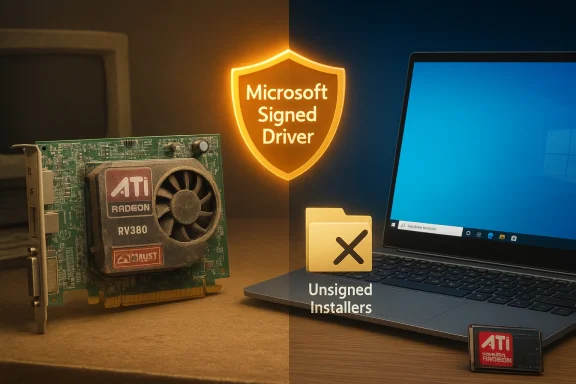
The short answer is this: the RV380 and the Mobility Radeon HD 4530 are legacy-era GPUs with limited and fragile Windows 10 support, official driver development stopped years ago, and the “cheap driver” listings and repackaged installers you find in search results are often unnecessary at best and dangerous at worst. If you own a laptop or MXM module with a Mobility Radeon HD 4530 and you want to run Windows 10, your safest route is to use Microsoft’s signed fallback driver (delivered by Windows Update) or the exact OEM driver for your laptop — and to avoid third‑party “patched” installers unless you are prepared to accept real security and stability risks. ww.amd.com/en/resources/support-articles/release-notes/rn-rad-win-legacy.html)
The GPU naming in the old ATI/AMD family tree is confusing and matters here. The RV380 is an R300‑generation chip from the mid‑2000s (used in Radeon X600 and similar cards), while the Mobility Radeon HD 4530 is a later TeraScale‑generation mobile GPU (M92 family) introduced around 2009. They are different generations, different feature sets, and different driver histories — so a driver package for an “RV380” is not the same thing as one for an HD 4530. Tech databases list RV380 as an R300 chip with DirectX 9.0-era features, while the Mobility Radeon HD 4530 is TeraScale (DirectX 10.1) and a distinct mobile part.
From a support policy perspective, AMD long ago moved the HD 2000/3000/4000 families into legacy status. The last broad Catalyst-era updates for those lines were released in 2013; AMD’s official guidance points Windows 10 users to Microsoft Update for a basic, Microsoft‑signed display driver rather than promising ongoing Catalyst/Adrenalin support. In short: modern, featureful AMD stacks for Windows 10 are not being developed for these chips.
If you want an exact checklist (including how to extract a Catalyst package, inspect the Display.Driver*.inf for your PCI\VEN_1002&DEV_xxxx entry, and step‑by‑step DDU commands), I can produce that as a separate technical appendix for your specific hardware ID — but only after you confirm the exact Device Manager hardware ID for your GPU.
Source: Born2Invest https://born2invest.com/?b=style-237452612/
 Background / Overview
The GPU naming in the old ATI/AMD family tree is confusing and matters here. The RV380 is an R300‑generation chip from the mid‑2000s (used in Radeon X600 and similar cards), while the Mobility Radeon HD 4530 is a later TeraScale‑generation mobile GPU (M92 family) introduced around 2009. They are different generations, different feature sets, and different driver histories — so a driver package for an “RV380” is not the same thing as one for an HD 4530. Tech databases list RV380 as an R300 chip with DirectX 9.0-era features, while the Mobility Radeon HD 4530 is TeraScale (DirectX 10.1) and a distinct mobile part. From a support policy perspective, AMD long ago moved the HD 2000/3000/4000 families into legacy status. The last broad Catalyst-era updates for those lines were released in 2013; AMD’s official guidance points Windows 10 users to Microsoft Update for a basic, Microsoft‑signed display driver rather than promising ongoing Catalyst/Adrenalin support. In short: modern, featureful AMD stacks for Windows 10 are not being developed for these chips.
Why the “cheap driver” search results are risky
When people search for “cheap ATI RV380 driver Windows 10” or similar phrases they often land on repackagers, mirror sites, marketplace posts and aggregator articles that bundle installers, alter INFs, or simply mislabel what they’re selling. Community audits and moderator notes show recurring problems:- Repackaged installers often edit the Display.Driver*.inf to add device IDs, remove signatures, or include unsigned kernel modules. That breaks the trust model in modern Windows and can propersistent instability.
- One‑click driver updaters and bargain downloads sometimes bundle adware, PUPs, or telemetry components that you don’t want on a system you care about.
- Sellers advertising “Windows 10 ready” for old MXM modules or discrete cae search terms to improve visibility; many claims are unverified and should be treated as marketing copy until the buyer sees Device Manager / GPU‑Z evidence.
What “works” on Windows 10 (and what definitively does not)
The supported path (recommended)
- Let Windows Update detect and install a Microsoft‑signed fallback display driver first. This is the lowest‑risk route and will usually provide correct resolutions, multi‑monitor support, hardware accelerated desktop composition, and basic video playback. AMD explicitly documents Windows Update as the supported delivery mechanism for HD 2000/3000/4000 families on Windows 10.
- If you own a branded laptop (Dell, HP, Lenovo, Acer, etc.), check the OEM support page for a Windows 10 drrvice tag or model. OEM drivers are usually tuned to the laptop’s BIOS, power management, hotkeys and any hybrid‑graphics firmware. If an OEM driver exists, prefer it over generic packages.
Advanced / brittle paths (only for experienced users)
- Archived AMD Catalyst packages (Catalyst 13.x family: driver builds such as 8.97.100.x) sometimes contain the legacy driver components that expose Catalyst Control Center features and older OpenCL runtimes. These packages were built for Windows 7/8 kernels and require extraction, INF inspection, and often a manual “Have Disk” install from Device Manager to work on Windows 10 — and success is not guaranteed.
- Manual INF installs work only when the Display.Driver*.inf explicitly lists your GPU's PCI\VEN_1002&DEV_xxxx hardware ID. If the INF does not contain your hardware ID, don’t edit it unless you understand driver signing and can re‑sign the package. Editing INFs and disabling signature enforcement are risky and unsafe on production systems.
What will likely fail or leave you worse off
- Installing unsigned repackaged drivers, or installers from unknown mirrors, can result in Windows preventing Secure Boot, driver signature verification errors, or Windows Update repeatedly reverting the driver. Worst case: boot failures or persistent black screens that require Safe Mode + DDU to recover. Community archives are full of these failure modes.
Technical snapshot: RV380 vs Mobility HD 4530 (brief, verified)
- RV380 (R300 family): R300 architecture, DirectX 9.0 era, 130 nm process, devices based on this chip (e.g., Radeon X600 family) were mainstream in mid‑2000s. Last supported Catalyst branches relate to very old Windows builds.
- Mobility Radeon HD 4530 (M92 family): TeraScale architecture, ~55 nm, introduced 2009, typically with ~80 shader units, 64‑bit memory bus and GDDR3 in OEM implementations. It’s a low‑end mobile GPU suitable for desktop acceleration and older DX10 titles but not for modern hardware acceleration codecs or recent gaming requirements. TechPowerUp and other hardware databases list the M92/GPU clock and memory configuration details.
Overclocking the Mobility Radeon HD 4530 — what enthusiasts have actually done
If your goal is to squeeze more frames out of a Mobility HD 4530, the community record shows limited but genuine progress — on some machines.- Multiple forum threads from the 2009–2013 era show users successfully overclocking the HD 4530’s core from ~500 MHz to the 600–700 MHz range and memory from ~666/700 MHz to ~800–900 MHz using tools like RivaTuner / RivaTuner Statistics Server, early MSI Afterburner builds, or dedicated AMD clock tools. Those reports often required driver compatibility, the correct device ID being recognized by the utility, and sometimes GPU/Z/RivaTuner configuration.
- Practical constraints: laptops frequently lock clocks in firmware, restrict voltage control, and have poor thermal headroom. Many users who achieved stable overclocks used laptop cooling pads and conservative increments, and they accepted occasional instability and artifacts as the price of experimentation. Overclocking memory commonly produces more predictable gains than raising core voltage/frequency on mobile parts.
- Tools and caveats:
- MSI Afterburner and RivaTuner can sometimes adjust clocks, but they require the GPU to be identified correctly by the driver stack; older or mismatched drivers can make the GPU invisible to these utilities.
- AMD GPU Clock Tool (older community tool) was frequently cited as effective in the past, but it predates modern driver models and may not run on current Windows 10 builds.
- Overclocking in laptops is inherently risky: there’s limited voltage headroom, soldered components, and no guarantee of BIOS/firmware support. You can permanently shorten device life or cause thermal damage.
A conservative, step‑by‑step workflow for anyone attempting drivers or an ovollow this sequence exactly. It’s conservative but minimizes risk.
- Inventory and backup
- Record the GPU hardware ID: Device Manager → Display adapters → Properties → Details → Hardware Ids. Copy the PCI\VEN_1002&DEV_xxxx string.
- Create a System Restore point and a full disk image if possible. Driver/firmware changes can render a machine temporarily unusable.
- Try Windows Update first
- Settings → Update & Security → Windows Update → Check for updates → View optional updates → Driver updates. If Microsoft supplies a driver, install it and test desktop resolution, multi‑monitor behavior and basic video playback. Stop here if it meets your needs. Thisute.
- OEM drivers (for laptops)
- If you have a branded laptop, download the OEM package for your exact model/serial number and follow the OEM’s installation order (often Intel first, AMD second for hybrid systems). OEM packages are ofe for laptops.
- Advanced: archived AMD Catalyst (only if really needed)
- Download the official archived AMD package (Catalyst 13.x era) from AMD or a reputable archive.
- Extract the installer (AMD installers usually unpack to C:\AMD). Inspect Display.Driver*.inf and search for your hardware ID. If your ID is not listed, stop — do not edit the INF unless you can sign the driver.
- Clean install before testing archived drivers
- Boot to Safe Mode, run Display Driver Uninstaller (DDU) to remove previous driver artifacts.
- Disconnect from the internet or temporarily pause Windows Update to prevent automatic replacement while testing.
- Manual “Have Disk” install (if INF matches)
- Device Manager → Upd computer → Let me pick from a list → Have Disk → point to the extracted Display.Driver.inf and install the display driver only. Reboot and test.
- Overclocking experiment (if you still want to try)
- Ensure you have stable drivers and aU‑Z, HWMonitor).
- Increase clocks in small increments (core +10–20 MHz, memory +25–50 MHz), stress test for stability for a few hours between increments, and monitor temperatures closely.
- If artifacts or crashes occur, revert immediately. Use a cooling pad for laptops and accept the risk d thermal damage.
Troubleshooting common installer errors and their fixes
- “This device is not supported” during AMD installer:
- Cause: INF package doesn’t list your device’s VID/PID.
- Fix: Extract the package and check Display.Driver*.inf. If VID/PID is missing, either use Windows Update/OEM driver or find an AMD package that explicitly lists your hardware ID. Do not edit INF files without signing knowledge.
- Device Manager shows “Microsoft Basic Display Adapter” after install:
- Cause: partial/unclean install or remnants of previous drivers.
- Fix: Boot to Safe Mode, run DDU, then retry the recommended driver path (Windows Update or OEM).
- Windows Update keeps replacing your manual driver:
- Cause: Windows Update prefers its signed driver.
- Fix: Use the “Show or hide updates” troubleshooter to hide the automatic replacement while validating a manual install; re‑enable updates afterward. Or test with a non‑critical machine.
Practical recommendation: when to accept the limits and when to buy new hardware
- Accept the limits if:
- You need a working desktop for web, office, and basic video playback on a single machine.
- You prefer security and stabilist features.
- You have a branded laptop and an OEM Windows 10 driver that works.
- Buy new hardware if:
- You require modern codec acceleration (HEVC/AV1), better gaming performance, or up-to-date Vulkan/DirectX 12 support.
- You need reliable driver updates and a supported warranty channel.
- You’re restoring a machine for production or security‑sensitive thed end of mainstream support on Oct 14, 2025, which increases the risk of sticking with legacy drivers).
Final analysis — strengths, risks, and the honest trade‑off
Strengths- Low cost: legacy Mobility GPUs and older discrete cards can be cheap to source for retro builds or light desktop use. Community workflows exist to get them running on Windows 10.
- Recoverable features: with patience and the right INF, archived Catalyst packages can restore older features (Catalyst Control Center, early OpenCL runtimes).
- Security and provenance: many “cheap driver” packages are repackaged or altered; they lack signatures or checksums and can carry unwanted software or unsigned kernel modules.
- Stability and compatibility: Windows Update can overwrite manual installs; switchable graphics on laptops can break if you install the wrong stack; and Windows 10 cumulative updates have occasionally broken Microsoft legacy drivers.nts: mobile GPUs are thermally and power limited. Overclocking yields modest gains and increases the risk of permanent damage.
- For the Mobility Radeon HD 4530 and RV380‑class parts, use Windows Update or OEM drivers, back up before experimenting, and avoid bargain repackagers. If you need modern features, buy modern hardware. If you’re a tinkerer prepared for risk, follow the conservative workflow above and treat any repackaged installers as last‑resort experiments — and only on non‑critical systems.
If you want an exact checklist (including how to extract a Catalyst package, inspect the Display.Driver*.inf for your PCI\VEN_1002&DEV_xxxx entry, and step‑by‑step DDU commands), I can produce that as a separate technical appendix for your specific hardware ID — but only after you confirm the exact Device Manager hardware ID for your GPU.
Source: Born2Invest https://born2invest.com/?b=style-237452612/
