

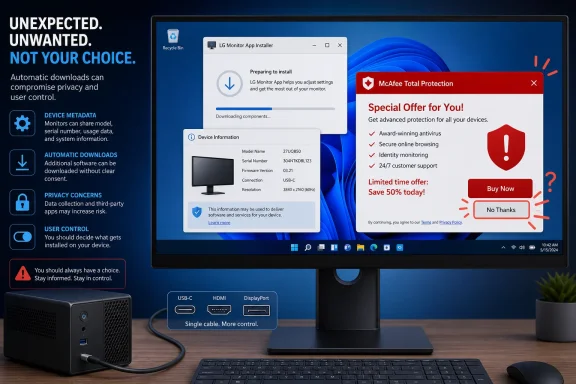
A growing number of Windows 11 users are discovering that connecting an LG monitor can lead to more than a new display being detected: it can also trigger the automatic installation of LG Monitor App Installer, followed by an unsolicited promotion for McAfee software. The reports have renewed scrutiny of a little-known Windows device-app mechanism that allows manufacturers to associate companion software with connected hardware—and, more importantly, can install that software without the familiar consent prompts users would reasonably expect.
For anyone who has spent years trying to keep a Windows PC clean, focused, and free of vendor upsells, the situation is especially frustrating. A monitor is normally one of the most straightforward peripherals in a desktop setup. Connect it through HDMI, DisplayPort, or USB-C, let Windows identify its supported resolution and refresh rate, and get on with work or play. It should not become a delivery channel for promotional software.
The immediate issue is not that LG makes a monitor utility. Companion apps can be useful for features such as firmware updates, color presets, picture-by-picture controls, USB hub settings, gaming modes, and monitor configuration from the desktop. The controversy is that users report the software arriving automatically—and that the app’s behavior includes McAfee-related promotional prompts. That crosses a line between optional device support and Windows 11 bloatware.
The software at the center of these reports is called LG Monitor App Installer. It is apparently associated with certain LG displays through Windows’ device metadata and Microsoft Store infrastructure. Once Windows identifies a matching device, the operating system can download and install the designated companion app for the currently signed-in user.
Users who did not manually search for or install LG software have reported noticing a McAfee offer after connecting an LG monitor or after Windows processed a related update. In several cases, Windows’ own Reliability Monitor and device-related logs have reportedly provided clues that the LG package was installed as part of the system’s hardware setup and update flow.
That distinction matters. This is not necessarily a case of an unfamiliar executable downloaded from a suspicious website, nor is it the same as a malicious driver infecting a system. Instead, it appears to use a legitimate Windows capability intended to make hardware setup simpler.
However, legitimate delivery infrastructure does not automatically make the experience appropriate.
The core complaints can be summarized simply:
Microsoft also created a path for manufacturers to associate certain hardware with Universal Windows Platform device apps. The objective was reasonable. A printer manufacturer might provide an app for scanning, ink monitoring, or maintenance. A headset maker might offer equalizer settings and firmware updates. A monitor vendor might offer picture controls that would otherwise require navigating a display’s on-screen menu with a physical joystick.
The process broadly works like this:
A monitor does not need a companion app to display an image. Windows has supported generic monitor functionality for decades through display standards and graphics drivers. Most users can change resolution, scaling, orientation, refresh rate, HDR settings, and multi-monitor behavior directly through Windows Settings or their GPU control panel.
That changes the practical meaning of an automatically installed monitor utility. It is not silently delivering a critical driver without which the display will fail. It is delivering optional software—software that, according to reports, can promote a third-party security product.
This is exactly where the automatic-installation model looks outdated. Convenience is valuable when it gets a scanner working. It is much harder to defend when it inserts advertising into a user’s desktop environment.
Users may not always notice driver installation, but drivers are generally expected. Windows Update routinely delivers driver packages because the operating system would otherwise be unable to support the breadth of modern hardware it encounters.
The McAfee messaging is the most problematic element. An LG monitor utility promoting a McAfee trial or security-related service is not inherently proof that malware is present. It should not be casually described as malware without evidence of malicious behavior.
Yet it can still be reasonably characterized as adware-like behavior or unwanted promotional software. The issue is not only security; it is consent, relevance, and trust.
A display manufacturer has a direct relationship with a user who chooses to install a monitor-management application. It has a far weaker claim to attention when the user merely plugs in a cable.
A pop-up that appears on a PC without obvious context can look like a warning, a system alert, or even a scam. Many users have been trained to be cautious about antivirus advertisements precisely because fake security warnings are a common tactic in tech-support scams and browser-based fraud.
Even if the prompt is delivered by a genuine Microsoft Store app, it can create several undesirable outcomes:
It also reinforces a broader Windows 11 concern: users often feel that the operating system increasingly treats their desktop as a place for recommendations, promotional prompts, preloaded services, and online-account nudges. Adding hardware-triggered app promotions makes that perception worse.
On systems that include the Local Group Policy Editor, the setting is accessible through
This is the key caveat: the policy does not simply target LG monitors. It blocks the broader category of automatic companion-app installations associated with connected hardware.
That is likely an acceptable trade-off for many enthusiasts and power users. But it is not a surgical solution. A future printer, camera, controller, headset, or accessory may no longer receive its optional Microsoft Store companion app automatically.
For users who prefer a clean Windows installation, that is often a feature rather than a drawback. Optional utilities can always be installed manually after checking the publisher, permissions, reviews, privacy policy, and feature set.
This is one reason the current workaround feels unnecessarily fiddly. The affected user may have done nothing more than connect a monitor, yet the proposed prevention method can involve policy management normally associated with business PCs.
Windows also exposes a more consumer-oriented device installation setting through the classic hardware properties interface. Depending on the Windows version, configuration, and device ecosystem, users may be able to reach it by running:
From there, look for Device Installation Settings and review whether Windows is permitted to download manufacturer apps and custom icons for connected devices.
The wording and effectiveness of this interface can vary by Windows release and policy state. It should therefore be viewed as a useful additional control, not a guaranteed substitute for the explicit Group Policy setting.
For advanced Windows 11 Home users, the same policy can be managed through the Registry. Because Registry changes can affect hardware setup behavior and are easy to misconfigure, this approach should be handled carefully.
The relevant policy location is:
The value is:
Setting this
Before making any Registry change:
It is important not to remove security software blindly. A PC may already have a legitimate security suite installed by the user, a workplace administrator, or an OEM system image. The goal is to remove the unwanted LG application and any software the user did not knowingly choose—not to disable protection without a replacement plan.
Review the timeline for application installations, Windows updates, and critical events around the time the monitor was connected. This can help distinguish a device-related installation from unrelated software changes.
For managed PCs, administrators should consider checking endpoint-management records, application inventories, and device setup logs. A silently introduced app that generates consumer-facing promotions is exactly the sort of event that can complicate compliance and standardized desktop images.
That creates a difficult governance problem for Microsoft.
On one hand, Microsoft wants hardware to work smoothly. When a customer plugs in a new device, an automatic companion app can make the experience feel polished. A manufacturer can expose advanced controls without asking the user to search the web, find the correct download page, and navigate model-specific support documentation.
On the other hand, the same feature can be used to distribute software that is tangential to the device’s basic operation. The more vendors treat device metadata as an automatic marketing channel, the more users will disable it entirely.
That is the real strategic failure. A mechanism designed to improve device integration risks becoming distrusted because it permits silent software installation.
At a minimum, Windows should consider presenting a clear choice before optional apps are installed:
Microsoft could go further by establishing stronger Store policies for automatically installed device apps:
If LG Monitor App Installer provides meaningful functions, LG can still offer it through its support pages and the Microsoft Store. There is no barrier to making the app available for customers who want it. But automatic deployment without an opt-in prompt, followed by McAfee marketing, is difficult to justify as a customer-first design.
LG should address several questions transparently:
Windows users increasingly connect smart displays, docks, headphones, webcams, printers, controllers, routers, storage devices, and gaming peripherals. Each can theoretically become an entry point for vendor software. Some apps will be useful. Some will be unnecessary. A few may be intrusive enough to create a lasting distrust of the operating system’s plug-and-play experience.
The Windows ecosystem works best when hardware setup is predictable:
Windows 11 has made real progress in areas such as security defaults, driver management, display settings, HDR controls, and accessibility. But these strengths are undermined whenever the platform gives manufacturers a route to install optional promotional software simply because a user connected a peripheral.
The available Group Policy fix can block this category of automatic device-app download, and removing the LG app through Windows Settings should stop the associated utility from launching. Yet neither workaround changes the larger problem: users should not have to navigate advanced Windows configuration simply to prevent a display from installing optional software and advertising a security product.
For now, Windows 11 users who value a clean system should review installed apps after connecting new peripherals, block automatic device-metadata app downloads where appropriate, and install vendor utilities only when they actively want the features on offer. Microsoft and LG, meanwhile, have an opportunity to restore confidence by making companion apps genuinely opt-in—and by keeping advertisements out of the plug-and-play experience.
For anyone who has spent years trying to keep a Windows PC clean, focused, and free of vendor upsells, the situation is especially frustrating. A monitor is normally one of the most straightforward peripherals in a desktop setup. Connect it through HDMI, DisplayPort, or USB-C, let Windows identify its supported resolution and refresh rate, and get on with work or play. It should not become a delivery channel for promotional software.
The immediate issue is not that LG makes a monitor utility. Companion apps can be useful for features such as firmware updates, color presets, picture-by-picture controls, USB hub settings, gaming modes, and monitor configuration from the desktop. The controversy is that users report the software arriving automatically—and that the app’s behavior includes McAfee-related promotional prompts. That crosses a line between optional device support and Windows 11 bloatware.
 Overview: What Windows 11 Users Are Reporting
The software at the center of these reports is called LG Monitor App Installer. It is apparently associated with certain LG displays through Windows’ device metadata and Microsoft Store infrastructure. Once Windows identifies a matching device, the operating system can download and install the designated companion app for the currently signed-in user.Users who did not manually search for or install LG software have reported noticing a McAfee offer after connecting an LG monitor or after Windows processed a related update. In several cases, Windows’ own Reliability Monitor and device-related logs have reportedly provided clues that the LG package was installed as part of the system’s hardware setup and update flow.
That distinction matters. This is not necessarily a case of an unfamiliar executable downloaded from a suspicious website, nor is it the same as a malicious driver infecting a system. Instead, it appears to use a legitimate Windows capability intended to make hardware setup simpler.
However, legitimate delivery infrastructure does not automatically make the experience appropriate.
The core complaints can be summarized simply:
- An LG-related app may install without a clear, up-front request for permission.
- The installation can occur after a monitor is connected rather than after the user deliberately visits the Microsoft Store.
- The app may present promotional messaging related to McAfee products.
- Windows users must alter device-installation settings to block similar automatic app downloads in the future.
- The strongest Group Policy workaround is not readily available in standard Windows 11 Home installations.
Background: Why Windows Can Install a Device Companion App
Windows has long supported device metadata: descriptive information associated with a connected device. Historically, this could include a device icon, a friendly product name, manufacturer details, support links, and sometimes a related application.Microsoft also created a path for manufacturers to associate certain hardware with Universal Windows Platform device apps. The objective was reasonable. A printer manufacturer might provide an app for scanning, ink monitoring, or maintenance. A headset maker might offer equalizer settings and firmware updates. A monitor vendor might offer picture controls that would otherwise require navigating a display’s on-screen menu with a physical joystick.
The process broadly works like this:
- A device is connected to the PC.
- Windows detects and identifies the hardware.
- Windows retrieves relevant device metadata over the internet.
- If that metadata is associated with a Microsoft Store app, Windows can download the app.
- The companion app becomes available for the active Windows user.
A monitor does not need a companion app to display an image. Windows has supported generic monitor functionality for decades through display standards and graphics drivers. Most users can change resolution, scaling, orientation, refresh rate, HDR settings, and multi-monitor behavior directly through Windows Settings or their GPU control panel.
That changes the practical meaning of an automatically installed monitor utility. It is not silently delivering a critical driver without which the display will fail. It is delivering optional software—software that, according to reports, can promote a third-party security product.
This is exactly where the automatic-installation model looks outdated. Convenience is valuable when it gets a scanner working. It is much harder to defend when it inserts advertising into a user’s desktop environment.
The Difference Between a Driver, a Utility, and Bloatware
The term bloatware is often used loosely, but it has a meaningful place in this discussion.Drivers are necessary infrastructure
A driver allows Windows to communicate with hardware. For a monitor, this may be a basic display driver, an INF file that supplies a correct display name and supported modes, or a graphics-driver component that enables specific technologies.Users may not always notice driver installation, but drivers are generally expected. Windows Update routinely delivers driver packages because the operating system would otherwise be unable to support the breadth of modern hardware it encounters.
Utilities are optional software
A monitor utility is different. It may provide:- On-screen control shortcuts
- Color profile management
- Firmware update tools
- Gaming preset adjustments
- Screen splitting and window-layout tools
- USB-C charging or hub controls
- Input-switching controls
- Hardware-specific diagnostics
Bloatware is optional software imposed on the user
When an optional app installs automatically, consumes resources, launches at startup, sends notifications, or promotes unrelated products, it begins to resemble bloatware.The McAfee messaging is the most problematic element. An LG monitor utility promoting a McAfee trial or security-related service is not inherently proof that malware is present. It should not be casually described as malware without evidence of malicious behavior.
Yet it can still be reasonably characterized as adware-like behavior or unwanted promotional software. The issue is not only security; it is consent, relevance, and trust.
A display manufacturer has a direct relationship with a user who chooses to install a monitor-management application. It has a far weaker claim to attention when the user merely plugs in a cable.
Why the McAfee Pop-Up Creates a Bigger Trust Problem
The McAfee promotion is significant because security software messaging is uniquely capable of alarming users.A pop-up that appears on a PC without obvious context can look like a warning, a system alert, or even a scam. Many users have been trained to be cautious about antivirus advertisements precisely because fake security warnings are a common tactic in tech-support scams and browser-based fraud.
Even if the prompt is delivered by a genuine Microsoft Store app, it can create several undesirable outcomes:
- Users may think their PC has been infected.
- Users may believe McAfee was installed when it was only advertised.
- Users may distrust Windows Update or the Microsoft Store.
- Users may mistakenly remove legitimate software while trying to get rid of the prompt.
- Users may install a product they did not intend to evaluate merely to make the notification disappear.
- IT departments may receive support tickets for a problem they did not create.
It also reinforces a broader Windows 11 concern: users often feel that the operating system increasingly treats their desktop as a place for recommendations, promotional prompts, preloaded services, and online-account nudges. Adding hardware-triggered app promotions makes that perception worse.
The Apparent Fix: Block Automatic Device-App Downloads
Windows includes a policy setting designed to stop automatic downloads of applications associated with device metadata. This is the most direct technical mitigation for users who want to prevent the LG Monitor App Installer—or similar device companion apps—from being automatically fetched in the future.On systems that include the Local Group Policy Editor, the setting is accessible through
gpedit.msc.How to block device-metadata app downloads in Windows 11 Pro
- Press Windows key + R to open the Run dialog.
- Type
gpedit.msc. - Press Enter.
- Navigate to:
Computer Configuration > Administrative Templates > System > Device Installation - Locate Prevent automatic download of applications associated with device metadata.
- Double-click the policy.
- Select Enabled.
- Choose Apply, then OK.
- Restart the PC, or at minimum sign out and sign back in before reconnecting the affected hardware.
This is the key caveat: the policy does not simply target LG monitors. It blocks the broader category of automatic companion-app installations associated with connected hardware.
That is likely an acceptable trade-off for many enthusiasts and power users. But it is not a surgical solution. A future printer, camera, controller, headset, or accessory may no longer receive its optional Microsoft Store companion app automatically.
For users who prefer a clean Windows installation, that is often a feature rather than a drawback. Optional utilities can always be installed manually after checking the publisher, permissions, reviews, privacy policy, and feature set.
Windows 11 Home Users Face a Less Convenient Path
Thegpedit.msc route is primarily intended for Windows editions with Local Group Policy support, including Windows 11 Pro, Enterprise, and Education. Windows 11 Home typically does not include the Group Policy Editor in its normal configuration.This is one reason the current workaround feels unnecessarily fiddly. The affected user may have done nothing more than connect a monitor, yet the proposed prevention method can involve policy management normally associated with business PCs.
Windows also exposes a more consumer-oriented device installation setting through the classic hardware properties interface. Depending on the Windows version, configuration, and device ecosystem, users may be able to reach it by running:
SystemPropertiesHardware.exeFrom there, look for Device Installation Settings and review whether Windows is permitted to download manufacturer apps and custom icons for connected devices.
The wording and effectiveness of this interface can vary by Windows release and policy state. It should therefore be viewed as a useful additional control, not a guaranteed substitute for the explicit Group Policy setting.
For advanced Windows 11 Home users, the same policy can be managed through the Registry. Because Registry changes can affect hardware setup behavior and are easy to misconfigure, this approach should be handled carefully.
The relevant policy location is:
HKEY_LOCAL_MACHINE\SOFTWARE\Policies\Microsoft\Windows\Device MetadataThe value is:
PreventDeviceMetadataFromNetworkSetting this
DWORD (32-bit) value to 1 corresponds to blocking the automatic download of apps associated with device metadata.Before making any Registry change:
- Create a restore point.
- Export the relevant Registry key.
- Confirm that the PC is using the correct account and has administrator rights.
- Restart Windows afterward.
- Keep a record of the change so it can be reversed later if needed.
Removing the LG Monitor App Installer
Blocking future automatic downloads is only half of the solution. If the app is already installed, it should be removed unless the user specifically wants its monitor-management features and is comfortable with its current behavior.Remove the app through Windows Settings
- Open Settings.
- Select Apps.
- Open Installed apps.
- Search for LG Monitor App Installer.
- Select the three-dot menu beside the app.
- Choose Uninstall.
- Confirm the removal.
It is important not to remove security software blindly. A PC may already have a legitimate security suite installed by the user, a workplace administrator, or an OEM system image. The goal is to remove the unwanted LG application and any software the user did not knowingly choose—not to disable protection without a replacement plan.
Check Reliability Monitor for installation clues
Windows Reliability Monitor can help establish what was installed and when. Open it by searching for Reliability Monitor or by running:perfmon /relReview the timeline for application installations, Windows updates, and critical events around the time the monitor was connected. This can help distinguish a device-related installation from unrelated software changes.
Review Microsoft Store activity
The Microsoft Store’s library and update history may also reveal whether an LG app was acquired or updated. This does not necessarily prove why Windows installed it, but it can help users understand the sequence of events.For managed PCs, administrators should consider checking endpoint-management records, application inventories, and device setup logs. A silently introduced app that generates consumer-facing promotions is exactly the sort of event that can complicate compliance and standardized desktop images.
The Risks of Turning Off Device-App Downloads
The Group Policy fix is effective because it shuts down an entire delivery mechanism, not just one LG app. That introduces legitimate trade-offs.What users may lose
When automatic device-app downloads are blocked, Windows may no longer automatically retrieve optional companion software for devices such as:- Printers and scanners
- Webcams
- Bluetooth accessories
- Drawing tablets
- Gaming peripherals
- Audio devices
- Cameras
- Docking stations
- Specialized enterprise hardware
Why this is still a reasonable choice
Manual installation is often preferable because it restores informed consent. The user can choose:- Whether the utility is needed at all
- Which version to install
- Whether it supports their exact model
- Whether it includes unwanted offers
- Whether it should run at startup
- Whether it requests data collection or account sign-in
- Whether it is worth keeping after firmware updates are complete
The Wider Problem: Windows Hardware Setup Has Become an App Distribution Channel
The LG monitor reports are a reminder that Windows hardware setup is no longer only about drivers. It can also become a distribution channel for apps, services, trials, and vendor ecosystems.That creates a difficult governance problem for Microsoft.
On one hand, Microsoft wants hardware to work smoothly. When a customer plugs in a new device, an automatic companion app can make the experience feel polished. A manufacturer can expose advanced controls without asking the user to search the web, find the correct download page, and navigate model-specific support documentation.
On the other hand, the same feature can be used to distribute software that is tangential to the device’s basic operation. The more vendors treat device metadata as an automatic marketing channel, the more users will disable it entirely.
That is the real strategic failure. A mechanism designed to improve device integration risks becoming distrusted because it permits silent software installation.
Microsoft’s responsibility
Microsoft controls the operating system behavior, the Windows device metadata ecosystem, and the Microsoft Store delivery path. Even if LG configured the app association and selected the software’s content, Microsoft has a responsibility to ensure that users understand what will happen when hardware is connected.At a minimum, Windows should consider presenting a clear choice before optional apps are installed:
That single consent screen would preserve convenience while respecting user control. It would also prevent a McAfee promotion from appearing as a surprise after a display connection event.“Your LG monitor has an optional companion app available from LG. Install it?”
Microsoft could go further by establishing stronger Store policies for automatically installed device apps:
- Require an explicit first-run disclosure for promotional content.
- Prohibit unrelated third-party offers in auto-installed device utilities.
- Require simple, visible uninstall options.
- Require clear explanation of data collection and network access.
- Make the automatic-install behavior visible in Windows Update history.
- Add a dedicated Settings page listing every device-associated app that Windows has installed.
- Give Windows 11 Home users a straightforward toggle for disabling device-app auto-installs.
LG’s responsibility
LG should distinguish sharply between a useful monitor-management utility and an advertising vehicle.If LG Monitor App Installer provides meaningful functions, LG can still offer it through its support pages and the Microsoft Store. There is no barrier to making the app available for customers who want it. But automatic deployment without an opt-in prompt, followed by McAfee marketing, is difficult to justify as a customer-first design.
LG should address several questions transparently:
- Which monitor models are associated with the automatic installation?
- Does the behavior affect Windows 10 as well as Windows 11?
- What data does the app collect?
- Is the McAfee offer shown to all users or only selected regions and configurations?
- Can the app be installed without promotional content?
- Will LG remove the automatic app association?
- Will existing installations receive an update that stops the pop-up behavior?
- Will users be notified about changes to the app’s functions and privacy practices?
Practical Windows 11 Cleanup Checklist
Users who want to keep a Windows 11 system free of unwanted monitor software can take a methodical approach.Immediate actions
- Check Settings > Apps > Installed apps for LG Monitor App Installer.
- Uninstall the app if it was not intentionally installed.
- Restart the PC after removal.
- Check Task Manager > Startup apps for LG-related items that do not need to launch automatically.
- Review Reliability Monitor for the installation date and related events.
- Confirm whether any separate McAfee product was actually installed.
Prevent future device-app downloads
- On Windows 11 Pro, enable Prevent automatic download of applications associated with device metadata in Local Group Policy.
- On Windows 11 Home, review Device Installation Settings and consider the Registry policy only if comfortable with advanced administration.
- Reconnect the monitor after the policy change and observe whether Windows attempts another installation.
- Keep Windows Update enabled for security patches and necessary drivers; the goal is to restrict unwanted optional app delivery, not to disable system maintenance.
Maintain a clean device-software policy
- Install monitor utilities only from trusted, official distribution channels.
- Read app descriptions before installing vendor software.
- Disable unnecessary startup entries.
- Remove companion apps after completing a one-time firmware update if their persistent features are not useful.
- Avoid treating every pop-up as a genuine Windows security warning.
- Use Microsoft Defender or another intentionally chosen security product rather than reacting to unsolicited trial prompts.
Why This Matters Beyond LG Monitors
The immediate story concerns LG monitors and McAfee-related pop-ups, but the principle reaches far beyond one hardware brand.Windows users increasingly connect smart displays, docks, headphones, webcams, printers, controllers, routers, storage devices, and gaming peripherals. Each can theoretically become an entry point for vendor software. Some apps will be useful. Some will be unnecessary. A few may be intrusive enough to create a lasting distrust of the operating system’s plug-and-play experience.
The Windows ecosystem works best when hardware setup is predictable:
- Necessary drivers install reliably.
- Optional utilities remain optional.
- Promotional material is clearly labeled.
- Users retain control over what runs on their PC.
- The Microsoft Store acts as a trusted app catalog, not an invisible delivery layer for advertisements.
Windows 11 has made real progress in areas such as security defaults, driver management, display settings, HDR controls, and accessibility. But these strengths are undermined whenever the platform gives manufacturers a route to install optional promotional software simply because a user connected a peripheral.
Conclusion
The reports around LG Monitor App Installer show how a well-intended Windows device-metadata feature can become an unwanted software delivery mechanism. A monitor companion app may have legitimate uses, but automatic installation combined with McAfee promotions turns a routine hardware connection into a frustrating encounter with bloatware.The available Group Policy fix can block this category of automatic device-app download, and removing the LG app through Windows Settings should stop the associated utility from launching. Yet neither workaround changes the larger problem: users should not have to navigate advanced Windows configuration simply to prevent a display from installing optional software and advertising a security product.
For now, Windows 11 users who value a clean system should review installed apps after connecting new peripherals, block automatic device-metadata app downloads where appropriate, and install vendor utilities only when they actively want the features on offer. Microsoft and LG, meanwhile, have an opportunity to restore confidence by making companion apps genuinely opt-in—and by keeping advertisements out of the plug-and-play experience.
References
- Primary source: TechRadar
Published: 2026-07-22T14:30:07+00:00
Loading…
www.techradar.com - Related coverage: thefpsreview.com
Loading…
www.thefpsreview.com - Related coverage: pcgameshardware.de
Loading…
www.pcgameshardware.de - Related coverage: techspot.com
LG and Alienware monitors caught auto-installing Windows adware | TechSpot
Redditor "Mags_Smash" recently complained about seeing McAfee pop-up ads on his PC despite never having installed the antivirus suite. He eventually traced the ads back to another...www.techspot.com - Related coverage: gadgetvoize.com
Loading…
www.gadgetvoize.com - Related coverage: pcgamer.com
It looks like monitor manufacturers can download bloatware without consent that will serve you pop-up ads | PC Gamer
Here's hoping this doesn't become a trend.www.pcgamer.com