

A Windows 11 PC should not turn into a marketing channel simply because a new monitor was connected, yet that is exactly the concern behind the LG Monitor App Installer controversy now drawing scrutiny. Reports of McAfee trial promotions appearing after certain LG displays were attached have exposed an uncomfortable intersection of Windows device integration, automatic companion-app delivery, and the increasingly blurred line between useful hardware software and unwanted advertising.
The immediate good news is that the McAfee promotional pop-ups are being removed after Microsoft intervened with LG. That does not erase the broader problem, however. The incident shows how a monitor can trigger the installation of software through an official Windows distribution path, then use that software to promote unrelated products on a customer’s desktop.
For Windows 11 users, the important distinction is clear: a McAfee advertisement delivered by LG companion software is not automatically proof of malware, a virus infection, or a failure of Microsoft Defender. But unexpected antivirus promotions appearing at startup or near the taskbar can look alarmingly similar to real security warnings. That ambiguity is precisely why this episode deserves more than a simple “turn off notifications” solution.
The controversy centers on a package called LG Monitor App Installer. Rather than being manually downloaded by every affected customer from LG’s support website, the software could arrive after a compatible LG monitor was connected to a Windows 11 PC.
This is a crucial detail. Many users did not go looking for LG monitor management software, agree to install an application, or intentionally request a McAfee trial. In reported cases, Windows identified compatible monitor hardware and retrieved the LG companion software through Microsoft’s device-app distribution mechanisms.
Once present, the LG software could display promotional pop-ups. McAfee offers were the most visible and controversial example, including promotions for a 30-day trial of McAfee security products. Users also reported promotional prompts for LG’s own monitor-related applications and services.
The behavior became especially contentious because it reportedly appeared across multiple boots on some systems. A customer could connect a premium monitor expecting improved refresh rates, color settings, picture modes, firmware support, or screen-layout tools—and instead encounter a security-product offer on the Windows desktop.
The concern is not simply that a person installed an LG monitor utility and later received an advertisement inside that utility. The more serious issue is that the LG Monitor App Installer could be delivered automatically when compatible hardware was connected, using a legitimate Windows-supported channel for device-specific apps.
That distinction matters for several reasons:
The controversy begins when that convenience channel becomes an advertising delivery mechanism.
Security software promotions frequently use themes such as:
That creates a trust problem. A user who sees a McAfee promotion immediately after connecting an LG monitor may reasonably ask whether:
Still, the distinction between an advertisement and an actionable security warning needs to be unmistakable. A hardware companion app should not force users to investigate whether an unfamiliar alert is a sales pitch, an operating system message, or a sign of compromise.
The goal is reasonable. A manufacturer can provide an application that helps a PC recognize a specialized device and unlocks features that generic drivers cannot offer. For a monitor, that might include:
The LG case demonstrates the downside. A delivery method intended to simplify device setup can feel like a silent software installation when customers do not see a clear consent prompt. If that newly installed software then displays third-party commercial offers, the experience shifts from helpful automation to bloatware by association.
However, the fact that the process was official does not resolve the consent and trust issues.
Users generally expect that a driver update or monitor companion package will be related directly to the display they purchased. A McAfee promotion is not necessary to make a monitor output video, run at its advertised refresh rate, or apply basic picture settings.
That gap between expectation and outcome is what made the backlash so swift. Customers were not objecting merely to the presence of software. They were objecting to software arriving with limited visibility and then promoting an unrelated subscription service.
For affected users, the removal of the McAfee promotion should reduce the most disruptive part of the experience. A security-themed advertisement appearing at every boot is far more intrusive than an optional recommendation inside a clearly labeled application interface.
But the longer-term issue remains larger than one advertising campaign.
There is a meaningful difference between:
Hardware utilities should prioritize utility. If a person buys a monitor, the vendor’s software should help manage the monitor—not act as an advertising funnel for unrelated security subscriptions.
Start with the installed apps list:
If a McAfee product is listed separately and was not intentionally installed, users can decide whether to remove it. Be careful not to delete a legitimate security product if it was previously selected as the PC’s preferred antivirus solution.
If Windows Security reports that another antivirus provider is active, verify that it is software you deliberately installed. If it is unfamiliar, investigate from Settings and Windows Security rather than responding to an advertisement.
However, uninstalling LG software may remove optional capabilities that depend on it. Depending on the monitor model, those features could include custom picture controls, specialized window-management tools, calibration software, firmware updates, or display-specific gaming controls.
Look for the setting under:
Settings > Bluetooth & devices > Devices
Then review the option related to downloading apps and icons for devices. Turning it off can reduce the chance that Windows will retrieve manufacturer companion apps automatically for newly connected hardware.
This approach has trade-offs. It may also prevent genuinely useful companion software from appearing automatically for printers, audio devices, webcams, controllers, and other peripherals.
That makes it a practical choice for users who prefer a minimal Windows installation and want to manually choose every vendor utility. It is less attractive for users who rely on automatic setup and vendor-specific configuration tools.
A device-associated application appearing after a new monitor is connected can complicate:
Modern hardware is more complicated. Monitors can include USB hubs, webcams, KVM switches, firmware-updatable controllers, lighting systems, built-in operating systems, Ethernet interfaces, audio devices, and companion software. That complexity can produce useful features, but it also creates new software-distribution paths.
The broader industry risk is normalization.
If vendors decide that every peripheral can silently install an application—and every application can deliver offers—Windows PCs become increasingly cluttered by software the user never actively selected. The result is not just annoyance. It has real consequences:
That makes restraint essential.
Useful software should focus on functions such as:
The best standard is simple: install only with clear consent, explain the value, minimize permissions, avoid recurring advertising, and make removal straightforward. A monitor app should earn its place on a Windows 11 PC every time it starts.
Automatic installation can be helpful when it provides necessary drivers or genuinely valuable configuration capabilities. It becomes harmful when customers cannot clearly see what was installed, why it appeared, or how to prevent it from serving ads.
For now, Windows 11 users who encountered McAfee promotions after connecting an LG monitor should verify their real security status in Windows Security, review Installed apps, remove unwanted LG or McAfee software, and consider disabling automatic device-app downloads if they prefer full control. The monitor itself can still work normally without a marketing prompt appearing on the desktop.
The larger lesson is even clearer: a display should display content, not quietly become a sales representative for software the user never asked to see.
The immediate good news is that the McAfee promotional pop-ups are being removed after Microsoft intervened with LG. That does not erase the broader problem, however. The incident shows how a monitor can trigger the installation of software through an official Windows distribution path, then use that software to promote unrelated products on a customer’s desktop.
For Windows 11 users, the important distinction is clear: a McAfee advertisement delivered by LG companion software is not automatically proof of malware, a virus infection, or a failure of Microsoft Defender. But unexpected antivirus promotions appearing at startup or near the taskbar can look alarmingly similar to real security warnings. That ambiguity is precisely why this episode deserves more than a simple “turn off notifications” solution.
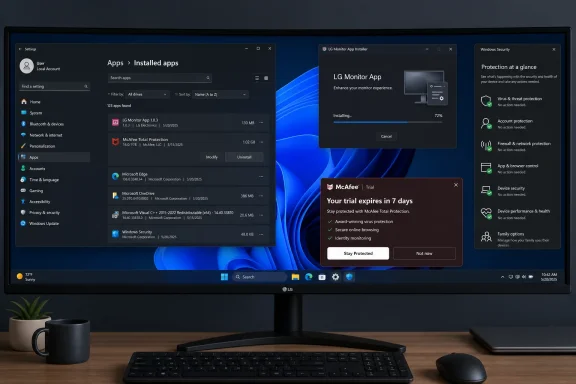 What Happened With the LG Monitor App Installer
The controversy centers on a package called LG Monitor App Installer. Rather than being manually downloaded by every affected customer from LG’s support website, the software could arrive after a compatible LG monitor was connected to a Windows 11 PC.This is a crucial detail. Many users did not go looking for LG monitor management software, agree to install an application, or intentionally request a McAfee trial. In reported cases, Windows identified compatible monitor hardware and retrieved the LG companion software through Microsoft’s device-app distribution mechanisms.
Once present, the LG software could display promotional pop-ups. McAfee offers were the most visible and controversial example, including promotions for a 30-day trial of McAfee security products. Users also reported promotional prompts for LG’s own monitor-related applications and services.
The behavior became especially contentious because it reportedly appeared across multiple boots on some systems. A customer could connect a premium monitor expecting improved refresh rates, color settings, picture modes, firmware support, or screen-layout tools—and instead encounter a security-product offer on the Windows desktop.
The Key Correction: This Was Not Necessarily an LG Settings App Update
Early coverage naturally described the issue as “McAfee ads in an LG monitor app.” That description is understandable, but it can obscure the technical chain of events.The concern is not simply that a person installed an LG monitor utility and later received an advertisement inside that utility. The more serious issue is that the LG Monitor App Installer could be delivered automatically when compatible hardware was connected, using a legitimate Windows-supported channel for device-specific apps.
That distinction matters for several reasons:
- Users may not recognize the app as something they installed.
- The appearance of the software can be mistaken for a Windows Update component.
- The pop-up can appear outside a conventional application window.
- Disabling standard Windows notifications may not fully address a startup-driven promotional prompt.
- Users may assume that Microsoft or Windows Security itself is recommending McAfee.
The controversy begins when that convenience channel becomes an advertising delivery mechanism.
Why the McAfee Pop-Ups Caused So Much Alarm
Antivirus marketing occupies a uniquely sensitive space on a Windows PC. A banner for a game subscription or a retail discount may be irritating, but a message suggesting the device needs protection can create genuine anxiety.Security software promotions frequently use themes such as:
- “Your PC may not be protected”
- “Activate protection now”
- “Your trial is available”
- “Security action recommended”
- “Get protection against scams or threats”
That creates a trust problem. A user who sees a McAfee promotion immediately after connecting an LG monitor may reasonably ask whether:
- McAfee was silently installed.
- Microsoft Defender was disabled.
- Windows detected a threat.
- The monitor brought malware onto the computer.
- Their PC is suddenly unprotected.
Still, the distinction between an advertisement and an actionable security warning needs to be unmistakable. A hardware companion app should not force users to investigate whether an unfamiliar alert is a sales pitch, an operating system message, or a sign of compromise.
Microsoft’s Role in the Automatic Installation Path
The LG Monitor App Installer episode also highlights a Windows design decision that many users may not know exists. Microsoft supports a framework for Hardware Support Apps, allowing manufacturers to associate companion software with a particular device.The goal is reasonable. A manufacturer can provide an application that helps a PC recognize a specialized device and unlocks features that generic drivers cannot offer. For a monitor, that might include:
- Brightness and contrast control from Windows
- Color profiles and calibration tools
- Gaming presets and picture modes
- Split-screen and window-layout features
- Firmware update utilities
- Display orientation and productivity tools
- Multi-device or dual-controller features
- Model-specific support and troubleshooting functions
The LG case demonstrates the downside. A delivery method intended to simplify device setup can feel like a silent software installation when customers do not see a clear consent prompt. If that newly installed software then displays third-party commercial offers, the experience shifts from helpful automation to bloatware by association.
Official Distribution Does Not Mean the Experience Was Acceptable
One point needs to be handled carefully. Software distributed through a Microsoft-supported process or sourced from the Microsoft Store is not automatically malicious. It does not mean the monitor itself is infecting Windows with a virus.However, the fact that the process was official does not resolve the consent and trust issues.
Users generally expect that a driver update or monitor companion package will be related directly to the display they purchased. A McAfee promotion is not necessary to make a monitor output video, run at its advertised refresh rate, or apply basic picture settings.
That gap between expectation and outcome is what made the backlash so swift. Customers were not objecting merely to the presence of software. They were objecting to software arriving with limited visibility and then promoting an unrelated subscription service.
LG’s Response Addresses the Symptom, Not the Full Design Problem
Following the public pressure and Microsoft’s involvement, LG agreed that the LG Monitor App Installer would no longer display McAfee pop-up ads. That is an appropriate immediate response.For affected users, the removal of the McAfee promotion should reduce the most disruptive part of the experience. A security-themed advertisement appearing at every boot is far more intrusive than an optional recommendation inside a clearly labeled application interface.
But the longer-term issue remains larger than one advertising campaign.
Automatic Companion Apps Need Clearer User Consent
If a device manufacturer wants to offer software automatically, Windows should make the process obvious. At minimum, users should be able to understand:- Which app is being installed
- Why Windows is installing it
- Which device triggered the installation
- What features the app enables
- What data or permissions it requests
- Whether advertising or partner offers are included
- How to decline, remove, or reinstall it later
That approach would preserve convenience while restoring user agency. It would also prevent a monitor utility from being confused with a Windows component or an unrequested security product.“LG recommends this companion app for monitor settings, firmware updates, and screen management. Install now?”
Advertising Must Be Opt-In
The stronger lesson for PC hardware vendors is that advertising in device-management software should be opt-in, not silently activated by default.There is a meaningful difference between:
- An optional “Discover partner offers” page inside an app’s settings.
- A clearly labeled offer presented during a manual installer.
- A recurring desktop pop-up shown after an app arrives automatically.
Hardware utilities should prioritize utility. If a person buys a monitor, the vendor’s software should help manage the monitor—not act as an advertising funnel for unrelated security subscriptions.
How to Check Whether LG Monitor Software Is Installed
Windows 11 users who connected an LG monitor and later noticed unfamiliar McAfee promotions should first establish what is actually installed. Avoid clicking promotional pop-ups to investigate them.Start with the installed apps list:
- Open Settings.
- Select Apps.
- Choose Installed apps.
- Search for LG Monitor App Installer.
- Also search for McAfee, including entries such as security trials, web protection tools, scam-detection utilities, or browser-related components.
- Sort the app list by install date if the software name is unclear.
If a McAfee product is listed separately and was not intentionally installed, users can decide whether to remove it. Be careful not to delete a legitimate security product if it was previously selected as the PC’s preferred antivirus solution.
Verify Protection Through Windows Security, Not a Pop-Up
The safest way to check the computer’s actual security status is through Windows Security, not through a promotional notification.- Open the Start menu.
- Search for Windows Security.
- Select Virus & threat protection.
- Review the active antivirus provider and protection status.
- Run a Quick scan if reassurance is needed.
If Windows Security reports that another antivirus provider is active, verify that it is software you deliberately installed. If it is unfamiliar, investigate from Settings and Windows Security rather than responding to an advertisement.
Removing the LG Monitor App Installer
For users who do not need LG’s companion tools, uninstalling the app is the cleanest way to prevent it from creating future prompts.- Open Settings.
- Go to Apps > Installed apps.
- Locate LG Monitor App Installer.
- Select the three-dot menu beside the app.
- Choose Uninstall.
- Confirm the removal and restart Windows if prompted.
However, uninstalling LG software may remove optional capabilities that depend on it. Depending on the monitor model, those features could include custom picture controls, specialized window-management tools, calibration software, firmware updates, or display-specific gaming controls.
Check Startup Apps After Uninstalling
If advertisements or LG prompts continue after removing the main app, check Windows startup settings.- Open Settings.
- Select Apps.
- Open Startup.
- Look for LG-related entries.
- Disable entries that are not needed.
- Press
Ctrl+Shift+Esc. - Select Startup apps.
- Review LG and McAfee-related items.
- Disable items that you do not want launching with Windows.
Reducing Automatic Device-App Installs in Windows 11
Windows 11 includes settings that can control whether device-related applications and icons are downloaded automatically. The exact wording can vary by Windows version, hardware configuration, and policy settings, but the relevant option is generally found in the device section of Settings.Look for the setting under:
Settings > Bluetooth & devices > Devices
Then review the option related to downloading apps and icons for devices. Turning it off can reduce the chance that Windows will retrieve manufacturer companion apps automatically for newly connected hardware.
This approach has trade-offs. It may also prevent genuinely useful companion software from appearing automatically for printers, audio devices, webcams, controllers, and other peripherals.
That makes it a practical choice for users who prefer a minimal Windows installation and want to manually choose every vendor utility. It is less attractive for users who rely on automatic setup and vendor-specific configuration tools.
Enterprise IT Teams Should Review Device-App Policy
This incident should also be a reminder for IT administrators. Corporate environments often have stricter expectations around approved software, security tools, and endpoint configuration.A device-associated application appearing after a new monitor is connected can complicate:
- Application allowlisting
- Software inventory management
- Security baseline compliance
- Endpoint detection and response workflows
- Help desk troubleshooting
- Procurement standards
- Employee confidence in approved hardware
Why This Is Not Just an LG Problem
LG’s McAfee pop-up issue is unusually visible because monitors are generally thought of as simple output devices. Plugging in a display has traditionally felt low-risk: connect HDMI, DisplayPort, or USB-C, select the right input, and begin using the screen.Modern hardware is more complicated. Monitors can include USB hubs, webcams, KVM switches, firmware-updatable controllers, lighting systems, built-in operating systems, Ethernet interfaces, audio devices, and companion software. That complexity can produce useful features, but it also creates new software-distribution paths.
The broader industry risk is normalization.
If vendors decide that every peripheral can silently install an application—and every application can deliver offers—Windows PCs become increasingly cluttered by software the user never actively selected. The result is not just annoyance. It has real consequences:
- More background processes
- More startup entries
- More notification noise
- More opportunities for phishing-like confusion
- More difficulty identifying legitimate security alerts
- More privacy and permissions questions
- More friction for support technicians
- Less trust in Windows Update and the Microsoft Store
That makes restraint essential.
The Correct Standard for Monitor Software
A high-quality monitor companion app can be valuable. Advanced displays increasingly offer features that physical buttons and on-screen display menus cannot manage elegantly.Useful software should focus on functions such as:
- Adjusting monitor brightness and color temperature
- Selecting SDR, HDR, gaming, or creator presets
- Managing picture-by-picture and picture-in-picture modes
- Applying desktop partition layouts
- Updating monitor firmware safely
- Managing USB and KVM behavior
- Handling calibration profiles
- Enabling accessibility-oriented display adjustments
The best standard is simple: install only with clear consent, explain the value, minimize permissions, avoid recurring advertising, and make removal straightforward. A monitor app should earn its place on a Windows 11 PC every time it starts.
A Necessary Reset for Windows Hardware Partnerships
LG’s decision to stop the McAfee pop-ups is a meaningful correction, and Microsoft’s involvement signals that the experience crossed a line. Yet the most important outcome should be a broader reset in how Windows hardware partnerships handle companion software.Automatic installation can be helpful when it provides necessary drivers or genuinely valuable configuration capabilities. It becomes harmful when customers cannot clearly see what was installed, why it appeared, or how to prevent it from serving ads.
For now, Windows 11 users who encountered McAfee promotions after connecting an LG monitor should verify their real security status in Windows Security, review Installed apps, remove unwanted LG or McAfee software, and consider disabling automatic device-app downloads if they prefer full control. The monitor itself can still work normally without a marketing prompt appearing on the desktop.
The larger lesson is even clearer: a display should display content, not quietly become a sales representative for software the user never asked to see.
References
- Primary source: fingerlakes1.com
Published: 2026-07-24T11:34:20+00:00
Loading…
www.fingerlakes1.com - Independent coverage: Engadget
Published: 2026-07-24T11:21:14+00:00
Loading…
www.engadget.com - Independent coverage: chshyd.in
Published: 2026-07-24T11:17:48+00:00
Loading…
chshyd.in - Related coverage: techradar.com
You can stop LG monitors that are reportedly installing bloatware on your Windows 11 PC, but the fix shouldn't require this much effort | TechRadar
More bloat on Windows 11?www.techradar.com - Related coverage: arstechnica.com
Loading…
arstechnica.com - Related coverage: itechpost.com
Loading…
www.itechpost.com