

Windows' built‑in search has long been a source of frustration for everyday users and power users alike — slow indexes, inconsistent results, and awkward integration with File Explorer make finding a file feel like a scavenger hunt — and Listary aims to solve that problem with a lightweight, keyboard‑first approach that slips neatly into existing Windows workflows.
Windows Search bundles many responsibilities: filename lookups, content indexing, web results and suggestions, and even integration with cloud services like OneDrive and Outlook. That breadth means trade‑offs. Windows’ indexer can lag behind rapid file changes, and the taskbar search UI prioritizes web and app suggestions over exact local matches. Community alternatives have clustered into two camps: fast filename indexers (most notably Everything by VoidTools) and keyboard‑first launchers (PowerToys Run, Wox, Raycast). Listary sits between those categories — it’s a snappy filename indexer, tightly integrated with File Explorer and common dialog boxes, and it doubles as a quick launcher. This article summarizes the core claims made by recent coverage, verifies key technical points with vendor documentation, and offers a critical appraisal of when Listary is an unequivocal improvement and where it demands caution.
Technically, Listary verifies its claims: the vendor documents Type‑to‑Search, Quick Switch, network indexing options, and the Pro feature set including dark mode and network drive indexing at a $19.95 one‑time price. These are not marketing one‑liners; they’re actionable features with documented configuration steps. That said, the choice is contextual:
Source: MakeUseOf Windows Search is terrible, but this free app fixes it instantly
 Background
Windows Search bundles many responsibilities: filename lookups, content indexing, web results and suggestions, and even integration with cloud services like OneDrive and Outlook. That breadth means trade‑offs. Windows’ indexer can lag behind rapid file changes, and the taskbar search UI prioritizes web and app suggestions over exact local matches. Community alternatives have clustered into two camps: fast filename indexers (most notably Everything by VoidTools) and keyboard‑first launchers (PowerToys Run, Wox, Raycast). Listary sits between those categories — it’s a snappy filename indexer, tightly integrated with File Explorer and common dialog boxes, and it doubles as a quick launcher. This article summarizes the core claims made by recent coverage, verifies key technical points with vendor documentation, and offers a critical appraisal of when Listary is an unequivocal improvement and where it demands caution.What Listary actually does — quick summary
- Instant filename search across local NTFS volumes by default, with fuzzy matching and usage‑based ranking.
- Type‑to‑Search in File Explorer: start typing while Explorer is focused and Listary returns results without extra clicks.
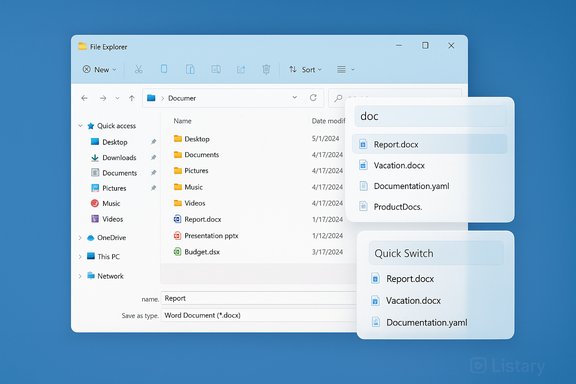
- Quick Switch: integrates search into Open/Save dialogs so you can jump to files or folders from any program’s file picker.
- Global quick launcher (double‑tap Ctrl by default) for apps, files, and commands, with a compact results UI and a deeper Search Window for filters/previews.
- Pro features (one‑time $19.95 purchase) add dark mode, network drive indexing, advanced filters, and a commercial license. The vendor lists Pro at $19.95 one‑time with lifetime updates.
Why the integration matters: File Explorer and dialogs
Type‑to‑Search — how it changes day‑to‑day use
One of Listary’s most compelling interface ideas is Type‑to‑Search: when you open File Explorer and begin typing, Listary intercepts the keystrokes and surfaces matches as if the search UI were built into Explorer. That removes a mode switch: no need to launch a separate window or invoke a special hotkey to find a file. For workflows dominated by drag‑and‑drop, library folders, or apps with frequent Save/Open dialogs, that tiny friction reduction compounds dramatically over a day. Listary’s documentation describes this behaviour and the File Search Window for deeper queries.Quick Switch — the dialog box fix
The Save/Open dialog is a perennial productivity choke point. Listary’s Quick Switch attaches itself to those dialogs so you can search the same way you would in Explorer and instantly jump to the file or folder you need. That’s a practical difference versus tools that only offer a separate search window (for example, Everything), because it eliminates folder navigation within the dialog itself. The vendor’s site highlights Quick Switch as a core workflow improvement.How Listary compares to Everything and PowerToys Run
Everything (VoidTools) — the ultra‑fast indexer
Everything is the canonical, names‑first file indexer: tiny database, NTFS USN‑journal integration, and near‑instant results for filename searches. It’s extremely efficient for raw filename lookups and supports folder indexing, network shares, and advanced filters. However, Everything is primarily a separate application window — that means a context switch between Explorer and Everything unless you integrate via plugins or shell extensions. Everything’s documentation also notes full support for folder and network indexing with options for scanning intervals and real‑time monitoring.PowerToys Run — the free command palette
Microsoft PowerToys’ Run (now evolving into the Command Palette) provides a Spotlight‑style launcher for apps, files, and commands. It’s free, maintained by Microsoft, and integrates keyboard‑first into the OS. For many users, PowerToys Run is sufficient as a quick launcher and even handles some file lookups when combined with Everything as a backend. But it doesn’t natively reproduce Listary’s dialog box integration or Explorer Type‑to‑Search behavior. PowerToys aims for a broader, extensible command palette rather than deep Explorer enhancements.Where Listary wins and where it doesn’t
- Wins: tight integration with File Explorer and Open/Save dialogs; intelligent ranking that promotes frequently used files and folders; compact launcher plus a deeper search window for comparisons.
- Loses: for purely name‑indexed speed and extremely large indexes, Everything still has the edge; PowerToys Run is a free alternative for those who only need a universal launcher.
Deep dive: features and technical verification
Indexing behaviour and scope
Listary indexes local NTFS volumes automatically and can be configured to include non‑NTFS drives, mapped network shares, and cloud storage that’s synced locally. Adding network or non‑NTFS locations is supported but often marked as a Pro feature (network drive indexing is explicitly called out in the Pro feature list). Listary’s documentation explains index scope and recommends adding only the folders you need for performance reasons. This confirms that Listary is optimized for local NTFS speed while offering flexible options for other storage types.Hotkeys, launcher, and search window
Listary’s default launcher hotkey — double press Ctrl — and other keyboard mappings are documented in the user help pages. The quick launcher opens instantly, supports fuzzy matching, and escalates to the larger File Search Window when you need more filters, sorting by modified date, and a preview pane. These behaviors match hands‑on reports describing how the launcher closes after selection while the Search Window stays open to compare results.Commands, web searches, and scripting
Listary supports system commands (e.g., launching a shell in the current folder or creating files/folders via quick commands) and web searches via keyword prefixes (g for Google, wiki for Wikipedia). The vendor documentation explicitly lists web search keywords and outlines how to set them up. That makes Listary more than a passive search tool — it’s a small command hub that reduces the need to open a browser or shell manually for quick tasks.Pricing and licensing
Listary is free for personal use. The vendor lists Listary Pro for $19.95 USD as a one‑time purchase that unlocks commercial use, dark theme, network indexing, and advanced filters. That one‑time price point and the included Pro features are stated directly on Listary’s Pro page, and the site positions the free build as feature‑complete for typical personal workflows. This pricing model is straightforward and consistent across the vendor’s pages.Practical setup and tips
- Install Listary from the official site and let it index your local NTFS drives (it typically takes a few minutes).
- Keep the default double‑Ctrl launcher; try Type‑to‑Search in Explorer for a few days to build muscle memory.
- Add network drives only if you need them; configure rescan intervals appropriately (real‑time indexing support depends on the protocol and drive type). If you rely on mapped NAS or WebDAV, test automatic indexing before committing.
- Pin frequently used folders and commands in Listary’s Options to accelerate recurring tasks.
- If you use Everything already and only want raw speed, continue running it for mass filename queries; use Listary when you want seamless dialog + Explorer integration.
Performance, privacy, and risk analysis
Performance considerations
Listary’s index is efficient for NTFS volumes and claims millisecond search times in vendor materials. Indexing non‑NTFS volumes or very large network shares can take longer and may not support real‑time updates depending on the protocol. In contrast, Everything leverages the NTFS change journal for ultra‑fast updates and often has smaller memory and disk footprints when purely indexing filenames. For heavy network indexing workloads or Windows servers, test both tools to profile CPU, memory, and I/O impact.Privacy and security
Listary’s functionality requires persistent background indexing and the ability to open files from its UI. For most users on single‑user desktop systems this is low risk. On corporate machines or multi‑user servers, confirm organizational policy: Listary’s Pro license explicitly covers commercial use, and IT departments may restrict additional indexing services due to data governance. The vendor documentation notes network protocols supported (SMB/WebDAV/FTP) and the recommended practices for indexing cloud drive clients. Administrators should assess whether a background indexer fits security controls, particularly on systems with sensitive data.Reliability and edge cases
No search tool is immune to edge cases: excluded folders, nonstandard file systems, encrypted containers, and rapidly changing network volumes can lead to missed results or delayed indexes. The vendor’s guidance recommends rebuilding the index only when necessary and avoiding indexing entire system drives unnecessarily. For mission‑critical workflows, maintain a small pilot index set, monitor change detection behavior, and keep a fallback plan (Everything or File Explorer search) for recovery.Use cases where Listary shines
- Heavy Office workflows that repeatedly use Save/Open dialogs across multiple applications. Quick Switch reduces friction dramatically.
- Designers, writers, and developers who keep deep folder trees and want to stay in Explorer while searching. Type‑to‑Search eliminates context switching.
- Users who prefer a unified, keyboard‑first launcher but also want the power to run system commands and web searches from the same UI.
When Everything or PowerToys are the better fit
- If your sole need is the fastest possible filename search across millions of files with minimal overhead, Everything remains the technical gold standard. It’s free, extremely lightweight, and battle‑tested.
- If you want a Microsoft‑maintained, extensible launcher that integrates with other PowerToys features for free, PowerToys Run / Command Palette is a compelling alternative — especially for users who don’t need dialog integration.
Final appraisal — strengths, limitations, and recommendation
Listary’s core strength is its practical integration. It doesn’t try to be everything; instead it focuses on making file search feel native to File Explorer and on plugging search directly into the moments where users typically lose time: opening and saving files. That pragmatic design choice is why users who write about daily productivity routinely favor Listary when compared to standalone indexers or generic launchers.Technically, Listary verifies its claims: the vendor documents Type‑to‑Search, Quick Switch, network indexing options, and the Pro feature set including dark mode and network drive indexing at a $19.95 one‑time price. These are not marketing one‑liners; they’re actionable features with documented configuration steps. That said, the choice is contextual:
- For users who prize absolute index speed and tiny footprints across massive file collections, Everything remains the go‑to tool.
- For those who want a free, Microsoft‑backed launcher and are satisfied without deep dialog integration, PowerToys Run is an excellent alternative.
- For everyday power users, knowledge workers, and creatives who want to stay primarily in File Explorer and remove dialog friction, Listary is the pragmatic, polished fix most will appreciate — and its modest Pro price buys network indexing and a few convenience features if you need them.
Closing: how to decide and what to try first
- Install Listary Free and use Type‑to‑Search and Quick Switch for a week; if your workflow benefits immediately (less folder hunting, faster saves/uploads), keep it.
- If your work requires indexing large NAS shares or non‑NTFS stores, evaluate Listary Pro’s network indexing, and test rescan intervals and performance before buying.
- If you already use Everything and are happy with an external window, consider keeping Everything for bulk searches and adding Listary only if dialog integration would meaningfully reduce time spent navigating Save/Open windows.
Source: MakeUseOf Windows Search is terrible, but this free app fixes it instantly
