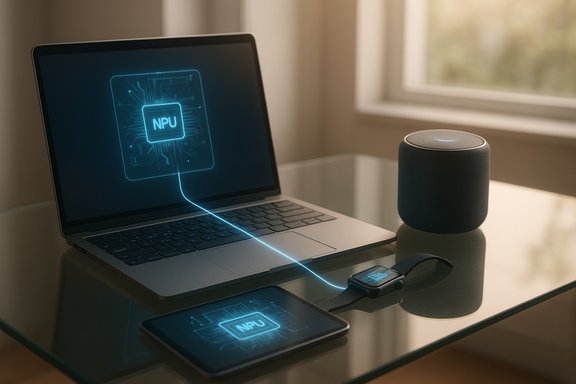
Local AI browsers now let your phone run a full assistant without sending private queries to cloud servers — but setting one up takes planning, correct hardware, and an understanding of trade‑offs between privacy, performance, and convenience. In this piece we walk through the realistic options for getting a local AI browser on your Android or iPhone, explain what the key components actually do, and show step‑by‑step how to install and manage local models, whether you want everything on the handset or prefer to host the model on a local PC and use your phone as the client. Practical tips, troubleshooting checklists, and the risks to watch for are included so you can make an informed choice.
Over the last 18 months a new class of mobile browsers and apps has emerged that can run small, quantized large language models (LLMs) on the device itself. These products mix two approaches: (A) true on‑device inference using compact models that fit in phone memory and use optimized backends, and (B) hybrid setups where the model runs on a local PC or server and the phone connects to it over the LAN or a secure tunnel. Both approaches preserve privacy better than a cloud API, but they come with different hardware and workflow trade‑offs.
The headline example in consumer reporting is Puma Browser — a privacy‑focused mobile browser that advertises on‑device LLM support and the ability to download multiple models for local inference. Puma is available for both Android and iOS and exposes a model manager that lists options such as Llama 3.2, Gemma, Qwen families and others, plus integration with cloud APIs as an optional fallback. Independent reporting and app store listings confirm Puma’s local model features and regular updates to support new quantized releases. At the model level, Meta’s Llama 3.2 release deliberately included small, on‑device‑friendly variants (1B and 3B) designed to run on modern mobile NPUs and optimized software stacks. Chip vendors — Qualcomm and MediaTek — and inference stacks like LM Studio and Ollama have published tooling to make these models practical on Snapdragon and Dimensity‑class silicon. That hardware / software partnership is what makes on‑phone Llama 3.2 and similar models feasible today.
A. Set up the host (Windows / macOS / Linux)
Local AI browsing is no longer an experiment; it is a practical choice with real benefits and a clear set of trade‑offs. Puma Browser and the growing set of mobile apps and local server tools make it possible to have a private, offline‑capable assistant in your pocket — but doing it safely requires the right device, attention to licensing and permissions, and sensible operational controls. Follow the setup steps above, test carefully, and treat local AI as a powerful tool that still needs governance and verification for critical tasks.
Source: SlashGear How To Set Up A Local AI Browser On Your Phone - SlashGear
 Background / Overview
Over the last 18 months a new class of mobile browsers and apps has emerged that can run small, quantized large language models (LLMs) on the device itself. These products mix two approaches: (A) true on‑device inference using compact models that fit in phone memory and use optimized backends, and (B) hybrid setups where the model runs on a local PC or server and the phone connects to it over the LAN or a secure tunnel. Both approaches preserve privacy better than a cloud API, but they come with different hardware and workflow trade‑offs.The headline example in consumer reporting is Puma Browser — a privacy‑focused mobile browser that advertises on‑device LLM support and the ability to download multiple models for local inference. Puma is available for both Android and iOS and exposes a model manager that lists options such as Llama 3.2, Gemma, Qwen families and others, plus integration with cloud APIs as an optional fallback. Independent reporting and app store listings confirm Puma’s local model features and regular updates to support new quantized releases. At the model level, Meta’s Llama 3.2 release deliberately included small, on‑device‑friendly variants (1B and 3B) designed to run on modern mobile NPUs and optimized software stacks. Chip vendors — Qualcomm and MediaTek — and inference stacks like LM Studio and Ollama have published tooling to make these models practical on Snapdragon and Dimensity‑class silicon. That hardware / software partnership is what makes on‑phone Llama 3.2 and similar models feasible today.
Why run an AI browser locally?
- Privacy: prompts and files never leave your device (or your local network) if you use a local model. This eliminates third‑party telemetry and long‑term server logs for most use cases.
- Offline capability: local models let the assistant work without a network connection — useful on planes, in the field, or in privacy‑sensitive environments.
- Lower ongoing cost: no per‑token cloud billing; after the one‑time model download you can query the assistant as often as you like.
- Latency and responsiveness: local inference often feels instantaneous compared with round trips to a cloud API, and modern phones with NPUs can deliver surprisingly fast interactive speeds.
The three practical deployment patterns
- Run the model directly on your phone inside a browser or app that supports local LLMs (true on‑device). This is the most private but requires a capable device and enough storage/RAM. Puma Browser, PocketPal, Maid, and some niche apps provide this path.
- Host the model on a local PC / home server (Ollama, LM Studio, etc. and point your phone’s browser/app to that server across the LAN — or use a secure tunnel (Cloudflare, Private AI Link) to access it remotely. This gives better performance on cheap phones while keeping data inside your environment. LM Studio and Ollama both offer local server modes for this use.
- Hybrid: a browser that uses both local and cloud models depending on task — local for sensitive or quick tasks; cloud for heavy multimodal workloads or up‑to‑date knowledge. Puma and several other AI‑first browsers let you select the engine per query.
Hardware and model basics you must understand
Model size and quantization
- Small on‑device models (1B–4B parameters) are the practical sweet spot for phones. Llama 3.2’s 1B and 3B instruct models are explicitly offered for edge use, and community GGUF files for the 3B instruct model range from ~1.3GB up to ~2.4GB depending on quantization and format. Plan storage accordingly.
- Quantization (Q2, Q3, Q4, Q5, Q8, etc. dramatically changes file size, memory footprint, and speed. Lower‑precision quantized files are smaller and run on less RAM, but may incur a quality trade‑off; Q4 variants are a common compromise for interactive mobile use.
Device recommendations
- For comfortable local inference aim for a recent flagship or high‑midrange device: modern Snapdragon 8 Gen series, high‑end MediaTek Dimensity, or Apple A16/M‑series devices. These chips pair NPUs and high memory bandwidth that lower latency and energy for NN workloads. Qualcomm and MediaTek have publicly promoted optimizations for Llama‑class models.
RAM, storage and thermal considerations
- A 3B quantified model typically needs between ~4–6GB of working memory (RAM/vRAM) depending on quantization and runtime. Phones with 8GB+ RAM and a large amount of free storage (5–10GB for models + cache) are ideal. Expect increased battery use and occasional thermal throttling during long sessions.
Step‑by‑step: Option A — Install and run Puma Browser with local models (Android & iOS)
Puma is currently the most visible “local‑friendly” browser that packages model downloads and a model manager directly into the app. The steps below reflect the typical flow; UI labels may change between versions.- Install Puma Browser from the official store (App Store or Google Play). Confirm the developer is Puma Technologies. Avoid third‑party APK sources unless you understand supply‑chain risk.
- Open the browser and grant only the permissions it needs for the features you want (storage for model downloads, microphone for voice). Deny permissions you won’t use.
- Open the app menu → Settings → Local LLMs or Models (Puma’s UI varies slightly by platform). Look for a “Models” or “Local LLM” section; Puma lists Llama 3.2, Gemma, Qwen and other packaged models.
- Pick a model: for phones, start with Llama 3.2 1B or a quantized 3B (Q3/Q4) variant — these are the most likely to run smoothly. Watch the displayed download size (1–2+ GB) and ensure you’re on Wi‑Fi.
- Download and wait: the model will unpack to app storage. This can take several minutes; don’t background the app until the UI confirms success.
- Load the model inside Puma’s chat UI and try a simple prompt (“Summarize this page”, “Explain X in 3 bullets”). For testing, disable Wi‑Fi and mobile data to verify the model truly runs offline. If responses continue while offline, inference is local. ZDNet and other hands‑on reports found Puma could return local replies while the device was offline.
- If the model fails to load or the app runs out of memory: close other heavy apps, reboot the phone, or remove the model and try a smaller quantized variant. Puma provides model‑management controls to remove or switch models.
- If the app crashes during inference, check battery/thermal notifications and try again after a cooldown.
- If downloads fail, use a stable Wi‑Fi connection; some GGUF/quantized files are large.
- If Puma still makes cloud calls for some features (e.g., “summarize with GPT‑4”), switch those features off in settings to keep queries local.
Step‑by‑step: Option B — Use PocketPal / MyDeviceAI / Maid (apps that run GGUF models locally)
Several mobile apps focus purely on local model hosting (text + sometimes vision). The broad flow:- Install PocketPal, MyDeviceAI, Maid or a similar local‑model app from your official store. Some of these apps require iOS 16/17 or newer and recent iPhone models for acceptable performance.
- In the app, go to Models → Download or Import. Many apps provide a curated list (Llama 3.2 variants, Gemma small versions, Qwen smalls). You can also import a GGUF file if you already downloaded it externally.
- Choose a quantized variant. For iPhones, developers often recommend specific variants (Q4_K_M, Q3_K_M) with a balance of size and memory. The app will indicate estimated RAM requirements before you load a model.
- After loading, test offline and with larger prompts. If the app supports image or voice inputs, test those conservatively — vision variants may be gated or larger.
- App compatibility and device support lists vary — some apps support only iPhone 13 Pro and up for specific models. Check the app’s listing and release notes.
Step‑by‑step: Option C — Run models on your PC (Ollama / LM Studio) and connect your phone
This is the recommended route when your phone isn’t beefy enough or when you want to centralize model storage and updates.A. Set up the host (Windows / macOS / Linux)
- Install Ollama or LM Studio on the host machine. Ollama has installers and a winget package, while LM Studio is a GUI tool with an API server mode. Start by downloading and installing the chosen tool, then download your model into the host’s model folder.
- Start the server:
- Ollama: ollama serve (or use the Windows service / app UI).
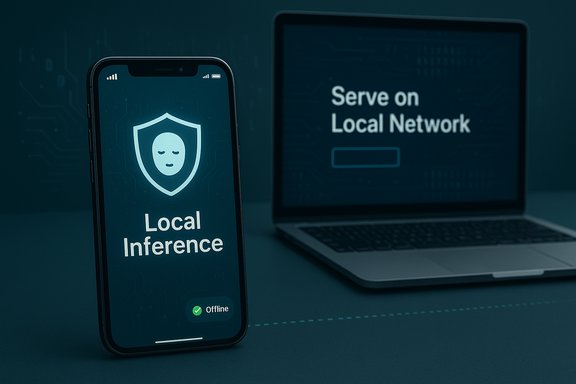
- LM Studio: Developer → Start Server (default port 1234) and enable “Serve on Local Network”.
- Confirm the API works locally:
curl -X POST http://localhost:1234/v1/chat/completions -H "Content-Type: application/json" -d '{"model":"<your‑model>","messages":[{"role":"user","content":"hello"}]}'
If you receive a response, the host is ready.
- Make sure phone and host are on the same Wi‑Fi.
- Open Puma Browser, PocketPal or a generic browser UI that supports pointing to a local OpenAI‑compatible endpoint. In Puma, look for a “Local Model API” or “Connect to Local Server” option and enter http://{host‑local‑ip}:1234.
- Test queries from the phone — latency should be low and responses local to your network. For remote access, create a Cloudflare Tunnel or use Private AI Link to expose your host securely; both approaches keep the model on your hardware while providing HTTPS access to your phone.
Safety, license and governance — what you must not ignore
- Licensing: Llama 3.2’s multimodal vision variants have specific license language that restricts direct distribution in some jurisdictions (for example, certain EU licensing clarifications). Non‑vision 1B/3B text models are generally available but always read the model card and license before redistribution. If you run a model in a commercial product or an enterprise context, confirm license rights explicitly.
- Data hygiene and permissions: Treat the assistant as an external service. Don’t paste passwords, private keys, or regulated health/financial data into any chat unless your workflow has been cleared by your security team. Consumer local apps still store files and cached prompts on the device.
- Hallucinations and verification: Local models are powerful but imperfect. For high‑stakes outputs (legal, medical, financial), require human review and citations. Use specialized, citation‑forward tools when traceability matters.
- Supply‑chain risk: Installing models and apps from unofficial APK sites or unverified GGUF mirrors can introduce malware or modified models. Prefer official app stores, vetted model repos (Hugging Face or vendor pages), or a private host under your control.
- Performance and device safety: Continuous heavy inference can heat your phone and shorten battery lifespan. Use timeouts, session limits, and unload inactive models when possible (LM Studio and Ollama support auto‑unload behaviors).
Advanced tips and optimizations
- Choose quantization wisely: if your phone struggles, load a Q3 or Q2 quantized GGUF instead of a Q4/Q6; the quality/size curve is often acceptable for everyday tasks.
- Keep one small model ready for quick tasks: a tiny 1B model is great for grammar, short summaries, and rewriting. Use larger 3B variants only for heavier reasoning.
- Offload to a home PC for battery‑sensitive workflows: use the server pattern to preserve phone uptime while retaining privacy. LM Studio’s “Serve on Local Network” mode is designed for this.
- Use a model manager: if your app lets you keep multiple quantized variants, maintain a “fast/cheap” and “capable/large” pair so you can switch depending on task and battery state. Puma exposes exactly these controls in its model settings.
Critical analysis — strengths and risks summarized
Strengths- Running an assistant locally on a phone gives meaningful privacy gains and low latency for many workflows. Real‑world hands‑ons have shown local Llama‑class models returning near‑instant replies for common queries on high‑end phones.
- The ecosystem is maturing quickly: model quantizers, mobile runtimes, and vendor partnerships (Qualcomm, MediaTek) make practical, daily use feasible on modern hardware.
- Device limits: not all phones can run 3B models smoothly; smaller quantizations may be necessary, and users will trade some quality for speed.
- Licensing and legal complexity: certain multimodal variants or regional license restrictions (notably parts of Llama 3.2’s vision variants) require attention; enterprises must verify rights before deployment.
- Security and supply‑chain: third‑party model files or APKs can be tampered with — always prefer trusted sources or host models on your hardware.
- False sense of security: local inference reduces cloud exposure, but apps still store data locally; backups, sync, or optional cloud fallbacks may reintroduce external exposure unless disabled. Audit the app’s privacy toggles.
Practical checklist before you start (one page)
- Confirm device: model, OS version, free storage (≥ 5–10GB recommended), RAM (8GB+ ideal).
- Pick an approach: on‑device app (Puma/PocketPal) or local server (Ollama / LM Studio).
- Read the model license and check regional restrictions for vision models.
- Use Wi‑Fi for initial downloads.
- Disable any cloud/Fallback AI in the app settings if you want 100% local inference.
- Test offline to verify local behavior.
- Remove or unload models after heavy use to free memory and reduce thermal stress.
Local AI browsing is no longer an experiment; it is a practical choice with real benefits and a clear set of trade‑offs. Puma Browser and the growing set of mobile apps and local server tools make it possible to have a private, offline‑capable assistant in your pocket — but doing it safely requires the right device, attention to licensing and permissions, and sensible operational controls. Follow the setup steps above, test carefully, and treat local AI as a powerful tool that still needs governance and verification for critical tasks.
Source: SlashGear How To Set Up A Local AI Browser On Your Phone - SlashGear