

The Logitech G920 usually fails on PC at one of four user-checkable layers: power and cabling, the direct USB connection, Logitech G HUB, or the game’s own controller mapping. The fastest fix is to test those layers in order, because each step answers a different question: is the wheel alive, does Windows receive it, does Logitech’s software recognize it, and does the game know what to do with it?
Before reinstalling software or changing game settings, run this sequence:
That startup movement does not prove every part of the stack is working, but it does separate two broad cases. A wheel that powers, moves, and centers has at least cleared the first physical hurdle. A wheel that never moves may be missing power, using a bad power connection, failing at the wheel base, or not completing the basic startup sequence.
The power adapter matters because the G920 is not just a low-power USB controller. The wheel base, motors, and force-feedback system require external power. A user can easily create a misleading symptom by plugging in USB while overlooking the power brick or a loose power connection. In that state, the problem may feel like a driver issue even though the wheel has not passed the first hardware test.
The pedal connector deserves the same boring attention. The G920 uses a DB-9 pedal connection at the wheel base. That connector can look close to seated without being firmly connected. If the wheel calibrates but the pedals do not respond, reseat the pedal cable before changing profiles, reinstalling software, or assuming the pedal set has failed.
The correct first move is simple: power adapter connected, USB connected, pedal cable firmly seated, then watch the wheel. If there is no calibration movement, stay with power, cabling, wall outlet, power brick, and hardware. Do not spend the evening inside a game’s controller menu trying to fix a wheel that has not completed its own startup behavior.
Moving the wheel to a different direct USB port is useful because it gives Windows another chance to detect the device cleanly. That does not mean every G920 issue is a Windows enumeration problem, and it does not mean USB always explains partial failures. It only means the USB path is easy to eliminate and should be eliminated before deeper software work begins.
Use this test narrowly:
Logitech’s G HUB support information identifies current G HUB as the normal software path for Windows 10 and Windows 11. Logitech also notes a compatibility fork for older systems: Windows 10 1803, OS build 17134, or older should use G HUB 2023.1. That distinction is important because “install the latest version” is not always the right instruction for a PC frozen on an old Windows build.
The software decision should be tied to the PC’s Windows version:
This table is not a software-history lesson. It is a decision aid. Use current G HUB unless your Windows build falls into Logitech’s older-build exception. Avoid driver bundles from unclear sources. Be cautious with old advice that mixes Logitech Gaming Software, G HUB, and standalone firmware tools as if they were interchangeable.
That is different from a scorched-earth cleanup. Removing every Logitech component, deleting random folders, rebooting repeatedly, installing old packages, installing new packages, and pointing Windows at drivers from unclear sources adds variables. Sometimes that kind of routine appears to work, but it often hides the real cause.
Keep the diagnosis layered:
Reset
One targeted G HUB repair is resetting the local settings database. The file is under:
The file to handle is:
The careful process is:
The backup matters because profiles can represent real user work: steering sensitivity, button assignments, game profiles, pedal behavior, and force-feedback preferences. If the reset fixes detection, the user may still need to rebuild custom settings. If it does not fix anything, the backup preserves a path back to the previous configuration.
Treat
A useful view is:
That view groups related device entries together, which can be easier than hunting through separate USB and HID categories. Look for Logitech, G920, gaming wheel, HID controller, or a related grouped device entry.
A focused reset looks like this:
Driver rollback belongs in this same layer, but it answers a different question. If the wheel worked before a recent driver change and Device Manager shows a rollback option under the device’s
Use sequence:
Use
Windows includes a built-in controller test panel that can save a lot of wasted effort. Press
Then press Enter. If the G920 or a controller entry appears, select it, open Properties, and test the wheel, pedals, buttons, paddles, and any attached controls.
This is the cleanest split between “Windows sees input” and “the game does not know what to do with input.”
If the G920 responds in
If the wheel does not appear in
If a calibration option appears in the Windows controller properties, it may help when the wheel is detected but axes feel offset or pedals do not reach expected ranges. It will not help if the device is absent.
The rule is simple:
Once
If pedals behave backward, look for options such as invert pedal, invert axis, combined pedals, separate pedals, or controller calibration. Some games interpret pedal axes differently, and the fix may be inside the game rather than in G HUB or Windows.
Use comparison as evidence:
In Steam:
From there, test the per-game Steam Input override. If the G920 works in Windows and appears in
Do not overstate this step. Steam Input is not always the problem, and disabling it is not a universal racing-wheel fix. It is a useful test when the wheel works below Steam but fails inside a specific Steam-launched game. If the game’s own documentation recommends a different Steam Input mode, follow the game-specific guidance.
The decision point is comparative:
The cautious user-actionable sequence is:
If the wheel repeatedly loses force feedback on another PC with a direct USB connection and the correct Logitech software, the original Windows install is no longer the strongest suspect. At that point, product support, warranty, replacement power supply, wheel-base inspection, or spare-parts options become more appropriate than more driver cleanup.
The relevant Windows policy area is:
That path matters because it explains a specific scenario: the G920 works on a home PC or console but not on a managed Windows machine. That does not automatically mean the wheel is bad. The endpoint may be restricted from installing new device classes, accepting new drivers, or using unmanaged USB peripherals.
For users, the sign to stop self-troubleshooting is simple: if the PC is managed and Device Manager suggests installation restrictions, or if the wheel works elsewhere but not on the managed machine, ask the administrator to check device policy. Do not install random driver packages to work around corporate or school controls.
For admins, treat the G920 like any other USB HID request:
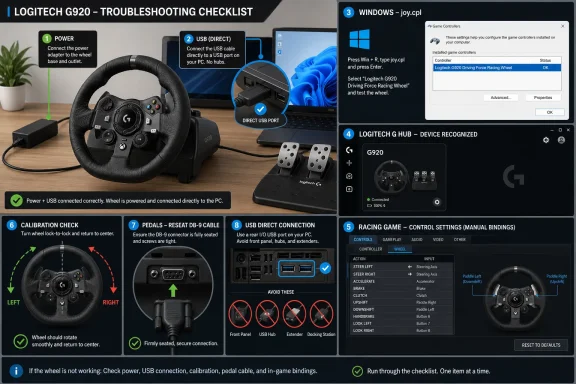 Do This First: The Short Fix Path
Before reinstalling software or changing game settings, run this sequence:- Power the wheel properly. Connect the G920 power adapter to the wall and to the wheel base. USB alone is not the full setup.
- Check the physical startup calibration. When the wheel is powered and connected, watch for the left-right-center rotation. If that movement never happens, stay with power, cabling, and hardware checks.
- Reseat the pedal connector. Push the pedal cable firmly into the DB-9 pedal port on the wheel base. Do not assume it is seated just because it looks aligned.
- Move the USB cable to a direct PC port. Avoid USB hubs, docks, monitor ports, pass-through ports, adapters, and front-panel ports while troubleshooting.
- Unplug, wait briefly, and reconnect. Disconnect the wheel, wait about 10 seconds, then reconnect it to a different direct USB port.
- Open Logitech G HUB. Install or repair G HUB, then check whether the G920 appears on the G HUB home screen.
- Test Windows input with
joy.cpl. PressWindows key + R, typejoy.cpl, press Enter, select the wheel entry if present, and test steering, pedals, and buttons. - Only then open the game’s controls menu. Bind steering, throttle, brake, clutch, paddles, shifter, and buttons manually if the game does not apply a working G920 profile.
- For Steam games, test the per-game Steam Input setting. In the game’s Steam properties, try disabling Steam Input if the wheel works in Windows but the Steam game ignores or misreads it.
- If the same failure follows the wheel to another PC, stop treating the original Windows install as the main suspect. Move toward hardware support, warranty, power-supply checks, or replacement parts.
The G920’s First Diagnostic Is Mechanical, Not Mystical
A racing wheel is one of the few PC peripherals that gives a visible startup clue. A healthy G920 setup should be powered externally, connected by USB, and able to perform its startup calibration movement: rotate left, rotate right, then return to center. If that sweep never happens, Windows is not the first place to spend time.That startup movement does not prove every part of the stack is working, but it does separate two broad cases. A wheel that powers, moves, and centers has at least cleared the first physical hurdle. A wheel that never moves may be missing power, using a bad power connection, failing at the wheel base, or not completing the basic startup sequence.
The power adapter matters because the G920 is not just a low-power USB controller. The wheel base, motors, and force-feedback system require external power. A user can easily create a misleading symptom by plugging in USB while overlooking the power brick or a loose power connection. In that state, the problem may feel like a driver issue even though the wheel has not passed the first hardware test.
The pedal connector deserves the same boring attention. The G920 uses a DB-9 pedal connection at the wheel base. That connector can look close to seated without being firmly connected. If the wheel calibrates but the pedals do not respond, reseat the pedal cable before changing profiles, reinstalling software, or assuming the pedal set has failed.
The correct first move is simple: power adapter connected, USB connected, pedal cable firmly seated, then watch the wheel. If there is no calibration movement, stay with power, cabling, wall outlet, power brick, and hardware. Do not spend the evening inside a game’s controller menu trying to fix a wheel that has not completed its own startup behavior.
Use a Direct USB Port Until the Whole Stack Works
The next practical failure point is the USB path. During troubleshooting, connect the G920 directly to the PC. Do not use a hub, dock, monitor USB port, keyboard pass-through, front-panel extender, adapter chain, or questionable cable route. Convenience can come later. Diagnosis comes first.Moving the wheel to a different direct USB port is useful because it gives Windows another chance to detect the device cleanly. That does not mean every G920 issue is a Windows enumeration problem, and it does not mean USB always explains partial failures. It only means the USB path is easy to eliminate and should be eliminated before deeper software work begins.
Use this test narrowly:
- If the wheel does not calibrate, direct USB is still worth trying, but power and hardware remain the higher-priority suspects.
- If the wheel calibrates but does not appear in G HUB or Windows, a different direct USB port is a strong next step.
- If the wheel appears once and then disappears after sleep, reboot, or reconnection, testing a different rear motherboard USB port can help separate the wheel from a flaky connection path.
- If the wheel works through a direct port but fails through a hub or dock, keep it direct or treat the hub/dock as the unsupported part of the setup.
Logitech G HUB Is the Current Software Layer to Check
For most Windows 10 and Windows 11 users, Logitech G HUB is the Logitech software layer to install, repair, and check first. Launch G HUB after the wheel is powered and connected, then look for the G920 device tile on the home screen. If the wheel appears there, open its settings and confirm that G HUB can see and configure it.Logitech’s G HUB support information identifies current G HUB as the normal software path for Windows 10 and Windows 11. Logitech also notes a compatibility fork for older systems: Windows 10 1803, OS build 17134, or older should use G HUB 2023.1. That distinction is important because “install the latest version” is not always the right instruction for a PC frozen on an old Windows build.
The software decision should be tied to the PC’s Windows version:
| Logitech software path | Provided fact it ties to | When to use it | What not to do |
|---|---|---|---|
| Current Logitech G HUB | Logitech identifies G HUB as the supported software path for current Windows 10 and Windows 11 systems | Use this first on supported Windows 10 and Windows 11 PCs | Do not install random third-party driver bundles |
| G HUB 2023.1 | Logitech specifies G HUB 2023.1 for Windows 10 1803, OS build 17134, or older | Use this on those older Windows 10 builds | Do not assume the newest G HUB supports an old frozen build |
| Logitech Gaming Software 8.70 or later | Older G920 instructions have referenced Logitech Gaming Software 8.70 or later | Consider only when following a specific older workflow that requires it | Do not treat legacy software as the default modern fix |
| Logitech Firmware Update Tool | Logitech states that the standalone Firmware Update Tool is no longer supported or maintained | Avoid using it as a primary troubleshooting step | Do not make an old firmware utility the center of the repair plan |
Reinstall G HUB When G HUB Is the Problem
Reinstalling G HUB can be sensible when the wheel powers up, Windows sees something connected, but G HUB is missing the device, crashing, failing after an update, or behaving inconsistently. Run the current Logitech G HUB installer for the appropriate Windows version and use the installer’s reinstall option if it offers one. Then reconnect the wheel and test again.That is different from a scorched-earth cleanup. Removing every Logitech component, deleting random folders, rebooting repeatedly, installing old packages, installing new packages, and pointing Windows at drivers from unclear sources adds variables. Sometimes that kind of routine appears to work, but it often hides the real cause.
Keep the diagnosis layered:
- If the wheel never powers or calibrates, reinstalling G HUB is not the first fix.
- If the wheel calibrates but does not appear in Windows or G HUB, test direct USB and Device Manager before tearing out software.
- If Windows sees the wheel but G HUB does not, reinstalling or repairing G HUB becomes more reasonable.
- If G HUB sees the wheel but one game does not, the problem has likely moved to game configuration, Steam Input, or a title-specific profile.
Reset settings.db Only When Local G HUB State Looks Corrupt
One targeted G HUB repair is resetting the local settings database. The file is under:C:\Users\[USERNAME]\AppData\Local\LGHUBThe file to handle is:
settings.dbThe careful process is:
- Quit G HUB from the task tray.
- Open the
LGHUBfolder under the user’s local AppData path. - Copy
settings.dbsomewhere safe as a backup. - Delete
settings.dbfrom theLGHUBfolder. - Start G HUB again and let it rebuild local settings.
The backup matters because profiles can represent real user work: steering sensitivity, button assignments, game profiles, pedal behavior, and force-feedback preferences. If the reset fixes detection, the user may still need to rebuild custom settings. If it does not fix anything, the backup preserves a path back to the previous configuration.
Treat
settings.db deletion as a surgical step, not superstition.Device Manager Is the Windows-Layer Reset
If the wheel powers, uses a direct USB port, and still does not behave correctly in Windows or G HUB, Device Manager is the next practical stop. Use it to inspect how Windows has classified the device and, when appropriate, remove the current device instance so Windows can detect it again.A useful view is:
Device Manager > View > Devices by containerThat view groups related device entries together, which can be easier than hunting through separate USB and HID categories. Look for Logitech, G920, gaming wheel, HID controller, or a related grouped device entry.
A focused reset looks like this:
- Open Device Manager.
- Choose
View > Devices by container. - Find the Logitech or G920-related device grouping.
- Right-click the relevant device entry.
- Choose
Uninstall device. - If Windows offers
Delete the driver software for this device, use that option only when you are intentionally trying to remove the current driver association. - Unplug the wheel.
- Reboot if Windows prompts you or if the device state looked confused.
- Plug the wheel into a different direct USB port.
- Open G HUB and test again.
Driver rollback belongs in this same layer, but it answers a different question. If the wheel worked before a recent driver change and Device Manager shows a rollback option under the device’s
Properties > Driver tab, rollback may be more appropriate than update or uninstall. Do not treat update, uninstall, and rollback as interchangeable buttons.Use sequence:
- Worked yesterday, failed after a driver change, still powers up: consider rollback.
- Appears with a warning or odd device classification: consider uninstall and reconnect.
- Never calibrates: return to power and hardware.
- Works on another PC but not this one: return to Windows, G HUB, USB, policy, or game-layer differences on the original PC.
Use joy.cpl Before Blaming the Game
Windows includes a built-in controller test panel that can save a lot of wasted effort. Press Windows key + R, type:joy.cplThen press Enter. If the G920 or a controller entry appears, select it, open Properties, and test the wheel, pedals, buttons, paddles, and any attached controls.
This is the cleanest split between “Windows sees input” and “the game does not know what to do with input.”
If the G920 responds in
joy.cpl, Windows is receiving controller input. That does not guarantee every game will automatically configure the wheel, but it means the basic PC-level input path is alive. At that point, stop reinstalling drivers as the default move and go to the game’s controls menu.If the wheel does not appear in
joy.cpl, or it appears but inputs do not respond, stay below the game layer. Recheck power, direct USB, G HUB, Device Manager, and managed-PC restrictions before blaming Forza, Assetto Corsa, Euro Truck Simulator, or any other title.If a calibration option appears in the Windows controller properties, it may help when the wheel is detected but axes feel offset or pedals do not reach expected ranges. It will not help if the device is absent.
The rule is simple:
joy.cpl first, game settings second. If Windows cannot see the input, the game probably cannot fix it.Game Bindings Are Not Proof of Hardware Failure
Racing games do not all handle wheels the same way. Some apply a known G920 preset. Some detect a generic controller. Some require manual binding for steering, throttle, brake, clutch, shift paddles, shifter, menu buttons, and camera controls. A wheel that works in Windows but fails in one title is not automatically defective.Once
joy.cpl confirms input, open the game’s controller or wheel settings and bind controls deliberately. Turn the wheel when assigning steering. Press the throttle when assigning throttle. Press the brake when assigning brake. Bind the clutch, paddles, shifter, and buttons one at a time if the game requires it.If pedals behave backward, look for options such as invert pedal, invert axis, combined pedals, separate pedals, or controller calibration. Some games interpret pedal axes differently, and the fix may be inside the game rather than in G HUB or Windows.
Use comparison as evidence:
- Works in
joy.cplbut not in one game: check that game’s bindings. - Works in one racing game but not another: check the failing game’s controller profile.
- Pedals register in Windows but reverse in a title: check inversion or pedal-axis settings.
- Steering works but buttons do not: bind buttons manually in the game.
- A shifter or clutch is ignored: verify the game supports it and bind it separately.
Steam Input Is a Per-Game Test, Not a Global War
Steam can add another controller layer between the wheel and the game. For some titles, that layer is harmless. For others, it can get in the way. The practical test is per-game, not global.In Steam:
Library > right-click the game > Properties > ControllerFrom there, test the per-game Steam Input override. If the G920 works in Windows and appears in
joy.cpl, but a Steam game ignores it or maps it incorrectly, try setting Steam Input to disabled for that game, then restart the game.Do not overstate this step. Steam Input is not always the problem, and disabling it is not a universal racing-wheel fix. It is a useful test when the wheel works below Steam but fails inside a specific Steam-launched game. If the game’s own documentation recommends a different Steam Input mode, follow the game-specific guidance.
The decision point is comparative:
- G920 absent from Windows: do not start with Steam.
- G920 present in
joy.cpl, but one Steam game fails: test the per-game Steam Input override. - G920 works in non-Steam games but not a Steam title: Steam Input or that game’s profile becomes more plausible.
- G920 fails everywhere: return to power, USB, G HUB, Device Manager, or hardware.
Force Feedback Problems Need a Different Response
Steering, pedals, and buttons are input. Force feedback is output driven through the wheel base. If steering still works but force feedback drops, weakens, disappears, or cuts out during use, do not treat that exactly like a missing button binding.The cautious user-actionable sequence is:
- Stop driving.
- Let the wheel cool.
- Power the wheel down by unplugging it.
- Check the power adapter and connection.
- Reconnect directly to the PC and retest.
- Test another game to separate game settings from wheel behavior.
- Test another PC if the symptom repeats.
If the wheel repeatedly loses force feedback on another PC with a direct USB connection and the correct Logitech software, the original Windows install is no longer the strongest suspect. At that point, product support, warranty, replacement power supply, wheel-base inspection, or spare-parts options become more appropriate than more driver cleanup.
Managed Windows PCs Add Policy to the Stack
On a personal gaming PC, the G920 is just a racing wheel. On a work, school, lab, or otherwise managed Windows PC, it is also a USB device subject to policy. Device installation restrictions can block or complicate USB and HID devices, including peripherals that are harmless in a home setup.The relevant Windows policy area is:
gpedit.msc > Computer Configuration > Administrative Templates > System > Device Installation > Device Installation RestrictionsThat path matters because it explains a specific scenario: the G920 works on a home PC or console but not on a managed Windows machine. That does not automatically mean the wheel is bad. The endpoint may be restricted from installing new device classes, accepting new drivers, or using unmanaged USB peripherals.
For users, the sign to stop self-troubleshooting is simple: if the PC is managed and Device Manager suggests installation restrictions, or if the wheel works elsewhere but not on the managed machine, ask the administrator to check device policy. Do not install random driver packages to work around corporate or school controls.
For admins, treat the G920 like any other USB HID request:
- Confirm the wheel physically powers and calibrates.
- Test a direct USB port.
- Inspect Device Manager using
View > Devices by container. - Check whether device installation was blocked by policy.
- Decide whether the device class is allowed on that endpoint.
- If permitted, apply a narrow allow rule rather than weakening restrictions broadly.
- If not permitted, tell the user clearly that the block is policy, not a broken wheel.
Action Checklist for Admins and Support Volunteers
- Confirm the power adapter is connected and the wheel performs its startup calibration.
- Reseat the DB-9 pedal connector at the wheel base.
- Connect the wheel to a direct PC USB port.
- Avoid hubs, docks, monitor ports, pass-through ports, and adapters while testing.
- Disconnect the wheel, wait about 10 seconds, and reconnect it to a different direct USB port.
- Install or repair the correct Logitech G HUB version for the Windows build.
- Use G HUB to check whether the G920 appears as a device.
- If G HUB state appears corrupted, back up and reset
settings.db. - Use Device Manager’s
View > Devices by containerview to inspect the device grouping. - Uninstall the device instance and reconnect only when the Windows device state looks wrong or stale.
- Use
joy.cplto confirm whether Windows receives steering, pedals, and button input. - If
joy.cplworks, move to game bindings. - If one Steam game fails, test that game’s Steam Input override.
- If force feedback repeatedly fails, stop, cool down, power-cycle, and test another PC.
- On managed PCs, check Device Installation Restrictions before chasing drivers.
- If the same fault follows the wheel to another PC, move toward Logitech support, warranty, or hardware replacement paths.
Final Decision Tree
Use this as the quick end-state guide:- Wheel does not rotate left-right-center at startup
- Check power adapter, wall outlet, wheel-base power connection, USB cable, and hardware.
- Do not start with G HUB, Steam, or game settings.
- Wheel calibrates, but pedals do not respond
- Reseat the DB-9 pedal cable.
- Test in G HUB and
joy.cpl. - If pedals work in Windows but not in a game, check game bindings and pedal inversion.
- Wheel calibrates, but G HUB does not show it
- Move to a different direct USB port.
- Repair or reinstall the correct G HUB version.
- Check Device Manager using
View > Devices by container.
- Wheel appears in G HUB but not in Windows controller testing
- Open
joy.cpl. - If absent or unresponsive, use Device Manager to inspect, uninstall, and reconnect the device.
- Avoid game troubleshooting until Windows receives input.
- Open
- Wheel works in
joy.cplbut not in one game- Bind controls manually inside that game.
- Check pedal inversion, separate/combined pedal options, and wheel profile settings.
- For Steam games, test the per-game Steam Input override.
- Wheel works in one game but not another
- Treat the failing title’s controller configuration as the main suspect.
- Do not reinstall drivers until Windows-level input fails too.
- Force feedback cuts out repeatedly
- Stop using the wheel, let it cool, power it down, and retest.
- Check power and test another game.
- If the symptom follows the wheel to another PC, escalate to hardware support.
- Wheel works on another PC but not this PC
- Return to USB port, G HUB version, Device Manager, Windows policy, and game settings on the original PC.
- Wheel fails the same way on another PC
- Stop treating the first Windows installation as the likely cause.
- Move to Logitech support, warranty, spare parts, power supply, or replacement decisions.
joy.cpl, game bindings, Steam Input, and finally cross-PC hardware confirmation. Follow that order and each step either fixes the wheel or tells you exactly which layer to test next.References
- Primary source: Technobezz
Published: 2026-07-08T17:20:17.323531
Loading…
www.technobezz.com - Related coverage: support.logi.com
Loading…
support.logi.com - Related coverage: logitech.com
Loading…
www.logitech.com - Related coverage: softpedia.com
Loading…
www.softpedia.com - Related coverage: ifixit.com
Loading…
www.ifixit.com - Related coverage: techyorker.com
Loading…
techyorker.com
- Related coverage: forums.ea.com
Loading…
forums.ea.com - Related coverage: overtake.gg
Loading…
www.overtake.gg - Related coverage: computerbase.de
Loading…
www.computerbase.de - Related coverage: techradar.com
Loading…
www.techradar.com - Related coverage: pcgamer.com
Loading…
www.pcgamer.com - Related coverage: windowscentral.com
Loading…
www.windowscentral.com - Related coverage: gamesradar.com
Loading…
www.gamesradar.com