

Lossless Scaling is a $6.99 Windows utility on Steam from developer THS that applies external upscaling and LSFG frame generation to windowed or borderless games, emulators, and video content across Nvidia, AMD, Intel, and integrated GPUs. That dry description understates why the app matters in 2026: it has become the frame-generation option for everything the GPU vendors did not bless. The promise is seductive, but the lesson from the last year of updates is more complicated. Lossless Scaling can make old hardware feel startlingly modern, but only when users treat it less like a magic FPS button and more like a latency-sensitive video pipeline.
For years, frame generation was sold as a premium feature tied to particular graphics cards, particular game engines, and particular marketing partnerships. Nvidia’s DLSS Frame Generation needed recent RTX hardware and explicit game integration. AMD’s FSR 3 widened the hardware tent but still depended on developers adding support. Driver-level alternatives such as AMD Fluid Motion Frames improved coverage, but they remained tied to the vendor’s own stack.
Lossless Scaling attacks that model from the outside. It does not need the game’s motion vectors, depth buffer, or engine hooks. It captures the final image coming through Windows, analyzes motion between frames, and synthesizes new ones in between. That makes it less elegant than native frame generation but far more democratic.
The Steam listing now describes Lossless Scaling as an all-in-one gaming utility for LSFG frame generation and scaling, with support for Windows 10 version 2004 or newer and recommended hardware in the RTX 30, Radeon RX 6000, or Intel Arc class. Steam’s public review data shows a Very Positive rating across tens of thousands of reviews, a sign that this is no longer a niche tool passed around emulator forums. It is mainstream enough that PC gamers are now asking not whether external frame generation works, but when it is preferable to the official option.
That distinction matters. Native DLSS or FSR frame generation should still be the first choice when a game supports it well. Engine-provided motion data gives those systems a cleaner view of what is moving, what is occluded, and what the HUD should not smear. Lossless Scaling wins in the gaps: older games, emulators, locked-frame-rate ports, handhelds, and budget PCs where official frame generation is absent or hardware-gated.
The June 2025-era LSFG 3.1 and later 3.x updates pushed the tool further, especially with Performance Mode. According to the developer’s public notes and community discussion, Performance Mode uses a lighter model intended to reduce frame-generation GPU load, trading a little image quality for much more headroom. That trade is not academic. If the frame generator steals too much GPU time from the game, the “real” frame rate drops, and the generated output gets worse even if the counter looks higher.
This is the paradox of Lossless Scaling: the best generated frames start with the strongest native frames. A shaky 38 FPS base doubled to 76 FPS may look smoother in screenshots and worse in motion. A stable 60 FPS base doubled to 120 FPS is where the app earns its reputation.
That is why the most important Lossless Scaling advice in 2026 is boring. Cap the game. Use borderless mode. Avoid extreme multipliers. Leave GPU headroom. Measure frame time instead of staring at the biggest FPS number. The app has grown more sophisticated, but the fundamentals remain stubbornly mechanical.
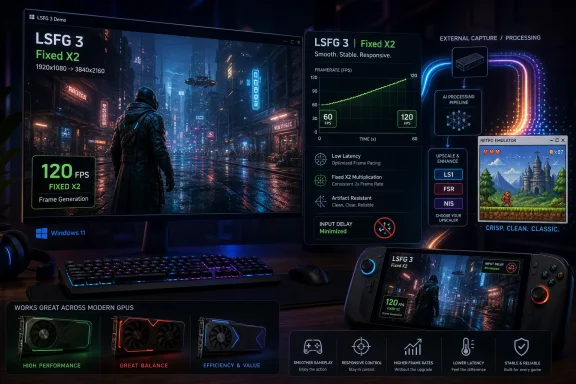
At X2, the math is clean. A 60 FPS base becomes a 120 FPS output. A 45 FPS base becomes 90 FPS. A 30 FPS base becomes 60 FPS, though with visibly more artifacts and more sluggish input than the 60-to-120 case. The lower the base, the more LSFG has to invent between incomplete samples.
Adaptive mode is the more nuanced option. Instead of multiplying by a fixed integer, it targets a desired output frame rate, such as 120 Hz, 165 Hz, or 240 Hz, and varies the multiplier to match. That makes sense on high-refresh monitors where a fixed X2 or X3 lands awkwardly below or above the panel’s actual refresh. It is also where LSFG 3.1’s image-quality work matters most.
Still, the advice for a first profile is simple: Fixed X2, stable cap, modest expectations. If the game already runs near 60 FPS, Lossless Scaling can make it feel dramatically smoother. If the game struggles to reach 30 FPS, the utility can soften the experience, but it cannot repeal the laws of input latency.
For modern 3D games, LS1, AMD FSR, and Nvidia Image Scaling are the obvious starting points. They can let a game render at a lower internal resolution and reconstruct to the display’s native resolution, freeing GPU headroom for LSFG. That is often a better compromise than asking frame generation to operate on a fully loaded GPU.
For retro games and emulators, Integer and xBR exist for a reason. Pixel art responds badly to modern spatial upscalers that assume soft gradients and high-resolution textures. Integer scaling preserves hard edges. xBR smooths old sprites in a way many emulator users prefer. Anime4K, where available, is for line art and flat-shaded content rather than general-purpose games.
Linux and SteamOS complicate the picture. The Steam listing now points users toward the community-driven lsfg-vk project for Linux frame generation, but the Windows app remains the full-featured version. On Steam Deck-style environments, users should expect frame generation to be the main event and should not assume the entire Windows upscaling menu will follow them intact.
That creates a subtle culture clash. For years, tuning guides told users to prefer exclusive fullscreen for performance and latency. Lossless Scaling flips that advice. The correct setup is usually borderless fullscreen, a stable frame cap, and the app’s hotkey applied to the focused window.
The capture API choice also matters. The current Steam description and community guidance point users toward modern capture paths, with DXGI generally the default starting point and Windows Graphics Capture as a fallback when compatibility breaks. This is not glamorous, but it is where many bad experiences begin. If the screen goes black, the hotkey does nothing, or frame pacing becomes erratic, the problem is often capture, not “AI artifacts.”
Sync settings deserve the same caution. Vsync can hide tearing but adds latency. Allowing tearing can reduce lag but looks ugly on displays without variable refresh. On a FreeSync or G-Sync monitor, the cleanest approach is usually to let the display’s VRR system do its job while keeping Lossless Scaling’s own sync path conservative. Once again, the app works best when it is not fighting three other frame-management systems at once.
This is why tools such as RivaTuner Statistics Server remain part of the conversation. A good frame limiter creates a flat frame-time line, not just a smaller number in the corner. In-game caps can work well, and driver-level caps can also be viable, but stacking all three is a classic recipe for pacing chaos.
The monitor determines the target. A 120 Hz panel pairs naturally with a 60 FPS base and X2 generation. A 144 Hz panel can use a 72 FPS base and X2. A 165 Hz panel may be better served by 55 FPS at X3 or by Adaptive mode targeting 165. A 240 Hz panel asks more of the system and should not seduce users into high multipliers unless the base frame rate is already strong.
There is also a thermal argument. Capping a game below the GPU’s maximum reduces heat, fan noise, and power spikes. That saved headroom is not wasted; Lossless Scaling can use it. On handhelds and laptops, this is often the difference between a profile that works for five minutes and one that works for a full battery session.
On a seven- or eight-inch screen, the visual penalties are easier to forgive. A modest base cap around 30 to 40 FPS, Performance Mode enabled, and X2 generation can make a game feel far smoother without asking the APU to render every frame natively. The smaller display hides some artifacts that would be obvious on a large desktop monitor.
SteamOS devices are a more complicated case. Community ports and compatibility layers have made LSFG-style workflows possible outside native Windows, but the experience is not identical to the Windows Steam app. Users should check current project support before assuming a Steam Deck will behave like a ROG Ally running Windows.
The handheld rule is conservative by design: chase consistency, not the biggest multiplier. X2 is enough. Flow scale can come down. Performance Mode should usually be on. The goal is not to turn a handheld into a desktop GPU; it is to make a power-limited 40 FPS experience feel closer to a stable 80.
In practice, it is enthusiast territory. The display path matters. The monitor may need to be connected to the secondary GPU that presents the final image. Windows graphics preferences must direct the game to the primary rendering GPU while Lossless Scaling uses the other device. PCIe bandwidth can become a bottleneck. Driver weirdness can turn a clever setup into an evening of troubleshooting.
For users with a powerful desktop and an idle integrated GPU, it is worth experimenting. For everyone else, Performance Mode and a lower flow scale are the more sensible first steps. The dual-GPU path is fascinating because it shows what external frame generation can become, but it is not required for the app to be useful.
It also hints at a broader future. If frame generation continues moving outside individual games, Windows may need better system-level ways to route rendered frames, interpolation workloads, and display presentation across heterogeneous hardware. Lossless Scaling is solving that problem from user space today, but the shape of the problem is larger than one Steam utility.
LSFG 3’s latency reductions were important, and Tom’s Hardware was right to treat them as a major step. But lower latency is not zero latency. If the base is 60 FPS, the experience can feel excellent in slower single-player games, racing titles, RPGs, strategy games, and emulators. If the base is 30 FPS, the output may look smoother while still feeling heavier under the mouse.
That makes Lossless Scaling a poor fit for ranked competitive shooters. It can be fun in a campaign. It can make traversal and camera motion look much nicer. But in a twitch environment where input timing matters more than perceived smoothness, real frames remain king.
This is not a failure of the app. It is the physics of the method. The best Lossless Scaling users are not the ones who pretend latency does not exist. They are the ones who decide where the trade is worth making.
A disciplined first profile looks almost disappointingly modest. Use borderless mode. Set LSFG 3. Use Fixed X2. Cap the base frame rate to half the display refresh if possible. Leave upscaling off unless you need GPU headroom, then start with LS1, FSR, or NIS for modern games. Use Performance Mode only when the GPU is constrained, and lower flow scale before blaming the app.
Verification is not optional. Lossless Scaling’s counter can show base and generated FPS, but a frame-time graph tells the fuller story. A flat 60-to-120 presentation is better than a noisy 75-to-150 presentation that stutters every few seconds. The eye notices inconsistency faster than it rewards a larger average.
The biggest mistake is treating frame generation as a rescue feature for a game that is already collapsing. It is better understood as an amplifier. Feed it clean timing and it amplifies smoothness. Feed it judder and it manufactures more elaborate judder.
 The Little Steam App Became a Referendum on Vendor Lock-In
For years, frame generation was sold as a premium feature tied to particular graphics cards, particular game engines, and particular marketing partnerships. Nvidia’s DLSS Frame Generation needed recent RTX hardware and explicit game integration. AMD’s FSR 3 widened the hardware tent but still depended on developers adding support. Driver-level alternatives such as AMD Fluid Motion Frames improved coverage, but they remained tied to the vendor’s own stack.Lossless Scaling attacks that model from the outside. It does not need the game’s motion vectors, depth buffer, or engine hooks. It captures the final image coming through Windows, analyzes motion between frames, and synthesizes new ones in between. That makes it less elegant than native frame generation but far more democratic.
The Steam listing now describes Lossless Scaling as an all-in-one gaming utility for LSFG frame generation and scaling, with support for Windows 10 version 2004 or newer and recommended hardware in the RTX 30, Radeon RX 6000, or Intel Arc class. Steam’s public review data shows a Very Positive rating across tens of thousands of reviews, a sign that this is no longer a niche tool passed around emulator forums. It is mainstream enough that PC gamers are now asking not whether external frame generation works, but when it is preferable to the official option.
That distinction matters. Native DLSS or FSR frame generation should still be the first choice when a game supports it well. Engine-provided motion data gives those systems a cleaner view of what is moving, what is occluded, and what the HUD should not smear. Lossless Scaling wins in the gaps: older games, emulators, locked-frame-rate ports, handhelds, and budget PCs where official frame generation is absent or hardware-gated.
LSFG 3 Turned a Clever Hack Into a Serious Tool
The modern story really begins with LSFG 3, which arrived in early 2025 and was covered at the time by Tom’s Hardware as a major latency and performance update. The developer’s release discussion described a new architecture for Lossless Scaling Frame Generation, with lower latency and substantially reduced GPU load compared with LSFG 2. That was the point at which the app’s reputation shifted from “interesting but janky” to “surprisingly usable if configured correctly.”The June 2025-era LSFG 3.1 and later 3.x updates pushed the tool further, especially with Performance Mode. According to the developer’s public notes and community discussion, Performance Mode uses a lighter model intended to reduce frame-generation GPU load, trading a little image quality for much more headroom. That trade is not academic. If the frame generator steals too much GPU time from the game, the “real” frame rate drops, and the generated output gets worse even if the counter looks higher.
This is the paradox of Lossless Scaling: the best generated frames start with the strongest native frames. A shaky 38 FPS base doubled to 76 FPS may look smoother in screenshots and worse in motion. A stable 60 FPS base doubled to 120 FPS is where the app earns its reputation.
That is why the most important Lossless Scaling advice in 2026 is boring. Cap the game. Use borderless mode. Avoid extreme multipliers. Leave GPU headroom. Measure frame time instead of staring at the biggest FPS number. The app has grown more sophisticated, but the fundamentals remain stubbornly mechanical.
The 2x Setting Is the Sweet Spot, Not the Starting Line for Bragging Rights
Lossless Scaling’s Fixed mode can multiply the base frame rate by whole-number factors, and recent versions advertise much higher ceilings than most people should use. The existence of extreme multipliers is technically impressive but practically misleading. A 20x multiplier is a demo feature; the real-world setting most users should care about is X2.At X2, the math is clean. A 60 FPS base becomes a 120 FPS output. A 45 FPS base becomes 90 FPS. A 30 FPS base becomes 60 FPS, though with visibly more artifacts and more sluggish input than the 60-to-120 case. The lower the base, the more LSFG has to invent between incomplete samples.
Adaptive mode is the more nuanced option. Instead of multiplying by a fixed integer, it targets a desired output frame rate, such as 120 Hz, 165 Hz, or 240 Hz, and varies the multiplier to match. That makes sense on high-refresh monitors where a fixed X2 or X3 lands awkwardly below or above the panel’s actual refresh. It is also where LSFG 3.1’s image-quality work matters most.
Still, the advice for a first profile is simple: Fixed X2, stable cap, modest expectations. If the game already runs near 60 FPS, Lossless Scaling can make it feel dramatically smoother. If the game struggles to reach 30 FPS, the utility can soften the experience, but it cannot repeal the laws of input latency.
Upscaling Is the Other Half of the Trick, and It Is Easier to Misuse
Lossless Scaling is not only a frame-generation tool. It began life as a scaling utility, and its upscaling menu remains one of its strengths. The Steam listing calls out algorithms such as LS1, FSR, NIS, Integer, and xBR, each aimed at different kinds of content. The mistake is treating them as interchangeable sharpening filters.For modern 3D games, LS1, AMD FSR, and Nvidia Image Scaling are the obvious starting points. They can let a game render at a lower internal resolution and reconstruct to the display’s native resolution, freeing GPU headroom for LSFG. That is often a better compromise than asking frame generation to operate on a fully loaded GPU.
For retro games and emulators, Integer and xBR exist for a reason. Pixel art responds badly to modern spatial upscalers that assume soft gradients and high-resolution textures. Integer scaling preserves hard edges. xBR smooths old sprites in a way many emulator users prefer. Anime4K, where available, is for line art and flat-shaded content rather than general-purpose games.
Linux and SteamOS complicate the picture. The Steam listing now points users toward the community-driven lsfg-vk project for Linux frame generation, but the Windows app remains the full-featured version. On Steam Deck-style environments, users should expect frame generation to be the main event and should not assume the entire Windows upscaling menu will follow them intact.
Borderless Windowed Mode Is Not a Footnote; It Is the Capture Model
Lossless Scaling’s universality comes from capture, and capture has rules. The app needs the game to be presented through a windowed or borderless path so Windows can expose the frame stream. Exclusive fullscreen, long a sacred setting for latency-sensitive PC gamers, is exactly where this utility is most likely to fail.That creates a subtle culture clash. For years, tuning guides told users to prefer exclusive fullscreen for performance and latency. Lossless Scaling flips that advice. The correct setup is usually borderless fullscreen, a stable frame cap, and the app’s hotkey applied to the focused window.
The capture API choice also matters. The current Steam description and community guidance point users toward modern capture paths, with DXGI generally the default starting point and Windows Graphics Capture as a fallback when compatibility breaks. This is not glamorous, but it is where many bad experiences begin. If the screen goes black, the hotkey does nothing, or frame pacing becomes erratic, the problem is often capture, not “AI artifacts.”
Sync settings deserve the same caution. Vsync can hide tearing but adds latency. Allowing tearing can reduce lag but looks ugly on displays without variable refresh. On a FreeSync or G-Sync monitor, the cleanest approach is usually to let the display’s VRR system do its job while keeping Lossless Scaling’s own sync path conservative. Once again, the app works best when it is not fighting three other frame-management systems at once.
The Frame Cap Is the Difference Between Smooth and Merely High
The most useful 30-minute Lossless Scaling setup begins outside Lossless Scaling. It begins with the base frame-rate cap. If a game bounces between 48 and 72 FPS, the generator receives uneven samples and produces uneven output. If the same game is capped at a rock-solid 60 FPS, X2 generation can land cleanly at 120 FPS.This is why tools such as RivaTuner Statistics Server remain part of the conversation. A good frame limiter creates a flat frame-time line, not just a smaller number in the corner. In-game caps can work well, and driver-level caps can also be viable, but stacking all three is a classic recipe for pacing chaos.
The monitor determines the target. A 120 Hz panel pairs naturally with a 60 FPS base and X2 generation. A 144 Hz panel can use a 72 FPS base and X2. A 165 Hz panel may be better served by 55 FPS at X3 or by Adaptive mode targeting 165. A 240 Hz panel asks more of the system and should not seduce users into high multipliers unless the base frame rate is already strong.
There is also a thermal argument. Capping a game below the GPU’s maximum reduces heat, fan noise, and power spikes. That saved headroom is not wasted; Lossless Scaling can use it. On handhelds and laptops, this is often the difference between a profile that works for five minutes and one that works for a full battery session.
Handheld PCs Are Where the Utility Feels Most Like Cheating
The rise of Windows handhelds has been a gift to Lossless Scaling. Devices such as the ROG Ally, Lenovo Legion Go, MSI Claw, and other APU-powered machines operate under tight power limits. They often live in the awkward space between 30 and 60 FPS, especially at native panel resolution. That is exactly where external frame generation is most attractive.On a seven- or eight-inch screen, the visual penalties are easier to forgive. A modest base cap around 30 to 40 FPS, Performance Mode enabled, and X2 generation can make a game feel far smoother without asking the APU to render every frame natively. The smaller display hides some artifacts that would be obvious on a large desktop monitor.
SteamOS devices are a more complicated case. Community ports and compatibility layers have made LSFG-style workflows possible outside native Windows, but the experience is not identical to the Windows Steam app. Users should check current project support before assuming a Steam Deck will behave like a ROG Ally running Windows.
The handheld rule is conservative by design: chase consistency, not the biggest multiplier. X2 is enough. Flow scale can come down. Performance Mode should usually be on. The goal is not to turn a handheld into a desktop GPU; it is to make a power-limited 40 FPS experience feel closer to a stable 80.
Dual-GPU Frame Generation Is Brilliant, Annoying, and Not for Everyone
One of Lossless Scaling’s most interesting tricks is the ability to move frame generation away from the GPU rendering the game. In a dual-GPU setup, the primary card can render while a secondary GPU handles scaling and interpolation. In theory, this recovers the performance tax that frame generation imposes on a single busy card.In practice, it is enthusiast territory. The display path matters. The monitor may need to be connected to the secondary GPU that presents the final image. Windows graphics preferences must direct the game to the primary rendering GPU while Lossless Scaling uses the other device. PCIe bandwidth can become a bottleneck. Driver weirdness can turn a clever setup into an evening of troubleshooting.
For users with a powerful desktop and an idle integrated GPU, it is worth experimenting. For everyone else, Performance Mode and a lower flow scale are the more sensible first steps. The dual-GPU path is fascinating because it shows what external frame generation can become, but it is not required for the app to be useful.
It also hints at a broader future. If frame generation continues moving outside individual games, Windows may need better system-level ways to route rendered frames, interpolation workloads, and display presentation across heterogeneous hardware. Lossless Scaling is solving that problem from user space today, but the shape of the problem is larger than one Steam utility.
The Latency Debt Never Disappears
The blunt truth is that frame generation always adds latency. A generated frame cannot exist until the system has enough information from real frames to infer it. Native systems can reduce that penalty with engine data and latency-reduction technologies. External systems have less information and therefore less room for miracles.LSFG 3’s latency reductions were important, and Tom’s Hardware was right to treat them as a major step. But lower latency is not zero latency. If the base is 60 FPS, the experience can feel excellent in slower single-player games, racing titles, RPGs, strategy games, and emulators. If the base is 30 FPS, the output may look smoother while still feeling heavier under the mouse.
That makes Lossless Scaling a poor fit for ranked competitive shooters. It can be fun in a campaign. It can make traversal and camera motion look much nicer. But in a twitch environment where input timing matters more than perceived smoothness, real frames remain king.
This is not a failure of the app. It is the physics of the method. The best Lossless Scaling users are not the ones who pretend latency does not exist. They are the ones who decide where the trade is worth making.
The Clean 30-Minute Profile Is Mostly Discipline
The source tutorial from Tech Insider frames Lossless Scaling as a 12-step, 30-minute setup, and that structure is useful because it forces users to slow down. The app’s interface is compact, but the number of interacting variables is large. Capture, sync, frame cap, multiplier, flow scale, upscaler, Performance Mode, VRR, overlays, and game display mode all touch the final result.A disciplined first profile looks almost disappointingly modest. Use borderless mode. Set LSFG 3. Use Fixed X2. Cap the base frame rate to half the display refresh if possible. Leave upscaling off unless you need GPU headroom, then start with LS1, FSR, or NIS for modern games. Use Performance Mode only when the GPU is constrained, and lower flow scale before blaming the app.
Verification is not optional. Lossless Scaling’s counter can show base and generated FPS, but a frame-time graph tells the fuller story. A flat 60-to-120 presentation is better than a noisy 75-to-150 presentation that stutters every few seconds. The eye notices inconsistency faster than it rewards a larger average.
The biggest mistake is treating frame generation as a rescue feature for a game that is already collapsing. It is better understood as an amplifier. Feed it clean timing and it amplifies smoothness. Feed it judder and it manufactures more elaborate judder.
The Real Setup Guide Is a Set of Constraints
Lossless Scaling’s 2026 appeal is easy to summarize, but its best use depends on respecting limits. The app is powerful because it is external. It is imperfect for the same reason.- Lossless Scaling is best used where native DLSS, FSR 3, XeSS-style, or driver-level frame generation is unavailable, unsupported, or hardware-gated.
- A stable base frame rate matters more than an aggressive multiplier, and X2 remains the practical sweet spot for most users.
- Borderless or windowed presentation is mandatory for reliable capture, while exclusive fullscreen remains a common cause of failed hooks.
- Upscaling should be chosen by content type, because modern 3D games, pixel art, emulators, and anime-style video do not benefit from the same algorithm.
- Handheld PCs benefit disproportionately because smaller screens and tight power budgets make the smoothness trade-off easier to justify.
- Competitive games remain the weak case because generated smoothness cannot erase the input-latency debt.
References
- Primary source: tech-insider.org
Published: 2026-07-05T16:20:14.025023
Lossless Scaling: 2x FPS in 12 Steps [2026]
Set up Lossless Scaling in 12 steps to double FPS on any GPU. LSFG 3 frame generation, best settings, dual-GPU & handheld tips for 2026.tech-insider.org - Related coverage: tomshardware.com
Lossless Scaling 3 update touts greatly improved latency and performance — Universal Frame Gen tool boasts 24% reduced latency | Tom's Hardware
LSFG 3 gets an up to 45% GPU load reduction, improved latency, and even an unlocked multiplier featurewww.tomshardware.com - Related coverage: steambase.io
- Related coverage: vaporlens.app
Is Lossless Scaling Worth It? Steam Reviews Analysis | VaporLens
Is Lossless Scaling worth buying? 91% positive Steam reviews. Steam review verdict: Wide game compatibility and performance improvements. Explore Steam review.vaporlens.app