

Love and Deepspace remains a mobile-first game in 2026, but that does not mean Windows players are locked out of its cinematic story scenes, combat, photo features, and daily routines. There is no verified native Windows client, Steam release, or Microsoft Store edition to install directly on a PC. The practical route is to run the official Android build through an Android emulator—and for the current Version 6.0 client, the game’s own guidance specifically recommends the latest MuMuPlayer with Vulkan selected as its GPU rendering mode.
That recommendation matters. Love and Deepspace is not a lightweight 2D mobile title that will run smoothly in any old virtual Android window. It is a storage-heavy, graphically demanding game with real-time 3D rendering, animated story content, combat sequences, photo tools, and frequent large resource downloads. A successful PC setup depends as much on Windows virtualization, GPU drivers, storage, and emulator configuration as it does on the game installation itself.
For most players, the cleanest approach is straightforward: install MuMuPlayer, sign into Google Play, download Love and Deepspace from the official store listing, configure Vulkan, and log in with the same game account used on mobile. The details, however, make the difference between a smooth big-screen experience and crashes, black screens, stalled updates, or a missing save file.
It is important to set expectations correctly before installing anything. Love and Deepspace on PC is still the Android version of the game running inside an emulator. It is not a separate Windows build, and it does not unlock PC-exclusive features, native mouse support, or a Windows-specific graphics engine.
That distinction explains several practical limitations:
That does not mean every PC will automatically perform perfectly in Vulkan mode. Vulkan relies heavily on a functional graphics driver and GPU support. On a properly updated system, it is the intended configuration for this version of Love and Deepspace. If the game refuses to start, shows visual corruption, or crashes during shader-heavy sequences, the first response should be to update the emulator and GPU driver—not immediately download an unknown APK or move to an unsupported Android build.
For Love and Deepspace, that is especially relevant during:
That means a PC that merely opens an emulator is not necessarily a PC that will run the game well.
In practice, leave more room than the stated minimum. Emulators use virtual Android disks, Windows needs temporary space for updates, and the game’s downloaded resources can expand over time.
A safer target is:
If Windows requests permission for virtualization components or security features, read the prompts carefully. The emulator needs access to Windows virtualization technology in order to run Android efficiently.
Install the game from the official Play Store listing. This is preferable to sideloading because it provides normal update handling, app verification, and a more reliable path for future client upgrades.
The first startup can take longer than expected. After a major client update, the game may download several gigabytes of additional content and spend time decompressing files. Do not force-close the emulator during decompression unless it has clearly stopped responding for an extended period.
A sensible baseline for a mid-range PC is:
Do not copy one configuration blindly from a forum post. A four-core allocation may help one system while making another stutter because the CPU has fewer available resources for Windows, antivirus scanning, Discord, browser tabs, or background update services.
Device Settings > Display > Resolution
Begin at a moderate resolution and scale upward only after confirming stable performance. A higher resolution is useful for photos and screenshots, but it is not always the best daily-play setting.
For players using 1440p or 4K displays, the emulator does not need to match the monitor’s native resolution to look good. A lower internal resolution can produce smoother frame pacing and reduce crashes during intensive scenes.
In Windows, this can usually be adjusted through:
Settings > System > Display > Graphics
Add the emulator executable if it is not listed, then select the high-performance graphics preference. NVIDIA Control Panel and AMD Software may also offer application-specific GPU settings.
This step is particularly important on gaming laptops, where Windows may choose the integrated GPU by default to preserve battery life.
To continue an existing account:
Before progressing through tutorials, verify:
The same principle applies on PC:
For custom bindings:
Settings > Quality > Graphics Quality
Select Custom if available, enable Anti-Alias, then raise individual visual options gradually. A high preset may look attractive, but the best setting is the one that maintains consistent responsiveness through story scenes, battle effects, and long play sessions.
The safest update process is:
This approach is safer than uninstalling the entire Android app. Removing the client prematurely can erase local data stored only in the emulator instance.
However, they should be treated as alternatives, not as the primary current recommendation for this game.
Again, treat those figures as a guide rather than a guarantee. Love and Deepspace is especially sensitive to emulator graphics translation and available storage, so successful installation does not guarantee smooth high-quality gameplay.
A guide written for an earlier version can be misleading in several ways:
That makes older “install Android apps natively on Windows 11” tutorials obsolete for new setups. Even if a system still has remnants of the old subsystem environment, it is not the dependable consumer path for installing and maintaining a large live-service game such as Love and Deepspace.
For 2026, use a maintained Android emulator rather than attempting to revive a discontinued Windows Android layer.
Try the following:
Potential causes include:
The solution is usually account selection—not reinstalling the game.
That route is not a substitute for a true native Windows version, and it carries the usual emulator trade-offs: virtualization requirements, substantial storage needs, occasional compatibility quirks, and an Android-style update process. But it is the most direct, current, and supportable method for bringing the full mobile experience to a desktop or laptop.
A well-configured PC can turn Love and Deepspace into a more comfortable large-screen experience without abandoning mobile progress. Keep the emulator current, protect local photos and downloaded resources during major updates, avoid unofficial client downloads, and prioritize stable performance over maximum graphics settings. That combination gives the game the best chance to run smoothly while preserving the account and content players have already built.
That recommendation matters. Love and Deepspace is not a lightweight 2D mobile title that will run smoothly in any old virtual Android window. It is a storage-heavy, graphically demanding game with real-time 3D rendering, animated story content, combat sequences, photo tools, and frequent large resource downloads. A successful PC setup depends as much on Windows virtualization, GPU drivers, storage, and emulator configuration as it does on the game installation itself.
For most players, the cleanest approach is straightforward: install MuMuPlayer, sign into Google Play, download Love and Deepspace from the official store listing, configure Vulkan, and log in with the same game account used on mobile. The details, however, make the difference between a smooth big-screen experience and crashes, black screens, stalled updates, or a missing save file.
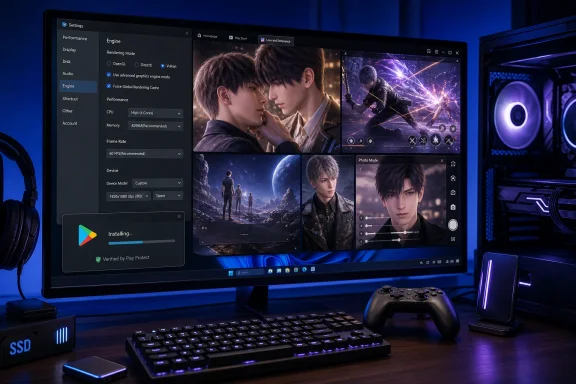 The Current PC Situation: Android Emulation, Not a Native Port
It is important to set expectations correctly before installing anything. Love and Deepspace on PC is still the Android version of the game running inside an emulator. It is not a separate Windows build, and it does not unlock PC-exclusive features, native mouse support, or a Windows-specific graphics engine.That distinction explains several practical limitations:
- The game still uses its Android interface and Android download system.
- Large patches still consume substantial local disk space.
- Updates may require an Android app overlay installation rather than a traditional Windows patch.
- Performance varies with the emulator, graphics API, Windows drivers, and the PC’s hardware.
- Account access follows the login method and game channel—not the emulator installation itself.
Why MuMuPlayer Is the Recommended Windows Route
For Version 6.0, the current official guidance recommends the latest MuMuPlayer as the PC emulator choice. Its key configuration instruction is precise: open the emulator’s device settings, go to Performance, and set GPU Rendering Mode to Vulkan.That does not mean every PC will automatically perform perfectly in Vulkan mode. Vulkan relies heavily on a functional graphics driver and GPU support. On a properly updated system, it is the intended configuration for this version of Love and Deepspace. If the game refuses to start, shows visual corruption, or crashes during shader-heavy sequences, the first response should be to update the emulator and GPU driver—not immediately download an unknown APK or move to an unsupported Android build.
Why Vulkan Matters
Vulkan is a modern graphics API designed to offer lower overhead and more direct control of GPU work than older rendering approaches. In emulator use, it can improve the way demanding mobile games translate graphics tasks to a Windows GPU.For Love and Deepspace, that is especially relevant during:
- Real-time 3D story scenes
- Combat effects and animated cutscenes
- Character interactions and close-up rendering
- High-resolution photo mode sessions
- Major updates that trigger shader compilation or asset processing
What Your Windows PC Needs Before You Begin
Love and Deepspace has a higher baseline than many mobile games. The current recommended Android device profile calls for Android 7.0 or later, 6 GB of RAM or more, and performance comparable to a Dimensity 9000 or Snapdragon 8 Gen 1 class device. An emulator has to recreate that Android environment while Windows continues to run in the background.That means a PC that merely opens an emulator is not necessarily a PC that will run the game well.
A Practical Windows Hardware Target
For a reasonable Love and Deepspace PC experience, aim for the following:- Windows 10 64-bit or Windows 11
- A modern multi-core Intel or AMD processor
- 8 GB of system RAM as a practical minimum
- 16 GB of system RAM preferred if multitasking, streaming, or using multiple browser tabs
- An SSD with substantial free capacity
- A dedicated GPU preferred for high graphics settings
- Updated NVIDIA, AMD, or Intel graphics drivers
- Hardware virtualization enabled in BIOS or UEFI
Storage Is Not Optional
Storage is one of the most common reasons a Love and Deepspace PC installation fails. The Version 6.0 update guidance calls for at least 27 GB of free space to download, install, and run the game smoothly, with several gigabytes of additional resources potentially required after the client update.In practice, leave more room than the stated minimum. Emulators use virtual Android disks, Windows needs temporary space for updates, and the game’s downloaded resources can expand over time.
A safer target is:
- 35 GB to 50 GB of free SSD capacity
- More if the emulator itself, screenshots, recordings, and other Android games share the same drive
How to Install Love and Deepspace on Windows
The safest installation method is to use the official Google Play Store inside the emulator. This avoids the security and compatibility problems associated with unofficial APK downloads, modified clients, or random file-hosting sites.Step 1: Download and Install MuMuPlayer
Install the latest available version of MuMuPlayer on your Windows PC. During setup, allow it to complete its Android environment installation before opening the game store.If Windows requests permission for virtualization components or security features, read the prompts carefully. The emulator needs access to Windows virtualization technology in order to run Android efficiently.
Step 2: Check Windows Virtualization
Before installing the game, confirm that virtualization is active.- Press
Ctrl + Shift + Escto open Task Manager. - Select the Performance tab.
- Click CPU.
- Check the line labeled Virtualization.
- Intel Virtualization Technology
- Intel VT-x
- SVM Mode
- AMD-V
- Virtualization Technology
Step 3: Sign Into Google Play
Open MuMuPlayer and launch Google Play Store from the emulator home screen. Sign in with a Google account, then search for Love and Deepspace.Install the game from the official Play Store listing. This is preferable to sideloading because it provides normal update handling, app verification, and a more reliable path for future client upgrades.
Step 4: Launch the Game Once
Start Love and Deepspace from the MuMuPlayer home screen. Let the initial download, login prompt, and resource checks complete before changing advanced graphics settings.The first startup can take longer than expected. After a major client update, the game may download several gigabytes of additional content and spend time decompressing files. Do not force-close the emulator during decompression unless it has clearly stopped responding for an extended period.
Step 5: Enable Vulkan Rendering
In MuMuPlayer:- Open Device Settings.
- Select Performance.
- Find GPU Rendering Mode.
- Choose Vulkan.
- Restart the emulator if prompted.
Configure MuMuPlayer for Better Performance
The default emulator configuration may work, but demanding games benefit from deliberate resource allocation. The goal is not to assign every available CPU core and every gigabyte of RAM to Android. That can starve Windows and make the entire computer unstable.CPU and RAM Allocation
Start with a balanced profile, then test the game.A sensible baseline for a mid-range PC is:
- 2 to 4 CPU cores
- 2 GB to 4 GB of emulator memory
- Medium or high performance preset, depending on total system RAM
Do not copy one configuration blindly from a forum post. A four-core allocation may help one system while making another stutter because the CPU has fewer available resources for Windows, antivirus scanning, Discord, browser tabs, or background update services.
Resolution and Display Scaling
Love and Deepspace can look excellent on a desktop monitor, but a very high emulator resolution can increase GPU load sharply. If text appears oversized, menus look cramped, or the image is blurry, adjust:Device Settings > Display > Resolution
Begin at a moderate resolution and scale upward only after confirming stable performance. A higher resolution is useful for photos and screenshots, but it is not always the best daily-play setting.
For players using 1440p or 4K displays, the emulator does not need to match the monitor’s native resolution to look good. A lower internal resolution can produce smoother frame pacing and reduce crashes during intensive scenes.
Use the Dedicated GPU When Available
Laptop players should make sure MuMuPlayer is assigned to the discrete NVIDIA or AMD GPU rather than an energy-saving integrated graphics processor.In Windows, this can usually be adjusted through:
Settings > System > Display > Graphics
Add the emulator executable if it is not listed, then select the high-performance graphics preference. NVIDIA Control Panel and AMD Software may also offer application-specific GPU settings.
This step is particularly important on gaming laptops, where Windows may choose the integrated GPU by default to preserve battery life.
Bring Your Existing Mobile Account to PC Safely
Your emulator does not create a separate Love and Deepspace identity. Progress is tied to the game account and its login method, not to a particular phone, tablet, or PC.To continue an existing account:
- Open Love and Deepspace in MuMuPlayer.
- Select the same login route used on the mobile device.
- Sign in to the same account.
- Confirm that the correct character progress, server, and regional client are present before making purchases or beginning new content.
Do Not Accidentally Create a New Account
This is a common point of confusion. A player may open the game on PC, tap through the opening flow, and unknowingly create a fresh profile instead of signing into the existing account.Before progressing through tutorials, verify:
- The login provider matches the original account.
- The same regional or client channel is being used.
- The correct account is selected if multiple sign-in methods are available.
- The displayed player profile and account level match expectations.
Local Photos and Downloaded Data Need Extra Care
A cloud-synced game account is not the same as cloud-synced local files. The Version 6.0 update guidance warns players not to uninstall the old game client before completing an overlay update, because locally stored data—such as photos that have not been uploaded—could be lost.The same principle applies on PC:
- Do not uninstall the emulator casually during an update.
- Do not delete the emulator’s Android instance before verifying account access.
- Back up important screenshots and recordings outside the emulator.
- Use in-game resource management tools where appropriate instead of deleting unknown folders in Windows.
Keyboard, Mouse, and Controller Setup
An emulator gives Windows players flexibility that a phone cannot. Love and Deepspace remains a touch-focused Android game, but MuMuPlayer can translate keyboard, mouse, and gamepad input into Android touch controls.Keyboard and Mouse Controls
Press F12 while Love and Deepspace is running to show or hide the default MuMuPlayer key layout. This is the fastest way to understand the preconfigured controls.For custom bindings:
- Open Keyboard & Mouse Settings in MuMuPlayer.
- Select Create New Scheme.
- Add taps, directional controls, swipes, or repeated actions where they make sense.
- Save the configuration.
- Test it in a low-pressure activity before using it in combat.
Controller Support
A USB or Bluetooth controller can be connected to the PC and configured through MuMuPlayer’s toolbar.- Connect the controller before launching the game where possible.
- Click the emulator’s keyboard or control icon.
- Open the gamepad section.
- Use the available cloud mapping or create custom binds.
- Test analog movement, menus, and combat actions before relying on the profile.
Set In-Game Graphics Without Sacrificing Stability
Once the emulator itself is stable, configure Love and Deepspace from the game’s settings menu:Settings > Quality > Graphics Quality
Select Custom if available, enable Anti-Alias, then raise individual visual options gradually. A high preset may look attractive, but the best setting is the one that maintains consistent responsiveness through story scenes, battle effects, and long play sessions.
A Sensible Graphics Tuning Order
Use this sequence rather than pushing every setting to maximum immediately:- Enable Vulkan in MuMuPlayer.
- Start with a balanced or high in-game graphics profile.
- Enable anti-aliasing.
- Test combat and animated story scenes.
- Increase visual options one at a time.
- Lower resolution or shadows first if frame drops appear.
- Restart the emulator after major changes.
Updating Love and Deepspace on PC
Major Love and Deepspace updates can require more than a routine Play Store patch. Version 6.0 introduced a mandatory client update flow, and its update guidance strongly favors an overlay installation—installing the updated client over the existing one rather than deleting the old client first.The safest update process is:
- Open Love and Deepspace.
- Read the update notification.
- Select Confirm when redirected to Google Play.
- Select Update.
- Keep the existing client installed until the update completes.
- Allow additional in-game resources to download.
- Do not close the game during decompression.
- Launch the game again and verify the account is intact.
This approach is safer than uninstalling the entire Android app. Removing the client prematurely can erase local data stored only in the emulator instance.
BlueStacks and LDPlayer: Valid Alternatives, Not the First Choice
BlueStacks and LDPlayer remain widely used Android emulators, and both can potentially run Love and Deepspace through Google Play. They are reasonable fallback options when MuMuPlayer has a system-specific issue, conflicts with existing software, or performs poorly on a particular PC.However, they should be treated as alternatives, not as the primary current recommendation for this game.
When BlueStacks May Make Sense
BlueStacks can be useful for players who already use it for Android games and prefer its interface, instance manager, or control system. The installation process is familiar:- Install BlueStacks.
- Sign into Google Play.
- Search for Love and Deepspace.
- Install the official Android version.
- Sign into the existing game account.
When LDPlayer May Make Sense
LDPlayer is another viable option for players who need a different emulator engine or want to test compatibility. Its listed recommendations generally emphasize 64-bit Windows, hardware virtualization, modern OpenGL support, an Intel Core i3-8100-class processor or better, a GTX 1050 Ti-class GPU or better, 8 GB of RAM, and sufficient disk space.Again, treat those figures as a guide rather than a guarantee. Love and Deepspace is especially sensitive to emulator graphics translation and available storage, so successful installation does not guarantee smooth high-quality gameplay.
Why Older Emulator Guides Need Caution
Older tutorials may point to NoxPlayer, MEmu, discontinued emulator builds, obsolete rendering modes, or old Love and Deepspace resource requirements. They may still function in some cases, but they are not the preferred route for the current client.A guide written for an earlier version can be misleading in several ways:
- It may recommend a graphics mode no longer preferred.
- It may underestimate required free storage.
- It may assume an older Android compatibility profile.
- It may direct players to outdated APK packages.
- It may not account for Version 6.0 update behavior.
Why Windows Subsystem for Android Is No Longer the Answer
Windows Subsystem for Android and the Amazon Appstore on Windows are no longer a viable mainstream route. Microsoft ended their availability through the Microsoft Store on March 5, 2025.That makes older “install Android apps natively on Windows 11” tutorials obsolete for new setups. Even if a system still has remnants of the old subsystem environment, it is not the dependable consumer path for installing and maintaining a large live-service game such as Love and Deepspace.
For 2026, use a maintained Android emulator rather than attempting to revive a discontinued Windows Android layer.
Troubleshooting Common Love and Deepspace PC Problems
The Game Will Not Start
Check these items in order:- Update MuMuPlayer to its newest version.
- Update Windows.
- Update the GPU driver directly from NVIDIA, AMD, or Intel.
- Verify that virtualization is enabled.
- Confirm Vulkan is selected in MuMuPlayer.
- Restart the emulator, then restart Windows.
- Ensure the system drive and emulator drive both have adequate free space.
Black Screen, Graphical Corruption, or Crashes
These symptoms often point to a graphics driver, Vulkan compatibility, GPU-selection, or resource-allocation issue.Try the following:
- Make sure the emulator is using the dedicated GPU.
- Update the graphics driver.
- Lower emulator resolution.
- Reduce in-game visual settings temporarily.
- Raise the emulator’s performance preset carefully.
- Restart after each major configuration change.
The Emulator Is Slow Even Though the PC Is Powerful
A powerful PC can still run Android emulation poorly if virtualization is disabled or another virtualization platform is conflicting with the emulator.Potential causes include:
- Virtualization disabled in BIOS or UEFI
- Outdated GPU driver
- Hypervisor conflicts
- Antivirus scanning emulator files aggressively
- Too little free SSD space
- The emulator running on integrated graphics
- Excessively high display resolution
- Too many background applications consuming RAM
The Wrong Game Progress Appears
Stop before doing anything further. Return to the login screen and confirm the correct account provider, regional client, and account channel. Creating a new profile in the emulator does not overwrite the existing mobile account, but it can make it appear as if progress disappeared.The solution is usually account selection—not reinstalling the game.
The Best Way to Play Love and Deepspace on Windows
For Windows players in 2026, the answer is clear: use the latest MuMuPlayer, install Love and Deepspace through Google Play, enable Vulkan under Device Settings > Performance, and log in with the same game account used on mobile.That route is not a substitute for a true native Windows version, and it carries the usual emulator trade-offs: virtualization requirements, substantial storage needs, occasional compatibility quirks, and an Android-style update process. But it is the most direct, current, and supportable method for bringing the full mobile experience to a desktop or laptop.
A well-configured PC can turn Love and Deepspace into a more comfortable large-screen experience without abandoning mobile progress. Keep the emulator current, protect local photos and downloaded resources during major updates, avoid unofficial client downloads, and prioritize stable performance over maximum graphics settings. That combination gives the game the best chance to run smoothly while preserving the account and content players have already built.
References
- Primary source: Technobezz
Published: 2026-07-22T20:20:40.775000+00:00
Loading…
www.technobezz.com - Official source: play.google.com
Loading…
play.google.com - Related coverage: mumuplayer.com
Loading…
www.mumuplayer.com - Related coverage: loveanddeepspace.wiki.gg
Loading…
loveanddeepspace.wiki.gg - Related coverage: apkmirror.com
Loading…
www.apkmirror.com - Related coverage: siliconera.com
Loading…
www.siliconera.com