

A sluggish Windows PC is often blamed on the processor, but low CPU usage does not mean the machine is healthy. The more revealing culprit may be memory pressure, especially on Windows 11 systems where 8GB and even 16GB configurations can run out of practical headroom faster than users expect. When RAM fills up, Windows leans on the page file, turning even a fast SSD into a slow substitute for physical memory and leaving the CPU waiting instead of working.
For years, the first stop for diagnosing a slow Windows computer has been Task Manager. Users open the Performance tab, look at CPU usage, and assume that a low number rules out a serious bottleneck. That instinct made sense in the era when single-threaded applications, spinning hard drives, and underpowered processors were the most obvious sources of lag.
Windows has changed, and so have workloads. Modern browsers keep dozens of processes alive, collaboration apps run constantly in the background, game launchers preload services, cloud drives synchronize files, and security tools scan silently. Windows 11 itself also carries more background activity than older versions, particularly on systems tied into Microsoft accounts, Widgets, OneDrive, Teams components, Copilot-era services, and richer telemetry pipelines.
The key misunderstanding is that idle CPU does not equal idle system. A processor can sit at 10 percent while the machine feels frozen because it is waiting for data to arrive from storage. That condition often shows up when physical RAM can no longer hold the active working set of Windows, applications, browser tabs, drivers, and cached data.
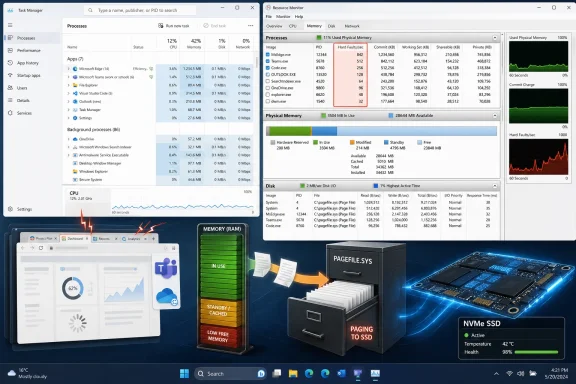
This is why Resource Monitor, not just Task Manager, matters. Task Manager gives a useful dashboard, but Resource Monitor exposes memory behavior in a way that can reveal when Windows is repeatedly fetching data from disk that should ideally have stayed in RAM. The symptom is not always a dramatic crash; it is often the subtle stutter, delayed window switch, slow tab restore, or five-second pause that makes a PC feel older than it really is.
When RAM pressure forces Windows to retrieve memory pages from storage, the CPU spends more time waiting on input/output. This can make the processor look calm while the user experience collapses. In practical terms, the computer is not slow because it lacks arithmetic power; it is slow because the data path has become congested.
That distinction matters for upgrades. Replacing a CPU in this scenario may deliver little benefit, while adding RAM or reducing background memory use may transform the machine. For many Windows 11 users, the bottleneck has moved from raw processor speed to the balance between RAM capacity, SSD responsiveness, and the number of active apps.
Key signs that CPU usage is not telling the full story include:
The MakeUseOf analogy of a desk and cabinet is useful because RAM is the working surface and storage is the filing cabinet. If the desk is full, work can continue, but every trip to the cabinet slows the process. On a PC, that delay is measured in latency, and the gap between RAM and storage remains enormous even with modern NVMe drives.
DDR4 and DDR5 RAM operate at nanosecond-scale latency. Even high-end NVMe SSDs operate at microsecond-scale latency, while SATA SSDs are slower still and mechanical hard drives are dramatically worse. Humans may perceive NVMe storage as fast, but from the CPU’s perspective, paging to disk is a severe delay.
This creates a strange performance profile. The system does not necessarily show a maxed-out CPU, because the processor is stalled while waiting for memory pages to be read back into RAM. Users see a machine that hesitates, skips, and pauses, even though the CPU graph looks reassuringly low.
Important page file realities include:
That naming problem has confused users since the Resource Monitor era began. The word “fault” implies damage, but in operating-system language it means a requested page was not immediately available where the process expected it. The important question is not whether hard faults exist, but whether they are frequent and correlated with visible slowdowns.
Occasional spikes can happen when opening applications, loading large documents, resuming from sleep, or launching a game. Sustained activity during normal use is more concerning. If the system stutters while Hard Faults/sec remains elevated, RAM pressure becomes a strong suspect.
The column to watch is Hard Faults/sec. This number reports how often Windows is retrieving memory pages that are not currently resident in physical RAM. If the PC feels slow while that column spikes or stays elevated, you have a meaningful lead.
A practical diagnostic routine is simple:
The more useful distinction is between available memory, committed memory, standby memory, and hard faults. A system can show little free memory while still behaving normally because cached standby pages are available for reuse. Conversely, a system can show moderate memory use and still stutter if a particular workload is constantly being paged.
A simple interpretation guide looks like this:
Part of the shift comes from Windows 11 itself, but applications deserve just as much attention. Browsers isolate tabs and extensions into separate processes for stability and security. Collaboration suites maintain persistent background services. Game launchers, RGB utilities, VPN clients, password managers, cloud sync tools, and hardware dashboards all claim memory before the user opens anything substantial.
This does not mean every Windows 11 PC needs 32GB. It means 8GB has become restrictive, 16GB is now workload-dependent, and 32GB is the safer target for users who multitask heavily. The experience gap becomes obvious when a browser, video call, Teams or Slack, a few Office documents, and cloud sync are all running together.
Typical real-world pressure points include:
A machine with 8GB RAM and a decent SSD can still feel fine if the workload is restrained. Email, a few browser tabs, a streaming app, and basic documents may not create serious paging. The trouble begins when the user adds video meetings, multiple browser profiles, security suites, photo editing, or modern games.
The risk is worse on laptops with non-upgradeable memory. Many thin-and-light machines ship with soldered RAM, meaning the buyer’s configuration decision is permanent. A 16GB model may be adequate today, but users who keep laptops for five or six years should think carefully before assuming it will remain comfortable.
This is the trap. Because SSDs are fast enough to make paging less catastrophic than it was on hard drives, users may not recognize the problem immediately. Instead of the system grinding loudly and freezing completely, it develops micro-stutters, delayed input, and uneven responsiveness.
On a hard drive, memory pressure can make a PC nearly unusable. On an NVMe SSD, memory pressure can make a powerful PC feel oddly inconsistent. That inconsistency is harder to diagnose because the machine may benchmark well and still feel poor under a realistic workload.
SSD-based paging also has secondary consequences:
This is why older systems often need two upgrades, not one. Replacing an HDD with an SSD is usually the first priority, but adding RAM may still be necessary if the workload exceeds physical memory. Without enough RAM, the SSD upgrade reduces the pain but does not remove the cause.
For WindowsForum readers maintaining older family PCs, school laptops, or office desktops, the lesson is direct. If the system has 8GB RAM and an HDD, storage and memory are both likely contributors. If it has 8GB RAM and an SSD, memory pressure may be the hidden reason it still feels slow.
Thermal throttling is especially deceptive. A laptop may feel fast for five minutes, then slow sharply once heat builds up. Task Manager may show reduced CPU frequency rather than high CPU usage, and the user may misinterpret that as an idle system rather than a heat-limited one.
Storage health is another major suspect. A failing SSD or hard drive can cause pauses that resemble paging. Tools that read SMART data can reveal reallocated sectors, media errors, temperature problems, or wear indicators. On enterprise systems, storage controller drivers and firmware also matter.
Common non-RAM causes to check include:
If a PC is slow only after startup and then settles, the problem may be startup coordination rather than insufficient hardware. Disabling unnecessary startup apps can help. So can uninstalling vendor utilities that duplicate Windows features or run constantly for minimal benefit.
The best test is time-based. If the machine becomes smooth after five to ten minutes and remains smooth, startup activity is likely involved. If it becomes slow again when normal apps are opened and hard faults rise, memory pressure returns to the top of the suspect list.
A typical managed endpoint runs more than the operating system. It may include endpoint detection and response, VPN, device management agents, compliance scanners, data loss prevention, browser isolation, Teams, Outlook, OneDrive, and line-of-business apps. That stack can consume meaningful memory before the employee opens a spreadsheet.
This creates a support-cost problem. A user reporting “my laptop is slow” may not need a reimage, and the CPU may not be defective. The machine may simply have too little physical RAM for the corporate baseline. If memory is soldered, IT has no cheap repair path.
Enterprise teams should consider:
This matters because virtual desktops are often sized conservatively to control cost. Underprovisioning RAM can save money on paper while harming productivity every day. The right metric is not whether the session boots, but whether the assigned memory supports the user’s normal working set.
For administrators, Hard Faults/sec, commit charge, and storage I/O remain relevant. They simply need to be monitored at the guest OS, host, and storage layers. A remote desktop that stutters during browser and Teams use may be telling the same story as a local laptop: the CPU is not the problem.
Browsers are the obvious target. Dozens of tabs, multiple profiles, heavy extensions, and web apps pinned as desktop apps can consume substantial memory. Sleeping tabs help, but they are not magic. A video meeting, a browser with many tabs, and a game launcher can push a modest system into paging quickly.
Good consumer troubleshooting starts with simple cleanup:
The decision depends on workload. A student writing papers and streaming music may be fine with 16GB. A gamer who keeps Discord, a browser, launchers, capture tools, and a modern title open should target 32GB. A creator using Premiere Pro, DaVinci Resolve, Lightroom, virtual instruments, or large project files may need more.
The buying advice for 2026 is straightforward. Avoid new Windows laptops with 8GB of non-upgradeable RAM unless the price is extremely low and the workload is light. Treat 16GB as the entry point for a good mainstream experience. Choose 32GB if you plan to keep the device for years or routinely multitask.
Begin with Task Manager, but do not stop there. Look at CPU, memory, disk, GPU, and startup apps. Then open Resource Monitor and watch the Memory and Disk tabs while the slowdown happens. Correlation matters more than a single snapshot.
A useful sequence is:
The better approach is to reduce persistent load. Remove software you do not use. Stop apps from launching automatically. Keep drivers current, but avoid installing every vendor control suite unless you need it. Let Windows manage the page file unless you have a specific, tested reason not to.
A clean system is not one with zero memory use. A clean system is one where memory is used productively and released when needed. That is the difference between healthy caching and harmful pressure.
Hardware trends will complicate the picture. AI PCs, local model features, richer search, background indexing, and integrated assistants may increase memory expectations even as Microsoft tries to optimize the platform. The result may be a split market: technically supported low-memory PCs on one side, and genuinely comfortable modern Windows PCs on the other.
Watch these areas closely:
The next phase of Windows performance troubleshooting will be less about chasing the fastest processor and more about understanding the full memory hierarchy. RAM, cache, SSDs, the page file, background services, and application design all shape how responsive a PC feels. If Windows 11 is going to remain comfortable on mainstream hardware, users, OEMs, enterprises, and Microsoft all need to treat memory headroom as a first-class performance feature rather than an afterthought.
Source: MakeUseOf Your PC feels slow, but it's probably not your CPU — here's what I checked instead
 Background
For years, the first stop for diagnosing a slow Windows computer has been Task Manager. Users open the Performance tab, look at CPU usage, and assume that a low number rules out a serious bottleneck. That instinct made sense in the era when single-threaded applications, spinning hard drives, and underpowered processors were the most obvious sources of lag.Windows has changed, and so have workloads. Modern browsers keep dozens of processes alive, collaboration apps run constantly in the background, game launchers preload services, cloud drives synchronize files, and security tools scan silently. Windows 11 itself also carries more background activity than older versions, particularly on systems tied into Microsoft accounts, Widgets, OneDrive, Teams components, Copilot-era services, and richer telemetry pipelines.
The key misunderstanding is that idle CPU does not equal idle system. A processor can sit at 10 percent while the machine feels frozen because it is waiting for data to arrive from storage. That condition often shows up when physical RAM can no longer hold the active working set of Windows, applications, browser tabs, drivers, and cached data.
This is why Resource Monitor, not just Task Manager, matters. Task Manager gives a useful dashboard, but Resource Monitor exposes memory behavior in a way that can reveal when Windows is repeatedly fetching data from disk that should ideally have stayed in RAM. The symptom is not always a dramatic crash; it is often the subtle stutter, delayed window switch, slow tab restore, or five-second pause that makes a PC feel older than it really is.
Why CPU Usage Can Mislead You
The processor may be waiting, not struggling
A low CPU number is easy to misread. If the processor is not busy, users assume the system must have spare capacity, but that ignores the difference between compute bottlenecks and data bottlenecks. A CPU cannot process what it cannot quickly access.When RAM pressure forces Windows to retrieve memory pages from storage, the CPU spends more time waiting on input/output. This can make the processor look calm while the user experience collapses. In practical terms, the computer is not slow because it lacks arithmetic power; it is slow because the data path has become congested.
That distinction matters for upgrades. Replacing a CPU in this scenario may deliver little benefit, while adding RAM or reducing background memory use may transform the machine. For many Windows 11 users, the bottleneck has moved from raw processor speed to the balance between RAM capacity, SSD responsiveness, and the number of active apps.
Key signs that CPU usage is not telling the full story include:
- Low CPU usage while apps take several seconds to respond.
- High disk activity during window switching or tab restoration.
- Stutter during multitasking rather than during sustained compute work.
- Browser reloads after switching away from tabs.
- Lag immediately after waking from sleep or resuming a heavy session.
What Happens When RAM Fills Up
The page file is a safety net, not a performance feature
Windows uses a file called pagefile.sys as part of its virtual memory system. When physical RAM cannot hold everything that running software wants to keep available, Windows can move less-active memory pages to storage. This design prevents immediate failure, but it comes with a steep performance cost.The MakeUseOf analogy of a desk and cabinet is useful because RAM is the working surface and storage is the filing cabinet. If the desk is full, work can continue, but every trip to the cabinet slows the process. On a PC, that delay is measured in latency, and the gap between RAM and storage remains enormous even with modern NVMe drives.
DDR4 and DDR5 RAM operate at nanosecond-scale latency. Even high-end NVMe SSDs operate at microsecond-scale latency, while SATA SSDs are slower still and mechanical hard drives are dramatically worse. Humans may perceive NVMe storage as fast, but from the CPU’s perspective, paging to disk is a severe delay.
This creates a strange performance profile. The system does not necessarily show a maxed-out CPU, because the processor is stalled while waiting for memory pages to be read back into RAM. Users see a machine that hesitates, skips, and pauses, even though the CPU graph looks reassuringly low.
Important page file realities include:
- The page file prevents crashes when committed memory exceeds physical RAM.
- Paging is normal in small amounts and does not automatically indicate failure.
- Sustained paging hurts responsiveness, especially during multitasking.
- SSD paging is vastly better than HDD paging, but it is still much slower than RAM.
- Disabling the page file is usually a mistake, because it can reduce stability and break assumptions made by Windows and applications.
Hard faults are not hardware faults
The phrase Hard Faults/sec sounds alarming, but it does not mean defective memory. A hard fault occurs when Windows needs a memory page that is not currently in physical RAM and must retrieve it from disk or another backing store. It is a performance signal, not a diagnosis of bad RAM.That naming problem has confused users since the Resource Monitor era began. The word “fault” implies damage, but in operating-system language it means a requested page was not immediately available where the process expected it. The important question is not whether hard faults exist, but whether they are frequent and correlated with visible slowdowns.
Occasional spikes can happen when opening applications, loading large documents, resuming from sleep, or launching a game. Sustained activity during normal use is more concerning. If the system stutters while Hard Faults/sec remains elevated, RAM pressure becomes a strong suspect.
How to Catch Memory Pressure in Real Time
Resource Monitor gives the better clue
Task Manager is useful, but Resource Monitor is the sharper instrument for this specific problem. You can open it from Task Manager’s Performance tab, from the Start menu by searching for Resource Monitor, or by runningresmon. Once there, the Memory tab shows per-process and system-level memory behavior.The column to watch is Hard Faults/sec. This number reports how often Windows is retrieving memory pages that are not currently resident in physical RAM. If the PC feels slow while that column spikes or stays elevated, you have a meaningful lead.
A practical diagnostic routine is simple:
- Restart the PC and let it settle for several minutes.
- Open your normal workload, including browser tabs, chat apps, documents, launchers, and media tools.
- Wait five minutes so background startup tasks finish.
- Open Resource Monitor and switch to the Memory tab.
- Sort by Hard Faults/sec and watch the numbers while reproducing the slowdown.
Reading the memory map without panic
Windows is designed to use memory aggressively. Low “free” memory is not automatically a problem, because Windows caches data to improve responsiveness and can release standby memory when applications need it. The mistake is assuming that unused RAM is the only safe RAM.The more useful distinction is between available memory, committed memory, standby memory, and hard faults. A system can show little free memory while still behaving normally because cached standby pages are available for reuse. Conversely, a system can show moderate memory use and still stutter if a particular workload is constantly being paged.
A simple interpretation guide looks like this:
- Hard Faults/sec near zero with low disk activity usually means RAM is not the bottleneck.
- Hard Faults/sec rising with disk activity suggests Windows is leaning on storage.
- High committed memory means the system is close to its virtual memory ceiling.
- Low free memory with high standby memory is usually normal caching behavior.
- High hard faults during stutters is the strongest practical sign of RAM pressure.
Why 16GB Feels Different in 2026
The baseline has moved
Not long ago, 16GB of RAM was a comfortable recommendation for mainstream Windows users. It covered browser-heavy work, office apps, light photo editing, streaming, and casual gaming. In 2026, it increasingly feels like the baseline rather than the sweet spot.Part of the shift comes from Windows 11 itself, but applications deserve just as much attention. Browsers isolate tabs and extensions into separate processes for stability and security. Collaboration suites maintain persistent background services. Game launchers, RGB utilities, VPN clients, password managers, cloud sync tools, and hardware dashboards all claim memory before the user opens anything substantial.
This does not mean every Windows 11 PC needs 32GB. It means 8GB has become restrictive, 16GB is now workload-dependent, and 32GB is the safer target for users who multitask heavily. The experience gap becomes obvious when a browser, video call, Teams or Slack, a few Office documents, and cloud sync are all running together.
Typical real-world pressure points include:
- 8GB RAM: acceptable for light browsing and single-purpose use, but easily overwhelmed.
- 16GB RAM: workable for mainstream use, but tight with heavy multitasking or gaming.
- 32GB RAM: increasingly sensible for creators, developers, gamers, and power users.
- 64GB RAM: justified for virtual machines, large media projects, local AI workloads, and serious development.
Minimum requirements are not comfort requirements
Microsoft’s minimum Windows 11 memory requirement is not the same as a good user experience. Minimum specifications define whether the operating system can install and run, not whether it can handle a modern user’s daily workload gracefully. That distinction is especially important for budget laptops sold with 8GB of soldered RAM.A machine with 8GB RAM and a decent SSD can still feel fine if the workload is restrained. Email, a few browser tabs, a streaming app, and basic documents may not create serious paging. The trouble begins when the user adds video meetings, multiple browser profiles, security suites, photo editing, or modern games.
The risk is worse on laptops with non-upgradeable memory. Many thin-and-light machines ship with soldered RAM, meaning the buyer’s configuration decision is permanent. A 16GB model may be adequate today, but users who keep laptops for five or six years should think carefully before assuming it will remain comfortable.
The SSD Is Not a RAM Replacement
Fast storage still loses to memory
Modern NVMe SSDs are extraordinary compared with old hard drives. They boot Windows quickly, launch apps rapidly, and make updates less painful. But SSD speed does not erase the latency gap between storage and RAM.This is the trap. Because SSDs are fast enough to make paging less catastrophic than it was on hard drives, users may not recognize the problem immediately. Instead of the system grinding loudly and freezing completely, it develops micro-stutters, delayed input, and uneven responsiveness.
On a hard drive, memory pressure can make a PC nearly unusable. On an NVMe SSD, memory pressure can make a powerful PC feel oddly inconsistent. That inconsistency is harder to diagnose because the machine may benchmark well and still feel poor under a realistic workload.
SSD-based paging also has secondary consequences:
- Higher write activity can contribute to drive wear over very long periods.
- Disk queues can delay app launches and file operations.
- Thermal limits can reduce SSD performance in cramped laptops.
- Background indexing or sync can compete with paging traffic.
- Low free storage can worsen overall storage behavior and update reliability.
HDD systems suffer the most
If a Windows 11 PC still runs from a mechanical hard drive, RAM pressure becomes far more punishing. Hard drives have millisecond seek times, and random reads are exactly where they struggle. Paging on an HDD can make the entire desktop appear frozen.This is why older systems often need two upgrades, not one. Replacing an HDD with an SSD is usually the first priority, but adding RAM may still be necessary if the workload exceeds physical memory. Without enough RAM, the SSD upgrade reduces the pain but does not remove the cause.
For WindowsForum readers maintaining older family PCs, school laptops, or office desktops, the lesson is direct. If the system has 8GB RAM and an HDD, storage and memory are both likely contributors. If it has 8GB RAM and an SSD, memory pressure may be the hidden reason it still feels slow.
Other Bottlenecks That Mimic RAM Pressure
Slowness has several lookalikes
RAM pressure is overlooked, but it is not the only cause of a slow PC. A good diagnostic process avoids tunnel vision. The same symptoms can come from thermal throttling, storage degradation, driver issues, startup storms, malware scans, network stalls, or failing background services.Thermal throttling is especially deceptive. A laptop may feel fast for five minutes, then slow sharply once heat builds up. Task Manager may show reduced CPU frequency rather than high CPU usage, and the user may misinterpret that as an idle system rather than a heat-limited one.
Storage health is another major suspect. A failing SSD or hard drive can cause pauses that resemble paging. Tools that read SMART data can reveal reallocated sectors, media errors, temperature problems, or wear indicators. On enterprise systems, storage controller drivers and firmware also matter.
Common non-RAM causes to check include:
- Thermal throttling from dust, dried thermal paste, blocked vents, or aggressive laptop firmware.
- Drive health degradation causing retries, timeouts, or slow random access.
- Startup storms from updates, cloud sync, game launchers, and security tools.
- Driver problems after Windows feature updates or OEM utility changes.
- Malware or unwanted software consuming memory, disk, network, or browser resources.
- Network-dependent apps hanging while waiting for cloud services.
The post-boot storm deserves patience
Many users diagnose too early. Windows often becomes busy 10 to 60 seconds after login, not immediately at the desktop. That delay can include Defender scans, Windows Update checks, Store app updates, OneDrive sync, Edge background tasks, OEM services, and hardware control panels.If a PC is slow only after startup and then settles, the problem may be startup coordination rather than insufficient hardware. Disabling unnecessary startup apps can help. So can uninstalling vendor utilities that duplicate Windows features or run constantly for minimal benefit.
The best test is time-based. If the machine becomes smooth after five to ten minutes and remains smooth, startup activity is likely involved. If it becomes slow again when normal apps are opened and hard faults rise, memory pressure returns to the top of the suspect list.
Enterprise Impact: Fleet Hardware Is Being Repriced
The 8GB business laptop is aging badly
For enterprises, the RAM question is not just technical; it is financial. Many organizations bought large fleets of 8GB laptops during the Windows 10 era and early remote-work refresh cycles. Those systems may still meet formal requirements, but they increasingly struggle with real-world Windows 11 workloads.A typical managed endpoint runs more than the operating system. It may include endpoint detection and response, VPN, device management agents, compliance scanners, data loss prevention, browser isolation, Teams, Outlook, OneDrive, and line-of-business apps. That stack can consume meaningful memory before the employee opens a spreadsheet.
This creates a support-cost problem. A user reporting “my laptop is slow” may not need a reimage, and the CPU may not be defective. The machine may simply have too little physical RAM for the corporate baseline. If memory is soldered, IT has no cheap repair path.
Enterprise teams should consider:
- 16GB as the practical minimum for new general-purpose Windows 11 endpoints.
- 32GB for developers, analysts, engineers, and heavy Teams users.
- Memory telemetry through endpoint analytics, not just ticket volume.
- Startup app governance to reduce background waste across fleets.
- Hardware refresh planning that accounts for soldered RAM and longer device lifecycles.
Virtual desktops and cloud PCs change the equation
Virtual desktop infrastructure and Cloud PC deployments do not eliminate memory pressure; they move it. If a virtual machine is assigned too little RAM, users still experience paging, only now the bottleneck may appear inside a remote session. The endpoint may look fine while the hosted desktop struggles.This matters because virtual desktops are often sized conservatively to control cost. Underprovisioning RAM can save money on paper while harming productivity every day. The right metric is not whether the session boots, but whether the assigned memory supports the user’s normal working set.
For administrators, Hard Faults/sec, commit charge, and storage I/O remain relevant. They simply need to be monitored at the guest OS, host, and storage layers. A remote desktop that stutters during browser and Teams use may be telling the same story as a local laptop: the CPU is not the problem.
Consumer Impact: Upgrades, Buying Advice, and Daily Habits
The cheapest fix may be behavioral
For home users, the solution is not always “buy more RAM.” Some slowdowns can be reduced by changing habits and trimming background clutter. The key is to make the system’s active working set smaller, especially on 8GB and 16GB machines.Browsers are the obvious target. Dozens of tabs, multiple profiles, heavy extensions, and web apps pinned as desktop apps can consume substantial memory. Sleeping tabs help, but they are not magic. A video meeting, a browser with many tabs, and a game launcher can push a modest system into paging quickly.
Good consumer troubleshooting starts with simple cleanup:
- Remove unnecessary startup apps from Task Manager.
- Uninstall unused OEM utilities and duplicate updaters.
- Limit browser extensions to those you truly need.
- Use sleeping tabs or bookmarks instead of keeping everything open.
- Restart periodically if memory leaks accumulate over days.
- Keep enough free SSD space for updates, caching, and page file growth.
When an upgrade is the right answer
If Resource Monitor shows sustained hard faults during ordinary work, and the system has upgradeable memory, adding RAM is often the cleanest fix. Moving from 8GB to 16GB can be dramatic. Moving from 16GB to 32GB can make heavy multitasking feel calm again.The decision depends on workload. A student writing papers and streaming music may be fine with 16GB. A gamer who keeps Discord, a browser, launchers, capture tools, and a modern title open should target 32GB. A creator using Premiere Pro, DaVinci Resolve, Lightroom, virtual instruments, or large project files may need more.
The buying advice for 2026 is straightforward. Avoid new Windows laptops with 8GB of non-upgradeable RAM unless the price is extremely low and the workload is light. Treat 16GB as the entry point for a good mainstream experience. Choose 32GB if you plan to keep the device for years or routinely multitask.
A Practical Diagnostic Playbook
Check the slow PC in layers
A disciplined troubleshooting process prevents wasted money. Start with observation, move to measurement, then change one variable at a time. Guessing based on vibes is how users replace the wrong component.Begin with Task Manager, but do not stop there. Look at CPU, memory, disk, GPU, and startup apps. Then open Resource Monitor and watch the Memory and Disk tabs while the slowdown happens. Correlation matters more than a single snapshot.
A useful sequence is:
- Reproduce the slowdown with your normal workload.
- Check CPU frequency and utilization to rule out obvious CPU saturation or throttling.
- Open Resource Monitor and inspect Hard Faults/sec.
- Watch disk activity at the same time, especially pagefile-related traffic.
- Sort processes by memory use and identify the largest consumers.
- Disable startup apps selectively and reboot.
- Retest after five minutes with the same workload.
Do not “optimize” Windows blindly
Memory cleaners, registry boosters, and aggressive debloating scripts often create more problems than they solve. Windows memory management is designed to cache, compress, reclaim, and page based on demand. Forcing memory to look empty can reduce performance rather than improve it.The better approach is to reduce persistent load. Remove software you do not use. Stop apps from launching automatically. Keep drivers current, but avoid installing every vendor control suite unless you need it. Let Windows manage the page file unless you have a specific, tested reason not to.
A clean system is not one with zero memory use. A clean system is one where memory is used productively and released when needed. That is the difference between healthy caching and harmful pressure.
Strengths and Opportunities
The renewed focus on RAM pressure is useful because it gives Windows users a more accurate way to understand everyday sluggishness. Instead of blaming the CPU by default, users can look at Hard Faults/sec, committed memory, disk activity, and workload patterns to identify whether the system is waiting on storage-backed virtual memory.- Better diagnostics help users avoid unnecessary CPU or full-system upgrades.
- Resource Monitor remains a powerful built-in tool that costs nothing.
- RAM upgrades can deliver immediate improvements on compatible desktops and laptops.
- Startup discipline can make older systems more usable without new hardware.
- Enterprise telemetry can reveal fleet-wide underprovisioning before support tickets spike.
- Smarter buying advice can steer consumers away from underpowered, soldered configurations.
- Windows optimization efforts may have more visible impact if Microsoft reduces baseline memory use.
Risks and Concerns
The danger is oversimplifying the lesson into “all slow PCs need more RAM.” Memory pressure is real, but Windows performance remains a system-wide problem involving software, firmware, cooling, storage, drivers, and user behavior. A careful diagnosis protects users from spending money on the wrong fix.- Hard faults can be normal in small bursts and should not be treated as automatic failure.
- Low free memory can be healthy caching, not proof of exhaustion.
- Soldered RAM limits repairability and can shorten the useful life of budget laptops.
- Page file tampering can reduce stability and cause crashes under heavy workloads.
- SSD paging hides symptoms well enough that users may overlook the root cause.
- Enterprise security agents can create unavoidable memory overhead on managed PCs.
- Debloating tools may break Windows features, updates, or supportability.
What to Watch Next
Windows 11 performance work will matter more
Microsoft has signaled renewed attention to Windows 11 responsiveness, memory efficiency, and baseline resource usage. That work matters because the operating system’s idle footprint affects every user, especially those on 8GB and 16GB systems. Even modest reductions in background memory use can delay paging and improve multitasking.Hardware trends will complicate the picture. AI PCs, local model features, richer search, background indexing, and integrated assistants may increase memory expectations even as Microsoft tries to optimize the platform. The result may be a split market: technically supported low-memory PCs on one side, and genuinely comfortable modern Windows PCs on the other.
Watch these areas closely:
- Windows 11 baseline memory usage after major feature updates.
- Copilot and AI feature memory demands on non-Copilot+ and Copilot+ PCs.
- Laptop configurations that continue shipping with non-upgradeable 8GB RAM.
- Browser memory management improvements in Edge, Chrome, and Firefox.
- Enterprise endpoint analytics that track real user experience rather than specs alone.
The next phase of Windows performance troubleshooting will be less about chasing the fastest processor and more about understanding the full memory hierarchy. RAM, cache, SSDs, the page file, background services, and application design all shape how responsive a PC feels. If Windows 11 is going to remain comfortable on mainstream hardware, users, OEMs, enterprises, and Microsoft all need to treat memory headroom as a first-class performance feature rather than an afterthought.
Source: MakeUseOf Your PC feels slow, but it's probably not your CPU — here's what I checked instead
